How to Troubleshoot USB C Monitor Connection
So you plugged in your USB-C cable, expecting that clean single-cable setup and nothing happened. No signal. No desktop on that second screen.
Just you and a blank monitor staring at each other. Learning how to troubleshoot USB-C monitor connection issues starts with understanding one key fact: not every USB-C cable or port can carry video, and assuming they can is where most people get stuck. If you are exploring similar hardware setups, see our detailed guide on how to connect usb c monitor to laptop.
The USB-C connector carries data, power, and video through separate pin configurations negotiated between devices. Under the USB Implementers Forum (USB-IF) spec, DisplayPort Alternate Mode formally enables video signals over those pins. Per DisplayPort 1.4 specifications, that pathway supports up to 32.4 Gbps of bandwidth, enough for 4K at 120 Hz with Display Stream Compression as of 2026.
But only if every link in the chain, your laptop port, your cable, and your monitor, all agree to speak the same protocol.
Quick Answer
Troubleshoot a USB-C monitor connection with a step-by-step workflow. First, confirm your cable supports DisplayPort Alt Mode. Second, verify your laptop port carries video capability. To see how this holds up against alternate models, explore how to use usb c monitor with macbook.
Third, swap cables and ports to isolate the faulty component. Fourth, update your GPU drivers and monitor firmware. Fifth, check your OS display settings for detection issues.
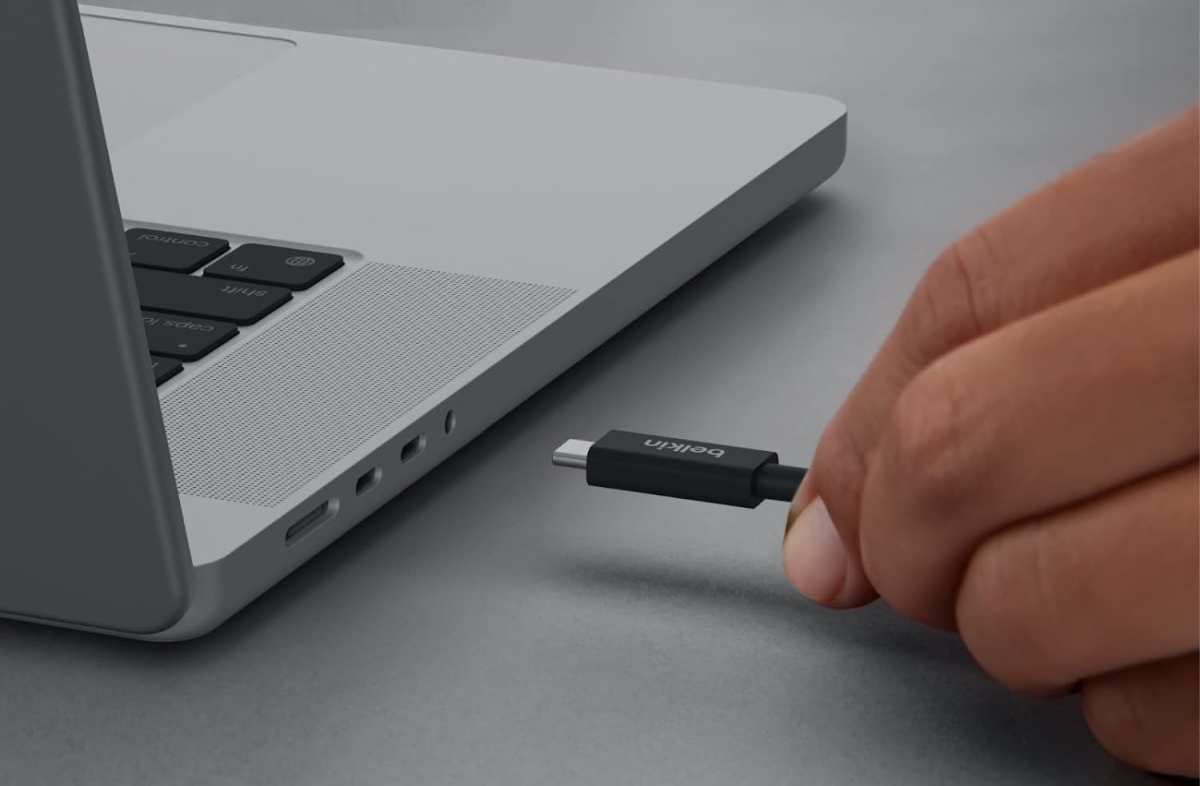
The 60-Second Check: Cable, Port, or Monitor?
Before diving into deep diagnostics, run through this quick checklist. It solves the majority of cases.
- Reseat the cable at both ends. USB-C connectors can feel seated when they're not fully clicked.
- Try a different USB-C input on your monitor if it has more than one.
- Toggle the monitor's input source using its on-screen display (OSD) menu. Sometimes it doesn't auto-switch.
- Restart your laptop with the monitor connected and powered on. This forces a fresh EDID handshake.
- Check if the monitor powers on at all. If not, the issue might be power delivery, not video.
If none of that works, you need to isolate which component is the weak link. That means testing with a second cable, a second device, or a second monitor. The goal is to identify whether your laptop, cable, or monitor is the problem.
What's Actually Happening: How USB-C Video Works
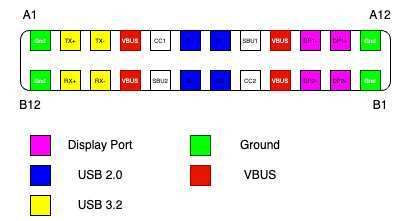
Here's where most troubleshooting guides fall short. They treat USB-C like a plug-and-play universal standard, but video over USB-C is actually a negotiated agreement between two devices using a specific pin configuration.
DisplayPort Alt Mode vs. Thunderbolt vs. USB4
These three protocols all use the USB-C connector, but they handle video very differently.
| Protocol | Max Bandwidth | Video Support | Daisy Chaining | Common Use Case |
|---|---|---|---|---|
| DisplayPort Alt Mode 1.4 | 32.4 Gbps | 4K@120Hz (with DSC) | Yes (MST) | Direct laptop to monitor |
| DisplayPort Alt Mode 2.1 | 80 Gbps (UHBR20) | 8K@60Hz | Yes | High-refresh 4K/5K monitors |
| Thunderbolt 4 | 40 Gbps (min) | 4K@60Hz x2 | Yes | Docks, pro setups |
| Thunderbolt 5 | 80 Gbps | 8K@60Hz | Yes | Flagship laptops, 2025+ |
| USB4 | 40 Gbps (Gen 3) | 4K@60Hz | Depends on impl. | Mid-range laptops |
DisplayPort Alt Mode is the direct video pipe. Your laptop reconfigures its USB-C pins to carry DisplayPort signaling. No conversion, no translation.
That's your most reliable option for direct connection.
Thunderbolt 4 and 5 tunnel DisplayPort data through a high-speed controller. This is how docking stations work. The Thunderbolt chip in your laptop packages the video signal and sends it through the cable, where a controller chip in the dock or monitor unpacks it.
USB4 is essentially Thunderbolt-compatible but not always Thunderbolt-certified. It supports DP tunneling, but implementation varies by manufacturer. Some USB4 ports support Thunderbolt devices; others don't.
Why Your USB-C Port Might Not Support Video
This trips up so many people. Your laptop has multiple USB-C ports, but only some (or none) support video output. That's because DP Alt Mode requires specific pin wiring on the motherboard, and manufacturers don't always wire every port for it.
How to check:
- Look for a DisplayPort icon or lightning bolt icon next to the port. That's a visual indicator, but not every manufacturer labels consistently.
- Check your laptop's technical specification sheet. Search for "external display support" or "DP over USB-C" for your exact model.
- On macOS, go to Apple menu > System Information > Thunderbolt/USB4 to see what's active on each port.
- On Windows, open Device Manager and look under "Display adapters" for your GPU, then check the driver properties for multi-display support details.
If your port doesn't support DP Alt Mode, a USB-C hub with its own DisplayPort output (driven by DisplayLink technology) can serve as a workaround, but that's software-driven video, not native, which can add latency.
Why Your Cable Might Not Carry Video
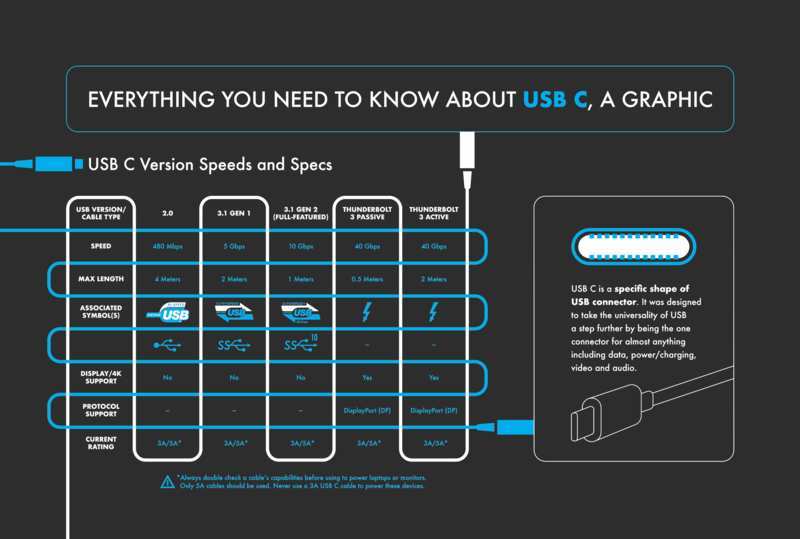
USB-C cables all look the same, but the internal wiring varies dramatically. Here's a breakdown:
- USB-C charging-only cables have power pins wired but no data or video lines. These won't carry a display signal regardless of what you plug into.
- USB-C USB 2.0 data cables carry basic data for peripherals but lack the high-speed differential pairs needed for DP Alt Mode.
- USB-C 3.x cables sometimes share high-speed lanes between data and video, meaning they can carry video only at reduced data speeds, or vice versa, depending on the host's pin assignment.
- Thunderbolt 4 / USB4 certified cables always support DP Alt Mode. The Thunderbolt fork and USB4 fork both require an e-marker chip that declares all capabilities. Cross-certified operation depends on whether the host altar pins are identified.
- DisplayPort Alt Mode certified cables are explicitly rated for video. Some USB-C 3.2 Gen 2 cables support it, but it isn't guaranteed unless the packaging specifies DP Alt Mode or DisplayPort support.
A cable that charges your laptop perfectly might still fail to carry video. That's not a defective cable. It's the wrong cable for the job.
If your monitor shows zero signs of life, check whether your cable specifically supports DP Alt Mode before assuming the port or monitor failed.
For a visual breakdown, look at any USB-C DP Alt Mode pinout article: each of the 24 pins in the connector has assigned roles, and DP Alt Mode reconfigures specific differential pairs to carry video data instead of USB data.
Step-by-Step Troubleshooting Workflow
Now let's walk through the full decision tree. Work through these steps in order. Each one answers a specific diagnostic question before you move to the next.
Step 1: Confirm Your Cable Supports Video
Test with a cable you know works for video, ideally one that previously connected a display successfully. If you're buying new, look for "DP Alt Mode" or "DisplayPort over USB-C" on packaging.
What to look for on the cable or packaging:
- Certified Thunderbolt 4 cable (safe for any video use case)
- USB-IF certified cable rated for "DisplayPort Alt Mode"
- DisplayPort 2.1 / UHBR rated for high-refresh 4K or above
Avoid cables labeled only "USB-C fast charging" or "USB 3.2 Gen 2" without video-specific mentions. They might work, but you're gambling on the pin wiring.
Step 2: Confirm Your Laptop Port Supports DP Alt Mode
This is where many troubleshooting attempts stall, because people keep trying the wrong port. Refer to your laptop manufacturer's tech specs. If you can't find documentation, test another port on the same laptop.
On machines with multiple USB-C ports, typically one is rated for video output.
Some laptops physically mark video-compatible ports with a small DisplayPort symbol. Others bury the info in a spec sheet or support article. Cherry Media Laptops that ship with only one such port, commonly decorated with an EMI shield, will log in System Information under Thunderbolt/USB4.
Step 3: Try the Simplest Fixes First
- Unplug the cable from both ends, wait 10 seconds, reseat firmly.
- Power-cycle the monitor; turn it off, unplug from wall, wait 30 seconds, plug back in.
- Switch to a different input on the monitor's OSD (1>2 or a dedicated USB-C input).
- Plug the USB-C cable into a different USB-C port on your laptop, noting which port supports DP Alt Mode.
- Restart the laptop with the monitor connected. This forces Windows or macOS to run the DP Alt Mode handshake fresh.
These steps often resolve transient handshake failures. Don't underestimate a basic reboot: the video negotiation runs at the firmware level and gets stuck, especially after sleep/wake cycles.
Step 4: Isolate the Problem Component
If simple fixes didn't help, the goal now becomes: hunt down whether the fault is the cable, the monitor, or the laptop. Connect your laptop to a different monitor or TV via USB-C. If that connection works, either your monitor itself has a problem, or the monitor's USB-C input is functioning differently.
Next, try your original monitor with a different source (another laptop or a desktop) using the same cable. If the monitor lights up, the issue is your laptop's port or graphics stack.
At this point you've triaged the problem. Proceed with the failure case below.
| If this works | If that works | The culprit is |
|---|---|---|
| Second monitor with your laptop | Laptop is fine | Your original monitor |
| Second laptop with your monitor | Monitor is fine | Your original laptop's port or GPU driver |
| Nothing works on both combos | Also nothing | The cable |
Step 5: Check Your Operating System Detection
The hardware chain is verified, but your OS still doesn't see the monitor. Dive into the software layer.
On Windows:
- Press Win + P to confirm the display mode (duplicate, extend, second screen alone projector). Cycle through the options.
- Right-click the desktop > Display settings > Detect. Sometimes Windows won't actively poll for a new display.
- Open Device Manager > Display adapters and check your GPU. A yellow warning triangle signals a driver problem.
- Open Device Manager > Monitors. If you see "Generic PnP Monitor" but no specific device, the EDID is at least communicating. If nothing appears under Monitors, the DP negotiation never completed.
On macOS:
- Navigate to Apple menu > System Settings > Displays. On Apple Silicon Macs, external detection is automatic. If the monitor doesn't appear, click "Detect Displays" (or on older macOS Windows, press Option to reveal the "Detect Displays" button).
- Check System Information > Graphics/Displays to see whether the external display appears with its resolution and EDID.
- Boot into safe mode to rule out third-party kexts or configuration conflicts.
Step 6: Update Drivers, Firmware, and BIOS
If everything else checked out, an outdated driver or firmware can prevent the DP Alt Mode handshake from completing.
- GPU driver: Update to the latest official driver from NVIDIA, AMD, or Intel. Don't rely on generic Windows drivers. For laptops, you can often install the driver directly from the GPU OEM.
- Monitor firmware: This is the piece everybody forgets. Check the manufacturer's support page for your monitor model. Brands like Dell, LG, ASUS, and BenQ release firmware updates that fix USB-C compatibility issues. Update via USB stick or a direct USB-A to USB-B cable if available.
- Laptop BIOS/UEFI: Some laptops receive BIOS updates addressing USB-C controller bugs. This is common with Intel's JHL8040 series (Maple Ridge) controllers. Check the manufacturer's support page for your exact model.
- Thunderbolt firmware: On Thunderbolt-based connections, the NVM firmware (firmware for the Thunderbolt controller) often needs updating. Dell and Lenovo ship utilities to patch this without a full BIOS flash. On macOS, Apple updates Thunderbolt firmware automatically via system updates.
Step 7: Look for Deeper Software Issues
Windows power management can cut power to a USB-C port during a low-power state. To stop this, go to Control Panel > Power Options > Change plan settings > Change advanced power settings > USB settings > USB selective suspend. Set to Disabled.
Reboot and check your monitor.
On macOS, SMC and NVRAM resets for Intel Macs can help reinitialize the Thunderbolt/USB4 bus. Shut down, then reset NVRAM by holding Option-Command-P-R after restart. For T2 chip Macs, the SMC equivalent resets by shutting down, holding the power button for 10 seconds, then rebooting.
On Apple Silicon Macs, a simple restart handles these controllers.
If you're running display scaling mismatches, go to your OS display settings and set the second screen to its native resolution first. Incorrect EDID handshakes can blank the screen. Forcing a specific resolution/refresh via Windows' "List All Modes" or macOS's Option-click on Scaled can bypass bad EDID data.
The Most Common Scenarios (and Their Fixes)
Most USB-C monitor problems fall into a handful of patterns. Here's how to recognize and fix each one.
No Signal / Black Screen
Your monitor shows "No Input" or goes to sleep. The laptop seems fine on its own display.
Try this first: Press Win + P on Windows and cycle through the projection modes. Sometimes the OS defaults to "PC screen only" and never switches to extend or duplicate.
If that doesn't help, unplug the USB-C cable from the monitor end (not the laptop end) and reconnect. Some monitors only run the DP Alt Mode detection sequence when the source side connects first. Power cycling the monitor with the cable attached can also force a fresh handshake.
Still nothing? Your cable almost certainly lacks DP Alt Mode support. Swap it for a Thunderbolt 4 certified cable and test again.
Monitor Detected but Wrong Resolution
The display works, but it's stuck at 1024×768 or looks stretched and blurry. This is an EDID communication failure. Your laptop can't read the monitor's supported resolution list properly.
Fix: Go to your GPU control panel (NVIDIA Control Panel, AMD Radeon Software, or Intel Graphics Command Center) and manually set the resolution to the monitor's native spec. On Windows, you can also try Display settings > Advanced display settings > Display adapter properties > List All Modes to force a specific resolution and refresh rate.
On macOS, hold the Option key while clicking Scaled in Display settings to see all available resolutions, including the native one.
Laptop Not Charging Through the Monitor
The display works fine, but your laptop battery keeps draining. This means the USB-C cable is carrying video but not power delivery, or the monitor's PD wattage is too low.
Check your monitor's PD output rating. Many USB-C monitors deliver only 15W to 60W, which is enough for ultrabooks but not for power-hungry laptops. A MacBook Pro 16" needs 140W via its MagSafe charger, and a monitor delivering 60W will charge it slowly or not at all under heavy load.
Solution: Use your laptop's original power adapter alongside the USB-C video cable, or upgrade to a monitor with higher PD output (90W or 100W). Some monitors, like the Dell U3225QE, deliver 100W over USB-C, which covers most professional laptops.
Flickering or Intermittent Display
The image cuts in and out, or the monitor briefly goes black and reconnects. This usually points to a cable quality issue or a loose connection.
Check: Is the cable longer than 2 meters? Passive USB-C cables beyond that length can struggle with DP Alt Mode signal integrity. Try a shorter cable (1 meter or less) or an active retimer cable designed for longer runs.
Also inspect the USB-C port on both devices for debris or bent pins. A single compromised pin can cause intermittent negotiation failures.
Second Monitor in Daisy Chain Not Detected
You're trying to connect two monitors in series using MST (Multi-Stream Transport) through a single USB-C port. The first monitor works, but the second stays dark.
Requirements for daisy chaining:
- Both monitors must support DP Out (MST hub built in). Not all USB-C monitors have this.
- Your laptop's USB-C port must support DP 1.2 or later with MST capability.
- macOS does not support MST daisy chaining. This is a Windows and Linux feature only.
If your monitors support MST but the second display isn't detected, check the first monitor's OSD for an MST enable setting. Some monitors ship with MST disabled by default.
USB Devices Through Monitor Hub Not Recognized
Your keyboard, mouse, or external drive plugged into the monitor's USB hub aren't working, even though the display is fine.
This means the USB data lanes aren't active. Some cables carry video but not USB data. Others carry USB 2.0 data only, which is fine for peripherals but not for storage devices.
Fix: Try a full-featured USB-C cable rated for USB 3.x data and DP Alt Mode simultaneously. Thunderbolt 4 cables always support full data plus video. Also check whether the monitor's upstream USB cable is connected to your laptop separately, as some monitors require a dedicated USB-A to USB-B upstream cable to activate the hub.
USB-C vs. HDMI vs. Thunderbolt: Which Should You Use?
Not every connection type is equal for every situation. Here's a practical comparison.
| Connection | Best For | Max Practical Resolution | Latency | Cable Cost |
|---|---|---|---|---|
| USB-C (DP Alt Mode) | Direct laptop to monitor, single-cable setup | 4K@120Hz (DP 1.4) | Lowest (native) | $10-30 |
| HDMI 2.1 | TV connection, gaming consoles | 4K@120Hz / 8K@60Hz | Low | $8-20 |
| Thunderbolt 4 | Docks, multi-monitor, pro workflows | Dual 4K@60Hz or single 8K | Low (tunneled) | $25-60 |
| USB-C Hub/Dock | Office desks with multiple peripherals | Varies by dock chip | Slight (DisplayLink adds latency) | $50-200 |
Use USB-C DP Alt Mode when you want the simplest, cleanest connection. One cable for video, data, and power. This is the ideal setup for most people with a single external monitor.
Use HDMI when connecting to a TV or a monitor that doesn't have USB-C. HDMI 2.1 handles 4K at 120Hz with VRR, making it great for gaming setups.
Use Thunderbolt when you need a docking station with multiple displays, high-speed storage, and peripherals all through one cable. Thunderbolt 4 docks are the go-to for professional workstations.
Avoid DisplayLink adapters unless you have no other option. DisplayLink uses software compression to push video through a standard USB data connection. It works, but it uses CPU resources and adds latency.
Fine for spreadsheets and email. Not great for video or design work.
Mistakes That Waste Your Time
These are the most common missteps people make when troubleshooting USB-C display issues.
- Assuming all USB-C cables are the same. They're not. A charging-only cable will never carry video, no matter how many times you replug it.
- Using the wrong USB-C port on the laptop. If your laptop has two USB-C ports and only one supports DP Alt Mode, the other one simply can't output video. Check your spec sheet.
- Forgetting to update monitor firmware. This is the fix people skip because it feels unnecessary. But monitor firmware updates frequently address USB-C compatibility bugs. Dell, LG, and ASUS have all released such updates in 2024 and 2025.
- Buying an expensive cable and assuming it works. Price doesn't guarantee DP Alt Mode support. Always check the spec, not the price tag.
- Ignoring the monitor's input source setting. Some monitors don't auto-detect the active input. You may need to manually select the USB-C input from the OSD menu.
- Trying to daisy chain on macOS. Apple doesn't support MST. If you need dual external monitors on a Mac, connect each one separately or use a Thunderbolt dock with dual video outputs.
- Not checking GPU driver updates. An outdated Intel integrated graphics driver is one of the most common causes of USB-C display detection failures on Windows laptops.
When It's Not You — Hardware Faults and Manufacturer Defects
Sometimes the hardware is actually faulty. Here's how to tell.
Signs of a bad cable:
- Intermittent connection when you wiggle the connector
- Works at one angle but not another
- Cable feels unusually thin or light (fewer internal wires)
Signs of a bad port:
- No USB-C cable works in that port, but the port charges fine
- Physical looseness when inserting a cable
- Visible debris, bent pins, or burn marks inside the port
Signs of a monitor hardware issue:
- The monitor works with other sources but never with USB-C from any device
- The OSD shows USB-C input detected but displays no image
- Firmware updates don't resolve the issue
If your monitor is under warranty and USB-C input consistently fails across multiple cables and source devices, contact the manufacturer. Some models have known USB-C controller defects that require board-level repair or replacement. Dell's U-series and LG's UltraFine lines have had documented USB-C compatibility issues resolved through RMA.
Frequently Asked Questions
Can I use a USB-C cable that only charges for video output?
No. Charging-only cables lack the data and video pin wiring needed for DisplayPort Alt Mode. You need a cable explicitly rated for video, such as a Thunderbolt 4 cable or a DP Alt Mode certified cable.
Why does my USB-C monitor work on one laptop but not another?
The second laptop's USB-C port likely doesn't support DP Alt Mode. Not all USB-C ports are wired for video output. Check the second laptop's technical specifications for "external display support over USB-C."
Does USB-C video add latency compared to HDMI?
No. USB-C with DP Alt Mode carries a native DisplayPort signal with no conversion or compression. It has the same latency as a direct DisplayPort connection.
Only DisplayLink adapters (software-driven) add noticeable latency.
Can I daisy chain two USB-C monitors?
Yes, if both monitors support MST (Multi-Stream Transport) via DP Out and your laptop's port supports it. Note that macOS does not support MST daisy chaining. This works on Windows and Linux only.
My monitor charges my laptop slowly. Is something wrong?
Probably not. Most USB-C monitors deliver 15W to 90W of power. If your laptop needs 100W or more, the monitor's PD output won't keep up under heavy load.
Use your laptop's dedicated charger alongside the video cable.
How do I know if my USB-C port supports video?
Look for a DisplayPort or Thunderbolt icon next to the port. If there's no icon, check your laptop manufacturer's spec sheet for "DP over USB-C" or "external display support" details. System Information on macOS and Device Manager on Windows can also confirm active video capabilities.
Final Decision Guide: Your Quick-Reference Cheat Sheet
When your USB-C monitor isn't working, follow this decision tree:
- No signal at all. Check cable (DP Alt Mode support), check port (video capable?), try a different cable, restart with monitor connected.
- Wrong resolution. Force native resolution via GPU control panel. Update GPU drivers. Check EDID communication in display settings.
- No charging. Verify monitor's PD wattage meets your laptop's needs. Use a separate charger if the monitor delivers under 90W.
- Flickering. Shorten cable length. Inspect ports for damage. Try a certified Thunderbolt 4 cable.
- Daisy chain fails. Confirm both monitors support MST. Enable MST in the first monitor's OSD. Remember: macOS doesn't support MST.
- USB hub on monitor not working. Ensure full-featured cable (USB data + video). Check for separate upstream USB cable requirement.
If you've tested with a known-good cable, a known-good source device, and confirmed your port supports DP Alt Mode, and it still doesn't work, the monitor's USB-C board may be defective. Contact the manufacturer for warranty support.

Similar Posts





















