What Size Monitor Is Best for 4K
When you're trying to figure out what size monitor is best for 4K, the honest answer might frustrate you. There's no single magic number. The right size depends entirely on how far you sit from your screen, what you actually do on your computer, and whether you're running macOS or Windows.
Here's what most recommendation articles won't tell you upfront. Picking the wrong 4K monitor size leads to text you can't read, an aching neck from leaning forward, or wasted money on a panel that doesn't suit your workflow. Let's walk through it step by step so you land on the right choice the first time. For more background on real-world performance, read our breakdown of what size touchscreen monitor is best.
Quick Answer
For most people sitting 2.5 to 3.5 feet from their screen, 32 inches is the best 4K monitor size. It hits the sweet spot between readable text at 100% scaling and usable screen real estate. If you use macOS for creative work, 27 inches at 150% scaling often feels sharper and more comfortable.
For 4K gaming on a TV-style setup viewed from 4 feet or more, 42 inches and up works well.
The Real Answer: 4K Monitor Size Depends on How Close You Sit
Here's the thing. A 32-inch 4K monitor and a 27-inch 4K monitor display the exact same number of pixels. All 8.3 million of them. You can also reference our testing on what size mini led monitor should i buy when configuring your display.
The only difference is how big each pixel physically appears on your screen.
That means pixel density, measured in PPI (pixels per inch), is what actually determines how sharp text looks and how easy it is to read at native resolution. And pixel density drops as screen size increases at the same resolution.
Let me put some real numbers on this.
A 27-inch 4K panel packs about 163 PPI. A 32-inch 4K panel drops to around 138 PPI. A 42-inch 4K monitor sits at roughly 105 PPI.
There's a noticeable difference in text crispness between all three, especially if you sit close.
Your viewing distance is what ties this together. Sit two feet from a 32-inch 4K screen and you might notice text feels slightly less razor-sharp compared to a 27-inch at the same distance. But push back to three and a half feet, and that 32-inch panel looks perfect.
The pixels blur together naturally at that range.
So the real question isn't "what's the best size for 4K." It's "what size works for my desk, my eyes, and what I'm actually doing on this thing?"
Why "Just Get 32 Inches" Is Actually Bad Advice
The internet loves simple answers. And 32 inches gets recommended constantly as the "sweet spot" for 4K monitors. But that advice falls apart the moment you look at real-world conditions.
If you sit 24 inches from a 32-inch 4K display and run it at 100% scaling, text will look small. Legible if your vision is sharp, but small. You'll find yourself leaning in during long reading sessions.
That's not comfortable for eight hours of work.
On the flip side, someone who sits four feet back from a deep desk will squint at a 27-inch 4K monitor at 100% scaling and wonder why they spent money on 4K at all. At that distance, the extra sharpness advantage shrinks.
Now factor in operating system scaling. Apple's macOS handles non-integer scaling in ways that can introduce slight blur on 4K panels. Windows has its own scaling quirks, especially in older apps.
Both systems behave differently depending on the physical screen size.
There's also the GPU side of things. 4K gaming at 32 inches demands significantly more graphics horsepower than you might expect, because you're still pushing all those pixels. And productivity at native 4K scaling on a large panel means you're managing a lot of tiny windows.
The point is simple. Context matters more than any blanket recommendation.
The Two Numbers That Actually Determine Your Ideal Size
Before you pick a size, you need to understand two technical concepts. They sound dry, but they'll save you from a buyer's remorse you didn't see coming.
PPI by 4K Monitor Size
Pixel density determines how sharp the image appears at a given viewing distance. Higher PPI means smoother text edges and finer detail. Lower PPI means you can start seeing individual pixels if you get close enough.
Here are the exact PPI values for common 4K monitor sizes.
| Screen Size | Resolution | PPI | Sharpness Class |
|---|---|---|---|
| 24 inches | 3840 × 2160 | ~184 | Extremely sharp |
| 27 inches | 3840 × 2160 | ~163 | Very sharp |
| 32 inches | 3840 × 2160 | ~138 | Sharp |
| 42 inches | 3840 × 2160 | ~105 | Moderate |
| 48 inches | 3840 × 2160 | ~92 | Lower (TV territory) |
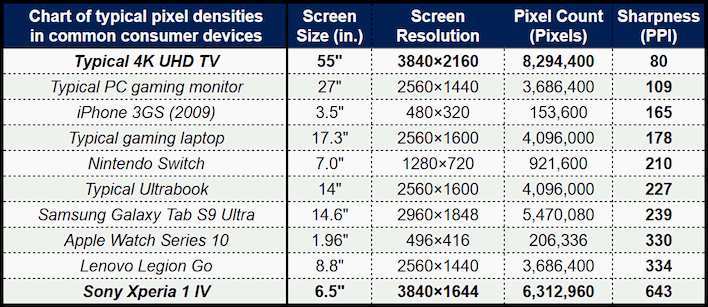
Notice how 24-inch and 32-inch 4K panels have the same PPI. A 27-inch 4K at arm's length looks almost as sharp as a 24-inch at half the distance. Physics is consistent like that.
How Viewing Distance Changes Everything
Your distance from the screen effectively changes the perceived PPI. Push a monitor twice as far away, and those pixels appear half as large. Your eyes can't resolve the individual details anymore.
Here's a rough guide.
- Under 2 feet (laptop-style close): Stick with 27 inches or smaller. Text and UI elements stay readable at reasonable scaling.
- 2 to 3 feet (typical desk setup): 32 inches is the comfort zone. 27 inches works perfectly too, especially with scaling.
- 3 to 4 feet (deep desk or console setup): 32 to 42 inches both work. Text needs scaling at this range regardless.
- Over 4 feet (couch or living room): 42 inches and up becomes the practical range. This is TV-as-monitor territory.
Measure the distance from where your eyes sit to where the monitor will be. A tape measure and 10 seconds will tell you more than any review article.
The Decision Flow: Find Your Best 4K Size in 60 Seconds
Let's make this actionable. Answer three questions and you'll land on your answer.
Step 1: Measure Your Viewing Distance
Grab a tape measure. Sit in your normal working or gaming position. Measure from your eyes to where the monitor screen will be.
Write that number down in inches.
- Under 30 inches: Lean toward 27 inches or smaller.
- 30 to 42 inches: 32 inches is your sweet spot.
- Over 42 inches: 42 inches or larger makes sense.
Step 2: Pick Your Primary Use Case
What will you spend most of your time doing?
- Office work, coding, writing, browsing: Text clarity matters most. Prioritize higher PPI or appropriate scaling. 27 or 32 inches.
- Photo editing, design, video production: Color accuracy and resolution matter, and you want workspace. 32 inches gives you more room to spread out timelines and panels.
- Gaming: Immersion vs. competitive clarity. Single-player games benefit from 32 to 42 inches. Competitive shooters often prefer 27 inches so you can see the whole screen without moving your head.
- Console gaming (PS5, Xbox Series X): You're usually sitting further back. 32 to 42 inches handles this well.
Step 3: Check Your OS Scaling Situation
This one catches people off guard.
- macOS user: macOS looks best at integer scaling or specific scaled resolutions. A 27-inch 4K panel at "Looks like 2560 × 1440" (150% scaling) can appear slightly soft compared to a native 5K display. A 32-inch 4K at "Looks like 1920 × 1080" (200% scaling) gives you exact pixel doubling, which looks crisp. For maximum sharpness on macOS, 32-inch 4K at 200% scaling or a native 5K/6K monitor beats 27-inch 4K for everyday text work.
- Windows user: Windows 11 handles 150% scaling on 27-inch 4K panels reasonably well. 32-inch at 100% or 150% both work depending on your vision. Legacy apps with poor scaling support will appear blurry at non-100% scaling regardless of size.
If you're on macOS and primarily reading text all day, lean 32 inches. If you're on Windows and want a good balance of sharpness and workspace, 27 inches at 150% or 32 inches at 100-150% both work well.
Where Each 4K Monitor Size Actually Wins
Now let's break down each common size and where it excels, where it struggles, and who it's really for.
24-Inch 4K: The Niche Pick
PPI of ~184 makes text look almost impossibly sharp at close range. But effective desktop space at 100% scaling is tight. Everything appears tiny unless you scale up.
- Best for: Competitive gamers who want maximum refresh rates, users with very shallow desks, or secondary displays.
- The catch: At 100% scaling, UI elements are minuscule. At 150% scaling, you lose a lot of the screen real estate that makes 4K appealing over 1440p.
- Honest take: Unless you're a competitive gamer or desk depth is genuinely limited, 27 inches gives you a better 4K experience.
27-Inch 4K: The Popular Default (With a Catch)
This is the size that launched the 4K desktop monitor trend. At typical desk distances, the PPI looks great and the physical footprint fits most setups.
- Best for: General productivity, coding, and Windows users who use 150% scaling comfortably.
- The catch: On macOS, 150% scaling doesn't produce exact pixel doubling. You may notice slightly softer text rendering compared to a 5K display at the same effective resolution. Windows users deal with this less.
- GPU note: Driving a 27-inch 4K display for gaming asks less from your graphics card than larger panels since the pixel count is identical but you're more likely to push higher refresh rates on gaming-focused 27-inch models.
32-Inch 4K: The Productivity Sweet Spot
At normal desk distances, this size feels natural. Text at 100% scaling is readable for most adults. Screen real estate at that scaling is enormous.
- Best for: Creative professionals, multitaskers, macOS users who want pixel-perfect 200% scaling, and anyone who sits 30 to 40 inches from their screen.
- The catch: In a typical shallow desk (24 inches deep), a 32-inch panel can feel large. You might find yourself turning your head more. A monitor arm helps by freeing desk space and letting you push it back.
- Gaming angle: 32-inch 4K monitors with 144Hz+ refresh rates are excellent for single-player gaming. Some people find them too large for fast-paced competitive titles, but personal preference varies.
42-Inch and 48-Inch 4K: The Living Room / Hybrid Contender
At these sizes, you're essentially using a 4K TV as a monitor or sitting at a very deep desk. PPI drops noticeably, which means relying on scaling for text work.
- Best for: Console gaming from a couch, media production where you want a reference display, or deep-desk setups 4+ feet from the screen.
- The catch: You need a big desk or a wall mount. Text clarity at 100% scaling on a 42-inch viewed from 3 feet is noticeably softer than a 32-inch at the same distance. Scaling to 150-175% helps but reduces effective workspace.
- OLED options: Many 42-inch and 48-inch 4K OLED panels exist. They deliver outstanding contrast and HDR for gaming and media. Just make sure you're aware of burn-in risks with static UI elements over long periods.

The Scaling Problem Most People Don't Know They Have
Here's where things get tricky, and where a lot of 4K monitor buyers get surprised after purchase.
Display scaling enlarges UI elements so text and icons remain readable at higher resolutions. But not all scaling is created equal. The implementation matters a lot for everyday sharpness.
macOS Users: Read This Carefully
macOS renders at a virtual resolution then outputs to the panel's native resolution. The "Default for display" option on a 27-inch 4K monitor typically renders at 2560 × 1440 equivalent and upscales to 3840 × 2160. Apple's documentation confirms this is the default behavior for most 4K displays.
This upscaling can introduce subtle softness in text rendering. It's not dramatic, but if you're used to the pixel-perfect sharpness of a Retina display on a MacBook Pro, you'll notice the difference.
Integer scaling solves this. On a 32-inch 4K panel, selecting a scaled resolution that maps to exactly 1920 × 1080 (2x scaling) produces razor-sharp text because every logical pixel maps to exactly 4 physical pixels. The trade-off is that your effective desktop space drops to 1080p equivalent.
Bottom line for macOS: 32-inch 4K at 200% scaling gives you the crispest text. 27-inch 4K works well but won't match a native 5K panel for text clarity.
Windows Users: Your Scaling Isn't Perfect Either
Windows 11 handles 150% scaling on 27-inch 4K panels better than previous versions. Improvements in display scaling arrived with the Windows 10 Creativity Update and have matured since then. Per Microsoft's documentation, Windows uses a different text rendering engine (ClearType) that handles fractional scaling more gracefully than macOS in many cases.
However, legacy applications, especially older Win32 apps, can appear blurry at non-100% scaling. GDI-based applications and some older professional software don't respect system scaling consistently.
If you rely on older software for work, check whether those apps handle scaling properly before committing to a scaling-dependent setup. Running at 100% scaling on a 27-inch 4K panel is sharp but makes some legacy apps nearly unusable due to tiny UI elements.
Bottom line for Windows: 27 inches at 150% scaling works well for modern software. 32 inches at 100% scaling puts you in a sweet spot where text is readable and you get maximum real estate without dealing with scaling-related blurriness.
What Your Graphics Card Needs to Handle
Driving 4K is computationally harder than 1440p or 1080p. The pixel count is 8.3 million at 3840 × 2160. That's four times the pixels of 1080p.
Your GPU has to work four times harder for the same frame rate at higher resolutions.
For Desktop Use and Productivity
Almost any modern GPU handles 4K desktop use. Integrated graphics from AMD's Ryzen 6000 series and newer, and Intel's 12th-gen and newer, support 4K output at 60Hz over HDMI or DisplayPort. Manufacturer specifications confirm integrated graphics on current-generation CPUs handle routine 4K desktop tasks, video playback, and photo editing without issue.
If you're just doing office work, browsing, photo editing, or video playback, you don't need a dedicated GPU for 4K. A modern integrated solution handles it fine.
Multiple displays at 4K can strain integrated graphics. If you're running two or three 4K panels, a discrete GPU becomes worthwhile.
For 4K Gaming
This is where GPU requirements escalate quickly. Pushing 8.3 million pixels at high settings and acceptable frame rates requires serious hardware.
| Performance Target | Recommended GPU (2026) | Notes |
|---|---|---|
| 4K 60 fps, medium settings | RTX 4060 Ti / RX 7700 XT | Entry-level 4K gaming |
| 4K 60 fps, high/ultra settings | RTX 4070 / RX 7800 XT | Comfortable for most titles |
| 4K 120 fps, high settings | RTX 4080 / RX 7900 XTX | Premium gaming experience |
| 4K 144 fps+, ultra settings | RTX 4090 / RTX 5080 | Top-tier, demanding titles |
Aggregate benchmarks from multiple review outlets consistently show that hitting 60 fps at 4K with ray tracing enabled requires at least an RTX 4070-class GPU in modern AAA titles. Upscaling technologies like DLSS and FSR help, but assume base requirements for worst-case scenarios.
Display connectivity matters for 4K high-refresh gaming. You'll want DisplayPort 1.4 with Display Stream Compression or HDMI 2.1 for 4K at 120Hz or above. Check your GPU's output specs and your monitor's input capabilities before buying cables.

4K vs. 1440p vs. Ultrawide: When a Different Resolution Makes More Sense
Sometimes the best answer to "what size for 4K" is "maybe don't go 4K at all." Let's look at when alternatives make more sense for your situation.
4K vs. 1440p at 27 Inches
A 27-inch 1440p panel gives you ~109 PPI. That's perfectly sharp at normal desk distances. You get more screen real estate at 100% scaling than a 27-inch 4K panel at 100% scaling, and you don't need to fuss with scaling settings at all.
A 27-inch 4K panel at 150% scaling gives you the same effective desktop space (~1440p equivalent) with sharper text rendering. The trade-off is potentially slight softness on macOS and higher GPU load for gaming.
Choose 27-inch 1440p if: You want zero scaling headaches, play competitive games and need high frames, or your GPU isn't powerful enough for 4K.
Choose 27-inch 4K if: You prioritize text sharpness, work with high-resolution photos or video, or use Windows and want clean scaling at 150%.
4K at 32 Inches vs. 1440p Ultrawide
A 34-inch ultrawide at 3440 × 1440 gives you extra horizontal space for timelines, spreadsheets, and multi-window workflows. It's roughly 30% more horizontal pixels than 16:9 1440p.
A 32-inch 3840 × 2160 gives you significantly more total pixels (8.3 million vs. 5 million). More vertical space too. Text looks sharper.
Choose ultrawide if: You edit video, manage complex multi-column workflows, or want immersion in racing and simulation games.
Choose 32-inch 4K if: You need a balance of sharpness, vertical space, and compatibility. 16:9 content fills the screen without black bars, and you get more raw pixels everywhere.
Single 4K vs. Dual Monitor Setup
Two 27-inch 1440p monitors give you a combined 2560 × 2880 effective workspace across both panels (with a bezel gap). That's a lot of horizontal room. A single 32-inch 4K at 100% scaling gives you 3840 × 2160 on one seamless screen.
Dual monitors win for: Users who think in separate workspaces (email on one, work on the other) and don't want to manage windows within a single desktop.
Single 4K wins for: Users who want fullscreen applications without bezels in the middle, prefer a cleaner desk setup, or do creative work that benefits from a single large canvas.
Common Mistakes People Make When Buying a 4K Monitor
After reviewing hundreds of buyer feedback patterns, the same mistakes keep showing up. Avoid these.
- Ignoring desk depth: A 32-inch monitor on a 20-inch-deep desk means the screen fills too much of your field of view. You'll end up leaning back or getting eye strain. Match size to distance.
- Buying on resolution alone: 4K on paper doesn't guarantee a good experience. Panel quality, color accuracy, response time, connectivity, and scaling support all matter. A mediocre 4K panel with poor color reproduction frustrates creative work more than a good 1440p display.
- Assuming macOS handles all scaling well: As covered above, non-integer scaling on 4K Mac setups introduces softness. Budget for a 32-inch 4K panel with 200% scaling or consider a native 5K display like Apple's Studio Display during your research phase.
- Skipping the cable check: Not all HDMI cables support 4K at 60Hz, and very few older cables handle 4K at 120Hz. HDMI 2.1 or DisplayPort 1.4 is required for 4K high-refresh.
- Overlooking ergonomics: Large 4K panels often ship with stands that offer limited height adjustment. A quality monitor arm is a worthwhile addition, especially for 32-inch and above setups.
Quick Match: Your Situation Your Size
Here's a summary you can reference as you shop.
| Your Situation | Recommended Size | Why |
|---|---|---|
| macOS on standard desk, text-heavy work | 32 inches | 200% pixel-doubled scaling, crisp text |
| Windows on standard desk, mixed use | 27 or 32 inches | 27" at 150% scaling or 32" at 100% both work |
| Competitive gaming, high refresh | 27 inches | PPI advantage, easier to see full frame |
| Single-player gaming, immersive | 32 inches | Immersion without excessive head turning |
| Console gaming, sitting 4+ feet back | 42 inches | Fills your field of view naturally |
| Video editing with timeline panels | 32 inches | Single screen replacement for dual monitors |
| Shallow desk (under 24 inches deep) | 27 inches | Fits comfortably without overwhelming vision |
| Budget GPU (GTX 1660 / RTX 3050) | 27 inches 1440p instead | Consider skipping 4K if GPU can't drive it |
So What Should You Actually Buy?
If you've made it this far, you know the answer is situational. But most people want a direct recommendation, so here it is.
For the majority of people with a standard desk, sitting 2.5 to 3.5 feet from their screen, using a mix of productivity and entertainment: get a 32-inch 4K monitor. Sharpness is excellent at typical distances, text works at 100% scaling without squinting, and if you use macOS, 200% scaling gives you crisp pixel-perfect text with plenty of 1080p-equivalent workspace.
If you're primarily a gamer focused on competitive titles, sit close to the screen, or want the absolute highest PPI for your money: 27 inches is your sweet spot.
If you're on a couch with a console or want a living room hybrid setup: step up to 42 inches or larger and lean on scaling.
The wrong size won't break anything. But the right size changes how comfortable your screen feels after a full day of use. Take five minutes tonight to measure your desk depth and eye-to-screen distance.
That one measurement narrows the field more than any spec sheet will.
Frequently Asked Questions
Is 27 inches too small for 4K?
Not at all. At typical desk distances, 27 inches at 4K offers around 163 PPI, which looks sharp and detailed. Windows users at 150% scaling get a comfortable experience. macOS users should be aware of slight softness from non-integer scaling.
Is 32 inches too big for a desk desk?
A 32-inch monitor fits comfortably on desks 28 inches deep or more at normal viewing distances. If your desk is 24 inches deep, a monitor arm provides extra set-back and makes the size feel more natural.
Does 4K look better than 1440p on a 27-inch monitor?
Absolutely. The jump from 1440p to 4K at 27 inches roughly doubles the pixel count. Text appears sharper and images show more detail more clearly.
The difference is visible at normal working distances.
Can I use a 4K TV as a computer monitor?
Yes, but there are caveats. A 4K TV at 42 inches or larger requires scaling for text work and may have higher input lag than a dedicated monitor. Modern 4K OLED TVs with HDMI 2.1 support have improved considerably for mixed use.
How far should I sit from a 32-inch 4K monitor?
Typically around 2.5 to 3.5 feet for comfortable use. This keeps text legible at 100% scaling and lets you see the full screen without excessive head movement. Personal comfort varies.
Do I need a powerful GPU for a 4K monitor?
For general productivity, no. Modern integrated graphics handle 4K desktop tasks. For 4K gaming, you'll want at least an RTX 4070 or RX 7800 XT to maintain 60 fps at high settings in most titles.

Similar Posts





















