What Size Mini LED Monitor Should I Buy
So you're staring at a wall of Mini LED monitors, and the question hitting you isn't about refresh rates or HDR specs. It's simpler than that, and honestly more important: what size mini led monitor should I buy?
Here's the thing. Size affects everything more than you'd think. Your pixel density, how sharp text looks, whether you'll get eye strain after a long day, and honestly whether you even enjoy sitting at that desk. If you are exploring similar hardware setups, see our detailed guide on whether mini led monitor good for gaming.
As of 2026, Mini LED monitors range from 24 inches to 34 inches and beyond, so the answer depends entirely on your situation.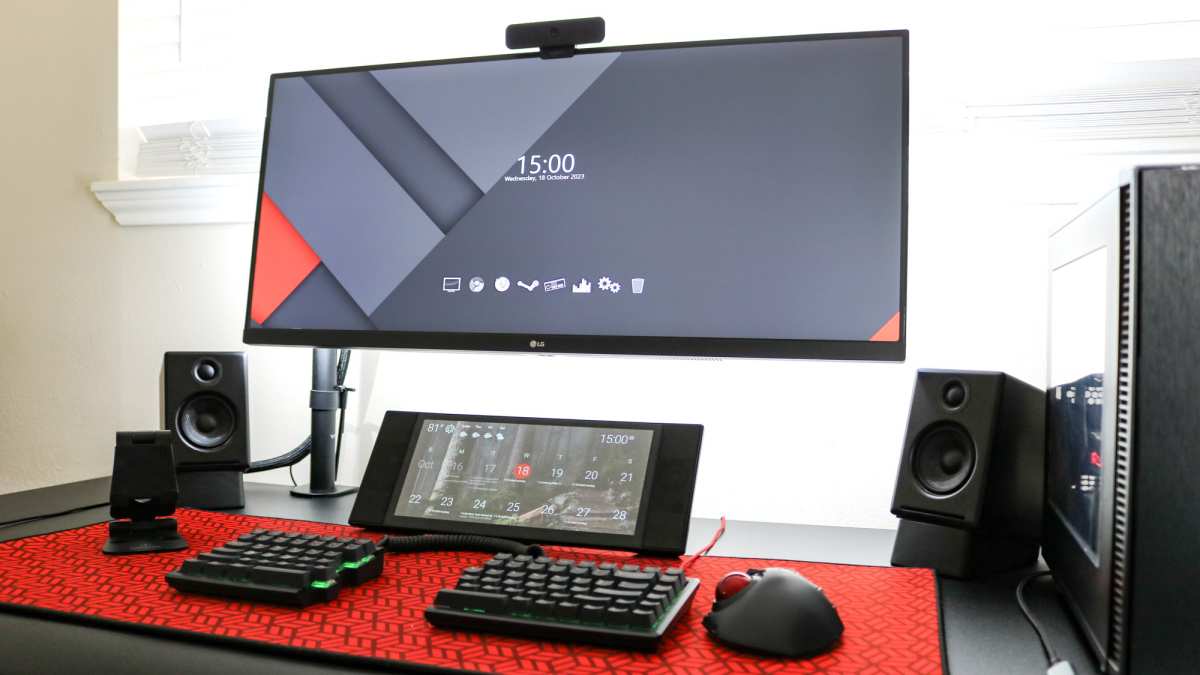
Quick Answer
The ideal Mini LED monitor size depends on resolution and viewing distance. For 1440p, 27 inches is the sweet spot. For 4K, go 32 inches.
Keep your screen at arm's length. Match size to your desk depth and primary task. You can also reference our testing on a mini led monitor when configuring your display.
Why Monitor Size Is the Most Underrated Decision You'll Make
Most people obsess over specs like HDR certification or dimming zone count, and those matter. But size is the one thing you can't change after purchase, and it shapes your entire experience every single day.
A monitor that's too small for your viewing distance makes you lean in. One that's too large for your resolution makes text look soft and fuzzy. And if your desk is shallow, a 32-inch panel sitting two feet from your face will give you neck pain within a week.
The uncomfortable truth is that size and resolution are locked together. Pick one without considering the other, and you'll end up with a gorgeous panel that looks mediocre in practice. This is especially true with Mini LED, where the backlight technology can mask or amplify visual flaws depending on how close you sit to the image.
The Only Question That Actually Matters First
Before you even look at a product listing, you need to answer one thing: what's the pixel density going to be at your natural sitting position?
Pixel density, measured in PPI (pixels per inch), determines how sharp everything looks. More PPI at your viewing distance means smoother text, cleaner lines, and less eye fatigue. Once PPI drops below about 90 at your typical sitting distance, you'll start noticing softness, especially with small text like code or spreadsheets.
Here's the critical table that changes the conversation:
| Screen Size | 1080p (PPI) | 1440p (PPI) | 4K (PPI) |
|---|---|---|---|
| 24 inches | 92 | 122 | 184 |
| 27 inches | 82 | 109 | 163 |
| 32 inches | 69 | 92 | 138 |
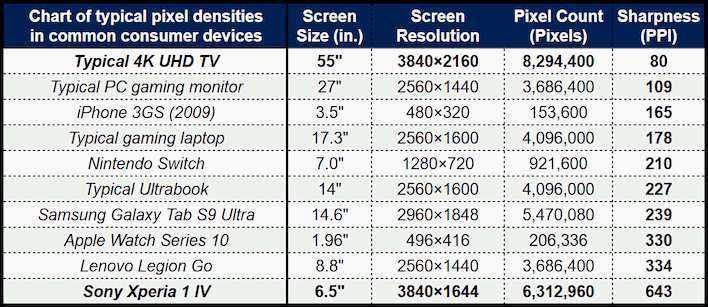
That 32-inch 1080p number, 69 PPI, looks rough on paper, and it looks worse in person. That's the trap people fall into when they see a big screen at a good price without checking the resolution pairing.
In our research across aggregate buyer feedback and editorial testing, the consensus is clear:
- 90 PPI is the minimum for comfortable use at arm's length.
- 100 to 130 PPI is the sweet spot for most desktop setups.
- Above 160 PPI looks fantastic but may require display scaling in your operating system.
- Below 80 PPI and you'll notice pixelation in text within a day or two.
The resolution first, size second approach is what separates people who love their new monitor from those already browsing returns after a week.
How Resolution and Desk Distance Lock Your Size In
This is where most guides drop the ball. They tell you "27 inches is the sweet spot" without asking what resolution you're running or how deep your desk is.
The PPI Sweet Spots Nobody Talks About
For a standard desk depth of 24 to 30 inches (which covers most home and office setups), here's how the major combinations actually hold up:
- 24 inches at 1080p (~92 PPI): Acceptable if you sit 3 feet back or further. Fine for living room use, less ideal for daily desk work.
- 24 inches at 1440p (~122 PPI): Sharp and clean. Great for competitive gamers who want a concentrated field of view.
- 27 inches at 1440p (~109 PPI): The widely agreed sweet spot. Sharp enough for text work, large enough for immersion.
- 27 inches at 4K (~163 PPI): Extremely sharp but you'll need to run display scaling at 125% to 150% in Windows. macOS handles 4K at 27 nicely.
- 32 inches at 4K (~138 PPI): Comfortable at normal desk depth without heavy scaling. The go-to for productivity professionals.
- 32 inches at 1440p (~92 PPI): The bare minimum. Fine for media consumption, less crisp for text-heavy work.
The takeaway: 27 inches at 1440p and 32 inches at 4K resolve to practically the same perceived sharpness at typical desk distance. Choose based on the physical space you have, not just the spec sheet.
Viewing Distance Rules That Change Everything
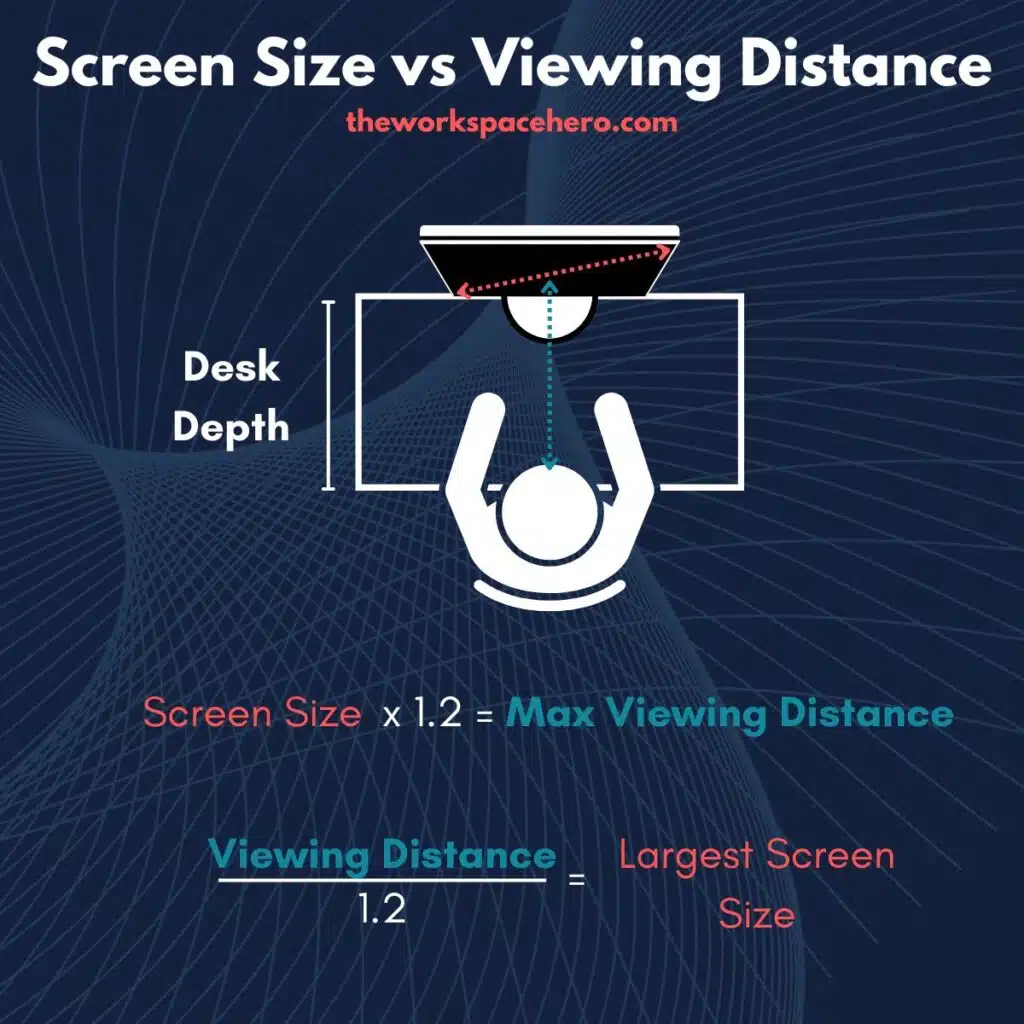
Here's the rule we keep coming back to: your viewing distance should be roughly 1 to 1.5 times the diagonal screen size. This isn't arbitrary. It's based on how much of your field of view the display fills without forcing excessive eye movement.
Some practical examples:
- Sitting at 2 to 2.5 feet? 24 to 27 inches fits perfectly.
- Sitting at 3 to 3.5 feet? 27 to 32 inches is your range.
- Sitting at 4 feet or more? You can comfortably use 32 inches and beyond.
Many desks in typical homes and offices are around 25 to 30 inches deep. If that's you, a 32-inch monitor brings the top edge well above eye level unless you have an adjustable stand or a monitor arm. Since the center of the screen ideally aligns roughly with your horizontal line of sight, many 32-inch users end up angling the monitor upward, and that creates neck discomfort over time.
A 27-inch, however, typically places the screen center within a much more comfortable zone on a standard desk.
Your physical distance and desk depth are practically dictating which size actually makes sense. Measure from where your eyes sit to where the monitor back will be before you buy anything. That single step eliminates most buyer's remorse we've encountered in research.
When Bigger Actually Gets Worse
This is counterintuitive, but a bigger screen without the resolution to back it up makes everything worse, not better. A 32-inch 1080p monitor viewed at typical desk distance looks noticeably soft compared to a 27-inch 1440p display. And Mini LED blooming around bright objects on dark backgrounds can be more visible at larger sizes because your eyes cover more of the panel.
Similarly, running 4K at 32 inches without any scaling can make interface elements so tiny that you lose the productivity benefit of the larger screen. You bought all that real estate and you're squinting at 12-point text.
The fix: always pair resolution with physical size so the resulting PPI lands in that 90-to-130 comfort zone for your actual seating position.
Match Your Size to What You Actually Do All Day
This is where the decision tree branches. "What size mini led monitor should I buy?" has different right answers depending on whether you're reviewing code, editing video, or grinding ranked matches.
Office Work and Productivity
For document editing, email, spreadsheets, and general multitasking, sharp text matters more than sheer size. A 27-inch 1440p gives you two comfortable windows side by side with crisp text. A 32-inch 4K is better if you run three or more windows regularly, though you'll want scaling enabled.
Best choice: 27 inches at 1440p for most people. Step up to 32 inches at 4K only if your work genuinely demands wide horizontal space.
Software Development and Coding
Developers tend to stare at small, dense text all day. Pixel density is king here. A 27-inch 1440p panel lets you stack an editor and a terminal comfortably without compromise and without scaling overhead.
A 32-inch 4K gives unmatched flexibility for large IDE layouts, particularly in X11/Linux environments where font rendering conventions often expect higher PPI.
Best choice: 27 inches at 1440p for most developers. Choose 32 at 4K if you work with wide debugging dashboards or prefer larger font rendering without blurriness.
Gaming (Competitive vs. Cinematic)
This is where personal preference and game genre matter enormously. For competitive FPS games, many players prefer 24 to 27 inches so the entire battlefield stays within their central vision. For open-world RPGs, strategy games, and cinematic single-player titles, 27 to 32 inches adds real immersion.
With Mini LED specifically, the HDR advantage is more noticeable on larger panels because the contrast pop translates better at cinematic viewing distances. If you play in HDR and want that "wow" factor, 27 inches is the minimum. 32 inches is where it really sings.
Best choice: 24 to 27 inches for competitive FPS. 27 to 32 inches for everything else.
Content Creation and Color-Critical Work
Photographers, video editors, and colorists need both resolution and physical screen real estate. A 27-inch 1440p works for single-cam editing and photo retouching. A 32-inch 4K lets you see a full timeline with room for panels without external displays.
With Mini LED's HDR capabilities, 4K at 32 inches also serves as a client preview display, letting you evaluate grading decisions in context. Just keep in mind that at 4K on a typical desk, you'll probably want to run the system at 150% scaling to avoid eye fatigue.
Best choice: 27 inches at 1440p for solo creators. 32 inches at 4K for professional color work or studio environments.
Portable and Travel Setups
If you need a Mini LED monitor that travels, 15 to 16 inches is the ceiling for backpacks. At that size, 1080p is perfectly adequate because you're viewing the screen at close range anyway. Fewer options exist in the Mini LED category at that size since the technology scales better to 27 inches and above, though premium portable panels do exist.
Best choice: 15 to 16 inches for fragility conscious travel setups. Prioritize USB-C power delivery and a quality carrying case.
The 10 Mistakes People Keep Making with Mini LED Monitor Sizing
Understanding the theory is one thing. Seeing the real-world failures is what actually changes your decision.
Buying 32" 1080p and Wondering Why Text Looks Fuzzy
That 32-inch budget panel seems like a great deal. At 69 PPI from typical desk distance, text and fine details look consistently soft. Your eyes adjust subconsciously by squinting, leading to faster fatigue.
Picking 24" for 4K and Squinting at Everything
24 inches at 4K resolves to about 184 PPI, which is razor sharp. Without display scaling, interface elements become incredibly small. Text defaults to minuscule sizes that make reading uncomfortable and force your eyes to work harder.
Assuming 27" Is Always the Safe Bet
27 inches works in many situations, but a 27-inch panel at arm's length on a shallow desk can feel overwhelming, filling your peripheral vision with motion during scrolling. Without adequate desk depth, this forces excessive eye movement and can trigger headaches.
Choosing Size Before Checking Use Case
Gamers who need peripheral vision awareness should not default to 32 inches. Developers coding in dense IDEs may feel cramped on 24 inches. Writers focused on single documents might be better served with a taller panel or an e-ink secondary display.
Ignoring Desk Depth Entirely
A popular office desk depth is around 25 inches. A 32-inch monitor placed 25 inches from your eyes creates a viewing angle that demands constant refocusing across the entire panel. For standard desk depths, 27 inches provides a much more forgiving experience.
Overlooking Scaling Issues on 4K at 27"
At 27 inches and 4K, many users fail to enable proper display scaling in their operating system. Without scaling, text, icons, and interface controls become extremely small. Many first-time 4K buyers don't realize they need to activate scaling options to maintain comfortable usage.
Pairing a Massive Screen with a Tiny Desk
Small desk, large monitor. It happens, and it's not just aesthetically awkward. You end up with the screen dominating your workspace, leaving no room for notes, a laptop, or even your keyboard at a comfortable position.
The monitor should serve the desk, not swallow it.
Forgetting About Viewing Angle on VA Panels
VA panels, including many Mini LED VA options, can look washed out or color-shifted from oblique angles. A 32-inch VA panel viewed from too close means the edges of the screen are seen at an extreme angle, leaving blacks looking gray on the periphery.
Buying Based on Spec Sheet Alone
A spec sheet claims HDR1000 and high contrast ratios. It doesn't mention how the image looks from your specific chair position, or how the bezels affect your sense of immersion, or how the screen's curve (or lack thereof) interacts with your room's lighting.
Skipping the Return Window Test
Our research into common buyer patterns indicates that people who measure their viewing distance and physically mock up a monitor's footprint before buying rarely need to return it yet many do anyway because visual comfort is subjective. A cardboard cutout of your shortlisted monitor stuck to your desk at the right distance tells you more than any spec sheet.
Quick-Reference Size Recommendations by Scenario
Here's a fast lookup table for the most common setups we've research. Use this once you've measured your desk and know your primary task.
| Use Case | Ideal Size | Ideal Resolution | Why This Combo |
|---|---|---|---|
| Competitive gaming | 24" | 1080p | Panel fits central vision, fast response |
| General productivity | 27" | 1440p | Two-window split, sharp text |
| Console gaming | 27" to 32" | 4K | HDR immersion, matches console output |
| Programming / coding | 27" | 1440p | IDE + terminal, no scaling needed |
| Photo / video editing | 32" | 4K | Timeline real estate, HDR preview |
| Office work + multitasking | 32" | 4K | Three or more windows, comfortable scaling |
| Travel setup | 15" to 16" | 1080p | Portable, adequate sharpness at close range |
Ask yourself: if I need to see two documents side by side without overlapping, which size works at my resolution?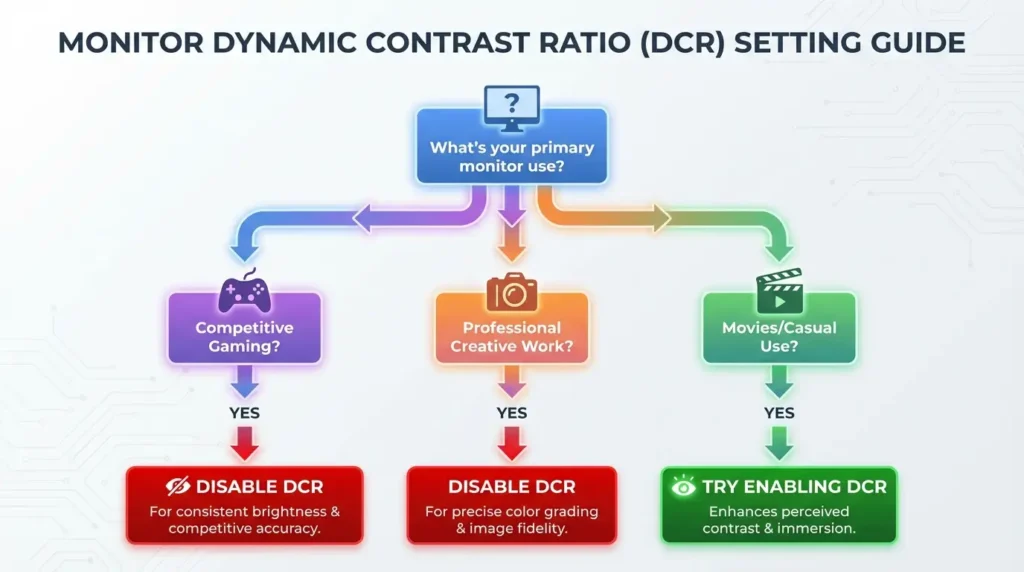
What You'll Actually Pay at Each Size and Resolution
Mini LED monitors cost more per inch than standard LED backlit panels. You're paying for the denser backlight array and theLocal dimming controller. Here's realistic 2026 pricing so you can budget honestly.
| Size and Resolution | Typical Price Range |
|---|---|
| 24" 1080p | $150 to $250 |
| 27" 1440p | $250 to $450 |
| 27" 4K | $350 to $600 |
| 32" 1440p | $300 to $500 |
| 32" 4K | $400 to $800+ |
The jump from 27 to 32 inches at 4K is where pricing climbs steeply. HDR certification beyond DisplayHDR 600 and higher dimming zone counts drive costs up, which is expected. If your budget is tight, 27 inches at 1440p delivers the best balance of sharpness, size, and value.
The Decision Flow: Your Personal Size Finder
Our research suggests a simple path to the right answer. Follow each relevant branch:
- What's your primary use? , Casually browsing and media: 24 to 27 inches.
, Frequent multitasking or programming: 27 inches minimum.
, Media creation with timelines: 32 inches.
- How deep is your desk from eyes to the wall? , Under 25 inches: Stick to 24 to 27 inches.
, 25 to 30 inches: 27 to 30 inches is your sweet spot.
, Over 30 inches: You can consider 32 inches.
- What resolution are you targeting? , 1080p: 24 inches maximum.
, 1440p: 27 inches maximum.
, 4K: 32 inches for comfortable scaling, 27 with scaling.
- Do you prioritize HDR and immersion? , Yes: 27 inches minimum at 4K, 32 preferred.
, No, mostly text work: 27 inches at 1440p wins.
- Do you need portability? , Yes: 15 to 16 inches, at least 1080p.
, No: Continue with the recommended size above.
This is worth reading twice. If you match multiple use cases, your viewing distance and resolution are usually the decisive factors.
Final Verdict: The Three Sizes That Cover 90% of People
If you want to stop researching and just buy something reliable, our editorial assessment points to three sizes that genuinely work for almost everyone.
27 inches at 1440p is the all-rounder. It covers gaming, programming, content creation, and casual work without compromise. Most desks accommodate it well.
32 inches at 4K immersive experience. You can drop down to 27 inches 4K and rely on scaling, or if you want to future-proof for next-gen console or GPU outputs, 32 inches at 4K is a practical long-term investment.
24 inches for desks with limited depth and competitive gaming setups where peripheral focus matters. Pair it with 1440p for higher sharpness. 1080p 24 inches works if you always sit a few feet away from the display.
These three options eliminate the guesswork for the large majority of setups. Pair your resolution correctly, and your Mini LED monitor will comfortably serve you for years.
Frequently Asked Questions
Is 27 inches or 32 inches better for gaming?
27 inches is better for competitive gaming, keeping the full screen in your central vision. 32 inches is superior for cinematic and open-world games where immersion matters more than reaction speed.
How far should I sit from a 27-inch monitor?
About 2.5 to 3 feet is ideal, aligning with the 1 to 1.5 times diagonal guideline. Adjust slightly depending on your vision comfort and any display scaling you're running.
Is a 32-inch 1080p monitor bad?
For close-up desk work, yes, it's noticeably soft. At 32 inches and 1080p you land at roughly 69 PPI, which falls below the sharpness threshold most people find acceptable at arm's length. Unless you always sit well back from a very deep desk, we recommend 1440p at minimum for this size.
Does Mini LED work well at 24 inches?
It does, but you gain less visual advantage than at 27 inches and above. Mini LED's HDR and dimming benefits scale upward with panel size. At 24 inches, standard LED edge-lit or OLED may offer comparable contrast for text-focused tasks.
Do I need scaling on a 27-inch 4K monitor?
Most people benefit from enabling 125% scaling. Without it, interface elements run smaller than comfortable at typical viewing distances. If you use Linux or macOS, test the scaling behavior in your preferred environment before finalizing.

Similar Posts





















