Do Touchscreen Monitors Support Linux
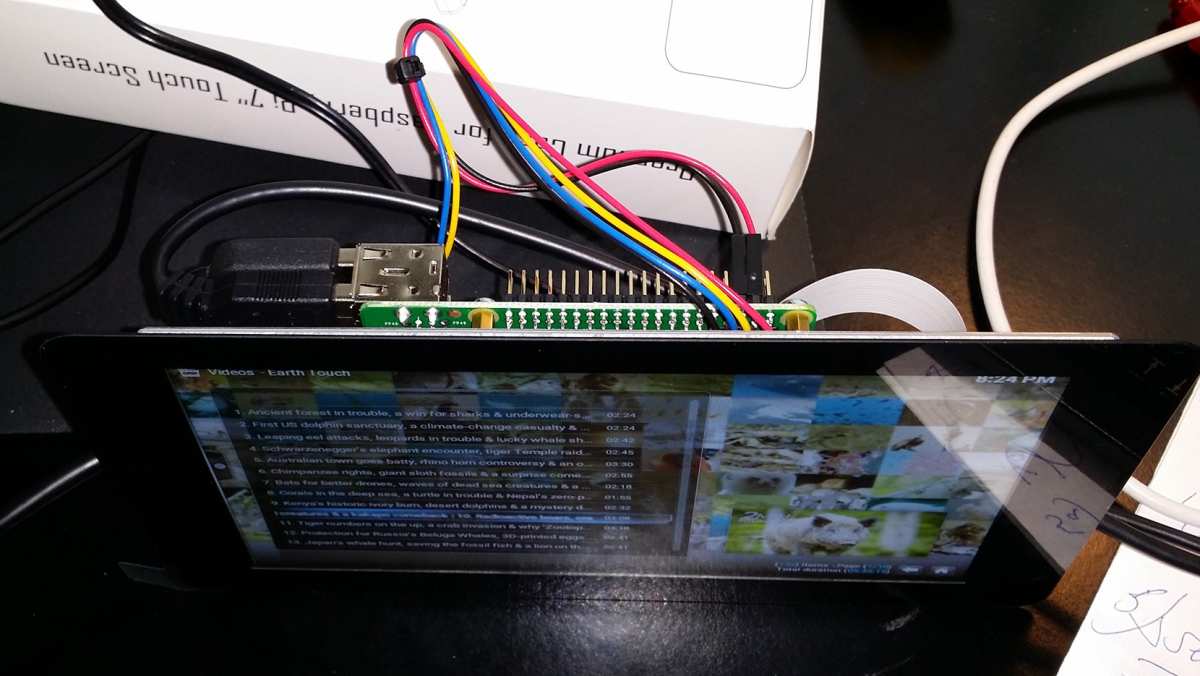
do touchscreen monitors support linux is one of those questions that sounds like it should have a simple answer. The honest answer is yes, but with real caveats that depend on your hardware, your distribution, and how you plan to use it. Most modern capacitive touchscreen panels work with Linux out of the box as of 2026.
The experience you get after that depends on what's running under the hood.
The Linux kernel has included HID multitouch support for years, and desktop environments like GNOME and KDE Plasma handle touch input reasonably well. But not every monitor's touch controller gets recognized immediately, and not every Linux setup treats touch the same way. Let's walk through what actually matters so you can figure out your specific situation. If you are exploring similar hardware setups, see our detailed guide on whether touchscreen monitors support windows 11 gestures.
Quick Answer
Yes, most touchscreen monitors work with Linux. The Linux kernel includes built-in HID multitouch drivers that handle most modern capacitive panels. Your experience depends on your desktop environment, whether you're running Wayland or X11, and whether your specific touch controller is supported by your kernel version.
GNOME and KDE Plasma offer the best touch experience on Linux right now.
Why Touchscreen Support on Linux Isn't a Simple Yes or No
Here's the thing. Linux doesn't have one single "touchscreen layer" the way Windows does. Touch support is spread across several components that all need to play nicely together.
The kernel needs to recognize your touch controller. Your display server needs to process the input events. Your desktop environment needs to actually do something useful with those events, like trigger an on-screen keyboard or respond to gestures. Readers evaluating this setup should also consider whether touchscreen monitors support stylus for comparative benchmarks.
If any one of those pieces is missing or misconfigured, your touchscreen either won't work or will work poorly. A monitor that functions perfectly on Windows might feel broken on Linux simply because the desktop environment you're using doesn't handle touch well. That's not a kernel problem.
That's a user-interface problem.
The good news is that the most common touch controllers are supported natively. Most USB-capacitive touchscreens and I2C-HID panels are detected automatically on kernel 5.10 and newer. Kernel 6.x, which ships on most current distributions, supports an even wider range of controllers.
The real question isn't whether Linux supports touchscreens in general. It's whether your specific monitor's touch controller is recognized and whether your software stack makes touch input usable.
The Three Things That Actually Determine If Your Touchscreen Will Work
Before you buy a touchscreen monitor or try to get one working, you need to check three things. These are the decision points that separate "it just works" from "I've been troubleshooting for three hours."
- Does the kernel recognize your touch controller? This is the foundation. If the kernel doesn't see it, nothing else matters.
- Are you running X11 or Wayland? Wayland handles touch input significantly better than X11. This single factor can make or break your experience.
- Does your desktop environment support touch interactions? GNOME and KDE Plasma are your best bets. A tiling window manager? Not so much.
Let's go through each one step by step.
Step 1: Check If Your Monitor's Touch Controller Is Recognized by the Kernel
This is where you start. Plug in your monitor, make sure the touch interface is connected (usually via USB, sometimes embedded in the DisplayPort Alt Mode connection), and then check what the kernel sees.
Open a terminal and run:
lsusb
This lists all USB devices. Look for something that mentions your monitor's brand name or a HID controller. Many touchscreen monitors show up as a separate USB device specifically for the touch interface, even if the display itself is connected via HDMI or DisplayPort.
Next, check the kernel log:
dmesg | grep -i hid
You should see entries about a new HID device being registered. If you see "HID multitouch" or something similar, that's a great sign. The kernel has loaded its multitouch driver and is talking to your panel.
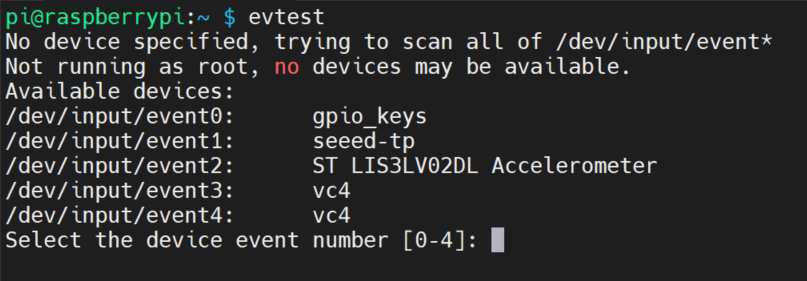
For a more detailed check, install and run evtest:
sudo evtest
This shows you raw input events from all input devices. Select your touchscreen device from the list and touch the screen. If you see coordinate data streaming across the terminal, the kernel is fully handling your touch input.
If nothing shows up in lsusb or dmesg, your touch controller might need a specific kernel module or a firmware update. Some DisplayLink-based monitors, particularly older DL-6xxx series models, have known issues with touch passthrough on Linux. The display works fine over DisplayLink, but the touch data doesn't always make it through to the operating system.
What to do if the kernel doesn't see your touch:
- Check if your monitor requires a specific kernel module. Wacom panels, for example, use the
wacommodule, which is included in most distributions but may need to be loaded manually. - Update your kernel. If you're running something older than 5.10, you're missing support for a lot of newer I2C-HID controllers.
- Look up your monitor's touch controller chipset. Some panels use controllers from EETI, Ilitek, or Goodix, and support for specific chips has been added in recent kernel releases.
- Try a different USB port. Some monitors need a USB 2.0 connection for the touch interface, and plugging into a USB 3.0 port can occasionally cause enumeration issues.
Step 2: Know Whether You're Running X11 or Wayland (This Changes Everything)
This is the single biggest factor in how your touchscreen feels to use, and it's the one most people overlook.
X11 was designed in the 1980s. Touch input wasn't a consideration. The X.Org input extension can handle basic touch events, but it doesn't do gestures, palm rejection, or smooth scrolling from touch input.
You get single-point touch and maybe some basic two-finger scrolling if your applications support it directly.
Wayland was designed with modern input in mind. The Wayland protocol includes native support for touch events, gestures, and pointer confinement. GNOME and KDE Plasma both implement Wayland touch protocols properly.
You get pinch-to-zoom, edge swipes, smooth touch scrolling, and proper on-screen keyboard integration.
Here's a quick comparison:
| Feature | X11 | Wayland |
|---|---|---|
| Single-touch input | Yes | Yes |
| Multi-touch gestures | Limited / app-dependent | Full native support |
| Palm rejection | No | Yes |
| On-screen keyboard auto-trigger | Inconsistent | Reliable on GNOME/KDE |
| Touch scrolling | Varies by app | Smooth, system-wide |
| Edge swipes | No | Yes (GNOME, KDE) |
To check which session you're running:
echo $XDG_SESSION_TYPE
If it says wayland, you're in good shape. If it says x11, you can usually switch to Wayland at the login screen by selecting the GNOME on Wayland or KDE Plasma on Wayland session. Most modern distributions default to Wayland now.
Ubuntu has used it as the default since 22.04, and Fedora has defaulted to Wayland since version 25.
One important note. If you're using an NVIDIA GPU, Wayland support has historically been rough. As of 2026, it's much better, especially with driver versions 535 and newer, but some users still report issues. If you're on NVIDIA and touch works on X11 but not Wayland, try switching back and forth to isolate the problem.
Step 3: Pick a Desktop Environment That Actually Handles Touch Well
Your desktop environment determines what you can actually do with touch input. The kernel and display server deliver the events. The desktop environment decides what happens when you swipe, tap, or pinch.
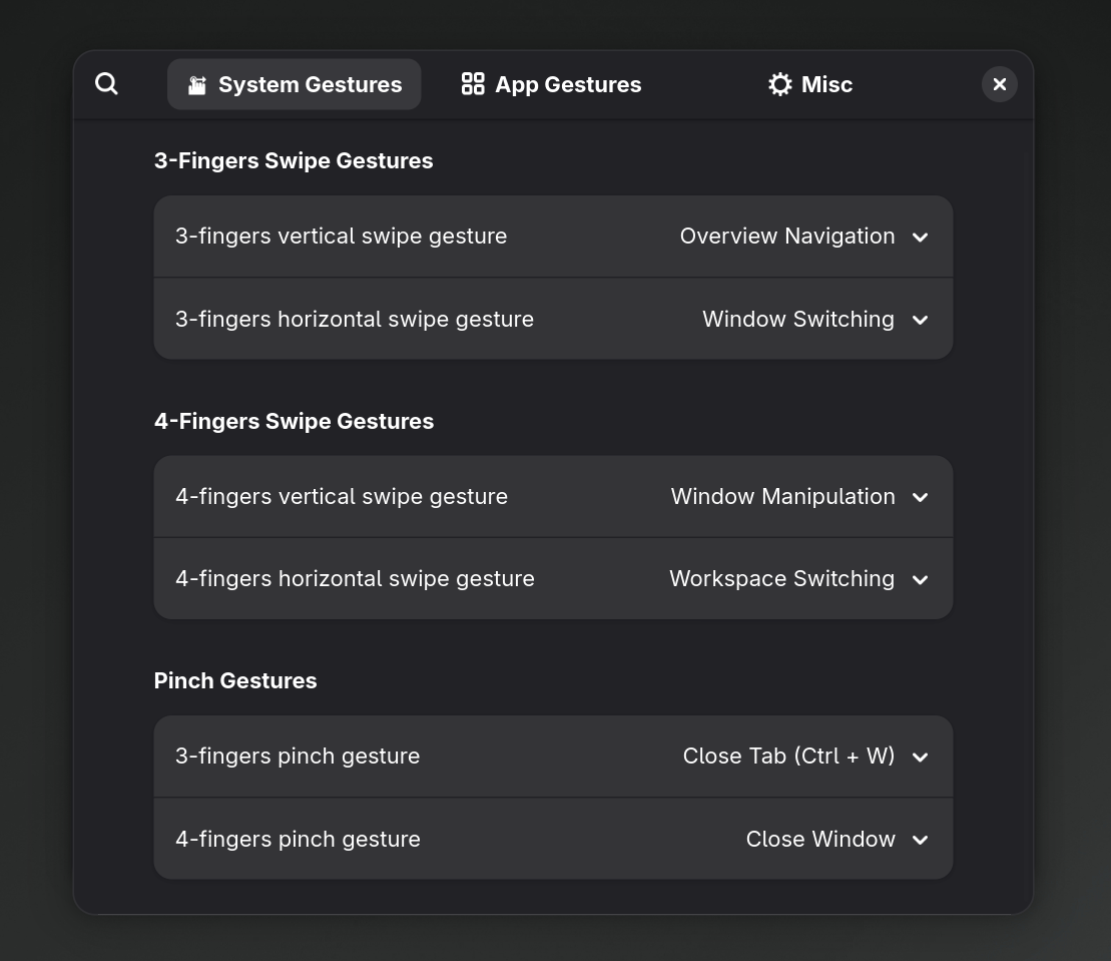
GNOME is the best option for touch on Linux, full stop. It was designed with touch as a first-class input method. The overview mode is triggered by a swipe up from the bottom or a hot corner.
The on-screen keyboard (called the "system keyboard") pops up automatically when you tap a text field. Gestures work system-wide. If you're using a touchscreen monitor on Linux and you want it to feel natural, GNOME on Wayland is the gold standard.
KDE Plasma is a strong second. Plasma 6 has improved touch support significantly. You get a usable on-screen keyboard (Malcontent keyboard or SVK), gesture support, and a touch-friendly launcher.
It's not quite as polished as GNOME for touch, but it's highly configurable, which is a big plus if you want to customize the experience.
XFCE, Cinnamon, MATE, and LXQt handle basic touch input. You can tap buttons and scroll. But don't expect gestures, auto-keyboard, or any kind of touch-optimized interface.
These environments treat touch as a mouse replacement, which works but feels clunky.
Tiling window managers like i3, Sway, and Hyprland are a mixed bag. Sway (a Wayland compositor) handles touch events through libinput, and you can configure touch gestures via libinput-gestures or fusuma. But you're building the experience yourself.
There's no on-screen keyboard integration out of the box. If you're comfortable configuring everything manually, it's doable. If you want something that works immediately, stick with GNOME or KDE.
The distribution matters less than the desktop environment. You can run GNOME on Ubuntu, Fedora, Arch, Debian, or anything else. The touch experience will be similar across distributions as long as you're running the same version of GNOME on Wayland with a recent kernel. That said, Ubuntu and Fedora tend to ship the most up-to-date GNOME versions with the fewest custom patches that might break touch behavior.
What to Do When Touch Works but Feels Wrong
This is a common scenario. The kernel sees your touchscreen. Touch events are registering.
But something is off. Maybe the coordinates are wrong, maybe the keyboard doesn't show up, or maybe gestures don't work. Here's how to fix the most common issues.
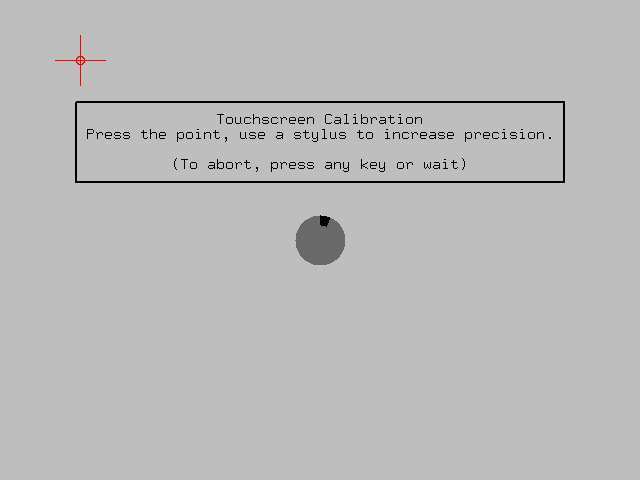
Touch coordinates are misaligned. You're touching one spot and the cursor registers somewhere else. This happens most often with resistive touchscreens or after changing screen resolution. On X11, use xinput-calibrator:
sudo apt install xinput-calibrator
xinput-calibrator
It walks you through tapping four corners and generates a calibration matrix. On Wayland, calibration is less straightforward. GNOME doesn't expose a built-in calibration tool, so you may need to use a udev rule or a libinput configuration snippet in /etc/libinput/local-overrides.quirks.
On-screen keyboard doesn't appear. On GNOME, make sure the keyboard is enabled in Settings, Accessibility, and Typing. On KDE Plasma, install an on-screen keyboard like maliit-keyboard or kvkbd. On XFCE, onboard or Florence are solid options.
You can also set the keyboard to auto-show when a text field is focused through accessibility settings.
Gestures don't work. On X11, you need a separate tool like libinput-gestures or touchegg to handle multi-touch gestures. Install libinput-gestures, configure it to run at startup, and define your gesture actions in ~/.config/libinput-gestures.conf. On Wayland, GNOME and KDE handle gestures natively, but you may need to enable them in settings.
Touch stops working after suspend or sleep. This is a known issue with some I2C-HID controllers. The kernel sometimes fails to reinitialize the touch controller after a suspend cycle. A workaround is to reload the HID module:
sudo modprobe -r hid_multitouch && sudo modprobe hid_multitouch
You can automate this by creating a systemd resume unit or a udev rule that triggers on resume events.
Touch works on the login screen but not in the session. This usually means your desktop environment isn't picking up the input device properly. Check if the touchscreen is listed in your DE's input settings. On GNOME, go to Settings, Keyboard, and Input Sources.
On KDE, check System Settings, Input Devices. If the device is listed but disabled, enable it. If it's not listed at all, you may need to restart the session or check for a libinput configuration issue.
Touchscreen Monitors That Work Well with Linux
Based on community reports and kernel compatibility data, here are some categories of touchscreen monitors that tend to work reliably.
Dell P-series touch monitors (like the P2418HT and P2724HT) use standard I2C-HID touch controllers and are well-supported by the kernel. They're popular in enterprise environments, so there's a lot of community documentation available.
Elo Touch Solutions monitors are designed for commercial and industrial use, and many models have explicit Linux compatibility. Elo publishes Linux driver documentation for several of their controller boards, which is rare and helpful.
ViewSonic TD-series touch monitors generally use eGalax or EETI controllers, both of which are supported by the hid-multitouch kernel module. Most users report plug-and-play functionality on kernel 5.15 and newer.
Wacom Cintiq and One devices are the gold standard for pen and touch input on Linux. The linuxwacom project has maintained Wacom drivers for decades, and the kernel includes native support for most Wacom tablets and pen displays. Multi-touch on Cintiq models works, though gesture support varies by desktop environment.
Generic USB capacitive touchscreens from brands like Elo, Mimo, and Planar often work out of the box. These typically use standard USB HID touch controllers that the kernel recognizes without any special drivers. The key is to verify the specific chipset before buying.
Panels using eGalax, EETI, or Ilitek controllers are generally safe bets.
Monitors to approach with caution:
- DisplayLink-based monitors with touch (some models have broken touch passthrough on Linux)
- Monitors requiring proprietary Windows-only touch drivers with no Linux equivalent
- Very new models using controllers that haven't made it into the kernel yet
Before buying any touchscreen monitor for Linux use, search the Arch Wiki or Ubuntu forums for the specific model number. The Linux community documents compatibility extensively, and a quick search can save you hours of troubleshooting.
Common Mistakes People Making When Setting Up Touchscreens on Linux
Assuming touch should work exactly like Windows. Linux touch support is functional but different. The on-screen keyboard behavior, gesture set, and overall touch UX won't match Windows. Adjust your expectations accordingly.
Running X11 when Wayland is available. If your distribution supports Wayland and you're using a touchscreen, switch to it. The difference in touch experience is significant. This is the single easiest fix for most touch-related complaints.
Using a desktop environment that doesn't support touch well. If you're setting up a kiosk, interactive display, or any system where touch is the primary input method, use GNOME or KDE Plasma. Don't use XFCE or a tiling WM unless you're prepared to configure everything manually.
Not checking the kernel version first. If you're running a kernel older than 5.10, you're going to have a bad time with many modern touch controllers. Update your kernel before you start troubleshooting. On Ubuntu, you can install a newer kernel from the HWE stack.
On Fedora, keep your system updated.
Forgetting the USB touch cable. Many touchscreen monitors require two connections: the display cable (HDMI, DisplayPort, USB-C) and a separate USB cable for the touch interface. If touch isn't working, check that both are plugged in. Some USB-C monitors carry both display and touch over a single cable, but this depends on the monitor supporting USB-C Alt Mode for the touch interface.
Ignoring libinput configuration. libinput is the input handling layer for most Linux desktops. It has sensible defaults, but you can fine-tune touch behavior through libinput configuration files. If touch feels sluggish or gestures aren't working, check your libinput settings before assuming the hardware is at fault.
When a Touchscreen Monitor Is (and Isn't) Worth It for Linux
A touchscreen monitor makes sense for specific use cases on Linux. It doesn't make sense as a general-purpose display upgrade.
Worth it for:
- Kiosks and digital signage where users need to interact with a simple interface
- Digital art with a pen-enabled display (Wacom Cintiq, XP-Pen, Huion)
- Home automation dashboards mounted on a wall or desk
- Point-of-sale systems
- Accessibility setups where touch is easier than a mouse or keyboard
- Education and interactive whiteboard applications
Not worth it for:
- General office work where a mouse and keyboard are more efficient
- Gaming (touch input adds no value for most games)
- Users who just want a slightly more interactive desktop experience
- Setups running lightweight desktop environments without touch support
The honest truth is that Linux desktop applications are still largely designed for mouse and keyboard input. Touch works, but most apps don't have touch-optimized interfaces. You'll find yourself reaching for the mouse frequently even with a touchscreen connected.
If your primary use case is something where touch genuinely replaces a mouse, like a kiosk or a drawing display, it's a great fit. If you just think touch would be nice to have, you might end up not using it much.
Frequently Asked Questions
Do all touchscreen monitors work with Linux?
No. Most modern capacitive touchscreens with standard HID controllers work fine. But some monitors use proprietary controllers or require Windows-only drivers.
DisplayLink-based touch monitors sometimes have broken touch passthrough. Always check your specific model's compatibility before buying.
Which Linux distribution is best for touchscreen support?
The distribution matters less than the desktop environment and kernel version. Fedora and Ubuntu ship recent kernels and well-configured GNOME desktops, making them solid choices. Arch Linux works well if you're comfortable configuring things manually.
Any distribution running GNOME on Wayland with kernel 5.15 or newer will give you a good touch experience.
Can I use a touchscreen monitor with Ubuntu?
Yes. Ubuntu has defaulted to Wayland since 22.04, and GNOME on Wayland handles touch input well. Most USB and I2C-HID touchscreens are detected automatically.
Plug in the monitor, connect the touch USB cable, and it should work. If gestures or the on-screen keyboard don't behave as expected, check your GNOME version and accessibility settings.
How do I calibrate a touchscreen on Linux?
On X11, use xinput-calibrator. It guides you through tapping calibration points and writes a configuration file. On Wayland, calibration options are more limited.
You can create libinput configuration overrides in /etc/libinput/local-overrides.quirks or use GNOME's built-in display calibration tools, though those handle color rather than touch coordinates.
Does multi-touch work on Linux?
Yes, on Wayland with GNOME or KDE Plasma. The kernel's HID multitouch driver supports up to 10 or more touch points depending on the controller. Wayland passes these events to the desktop environment, which can use them for gestures.
On X11, multi-touch support is limited and depends on individual applications handling the events directly.
Why does my touchscreen work on Windows but not Linux?
This usually means your monitor's touch controller requires a proprietary driver that only exists for Windows. Some manufacturers don't provide Linux drivers or documentation for their touch controllers. In these cases, the controller may not be recognized by the kernel's generic HID drivers.
Check if your monitor uses a standard HID-compliant controller or a proprietary one.
Final Verdict: Should You Use a Touchscreen Monitor with Linux?
If you have a specific use case where touch input genuinely adds value, a touchscreen monitor works well on Linux in 2026. The kernel handles most modern controllers natively. GNOME on Wayland provides a polished touch experience with gestures, an on-screen keyboard, and proper palm rejection.
KDE Plasma is a strong alternative if you prefer customization over polish.
The key is going in with realistic expectations. Linux touch support is functional and reliable for the right hardware and software combination. It's not as seamless as Windows or iPadOS, and most desktop apps still aren't designed for touch.
But for kiosks, digital art, accessibility, and interactive displays, it absolutely works.
Before you commit, verify your specific monitor's touch controller is supported. Check the kernel version you'll be running. Make sure you're using GNOME or KDE Plasma on Wayland.
Get those three things right, and your touchscreen monitor will work just fine on Linux.

Similar Posts





















