Why Are Touchscreen Monitors Popular in Schools
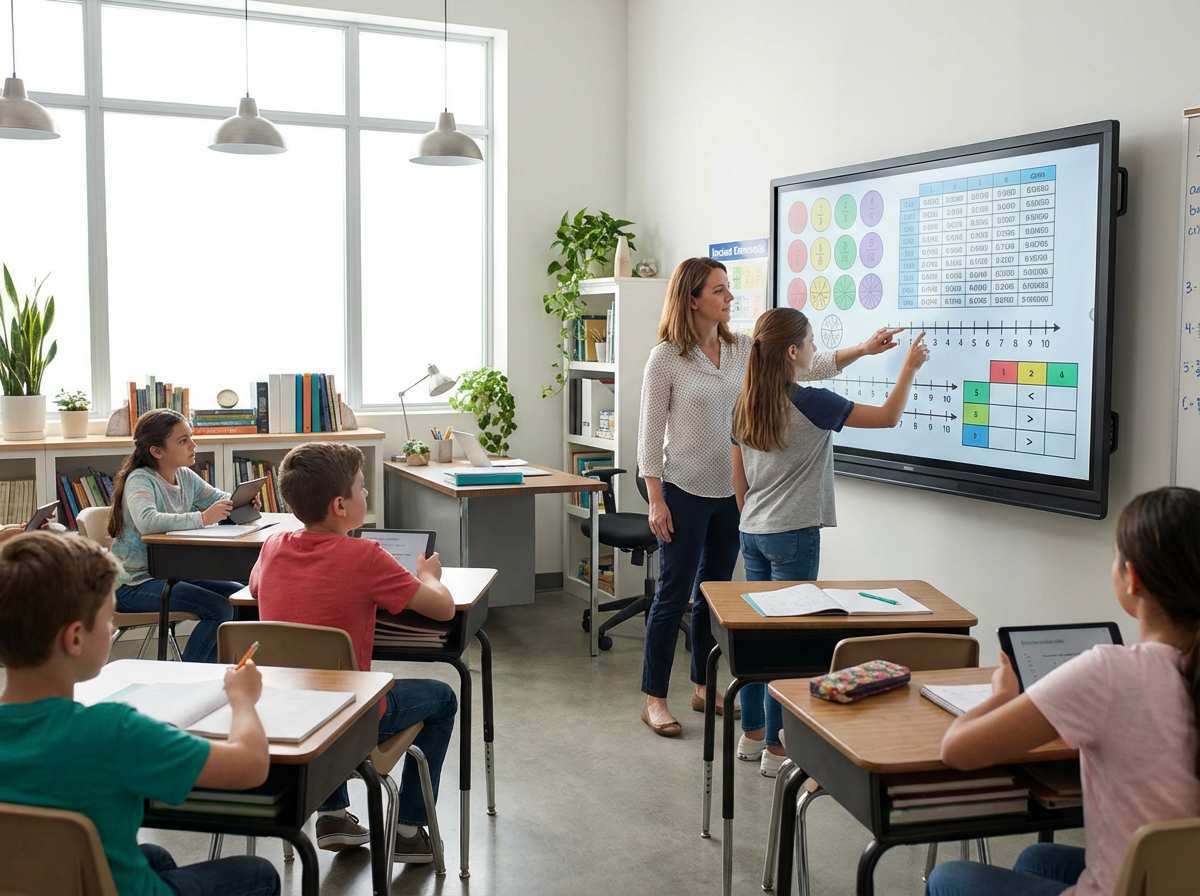
If you've walked into a recently built or renovated classroom, you've probably noticed the shift. The old projector and pull-down screen setup is disappearing, replaced by a large, bright touchscreen mounted at the front of the room. So why are touchscreen monitors popular in schools?
The short answer is that interactive flat panels solve a handful of real problems that older classroom display technology couldn't, and a perfect storm of post-pandemic funding, falling hardware prices, and changing teaching methods pushed districts to adopt them at scale.
The numbers back this up. According to Futuresource Consulting, global shipments of interactive displays for education have grown at a double-digit compound annual rate for several consecutive years, with the majority of U.S. public schools now using some form of interactive display as of 2026. But popularity doesn't automatically mean every school is using them well.
Let's break down what's actually driving this trend, what the real benefits and drawbacks look like, and whether it makes sense for your situation.
Quick Answer
Touchscreen monitors are popular in schools because they combine display, computing, and interactivity in one device. They replaced projectors that needed bulbs, separate whiteboards, and external speakers. Post-pandemic ESSER funding accelerated district purchases nationwide.
Teachers use them to run interactive lessons, mirror student devices, and annotate in real time. The hardware also dropped in price while reliability improved significantly.
What Changed When Interactive Flat Panels Replaced Projectors
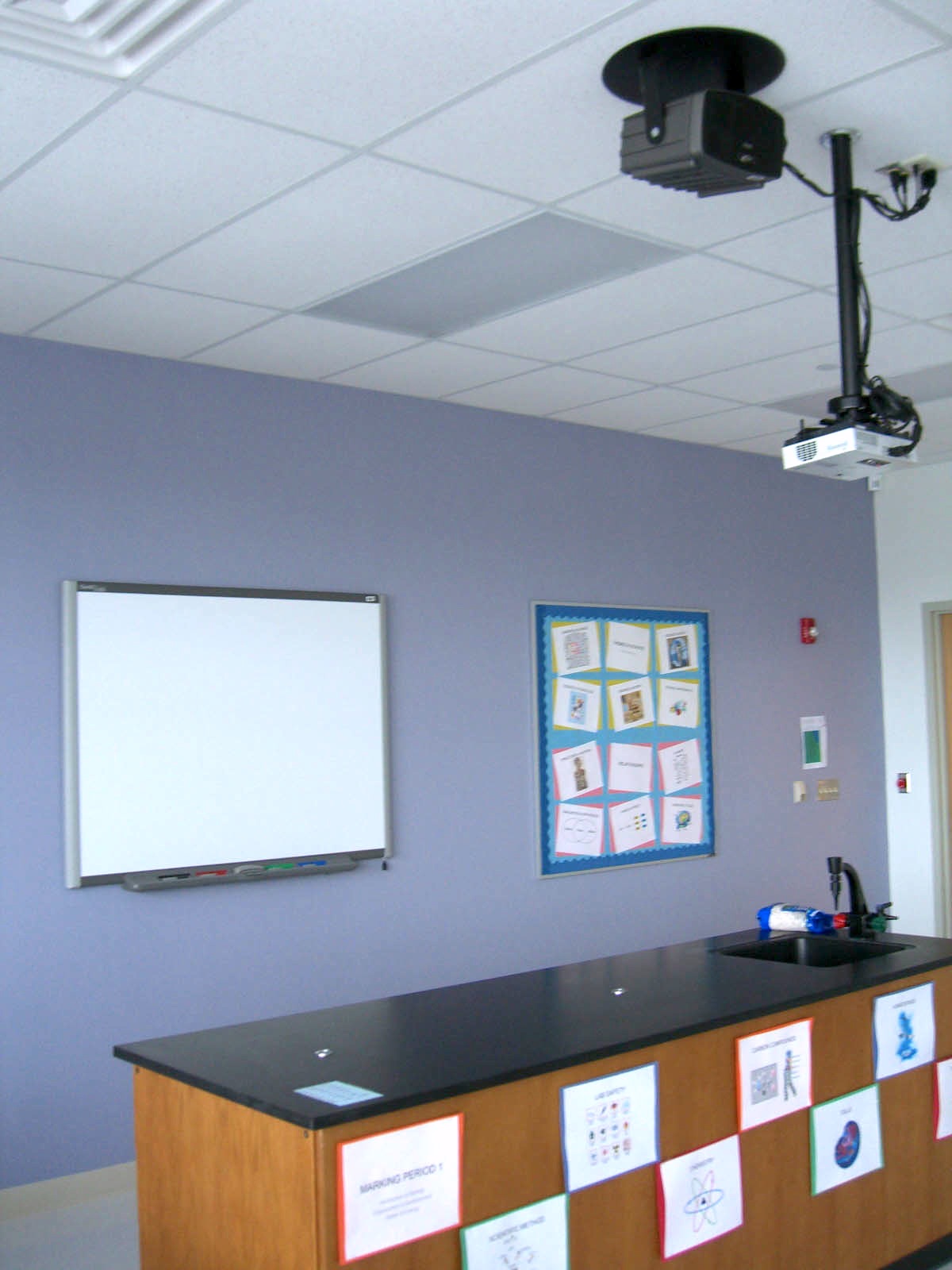
For two decades, the standard classroom setup was predictable. You had a ceiling-mounted projector, a pull-down screen or whiteboard, a set of speakers connected to a desktop or laptop, and a tangle of cables that someone tripped over at least once a semester. It worked, but it was fragile.
Projector bulbs dimmed over time and cost $100 to $300 to replace. Screens got scratched. The whole system needed regular calibration.
Interactive flat panels (IFPs) collapsed all of that into a single device. A typical 65-inch or 75-inch panel includes a 4K display, built-in speakers, integrated computing (usually running Android, with Windows available via an OPS module or external PC), multi-touch input, and wireless screen mirroring. No bulbs to replace.
No separate whiteboard eating up wall space. No calibration dance every Monday morning.
The shift didn't happen overnight. SMART Technologies and Promethean pioneered interactive whiteboard systems in the early 2000s, but those were still projector-dependent. The real inflection point came around 2018 to 2020, when panel-based displays from companies like Clevertouch, BenQ, and ViewSonic dropped below the $3,000 mark for a 65-inch unit.
At that price, the five-year total cost of ownership started beating projector setups, especially once you factored in bulb replacements, maintenance labor, and energy consumption.
Manufacturer specifications indicate modern panels are rated for 50,000 to 70,000 hours of LED backlight life. That translates to roughly 10 to 15 years of classroom use before the display dims noticeably. Compare that to a projector bulb rated for 3,000 to 5,000 hours, and the maintenance argument becomes hard to ignore.
How Schools Actually Got Here — The Pandemic, The Funding, And The Push
The single biggest accelerant for interactive display adoption in U.S. schools was the Elementary and Secondary School Emergency Relief (ESSER) fund. Congress allocated approximately $190 billion in pandemic relief funding to K-12 education across three rounds (ESSER I, II, and III), with spending deadlines extending through 2024 and 2025. Districts had to spend that money on education technology, facility improvements, or other pandemic-related needs.
Touchscreen displays checked every box.
Here's what a typical district rollout looked like. A mid-size district with 30 to 40 schools might have allocated $2 to $5 million of ESSER funds to classroom technology upgrades. That budget covered interactive flat panels for every classroom, plus installation, basic teacher training, and a multi-year warranty.
Vendors like SMART Technologies, Promethean, Clevertouch, and BenQ ran aggressive education pricing programs during this window, often bundling software licenses and professional development into the package.
But the pandemic funding was the spark, not the fuel. Several other trends were already pushing schools in this direction.
- 1:1 device programs meant every student had a Chromebook or iPad. Teachers needed a way to share student work to the whole class instantly. Wireless screen mirroring from the panel made that seamless.
- Hybrid and hybrid-adjacent teaching required classrooms that could handle both in-person and remote participants. Panels with built-in microphones, cameras, and Zoom/Teams compatibility solved that without a separate AV cart.
- Curriculum digitization accelerated. Textbook publishers shifted to interactive digital formats. A touchscreen display became the natural way to use those materials in front of a class.
- ISTE standards and state-level technology plans increasingly required interactive and collaborative technology in classrooms. Districts needed hardware that met those benchmarks.
The convergence of all these factors created a market where interactive flat panels went from "nice to have" to "expected" in new construction and major renovation projects within about five years.
What's Inside These Panels That Makes Them Different From A Big TV
It's tempting to look at an interactive flat panel and think "that's just a big television." It's not. The underlying technology and feature set are purpose-built for classroom and meeting room use, and the differences matter in daily operation.
Touch technology is the most obvious distinction. Most modern IFPs use infrared (IR) touch detection, which supports 10-point to 20-point multi-touch input. That means multiple students can write on the screen simultaneously, or a teacher can use pinch-to-zoom gestures on a map or diagram.
Some higher-end models use optical imaging or electromagnetic (EM) pen support for finer stylus input, which matters for art classes or detailed annotation work.
Integrated computing is another key difference. Most panels run a built-in Android operating system (typically Android 11 or higher as of 2026), which lets them function without an external computer. Teachers can open a web browser, run educational apps, access cloud storage, and use built-in whiteboarding software directly on the panel.
For districts that need Windows-specific software, an OPS (Open Pluggable Specification) slot lets you insert a small PC module that turns the panel into a full Windows machine.
Connectivity is designed around classroom workflows. You'll typically find:
- USB-C (with power delivery and video input)
- HDMI inputs (often 2 to 3)
- USB-A ports for flash drives and peripherals
- Wi-Fi 6 and Bluetooth 5.0 or higher
- Wireless casting support for AirPlay, Miracast, and Chromecast
- Audio output (3.5mm jack and/or optical) for connecting to a school's hearing-assist system
Built-in AV components round out the package. Most panels include front-facing speakers (15W to 20W per channel), which are loud enough for a standard classroom without external speakers. Many now include an array microphone with noise cancellation and a built-in camera, turning the panel into a video conferencing endpoint.
This became a baseline expectation after 2020.
Durability features matter in a school environment. Panels typically have tempered glass with anti-glare and anti-fingerprint coatings. The bezels are designed to withstand incidental contact.
Mounting systems are built to support the weight (a 75-inch panel can weigh 80 to 100 pounds) and meet VESA standards for wall mounts or mobile stands.
The software layer is where the real classroom value lives. Most manufacturers bundle proprietary whiteboarding and lesson delivery software. SMART Notebook, Promethean ClassFlow and ActivInspire, BenQ's EZWrite, and Clevertouch's Lynx software all provide annotation tools, shape recognition, screen recording, and cloud sharing.
Many also integrate with Google Classroom, Microsoft Teams for Education, and popular LMS platforms.
The Real Benefits Teachers Actually See In Classroom
Let's be honest about what actually changes when a teacher starts using an interactive flat panel daily, versus what looks good in a vendor demo.
Engagement is the headline benefit, and it's real, but it depends entirely on how the teacher uses the tool. A teacher who replaces a static slideshow with an interactive lesson where students come up to the board, drag labels onto a diagram, or solve a math problem in front of the class will see more participation. Research published in the Journal of Research on Technology in Education has shown modest but measurable gains in student engagement and conceptual understanding when interactive displays are paired with active teaching strategies. The key phrase there is "paired with active teaching strategies." The panel alone doesn't create engagement.
The teacher's lesson design does.
Annotation and real-time modification is where many teachers find the most practical daily value. Instead of printing a worksheet or projecting a static PDF, a teacher can pull up any document on the panel and write on it in real time. They can save the annotated version and share it to Google Classroom or a class folder.
Students who missed the lesson get a copy with the teacher's notes. This workflow genuinely saves time compared to re-explaining material during office hours.
Screen mirroring and student sharing has become one of the most-used features in practice. With every student on a Chromebook or iPad, a teacher can cast a student's screen to the panel wirelessly. This makes presentations, peer review, and troubleshooting demonstrations much smoother than having students walk to the front of the room or huddle around a small device.
Lesson recording and replay is a feature that gained traction during remote learning and stuck around. Most panels can record the screen and audio simultaneously. Teachers record their lessons during class, post the video to their LMS, and students can rewatch at home.
This flipped-classroom model works particularly well for math instruction and science demonstrations.
Accessibility improvements are significant and often underreported. Students with visual impairments benefit from the ability to zoom in on text and images. Students with motor skill challenges can use touch input more easily than a mouse.
Built-in text-to-speech, color adjustment, and magnification tools help students with dyslexia and other learning differences. For special education classrooms, these features aren't extras. They're essential.
Collaboration features work well in structured group activities. Multi-touch input lets two to four students work on the same screen simultaneously. Some software platforms support split-screen mode where different groups work on different sections of the board and then bring their work together.
This is genuinely useful for brainstorming sessions, group problem-solving, and peer teaching.
Time savings accumulate over weeks and months. Teachers report spending less time writing on whiteboards, erasing, and rewriting. They spend less time managing cables and input sources.
Pre-built lesson templates and cloud-stored materials reduce prep time. These aren't dramatic single-day savings, but over a school year, they add up.
Where It Falls Short — The Problems Nobody Talks About In Sales Demos
Every vendor presentation shows a classroom full of engaged students and a teacher who looks like they just won the lottery. The reality, especially in the first year of deployment, is messier.
Teacher training is the single biggest failure point. Districts frequently allocate budget for hardware and installation but underinvest in professional development. A teacher who gets a four-hour training session and then is expected to integrate a complex piece of technology into daily instruction will, in many cases, use the panel as a very expensive projector. Aggregate reviews and district case studies consistently show that the schools seeing real results are the ones that invest in ongoing professional development, not just initial setup training.
The "expensive projector" problem is real. Walk into some classrooms six months after an IFP installation and you'll see the panel being used to display a static slideshow, same as the old projector did. The interactive features sit untouched.
This isn't a technology failure. It's a change management failure. Without administrative expectation, peer modeling, and time to practice, many teachers default to what they know.
Upfront cost remains a barrier, especially for underfunded districts. A 65-inch interactive flat panel from a major education brand typically costs between $2,000 and $5,000 as of 2026, depending on the model, bundled software, and warranty terms. A 75-inch or 86-inch panel can run $5,000 to $8,000.
Multiply that by 50 classrooms in a single school, and you're looking at a $100,000 to $400,000 investment before installation, mounting hardware, electrical work, and training costs. For a rural district with 200 students total, that math doesn't work without grant funding.
Software licensing costs catch some districts off guard. The bundled whiteboarding and lesson software often comes with a one-year or three-year license. After that, renewal fees apply.
Some manufacturers charge per-panel annual fees for cloud features, screen recording, or advanced collaboration tools. These recurring costs need to be budgeted, not treated as one-time purchases.
IT support burden increases. Every panel is a network-connected device that needs firmware updates, software patches, and occasional troubleshooting. In a district with 200 panels, that's 200 devices added to the IT team's workload.
If the IT department is already stretched thin, panels can end up unmaintained, which leads to security vulnerabilities and degraded user experience.
Durability concerns are legitimate, particularly in elementary classrooms. The panels are built to withstand normal use, but they're not indelible. A 7-year-old with a permanent marker, a thrown object, or repeated hard pressing can damage the screen.
Anti-glare coatings can wear over time. Replacement panels cost as much as the original purchase, and warranty coverage varies significantly between manufacturers.
Wi-Fi dependency is a hidden issue. Many of the best features, wireless casting, cloud storage, real-time collaboration, require reliable Wi-Fi. In schools with spotty wireless infrastructure, these features become unreliable, which frustrates teachers and leads to underutilization.
Districts that invest in panels without upgrading their wireless network often end up disappointed.
Compatibility headaches pop up more than vendors admit. A district using Google Workspace for Education needs panels that integrate smoothly with Google Classroom and Google Cast. A district using Microsoft 365 needs Teams and OneDrive compatibility.
Some panels handle one ecosystem better than the other. Choosing the wrong platform for your existing infrastructure creates friction that teachers feel every day.
Interactive Flat Panel vs. The Alternatives — What Districts Are Really Choosing
The interactive flat panel isn't the only option for classroom display technology. Understanding the alternatives helps clarify where IFPs make sense and where they might be overkill.
| Factor | Interactive Flat Panel | Projector + Interactive Whiteboard | Large Non-Touch Display | 1:1 Student Devices Only |
|---|---|---|---|---|
| Upfront cost (per classroom) | $2,000–$8,000 | $1,500–$4,000 | $800–$2,500 | $0 (devices already owned) |
| 5-year TCO | Moderate (low maintenance) | Higher (bulb replacements, calibration) | Low (minimal maintenance) | Low (no shared display) |
| Brightness in lit rooms | Excellent (no ambient light issues) | Poor to moderate (washout in bright rooms) | Excellent | N/A (personal screen) |
| Interactive capability | Built-in multi-touch | Requires separate IWB or pen system | None (display only) | Individual interaction only |
| Collaboration potential | High (multi-user on screen) | Moderate | Low (passive viewing) | Moderate (screen sharing) |
| Maintenance burden | Low | High (bulbs, filters, calibration) | Very low | N/A |
| Lifespan | 10–15 years (LED backlight) | 5–7 years (projector unit) | 8–12 years | 3–5 years (student devices) |
| Best for | Full classroom instruction, hybrid learning | Budget-constrained retrofits | Video/content consumption | Personalized learning |
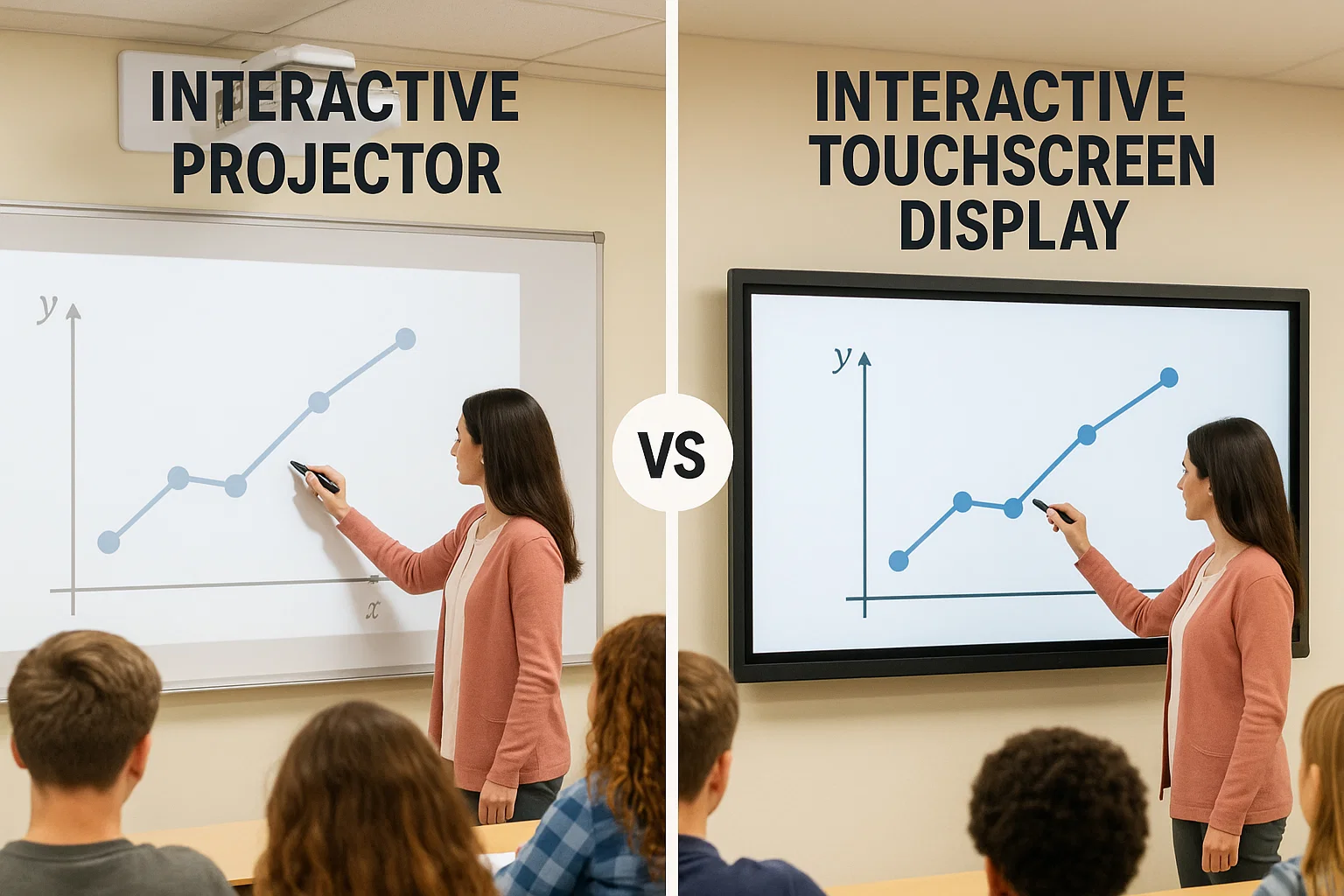
Projector-based interactive systems were the previous standard and still exist in many classrooms. Epson's BrightLink series, for example, uses an ultra-short-throw projector with IR pen interaction on any surface. The advantage is lower upfront cost and the ability to project onto existing whiteboards.
The disadvantage is image quality in bright rooms, ongoing bulb costs, and the need for regular calibration. For districts with tight budgets and existing infrastructure, this can still be a reasonable choice.
Large non-touch displays (commercial-grade TVs) are sometimes chosen as a budget alternative. A 75-inch commercial display costs significantly less than an interactive panel. But without touch input, you lose the interactive functionality that justifies the investment in the first place.
These work well for digital signage, announcement boards, or video playback, but they don't replace an interactive teaching tool.
1:1 device-only approaches eliminate the shared display entirely. Every student works on their own Chromebook or iPad, and the teacher uses a document camera or screen sharing to show things to the class. This works well for personalized learning and individualized instruction.
It falls short for whole-class discussion, collaborative problem-solving, and demonstrations that benefit from a shared visual space.
Interactive touch overlays are a retrofit option. You can mount a touch frame over an existing display to add touch capability at a fraction of the cost of a new panel. The trade-off is reduced image quality (the overlay sits in front of the screen), potential calibration issues, and a less polished user experience.
This can work as a stopgap but isn't a long-term solution.
The honest assessment is that interactive flat panels are the best overall solution for most classrooms, provided the district can afford the upfront cost, has adequate Wi-Fi, and invests in teacher training. They're not the cheapest option, and they're not the simplest. But they deliver the most complete package of display quality, interactivity, and low maintenance in a single unit.
Who Gains The Most (And Who Doesn't) — Use Cases That Actually Deliver
Not every classroom gets equal value from an interactive flat panel. The benefits concentrate in specific teaching scenarios and student populations.
Elementary classrooms see some of the strongest results. Young students are naturally drawn to touch interaction. Teachers can run phonics games where kids drag letters to form words, math manipulatives that students move around on screen, and collaborative story-building exercises.
The multi-touch capability means several students can work at the board simultaneously, which keeps the rest of the class engaged rather than waiting in a single-file line.
STEM classes benefit from interactive simulations and visualizations. Science teachers can run physics simulations, annotate diagrams in real time, and overlay data on images. Math teachers can use graphing tools that let students manipulate variables and see results instantly.
The ability to pull up web-based tools like PhET simulations or Desmos directly on the panel without needing a separate computer is a genuine workflow improvement.
Special education settings are where the accessibility features earn their keep. Panels with built-in magnification, text-to-speech, color inversion, and touch input make content accessible to students who struggle with traditional print materials. Occupational therapists and special education teachers report that students with fine motor challenges find touchscreen interaction more manageable than mouse or trackpad input.
Higher education lecture halls use panels differently. The primary use case is annotation over presentation slides, recording lectures for later review, and pulling up web resources during discussion. Large-format panels (86 inches and above) in auditorium-style classrooms serve a similar function to the interactive whiteboard systems that universities adopted earlier, but with better image quality and less maintenance.
Hybrid and remote learning scenarios pushed panel adoption hard. A teacher with some students in the room and others on Zoom needs a display that can show remote participants, share content, and allow annotation, all while the built-in camera and microphone handle the AV capture. Panels with integrated cameras and array microphones (like the SMART Board MX series or Promethean ActivPanel 9) handle this without requiring a separate webcam, microphone, and speaker setup.
Where the value is lower: classrooms where the teacher primarily lectures from slides and doesn't incorporate interactive elements. Study halls or supervision periods where the display is used only for playing videos. Environments where the IT support infrastructure is too thin to maintain the devices.
In these cases, a panel may be overkill compared to a simple large-format display.

The Money Side — Pricing, Hidden Costs, And What The Numbers Really Look Like
Let's talk actual dollars, because this is where many districts get surprised.
Hardware pricing as of 2026 breaks down roughly like this:
| Screen Size | Budget Tier | Mid-Range | Premium |
|---|---|---|---|
| 55" | $1,500–$2,500 | $2,500–$3,500 | $3,500–$5,000 |
| 65" | $2,000–$3,500 | $3,500–$5,000 | $5,000–$7,000 |
| 75" | $3,000–$5,000 | $5,000–$7,000 | $7,000–$9,000 |
| 86" | $4,500–$7,000 | $7,000–$10,000 | $10,000–$14,000 |
Budget tier panels (often from lesser-known brands or education-focused product lines) typically have fewer touch points, lower brightness, and shorter warranty periods. Mid-range panels from BenQ, ViewSonic, or Clevertouch's education lines offer the best balance of features and price for most districts. Premium panels from SMART Technologies and Promethean's top-tier models include more robust software, better build quality, and longer support cycles.
Installation costs add $200 to $800 per unit depending on whether you're wall-mounting, using a mobile stand, or running new electrical or network connections. Older classrooms may need electrical work to add outlets at panel height, which adds cost.
Software licensing varies. Some manufacturers include lifetime software licenses with the hardware purchase. Others use annual subscriptions ranging from $50 to $200 per panel per year.
Over a five-year period, that subscription cost can add $250 to $1,000 per classroom on top of the hardware price.
Professional development costs $500 to $2,000 per teacher for initial training, with ongoing PD recommended annually. Districts that skip this line item consistently underutilize their hardware investment.
The five-year TCO comparison is where interactive flat panels start winning the argument against projectors. A projector setup costs less upfront but requires bulb replacements ($100, $300 each, typically every 2 to 4 years), filter cleaning, periodic calibration, and more frequent unit replacement. When you add up all costs over five years, a mid-range interactive panel often comes out comparable to or cheaper than a projector system, while delivering significantly better image quality and functionality.
Funding sources that districts commonly use include ESSER funds (while they lasted), Title I and Title IV-A grants, bond measures, E-Rate (for networking infrastructure that supports the panels), and state-level technology grants. The funding landscape changes frequently, so districts need to check current availability.
Mistakes Schools Make When They Buy These In Buying
Districts make predictable mistakes when deploying interactive flat panels at scale. Here are the ones that show up most often in post-implementation reviews.
Buying on price alone. The cheapest panel on the market is rarely the best value over a 10-year lifespan. Budget panels often have shorter warranty periods, dimmer displays, less responsive touch detection, and weaker software support. A $1,500 panel that needs replacement in four years costs more than a $3,000 panel that lasts 10.
Skipping the pilot program. Rolling out 200 panels across a district without testing in five to 10 classrooms first is risky. A pilot reveals Wi-Fi issues, software compatibility problems, training gaps, and teacher acceptance challenges before you've committed the entire budget.
Underinvesting in training. Four hours of training is not enough. Teachers need initial training on basic operation, followed by coaching sessions on integrating interactivity into lesson plans, followed by peer observation opportunities. Districts that treat training as a one-time event see the lowest utilization rates.
Ignoring Wi-Fi infrastructure. If your wireless network can't handle 30 simultaneous screen-mirroring connections across a building, the casting feature that teachers love will be unreliable. Network upgrades should happen before or alongside panel installation, not after teachers start complaining.
Not designating a technology lead per school. Someone needs to be the go-to person for firmware updates, troubleshooting, and vendor liaison. Without that role, panels fall into disrepair quickly. Small issues become big problems because nobody owns the maintenance.
Failing to set expectations. If building administrators don't expect teachers to use the interactive features, many won't. This isn't about mandating usage. It's about creating a school culture where interactive teaching is modeled, discussed, and supported.
Choosing the wrong ecosystem. A district deeply invested in Google Workspace should prioritize panels with strong Google Classroom and Chromecast integration. A Microsoft-centric district needs Teams and OneDrive compatibility. Buying panels that don't align with your existing infrastructure creates daily friction.
What Installations Look Like — From Planning To Teachers Actually Using Them Long-Term
A successful deployment follows a predictable timeline. Here's what the process typically looks like from start to finish.
Phase 1: Needs assessment and planning (2, 4 months). The district evaluates current classroom technology, surveys teachers, assesses Wi-Fi infrastructure, and defines goals. This phase should involve IT staff, curriculum coordinators, building administrators, and a representative group of teachers. The output is a deployment plan that specifies which classrooms get panels first, what model to purchase, and what the training schedule looks like.
Phase 2: Procurement (1, 3 months). Depending on district procurement rules, this may involve an RFP process, cooperative purchasing contracts (like PEPPM or NCPA), or direct negotiation with vendors. Education pricing is typically available, but districts need to ask for it explicitly.
Phase 3: Infrastructure preparation (1, 2 months). Electrical work, network upgrades, and mounting hardware installation happen before the panels arrive. This phase is often the bottleneck, especially in older buildings.
Phase 4: Installation and configuration (1, 2 weeks per building). Panels are mounted, connected to the network, and configured with district accounts, Wi-Fi settings, and software licenses. IT staff should test every panel before teachers enter the room.
Phase 5: Teacher training (ongoing). Initial training covers basic operation, core software features, and common troubleshooting. Follow-up sessions focus on lesson integration, advanced features, and peer sharing. The most effective programs include coaching visits where an instructional technology specialist observes a teacher and provides feedback.
Phase 6: Ongoing support and optimization (continuous). Firmware updates, software license renewals, hardware repairs, and refresher training happen throughout the year. Districts should collect usage data and teacher feedback to improve the program over time.
The districts that get the most from their investment are the ones that treat this as a multi-year program, not a one-time purchase. The hardware is the easy part. The human side, training, support, culture change, is where success or failure gets decided.
District Rollouts — What Happens When 50+ Classrooms Get These At Once
Large-scale deployments reveal patterns that single-classroom pilots don't. Here's what the research and district case studies show.
Adoption follows a bell curve. In any given school, roughly 15 to 20 percent of teachers will embrace the technology immediately and start experimenting with interactive lessons within the first month. Another 50 to 60 percent will use basic features (display, annotation, simple screen mirroring) within the first semester. The remaining 20 to 30 percent will resist or underutilize the technology without targeted support.
This pattern is consistent across districts of different sizes and demographics.
Early adopters make a big difference. When enthusiastic teachers share their successes in staff meetings or demonstrate interactive lessons during professional development sessions, it influences their peers more than any vendor training. Districts that identify and empower teacher leaders see faster and deeper adoption.
Student response is overwhelmingly positive, but not universal. Most students report enjoying interactive lessons more than traditional lectures. However, some students (particularly older students) are skeptical if the technology feels gimmicky or if the teacher is clearly struggling with it. The quality of the lesson design matters more than the technology itself.
Maintenance costs stabilize after year one. The first year tends to have more support tickets as teachers learn the systems and minor configuration issues surface. By year two, the volume drops significantly as users become comfortable and IT staff develop efficient workflows for common issues.
Measuring impact requires intentional data collection. Districts that want to know whether the investment is working need to define metrics upfront. Student engagement surveys, classroom observation data, usage analytics from the panels themselves, and academic performance data can all contribute to the picture. Without measurement, you're relying on anecdotes.
Safety, Accessibility, And Compliance Stuff That Matters More Than You'd Think
Interactive flat panels in schools need to meet several safety and accessibility standards. Overlooking these creates legal risk and excludes students.
ADA compliance requires that classroom technology be accessible to students with disabilities. Panels with built-in accessibility features (magnification, text-to-speech, color adjustment, touch input) help meet these requirements. Mounting height also matters.
A panel mounted too high is inaccessible to wheelchair users. The ADA doesn't specify exact mounting heights for interactive displays, but the reach range guidelines (maximum 48 inches for forward reach) provide a useful benchmark.
FERPA considerations come into play when panels include screen recording or cloud storage features. If a recorded lesson captures student names, voices, or images, that recording is an education record under FERPA. Districts need policies for where recordings are stored, who has access, and how long they're retained.
COPPA applies if the panel's software collects personal information from children under 13. Cloud-based whiteboarding tools, student response systems, and analytics platforms may collect data that triggers COPPA requirements. Districts should review vendor privacy policies and data processing agreements before deployment.
Electrical and mounting safety is straightforward but important. Panels must be mounted to support their weight, with appropriate hardware for the wall construction (concrete block, stud wall, etc.). In seismic zones, additional bracing may be required.
Electrical connections should be handled by licensed electricians, and districts should verify that panels carry UL certification.
Blue light exposure is a concern that comes up in parent communications. Modern panels include blue light filter modes that reduce emission levels. While the research on screen-related blue light damage to children's eyes is still evolving, offering the filter mode is a reasonable precaution and a good response to parent concerns.
FCC compliance applies to the wireless components (Wi-Fi, Bluetooth). Panels sold in the U.S. should carry FCC certification, which manufacturers include as standard. Districts don't typically need to take additional steps here, but it's worth confirming during procurement.
What The Market Looks Like Right Now — And Where It's Heading
The interactive display market for education is mature but still evolving. Here's the current landscape as of 2026.
Market concentration is moderate. SMART Technologies and Promethean remain the dominant education-focused brands, but general display manufacturers like BenQ, ViewSonic, Clevertouch, and LG have gained significant market share by offering competitive features at lower price points. The competition has driven prices down and features up across the board.
Panel sizes are trending larger. While 65 inches was the standard classroom size for several years, 75 inches is now the most common purchase for new installations. Eighty-six-inch panels are gaining traction in larger classrooms and lecture halls. The price difference between 65 and 75 inches has narrowed enough that the larger size makes sense for most new deployments.
AI integration is the emerging trend. Several manufacturers are adding AI-powered features like automatic lesson transcription, real-time language translation, smart search within whiteboard content, and adaptive content suggestions. These features are early-stage as of 2026, but they represent the likely direction of the market over the next three to five years.
Sustainability and energy efficiency are becoming purchasing factors. Panels consume less energy than projector systems, and manufacturers are increasingly highlighting energy savings in their marketing. Districts with sustainability goals or energy cost pressures find this argument compelling.
Replacement cycles are beginning to matter. Many of the panels purchased during the 2020 to 2022 ESSER funding window are approaching mid-life. Districts will need to plan for software updates, potential hardware refresh, and eventual replacement over the next few years.
The good news is that the market is well-established, and replacement options are plentiful.
Frequently Asked Questions
How long do interactive flat panels last?
Most manufacturers rate their panels for 50,000 to 70,000 hours of LED backlight life. In a classroom setting with 6 to 8 hours of daily use, that translates to roughly 10 to 15 years before the display dims noticeably. The touch system and computing components typically last as long as the display itself.
Do teachers need special training to use these panels?
Basic operation is intuitive enough that most teachers can start using the display and annotation features within a session or two. Meaningful integration into lesson design requires more substantial training. Districts that invest in ongoing professional development see significantly higher utilization rates than those that rely on initial training alone.
Can students damage the panels?
Panels are built for classroom use and can handle normal touch interaction. They're not indelible, though. Permanent markers, sharp objects, and excessive force can damage the screen surface.
Most incidents are preventable with basic classroom management, and many panels come with warranty options that cover accidental damage.
What's the best size for a standard classroom?
For most K-12 classrooms with 20 to 30 students, a 75-inch panel provides the best balance of visibility and value. Sixty-five inches works well for smaller rooms. Eighty-six inches is appropriate for large classrooms, lecture halls, or rooms where students view the screen from more than 25 feet away.
Do these panels work with Chromebooks and iPads?
Yes. Most modern panels support wireless screen mirroring from Chromebooks (via Chromecast or native casting), iPads (via AirPlay), and Windows/Miracast devices. Wired connections via USB-C or HDMI are also available.
Compatibility is generally reliable, but districts should verify that the specific panel model supports their device ecosystem before purchasing.

Similar Posts





















