Is 4K Monitor Good for Streaming
So you're wondering, is 4K monitor good for streaming? The honest answer is: it really depends on what you're actually doing. If you're just watching streams, a 4K monitor is fantastic.
If you're the one broadcasting, things get way more complicated.
The reason this question doesn't have a simple yes-or-no answer is that "streaming" means two completely different things. Your hardware, your internet speed, and even the platform you use all change whether 4K is smart or just expensive. Let's break it down so you can figure out which camp you fall into.

Quick Answer
A 4K monitor is great for watching streams. It's overkill for most people who are broadcasting. Your stream output resolution matters more than your monitor resolution.
Only get 4K for streaming if your hardware and internet can handle it.
The Two Completely Different Streaming Scenarios
Here's where most people get confused. They see a streamer with a nice 4K setup and assume the monitor is what makes the stream look good. But there's a massive difference between watching and broadcasting.
You're a viewer
If you're watching Twitch, YouTube Live, or any other platform, a 4K monitor is genuinely great. You'll see sharper text, cleaner images, and more detail in high-quality streams. As of 2026, more creators are producing high-resolution content, and a 4K display lets you actually appreciate it.
You're the one broadcasting
This is where it gets tricky. Your monitor resolution and your stream output resolution are two separate things. You can have a 4K monitor and stream at 1080p.
You can also have a 1080p monitor and stream at 4K (though that's awkward). The monitor is just what you see. The stream is what your audience gets.
The real question isn't whether a 4K monitor is good. It's whether your entire setup, your GPU, your CPU, your internet upload speed, and your chosen platform can actually support 4K broadcasting without tanking your performance.
When a 4K Monitor Actually Makes Sense for Streaming
Not every streamer needs 4K. But there are specific situations where it genuinely helps.
You're a content creator who also edits video
If you're recording gameplay, editing in DaVinci Resolve or Premiere Pro, and then streaming, a 4K monitor gives you a much better editing experience. You can see your timeline, your preview, and your effects all on one sharp screen without constantly zooming.
You stream console gameplay from PS5 or Xbox Series X
Both consoles output at 4K natively. If you're using a capture card to stream console gameplay, a 4K monitor lets you see exactly what the console is outputting. No downscaling guesswork.
What you see is what you get.
You need screen real estate for multitasking
Streaming often means running OBS Studio, a chat window, a browser, maybe Spotify, and your game all at once. A 4K display at 32 inches or larger gives you enough room to have everything visible without overlapping windows constantly.
You do creative, art, or production-focused streams
If your stream involves digital art, 3D modeling, music production, or anything detail-oriented, the extra pixels genuinely matter. Your audience can see fine details they'd miss at 1080p.
When 4K Is Overkill (or Even Hurts Your Stream)
For a lot of streamers, 4K creates more problems than it solves.
You're a pure PC game streamer outputting at 1080p
Most Twitch and YouTube streams are watched at 1080p or lower. If you're gaming on the same PC you're streaming from, running your desktop at 4K while encoding a 1080p stream means your GPU is working harder for no real benefit to your viewers.
Your internet upload speed can't handle it
4K streaming requires serious bandwidth. YouTube recommends 20,000 to 51,000 kbps for 4K live streaming. Twitch caps bitrate at around 8,500 kbps for most streamers, which isn't enough for quality 4K.
If your upload speed isn't at least 50 Mbps stable, 4K streaming isn't realistic.
Your GPU is already maxed out by the game alone
Encoding 4K in real time is demanding. If your GPU is already running at 90%+ usage in your game, adding 4K encoding on top will cause frame drops, encoding lag, and a worse experience for both you and your viewers.
You're on Twitch with its bitrate ceiling
Twitch's bitrate limits make true 4K streaming essentially impossible for most users. Even partnered streamers rarely exceed 8,500 kbps. At that bitrate, 4K looks worse than a well-encoded 1080p stream because of compression artifacts.
The Hardware Reality Check
Before you commit to a 4K streaming setup, let's talk about what your hardware actually needs to handle.
GPU requirements for 4K encoding
If you're using NVIDIA NVENC (which you should be), you'll want at least an RTX 3060 or better for 4K60 encoding. The NVENC encoder on RTX 30-series and 40-series cards handles 4K well without eating into your gaming performance too much. AMD's AMF encoder on RX 6800 and newer also works.
Intel's Quick Sync on Arc cards is viable too.
CPU demands for x264 vs. NVENC
Software encoding with x264 at 4K is brutal. You'd need at minimum a Ryzen 7 5700X or Intel i7-12700K, and even then, you'll feel the hit. Hardware encoding offloads this to dedicated silicon on your GPU, which is why NVENC, AMF, and Quick Sync are the practical choices for 4K streaming.
RAM and multitasking considerations
Streaming at 4K while gaming and running background apps eats RAM. 16 GB is the absolute floor. 32 GB is the realistic recommendation, especially if you're running OBS, a browser with multiple tabs, chat bots, and your game simultaneously.
Capture card needs for console streaming
If you're streaming from a PS5 or Xbox Series X at 4K, you need a capture card that supports 4K60 passthrough. The Elgato 4K60 Pro and AVerMedia Live Gamer 4K are common options. Cheaper cards that cap at 1080p60 will bottleneck your console's output.
| Component | Minimum for 4K Streaming | Recommended for 4K Streaming |
|---|---|---|
| GPU | RTX 3060 / RX 6800 | RTX 4070 / RX 7800 XT |
| CPU | Ryzen 7 5700X / i7-12700K | Ryzen 9 7900X / i9-13900K |
| RAM | 16 GB DDR4 | 32 GB DDR5 |
| Upload Speed | 50 Mbps | 100+ Mbps |
| Encoder | NVENC / AMF / Quick Sync | NVENC (RTX 40-series) |
OBS and Stream Setup: Getting 4K Right
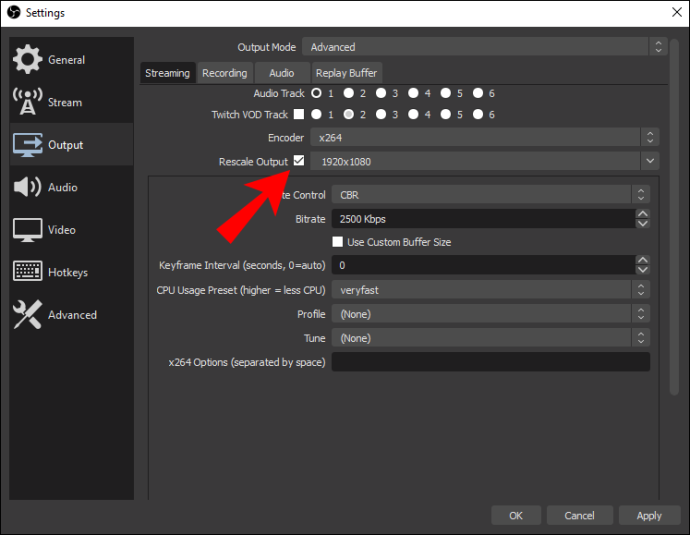
If you do go the 4K route, setting up OBS Studio correctly is where most people mess up. The key concept is that your canvas resolution and your output resolution don't have to match.
Canvas resolution vs. output resolution
Your canvas is what OBS composites together. Your output is what gets sent to the platform. You can set your canvas to 4K (3840×2160) so you have full control over your scene layout, then output at 1080p for the stream.
This is actually the most common setup for people with 4K monitors.
Bitrate settings that actually work
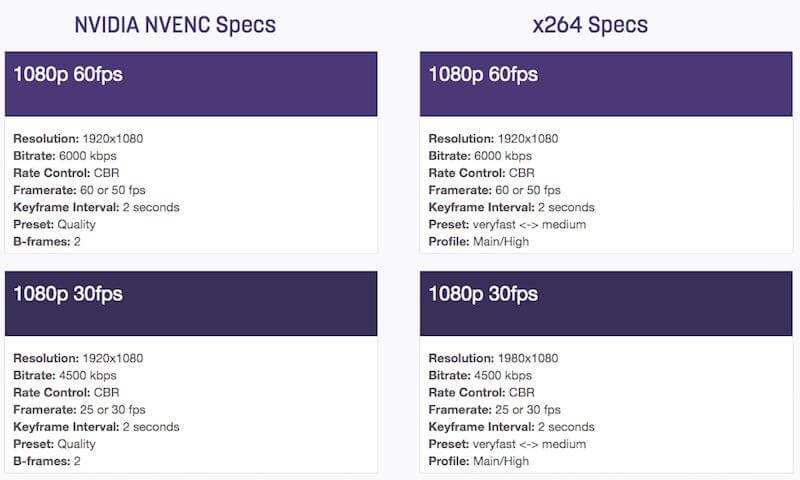
For 10860p60 streaming (what most people should be doing), 6,000 to 8,500 kbps is the sweet spot. For 4K on YouTube, you'll need 20,000 to 35,000 kbps. Going higher than your upload can handle causes buffering and dropped frames.
Downscale filter choices
When going from a 4K canvas to a 1080p output, OBS needs to downscale. Lanczos gives the sharpest result but uses slightly more CPU. Bicubic is a good middle ground.
Avoid bilinear if quality matters to you.
Avoiding the most common 4K streaming mistakes
The biggest error is setting both canvas and output to 4K without the bitrate to support it. You end up with a stream that looks worse than 1080p because the compression is working overtime. Another common mistake is forgetting to adjust Windows scaling.
At 27 inches, 4K makes everything tiny unless you bump scaling to 150% or higher.
4K Monitor vs. 1440p vs. 1080p for Streaming
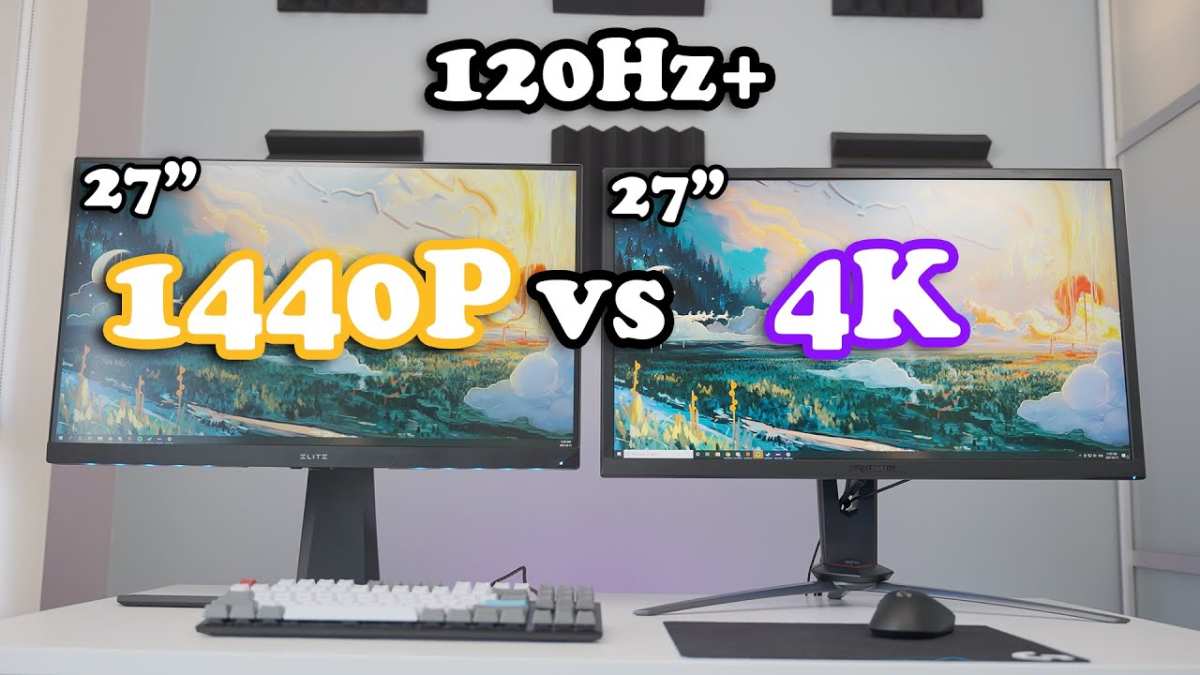
Let's put the three main options side by side so you can see where each one wins.
| Factor | 1080p (Full HD) | 1440p (QHD) | 4K (UHD) |
|---|---|---|---|
| Resolution | 1920×1080 | 2560×1440 | 3840×2160 |
| Pixel Density (27") | ~82 PPI | ~109 PPI | ~163 PPI |
| GPU Load for Gaming | Low | Medium | High |
| Encoding Demand | Low | Medium-High | High |
| Ideal For | Budget setups, esports | Most streamers | Creators, console streamers |
| Monitor Cost | $150-$300 | $250-$500 | $250-$1,500+ |
| Stream Output Quality | Good at 6,000 kbps | Good at 8,000 kbps | Needs 20,000+ kbps |
Which resolution fits your streaming style
If you're primarily a Twitch streamer playing competitive games at 1080p output, a 1440p monitor is the sweet spot. You get sharper text and more screen space without the GPU overhead of 4K. If you're a YouTube creator who also edits video, 4K makes more sense because the editing benefits outweigh the streaming costs.
Real Scenarios: Who Should Buy and Who Should Skip
Let's walk through some real situations to make this concrete.
Scenario 1: The Twitch variety streamer
You play different games, output at 1080p60, and have a 30 Mbps upload connection. A 4K monitor won't improve your stream quality at all. Your viewers are watching at 720p to 1080p on Twitch.
Save your money and get a good 1440p 144Hz monitor instead.
Scenario 2: The YouTube content creator
You produce long-form content, edit in 4K, and stream on YouTube Live. Your upload is 100 Mbps. A 4K monitor makes sense here because you benefit from seeing your edits at full resolution and YouTube supports 4K ingest.
This is one of the cases where 4K earns its keep.
Scenario 3: The console streamer
You're streaming PS5 gameplay through a capture card. The console outputs at 4K. A 4K monitor with 4K60 passthrough lets you play and monitor in native resolution while your capture card handles the stream encoding separately.
This setup works well.
Scenario 4: The viewer who just wants the best picture
You don't stream yourself. You just want the best viewing experience. A 4K monitor with HDR support is absolutely worth it.
High-bitrate 4K content on YouTube looks stunning, and even upscaled 1080p content looks better on a 4K panel.
Common Mistakes People Make With 4K and Streaming
Even when 4K is the right choice, people still mess it up. Here are the most frequent issues.
Setting canvas to 4K but outputting 1080p wrong
If your canvas is 4K and your output is 1080p, you need to make sure your sources are scaled properly. Text sources, images, and overlays that look fine at 4K can become blurry or tiny when downscaled if you don't set them up with the output resolution in mind.
Ignoring platform bitrate limits
Twitch caps you at around 8,500 kbps. YouTube allows much higher. Facebook Live has its own limits.
Pushing 4K through a platform that can't handle the bitrate just gives you a compressed mess. Match your output to what the platform actually supports.
Forgetting UI scaling issues
At 27 inches, 4K with 100% scaling makes everything painfully small. You'll squint at chat, struggle to read OBS labels, and hate life. Set Windows display scaling to 150% or 175%.
Some older apps won't scale perfectly, but most modern streaming software handles it fine.
Buying 4K when 1440p would solve everything
This is the big one. Most streamers don't need 4K. They need a good 1440p monitor with decent color accuracy and a high refresh rate.
The money saved can go toward a better microphone, a better GPU, or a better capture card, all of which improve your stream more than an extra 2 million pixels ever will.
Final Decision Guide: Should You Get a 4K Monitor for Streaming?
Here's a quick way to figure out where you stand.
The one question that answers it all
Are you primarily watching streams or broadcasting them? If you're watching, 4K is a great upgrade. If you're broadcasting, it depends on everything else below.
Quick checklist based on your situation
- You stream on YouTube Live with 50+ Mbps upload: 4K is viable
- You stream on Twitch: stick with 1440p for your monitor, output at 1080p
- You edit video and stream: 4K monitor makes sense for the editing workflow
- You game and stream on the same PC: 1440p is the practical sweet spot
- You use a console with a capture card: 4K monitor with passthrough is helpful
- Your GPU is below RTX 3060 / RX 6800: 4K encoding will hurt your gaming performance
- You have less than 40 Mbps upload: 4K streaming isn't realistic regardless of your monitor
The bottom line
A 4K monitor is a luxury for most streamers, not a necessity. It helps in specific situations: console streaming, video editing workflows, and content creation where detail matters. For the average PC game streamer outputting at 1080p on Twitch, it's money better spent elsewhere.
Get the monitor that matches your actual workflow, not the one that looks best on a spec sheet.
Frequently Asked Questions
Can I stream in 4K on Twitch?
Not really. Twitch caps bitrate at around 8,500 kbps for most streamers, which isn't enough for quality 4K. You'd need to stream at 1080p or 1440p on Twitch and let viewers watch at that resolution.
Does a 4K monitor improve stream quality?
No. Your monitor resolution doesn't affect what your audience sees. Your stream output resolution, bitrate, and encoder settings determine stream quality.
The monitor only affects what you see on your end.
Is 4K good for streaming PS5 gameplay?
Yes, if you're using a capture card with 4K60 passthrough. A 4K monitor lets you play and preview in native resolution while your capture card handles encoding separately. It's one of the stronger use cases for 4K in streaming.
What size 4K monitor is best for streaming?
32 inches is the sweet spot for 4K. At 27 inches, you need display scaling above 150% to keep text readable. At 32 inches, the pixel density is around 138 PPI, which is sharp without requiring aggressive scaling.
Do I need a capture card for 4K streaming?
If you're streaming from a PC, no. Your GPU handles encoding through NVENC or similar. If you're streaming from a console like PS5 or Xbox Series X, yes, you need a capture card that supports 4K60 passthrough.
Is 1440p better than 4K for streaming?
For most streamers, yes. 1440p offers a noticeable sharpness improvement over 1080p without the heavy GPU and bandwidth demands of 4K. It's the practical middle ground for gaming and streaming on the same machine.
Common Mistakes People Make With 4K and Streaming
Setting canvas to 4K but outputting 1080p wrong
Your canvas is what OBS composites together. Your output is what gets sent to the platform. You can set your canvas to 4K so you have full control over your scene layout, then output at 1080p for the stream.
This is actually the most common setup for people with 4K monitors.
Ignoring platform bitrate limits
Twitch caps you at around 8,500 kbps. YouTube allows much higher. Facebook Live has its own limits.
Pushing 4K through a platform that can't handle the bitrate just gives you a compressed mess. Match your output to what the platform actually supports.
Forgetting UI scaling issues
At 27 inches, 4K with 100% scaling makes everything tiny. You'll squint at chat, struggle to read OBS labels, and hate life. Set Windows display scaling to 150% or 175%.
Some older apps won't scale perfectly, but most modern streaming software handles it fine.
Buying 4K when 1440p would solve everything
This is the big one. Most streamers don't need 4K. They need a good 1440p monitor with decent color accuracy and a high refresh rate.
The money saved can go toward a better microphone, a better GPU, or a better capture card, all of which improve your stream more than an extra 2 million pixels ever will.
Final Decision Guide: Should You Get a 4K Monitor for Streaming?
The one question that answers it all
Are you primarily watching streams or broadcasting them? If you're watching, 4K is a great upgrade. If you're broadcasting, it depends on everything else below.
Quick checklist based on your situation
- You stream on YouTube Live with 50+ Mbps upload: 4K is viable
- You stream on Twitch: stick with 1440p for your monitor, output at 1080p
- You edit video and stream: 4K monitor makes sense for the editing workflow
- You game and stream on the same PC: 1440p is the practical sweet spot
- You use a console with a capture card: 4K monitor with passthrough is helpful
- Your GPU is below RTX 3060 / RX 6800: 4K encoding will hurt your gaming performance
- You have less than 40 Mbps upload: 4K streaming isn't realistic regardless of your monitor
The bottom line
A 4K monitor is a luxury for most streamers, not a necessity. It helps in specific situations: console streaming, video editing workflows, and content creation where detail matters. For the average PC game streamer outputting at 1080p on Twitch, it's money better spent elsewhere.
Get the monitor that matches your actual workflow, not the one that looks best on a spec sheet.
Frequently Asked Questions
Can I stream in 4K on Twitch?
Not really. Twitch caps bitrate at around 8,500 kbps for most streamers, which isn't enough for quality 4K. You'd need to stream at 1080p or 1440p on Twitch and let viewers watch at that resolution.
Does a 4K monitor improve stream quality?
No. Your monitor resolution doesn't affect what your audience sees. Your stream output resolution, bitrate, and encoder settings determine stream quality.
The monitor only affects what you see on your end.
Is 4K good for streaming PS5 gameplay?
Yes, if you're using a capture card with 4K60 passthrough. A 4K monitor lets you play and preview in native resolution while your capture card handles encoding separately. It's one of the stronger use cases for 4K in streaming.
What size 4K monitor is best for streaming?
32 inches is the sweet spot for 4K. At 27 inches, you need display scaling above 150% to keep text readable. At 32 inches, the pixel density is around 138 PPI, which is sharp without requiring aggressive scaling.
Do I need a capture card for 4K streaming?
If you're streaming from a PC, no. Your GPU handles encoding through NVENC or similar. If you're streaming from a console like PS5 or Xbox Series X, yes, you need a capture card that supports 4K60 passthrough.
Is 1440p better than 4K for streaming?
For most streamers, yes. 1440p offers a noticeable sharpness improvement over 1080p without the heavy GPU and bandwidth demands of 4K. It's the practical middle ground for gaming and streaming on the same machine.

Similar Posts





















