Is 4K Monitor Good for Trading
If you're wondering is 4k monitor good for trading, the short answer is yes, but with some real caveats that can make or break your experience. A 4K display gives you sharper text and way more screen space for charts, but it also introduces scaling headaches that many trading platforms still haven't fully solved.
The real question isn't whether 4K is better on paper. It is. The question is whether it's better for your specific setup, the software you use, and how you actually trade day to day.
A 27-inch 4K panel packs about 163 pixels per inch, which is nearly double the pixel density of a standard 1080p screen. That's a massive jump, and it changes how everything looks and behaves on your desk.
Quick Answer
A 4K monitor is good for trading if you need more screen real estate for multiple charts. It works best at 32 inches or larger to avoid scaling problems. For most traders, a 1440p monitor offers a better balance of clarity and compatibility.
Your choice depends on your trading platform and desk setup.
Why 4K for Trading Isn't a Simple Yes or No
Most monitor reviews treat 4K as an automatic upgrade. Higher resolution equals better, end of story. But trading isn't gaming or photo editing.
You're reading tiny text on candlestick charts, scanning order books, and staring at numbers for hours. How that resolution actually renders matters way more than the number itself.
Here's where it gets tricky. A 27-inch 4K monitor has roughly 163 PPI. That's fantastic for image quality, but it means everything on screen appears significantly smaller at native resolution.
Your trading platform's charts, menus, and data tables all shrink. Without proper scaling, you'll be squinting at Level 2 quotes and order entry windows.
The problem compounds with certain platforms. Thinkorswim, which runs on Java, has well-documented scaling issues on high-DPI displays. Text renders blurry or impossibly small even after adjusting settings.
TradingView handles 4K better in its browser version, but the desktop app can still have quirks. MetaTrader 5 and NinjaTrader have improved their high-DPI support recently, but results vary by version.
So the answer shifts from "yes, 4K is great" to "yes, 4K is great if your software supports it properly and you're willing to spend time configuring it correctly." That's a meaningful distinction most reviews skip entirely.
How Resolution Actually Affects Your Trading Experience
Resolution impacts three things that matter directly to traders: text clarity, screen real estate, and software compatibility. Each one affects your daily workflow differently.
Pixel Density and Text Clarity
Pixel density determines how sharp text and chart lines appear. Higher PPI means smoother edges on fonts and cleaner lines on candlesticks. At 163 PPI on a 27-inch 4K panel, text looks almost printed.
At 92 PPI on a 32-inch 1440p screen, you'll notice slight pixelation if you look closely.
But there's a catch. Your eyes benefit from higher pixel density only if you sit within the optimal viewing distance. For a 27-inch screen, that's roughly 2 to 3 feet.
Sit further away and the sharpness advantage diminishes. A 32-inch 4K monitor at 138 PPI hits a sweet spot for most desk setups because you naturally sit a bit farther back from a larger display.
Manufacturer specifications from Dell and LG confirm that their 4K IPS panels achieve sub-pixel rendering that makes 8-point and 9-point font sizes clearly legible at proper viewing distances. That matters when you're reading earnings calendars or options chains all day.
Screen Real Estate: The Real Reason Traders Want 4K
This is where 4K genuinely shines for trading. A 3840 × 2160 display gives you four times the pixels of 1080p. That means you can fit four 1080p-sized chart windows on one screen without any overlap.
For day traders running multiple timeframes or monitoring several symbols simultaneously, that's a game-changer.
A typical swing trader might run a daily chart, a 1-hour chart, a 15-minute chart, and a watchlist side by side. On a 1080p screen, those windows feel cramped. On 4K, they breathe.
You can see candlestick patterns clearly without constantly zooming in and out.
Aggregate user feedback across trading communities consistently highlights screen real estate as the primary reason traders upgrade to 4K. The ability to reduce monitor count while maintaining visibility of all critical data points is repeatedly cited as the top benefit.
The Scaling Problem Nobody Warns You About
Here's the part most monitor reviews completely ignore. When you run a 4K monitor at native resolution, Windows or macOS scales everything down to match the pixel density. A 27-inch 4K screen at 100% scaling makes text microscopic.
You need to crank scaling to 150% or 175% to get comfortable sizing.
The problem is that not all software respects system scaling properly. Thinkorswim's Java-based interface is notorious for this. Even at 150% Windows scaling, certain dialog boxes and chart labels render at inconsistent sizes.
Some elements scale correctly while others stay tiny. You end up with a patchwork interface where your chart looks fine but the order entry window is unreadable.
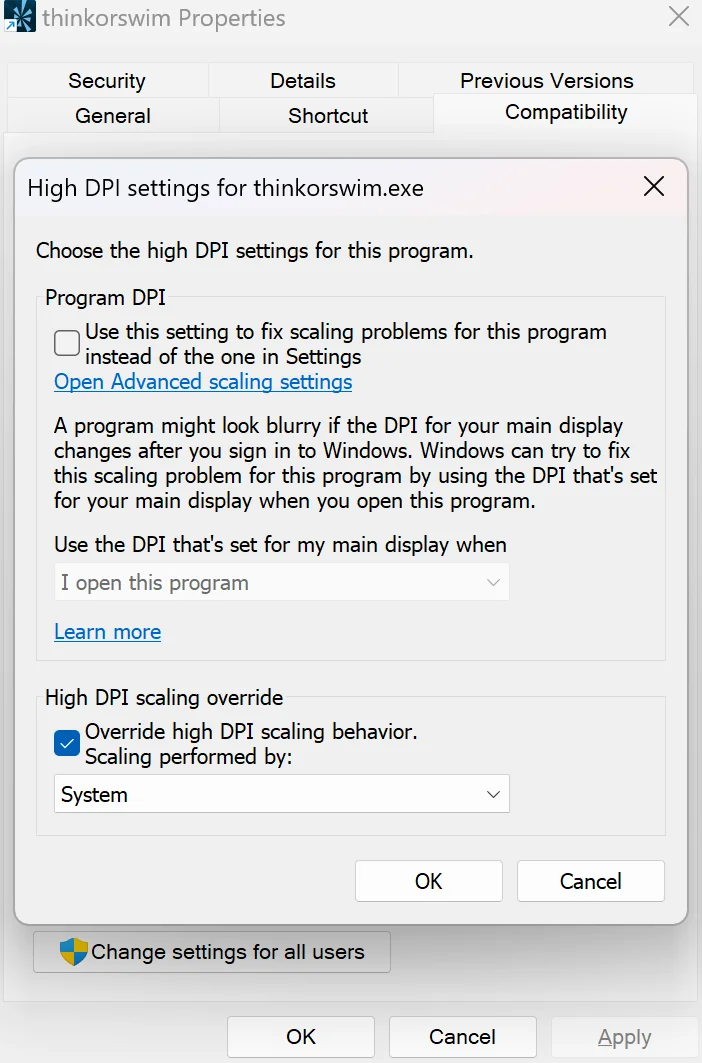
macOS handles high-DPI scaling more consistently because Apple controls both hardware and software. But most trading platforms are Windows-first, and Windows scaling has improved significantly since the early days of 4K. Windows 11 handles 150% and 175% scaling much better than Windows 10 did at launch.
The practical takeaway is this: if you use Thinkorswim as your primary platform, expect to spend 30 to 60 minutes tweaking scaling settings, and accept that some elements may never look perfect. If you use TradingView in a browser or MetaTrader 5, you'll have a much smoother experience out of the box.
4K vs. 1440p vs. 1080p: Which Resolution Actually Makes Sense
Comparing these three resolutions side by side makes the trade-offs obvious. Each one serves a different type of trader and budget.
| Factor | 1080p (Full HD) | 1440p (QHD) | 4K (UHD) |
|---|---|---|---|
| Resolution | 1920 × 1080 | 2560 × 1440 | 3840 × 2160 |
| PPI at 27" | ~82 | ~109 | ~163 |
| PPI at 32" | ~69 | ~92 | ~138 |
| Chart Clarity | Adequate | Good | Excellent |
| UI Scaling Needed | Rarely | Sometimes | Often |
| GPU Requirement | Low | Moderate | Higher |
| Price Range | $100–$200 | $200–$400 | $250–$600+ |
| Best For | Budget setups | Sweet spot for most | Multi-chart power users |
1080p still works fine if you're on a tight budget or running a multi-monitor setup where each screen shows one or two charts. The pixel density at 27 inches is low enough that you'll see individual pixels, but it's perfectly functional. Many professional traders still run 1080p panels because they prioritize reliability and familiarity over sharpness.
1440p hits the sweet spot for most traders in 2025. At 27 inches, you get 109 PPI, which is sharp enough for clean text without requiring aggressive scaling. Most trading platforms render well at 100% or 125% scaling.
You get more screen space than 1080p without the compatibility headaches of 4K.
4K makes sense when you need maximum screen real estate on a single display. If you're a day trader who wants six charts visible simultaneously, or if you're replacing a dual-monitor setup with one large screen, 4K delivers. Just be prepared to deal with scaling configuration and potentially higher hardware costs.
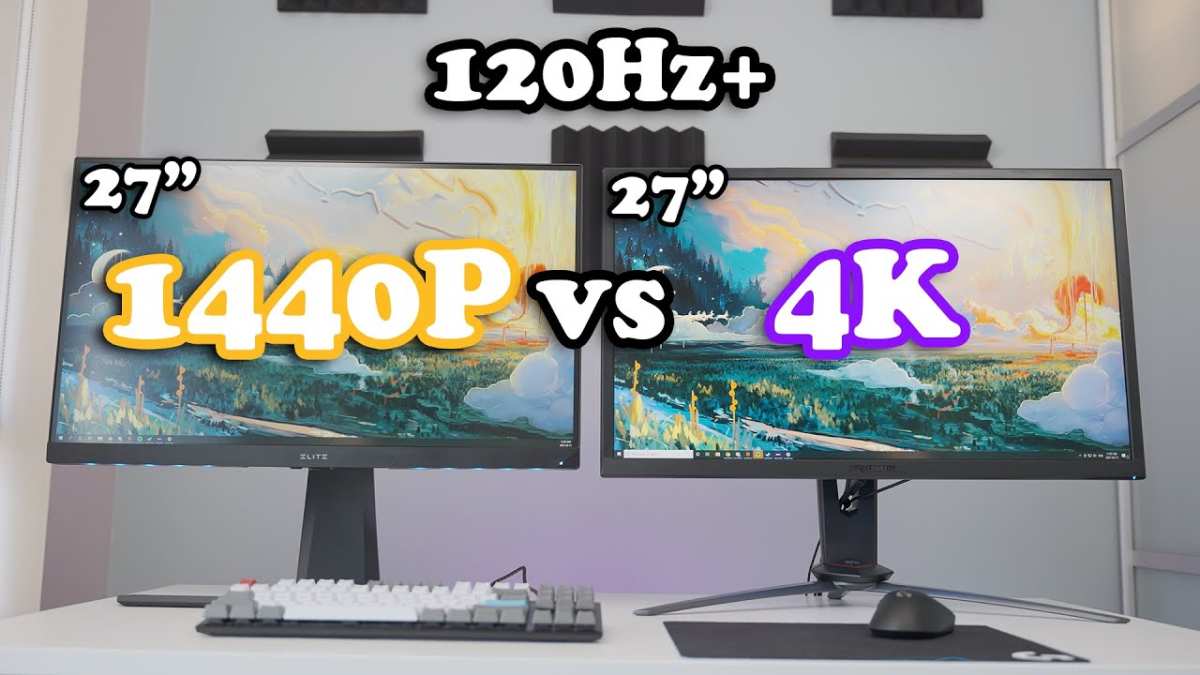
The GPU requirement difference matters more than people think. Driving a single 4K display at 60Hz requires at least a modest dedicated GPU. Most modern integrated graphics can handle it, but if you're running three or four 4K monitors, you'll want something like an NVIDIA RTX 3060 or AMD RX 6600 to keep things smooth.
Multi-monitor traders often overlook this and wonder why their system feels sluggish after upgrading.
When a 4K Monitor Is Actually Worth It for Trading
Not every trader benefits from 4K. But for certain use cases, it's genuinely the better choice. Here's when it makes sense.
You're Running 4+ Charts on One Screen
If your trading strategy requires monitoring multiple timeframes or several instruments simultaneously, 4K gives you the space to do it without overlapping windows. A single 32-inch 4K panel can comfortably display four to six charts at readable sizes. That replaces a dual 1440p setup with one screen, reducing cable clutter and bezel interference.
You Use Thinkorswim, TradingView, or MetaTrader 5
Modern trading platforms have improved their 4K support significantly. TradingView's browser version scales well at any resolution. MetaTrader 5 handles high-DPI displays properly as of recent updates.
Thinkorswim remains the problem child, but workarounds exist. If you're on any of these platforms, 4K is viable with some configuration.
You Sit Close to a 27" or 32" Display
Pixel density benefits are visible only within the optimal viewing range. For a 27-inch 4K screen, that's about 2 to 3 feet. For a 32-inch model, roughly 2.5 to 4 feet.
If your desk setup puts you within those ranges, you'll notice the sharpness difference immediately. Sit farther back and a 1440p screen looks nearly identical.
You Also Edit Video, Code, or Do Creative Work
Many traders wear multiple hats. If you also edit spreadsheets for hours, write code for algorithmic strategies, or do any visual work, 4K pays dividends beyond trading. Text in IDEs and documents looks significantly cleaner.
Video editing timelines show more detail. The monitor serves double duty, which justifies the premium.
When You Should Skip 4K and Go 1440p Instead
4K isn't for everyone. In some situations, 1440p is the smarter move.
You're on a Tight Budget
A quality 1440p 27-inch monitor costs $200 to $300. A comparable 4K panel runs $300 to $500. If you're building a trading setup from scratch, that $100 to $200 difference could go toward a better GPU, more RAM, or a second monitor.
Budget matters, and 1440p delivers 90% of the benefit at 60% of the cost.
You Use Older or Java-Based Platforms
Thinkorswim remains the elephant in the room. If it's your primary trading platform and you don't want to spend time troubleshooting scaling issues, 1440p avoids most of those problems. The pixel density is high enough for sharp text without triggering the worst high-DPI rendering bugs.
You Already Run a Multi-Monitor Setup
If you currently run two or three 1440p monitors and they work fine, switching to a single 4K screen might actually feel like a downgrade in flexibility. Multi-monitor setups let you dedicate each screen to a specific task. One for charts, one for news, one for order execution.
A single 4K screen consolidates everything, which isn't always better.
You Sit More Than 3 Feet From Your Screen
If your monitor is mounted on an arm or placed on a deep desk, you might sit 3.5 to 4 feet from a 27-inch display. At that distance, the difference between 109 PPI (1440p) and 163 PPI (4K) becomes hard to perceive. You're paying for sharpness you can't actually see.
The GPU and Hardware Side Nobody Talks About
Running 4K isn't just about the monitor. Your entire system needs to push four times as many pixels as 1080p. For trading, this usually isn't a dealbreaker, but it's worth understanding.
A single 4K display at 60Hz requires a GPU that supports DisplayPort 1.2 or HDMI 2.0 at minimum. Most GPUs from the last five years meet this requirement. Integrated graphics on modern Intel and AMD processors can also drive a 4K display without issues.
If you're only running one screen for trading, your existing hardware probably handles it fine.
The problem starts with multiple monitors. Running two 4K displays at 60Hz requires more GPU memory and bandwidth. Three or four 4K panels demand a dedicated GPU with at least 8GB of VRAM.
Traders running multi-monitor arrays should check their GPU's maximum supported displays and resolution limits before buying new panels.
Cable quality matters too. Not all HDMI cables support 4K at 60Hz. You need a High Speed HDMI cable or a DisplayPort 1.4 cable for reliable 4K output.
Cheap cables can cause flickering, color issues, or resolution drops. This is a $10 fix that saves hours of frustration.
Power consumption is another minor factor. A 4K panel typically draws 20 to 40% more power than a 1080p equivalent of the same size. Over a year of trading, that adds up to maybe $10 to $20 in electricity costs depending on your rates.
Not a dealbreaker, but worth knowing.
Best 4K Monitors for Trading in 2025
Choosing the right 4K monitor for trading means prioritizing panel quality, connectivity, and ergonomics over gaming specs. Here are the options that make the most sense for traders.
Best Overall: Dell U2723QE
The Dell U2723QE is a 27-inch 4K IPS Black panel with a USB-C hub built in. It delivers 163 PPI, excellent color accuracy with 98% DCI-P3 coverage, and a 60Hz refresh rate. The USB-C connection supports 90W power delivery, which is perfect for laptop traders who want a single cable for video and charging.
The stand is fully adjustable and the build quality is professional grade.
Best Value: LG 27UL850-W
At a lower price point, the LG 27UL850-W offers 27-inch 4K IPS with HDR10 support and AMD FreeSync. It covers 95% of the sRGB gamut and has a decent stand with height and tilt adjustment. It lacks USB-C, but for traders who already have a docking station, this monitor delivers solid 4K performance without the premium price tag.
Best for Multi-Chart: Samsung UR55
The Samsung UR55 is a 32-inch 4K IPS panel that hits the 138 PPI sweet spot. At 32 inches, you get more physical screen area than a 27-inch model, which means charts feel more spacious even at the same resolution. The 60Hz refresh rate is standard, and the matte coating reduces glare during long trading sessions.
Best Ultrawide Alternative: LG 34WN80C
If you're considering 4K but want a different form factor, the LG 34WN80C is a 34-inch ultrawide with 3440 × 1440 resolution. It's not true 4K, but the 21:9 aspect ratio gives you horizontal space that's perfect for wide chart layouts and multi-window setups. It's essentially two 1080p monitors side by side without the bezel in the middle.
How to Set Up a 4K Monitor for Trading Without the Headaches
Getting a 4K monitor working properly for trading takes about 30 to 60 minutes of configuration. Follow these steps to avoid the most common issues.
Step 1: Fix Windows or macOS Scaling First
Before opening any trading software, set your system scaling. On Windows 11, go to Settings > System > Display and set scaling to 150% for a 27-inch 4K screen or 125% to 150% for a 32-inch model. On macOS, open System Settings > Displays and select "Default for display" or manually pick a scaled resolution.
This single step prevents most text rendering problems.
Step 2: Adjust Your Trading Platform's Display Settings
Each platform has its own display preferences. In Thinkorswim, go to Setup > Application Settings > Chart and adjust the font sizes manually. In TradingView, use the chart settings to increase label and font sizes.
In MetaTrader 5, right-click on a chart and adjust the symbol and chart text sizes. Don't rely on system scaling alone. Fine-tune within each application.
Step 3: Calibrate Brightness and Color for Long Sessions
Trading sessions often last 6 to 8 hours. Set brightness to 120 to 140 cd/m² for comfortable viewing in a normally lit room. Use a warm color temperature around 5500K to 6000K to reduce eye strain.
Most monitors have a "Low Blue Light" or "Reader" mode that helps during extended use.
Step 4: Set Up Window Layouts That Use the Extra Space
The whole point of 4K is screen real estate. Use it. Create a layout with your primary chart in the center, secondary charts on the sides, and your watchlist or order panel at the bottom.
Save this layout in your trading platform so it loads automatically. Tools like Windows PowerToys FancyZones help you snap windows into custom grid layouts quickly.
Common Mistakes Traders Make With 4K Monitors
Even with the right hardware, traders make predictable mistakes that undermine the 4K experience.
Buying a 27-inch 4K without planning for scaling. At 163 PPI, everything looks tiny at 100% scaling. If you don't want to deal with scaling configuration, go 32 inches instead.
Using cheap cables. A $3 HDMI cable might not support 4K at 60Hz reliably. Buy a certified High Speed HDMI or DisplayPort 1.4 cable. This is not the place to save $5.
Ignoring GPU limitations. If you're adding a 4K monitor to an older system with integrated graphics, check whether your GPU actually supports 4K output. Some older Intel integrated graphics cap at 4K 30Hz, which feels sluggish when scrolling charts.
Running mixed resolutions without adjustment. If you add a 4K monitor alongside an existing 1080p screen, Windows scaling will behave differently on each display. Expect some quirks when dragging windows between screens. Set per-display scaling and accept that some applications will look slightly different on each panel.
Skipping platform-specific fixes. Every trading platform has known 4K issues and community-documented fixes. Spend 15 minutes searching for your specific platform and 4K before you start trading. It saves hours of frustration later.
Real Trader Scenarios: What Works and What Doesn't
Looking at how actual traders use 4K monitors helps clarify whether it's right for you.
Scenario 1: Day Trader, 27" 4K, Thinkorswim
A day trader using Thinkorswim on a 27-inch 4K screen will likely face scaling issues. The chart area looks sharp, but order entry windows and the watchlist panel render at inconsistent sizes. Workarounds include running Thinkorswim at 125% scaling and manually increasing font sizes in the platform settings.
It works, but it requires patience and tweaking. Many Thinkorswim users ultimately prefer 32-inch 4K or 27-inch 1440p for this reason.
Scenario 2: Swing Trader, 32" 4K, TradingView
A swing trader using TradingView on a 32-inch 4K monitor has a much better experience. TradingView's browser-based platform scales cleanly at 150% system scaling. Charts look crisp, text is readable, and the extra screen space allows four to six charts in a comfortable layout.
This is the ideal 4K trading setup for most people.
Scenario 3: Multi-Monitor Setup, Mixed Resolutions
A trader running a 4K primary display alongside two 1440p secondary monitors will encounter scaling inconsistencies. Windows will render differently on each screen, and some applications will look blurry when moved between displays. This setup works, but it requires per-display scaling configuration and acceptance that not everything will look uniform.
Many traders in this situation eventually standardize on one resolution across all panels.
Frequently Asked Questions
Is 4K overkill for trading?
Not necessarily. If you run multiple charts on one screen, 4K gives you meaningful extra space. For single-chart traders or those already using multiple monitors, 1440p is usually sufficient.
Does 4K cause input lag for trading?
Most modern 4K monitors have response times of 4ms to 5ms at 60Hz. This is imperceptible for trading. Gaming-focused traders who also play fast-paced games should look for 1ms panels, but for pure trading, response time is not a concern.
Can my laptop drive a 4K monitor for trading?
Most laptops with USB-C DisplayPort Alt Mode or HDMI 2.0 can drive a 4K display at 60Hz. Check your laptop's specifications for 4K output support before buying a monitor.
Is 27-inch or 32-inch better for 4K trading?
32 inches is generally better for 4K because the lower pixel density (138 PPI vs. 163 PPI) reduces scaling issues. At 27 inches, you'll almost certainly need 150% scaling, which introduces compatibility risks with some trading platforms.
Will 4K make my trades faster?
No. Resolution doesn't affect execution speed. Your internet connection, broker's servers, and your own decision-making determine trade execution time. 4K improves visibility and comfort, not speed.
Do I need a gaming monitor for trading?
No. Gaming monitors prioritize high refresh rates and fast response times, which don't benefit trading. Look for an IPS panel with good color accuracy and ergonomic adjustability instead.
A 60Hz IPS display is ideal for trading.
Costs: What You'll Actually Spend
A quality 4K monitor for trading costs $250 to $500 as of 2025.
Good 32-inch 4K options start around $300 to $350. Adding a dedicated GPU for multi-monitor setups adds $200 to $400 if your current system lacks one. Budget $400 to $600 total for a solid 4K trading setup.
Final Verdict: Should You Buy a 4K Monitor for Trading?
Buy a 4K monitor if you need maximum chart visibility on a single screen. It's also a strong choice if you're replacing a multi-monitor array with one display. Go with 32 inches to minimize scaling headaches.
Skip 4K if you're on a strict budget, or if Thinkorswim is your primary platform. A 1440p 27-inch monitor delivers excellent clarity with fewer compatibility issues. That's the safer pick for most traders in 2025.
Expert Tips for Getting the Most Out of Your Setup
Use DisplayPort instead of HDMI when possible. It handles 4K 60Hz more reliably and supports adaptive sync features. If you run multiple monitors, standardize all panels at the same resolution to avoid scaling inconsistencies.
Set your trading platform's chart background to dark gray rather than pure black. This reduces eye fatigue during 6-to-8-hour sessions while maintaining good contrast against candlestick data.
Position your monitor so the top of the screen is at or slightly below eye level. This reduces neck strain and keeps your gaze naturally angled slightly downward.

Similar Posts





















