Do 4K Monitors Support HDR
Do 4K monitors support HDR? The honest answer is: some do, some say they do, and a surprising number are just slapping an HDR label on a panel that can't actually deliver the experience. It's one of the most confusing specs in the monitor market right now, and it's easy to spend real money on something that disappoints.
The core issue is that "4K" only tells you about resolution. HDR is a completely separate capability that depends on peak brightness, contrast, color depth, and local dimming. A monitor can absolutely be 4K and have zero meaningful HDR performance.
Let's walk through exactly how to tell the difference.
The Short Answer: Yes, But Most 4K Monitors Fake It
4K monitors can support HDR. Resolution and HDR are independent specs. Most budget and mid-range 4K monitors accept an HDR signal but can't display it properly.
True HDR performance requires specific hardware that costs more. VESA created the DisplayHDR certification to help buyers tell the difference.
Why "4K" and "HDR" Don't Automatically Go Together
Here's the thing that trips people up. You see "4K HDR" on a product listing and assume both features work well. They don't, at least not always.
4K refers to pixel count: 3840 × 2160. That's fixed. HDR refers to a monitor's ability to produce a wider range between the darkest blacks and the brightest highlights, with more color volume in between.
Those are two completely different performance characteristics.
A 4K monitor with a standard LED backlight and no local dimming will technically accept an HDR signal from your GPU or console. But what you'll see on screen looks flat, washed out, or just slightly off. The monitor is doing its best to map HDR content onto hardware that can't reproduce the luminance range HDR demands.
Think of it like playing a 4K video on a 720p screen. The file is 4K, but the screen can't show you those pixels. Same concept with HDR.
The signal arrives, but the hardware can't render it properly.
The Real Problem: HDR400 vs Actual HDR, There's a Massive Gap
This is where most of the confusion lives. VESA developed the DisplayHDR certification standard specifically because manufacturers were slapping "HDR-compatible" on everything. The standard has tiers, and the lowest tier is where things get murky.
| Certification | Peak Brightness | Black Level | Color Gamut | Local Dimming | What It Actually Looks Like |
|---|---|---|---|---|---|
| DisplayHDR 400 | 400 nits | 0.4 nits | 95% BT.709 | Not required | Barely better than SDR, often worse |
| DisplayHDR 500 | 500 nits | 0.1 nits | 90% DCI-P3 | Not required | Slightly better, still underwhelming |
| DisplayHDR 600 | 600 nits | 0.1 nits | 90% DCI-P3 | Required (8 zones) | Noticeable improvement, entry-level real HDR |
| DisplayHDR 1000 | 1000 nits | 0.05 nits | 99% DCI-P3 | Required (16+ zones) | Genuinely impressive HDR |
| DisplayHDR 1400 | 1400 nits | 0.02 nits | 95% BT.2020 | Required (32+ zones) | Reference-grade HDR |
DisplayHDR 400 monitors make up the bulk of the "4K HDR" market. They accept the signal. They just can't produce the brightness, contrast, or color volume that makes HDR look like HDR.
Many reviewers and aggregate analyses suggest that DisplayHDR 600 is where HDR starts to look meaningfully different from SDR.
The problem is marketing. A DisplayHDR 400 monitor will proudly display its HDR badge on the box. Most buyers don't know the tiers exist.
They see "HDR" and assume it works.
How to Tell If a 4K Monitor Has Real HDR (Decision Checklist)
If you're shopping for a 4K monitor and HDR actually matters to you, here's the step-by-step process for separating the real ones from the pretenders.
Step 1: Check the VESA DisplayHDR Certification Tier
Look up the exact model on VESA's DisplayHDR verified product list or check the manufacturer's spec sheet. If there's no certification listed, that's a red flag. If it says DisplayHDR 400, temper your expectations significantly.

A DisplayHDR 1000 or 1400 badge means the monitor has been independently tested and verified to hit those performance thresholds. DisplayHDR 600 is the minimum tier where most people will actually notice HDR working. Anything below that is mostly marketing.
Step 2: Look at Peak Brightness and Contrast Specs
Peak brightness is measured in nits (candelas per square meter). For HDR to look right, you need highlights that genuinely pop off the screen. Here's the rough breakdown:
- 300-400 nits: Standard SDR territory. HDR will look flat.
- 400-600 nits: Marginal HDR. Slight improvement in highlights, but blacks stay gray.
- 600-1000 nits: Real HDR territory. Noticeable brightness in specular highlights, better contrast.
- 1000+ nits: True HDR. Highlights look genuinely bright, closer to what your eyes see in real life.
Contrast ratio matters just as much. A monitor hitting 1000 nits peak but only producing 0.4 nits in blacks (DisplayHDR 400 spec) will look hazy. You want a low black level alongside that high peak.
OLED panels and monitors with full-array local dimming handle this best.
Step 3: Verify Local Dimming (This Is the Make-or-Break Feature)
Local dimming is the single biggest factor in whether HDR looks good or terrible on an LCD monitor. Without it, the entire backlight is one zone. Bright highlights and dark shadows in the same scene can't coexist properly.
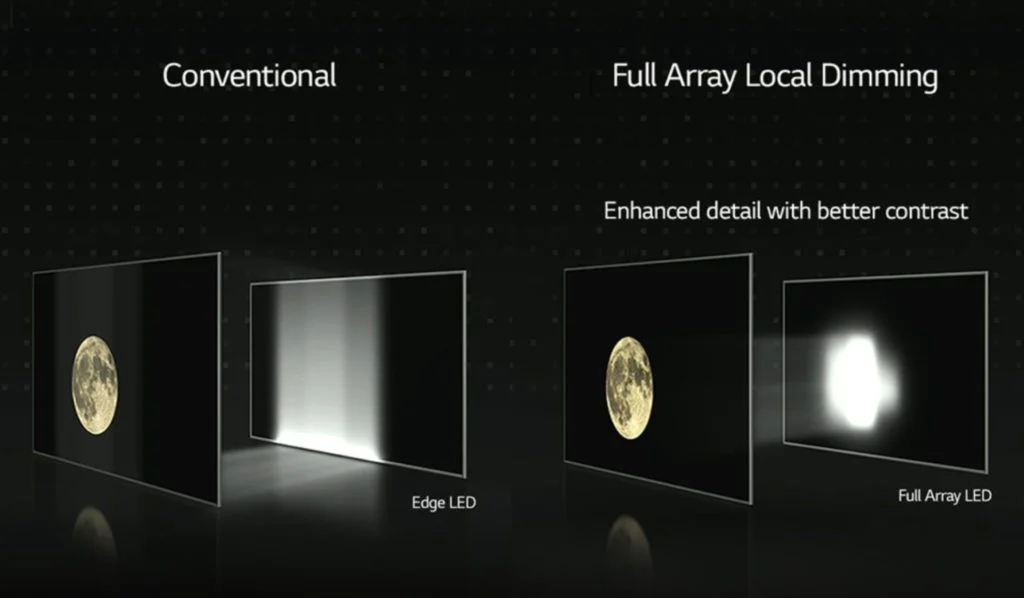
There are three main types:
- No local dimming: Entire backlight is one zone. HDR looks washed out. Common in DisplayHDR 400 monitors.
- Edge-lit dimming: Zones along the edges only. Better than nothing, but you'll see blooming and uneven brightness. Common in budget HDR monitors.
- Full-array local dimming (FALD): Dozens to hundreds of zones across the entire panel. This is what makes HDR look genuinely good on LCD. Look for monitors with at least 16 zones minimum, though 32+ is preferable.
OLED monitors don't need local dimming because each pixel produces its own light. That's why OLED HDR looks so much better than LCD HDR at the same brightness specs. Every pixel can turn off completely for true blacks.
Step 4: Confirm Your Cable and Port Can Actually Carry HDR
You can have the best HDR monitor in the world, but if your cable or port can't handle the bandwidth, you'll never see it work properly.

Here's what you need:
| Connection | Max Bandwidth | 4K HDR 60Hz 10-bit | 4K HDR 120Hz 10-bit | Notes |
|---|---|---|---|---|
| HDMI 2.0 | 18 Gbps | Yes (with chroma subsampling) | No | Common on older GPUs and monitors |
| HDMI 2.1 | 48 Gbps | Yes | Yes | Required for console HDR at 120Hz |
| DisplayPort 1.4 | 32.4 Gbps | Yes | Yes (with DSC) | Most common for PC monitors |
| DisplayPort 2.1 | 80 Gbps | Yes | Yes | Newest standard, limited adoption as of 2026 |
For most PC setups, DisplayPort 1.4 with DSC handles 4K HDR at up to 144Hz without issues. For PS5 or Xbox Series X, you need HDMI 2.1 for 4K HDR at 120Hz. If you're limited to HDMI 2.0, you'll get 4K HDR at 60Hz with 4:2:0 chroma subsampling, which is fine for movies but not ideal for desktop use.
Step 5: Test the Actual HDR Output (Don't Trust the Label)
Once you've got the monitor connected, verify HDR is actually working and not just "enabled" in settings.
On Windows:
- Settings > System > Display > HDR (toggle on)
- Check that the HDR badge appears in the display info
- Run the Windows HDR Calibration tool (free in the Store) to set proper tone mapping
On PS5:
- Settings > Screen and Video > Video Output > HDR > On
- Run the built-in HDR calibration tool
On Xbox Series X:
- Settings > General > TV & Display Options > Video Modes > Allow HDR
- Use the HDR Game Calibration app
What to look for:
- Bright specular highlights (sun reflections, light sources) should look noticeably brighter than the rest of the scene
- Dark areas should retain detail without going completely black or looking gray
- Colors should feel richer without looking oversaturated
- The desktop SDR content should look correct when HDR mode is active (this is where many monitors fail)
If HDR looks worse than SDR on the desktop, that's normal for lower-tier monitors. The monitor's tone mapping isn't good enough to handle SDR content properly in HDR mode. You'd toggle HDR on only for HDR content and off for everything else.
Better monitors handle this transition more gracefully.
What Happens When You Plug HDR Into a Monitor That Can't Really Do HDR
This is where most people end up frustrated. They enable HDR in Windows or on their console, and everything looks worse. Here's why.
The monitor receives an HDR signal it can't properly display. It tries to tone map the content, but without adequate brightness or local dimming, the result is a washed-out, desaturated image. Whites look gray.
Colors lose their punch. The whole picture looks flatter than it did in SDR.
Windows is particularly bad at handling this. When you toggle HDR on in Windows Display Settings, the OS sends an HDR signal to the monitor. The desktop, browsers, and SDR apps all get tone mapped through the HDR pipeline.
On a low-tier HDR monitor, this makes everything look off. Colors shift. Text can look fringed.
The whole experience feels broken.
This doesn't mean your monitor is defective. It means the hardware can't keep up with the signal it's receiving. The fix is usually to only enable HDR when you're actually consuming HDR content, then toggle it back off for desktop use.
Real HDR vs Fake HDR: Side-by-Side Comparison Table
Here's what separates a genuine HDR experience from a marketing label:
| Factor | Fake HDR (DisplayHDR 400) | Real HDR (DisplayHDR 1000+) |
|---|---|---|
| Peak brightness | 300-400 nits | 1000-1400+ nits |
| Black level | 0.4 nits (looks gray) | 0.02-0.05 nits (looks truly dark) |
| Local dimming | None or edge-lit only | Full-array with 16+ zones |
| Color gamut | Standard sRGB / BT.709 | 90%+ DCI-P3, some BT.2020 |
| HDR effect on image | Slightly brighter highlights, washed-out look | Genuinely bright highlights, deep blacks, vivid colors |
| Tone mapping quality | Poor, often crushes detail | Good, preserves shadow and highlight detail |
| Price range | $200-$400 | $600-$2,000+ |
| Best use case | Acceptable for HDR gaming on a budget | Photo editing, video work, premium gaming |
The gap between these two tiers is enormous. If you've only used a DisplayHDR 400 monitor with HDR enabled, you haven't actually seen HDR. You've seen a compromised approximation of it.
Best 4K Monitors for HDR by Use Case
For Gaming
Gaming HDR needs high refresh rates, low input lag, and good peak brightness. The sweet spot as of 2026 is a 4K 144Hz IPS or OLED panel with DisplayHDR 1000 or better.
Look for monitors with HDMI 2.1 if you're connecting a console. DisplayPort 1.4 with DSC works fine for PC gaming. Adaptive sync support (G-Sync or FreeSync Premium Pro) matters more in HDR mode because frame drops are more noticeable when the display is pushing high contrast.
Mini-LED backlights with 384+ dimming zones have become the standard for high-end HDR gaming monitors. They hit 1000+ nits peak while maintaining good black levels. OLED options are also excellent for HDR gaming since per-pixel dimming eliminates blooming entirely.
For Photo and Video Editing
Color accuracy matters more than peak brightness here. You want a monitor that covers 98%+ DCI-P3, has a native 10-bit panel, and comes factory calibrated to Delta E < 2.
DisplayHDR 600 is usually sufficient for editing work. The extra brightness of DisplayHDR 1000+ is nice but not critical if you're working in a controlled lighting environment. What matters is that the monitor can accurately reproduce the HDR content you're grading.
Look for monitors with hardware LUT support and consistent uniformity across the panel. IPS Black and OLED panels both offer excellent color accuracy with good contrast for professional work.
For General Use and Content Consumption
If you're mostly watching HDR movies and streaming content, you don't need the highest refresh rate or the lowest input lag. A 60Hz 4K panel with good HDR performance is perfectly fine.
DisplayHDR 600 is the minimum tier that looks genuinely good for movie watching. The improved contrast and color volume make HDR content on Netflix, Disney+, and YouTube look noticeably better than SDR.
OLED monitors are particularly good for movie watching because of their infinite contrast ratio. True blacks next to bright highlights create the kind of image that makes HDR content feel cinematic.
Common HDR Mistakes People Make With 4K Monitors
Leaving HDR on all the time. This is the most common mistake. HDR mode on most monitors is designed for HDR content, not desktop use. Leave it off until you're about to watch an HDR movie or play an HDR game.
Using the wrong cable. An old HDMI 2.0 cable will limit your HDR options. You might get 4K HDR at 60Hz with chroma subsampling, but not the full 4:4:4 color you want for desktop use. Use a certified Ultra High Speed HDMI cable for HDMI 2.1 or a VESA-certified DisplayPort cable.
Ignoring the monitor's OSD settings. Most HDR monitors have settings buried in the on-screen display that control how HDR behaves. Some have separate HDR picture modes. Others let you adjust tone mapping.
Spend 10 minutes in the OSD before deciding the HDR looks bad.
Expecting HDR400 to look like an OLED TV. It won't. The gap is massive. If you've seen HDR on a high-end TV and expect the same from a $300 4K monitor, you'll be disappointed.
Set your expectations to the tier you're buying.
Not updating GPU drivers. HDR support on PC has improved significantly over the years through driver updates. An outdated GPU driver can cause HDR to not work at all, or work incorrectly. Keep your drivers current.
How to Set Up HDR Correctly on Your 4K Monitor
Getting HDR working properly takes a few specific steps. Here's the correct order:
- Connect with the right cable. Use HDMI 2.1 or DisplayPort 1.4+ for full HDR bandwidth.
- Enable HDR in the monitor's OSD first. Some monitors require this before the OS will detect HDR capability.
- Enable HDR in your OS. Windows: Settings > System > Display > HDR. Console: check video output settings.
- Run the calibration tool. Windows has a free HDR Calibration app. Consoles have built-in calibration in their settings.
- Test with known HDR content. Use a YouTube HDR video or a game you know supports HDR. Don't judge by the desktop alone.
- Adjust monitor OSD settings for HDR. Fine-tune brightness, local dimming intensity, and tone mapping if available.
- Toggle HDR on and off as needed. For low-tier monitors, only enable HDR for actual HDR content.
If HDR doesn't appear as an option, check your cable, update your GPU drivers, and verify the monitor's EDID is correctly reporting HDR capability to the OS. Sometimes a full power cycle of the monitor (unplug for 30 seconds) helps the handshake complete properly.
Frequently Asked Questions
Does 4K resolution guarantee HDR support on a monitor?
No. 4K and HDR are completely independent specifications. A monitor can be 4K with no HDR capability whatsoever. Always check the HDR specs separately from resolution.
Can I add HDR to a 4K monitor that doesn't support it?
Not really. HDR requires specific hardware: adequate peak brightness, local dimming, and wide color gamut coverage. Software can't compensate for hardware limitations.
You'd need to buy a monitor with proper HDR hardware.
Is DisplayHDR 400 good enough for watching HDR movies?
It's passable but underwhelming. You'll see some improvement over SDR, but the washed-out blacks and limited brightness mean you're not getting the real experience. DisplayHDR 600 is the minimum tier most people find satisfying for movie watching.
Why does my desktop look washed out when I enable HDR?
This is normal on most monitors, especially lower-tier HDR models. The monitor is trying to tone map SDR desktop content through an HDR pipeline it wasn't designed for. Toggle HDR off for desktop use and only enable it for actual HDR content.
Do I need HDMI 2.1 for 4K HDR?
Only if you need 4K HDR at 120Hz, which matters for console gaming. DisplayPort 1.4 with DSC handles 4K HDR at high refresh rates for PC setups. HDMI 2.0 can do 4K HDR at 60Hz, which is fine for movies.
Is OLED better than LED for HDR on 4K monitors?
Yes, generally. OLED panels produce perfect blacks since each pixel emits its own light. This gives OLED a massive contrast advantage over any LCD, even those with full-array local dimming.
The tradeoff is higher cost and potential burn-in risk with static UI elements.
Final Verdict: Should You Buy a 4K Monitor for HDR?
It depends on your budget and expectations. If you're spending under $400, you'll get a 4K monitor that accepts an HDR signal but can't display it well. That's fine if you mostly do standard desktop work and occasionally watch HDR content.
If HDR genuinely matters to you, target DisplayHDR 600 at minimum. DisplayHDR 1000 or OLED is where HDR starts looking like the premium experience it's supposed to be. The price jumps significantly at those tiers, but so does the visual impact.
The practical advice: don't buy a 4K monitor specifically for HDR unless the specs back it up. Check the VESA certification tier, verify local dimming exists, and confirm your cable and port can handle the bandwidth. Skip the HDR400 models if HDR is a priority.
Your eyes will thank you.

Similar Posts





















