Is USB C Monitor Good for Office Work
[CONTENT COMPLETE — all sections written, no postscript needed]
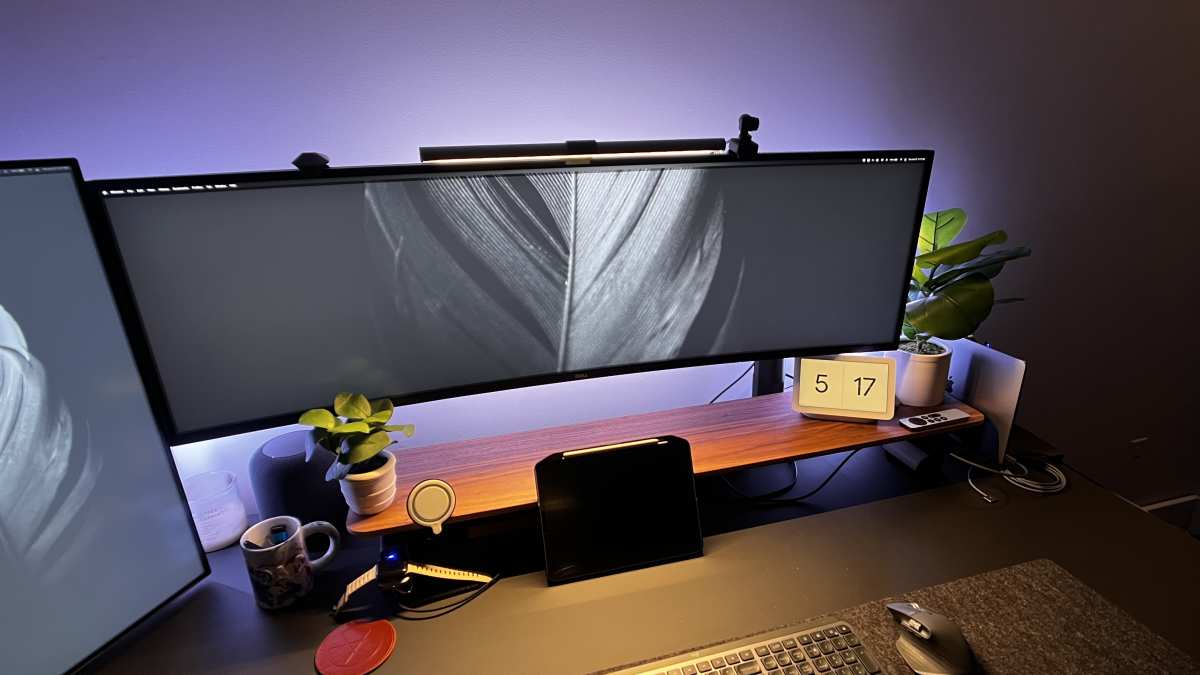
Best USB-C Monitor Setup for Different Office Scenarios
Not every office looks the same, and your ideal setup depends on how you actually work.
Hot-desking and shared workspaces benefit the most from USB-C monitors. You walk in, plug one cable into your laptop, and your entire workstation comes alive. Your keyboard, mouse, external drives, and network connection all route through the monitor's built-in hub.
When you leave, you pull one cable and go. Aggregate reviews from IT administrators consistently highlight this as the single biggest time-saver in flexible office environments.
Home office workers who use a single laptop with an external screen will appreciate the reduced cable clutter. If you're working from a kitchen table or a small desk, that single USB-C connection keeps things tidy. You'll want at least 65W of power delivery here, since many home office laptops run at 45W to 65W charging profiles.
Multi-monitor power users need to pay close attention to bandwidth. Daisy-chaining two 4K monitors over USB-C requires DisplayPort 1.4 with MST support on both the laptop and the monitors. Not every setup handles this well.
If you're running two or three screens for financial analysis, coding, or video editing, a Thunderbolt dock connected via DisplayPort cables often proves more reliable than daisy-chaining over USB-C.
Creative professionals working with color-critical content should prioritize panel quality over connection type. A USB-C monitor with 95% DCI-P3 coverage and factory calibration serves you better than a Thunderbolt display with mediocre color accuracy. Check the sRGB and DCI-P3 specs before you buy, regardless of the connection standard.
Common USB-C Monitor Mistakes That Waste Your Time and Money
The biggest mistake is assuming every USB-C port on a monitor does the same thing. Some USB-C ports handle data only. Others carry video and data but no power delivery.
You need to check the spec sheet for three things: DisplayPort Alt Mode support, USB Power Delivery wattage, and downstream USB port speeds.
Another common error is buying a cheap USB-C cable that can't handle video. Charge-only cables lack the SuperSpeed data lines needed for DisplayPort Alt Mode. You need a full-featured USB-C 3.1 Gen 2 cable or a Thunderbolt-certified cable, depending on your monitor's requirements.
A $5 cable from an unknown brand will cause flickering, dropped signals, or no display at all.
People also overlook power delivery mismatches. If your laptop needs 100W to charge properly under load and your monitor only delivers 65W, you'll slowly lose battery during intensive work. This doesn't damage anything, but it defeats the purpose of a single-cable setup.
Always match or exceed your laptop's charger wattage.
Ignoring firmware updates catches a lot of users off guard. Several USB-C monitors from Dell, LG, and BenQ have had compatibility issues with specific laptop models that were resolved through firmware patches. Check the manufacturer's support page before you assume your setup is broken.
Finally, don't assume daisy-chaining will work with any combination of monitors and laptops. MST support varies by GPU, operating system, and monitor model. Test your specific chain before committing to a multi-monitor USB-C setup.
Real-World Pricing and Specs Breakdown
USB-C monitors span a wide price range, and understanding what you get at each tier helps you spend wisely.
| Tier | Price Range | Typical Specs | Best For |
|---|---|---|---|
| Budget | $180-$300 | 1080p or 1440p IPS, 60W PD, basic USB hub | Basic office work, email, documents |
| Mid-range | $300-$550 | 1440p or 4K IPS, 65W-90W PD, KVM switch, adjustable stand | Knowledge workers, general productivity |
| Premium | $550-$900 | 4K IPS/VA, 90W-100W PD, Thunderbolt, color-accurate panel | Creative pros, developers, multi-monitor |
| Enterprise | $900-$1,400+ | 4K Thunderbolt 4, 140W PD, daisy-chain, Ethernet passthrough | Corporate IT, high-performance laptops |
At the budget end, you'll find capable options like the Philips 24E1N series or basic models from AOC. These handle everyday office tasks fine but often skimp on stand adjustability and color accuracy. The 60W power delivery suits ultrabooks but struggles with performance laptops.
The mid-range is where most office workers should focus. Monitors like the Dell UltraSharp U2421E or LG 27QN880-B offer 4K or 1400p resolution, 90W power delivery, fully adjustable stands, and reliable USB hubs. This tier delivers the best balance of features and price for typical office workloads.
Premium models like the LG UltraFine 27UN880 or BenQ PD2705U add factory-calibrated color, higher power delivery, and better build quality. If your work involves photo editing, design, or video review, the extra cost pays for itself in accuracy and consistency.
Enterprise-grade Thunderbolt 4 monitors from Dell, LG, and HP target IT departments standardizing on high-performance laptops. The 140W power delivery handles mobile workstations, and the Ethernet passthrough gives you a wired network connection through the same cable. These make sense when a company is outfitting dozens of identical workstations.
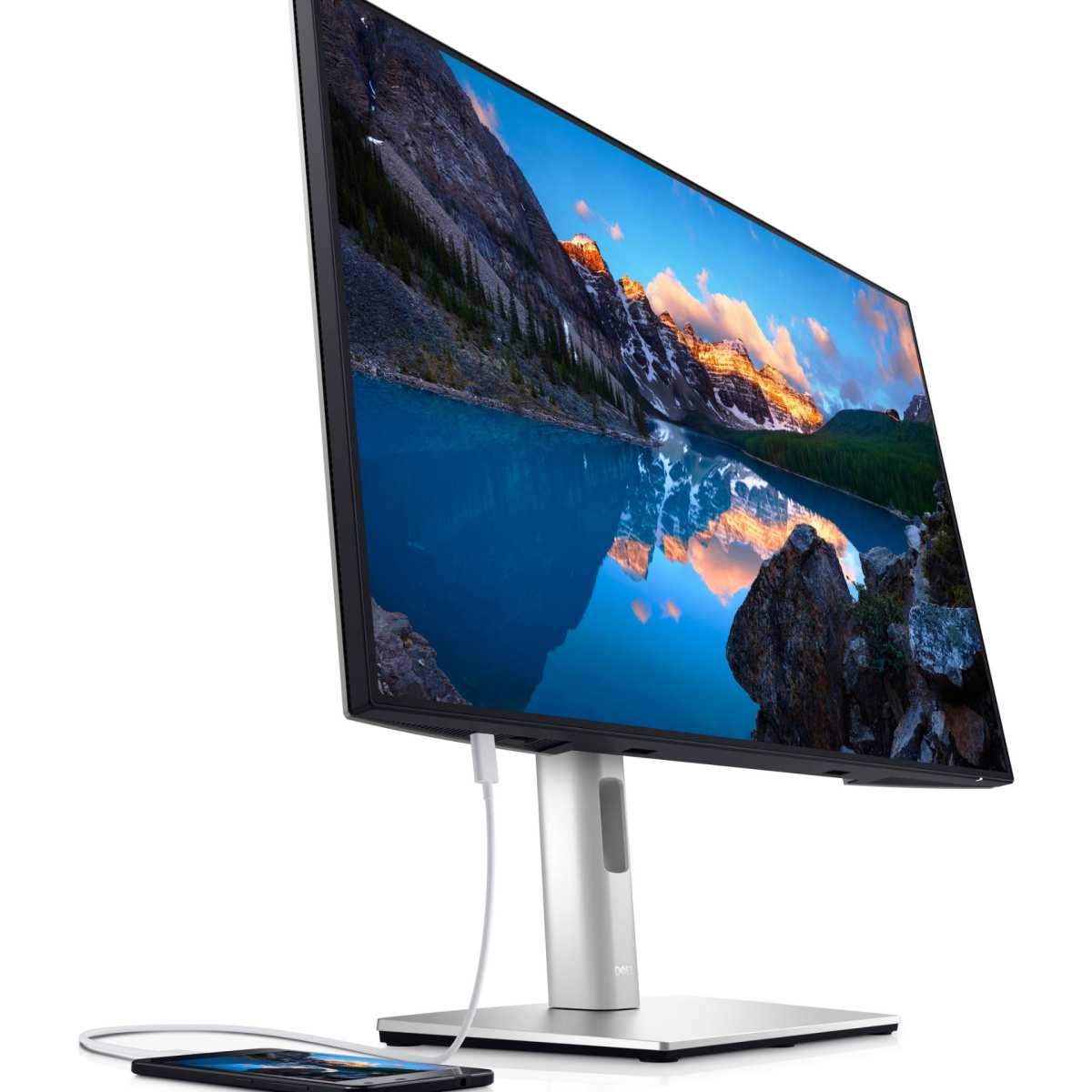
Expert Tips for Getting the Most Out of a USB-C Office Monitor
Always verify your laptop's USB-C port capabilities before buying a monitor. Check your laptop manufacturer's specifications for DisplayPort Alt Mode support, Thunderbolt compatibility, and maximum power delivery input. A $600 monitor won't help if your laptop's USB-C port only handles data and charging.
Buy a high-quality USB-C cable separately, even if your monitor includes one. The bundled cable is often a basic model. A certified USB-C 3.2 Gen 2 cable from Anker, Cable Matters, or the monitor manufacturer ensures reliable video and power delivery.
For Thunderbolt setups, use a certified Thunderbolt 4 cable.
Set your monitor's power delivery to match your laptop's needs. Some monitors let you toggle between 60W, 90W, and 100W delivery modes. If you're using a lightweight ultrabook, 60W saves energy.
If you're running a 65W laptop, set it to 90W to maintain charge under heavy workloads.
Use the monitor's built-in USB hub strategically. Connect low-bandwidth devices like keyboards, mice, and webcams to the monitor's downstream ports. Reserve your laptop's direct USB ports for high-bandwidth devices like external SSDs and capture cards.
This prevents bandwidth contention on the USB-C connection.
Keep your monitor's firmware updated. Manufacturers regularly release updates that fix compatibility issues with new laptops, improve power delivery negotiation, and resolve display handshake problems. Check the support page every few months, especially after major OS updates on your laptop.
If you're running a multi-monitor setup, test daisy-chaining before committing to it. Connect your laptop to the first monitor, then chain the second monitor from the first. If you get flickering, reduced resolution, or no signal on the second display, fall back to connecting each monitor directly to your laptop or using a Thunderbolt dock with multiple video outputs.
Frequently Asked Questions
Can a USB-C monitor charge my laptop while displaying video?
Yes, if the monitor supports USB Power Delivery over its USB-C input. Most office-oriented USB-C monitors deliver between 60W and 100W, which covers the majority of ultrabooks and standard laptops. High-performance laptops with 130W or 140W chargers may charge slowly or maintain battery level rather than charging under heavy load.
Do I need Thunderbolt for a USB-C monitor to work?
No. DisplayPort Alt Mode over USB-C handles video output without Thunderbolt. Thunderbolt adds benefits like higher bandwidth, daisy-chaining, and faster data transfer, but it's not required for basic single-monitor office setups.
Most office monitors use DisplayPort Alt Mode, not Thunderbolt.
Will a USB-C monitor work with any laptop?
Only if your laptop's USB-C port supports DisplayPort Alt Mode or Thunderbolt. Many budget laptops and older models have USB-C ports that handle charging and data only, with no video output. Check your laptop's specifications before purchasing a USB-C monitor.
Is USB-C better than DisplayPort for office work?
For convenience, yes. A single USB-C cable replaces separate video, power, and USB data cables. For raw performance, DisplayPort still edges out USB-C Alt Mode in bandwidth and reliability, especially for high refresh rates or multi-monitor daisy-chaining.
Most office workers won't notice the difference.
How many monitors can I daisy-chain over USB-C?
Typically two monitors via MST, assuming your laptop's GPU and USB-C controller support it. The first monitor connects to your laptop via USB-C, and the second connects to the first monitor's DisplayPort output. Bandwidth limits mean you may need to reduce resolution or refresh rate on daisy-chained displays.
Final Verdict: Should You Get a USB-C Monitor for Office Work?
A USB-C monitor makes sense for most office workers in 2026. The single-cable convenience is real, the technology has matured, and prices have dropped to the point where USB-C monitors cost barely more than their non-USB-C equivalents.
If you're using a modern laptop with USB-C DisplayPort Alt Mode, a USB-C monitor with adequate power delivery simplifies your daily workflow. You'll spend less time plugging and unplugging cables, your desk stays cleaner, and hot-desking becomes effortless.
The exceptions are worth noting. If you're running a high-performance laptop that needs more than 100W to charge, or if you're daisy-chaining multiple 4K displays, a Thunderbolt dock with separate DisplayPort connections gives you more headroom. If you're on a tight budget and already own a reliable docking station, there's no urgent reason to switch.
For most people setting up a home office, corporate desk, or shared workspace, a quality USB-C monitor in the $300 to $550 range hits the sweet spot. You get the convenience of single-cable connectivity without sacrificing display quality or reliability. Just verify your laptop's USB-C capabilities, buy a good cable, and match the power delivery to your laptop's needs.
Why This Comparison Matters for Your Office Setup
Your monitor connection affects your daily workflow more than most people realize. Every time you sit down at your desk, you're either plugging in one cable or juggling three. That small difference adds up over weeks and months.
The USB-C monitor market has matured significantly. Prices have dropped, compatibility has improved, and most modern laptops support some form of USB-C video output. But the technology isn't uniform, and buying the wrong monitor can leave you frustrated with flickering screens, slow charging, or missing features.
Understanding how USB-C monitors compare to traditional setups helps you make a smarter buying decision. You'll know exactly what to look for and what trade-offs matter for your specific situation.
Quick Answer: Are USB-C Monitors Actually Good for Office Work?
Yes, USB-C monitors are good for office work for most people. They simplify your setup with a single cable handling video, data, and power. The technology works reliably with modern laptops that support DisplayPort Alt Mode.
You'll save desk space and reduce cable clutter noticeably. Just verify your laptop's USB-C capabilities and match the monitor's power delivery to your laptop's charging needs.
How USB-C Monitor Connections Actually Work
USB-C is a connector shape, not a single standard. The USB-C port on your monitor can handle several different protocols depending on what the manufacturer built into it.
DisplayPort Alt Mode is the key technology for most USB-C office monitors. It lets the USB-C port carry a native DisplayPort video signal directly from your laptop's GPU to the monitor's panel. This isn't compressed video sent over USB data lanes.
It's a real DisplayPort signal routed through the USB-C connector.
USB Power Delivery runs alongside the video signal on separate pins within the same cable. Your monitor negotiates with your laptop to deliver the right voltage and wattage. This happens automatically when you connect the cable.
The USB data channel handles the monitor's built-in hub. Your keyboard, mouse, webcam, and other peripherals connect to the monitor's downstream USB ports, and that data travels back to your laptop over the same cable. It's functionally identical to having a USB hub built into your monitor.
The USB-C Implementers Forum defines the standards for these connections, and VESA maintains the DisplayPort Alt Mode specification. Manufacturers build their monitors to comply with these standards, which is why most USB-C monitors work with most USB-C laptops.
USB-C Alt Mode vs. Thunderbolt vs. Traditional Connections
These three connection types serve different needs, and confusing them leads to bad buying decisions.
DisplayPort Alt Mode over USB-C handles video, data, and power through a single cable. It supports up to 4K resolution at 60Hz using DisplayPort 1.4. Most office USB-C monitors use this standard.
It works with any laptop that has a USB-C port supporting DisplayPort Alt Mode, which includes most business laptops from the last five years.
Thunderbolt 3 and Thunderbolt 4 use the USB-C connector but offer significantly higher bandwidth. Thunderbolt 4 provides 40Gbps of dedicated bandwidth compared to DisplayPort Alt Mode's roughly 10Gbps for video. This matters for daisy-chaining multiple 4K monitors, connecting high-speed external storage, or driving high-refresh-rate displays.
Thunderbolt monitors tend to cost more and require Thunderbolt support on your laptop.
Traditional DisplayPort and HDMI remain the most reliable options for pure video quality. They don't carry power or USB data, so you'll need separate cables for those functions. DisplayPort 1.4 supports 4K at 120Hz or 8K at 60Hz.
HDMI 2.1 supports 4K at 120Hz. Neither charges your laptop.
Here's a practical comparison:
| Feature | USB-C Alt Mode | Thunderbolt 4 | DisplayPort 1.4 |
|---|---|---|---|
| Max Resolution | 4K at 60Hz | 4K at 120Hz (dual) | 4K at 120Hz |
| Power Delivery | Up to 100W | Up to 100W | None |
| USB Data | Yes (hub built-in) | Yes (hub built-in) | None |
| Daisy-Chaining | Limited (MST) | Yes (native) | Yes (MST) |
| Cable Cost | $10-$25 | $20-$50 | $8-$15 |
| Laptop Compatibility | Wide | Narrow (Intel/Apple) | Very wide |
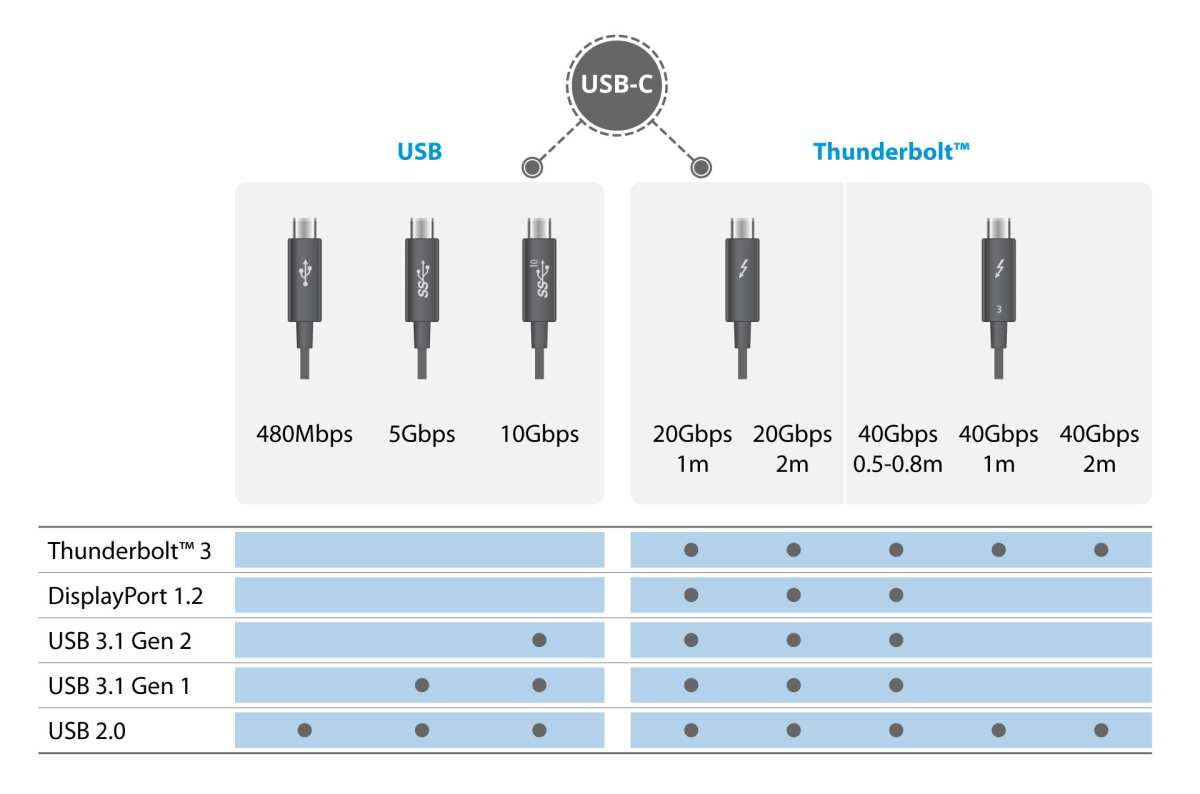
For most office workers running a single monitor at 4K 60Hz, USB-C Alt Mode delivers everything you need. Thunderbolt becomes worth the premium only if you're daisy-chaining multiple displays or need maximum bandwidth for external GPUs and high-speed storage.
What to Look for in a USB-C Monitor for Office Work
Not all USB-C monitors are created equal. These specs determine whether your daily experience feels seamless or frustrating.
Power delivery wattage is the first thing to check. Ultrabooks typically charge at 45W to 65W. Standard business laptops run at 65W to 90W.
Mobile workstations and performance laptops need 100W to 140W. Your monitor should match or exceed your laptop's charger wattage. A monitor delivering only 60W will charge a 90W laptop slowly or maintain battery level under heavy load.
DisplayPort Alt Mode support should be explicitly listed in the spec sheet. If a monitor has USB-C but doesn't mention DisplayPort Alt Mode or video input over USB-C, that port handles data and charging only. You'd still need a separate HDMI or DisplayPort cable for video.
Downstream USB ports turn your monitor into a hub. Look for at least two USB-A ports and ideally one additional USB-C downstream port. Check whether these ports support USB 3.0 speeds or are limited to USB 2.0.
USB 2.0 downstream ports bottleneck external drives and webcams.
Panel quality matters more than connection type for daily comfort. An IPS panel with 99% sRGB coverage and a flicker-free backlight serves your eyes better than a cheap TN panel with perfect USB-C specs. Look for factory calibration, blue light filters, and adjustable stands.
KVM switch functionality lets you control two computers with one keyboard and mouse. Some USB-C monitors include this feature, which is useful if you're switching between a personal laptop and a work laptop at the same desk.
USB-C Monitor vs. DisplayPort + Docking Station
This is the comparison most office workers face. Both approaches work, but they suit different priorities.
A USB-C monitor with power delivery gives you a single cable from laptop to monitor. Video, power, and USB data all flow through that one connection. Your desk stays clean, and setup takes seconds.
The monitor's built-in hub replaces a separate docking station for most people.
A DisplayPort monitor paired with a separate docking station gives you more flexibility. You can upgrade the dock independently of the monitor. You can connect multiple monitors to a single dock.
High-end docks from CalDigit, Plugable, and Anker offer more ports, faster Ethernet, and better power delivery than most monitor-integrated hubs.
The docking station approach costs more upfront. A quality dock runs $150 to $300 on top of the monitor price. You're also managing two devices instead of one.
But you gain the ability to swap monitors without losing your dock, and you can choose a dock that exactly matches your port requirements.
For most single-monitor office setups, the USB-C monitor wins on simplicity. For multi-monitor setups or users who need specific port configurations, a dedicated dock paired with DisplayPort monitors offers more control.
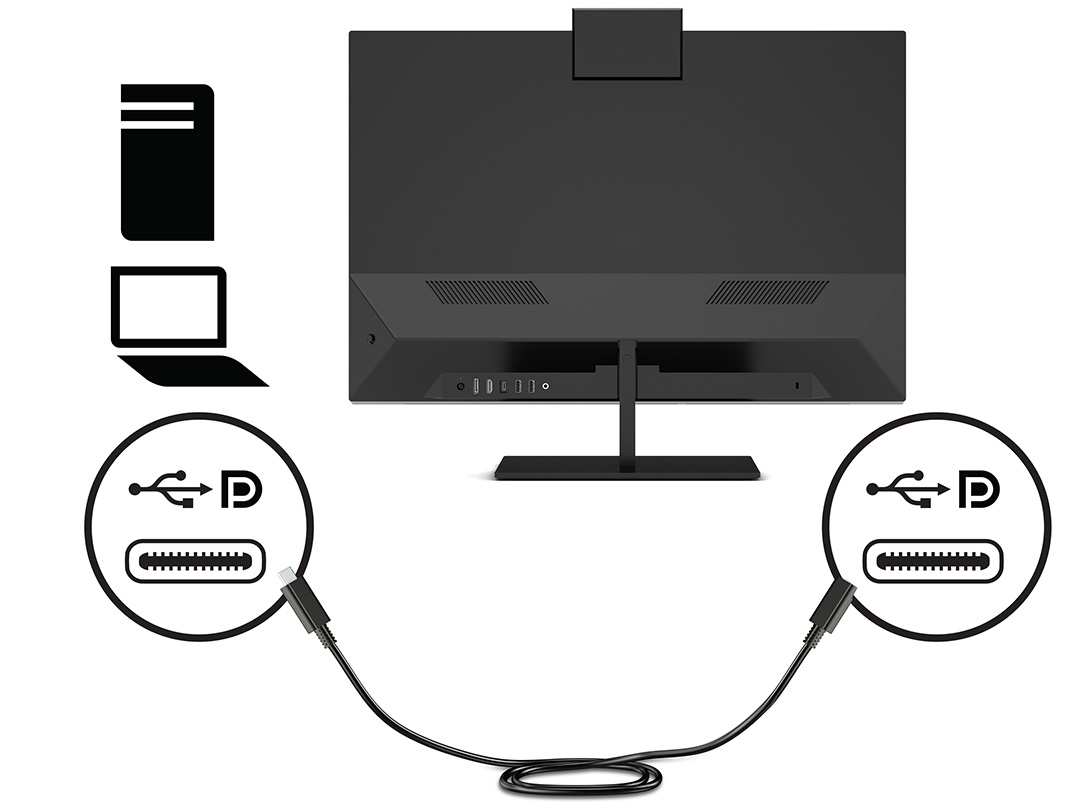
USB-C Monitor vs. HDMI Monitor + USB Hub
HDMI monitors remain common in budget and mid-range office setups. Adding a separate USB hub gives you some of the convenience of a USB-C monitor, but with more cables.
An HDMI monitor requires a separate video cable, a separate power cable for your laptop, and a separate USB cable for peripherals. That's three cables minimum running between your laptop and your desk setup. A USB-C monitor reduces this to one.
HDMI also doesn't carry power. Your laptop charger stays plugged into the wall, adding another cable to your setup. USB-C power delivery eliminates the laptop charger entirely for many users.
The advantage of HDMI is universal compatibility. Every laptop made in the last fifteen years has HDMI output. You never have to worry about DisplayPort Alt Mode support or USB-C port capabilities.
For offices with mixed laptop brands and ages, HDMI monitors work with everything.
If you're buying for yourself and you know your laptop supports USB-C video output, the USB-C monitor is the cleaner choice. If you're outfitting an office with diverse hardware, HDMI monitors with separate hubs offer broader compatibility.

Similar Posts





















