Is Portable Monitor Good for Office Work
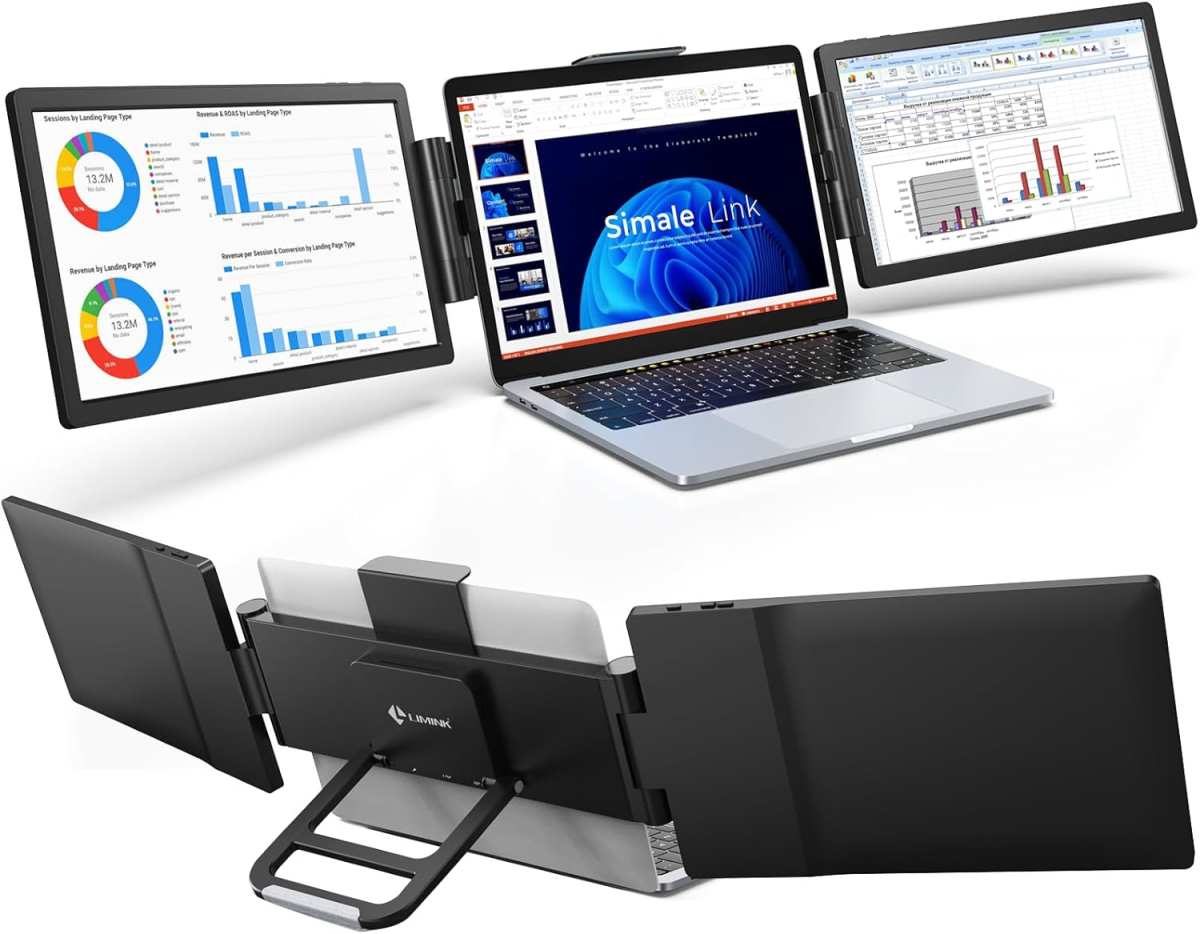
The short answer is: it depends entirely on how you work. If you're bouncing between home, coffee shops, client offices, and co-working spaces throughout the week, a portable monitor transforms your laptop into a dual-screen workstation wherever you land. But if you sit at the same desk every day with a perfectly good external display already set up, throwing a portable monitor into the mix probably won't move the needle much.
Through our research, the productivity case is real but nuanced. Studies from Jon Peddie Research consistently show a 20 to 30 percent productivity boost when workers use dual monitors. The catch is that the benefit depends on your workflow, your laptop's capabilities, and whether the portable monitor's specs actually match what you need.
Let's walk through the decision step by step so you can figure out if one belongs in your bag.
Quick Answer
A portable monitor is good for office work if you travel, work from multiple locations, or need dual-screen productivity away from your main desk. If you work from one fixed desk with a good external monitor, a portable monitor adds little value. The key factors are how often you move, what software you use, and whether your laptop can output video through USB-C.
The Decision Framework: Should You Get One?
Before you click "add to cart" on any of the best portable monitors you've seen reviewed, run through these four situation-based checkpoints. They'll save you from buying something that ends up buried in a drawer.
The core question is not "are portable monitors good?" It's "are they good for YOUR specific work setup?"
Every office worker sits somewhere on a spectrum between "completely stationary" and "constantly mobile." Where you fall on that spectrum determines whether a portable monitor is a smart investment or an unnecessary gadget. So let's break it down into clear checkpoints.

Branch 1: You're Stationary 90%+ of the Time
If you work from the same desk every day and your laptop is already docked to a proper external monitor at home or in the office, a portable monitor probably isn't worth it. Here's why. You've already solved the screen real estate problem.
Adding a 15.6-inch USB-C monitor that's dimmer, smaller, and less color-accurate than your existing display just doesn't make sense.
The money would be better spent on a good laptop stand, an external keyboard, maybe upgrading that primary monitor to something with better specs. We've seen this mistake repeatedly. People buy a portable monitor because the marketing looks appealing, then it sits in a bag untouched for months.
Bottom line: Skip it. Invest in your fixed setup instead.
Branch 2: You Split Between Home, Office, and Travel
This is the sweet spot. If you're a hybrid worker who does two or three days at home, a couple in the office, and occasionally works from a coffee shop or hotel room, a portable monitor pays for itself quickly.
You get dual-screen productivity everywhere without relying on whatever display situation exists at each location. Think about it this way. A financial analyst who commutes between their home office and a client's boardroom can walk in with their portable monitor, plug it in via USB-C, and have their full dual-screen setup running within 60 seconds.
No fumbling with the client's projector. No squinting at a single laptop screen during a 3-hour spreadsheet session.
The same logic applies to project managers tracking timelines on one screen while reviewing Slack and email on the other. Or software developers running their IDE on the primary display with documentation on the secondary. The workflow benefit is immediate and tangible.
Bottom line: This is where portable monitors shine for office work. Strong buy.
Branch 3: You Need Serious Screen Real Estate on the Go
Some roles demand more than a laptop screen but don't fit the typical hybrid pattern. Field engineers reviewing schematics. Photographers editing on location.
Consultants building presentations in hotel lobbies. Video producers logging footage in airport lounges.
If this is you, screen quality becomes critical. You'll want at least a 15.6-inch 1080p IPS panel with decent color accuracy, ideally 100 percent sRGB coverage. A 4K portable monitor exists but be warned, they drain battery faster, cost significantly more, and the resolution bump on a 15-inch screen is less dramatic than you might expect for office tasks.
Also worth noting: if your work involves color grading, photo editing, or print design, most budget-friendly portable monitors under $200 in our research fall short on color accuracy. You'll need to step up to premium offerings from ASUS, Dell, or Lenovo's professional-grade lines.
Bottom line: Buy one, but prioritize panel quality over price. Your eyes will notice the difference after a full workday.
Branch 4: You're Mostly Doing Video Calls and Presentations
If your "office work" mainly consists of Zoom meetings, Google Hangouts, and the occasional PowerPoint presentation, a portable monitor serves a different purpose. It's not about productivity in the traditional sense. It's about professionalism and convenience.
Picture this scenario. You're at a client's office for a meeting. Instead of hunching over your 13-inch laptop sharing screen space with your notes, you plug in your portable monitor, extend your display, and present from a larger, cleaner setup.
The client sees a polished professional. You see your speaking notes on your laptop while they see only the presentation on the bigger screen.
For this use case, you don't need 4K resolution or perfect color accuracy. A basic 1080p IPS portable monitor in the $100 to $150 range handles the job perfectly. Focus on lightweight design, easy USB-C connectivity, and a smart cover that doubles as a stand.
Bottom line: A modest portable monitor enhances your presentation game. Just don't overshoot on specs you won't need.
What Actually Matters in a Portable Monitor for Office Work
Not all portable monitors are created equal, and the spec sheets can be misleading if you don't know what to prioritize. Let's go through the features that actually affect your day-to-day experience when using one for office work.
Panel Quality and Color Accuracy
For general office work, email, documents, spreadsheets, and web browsing, you don't need a reference-grade display. But you also don't want a washed-out TN panel that gives you headaches by Thursday afternoon.
Here's what to look for in practice:
- IPS panel technology. This is non-negotiable for office work. IPS gives you wide viewing angles (typically 170 degrees horizontal and vertical), which matters because you won't always be sitting perfectly centered in front of a portable monitor on a hotel desk or coffee shop table.
- 100 percent sRGB minimum. Budget monitors sometimes advertise "HD" or "Full HD" but only cover 60 to 70 percent of the sRGB color space. That's fine for reading emails, but anything involving charts, dashboards, or basic design work will look off. Manufacturer specs should list the color gamut coverage clearly. If they don't, that's a red flag.
- 250 to 350 nits brightness. Indoor office environments are fine at 250 nits. If you ever work near bright windows or outdoors, push for 400 nits or higher. Most budget options in our research hover around 250 to 300 nits, which is adequate for controlled lighting but struggles in direct sunlight.
- Matte vs. glossy finish. Glossier screens look punchier in marketing photos but reflect every overhead light source in real offices. Matte coatings are better for productivity, even if colors appear slightly less vibrant.
For office tasks, a 15.6-inch 1080p IPS panel at 300 nits hits the sweet spot between clarity and portability. Going smaller than 14 inches makes text cramped. Going larger than 17 inches makes the monitor awkward to pack.
Connectivity: USB-C vs. HDMI and Why It Changes Everything
This is where most people get tripped up, and it's arguably the most important technical consideration before you buy anything.
USB-C sounds simple. One cable for video and power, right? Not always.
There's a fundamental distinction that a lot of shopping guides gloss over, and it'll determine whether your portable monitor works with your specific laptop.
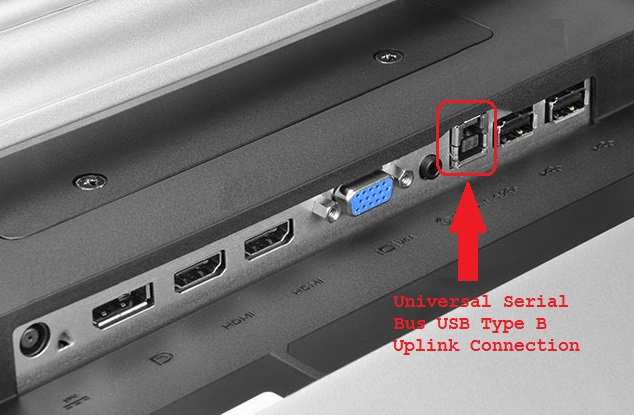
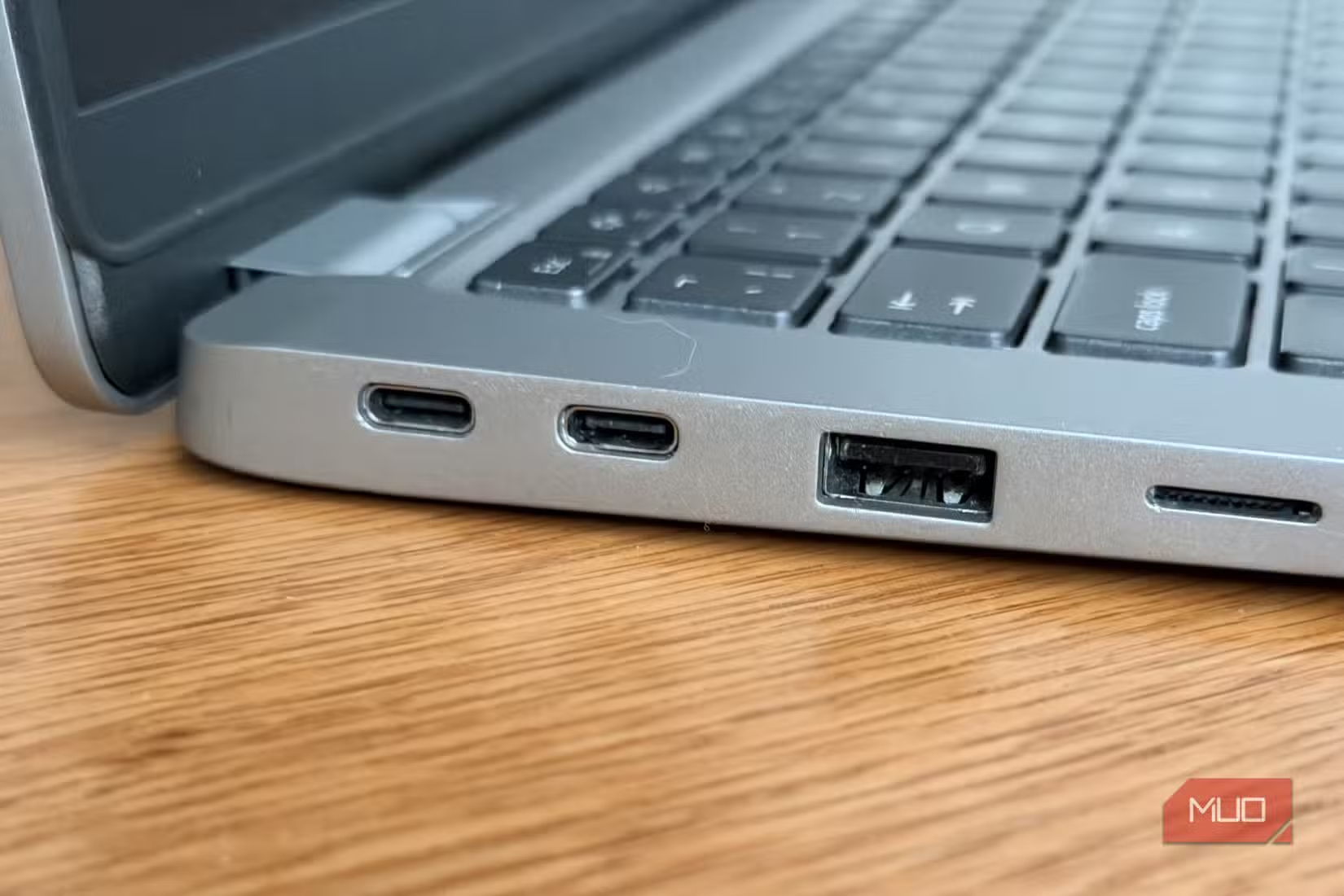
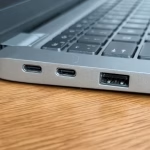
USB-C with DisplayPort Alt Mode (DP Alt Mode) is what you want. This lets the USB-C port carry a video signal directly from your laptop's GPU to the monitor. No adapters, no extra drivers, just plug and play.
If your laptop supports DP Alt Mode over USB-C, you can connect the monitor with a single USB-C cable that also carries power in both directions.
USB-C without DP Alt Mode is just a data and charging port. Plugging a monitor into it won't do anything. Plenty of laptops, especially budget models and some business machines, have USB-C ports that handle charging and data transfer but don't support video output.
You'll need to check your laptop's specifications carefully.
Here's a comparison of what each connection type actually means for your setup:
| Feature | USB-C (DP Alt Mode) | USB-C (Data Only + HDMI) | HDMI Only |
|---|---|---|---|
| Carries video signal | Yes | No (needs HDMI) | Yes |
| Single-cable setup | Yes | No | No |
| Charges laptop simultaneously | Yes (if PD supported) | Yes (charging only) | No |
| Requires extra adapters | No | Possibly | Often yes |
| Driver installation | Usually not | Depends on monitor | No |
| Best for office work | Ideal | Acceptable | Workable but clunky |
If your laptop lacks DP Alt Mode, you'll need to connect via HDMI for video and a separate USB cable for power. That means at least two cables on your desk, which defeats some of the "clean portable setup" appeal. It works fine functionally, but it's not as elegant.
A practical tip we've gathered from verified buyer feedback. Before ordering any portable monitor, look up your exact laptop model's USB-C specifications. The manufacturer's spec sheet or user manual will tell you whether the USB-C port supports "DisplayPort over USB-C" or "video output." If you can't find it, a quick call to the manufacturer's support line clears it up in two minutes.
Taking that small step saves you from the frustration of receiving a monitor that won't connect the way you expected.
Power Delivery and the Single-Cable Dream
Power Delivery (PD) over USB-C is what makes the single-cable experience work. Here's how it flows. Your laptop charger plugs into the portable monitor.
The monitor passes power through to your laptop via the same USB-C cable carrying the video signal. Two devices, one cable, one power outlet.
Most quality portable monitors in 2026 support PD passthrough between 60W and 100W. For reference, most business laptops charge at 45W to 65W. High-performance laptops and some mobile workstations need 90W to 100W.
The power situation matters because it directly affects whether you can leave your laptop charger at home. If your portable monitor supports 60W PD passthrough and your laptop charges at 45W, you're good. You just need the monitor's power brick and one USB-C cable.
If your laptop needs 90W and the monitor only passes through 60W, your laptop will still charge, but more slowly. Under heavy workloads, you might slowly drain battery even while plugged in.
Some portable monitors come with built-in batteries, typically around 5,000 to 10,000 mAh. These give you one to three hours of cordless operation, which is genuinely useful during flights or meetings where power outlets are scarce. Keep in mind that built-in batteries add weight and thickness.
Our recommendation. For office work, prioritize PD passthrough wattage that matches or exceeds your laptop's charging requirement. It's a more practical feature than a built-in battery in most scenarios.
Size, Weight, and What Fits in Your Bag
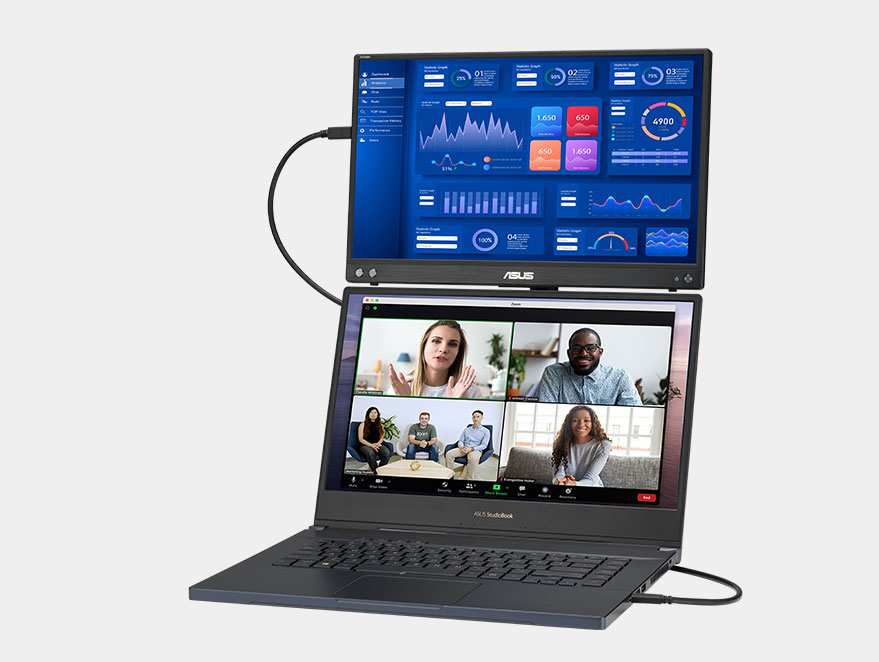
Portable monitors typically range from 13.3 inches to 17.3 inches diagonally. For office work, the practical range is 14 to 16 inches.
13.3 inches works if every gram counts in your carry-on. But for extended office sessions, the small text and cramped window arrangements feel limiting after an hour.
15.6 inches is the industry's most popular size for good reason. It matches the footprint of many laptop screens exactly and gives you comfortable real estate for split-screen work. Most models weigh between 1.5 and 2.2 pounds.
That's light enough for a daily bag without noticing much difference.
17.3 inches gives you desktop-monitor feel but pushes weight past 2.5 pounds and needs a larger bag compartment. Worth it if you primarily set up at fixed locations and just transport it occasionally.
Thickness matters too. Modern portable monitors are typically 5mm to 12mm thick. Ultra-thin models under 7mm feel premium but sometimes sacrifice port durability.
Check whether the manufacturer uses aluminum or plastic construction. Aluminum chassis feel sturdier and handle the rigors of daily bag life better.
The smart cover deserves attention too. Nearly every portable monitor ships with a magnetic folio cover that doubles as a stand. Quality varies enormously.
A flimsy cover wobbles on uneven desks. A good one locks at multiple angles and stays rigid. Read reviews specifically about the stand stability.
Build Quality, Stands, and the Ergonomics Nobody Talks About
Here's something that becomes painfully obvious during a full eight-hour workday. The included stand or smart cover might not position the screen at a comfortable height.
A portable monitor resting on a flimsy folio stand sits at a lower angle than your laptop display. That forces you to look downward, which contributes to neck strain over time. If you're using a portable monitor daily, pack a compact laptop stand or even a small adjustable monitor riser to bring both screens closer to eye level.
Weight distribution also matters. Some monitors with built-in batteries feel noticeably heavier on one side. If you plane to use one on your lap during flights, that imbalance becomes uncomfortable quickly.
For long-term daily use, look into portable monitors with standard VESA mount compatibility. A small VESA arm clamped to a desk transforms a portable monitor into a proper secondary display. ASUS, Dell, and Lenovo offer models with this feature at slightly higher price points.
Real Benefits You'll Notice (and Ones You Won't)
Let's separate the genuine advantages from the marketing hype, because there's plenty of both.
The Productivity Gain Is Real — Here's the Data
Multiple studies confirm the dual-monitor productivity advantage, and it's not a marginal improvement. Jon Peddie Research found that users working with two displays are 20 to 30 percent more productive than those using a single screen of equivalent total resolution. For office workers juggling multiple applications, the benefit shows up immediately in reduced time spent switching between windows and fewer errors from context-switching.
You've probably experienced it yourself. Without a second screen, you spend half your day alt-tabbing, resizing windows, rearranging panels. It's death by a thousand papercuts.
With a second display, you put your email or communication tools on one screen and actual work on the other. The mental overhead drops noticeably.
For data-heavy roles, the effect is even more pronounced. Financial analysts comparing spreadsheet columns, developers watching console output while writing code, content creators previewing output alongside editing tools. These workflows genuinely need more screen area to work efficiently.
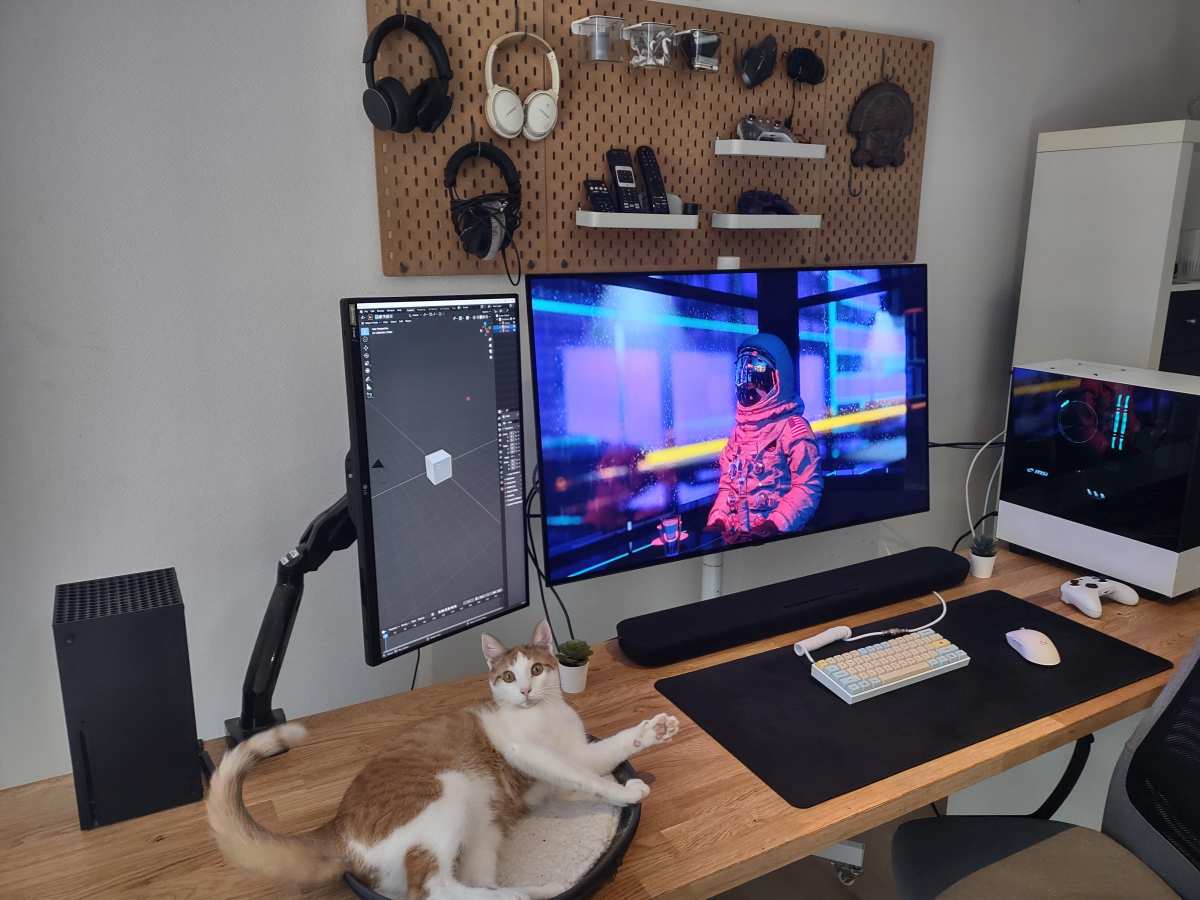
The portability factor amplifies this. If you currently lose your dual-screen setup every time you work from a different location, a portable monitor restores that productivity everywhere you go. That consistency matters more than most people realize.
You stop dreading working from the coffee shop or hotel room because your workflow doesn't have to shrink down to a single screen.
Where Portable Monitors Fall Short for Office Work
Honesty matters, so let's talk about the tradeoffs.
Brightness limitations. Most portable monitors max out around 300 nits. A typical office desk monitor runs 350 to 400 nits or more. In a dim room, 300 nits is fine.
In a sunlit hotel lobby or a bright co-working space, you'll crank the brightness to maximum and still squint. If you work in varied lighting, insist on 400 nits or accept the limitation.
Color accuracy for design work. Budget and mid-range portable monitors usually cover around 85 to 95 percent of sRGB. That's acceptable for documents, spreadsheets, and web browsing. But if you're doing graphic design, photo editing, or anything where color matters, you'll want a monitor that covers 100 percent of sRGB at minimum, with some workflows needing DCI-P3 coverage.
Premium portable monitors with OLED panels get there, but you're looking at $400 and above.
Audio quality. Some portable monitors include built-in speakers. They're universally mediocre. Tiny drivers in a thin chassis produce tinny sound without any bass.
For video calls, use your laptop's speakers or a dedicated headset. Consider built-in speakers as a convenience feature for occasional use, not a primary audio solution.
Response time. Office work doesn't demand fast response times, and even budget portable monitors handle it fine. Where it matters is if you occasionally watch videos or do light creative work. Smearing on slower panels becomes noticeable during motion but irrelevant during scrolling through spreadsheets.
Durability concerns. A monitor that lives in your bag takes more abuse than one that sits permanently on a desk. Hinge mechanisms on folio covers fail over time. Scratches accumulate on screens.
Consider a dedicated sleeve or case if you'll be traveling frequently with yours. The added protection adds minimal bulk and extends the monitor's usable life significantly.
The Hidden Costs Nobody Mentions
The sticker price isn't the whole story. Depending on your setup, you might need extras that add to the total cost.
A quality USB-C cable rated for video and power delivery runs $15 to $30 if the included one is too short or you want a backup. A compact laptop stand for better ergonomics adds $20 to $40. A protective sleeve or case runs $15 to $25.
A portable monitor with proper VESA mount support is often $50 to $100 more than the base model.
None of these are dealbreakers, but factor them into your budget. A $150 monitor plus accessories can approach $220 to $250 in total cost, which starts competing with traditional office monitors that offer larger screens and better specs.
Portable Monitor vs. the Alternatives
Before committing, let's compare portable monitors against the other options you might be considering.
vs. a Traditional Desktop Monitor
A standard 24-inch office monitor gives you a larger, brighter, better screen for less money. For a fixed desk setup, it's the better choice by almost every measure. A 24-inch 1080p IPS monitor from Dell or HP costs $120 to $180 and will outperform any portable monitor in color accuracy, brightness, and ergonomic adjustability.
The portable monitor only wins when you need the screen away from your desk. If you work primarily from one location and occasionally travel, you're better served by a permanent monitor for daily use and just tolering the laptop screen on travel days.
vs. Using Your iPad or Tablet as a Second Screen
If you already own an iPad, using Apple's Sidecar or a third-party app like Duet Display gives you a second screen without buying extra hardware. It works surprisingly well for office tasks, with minimal latency over a wired connection.
The downside is that it drains both devices' batteries faster, adds another item to carry, and the tablet screen's aspect ratio and resolution might differ from what you expect from a dedicated monitor. For occasional use, it's a great free option. For daily heavy use, a dedicated portable monitor is more reliable and simpler to set up.
vs. an Ultrawide Monitor
Some office workers consider an ultrawide (21:9 or 32:9) monitor instead of dual screens. It eliminates the bezel gap between two displays and simplifies your setup to a single panel with a single cable.
For desk use, an ultrawide is excellent. However, it's not portable at all. If you need screen real estate only at your main desk and never while traveling, an ultrawide might be the smarter purchase.
If you need productivity everywhere, an ultrawide stays at home while your laptop screen shrinks when you leave.
vs. Just Getting a Bigger Laptop
Some workers solve the screen space problem by upgrading to a larger laptop: 16 inches or 17 inches instead of 13 or 14 inches. A bigger laptop screen reduces the need for an external display.
The tradeoff is portability in the other direction. A 17-inch laptop is heavy, bulky, and uncomfortable on airplane trays or small cafe tables. A 14-inch laptop plus a 15.6-inch portable monitor gives you more total screen area in a more flexible configuration.
You can leave the portable monitor in your bag on days you don't need it, but you can't leave behind a oversized laptop.
Common Mistakes People Making When Buying One
After reviewing dozens of buyer feedback reports and forum discussions, these are the most frequent missteps.
Buying Based on Price Alone
The cheapest portable monitors on the market, typically $60 to $80 from lesser-known brands, cut corners on panel quality, build durability, and connectivity. They work but the experience is dim, flimsy, and frustrating. Spending $120 to $180 on a reputable brand monitor from ASUS, Dell, Lenovo, or a well-reviewed third-party brand pays dividends in daily satisfaction.
Our recommendation is to set a minimum budget of $100 for adequate quality.
Assuming Every USB-C Port Supports Video
This mistake causes more buyer frustration than any other. Manufacturers love putting USB-C ports on laptops without including DisplayPort Alt Mode support. Always verify your specific laptop model's USB-C capabilities before purchasing.
Check the laptop manufacturer's spec sheet for phrases like "DisplayPort over USB-C," "DP Alt Mode," or "video output via USB-C." If the spec sheet only mentions "USB-C 3.2 Gen 2" with "Power Delivery" and "data transfer," it probably doesn't support video output. When in doubt, a quick search for your laptop model plus "USB-C video output" provides a definitive answer.
Ignoring Brightness for Your Actual Work Environment
If you work in a bright office with large windows or frequently work from well-lit co-working spaces, the typical 250 to 300 nit brightness of budget portable monitors appears dull and hard to read. Shop for 350 nits or higher if your workspace has abundant ambient light. Conversely, if you work in dim home offices, lower brightness suffices and saves battery life.
Forgetting About the Cable Situation
A single USB-C cable handling video and power sounds ideal. Reality sometimes requires two cables: one for HDMI video, one for USB power. Carry both cables reliably in your bag.
A short 6-inch HDMI to Mini HDMI adapter proves useful in many setups. Label your cables or use distinct colors to avoid grabbing the wrong one during a rushed setup.
Overlooking Warranty and Support
Portable monitors are more prone to wear and tear than desktop monitors. Choose brands with at least a one-year warranty and accessible customer support. Budget brands sometimes ship from overseas with warranty claims that require international shipping.
That process costs more time and money than the monitor is worth if something goes wrong.
Who Should Actually Buy One (and Who Shouldn't)
Not every office worker needs a portable monitor. Here's a clear breakdown.
Strong Buy: Digital Nomads and Hybrid Workers
If you travel for work regularly, whether weekly client visits or monthly conferences, a portable monitor restores your full productivity toolkit away from home. The ability to set up a dual-screen workspace in a hotel room, airport lounge, or client site within two minutes justifies the cost quickly.
Look for 15.6-inch 1080p IPS monitors with USB-C and PD passthrough above 60W. Budget $150 to $250. Models like the ASUS ZenScreen M16ACV, Lenovo ThinkVision M14t, and similar options from Dell's professional line fit this profile well.
Worth Considering: Stationary Workers Who Want Flexibility
Even if you mostly work from home, a portable monitor doubles as a secondary display for your living room couch, bedroom, or patio on flexible days. If your role involves moderate travel, a few trips per quarter, or co-working space visits, the investment makes sense.
A lightweight 14-inch model with a reliable smart cover and built-in stand serves occasional travel admirably. You'll appreciate having it on hand even if it doesn't leave your house every week.
Skip It: If You Rarely Leave Your Desk
If your work life revolves around a single desk with a quality external monitor, docking station, and full keyboard setup, a portable monitor sits unused in a bag. Invest that money in a better desk monitor, an ergonomic chair, or a quality webcam instead. Those upgrades improve your daily experience far more than a device you rarely use.
Skip It: If Color-Critical Design Work Is Your Main Task
Graphic designers, photo editors, and video colorists need displays with verified color accuracy, hardware calibration support, and wide gamut coverage. Most portable monitors in the mainstream price range don't deliver this level of precision. Professional portable options exist but cost $400 to $600, making them impractical as secondary displays for most workflows.
A calibrated desktop monitor remains the better investment for this kind of work.
Quick Specs Comparison: Popular Models for Office Work
Here's a comparison of widely recommended portable monitors suitable for office tasks, based on manufacturer specifications as of 2026:
| Model | Screen Size | Resolution | Panel Type | Brightness | Weight | USB-C PD | Price Range | Best For |
|---|---|---|---|---|---|---|---|---|
| ASUS ZenScreen M16ACV | 15.6" | 1080p FHD | IPS | 250 nits | 1.7 lbs | 60W | $160–$200 | General hybrid work |
| Lenovo ThinkVision M14t Gen 2 | 14" | 1200p (1920×1200) | IPS | 300 nits | 1.4 lbs | 65W | $200–$280 | Touchscreen note-taking |
| Dell C1422Hf | 14" | 1080p FHD | IPS | 300 nits | 1.3 lbs | 65W | $220–$280 | Corporate/business travel |
| LG Gram +view | 15.6" | 1080p FHD | IPS | 350 nits | 1.8 lbs | 45W | $250–$350 | Bright environments |
| ARZOPA A1 Gamut | 15.6" | 1080p FHD | IPS | 250 nits | 1.6 lbs | 60W | $90–$130 | Budget-conscious buyers |
| KYY K3 | 15.6" | 1080p FHD | IPS | 280 nits | 1.7 lbs | 60W | $90–$120 | Affordable travel option |
| HP E14 G4 | 14" | 1080p FHD | IPS | 300 nits | 1.3 lbs | 45W | $180–$240 | HP ecosystem users |
Prices based on typical US market pricing as of early 2026 and may vary by retailer and region.
Setup and Optimization Tips
Getting a portable monitor is just step one. Small adjustments to your settings and cables improve the experience noticeably.
Getting the Best Display Settings for Office Work
Once connected, take five minutes to adjust these settings:
- Scaling. If your laptop and portable monitor differ in resolution, set scaling to the same percentage on both displays (100% or 150%). Mismatched scaling makes text look inconsistent when you drag windows between screens.
- Refresh rate. Most portable monitors run at 60Hz, which is plenty for office tasks. Check your display settings to confirm the monitor is actually running at its rated refresh rate, not defaulting to 30Hz (this happens occasionally with certain driver configurations).
- Brightness calibration. Match the brightness of both displays visually. A dim portable screen next to a bright laptop display strains your eyes as you shift attention. Sit both screens side by side, set your laptop brightness to about 75%, then adjust the portable monitor until the white backgrounds look equally bright.
- Night light / blue light. Enable your OS night light or blue light filter on the portable monitor, especially if you work past sunset. This adjustment reduces eye fatigue significantly during long days.
Cable Management and Travel Setup
Nothing kills a professional vibe faster than a nest of cables. Practical cable management for your bag includes a small pouch or velcro ties to keep USB-C cables organized. Label cables with small tags or different colored ties.
A six-inch USB-C extension cable provides flexibility when fixed-length cables fall short. Carry a compact universal adapter for international trips.
Calibrating for Eye Comfort During Long Days
For a deeper color accuracy improvement, a hardware calibration tool like a Datacolor Spyder or X-Riite Colorimeter produces excellent results. These devices cost $80 to $200 and measure your monitor's output against known color targets. Most office workers never need this level of precision, but it's worth mentioning if your job demands consistent color representation.
A simpler, free approach: grab a calibration image from a trusted source, display it on your portable monitor, then adjust brightness, contrast, and color temperature until skin tones look natural and text appears crisp without harsh glare.
Frequently Asked Questions
Can a portable monitor replace my desktop monitor?
It can technically, and gets the job done. But you'll sacrifice brightness, color accuracy, and ergonomic adjustability compared to a good desktop monitor. A portable monitor excels as a second screen for temporary setups, not as a permanent replacement for a primary desk display.
Use it to extend your productivity away from home, not to replace your home setup entirely.
How long do portable monitors typically last?
With proper care, a quality portable monitor lasts three to five years before noticeable degradation in brightness or color uniformity. The most common failure point is the USB-C port from repeated plugging and unplugging. Avoid yanking cables sideways and support the connector when plugging in.
Choosing a model with a reinforced port adds longevity. Most manufacturers include a one-year warranty covering defects.
Do portable monitors work with Chromebooks?
Yes, if your Chromebook has a USB-C port that supports DisplayPort Alt Mode. Most modern Chromebooks do, but verify your specific model's specs. Plug-and-play works without extra drivers since Chrome OS handles external display output natively.
Test the connection before traveling to ensure everything works smoothly.
Is a portable monitor good for long coding sessions?
Absolutely, especially for developers who need additional screen real estate for documentation, terminal output, or debugging tools. A 15.6-inch 1080p monitor provides enough space for a full IDE on the main laptop screen and supplementary windows on the portable display. The relatively low refresh rate of 60Hz poses no issue for static code review and text-based work.
What if my laptop's USB-C port doesn't support video output?
You'll need to connect via HDMI for video and a separate USB cable for power instead of a single USB-C connection. It works, just with a bit more cable clutter. Check your laptop's manual before buying to avoid this scenario, as many business laptops include USB-C ports that only handle charging and data transfer without video.
An HDMI port on your laptop solves this, but you lose the convenience of a single cable.
Do I need a separate power adapter for a portable monitor?
Many bus-powered models draw all their power from your laptop's USB-C port, no extra brick needed. Others include a compact power adapter for consistent charging or when your laptop's power delivery is insufficient. Verify whether your chosen model ships with a power supply or operates entirely from the USB connection.
Self-contained bus-powered monitors are more convenient for travel.
Quick Answer
A portable monitor is good for office work if you travel, work from multiple locations, or need dual-screen productivity away from your main desk. If you work from one fixed desk with a good external monitor, a portable monitor adds little value. The key factors are how often you move, what software you use, and whether your laptop can output video through USB-C.
The Decision Framework: Should You Get One?
Before you click "add to cart" on any of the best portable monitors you've seen reviewed, run through these four situation-based checkpoints. They'll save you from buying something that ends up buried in a drawer.
The core question is not "are portable monitors good?" It's "are they good for YOUR specific work setup?"
Every office worker sits somewhere on a spectrum between "completely stationary" and "constantly mobile." Where you fall on that spectrum determines whether a portable monitor is a smart investment or an unnecessary gadget. So let's break it down into clear checkpoints.
Branch 1: You're Stationary 90%+ of the Time
If you work from the same desk every day and your laptop is already docked to a proper external monitor at home or in the office, a portable monitor probably isn't worth it. Here's why. You've already solved the screen real estate problem.
Adding a 15.6-inch USB-C monitor that's dimmer, smaller, and less color-accurate than your existing display just doesn't make sense.
The money would be better spent on a good laptop stand, an external keyboard, maybe upgrading that primary monitor to something with better specs. We've seen this mistake repeatedly. People buy a portable monitor because the marketing looks appealing, then it sits in a bag untouched for months.
Bottom line: Skip it. Invest in your fixed setup instead.
Branch 2: You Split Between Home, Office, and Travel
This is the sweet spot. If you're a hybrid worker who does two or three days at home, a couple in the office, and occasionally works from a coffee shop or hotel room, a portable monitor pays for itself quickly.
You get dual-screen productivity everywhere without relying on whatever display situation exists at each location. Think about it this way. A financial analyst who commutes between their home office and a client's boardroom can walk in with their portable monitor, plug it in via USB-C, and have their full dual-screen setup running within 60 seconds.
No fumbling with the client's projector. No squinting at a single laptop screen during a 3-hour spreadsheet session.
The same logic applies to project managers tracking timelines on one screen while reviewing Slack and email on the other. Or software developers running their IDE on the primary display with documentation on the secondary. The workflow benefit is immediate and tangible.
Bottom line: This is where portable monitors shine for office work. Strong buy.
Branch 3: You Need Serious Screen Real Estate on the Go
Some roles demand more than a laptop screen but don't fit the typical hybrid pattern. Field engineers reviewing schematics. Photographers editing on location.
Consultants building presentations in hotel lobbies. Video producers logging footage in airport lounges.
If this is you, screen quality becomes critical. You'll want at least a 15.6-inch 1080p IPS panel with decent color accuracy, ideally 100 percent sRGB coverage. A 4K portable monitor exists but be warned, they drain battery faster, cost significantly more, and the resolution bump on a 15-inch screen is less dramatic than you might expect for office tasks.
Also worth noting: if your work involves color grading, photo editing, or print design, most budget-friendly portable monitors under $200 in our research fall short on color accuracy. You'll need to step up to premium offerings from ASUS, Dell, or Lenovo's professional lines.
Bottom line: Buy one, but prioritize panel quality over price. Your eyes will notice the difference after a full workday.
Branch 4: You're Mostly Doing Video Calls and Presentations
If your "office work" mainly consists of Zoom meetings, Google Hangouts, and the occasional PowerPoint presentation, a portable monitor serves a different purpose. It's not about productivity in the traditional sense. It's about professionalism and convenience.
Picture this scenario. You're at a client's office for a meeting. Instead of hunching over your 13-inch laptop sharing screen space with your notes, you plug in your portable monitor, extend your display, and present from a larger, cleaner setup.
The client sees a polished professional. You see your speaking notes on your laptop while they see only the presentation on the bigger screen.
For this use case, you don't need 4K resolution or perfect color accuracy. A basic 1080p IPS portable monitor in the $100 to $150 range handles the job perfectly. Focus on lightweight design, easy USB-C connectivity, and a smart cover that doubles as a stand.
Bottom line: A modest portable monitor enhances your presentation game. Just don't overshoot on specs you won't need.
What Actually Matters in a Portable Monitor for Office Work
Not all portable monitors are created equal, and the spec sheets can be misleading if you don't know what to prioritize. Let's go through the features that actually affect your day-to-day experience when using one for office work.
Panel Quality and Color Accuracy
For general office work, email, documents, spreadsheets, and web browsing, you don't need a reference-grade display. But you also don't want a washed-out TN panel that gives you headaches by Thursday afternoon.
Here's what to look for in practice:
- IPS panel technology. This is non-negotiable for office work. IPS gives you wide viewing angles (typically 170 degrees horizontal and vertical), which matters because you won't always be sitting perfectly centered in front of a portable monitor on a hotel desk or coffee shop table.
- 100 percent sRGB minimum. Budget monitors sometimes advertise "HD" or "Full HD" but only cover 60 to 70 percent of the sRGB color space. That's fine for reading emails, but anything involving charts, dashboards, or basic design work will look off. Manufacturer specs should list the color gamut coverage clearly. If they don't, that's a red flag.
- 250 to 350 nits brightness. Indoor office environments are fine at 250 nits. If you ever work near bright windows or outdoors, push for 400 nits or higher. Most budget options in our research hover around 250 to 300 nits, which is adequate for controlled lighting but struggles in direct sunlight.
- Matte vs. glossy finish. Glossier screens look punchier in marketing photos but reflect every overhead light source in real offices. Matte coatings are better for productivity, even if colors appear slightly less vibrant.
For office tasks, a 15.6-inch 1080p IPS panel at 300 nits hits the sweet spot between clarity and portability. Going smaller than 14 inches makes text cramped. Going larger than 17 inches makes the monitor awkward to pack.
Connectivity: USB-C vs. HDMI and Why It Changes Everything
This is where most people get tripped up, and it's arguably the most important technical consideration before you buy anything.
USB-C sounds simple. One cable for video and power, right? Not always.
There's a fundamental distinction that a lot of shopping guides gloss over, and it'll determine whether your portable monitor works with your specific laptop.
USB-C with DisplayPort Alt Mode (DP Alt Mode) is what you want. This lets the USB-C port carry a video signal directly from your laptop's GPU to the monitor. No adapters, no extra drivers, just plug and play.
If your laptop supports DP Alt Mode over USB-C, you can connect the monitor with a single USB-C cable that also carries power in both directions.
USB-C without DP Alt Mode is just a data and charging port. Plugging a monitor into it won't do anything. Plenty of laptops, especially budget models and some business machines, have USB-C ports that handle charging and data transfer but don't support video output.
You'll need to check your laptop's specifications carefully.
Here's a comparison of what each connection type actually means for your setup:
| Feature | USB-C (DP Alt Mode) | USB-C (Data Only + HDMI) | HDMI Only |
|---|---|---|---|
| Carries video signal | Yes | No (needs HDMI) | Yes |
| Single-cable setup | Yes | No | No |
| Charges laptop simultaneously | Yes (if PD supported) | Yes (charging only) | No |
| Requires extra adapters | No | Possibly | Often yes |
| Driver installation | Usually not | Depends on monitor | No |
| Best for office work | Ideal | Acceptable | Workable but clunky |
If your laptop lacks DP Alt Mode, you'll need to connect via HDMI for video and a separate USB cable for power. That means at least two cables on your desk, which defeats some of the "clean portable setup" appeal. It works fine functionally, but it's not as elegant.
A practical tip we've gathered from verified buyer feedback. Before ordering any portable monitor, look up your exact laptop model's USB-C specifications. The manufacturer's spec sheet or user manual will tell you whether the USB-C port supports "DisplayPort over USB-C" or "video output." If you can't find it, a quick call to the manufacturer's support line clears it up in two minutes.
Taking that small step saves you from the frustration of receiving a monitor that won't connect the way you expected.
Power Delivery and the Single-Cable Dream
Power Delivery (PD) over USB-C is what makes the single-cable experience work. Here's how it flows. Your laptop charger plugs into the portable monitor.
The monitor passes power through to your laptop via the same USB-C cable carrying the video signal. Two devices, one cable, one power outlet.
Most quality portable monitors in 2026 support PD passthrough between 60W and 100W. For reference, most business laptops charge at 45W to 65W. High-performance laptops and some mobile workstations need 90W to 100W.
The power situation matters because it directly affects whether you can leave your laptop charger at home. If your portable monitor supports 60W PD passthrough and your laptop charges at 45W, you're good. You just need the monitor's power brick and one USB-C cable.
If your laptop needs 90W and the monitor only passes through 60W, your laptop will still charge, but more slowly. Under heavy workloads, you might slowly drain battery even while plugged in.
Some portable monitors come with built-in batteries, typically around 5,000 to 10,000 mAh. These give you one to three hours of cordless operation, which is genuinely useful during flights or meetings where power outlets are scarce. Keep in mind that built-in batteries add weight and thickness.
Our recommendation. For office work, prioritize PD passthrough wattage that matches or exceeds your laptop's charging requirement. It's a more practical feature than a built-in battery in most scenarios.
Size, Weight, and What Fits in Your Bag
Portable monitors typically range from 13.3 inches to 17.3 inches diagonally. For office work, the practical range is 14 to 16 inches.
13.3 inches works if every gram counts in your carry-on. But for extended office sessions, the small text and cramped window arrangements feel limiting after an hour.
15.6 inches is the industry's most popular size for good reason. It matches the footprint of many laptop screens exactly and gives you comfortable real estate for split-screen work. Most models weigh between 1.5 and 2.2 pounds.
That's light enough for a daily bag without noticing much difference.
17.3 inches gives you desktop-monitor feel but pushes weight past 2.5 pounds and needs a larger bag compartment. Worth it if you primarily set up at fixed locations and just transport it occasionally.
Thickness matters too. Modern portable monitors are typically 5mm to 12mm thick. Ultra-thin models under 7mm feel premium but sometimes sacrifice port durability.
Check whether the manufacturer uses aluminum or plastic construction. Aluminum chassis feel sturdier and handle the rigors of daily bag life better.
The smart cover deserves attention too. Nearly every portable monitor ships with a magnetic folio cover that doubles as a stand. Quality varies enormously.
A flimsy cover wobbles on uneven desks. A good one locks at multiple angles and stays rigid. Read reviews specifically about the stand stability.
Build Quality, Stands, and the Ergonomics Nobody Talks About
Here's something that becomes painfully obvious during a full eight-hour workday. The included stand or smart cover might not position the screen at a comfortable height.
A portable monitor resting on a flimsy folio stand sits at a lower angle than your laptop display. That forces you to look downward, which contributes to neck strain over time. If you're using a portable monitor daily, pack a compact laptop stand or even a small adjustable monitor riser to bring both screens closer to eye level.
Weight distribution also matters. Some monitors with built-in batteries feel noticeably heavier on one side. If you plan to use one on your lap during flights, that imbalance becomes uncomfortable quickly.
For long-term daily use, look into portable monitors with standard VESA mount compatibility. A small VESA arm clamped to a desk transforms a portable monitor into a proper secondary display. ASUS, Dell, and Lenovo offer models with this feature at slightly higher price points.
Real Benefits You'll Notice (and Ones You Won't)
Let's separate the genuine advantages from the marketing hype, because there's plenty of both.
The Productivity Gain Is Real — Here's the Data
Multiple studies confirm the dual-monitor productivity advantage, and it's not a marginal improvement. Jon Peddie Research found that users working with two displays are 20 to 30 percent more productive than those using a single screen of equivalent total resolution. For office workers juggling multiple applications, the benefit shows up immediately in reduced time spent switching between windows and fewer errors from context-switching.
You've probably experienced it yourself. Without a second screen, you spend half your day alt-tabbing, resizing windows, rearranging panels. It's death by a thousand papercuts.
With a second display, you put your email or communication tools on one screen and actual work on the other. The mental overhead drops noticeably.
For data-heavy roles, the effect is even more pronounced. Financial analysts comparing spreadsheet columns, developers watching console output while writing code, content creators previewing output alongside editing tools. These workflows genuinely need more screen area to work efficiently.
The portability factor amplifies this. If you currently lose your dual-screen setup every time you work from a different location, a portable monitor restores that productivity everywhere you go. That consistency matters more than most people realize.
You stop dreading working from the coffee shop or hotel room because your workflow doesn't have to shrink down to a single screen.
Where Portable Monitors Fall Short for Office Work
Honesty matters, so let's talk about the tradeoffs.
Brightness limitations. Most portable monitors max out around 300 nits. A typical office desk monitor runs 350 to 400 nits or more. In a dim room, 300 nits is fine.
In a sunlit hotel lobby or a bright co-working space, you'll crank the brightness to maximum and still squint. If you work in varied lighting, insist on 400 nits or accept the limitation.
Color accuracy for design work. Budget and mid-range portable monitors usually cover around 85 to 95 percent of sRGB. That's acceptable for documents, spreadsheets, and web browsing. But if you're doing graphic design, photo editing, or anything where color matters, you'll want a monitor that covers 100 percent of sRGB at minimum, with some workflows needing DCI-P3 coverage.
Premium portable monitors with OLED panels get there, but you're looking at $400 and above.
Audio quality. Some portable monitors include built-in speakers. They're universally mediocre. Tiny drivers in a thin chassis produce tinny sound without any bass.
For video calls, use your laptop's speakers or a dedicated headset. Consider built-in speakers as a convenience feature for occasional use, not a primary audio solution.
Response time. Office work doesn't demand fast response times, and even budget portable monitors handle it fine. Where it matters is if you occasionally watch videos or do light creative work. Smearing on slower panels becomes noticeable during motion but irrelevant during scrolling through spreadsheets.
Durability concerns. A monitor that lives in your bag takes more abuse than one that sits permanently on a desk. Hinge mechanisms on folio covers fail over time. Scratches accumulate on screens.
Consider a dedicated sleeve or case if you'll be traveling frequently with yours. The added protection adds minimal bulk and extends the monitor's usable life significantly.
The Hidden Costs Nobody Mentions
The sticker price isn't the whole story. Depending on your setup, you might need extras that add to the total cost.
A quality USB-C cable rated for video and power delivery runs $15 to $30 if the included one is too short or you want a backup. A compact laptop stand for better ergonomics adds $20 to $40. A protective sleeve or case runs $15 to $25.
A portable monitor with proper VESA mount support is often $50 to $100 more than the base model.
None of these are dealbreakers, but factor them into your budget. A $150 monitor plus accessories can approach $220 to $250 in total cost, which starts competing with traditional office monitors that offer larger screens and better specs.
Portable Monitor vs. the Alternatives
Before committing, let's compare portable monitors against the other options you might be considering.
vs. a Traditional Desktop Monitor
A standard 24-inch office monitor gives you a larger, brighter, better screen for less money. For a fixed desk setup, it's the better choice by almost every measure. A 24-inch 1080p IPS monitor from Dell or HP costs $120 to $180 and will outperform any portable monitor in color accuracy, brightness, and ergonomic adjustability.
The portable monitor only wins when you need the screen away from your desk. If you work primarily from one location and occasionally travel, you're better served by a permanent monitor for daily use and just tolerating the laptop screen on travel days.
vs. Using Your iPad or Tablet as a Second Screen
If you already own an iPad, using Apple's Sidecar or a third-party app like Duet Display gives you a second screen without buying extra hardware. It works surprisingly well for office tasks, with minimal latency over a wired connection.
The downside is that it drains both devices' batteries faster, adds another item to carry, and the tablet screen's aspect ratio and resolution might differ from what you expect from a dedicated monitor. For occasional use, it's a great free option. For daily heavy use, a dedicated portable monitor is more reliable and simpler to set up.
vs. an Ultrawide Monitor
Some office workers consider an ultrawide (21:9 or 32:9) monitor instead of dual screens. It eliminates the bezel gap between two displays and simplifies your setup to a single panel with a single cable.
For desk use, an ultrawide is excellent. However, it's not portable at all. If you need screen real estate only at your main desk and never while traveling, an ultrawide might be the smarter purchase.
If you need productivity everywhere, an ultrawide stays at home while your laptop screen shrinks when you leave.
vs. Just Getting a Bigger Laptop
Some workers solve the screen space problem by upgrading to a larger laptop: 16 inches or 17 inches instead of 13 or 14 inches. A bigger laptop screen reduces the need for an external display.
The tradeoff is portability in the other direction. A 17-inch laptop is heavy, bulky, and uncomfortable on airplane trays or small cafe tables. A 14-inch laptop plus a 15.6-inch portable monitor gives you more total screen area in a more flexible configuration.
You can leave the portable monitor in your bag on days you don't need it, but you can't leave behind an oversized laptop.
Common Mistakes People Make When Buying One
After reviewing dozens of buyer feedback reports and forum discussions, these are the most frequent missteps.
Buying Based on Price Alone
The cheapest portable monitors on the market, typically $60 to $80 from lesser-known brands, cut corners on panel quality, build durability, and connectivity. They work but the experience is dim, flimsy, and frustrating. Spending $120 to $180 on a reputable brand monitor from ASUS, Dell, Lenovo, or a well-reviewed third-party brand pays dividends in daily satisfaction.
Our recommendation is to set a minimum budget of $100 for adequate quality.
Assuming Every USB-C Port Supports Video
This mistake causes more buyer frustration than any other. Manufacturers love putting USB-C ports on laptops without including DisplayPort Alt Mode support. Always verify your specific laptop model's USB-C capabilities before purchasing.
Check the laptop manufacturer's spec sheet for phrases like "DisplayPort over USB-C," "DP Alt Mode," or "video output via USB-C." If the spec sheet only mentions "USB-C 3.2 Gen 2" with "Power Delivery" and "data transfer," it probably doesn't support video output. When in doubt, a quick search for your laptop model plus "USB-C video output" provides a definitive answer.
Ignoring Brightness for Your Actual Work Environment
If you work in a bright office with large windows or frequently work from well-lit co-working spaces, the typical 250 to 300 nit brightness of budget portable monitors appears dull and hard to read. Shop for 350 nits or higher if your workspace has abundant ambient light. Conversely, if you work in dim home offices, lower brightness suffices and saves battery life.
Forgetting About the Cable Situation
A single USB-C cable handling video and power sounds ideal. Reality sometimes requires two cables: one for HDMI video, one for USB power. Carry both cables reliably in your bag.
A short 6-inch HDMI to Mini HDMI adapter proves useful in many setups. Label your cables or use distinct colors to avoid grabbing the wrong one during a rushed setup.
Overlooking Warranty and Support
Portable monitors are more prone to wear and tear than desktop monitors. Choose brands with at least a one-year warranty and accessible customer support. Budget brands sometimes ship from overseas with warranty claims that require international shipping.
That process costs more time and money than the monitor is worth if something goes wrong.
Who Should Actually Buy One (and Who Shouldn't)
Not every office worker needs a portable monitor. Here's a clear breakdown.
Strong Buy: Digital Nomads and Hybrid Workers
If you travel for work regularly, whether weekly client visits or monthly conferences, a portable monitor restores your full productivity toolkit away from home. The ability to set up a dual-screen workspace in a hotel room, airport lounge, or client site within two minutes justifies the cost quickly.
Look for 15.6-inch 1080p IPS monitors with USB-C and PD passthrough above 60W. Budget $150 to $250. Models like the ASUS ZenScreen M16ACV, Lenovo ThinkVision M14t, and similar options from Dell's professional line fit this profile well.
Worth Considering: Stationary Workers Who Want Flexibility
Even if you mostly work from home, a portable monitor doubles as a secondary display for your living room couch, bedroom, or patio on flexible days. If your role involves moderate travel, a few trips per quarter, or co-working space visits, the investment makes sense.
A lightweight 14-inch model with a reliable smart cover and built-in stand serves occasional travel admirably. You'll appreciate having it on hand even if it doesn't leave your house every week.
Skip It: If You Rarely Leave Your Desk
If your work life revolves around a single desk with a quality external monitor, docking station, and full keyboard setup, a portable monitor sits unused in a bag. Invest that money in a better desk monitor, an ergonomic chair, or a quality webcam instead. Those upgrades improve your daily experience far more than a device you rarely use.
Skip It: If Color-Critical Design Work Is Your Main Task
Graphic designers, photo editors, and video colorists need displays with verified color accuracy, hardware calibration support, and wide gamut coverage. Most portable monitors in the mainstream price range don't deliver this level of precision. Professional portable options exist but cost $400 to $600, making them impractical as secondary displays for most workflows.
A calibrated desktop monitor remains the better investment for this kind of work.
Quick Specs Comparison: Popular Models for Office Work
Here's a comparison of widely recommended portable monitors suitable for office tasks, based on manufacturer specifications as of 2026:
| Model | Screen Size | Resolution | Panel Type | Brightness | Weight | USB-C PD | Price Range | Best For |
|---|---|---|---|---|---|---|---|---|
| ASUS ZenScreen M16ACV | 15.6" | 1080p FHD | IPS | 250 nits | 1.7 lbs | 60W | $160–$200 | General hybrid work |
| Lenovo ThinkVision M14t Gen 2 | 14" | 1200p (1920×1200) | IPS | 300 nits | 1.4 lbs | 65W | $200–$280 | Touchscreen note-taking |
| Dell C1422Hf | 14" | 1080p FHD | IPS | 300 nits | 1.3 lbs | 65W | $220–$280 | Corporate/business travel |
| LG Gram +view | 15.6" | 1080p FHD | IPS | 350 nits | 1.8 lbs | 45W | $250–$350 | Bright environments |
| ARZOPA A1 Gamut | 15.6" | 1080p FHD | IPS | 250 nits | 1.6 lbs | 60W | $90–$130 | Budget-conscious buyers |
| KYY K3 | 15.6" | 1080p FHD | IPS | 280 nits | 1.7 lbs | 60W | $90–$120 | Affordable travel option |
| HP E14 G4 | 14" | 1080p FHD | IPS | 300 nits | 1.3 lbs | 45W | $180–$240 | HP ecosystem users |
Prices based on typical US market pricing as of early 2026 and may vary by retailer and region.
Setup and Optimization Tips
Getting a portable monitor is just step one. Small adjustments to your settings and cables improve the experience noticeably.
Getting the Best Display Settings for Office Work
Once connected, take five minutes to adjust these settings:
- Scaling. If your laptop and portable monitor differ in resolution, set scaling to the same percentage on both displays (100% or 150%). Mismatched scaling makes text look inconsistent when you drag windows between screens.
- Refresh rate. Most portable monitors run at 60Hz, which is plenty for office tasks. Check your display settings to confirm the monitor is actually running at its rated refresh rate, not defaulting to 30Hz (this happens occasionally with certain driver configurations).
- Brightness calibration. Match the brightness of both displays visually. A dim portable screen next to a bright laptop display strains your eyes as you shift attention. Sit both screens side by side, set your laptop brightness to about 75%, then adjust the portable monitor until the white backgrounds look equally bright.
- Night light / blue light. Enable your OS night light or blue light filter on the portable monitor, especially if you work past sunset. This adjustment reduces eye fatigue significantly during long days.
Cable Management and Travel Setup
Nothing kills a professional vibe faster than a nest of cables. Practical cable management for your bag includes a small pouch or velcro ties to keep USB-C cables organized. Label cables with small tags or different colored ties.
A six-inch USB-C extension cable provides flexibility when fixed-length cables fall short. Carry a compact universal adapter for international trips.
Calibrating for Eye Comfort During Long Days
For a deeper color accuracy improvement, a hardware calibration tool like a Datacolor Spyder or X-Riite Colorimeter produces excellent results. These devices cost $80 to $200 and measure your monitor's output against known color targets. Most office workers never need this level of precision, but it's worth mentioning if your job demands consistent color representation.
A simpler, free approach: grab a calibration image from a trusted source, display it on your portable monitor, then adjust brightness, contrast, and color temperature until skin tones look natural and text appears crisp without harsh glare.
Frequently Asked Questions
Can a portable monitor replace my desktop monitor?
It can technically, and gets the job done. But you'll sacrifice brightness, color accuracy, and ergonomic adjustability compared to a good desktop monitor. A portable monitor excels as a second screen for temporary setups, not as a permanent replacement for a primary desk display.
Use it to extend your productivity away from home, not to replace your home setup entirely.
How long do portable monitors typically last?
With proper care, a quality portable monitor lasts three to five years before noticeable degradation in brightness or color uniformity. The most common failure point is the USB-C port from repeated plugging and unplugging. Avoid yanking cables sideways and support the connector when plugging in.
Choosing a model with a reinforced port adds longevity. Most manufacturers include a one-year warranty covering defects.
Do portable monitors work with Chromebooks?
Yes, if your Chromebook has a USB-C port that supports DisplayPort Alt Mode. Most modern Chromebooks do, but verify your specific model's specs. Plug-and-play works without extra drivers since Chrome OS handles external display output natively.
Test the connection before traveling to ensure everything works smoothly.
Is a portable monitor good for long coding sessions?
Absolutely, especially for developers who need additional screen real estate for documentation, terminal output, or debugging tools. A 15.6-inch 1080p monitor provides enough space for a full IDE on the main laptop screen and supplementary windows on the portable display. The relatively low refresh rate of 60Hz poses no issue for static code review and text-based work.
What if my laptop's USB-C port doesn't support video output?
You'll need to connect via HDMI for video and a separate USB cable for power instead of a single USB-C connection. It works, just with a bit more cable clutter. Check your laptop's manual before buying to avoid this scenario, as many business laptops include USB-C ports that only handle charging and data transfer without video.
An HDMI port on your laptop solves this, but you lose the convenience of a single cable.
Do I need a separate power adapter for a portable monitor?
Many bus-powered models draw all their power from your laptop's USB-C port, no extra brick needed. Others include a compact power adapter for consistent charging or when your laptop's power delivery is insufficient. Verify whether your chosen model ships with a power supply or operates entirely from the USB connection.
Self-contained bus-powered monitors are more convenient for travel.

Similar Posts