Can Portable Monitors Be Used Vertically

Image source: Bing (Web (fair-use with source credit))
So can portable monitors be used vertically? Yes, most of them can rotate to portrait orientation through software settings, but whether they'll actually stay upright and stable on your desk is a completely different question. The answer depends on your specific monitor's stand design, mount options, and how you plan to use it.
Our research shows that while the vast majority of portable monitors support display rotation through Windows or macOS settings, a significant number of them ship with smart covers or kickstands that only work in landscape mode. The VESA Mounting Interface Standard confirms that a 75x70mm or 100x100mm pattern is common on many models, but it's far from universal. Let's break down exactly what determines whether your portable monitor will work in portrait.
Quick Answer
Yes, most portable monitors can display content in portrait mode. Software rotation through your operating system handles the display flip on nearly all models. Physical stability in portrait orientation depends entirely on the stand or mount you use.
Many portable monitors need a third-party stand or VESA arm to stay upright safely. Check your monitor's stand design and mount compatibility before committing to a portrait setup.
Why Most People Ask This Question (And Why the Answer Isn't Simple)
Here's the thing. When someone buys a portable monitor, they're usually thinking about extending their laptop screen for travel or a compact desk setup. Portrait mode isn't on their radar at first.
Then they start coding, editing long documents, or working with portrait-orientation photos, and suddenly that vertical display sounds perfect.
The confusion comes from the fact that "can it rotate" and "can it stand upright" are two separate questions. Your operating system can flip the display on virtually any external monitor. But the physical hardware, the kickstand, the smart cover, the case, those are what determine whether it'll actually stay standing.
Plenty of people buy a portable monitor, rotate the display in settings, and then watch it tip over because the included stand has no footprint in portrait mode.
We've seen this come up repeatedly across user forums and verified buyer feedback. The frustration isn't that the monitor doesn't support rotation. It's that nobody warns you the stand won't hold it.
Once you understand the difference between software rotation and physical stability, you can make a much smarter decision about your setup.
The Three Things That Actually Determine Portrait Usability
Before you try to set up your portable monitor vertically, you need to check three specific things. Skip any one of them and you'll likely end up with a screen on your desk.
Does the Stand or Case Support Portrait Physically?
This is the single most important factor, and it's the one most people overlook. The included smart cover or kickstand on the majority of portable monitors is designed for landscape use only. It folds out at an angle that works when the monitor is wide, but rotate it 90 degrees and the center of gravity shifts completely.
Take the ASUS ZenScreen line, for example. Many models include a smart cover that doubles as a stand. It works great in landscape.
But when you rotate the monitor, the narrow edge of the cover has almost no base to rest on. The monitor will lean, slide, or fall flat. This isn't a defect.
It's just how the design works.
Some manufacturers do get it right. Certain models from Lenovo and a few newer portable monitors from brands like KYY and ARZOCA include stands that can support both orientations. But they're the exception, not the rule.
Does the Software and Connection Handle Rotation?
On this front, things are straightforward. Virtually every modern portable monitor supports display rotation through the operating system. Windows, macOS, and Chrome OS all let you rotate an external display independently.
Here's how it breaks down:
- Windows: Right-click the desktop, go to Display Settings, select the portable monitor, and change the orientation to Portrait. You can also use Ctrl+Alt+Arrow key shortcuts on most systems.
- macOS: Open System Settings (or System Preferences on older versions), go to Displays, select the external monitor, and choose Portrait from the rotation dropdown.
- Chrome OS: Open Settings, go to Device > Displays, select the monitor, and change the orientation.
The connection type doesn't matter for rotation. Whether your portable monitor connects via USB-C Alt Mode, HDMI, or DisplayPort, the OS handles the rotation at the software level. The monitor just receives a 1080×1920 signal instead of 1920×1080 and displays it accordingly.
One thing to watch for: some budget portable monitors have limited OSD (On-Screen Display) menus that don't include a rotation option. This isn't a problem for most users since the OS handles it, but if you're in a situation where OS-level rotation isn't available (certain kiosk setups, for instance), you'll need that OSD support.
Is the Setup Stable Enough to Actually Use?
Software rotation means nothing if the monitor won't stay upright. Stability in portrait mode depends on the base footprint, weight distribution, and surface you're using.
A 15.6-inch portable monitor in portrait mode is essentially a tall, narrow rectangle standing on its edge. The center of gravity is higher and the base is narrower. On a flat, stable desk, a weighted third-party stand can handle this fine.
On a wobbly tray table in an airport, it's a different story.
Verified buyer feedback across multiple portable monitor models consistently highlights this issue. Users who pair their monitor with a VESA arm or a dedicated vertical stand report solid stability. Those relying on the included smart cover in portrait mode report tipping, sliding, and general frustration.
If you're planning to use portrait mode regularly, budget an extra $15 to $40 for a proper stand. It makes all the difference.
How to Check If YOUR Portable Monitor Works in Portrait
This is where we walk through the actual decision process. Follow these four steps in order, and by the end you'll know exactly what you need.
Step 1: Inspect the Included Stand or Smart Cover
Look at the stand that came with your monitor. Does it have a wide, flat base that extends in one direction? If so, that base is designed for landscape.
Rotate the monitor 90 degrees mentally. Does that base now become a narrow edge with almost no support?
Most smart covers fold into a triangular prism shape. In landscape, the triangle sits on its wide side. In portrait, it sits on its narrow edge.
The monitor will lean heavily and may fall.
If your stand works in both orientations, you're good to go. Rotate in OS settings and you're done.
If your stand is landscape-only, move to Step 2.
Step 2: Look for VESA Mount Points
Flip the monitor over and check the back. Look for four small screw holes arranged in a square pattern. The two common patterns are 75x75mm and 100x100mm.
If you see these, your monitor supports VESA mounting.
This is the best-case scenario for portrait use. A VESA arm or stand gives you full rotation, tilt, and height adjustment. You can position the monitor exactly how you want it, and it'll stay there.
Not all portable monitors have VESA points. Many ultra-thin models omit them entirely to save space and weight. If yours doesn't have them, you'll need a clamp-on or adhesive solution, which we cover in Step 4.
Step 3: Test the OS Rotation
Before buying any additional hardware, confirm the display itself rotates properly. Connect the monitor to your laptop or desktop, go into your display settings, and switch to Portrait orientation.
Watch for these issues:
- Image displays correctly at 1080×1920 (or your panel's native vertical resolution). Good.
- Image appears stretched or distorted. This usually means the monitor or GPU isn't handling the rotation properly. Update your graphics drivers and try again.
- Image rotates but looks washed out. Some budget IPS panels have slightly shifted viewing angles in portrait. This is normal and varies by panel quality.
- Touch input is misaligned. If your portable monitor has a touchscreen, you may need to recalibrate after rotation. Windows has a built-in calibration tool under Tablet PC Settings.
Step 4: Evaluate Stability
Once you've confirmed the display rotates, it's time to test the physical setup. If your included stand doesn't support portrait, here are your options ranked from most to least stable:
- VESA arm clamped to desk, Most stable, most adjustable, best for permanent setups.
- Weighted third-party stand with VESA plate, Very stable, good for desks where you can't clamp.
- Adjustable tablet/monitor stand (no VESA), Moderately stable, works if the monitor has a flat back.
- DIY wedge or prop, Least stable, fine for temporary use but risky long-term.
Don't skip this step. A falling monitor can damage the panel, the port, or your laptop if it's connected. Spend the extra $20 on a proper stand and save yourself the headache.
Portable Monitors That Handle Portrait Well (And Those That Don't)
Based on manufacturer specs and aggregate user reviews, here's a general breakdown of how different categories of portable monitors handle portrait mode.
Monitors With Portrait-Capable Built-In Stands
Some portable monitors come with stands that genuinely work in both orientations. These tend to be slightly heavier models with wider bases or adjustable arms built into the stand.
- Lenovo ThinkVision M14t (with optional stand), The touch model pairs with a Lenovo-approved stand that supports rotation.
- KYY K3 Series, Some models include a multi-angle kickstand with a wider base that handles portrait reasonably well.
- ARZOCA Z1 Pro, The included case has a wider fold that provides decent stability in both orientations.
These are the exceptions. Most portable monitors in the sub-$200 range prioritize thinness and lightness over stand versatility.
Monitors That Need a Third-Party Solution
This is the largest category. The monitor itself rotates fine in software, but the included smart cover or kickstand won't hold it upright in portrait.
- ASUS ZenScreen系列 (MB168B, MB169B, etc.), Smart cover is landscape-only. VESA adapter plate sold separately for some models.
- HP EliteDisplay S14, Landscape-only case. No VESA points on the monitor itself.
- AOC e1659Fwu, USB-powered monitor with a fold-out stand that doesn't support portrait.
For these, a $15 to $30 VESA adapter plate plus a basic stand solves the problem entirely.
Monitors That Struggle With Portrait Mode
A few portable monitors are particularly difficult to use in portrait. These tend to be the thinnest, lightest models where every gram matters.
- Ultra-thin 14-inch USB-C monitors under 1.2 lbs, The stands on these are often little more than a thin metal flap. No stability in portrait.
- Monitor-without-stand designs, Some models assume you'll mount them or use a specific accessory. Without it, you're propping it against a book.
If portrait mode is a priority for you, avoid these ultra-minimalist designs unless you're committed to buying a separate stand from the start.
What to Buy If Portrait Mode Is Your Priority
If you haven't bought your portable monitor yet, or you're willing to invest in making your current setup work, here's what actually delivers a stable portrait experience.
Adjustable Portable Monitor Stands
These are standalone stands that sit on your desk and hold the monitor via a VESA plate or a non-VESA clamp. They range from $15 to $60 and make a massive difference.
Look for:
- VESA compatibility that matches your monitor (75×75 or 100×100)
- Weighted base of at least 2 lbs to prevent tipping
- Tilt and rotation adjustment so you can fine-tune the angle
- Cable management to keep USB-C and HDMI cables tidy
VESA Arms and Mounts for Portable Monitors
If you want maximum flexibility, a VESA arm clamped to your desk is the way to go. These arms let you rotate, tilt, swivel, and height-adjust the monitor. When you're done with portrait mode, swing it back to landscape or push it out of the way entirely.
The main consideration is weight capacity. Most portable monitors weigh between 1.2 and 2.8 lbs, so even a basic VESA arm handles them easily. Just make sure the arm's minimum weight requirement isn't higher than your monitor's weight.
Some cheap arms need at least 3 lbs to function properly.
Cases and Covers With Better Stand Geometry
If you prefer a case-based solution, look for covers that fold into a wider base or have multiple stand angles. Some third-party cases on Amazon are specifically designed with portrait mode in mind, though quality varies widely.
Read reviews carefully. A case that adds bulk but doesn't actually stabilize the monitor in portrait isn't worth the money.
Real Use Cases Where Portrait Mode Shines
Not everyone needs a vertical display. But for certain workflows, it's genuinely transformative. Here's where portrait mode earns its keep.
Coding and Development
This is probably the most popular use case. Code is written line by line, and most files are longer than they are wide. A portrait monitor lets you see 50 to 60 lines of code at once instead of 35 to 40.
That means less scrolling, better context, and fewer mistakes.
Developers who work with long functions, JSON structures, or log files consistently report that portrait mode reduces eye strain and improves focus. Pair it with your laptop screen in landscape on the side and you've got an incredibly efficient dual-screen coding setup.
Writing, Editing, and Document Review
If you write articles, edit manuscripts, or review legal documents, portrait mode shows you a full page at a time. This is how the content will appear when printed or published, so you catch formatting issues you'd miss in landscape.
Writers working in Google Docs, Word, or Markdown editors find that portrait mode reduces the need to zoom out, which keeps the text readable while showing more content vertically.
Social Media and Content Management
Instagram feeds, Twitter timelines, TikTok dashboards, and scheduling tools like Buffer or Hootsuite are all designed for vertical scrolling. A portrait monitor lets you see more posts, more comments, and more data without constant scrolling.
Social media managers who monitor multiple accounts or review visual content in portrait orientation find this setup significantly more efficient than landscape.
Spreadsheets and Financial Data
Traders and analysts who work with long spreadsheets, financial models, or real-time data dashboards benefit from seeing more rows at once. A portrait monitor can display 60+ rows of a spreadsheet compared to 35 to 40 in landscape, which means fewer scrolls and faster analysis.
Common Mistakes People Make When Trying Portrait Mode
After reviewing hundreds of user reports and forum threads, these are the mistakes that come up again and again.
Relying on the included smart cover in portrait mode. This is the number one issue. The cover works fine in landscape. In portrait, it's a tipping hazard.
Use a proper stand.
Ignoring cable management. A USB-C cable hanging off the side of a portrait-oriented monitor creates leverage. The cable's weight can pull the monitor over, especially on smooth desk surfaces. Route cables downward or use a cable clip.
Not recalibrating touch input after rotation. If your portable monitor has a touchscreen and you rotate it, the touch mapping may be off. Run the touch calibration tool in Windows or check your monitor's OSD settings.
Using portrait mode on an uneven or soft surface. A monitor in portrait mode has a narrow base. On a bed, couch, or lap desk, it's almost guaranteed to fall. Use it on a flat, stable surface with a proper stand.
Forgetting to set the rotation back before packing up. If you rotate the display in OS settings and then disconnect the monitor without reverting to landscape, some systems remember the setting. Next time you connect in landscape, the display will be sideways. It's a quick fix but an annoying one.
Buying a VESA arm without checking weight limits. Some portable monitors are so light that they don't meet the minimum weight requirement for certain spring-loaded VESA arms. Check both the maximum and minimum weight specs before purchasing.
Quick Decision Guide: Should You Use Your Portable Monitor Vertically?
Use this guide to figure out your best path forward based on your situation.
| Your Situation | Recommendation |
|---|---|
| Your monitor has a portrait-capable stand | Rotate in OS settings and use it. You're all set. |
| Your monitor has VESA mount points | Buy a VESA arm or weighted stand. Best long-term solution. |
| Your monitor has a landscape-only stand, no VESA | Get a third-party adjustable stand or tablet holder. Budget $15 to $30. |
| You need portrait mode for travel only | A lightweight folding tablet stand works, but be careful with stability. |
| You haven't bought a monitor yet and portrait is a priority | Choose a model with VESA mounts or a confirmed portrait-capable stand. |
| You only need portrait mode occasionally | A removable VESA arm or a foldable stand you can stow away works well. |
Frequently Asked Questions
Do all portable monitors support portrait mode?
Almost all portable monitors support display rotation through the operating system. The limitation is physical stability. Most included stands are designed for landscape only, so you'll likely need a third-party stand for a stable portrait setup.
Can I use a portable monitor in portrait mode without a stand?
Technically yes, if you prop it against something stable. But this is risky. A monitor standing on its narrow edge without a proper base can fall easily.
For anything beyond a quick temporary check, use a stand or VESA mount.
Does rotating a portable monitor void the warranty?
Rotating the display through your operating system doesn't void anything. However, using third-party mounting solutions or modifying the monitor's case might. Check your manufacturer's warranty terms before drilling or adhesive mounting.
What size portable monitor works best for portrait mode?
15.6 inches is the sweet spot. It gives you a tall, usable display without being so large that it becomes unstable. A 17.3-inch monitor in portrait is very tall and needs a sturdy stand.
A 14-inch works but feels more like a phone screen than a monitor.
Will portrait mode work with my MacBook?
Yes. macOS supports display rotation on external monitors. Go to System Settings > Displays, select your portable monitor, and choose Portrait from the rotation dropdown. Note that not all Mac apps handle rotated displays perfectly, but most modern apps work fine.
How much should I spend on a stand for portrait mode?
A basic weighted VESA stand costs $15 to $25. A full VESA arm with clamp mount runs $25 to $60. For most portable monitors, a $20 to $30 stand provides excellent stability and adjustability.
You don't need to spend more than that unless you want premium build quality.
Costs and Pricing Breakdown
Here's what you're actually looking at spending if you want a stable portrait setup.
| Item | Price Range | Notes |
|---|---|---|
| Basic weighted VESA stand | $15–$25 | Fixed tilt, good enough for most desks |
| Adjustable VESA arm (clamp mount) | $25–$60 | Full rotation, best for flexible setups |
| VESA adapter plate (if not built-in) | $8–$15 | Some portable monitors need a separate bracket |
| Third-party portrait-capable case | $12–$25 | Replaces the included smart cover |
| Portable monitor (if buying new) | $90–$400 | Varies by size, panel type, and features |
The good news is you don't need to spend much. A $20 weighted stand turns almost any VESA-compatible portable monitor into a stable portrait display. If your monitor lacks VESA points, a $15 tablet stand with a lip at the bottom works as a budget alternative.
Just make sure it's wide enough to support the monitor's narrow edge in portrait mode.
Expert Tips and Pro Advice
After reviewing the landscape of portable monitors and portrait setups, here are the insights that make the biggest difference.
Buy the stand before the monitor. If portrait mode matters to you, check VESA compatibility and stand options before choosing the monitor. It's easier to pick a monitor that works with affordable stands than to hunt for a stand that fits a monitor with no mount points.
Use a rubber mat under your desk setup. A thin anti-slip mat (the kind used under desk pads or cutting boards) prevents the monitor's base from sliding. This is especially helpful on glass or polished wood desks where a portrait-oriented monitor tends to drift.
Set up a display profile in your OS. Windows and macOS let you save display configurations. If you frequently switch between portrait and landscape, create a shortcut or hotkey to toggle rotation. On Windows, tools like DisplayFusion or the built-in Ctrl+Alt+Arrow shortcut make this instant.
Check your GPU control panel too. NVIDIA and AMD control panels offer rotation options that sometimes work more reliably than Windows settings, particularly with older monitors or unusual resolutions. If the Windows rotation doesn't stick, try the GPU-level setting instead.
Consider a monitor with a built-in battery for portrait use. Portable monitors with internal batteries (like the ASUS ZenScreen MB16AMT) are slightly heavier, but the extra weight actually helps stability in portrait mode. You also avoid having a cable pulling sideways on the monitor.
Safety and Stability Warnings
A falling monitor isn't just annoying. It can cause real damage. Here's what to watch for.
Never use portrait mode on a surface that isn't flat and stable. A lap desk, bed, couch arm, or tray table isn't suitable. The narrow base of a portrait monitor needs a solid, level surface. If the monitor falls, it can crack the panel, damage the USB-C port, or hit your laptop.
Be careful with USB-C cables in portrait mode. A heavy or stiff USB-C cable hanging from the side of a portrait monitor creates lateral force. This can slowly pull the monitor sideways until it tips. Use a right-angle USB-C adapter or route the cable downward behind the monitor.
Don't rely on adhesive mounts for expensive monitors. Adhesive VESA plates and sticky mounts work for lightweight items, but a portable monitor in portrait mode creates a lever arm that can peel adhesive off over time. If you go adhesive, use it on a flat, clean surface and check it weekly.
Keep portrait monitors away from desk edges. In landscape, a monitor sits well back from the edge. In portrait, the height makes it easier to bump with your arm or elbow. Leave at least four inches of clearance behind and beside the monitor.
Maintenance and Long-Term Optimization
Once your portrait setup is working, a few habits keep it running smoothly.
Check your stand's tightness monthly. VESA screws and adjustment knobs loosen over time, especially if you rotate the monitor between portrait and landscape regularly. A quarter-turn every few weeks prevents wobble and keeps the monitor secure.
Clean the monitor's vents in portrait orientation. Some portable monitors have ventilation along the bottom edge. In portrait mode, that vent may end up against the stand or desk. Make sure airflow isn't blocked, especially if the monitor runs warm.
Update your graphics drivers periodically. Display rotation bugs are rare but they happen. Driver updates occasionally fix edge cases where rotation doesn't apply correctly after sleep or wake cycles. If your monitor occasionally boots up in the wrong orientation, a driver update often solves it.
Store your stand separately if you travel. If you use a VESA arm or weighted stand at home but travel with the monitor, don't pack the stand in the same bag as the monitor. Pressure on the VESA mount points can crack the monitor's back panel. Wrap the monitor in its original smart cover for travel and set up the stand when you arrive.
Final Recommendation
So here's the bottom line. Yes, you can use a portable monitor vertically. The software side is easy and works on virtually every model.
The hardware side is where you need to pay attention.
If your monitor has VESA mount points, buy a $20 to $30 weighted stand or arm and you're set. If it doesn't, a basic tablet stand or portrait-capable case gets the job done. The only monitors that truly struggle with portrait mode are the ultra-thin, ultra-light models with flimsy kickstands, and even those work fine with the right accessory.
Portrait mode isn't for everyone. But if your work involves code, documents, tall spreadsheets, or vertical content, it's a genuine productivity upgrade. Just make sure the physical setup is stable before you rely on it daily.
A $20 stand is a small price to pay for a monitor that stays upright when you need it.
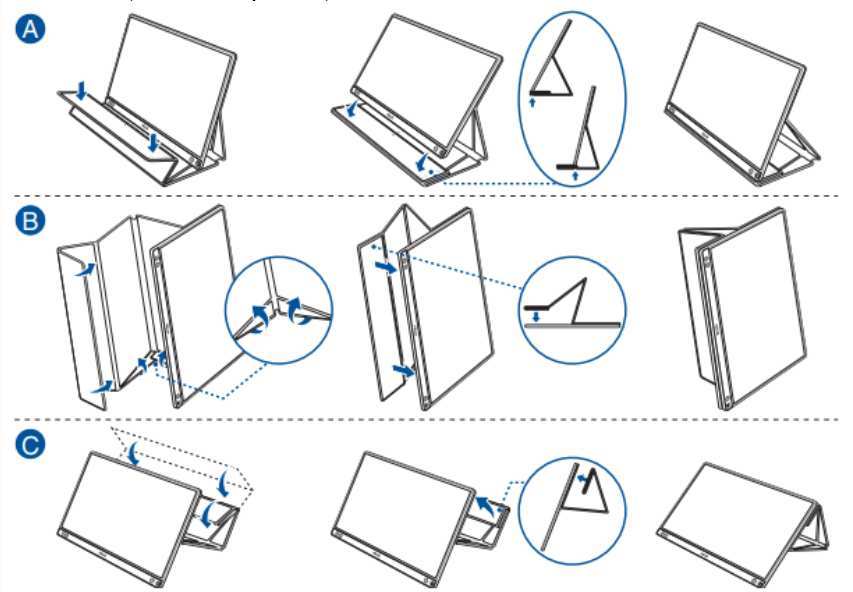
Image source: Bing (Web (fair-use with source credit))
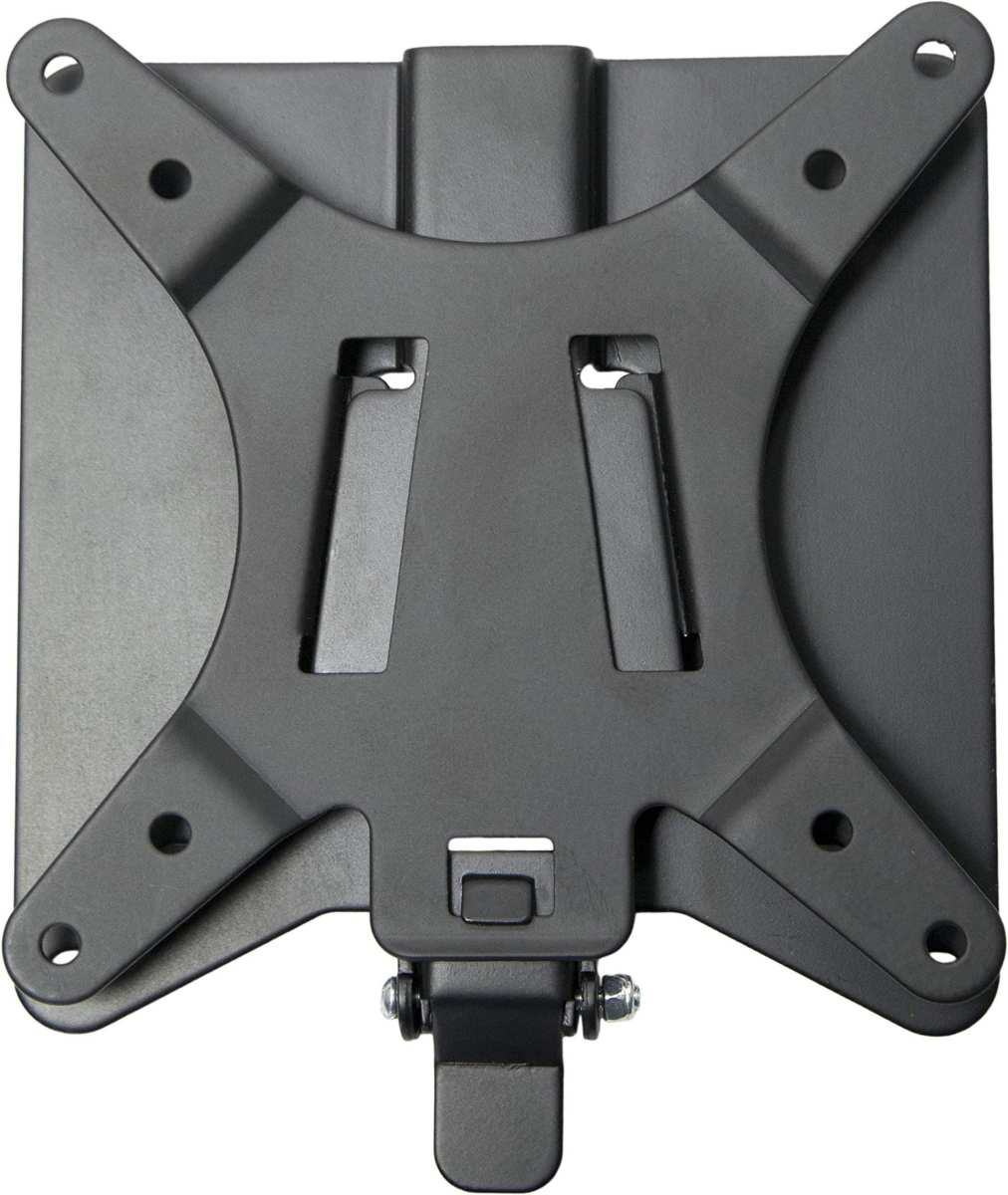
Image source: Bing (Web (fair-use with source credit))
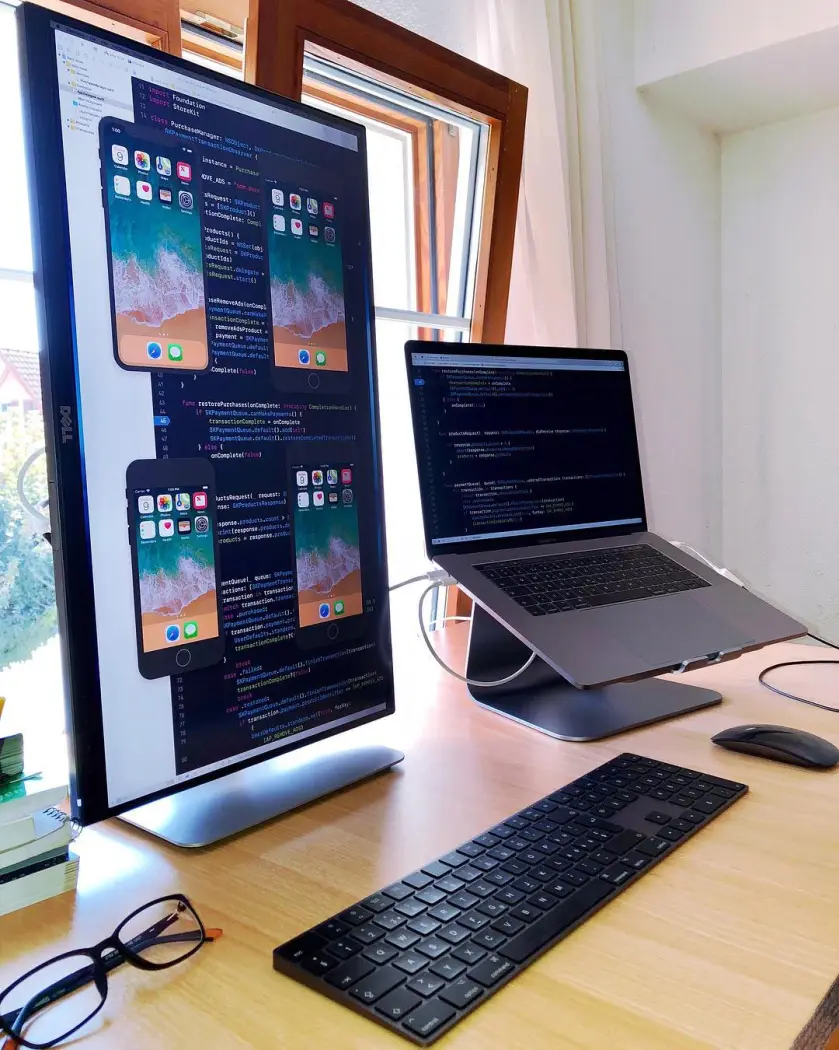
Image source: Bing (Web (fair-use with source credit))

Similar Posts































