Can Ultrawide Monitors Be Used Vertically
Yes, ultrawide monitors can be used vertically, but it requires careful consideration and often specific hardware. This guide will walk you through everything you need to know, from checking compatibility and potential physical limitations to the software adjustments and the unique benefits of a vertical ultrawide setup. Learn if this unconventional orientation is right for you and how to achieve it successfully. 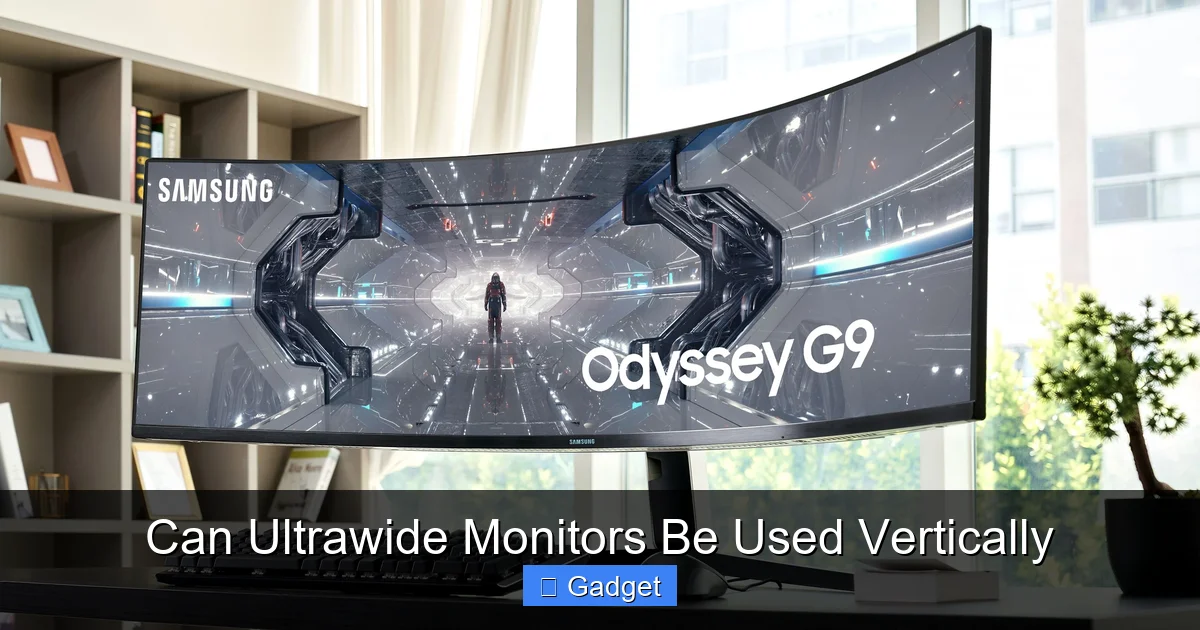 The first and most critical step is determining if your specific ultrawide monitor and its accompanying stand can handle a vertical orientation. This isn’t a one-size-fits-all situation, and many factors come into play.
 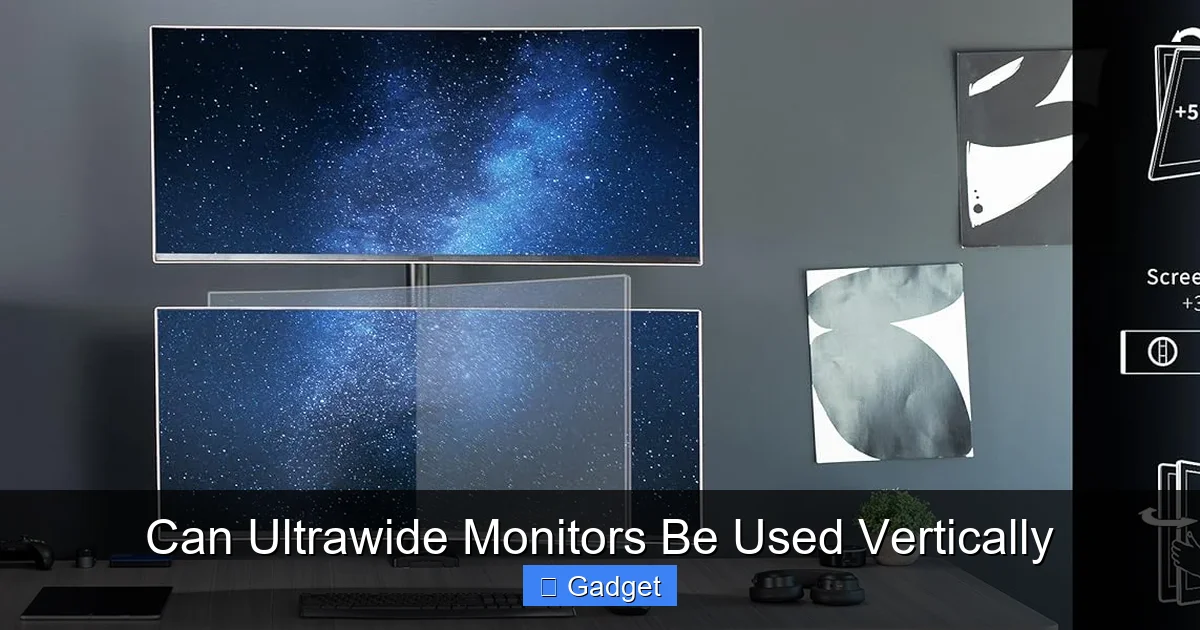 Once you’ve confirmed compatibility and acquired the necessary hardware (likely a monitor arm), it’s time for the physical setup. This step requires careful attention to ensure safety and optimal positioning.
 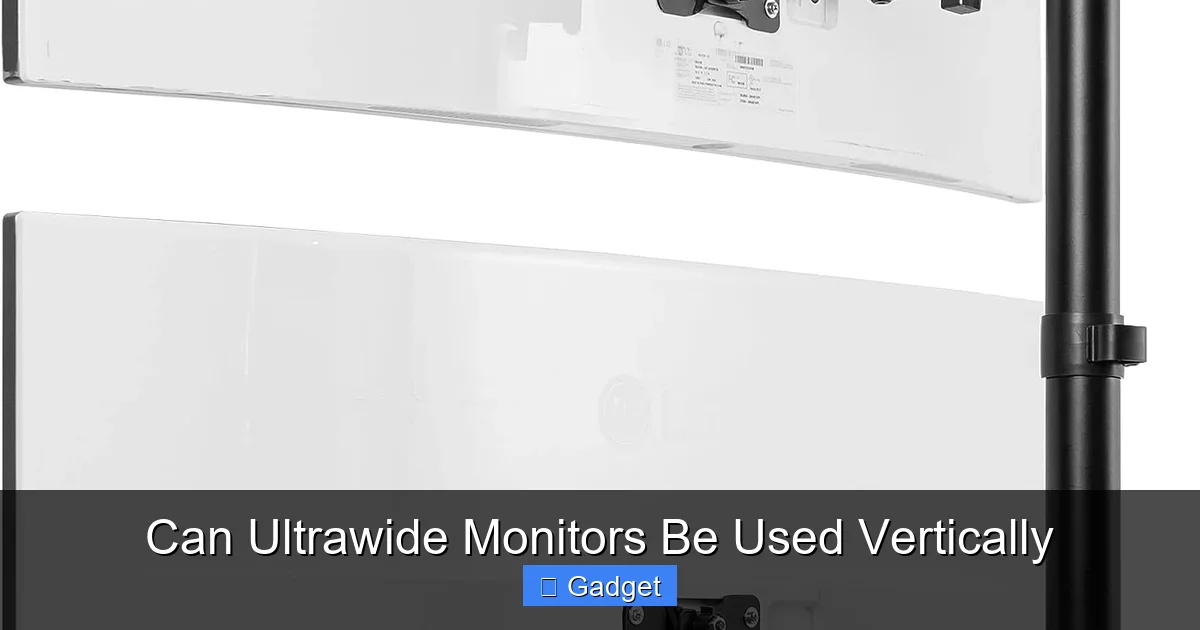 Physically rotating your monitor is only half the battle. Your computer needs to know that the display has been rotated.
Key Takeaways
- Monitor and Stand Compatibility: Not all ultrawide monitors are designed for vertical rotation due to their size, weight, and stand limitations. You’ll need to check if your monitor’s VESA mount is compatible and if its stand or a VESA-compatible arm can support the vertical orientation.
- Physical Space and Stability: A vertically oriented ultrawide monitor will be significantly taller than it is wide. This requires ample vertical desk space and a very stable desk and stand to prevent tipping or wobbling, especially with larger ultrawide models.
- Software and Display Settings: Once physically rotated, you’ll need to adjust your operating system’s display settings to match the new orientation. This involves rotating the screen and potentially adjusting resolution and refresh rate for optimal viewing.
- Use Cases and Benefits: Using an ultrawide vertically can be highly beneficial for tasks like coding, writing, long-form document editing, web browsing, and even certain gaming genres where verticality is key. It offers an expansive canvas for content that flows downwards.
- Potential Drawbacks: Significant drawbacks include reduced horizontal screen real estate compared to its native orientation, potential for neck strain due to looking upwards, and compatibility issues with some applications not optimized for very tall displays.
- Ergonomics and Viewing Angle: Proper ergonomics are crucial. You’ll need to position the monitor at an appropriate height and distance to avoid strain, which might be different from your typical horizontal setup.
Can Ultrawide Monitors Be Used Vertically
The allure of ultrawide monitors is undeniable. Their expansive aspect ratios offer a captivating, immersive experience for gaming, multitasking, and content creation. But what if you’re curious about pushing the boundaries of what your ultrawide can do? Specifically, can ultrawide monitors be used vertically? The answer is a resounding, but often qualified, yes! This guide will delve deep into the world of vertical ultrawide setups. We’ll explore whether your monitor is physically capable of being rotated, the hardware you might need, the software adjustments required, and the surprising benefits and potential pitfalls of this unconventional display orientation. By the end, you’ll have a clear understanding of whether a vertical ultrawide is a viable and beneficial option for your specific needs.Understanding the Ultrawide Form Factor
Before we dive into the “how,” let’s briefly touch upon what makes an ultrawide monitor unique. Unlike standard 16:9 aspect ratio monitors, ultrawides boast wider formats, commonly 21:9 or even 32:9. This extra width is what provides that panoramic view. However, this unique shape also presents specific challenges when considering a vertical orientation. The sheer physical dimensions and weight distribution can be different from standard monitors, influencing how easily they can be rotated.Step 1: Checking Monitor and Stand Compatibility
Visual guide about Can Ultrawide Monitors Be Used Vertically
H3: VESA Mount Standard
The most important feature to look for is a VESA mounting interface on the back of your monitor. The VESA mount is a standardized system of screw holes that allows you to attach your monitor to a stand, wall mount, or monitor arm. Most modern monitors, including many ultrawides, adhere to VESA standards (e.g., VESA 100x100mm, 200x100mm, 200x200mm). * How to Check: Look at the back of your monitor. You should see a square or rectangular pattern of threaded screw holes. Consult your monitor’s user manual or the manufacturer’s website to confirm its VESA compliance and the specific mounting pattern. * Why it Matters: If your ultrawide doesn’t have a VESA mount, it’s highly unlikely you’ll be able to attach it to an aftermarket stand or arm that supports vertical rotation.H3: The Original Stand’s Limitations
Many ultrawide monitors come with a substantial, often stylish, stand. These stands are typically designed to provide stability for the monitor in its intended horizontal orientation. However, they often have limited articulation, especially in terms of tilting and swiveling to accommodate a 90-degree rotation. * Pivot Capability: Most original ultrawide monitor stands *do not* have a built-in “pivot” function, which is the feature that allows a monitor to rotate from landscape to portrait mode. If your stand doesn’t explicitly mention this capability, assume it doesn’t have it. * Stability Concerns: Even if your stand *could* theoretically be adjusted, a vertically oriented ultrawide is top-heavy. The original stand might not be wide or stable enough to prevent the monitor from tipping over, especially with larger screen sizes.H3: The Power of Monitor Arms
For most ultrawide monitors, especially those without a pivoting stand, a high-quality monitor arm is the key to achieving a vertical setup. Monitor arms offer much greater flexibility and stability than most built-in stands. * VESA Compatibility is Crucial: Ensure the monitor arm you choose is compatible with your monitor’s VESA mount pattern. * Weight Capacity: Ultrawide monitors can be heavy. Check the weight capacity of the monitor arm to ensure it can safely support your specific model. Look for arms designed for larger or heavier monitors. * Articulation and Stability: Opt for a monitor arm with a wide range of motion, including the ability to rotate 90 degrees. A sturdy, well-built arm will provide the necessary stability for a tall, vertical display. Desk clamp or grommet mount arms are generally more stable than freestanding ones. Practical Tip: Before buying a monitor arm, measure the dimensions of your ultrawide monitor. Knowing its width, height, and weight is essential for selecting an arm that will work perfectly.Step 2: Physical Installation and Placement
Visual guide about Can Ultrawide Monitors Be Used Vertically
H3: Mounting the Monitor Arm
* Desk Clamp: If using a clamp, ensure it’s securely fastened to a sturdy part of your desk. Avoid attaching it to flimsy or particleboard surfaces that might not support the weight. * Grommet Mount: If your desk has a grommet hole, this often provides a more secure and integrated mount.H3: Attaching the Monitor
Carefully attach your ultrawide monitor to the VESA plate of the monitor arm, following the instructions provided with both your monitor and the arm. This usually involves screwing the plate to the back of the monitor and then attaching the monitor to the arm’s bracket.H3: Rotating the Monitor
* Gentle Movement: Slowly and carefully pivot the monitor 90 degrees into its vertical orientation. Be mindful of the monitor’s weight and the stress on the arm. * **Adjust Tension: Most monitor arms have tension adjustment screws. You’ll need to fine-tune these so that the monitor stays in place at any angle without drooping or being too stiff to move. This is especially important in a vertical orientation to counteract gravity.H3: Positioning for Ergonomics
* **Eye Level is Key: The top of your screen should ideally be at or slightly below eye level. For a vertical ultrawide, this means the monitor might sit quite high on its arm. * **Viewing Distance: Maintain a comfortable viewing distance to avoid eye strain and neck movement. You might need to extend the monitor arm further away from you than you would with a horizontal setup. * **Desk Space: A vertical ultrawide will occupy a significant amount of vertical desk space. Ensure you have enough clearance above and around the monitor, as well as space for your keyboard and mouse. Example: Imagine a 34-inch ultrawide monitor. In landscape mode, it’s roughly 31 inches wide. In portrait mode, it becomes roughly 14 inches wide and over 30 inches tall! This dramatically changes how it fits on your desk.Step 3: Software and Display Settings Adjustments
Visual guide about Can Ultrawide Monitors Be Used Vertically
H3: Rotating the Display in Your Operating System
* **Windows:** 1. Right-click on your desktop and select “Display settings.” 2. Select your ultrawide monitor from the list of displays. 3. Scroll down to “Display orientation” and select “Portrait.” 4. Click “Keep changes” when prompted. * **macOS:** 1. Go to Apple menu > System Settings (or System Preferences). 2. Click “Displays.” 3. Select your ultrawide monitor. 4. Under “Rotation,” choose “90°” (for Portrait). 5. Click “Confirm” when prompted.H3: Resolution and Refresh Rate
After rotating the display, your operating system might automatically adjust the resolution to match the new orientation. If not, you may need to manually set it to the monitor’s native resolution in portrait mode. * **Native Resolution:** Using the monitor’s native resolution will provide the sharpest image. This might be a different resolution value in portrait mode than what you’re used to in landscape. * **Refresh Rate:** Ensure the refresh rate remains as high as possible for smooth visuals, especially for gaming or fast-paced applications. This is usually found in the same display settings menu.H3: Aspect Ratio and Scaling
Some applications might not automatically adjust their layout for a very tall, narrow display. * **Application Behavior:** You might find that some programs appear stretched or have awkward layouts. This is less common with modern applications but can still occur. * **Scaling Options:** Experiment with display scaling options within your OS settings if text or interface elements appear too small or too large. **Troubleshooting Tip: Black Bars or Stretched Image?** If you see black bars on the sides or the image appears stretched, it’s likely a resolution issue. Go back to display settings and ensure the native resolution for portrait mode is selected. Sometimes, graphics driver settings can also override OS settings.Step 4: Exploring Use Cases and Benefits
Why would someone go through the trouble of setting up an ultrawide monitor vertically? The benefits can be surprisingly significant for certain workflows.H3: Coding and Software Development
This is perhaps one of the most popular use cases. A vertical ultrawide provides an incredibly long canvas for viewing code files, documentation, and terminal windows simultaneously. * **See More Code:** You can see many more lines of code at once, reducing the need for excessive scrolling. * **Side-by-Side Comparison:** Easily view a code file next to its corresponding documentation or a debugger. If you’re a developer considering this setup, you might also want to explore whether ultrawide monitors are inherently good for coding workflows in general.H3: Writing and Document Editing
For writers, journalists, and anyone working with long documents, a vertical display offers a familiar, book-like reading experience. * **Full Page View:** View an entire document page, or even multiple pages, without much scrolling. * **Focus and Flow:** The long, uninterrupted vertical space can help maintain focus and a sense of flow when writing.H3: Web Browsing and Reading
Browsing websites, especially those with content that flows downwards, becomes much more efficient. * **Less Scrolling:** Most web pages can be viewed in their entirety with minimal scrolling. * **Reading Articles:** Reading articles or online books feels more natural and less taxing on the eyes.H3: Gaming (Niche Applications)
While most games are designed for landscape orientation, some niche genres or specific games might benefit. * **Flight Simulators:** Some users report enjoying a more immersive experience with flight simulators, where verticality can represent altitude. * **Text-Heavy RPGs:** Games with a lot of dialogue or inventory management might be easier to navigate. * **Emulators:** Older arcade games or systems designed for vertical screens can be played with a more authentic aspect ratio. For gamers, it’s worth noting that while vertical orientation has niche uses, most gaming benefits from the wide field of view offered in landscape mode—especially on ultrawide displays.H3: Multitasking Tall Applications
Any application that has a tall interface can be advantageous. Think of video editing timelines, complex spreadsheets, or certain graphic design tools.Step 5: Considering the Drawbacks and Limitations
While the benefits are compelling, it’s important to be aware of the downsides.H3: Reduced Horizontal Screen Real Estate
The most obvious drawback is that you lose the expansive horizontal view that makes ultrawides so popular in the first place. If your primary use is gaming or watching movies, a vertical setup is likely not ideal.H3: Application Compatibility
While most modern applications adapt well, some older or poorly designed software might not render correctly or might have usability issues in a very tall aspect ratio.H3: Neck Strain and Ergonomics
As mentioned earlier, positioning is crucial. Looking up at a very tall monitor for extended periods can lead to neck strain if not set up correctly. You might find yourself adjusting the height frequently.H3: Desk Footprint
A vertically mounted ultrawide monitor, especially a large one, can take up a significant amount of desk space. Ensure your desk is deep enough and that you have sufficient clearance.H3: Aesthetics
A very tall monitor might look unusual on your desk, and not everyone might appreciate the aesthetic.Troubleshooting Common Issues
* Monitor Won’t Rotate in OS: Ensure your graphics drivers are up to date. Sometimes, driver conflicts can prevent screen rotation. Restarting your computer can also resolve temporary glitches. * Monitor Tipping or Wobbling: This points to an insufficient monitor arm or an unstable desk. Invest in a sturdier monitor arm with a higher weight capacity and ensure your desk is solid. Tighten all arm joints. * Text is Blurry or Pixelated: Double-check that you have selected the monitor’s native resolution in the display settings for the portrait orientation. * Applications Look Strange: Try restarting the application. If the issue persists, check the application’s own display or preference settings for aspect ratio or scaling options.Conclusion
So, can ultrawide monitors be used vertically? Absolutely! However, it’s not as simple as just flipping your existing setup. It requires careful consideration of your monitor’s VESA compatibility, the necessity of a robust monitor arm, and precise software adjustments. For those whose work involves a lot of vertical scrolling, coding, writing, or detailed document work, a vertical ultrawide setup can be a game-changer, offering an expansive and focused canvas. It transforms your ultrawide from a panoramic window into a deep, vertical well of information. Before you commit, weigh the benefits against the drawbacks. If you’re a gamer or a cinephile, sticking to the horizontal orientation is likely best. But if your workflow can benefit from a tall, uninterrupted display, then exploring the world of vertical ultrawides might just be your next great productivity upgrade. With the right hardware and setup, you can unlock a whole new dimension of your ultrawide monitor.
Similar Posts