Is Portable Monitor Good for Students

Is a portable monitor good for students? The honest answer is: it depends entirely on how you study, what you're studying, and what laptop you already own. A portable monitor can be a genuine productivity upgrade for some students and an expensive paperweight for others.
Research on screen size and productivity from the University of Utah shows that dual-monitor setups can improve output by 20 to 30 percent compared to a single screen. But that benefit only materializes if your workflow actually uses the extra space. Let's walk through the conditions that determine whether this purchase makes sense for you.
Quick Answer
A portable monitor is good for students who need a second screen for research, coding, writing, or design work. It's not worth it if you only take notes or watch lectures. Your laptop must support USB-C DisplayPort Alt Mode for the simplest setup.
Prices range from $100 to $350 as of 2026. The productivity gain is real but only for specific workflows.
How to Decide If a Portable Monitor Makes Sense for Your Study Setup
The decision comes down to a handful of conditions. Work through them honestly before spending any money.
Your major and coursework matter most. If you're writing long research papers, coding, editing video, or working with spreadsheets, a second screen pays for itself in time saved. If your coursework is mostly reading, attending lectures, and taking notes, you probably won't use it enough to justify the cost.
Your current laptop screen size is a big factor. Students running 13-inch ultrabooks feel the squeeze the most. Juggling a PDF and a Word document on a 13-inch screen is genuinely painful. If you already have a 15-inch or 17-inch laptop, the added benefit shrinks.
Your study environment matters too. If you move between dorm, library, and café regularly, a portable monitor gives you a consistent dual-screen setup everywhere. If you study at the same desk every day, a traditional desktop monitor gives you more screen for less money.
Your budget is the final filter. A decent 15.6-inch 1080p portable monitor costs $150 to $250. That's real money for most students. If that purchase means skipping textbooks or eating ramen for a month, it's not worth it.
Here's a quick decision framework:
| Condition | Portable Monitor Likely Worth It | Portable Monitor Probably Not Worth It |
|---|---|---|
| Major | CS, design, film, finance, engineering | General ed, humanities with light writing |
| Laptop screen size | 13" or 14" | 15" or larger |
| Study locations | Multiple (dorm, library, café) | Single fixed desk |
| Primary tasks | Research + writing, coding + docs, editing | Note-taking, lecture watching, reading |
| Budget | $150+ available without strain | Tight or would sacrifice essentials |
What Your Laptop Needs to Support a Portable Monitor
This is where a lot of students get burned. You can't just buy any portable monitor and expect it to work with any laptop. The connection type matters.
USB-C with DisplayPort Alt Mode is the gold standard. This single cable carries both video signal and power to the monitor. One plug, done. But your laptop's USB-C port has to specifically support DisplayPort Alt Mode.
Not all USB-C ports do. Some only handle data and charging.
Check your laptop's spec sheet or manufacturer documentation. Look for "DisplayPort over USB-C" or "DP Alt Mode" in the port description. Most MacBooks from 2016 onward support it.
Many Windows ultrabooks do too. Budget laptops and older machines often don't.
HDMI is the fallback. If your laptop lacks USB-C DisplayPort Alt Mode, you can still use a portable monitor with HDMI. But you'll typically need two connections: an HDMI cable for video and a separate USB cable for power. It's clunkier and adds cable management headaches.
Chromebooks are a mixed bag. Some newer Chromebooks support USB-C DisplayPort Alt Mode. Others don't. Check your specific model before buying anything.
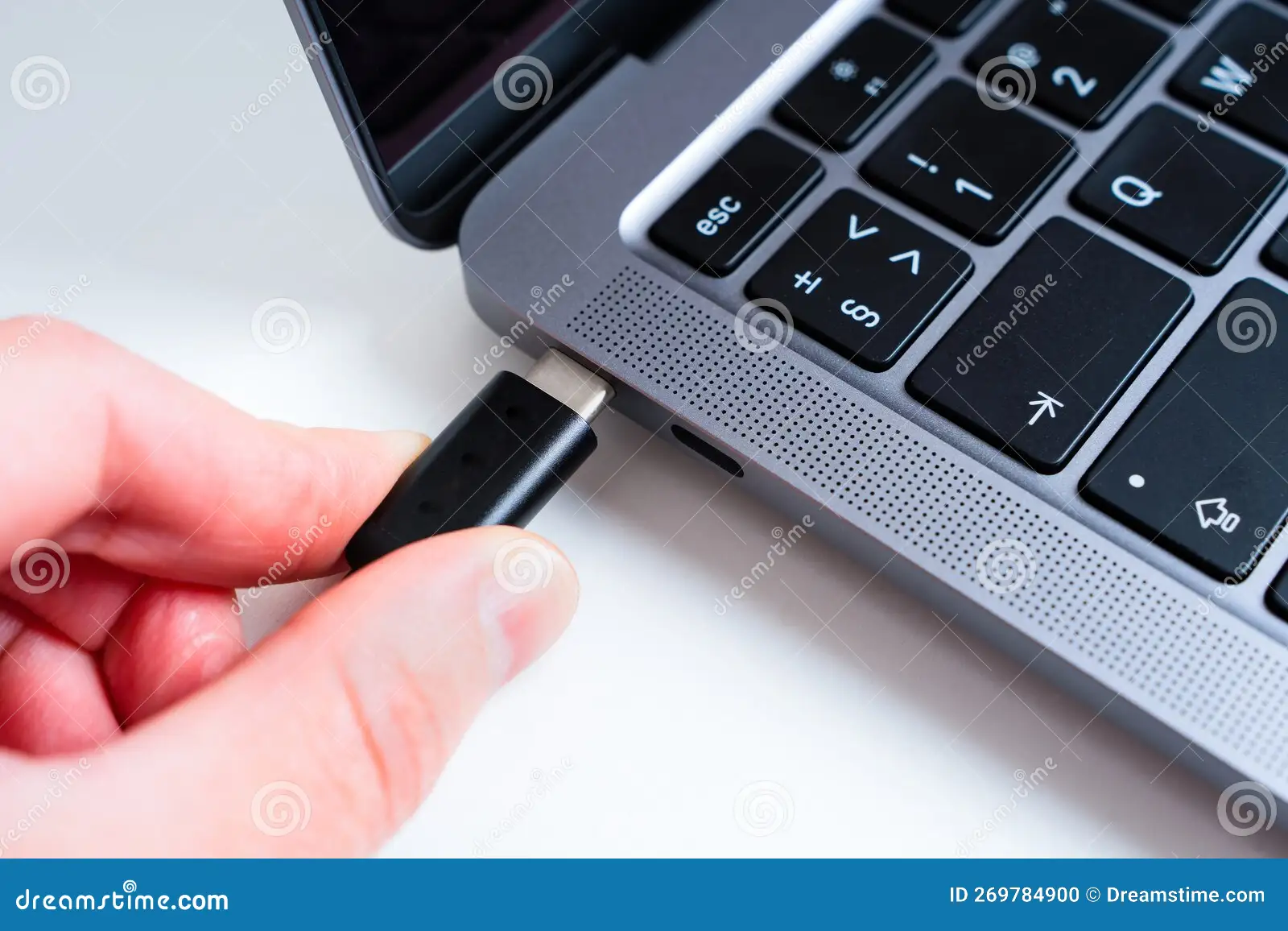
Power delivery is another consideration. USB-C portable monitors that draw power from your laptop will drain the battery faster. A 15.6-inch panel typically pulls 7 to 15 watts. On a small laptop battery, that's noticeable.
Some portable monitors include their own power brick, which avoids this issue but adds another thing to carry.
Operating system compatibility is generally fine. Windows and macOS both handle external displays well. You'll configure extended display mode in your system settings. Linux works too, though it sometimes needs manual configuration depending on the distribution.
When a Portable Monitor Will Genuinely Improve Your Productivity
Let's get specific about the workflows where a second screen actually changes your daily experience.
Research-heavy writing is the classic use case. Having your source material, PDFs, or browser open on the portable monitor while your word processor stays on the laptop screen eliminates constant tab-switching. For students writing 15-page papers with 30 sources, this is a real time-saver.
Computer science and coding students benefit enormously. Keep your IDE on one screen and documentation, terminal output, or Stack Overflow on the other. Debugging becomes faster when you can see your code and your output simultaneously.
Design and media students get value from reference workflows. Editing in Photoshop or Premiere with toolbars on one screen and your full canvas on the other is standard professional practice. A portable monitor lets you replicate that setup in a dorm room or library.
Finance and business students working with spreadsheets can view a full spreadsheet on one screen while pulling data from reports or financial databases on the other. Side-by-side spreadsheet comparison without scrolling is a genuine workflow improvement.
Online and hybrid learners who watch recorded lectures while taking notes get a clean setup. Lecture on one screen, notes on the other. No more alt-tabbing every 30 seconds.
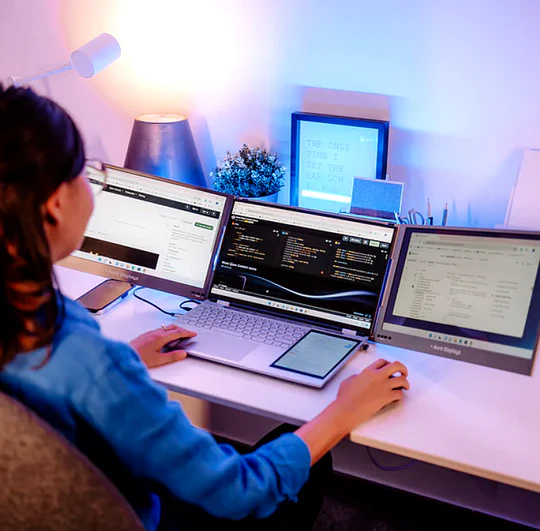
The common thread: if your workflow involves referencing one thing while working on another, a portable monitor helps. If your workflow is linear (read, then write, then read again), it won't move the needle much.
When a Portable Monitor Is Probably a Waste of Money
Let's be honest about the situations where this purchase doesn't pencil out.
If your primary use is watching lectures and taking notes in a single app, you don't need a second screen. Split-screen on your laptop handles that fine. A portable monitor adds cost and bulk without solving a real problem.
If you already have a 15-inch or larger laptop and a fixed study desk, buy a traditional desktop monitor instead. A 24-inch 1080p desk monitor costs $100 to $150 and gives you a bigger, brighter, better-supported screen. You get more for your money.
If your laptop doesn't support USB-C DisplayPort Alt Mode and you hate cable clutter, the HDMI-plus-power-cable setup gets old fast. You'll end up leaving the monitor in your dorm instead of carrying it around, which defeats the purpose.
If you're buying it because it sounds cool rather than because you have a specific workflow need, wait. Use your laptop for a full semester first. Identify the moments where you think "I wish I had more screen space." If those moments happen daily, then consider it.
If your budget is genuinely tight, that $150 to $250 is better spent on a good backpack, a reliable external SSD, or just keeping your current laptop running longer. A portable monitor is a luxury upgrade, not a necessity.
The students who regret this purchase almost always fall into one of these categories. They bought the idea of productivity instead of solving a specific problem they actually had.
What to Look for in a Portable Monitor Built for Student Life
Not all portable monitors are created equal. The specs that matter for students are slightly different from what a business traveler or gamer would prioritize.
Size and weight come first. You're carrying this in a backpack alongside textbooks, a laptop, charger, and whatever else accumulates in there. A 15.6-inch panel hits the sweet spot for most students. Big enough to actually work on, small enough that you won't dread packing it.
At 1.5 to 2.5 pounds, it adds noticeable but manageable weight. The 13.3-inch models are lighter but feel cramped for real multitasking. The 17.3-inch options are too bulky for daily carrying.
Resolution should be 1080p at minimum. Full HD on a 15.6-inch screen gives you crisp text and enough workspace. Some models offer 1440p or even 4K, but those cost more, drain your laptop battery faster, and the visual benefit at this screen size is marginal for most student work. Save the money.
IPS panel technology is the standard worth buying. IPS panels give you wide viewing angles and decent color accuracy. You'll often be looking at the screen from slightly off angles on a crowded desk, and IPS handles that well. TN panels are cheaper but look washed out from any angle.
OLED looks stunning but costs significantly more and risks burn-in from static toolbars.
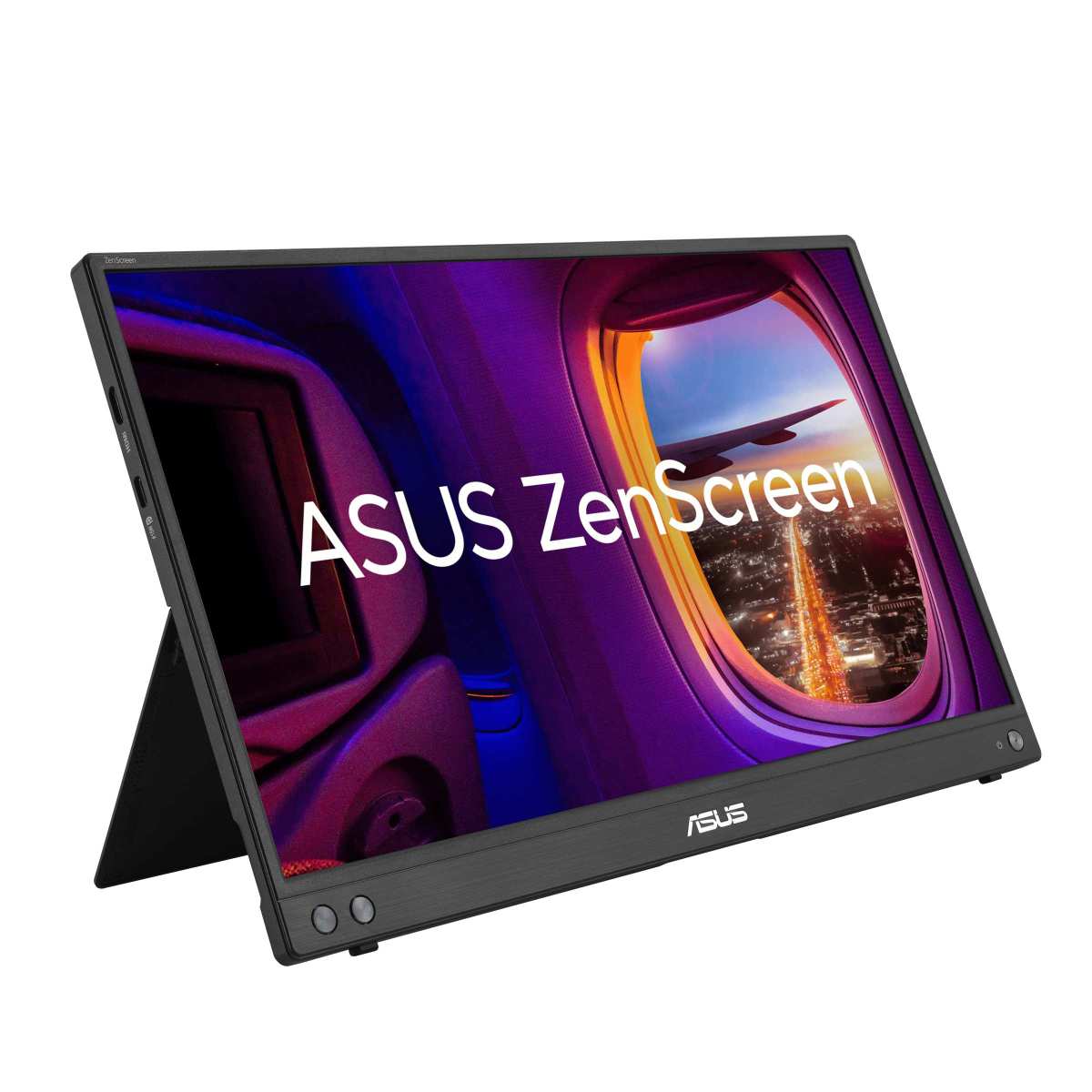
The stand or case situation matters more than you'd think. Most portable monitors ship with a magnetic smart cover that doubles as a stand. These work fine on a flat desk but get wobbly on uneven library tables or beds. Some models include a more rigid kickstand or a built-in adjustable stand.
If you're picky about screen angle, check reviews specifically for the stand's stability.
Brightness is worth checking. A panel rated at 250 nits is fine for indoor use. If you ever work near a window or in a brightly lit common area, look for 300 nits or higher. Matte screen finishes reduce glare better than glossy ones, which matters in shared spaces with overhead fluorescent lighting.
Touchscreen is a nice-to-have, not a need-to-have. It adds cost and weight. Unless you're in a design program where direct screen annotation matters, skip it.
Portable Monitor vs. Other Second-Screen Options for Students
A portable monitor isn't the only way to get more screen space. Here's how the alternatives stack up.
Traditional desktop monitor. If you study at the same desk every day, a 24-inch 1080p monitor costs $100 to $150 and gives you a bigger, brighter screen with a proper adjustable stand. You can't carry it to the library, but you get more value per dollar. This is the better choice for students who have a permanent setup.
Tablet as second screen. If you already own an iPad, Apple's Sidecar feature turns it into a wireless second display for MacBooks. It's free and works well. For Windows users, apps like spacedesk can use an Android tablet or iPad as an extended display.
The downside is slight latency and the tablet's smaller screen size. But if you already own the tablet, this costs nothing.
Upgrading to a larger laptop. If your current laptop is due for replacement anyway, moving from a 13-inch to a 16-inch model gives you more built-in screen space without carrying a separate device. The tradeoff is cost. A new laptop runs $800 to $1,500 compared to $150 to $250 for a portable monitor.
Ultra-wide monitor at home. For students who do serious video editing or coding at a fixed desk, a 34-inch ultra-wide replaces two monitors entirely. Prices start around $300. Again, this only works if you're stationary.
| Option | Cost | Portability | Best For |
|---|---|---|---|
| Portable monitor | $150–$250 | High | Students who move between locations |
| Desktop monitor | $100–$150 | None | Students with a fixed desk |
| Tablet as second screen | $0 (if owned) | Medium | Students who already have a compatible tablet |
| Larger laptop upgrade | $800–$1,500 | High | Students due for a new laptop anyway |
| Ultra-wide monitor | $300+ | None | Students doing heavy editing or coding at one desk |
How to Set Up and Use a Portable Monitor Without the Headaches
Getting a portable monitor running is usually straightforward, but a few steps prevent the common frustrations.
Step 1: Verify your laptop's USB-C port supports DisplayPort Alt Mode. Check the manufacturer's spec sheet. Look for "DP Alt Mode" or "DisplayPort over USB-C" next to the port description. If you can't find it, search your laptop model number plus "USB-C video output" and you'll get a definitive answer.
Step 2: Connect the cable. For USB-C monitors, plug a single USB-C cable into your laptop's compatible port. The monitor should power on and display within a few seconds. For HDMI monitors, connect the HDMI cable for video and a separate USB cable to a power source.
Step 3: Configure display mode. On Windows, press Windows key + P and select "Extend." On macOS, go to System Settings > Displays and choose "Extended Display." This gives you two separate screens rather than mirroring the same content on both.
Step 4: Adjust scaling and resolution. The portable monitor might default to a resolution or scaling that looks off. Set it to its native resolution (usually 1920×1080 for 15.6-inch models). Adjust text scaling in your OS settings if things look too small or too large.
Step 5: Position it ergonomically. Stack the portable monitor on a stand or a few books so the top of the screen is at or slightly below eye level. Looking down at a screen on the desk for hours will wreck your neck. This is the step most students skip and regret later.
Common troubleshooting issues:
- No signal: Try a different USB-C cable. Not all USB-C cables support video. Use the cable that came with the monitor or a certified Thunderbolt/USB4 cable.
- Monitor detected but black: Check display settings to make sure the external display is enabled and set to extend.
- Flickering or artifacts: Usually a cable quality issue or a port that's not fully seated. Push the connector in firmly.
- Laptop battery draining fast: This is normal with USB-C powered monitors. Plug your laptop into AC power during extended sessions.
Tips for Making a Portable Monitor Last Through Semester After Semester
Portable monitors are more fragile than desktop screens. A little care goes a long length.
Get a padded sleeve or case. The magnetic smart covers that come with most models protect the screen surface but offer zero impact protection. A simple neoprene sleeve adds a few dollars and prevents cracks from getting crushed in a backpack.
Clean the screen properly. Use a microfiber cloth and a small amount of distilled water. Never spray liquid directly on the panel. Avoid household glass cleaners, they can damage anti-glare coatings.
Don't leave it in a hot car. LCD panels don't love extreme heat. If you're driving between campus and home, take the monitor with you or store it in a shaded spot.
Check the cable connections periodically. USB-C ports can loosen over time with repeated plugging and unplugging. If the connection feels loose, try a different cable before assuming the port is damaged.
Store it screen-up when not in use. Don't stack heavy objects on top of it. Even in a sleeve, pressure on the screen can cause permanent damage.
Update your laptop's graphics drivers. Occasionally, external display issues after an OS update come down to outdated graphics drivers. Keeping them current prevents weird compatibility problems.
Who Should Buy a Portable Monitor — and Who Should Skip It
Here's the final breakdown based on everything we've covered.
Buy a portable monitor if:
- You're a CS, design, film, finance, or engineering student with daily multi-window workflows
- You have a 13-inch or 14-inch laptop and feel cramped
- You study in multiple locations and want a consistent setup
- Your laptop supports USB-C DisplayPort Alt Mode
- You have $150 to $250 available without financial stress
Skip the portable monitor if:
- Your coursework is mostly lectures, reading, and single-app note-taking
- You already have a 15-inch or larger laptop and a fixed desk
- Your laptop doesn't support USB-C video output
- The purchase would strain your budget
- You already own a tablet you can use as a second screen
The honest bottom line: A portable monitor is a tool, not a magic productivity button. It solves a specific problem for a specific type of student. If that's you, it's one of the best upgrades you can make for under $250.
If it's not, put that money toward something that actually moves the needle for your situation.
Frequently Asked Questions
Can I use a portable monitor with any laptop?
No. Your laptop needs either a USB-C port with DisplayPort Alt Mode or an HDMI output. Check your laptop's spec sheet before buying.
Chromebooks and budget laptops sometimes lack video output support on their USB-C ports.
Will a portable monitor drain my laptop battery?
Yes, noticeably. A USB-C powered portable monitor typically draws 7 to 15 watts from your laptop. Expect 1 to 3 hours less battery life depending on your laptop's battery size.
Plug into AC power for long study sessions.
What size portable monitor is best for students?
15.6 inches is the sweet spot. It gives you enough screen space for real work without adding too much weight to your backpack. At around 1.5 to 2 pounds, it's manageable for daily carrying.
Is a portable monitor better than a cheap desktop monitor?
It depends on your situation. A desktop monitor gives you a bigger screen for less money if you always study in the same spot. A portable monitor wins if you move between dorm, library, and café regularly.
Do portable monitors work with MacBooks?
Yes. Most MacBooks from 2016 onward support USB-C DisplayPort Alt Mode. A single USB-C cable handles video and power.
Apple's M-series MacBooks work well with most portable monitors on the market.
How much should I spend on a portable monitor for college?
Budget $150 to $200 for a solid 15.6-inch 1080p IPS model from a reputable brand. Cheaper models often cut corners on panel quality and build. Spending above $250 only makes sense if you need specific features like OLED or 4K resolution.

Similar Posts































