Can Touchscreen Monitors Connect Wirelessly
So you've got a touchscreen monitor sitting on your desk, or you're thinking about picking one up, and the question hits you: can touchscreen monitors connect wirelessly? The short answer is yes, but with some real caveats that most product listings won't spell out for you. Whether it actually works for your situation depends on what kind of monitor you have, what device you're connecting from, and what you expect "wireless" to mean.
Here's what manufacturer specs and aggregate user feedback confirm as of 2026: most touchscreen monitors are just displays with a USB touch controller. They don't have built-in Wi-Fi or wireless video capability at all. The ones that do work wirelessly either use Miracast, AirPlay, or Google Cast, and even then, touch input back to your source device is a whole separate challenge.
Let's break down exactly what's going on so you can figure out your best path forward.
Quick Answer
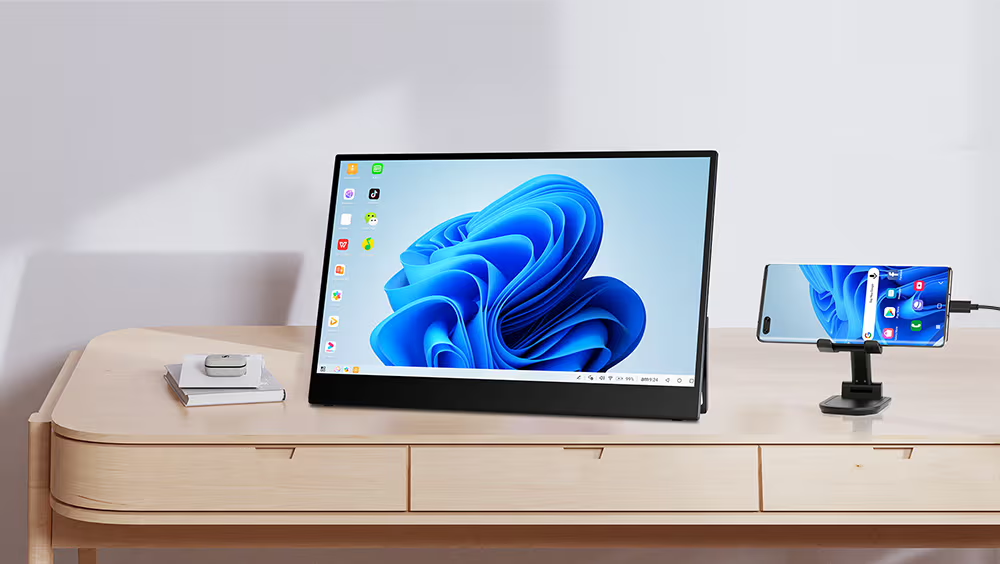
Yes, some touchscreen monitors can connect wirelessly. Most cannot. It depends on the specific monitor model.
Smart monitors with built-in Wi-Fi support wireless display protocols. Standard touchscreen monitors need an external adapter for wireless video. Touch input over wireless is possible but often has noticeable lag.
First Things First: What Type of Touchscreen Monitor Do You Have?
Before anything else, you need to know what you're working with. Not all touchscreen monitors are created equal, and the word "touchscreen" on a product page tells you almost nothing about wireless capability.
There are really three categories here:
- Standard touchscreen monitors, These are displays with a touch-sensitive panel and a USB cable for the touch signal. They need a physical video connection (HDMI, DisplayPort, USB-C) to work. No wireless anything.
- Portable touchscreen monitors, Often powered by USB-C, these are popular for travel and laptop setups. Some newer models include battery power and basic wireless features, but most still rely on a cable for video.
- Smart monitors, These run an operating system (like Tizen, Android, or WebOS) and have built-in Wi-Fi. They can receive wireless video and run apps independently. This is where wireless touchscreen use actually becomes practical.
If you're not sure which type you have, check the specs sheet for "Wi-Fi," "wireless," or "smart monitor" in the features list. If it only lists HDMI, DisplayPort, and USB inputs, you're looking at a standard touchscreen monitor. It won't do wireless without help.
Wirelessly Displaying Your Screen vs. Touching Through the Screen
This is where most people get tripped up, and honestly, it's not their fault. The marketing around wireless displays makes it sound like everything just works. But there are actually two separate problems to solve here.
Problem 1: Getting the video signal to the monitor wirelessly.
This is the easy part. You can do it with:
- Miracast (built into most Windows PCs and many Android devices)
- AirPlay (Apple devices to compatible receivers)
- Google Cast (Chromebooks, Chrome browser, Android)
- A wireless display adapter plugged into the monitor's HDMI port
Problem 2: Getting your touch inputs back to the source device.
This is the hard part. When you tap the screen, that touch data needs to travel back to your laptop or phone. Over a USB cable, this happens natively through the HID (Human Interface Device) protocol.
Over wireless, it's a different story entirely.
Here's the reality: most wireless display protocols only send video one way. They don't carry touch data back. So you might see your desktop on the touchscreen monitor, but tapping the screen does nothing unless you've got additional software or hardware handling the return channel.
Some smart monitors solve this by running apps natively (no source device needed). Others use companion apps that transmit touch data over the same Wi-Fi network. But it's never as seamless as plugging in a single USB-C cable.
Can Your Specific Monitor Connect Wirelessly? A Quick Checklist
Run through this quick checklist to figure out where you stand:
| Question | If Yes | If No |
|---|---|---|
| Does your monitor have built-in Wi-Fi? | It's a smart monitor. Wireless video is likely supported. | You'll need an external adapter for wireless video. |
| Does the spec sheet mention Miracast, AirPlay, or Google Cast? | Wireless display is built in. | No built-in wireless display support. |
| Does your monitor run an OS (Tizen, Android, WebOS)? | It can function independently without a source device. | It's a dependent display only. |
| Are you okay using a companion app for touch input? | Wireless touch is achievable with software. | You'll probably want to stick with wired USB for touch. |
| Is low touch latency critical for your work? | You may still notice lag over wireless. | Wired is your best bet for responsive touch. |
If you answered "no" to most of these, your monitor probably can't connect wirelessly on its own. That's not a defect. That's just how the vast majority of touchscreen monitors are designed.
Three Main Ways to Get Wireless Working
If your monitor doesn't have wireless built in, you've got three practical options. Each has tradeoffs, and none of them are perfect.
Option 1: Wireless Display Adapter
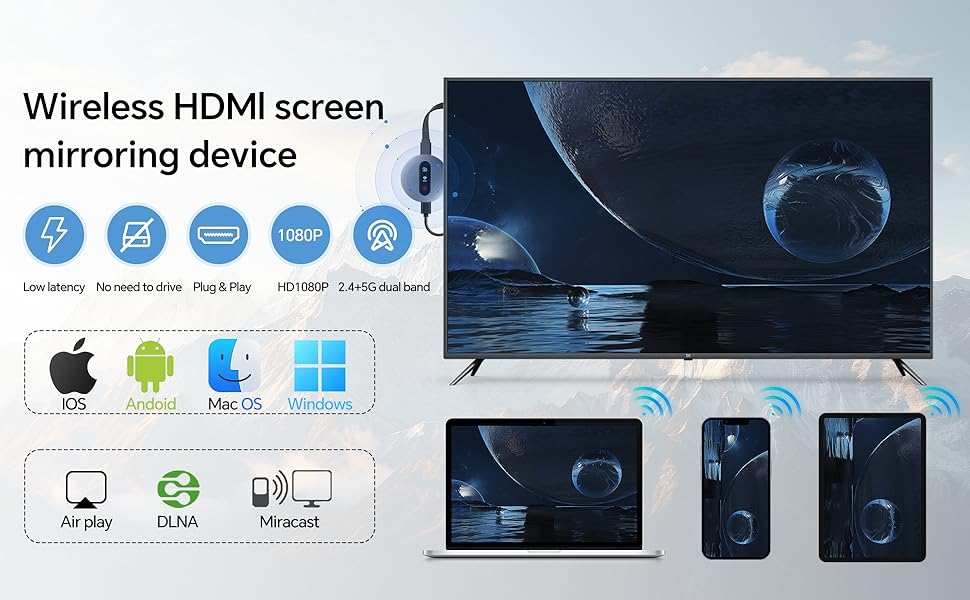
This is the most common workaround. You plug a small adapter into your monitor's HDMI port, and it receives a wireless signal from your source device.
Popular options include:
- Microsoft Wireless Display Adapter (Miracast, Windows focused)
- ASUS InstaShow (enterprise presentations)
- ScreenBeam adapters (Miracast, education and business)
- Various third-party Miracast dongles (budget option)
The adapter handles video. Touch input, though, is a separate issue. You'll typically need to keep the USB touch cable connected to your source device, or use software that transmits touch data over Wi-Fi.
Option 2: Smart Monitor with Built-in Wireless
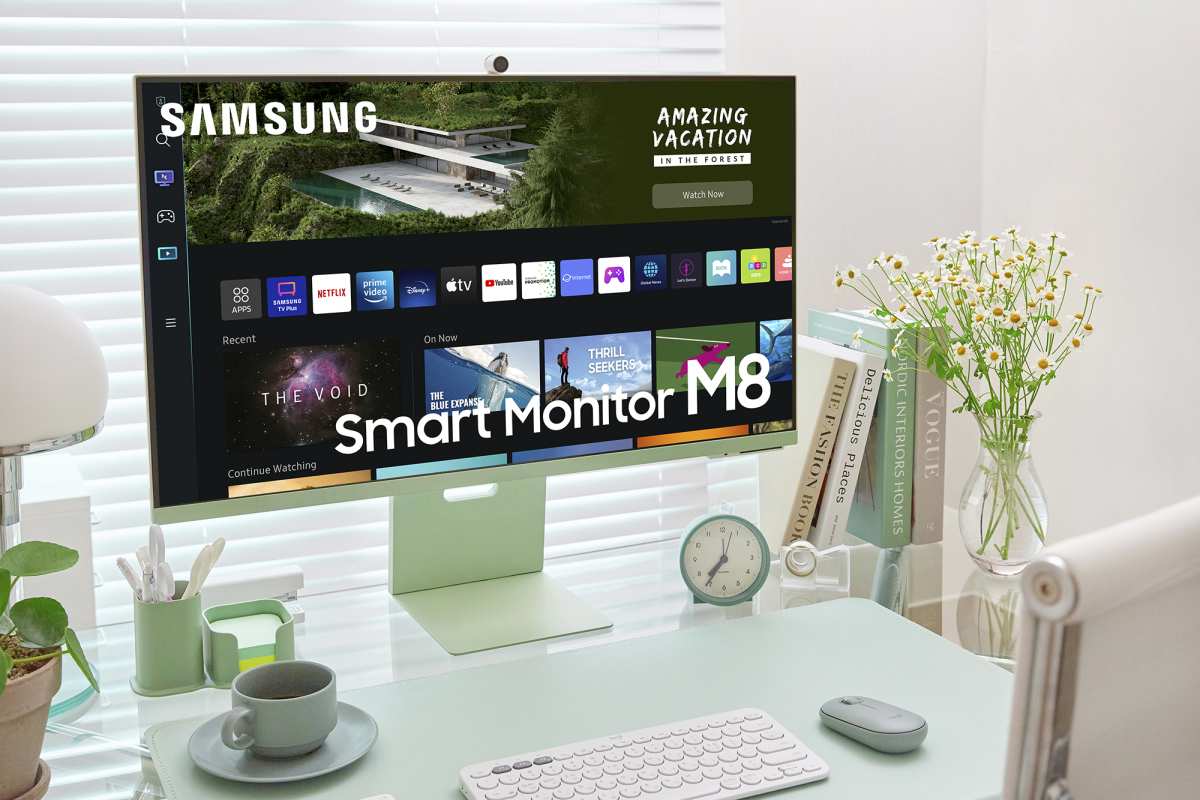
If you're buying new and wireless is a priority, this is the cleanest solution. Smart monitors from Samsung (M8 series, ViewFinity Smart Monitor), LG, and others come with Wi-Fi, Bluetooth, and sometimes even touch support built in.
These monitors can receive AirPlay, Miracast, or Google Cast signals natively. Some support touch input over the network through companion apps. They're more expensive than standard touchscreen monitors, but they actually deliver on the wireless promise.
Option 3: Software-Based Screen Sharing
Apps like SpaceDesk, Duet Display, or Splashtop let you extend or mirror your display to another device over Wi-Fi. If your touchscreen monitor connects to a device running this software (like a Raspberry Pi or an Android tablet), you can get both video and touch working wirelessly.
This is the most flexible option, but it requires some technical setup. It also introduces latency that varies based on your network quality.
What "Smart Monitors" Do Differently (And Why They're Different)
Smart monitors are the only category where wireless touchscreen use genuinely works well. Here's why.
A smart monitor is essentially a display with a built-in computer. It runs an operating system, connects to Wi-Fi, and can run apps without any source device attached. When you cast your screen to it via AirPlay or Miracast, the monitor is receiving the video stream directly over its own wireless connection.
Touch input on these monitors is handled by the monitor's own OS. If you're using a native app (like a web browser or a drawing app running on the monitor), touch works perfectly because there's no round-trip to an external device.
The catch comes when you're casting from your laptop or phone. The monitor displays your screen, but touch inputs may or may not get sent back to your source device depending on the protocol and software being used. AirPlay with touchback, for example, works on some monitors but not all.
Miracast has similar limitations.
Step-by-Step: Setting Up a Wireless Touchscreen Connection
Let's walk through the most common scenario: you've got a standard touchscreen monitor and you want to go wireless using a Miracast adapter.
What you'll need:
- Touchscreen monitor with HDMI input
- Miracast-compatible wireless display adapter
- USB cable for touch signal (usually USB-A to USB-B or USB-C)
- Source device that supports Miracast (Windows PC, Android phone)
- Both devices on the same Wi-Fi network (for touch data return)
Setup steps:
- Plug the wireless display adapter into your monitor's HDMI port.
- Power the adapter via USB (most use the monitor's USB port or a wall adapter).
- Connect your touchscreen monitor's USB touch cable to your source device. Yes, you still need this cable for touch.
- On your source device, open the wireless display settings. On Windows, press K. On Android, look for Cast or Screen Mirroring in quick settings.
- Select the adapter from the list of available displays.
- Your screen should now appear on the touchscreen monitor.
- Test touch input. If it doesn't work, check if the adapter's companion app is needed for touchback.
Important note: Some setups require both the HDMI adapter and the USB touch cable connected to the same source device. You're not truly cable-free. You've just replaced the video cable with a wireless link.
The touch cable still needs to be plugged in.
If you want to eliminate all cables, your best bet is a smart monitor with native wireless touch support or a software solution like SpaceDesk running on a device connected to the monitor.
Touch Latency Over Wireless: The Problem Nobody Warns You About
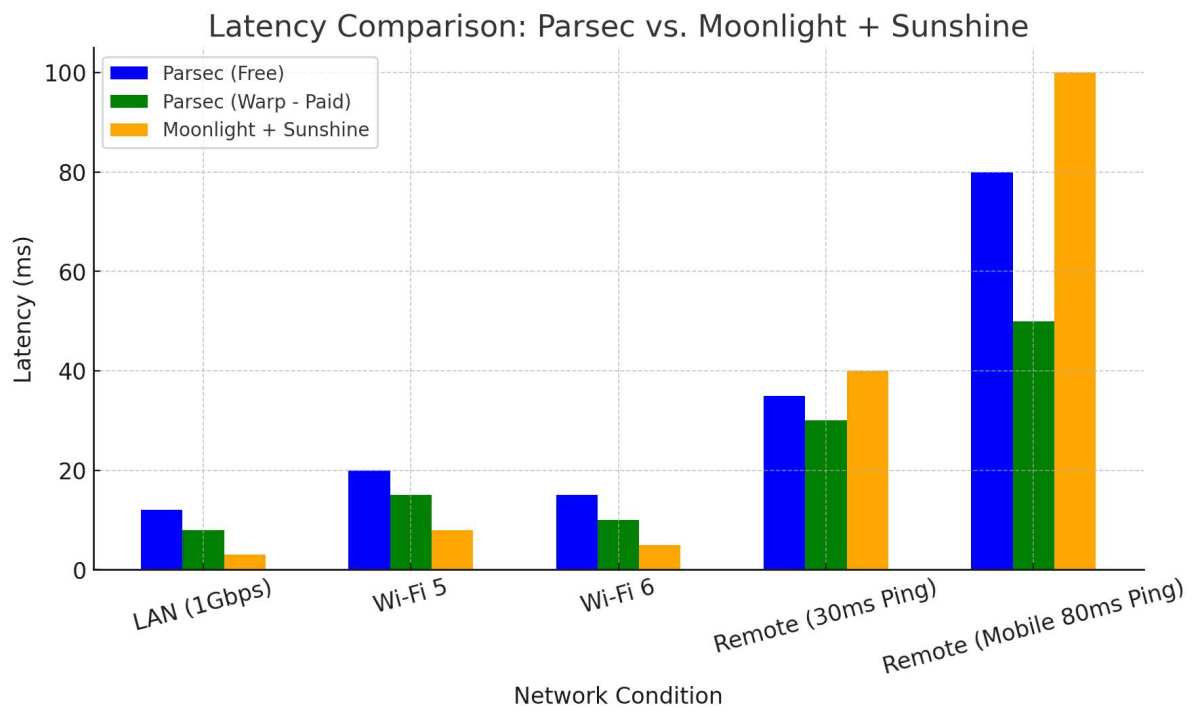
Here's the thing that spec sheets don't emphasize: touch latency over wireless is noticeably worse than wired. And for some tasks, that difference matters a lot.
Manufacturer testing and user reports suggest the following latency ranges:
| Connection Type | Typical Touch Latency | Best For |
|---|---|---|
| Wired USB touch | 10–30ms | Drawing, design, precise work |
| Smart monitor (native apps) | 20–50ms | General use, browsing, media |
| Wireless adapter with touchback | 50–150ms | Presentations, casual use |
| Software streaming (SpaceDesk, etc.) | 80–200ms+ | Secondary display, reference |
Anything above 50ms of touch latency starts to feel sluggish if you're used to a wired connection. For drawing, handwriting, or any task that requires precision, the lag is frustrating. For tapping buttons, scrolling, or giving a presentation, it's usually fine.
Network conditions play a big role here. A congested 2.4GHz Wi-Fi network will give you worse latency than a clean 5GHz connection. Physical distance between your source device and the monitor matters too.
For the best experience, keep both devices on the same router, preferably on 5GHz, and within 30 feet of each other.
Wireless Touchscreen Setup vs. Wired Touchscreen: Honest Comparison
Let's put these side by side so you can see what you gain and what you lose.
| Factor | Wired Touchscreen | Wireless Touchscreen |
|---|---|---|
| Video quality | Full resolution, no compression | Possible compression artifacts |
| Touch latency | 10–30ms | 50–200ms |
| Cable clutter | Multiple cables needed | Fewer cables (but rarely zero) |
| Setup complexity | Plug and play | Requires pairing and configuration |
| Portability | Limited by cable length | More flexible placement |
| Reliability | Rock solid | Subject to network interference |
| Cost | Lower (no adapter needed) | Higher (adapter or smart monitor) |
| Best for | Professional work, drawing | Presentations, casual use, travel |
The honest truth is that wired is better for anything where touch responsiveness matters. Wireless is better for convenience and flexibility. If you're doing creative work, stick with wired.
If you're giving a presentation or want a cleaner desk, wireless is worth the tradeoffs.
Common Mistakes People Make (And How to Avoid Them)
After reviewing user feedback across multiple forums and product reviews, these are the most frequent issues people run into:
- Assuming "touchscreen" means "wireless capable." It doesn't. Always check for Wi-Fi or wireless display specs separately.
- Buying a wireless adapter without checking touchback support. Many adapters only send video. You'll still need the USB touch cable.
- Using a 2.4GHz network for wireless display. This causes lag and dropped connections. Use 5GHz whenever possible.
- Expecting Apple AirPlay on a Windows-only adapter. Protocols are not universal. Match your adapter to your source device's supported protocol.
- Ignoring HDCP issues. Some content (streaming video, Blu-ray) won't mirror wirelessly due to copy protection. This is normal and not a defect.
- Not updating adapter firmware. Wireless display adapters get firmware updates that fix bugs and improve compatibility. Check the manufacturer's site.
Best Wireless Touchscreen Setups by Use Case
Different situations call for different solutions. Here's what works best for each scenario.
For Business Presentations
A Miracast adapter paired with a portable touchscreen monitor is the sweet spot. You get wireless video for slides and the touch cable handles annotations. Total cost runs about $200 to $400 depending on the monitor.
For Creative Work
Honestly, stay wired. The latency over wireless is too high for drawing, photo editing, or design work. If you need a portable setup for travel, a USB-C touchscreen monitor with a single cable is your best bet.
For Home Office Productivity
A smart monitor like the Samsung M8 or LG MyView Smart Monitor gives you the best wireless experience. You can cast your laptop screen and use the monitor's built-in apps for everything else. Touch works natively on the monitor's OS.
For Education and Classrooms
Interactive flat panels with built-in wireless (like those from Promethean or SMART Technologies) are designed for this exact use case. They handle wireless display and touch input seamlessly, but they're expensive and not practical for home use.
For Digital Signage
Smart monitors running Android or Tizen are ideal. They can display content independently without a source device, and touch input is handled locally by the monitor's OS.
Quick Decision Guide: Your Situation, Your Best Option
Here's a simple flow to help you decide:
If you already own a standard touchscreen monitor:
- Need wireless video only? Get a Miracast or AirPlay adapter.
- Need wireless video and touch? Get an adapter plus keep the USB touch cable connected.
- Want to eliminate all cables? Consider software like SpaceDesk on a secondary device.
If you're buying a new monitor and wireless is important:
- Budget option: Standard touchscreen monitor plus wireless adapter ($200, $400 total).
- Best experience: Smart monitor with built-in Wi-Fi and touch ($400, $800+).
- Portable use: Look for portable touchscreen monitors with battery and wireless features.
If touch latency is critical for your work:
- Stay wired. No wireless solution matches wired latency yet.
- Use a single USB-C cable for both video and touch if your monitor supports it.
Frequently Asked Questions
Can I use a touchscreen monitor wirelessly with my iPhone?
Yes, but only if the monitor supports AirPlay or you use a compatible adapter. iPhones use AirPlay for wireless display, so your monitor needs to support that protocol. Touch input back to the iPhone is limited. Most setups work better as display mirroring than interactive touch.
Do portable touchscreen monitors work wirelessly?
Some do, but most still require a USB-C or HDMI connection for video. A few newer models include Miracast or built-in Wi-Fi for wireless display. Check the specific model's specs.
Don't assume wireless capability just because it's portable.
Is there lag when using a touchscreen monitor wirelessly?
Yes. Expect 50 to 200 milliseconds of additional latency compared to wired. This is noticeable for drawing or precise work.
For general browsing, presentations, and media consumption, it's usually acceptable.
Can I make my existing touchscreen monitor wireless?
Yes, with a wireless display adapter connected to the HDMI port. You'll still need the USB cable for touch input in most cases. The adapter handles video wirelessly.
Touch data travels through the USB cable or through companion software over Wi-Fi.
What's the difference between a smart monitor and a touchscreen monitor?
A touchscreen monitor is a display with touch input. A smart monitor has a built-in operating system, Wi-Fi connectivity, and can run apps independently. Smart monitors often include touch capability, but not all touchscreen monitors are smart monitors.
Does Miracast support touch input?
Miracast itself is primarily a video streaming protocol. Touch input over Miracast requires additional software or hardware support. Some adapters and monitors handle this through companion apps.
Don't expect plug-and-play touch over Miracast without checking compatibility first.

Similar Posts





















