Do Touchscreen Monitors Have Calibration Issues
You just bought a touchscreen monitor, plugged it in, and the cursor lands half an inch away from your finger. So do touchscreen monitors have calibration issues? The answer depends on what technology is underneath your glass and how you're using it.
Most modern projected capacitive touch panels ship pre-calibrated from the factory and hold alignment well within manufacturer specs (±1mm tolerance in many cases). But infrared touch frames, resistive overlays, and multi-monitor setups introduce real alignment headaches that PCAP rarely does. Let's break down exactly what's going on and what you can do about it.
Quick Answer
Touchscreen monitors sometimes have calibration issues. Most PCAP panels do not. IR and resistive screens need frequent recalibration.
Multi-monitor setups increase alignment problems. Drift usually links to drivers, not hardware.
The Quick Answer: It Depends on Your Setup
Here's the honest breakdown.
Most modern touchscreen monitors use projected capacitive technology and arrive pre-calibrated from the factory. They rarely need manual touch calibration out of the box.
But calibration problems show up predictably with certain technologies, environments, and configurations. If you're running an IR touch overlay in a hot room or you've got three monitors daisy-chained together, your odds of seeing drift go way up.
The key is knowing which category you fall into so you can troubleshoot the right thing.
How Touchscreen Technology Affects Calibration
Not all touchscreens are built the same, and this matters more than most people realize when diagnosing calibration problems.
Projected Capacitive (PCAP)
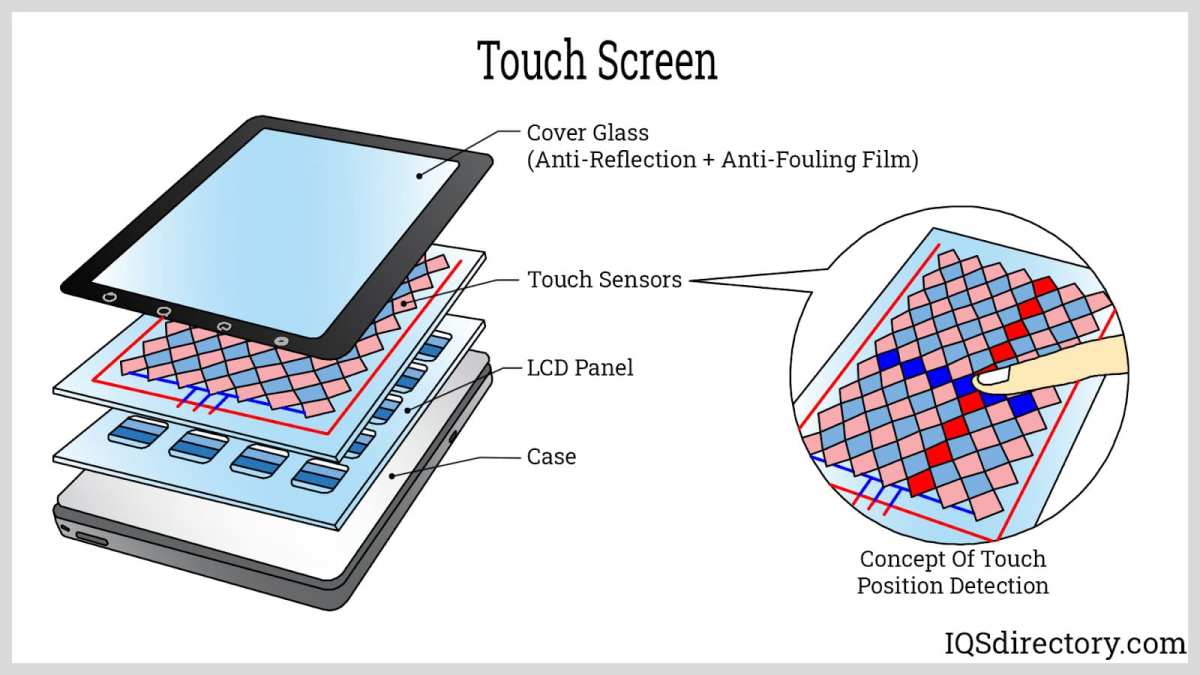
PCAP is what you'll find in virtually every consumer touchscreen monitor made after 2018. It uses a grid of microscopically thin transparent electrodes embedded in the glass. Your finger disrupts the electrostatic field at a specific coordinate, and the controller calculates the touch point.
PCAP controllers self-calibrate continuously. They don't rely on a fixed grid mapped once at the factory. Instead, they baseline capacitance levels dozens of times per second and adjust on the fly.
This is why most users never need to run a calibration utility and never experience meaningful drift.
Infrared (IR) Touch Frames
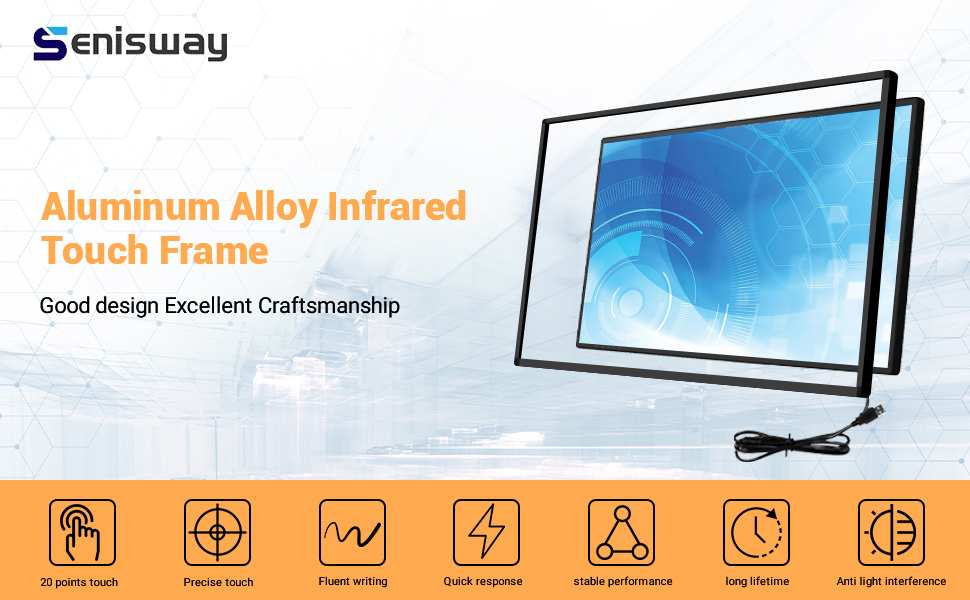
IR touch systems use a bezel around the screen edge with infrared LEDs and photodetectors forming an invisible grid across the surface. Your finger breaks one or more IR beams, and the controller calculates the touch coordinates.
These are common in large-format interactive whiteboards, budget touchscreen overlays, and some older commercial displays. The alignment depends entirely on the physical position of the frame. If the bezel shifts even slightly from thermal expansion or mounting pressure, your touch points drift.
Resistive Touchscreens
Resistive screens use two flexible transparent layers separated by a tiny gap. When you press, the layers make contact and the controller measures the voltage change to determine position.
These appear mostly in industrial equipment, medical devices, and some budget portable monitors. The resistive layers wear out over time, and as they degrade, the voltage mapping shifts. This creates progressive calibration drift that gets worse the older the screen gets.
Surface Acoustic Wave (SAW)
SAW touchscreens send ultrasonic waves across the glass surface. A touch absorbs part of the wave energy, and the controller calculates position from the signal loss.
These are less common now but still found in some high-end kiosks. SAW screens are sensitive to surface contamination, scratches, and ambient noise. Any of these factors can shift touch registration away from the actual contact point.
The Most Common Calibration Problems Users Actually Face
Let's get specific about what "calibration issues" actually look like in real use.
Touch Misalignment (You Tap One Place, It Registers Another)
This is the number one complaint. You tap a button and the click registers a few millimeters above, below, or to the side of your finger.
On PCAP monitors, this almost always traces to one of three causes: a corrupted touch driver, a firmware bug introduced by an OS update, or physical damage to the digitizer layer. On IR monitors, it's usually bezel sag or LED degradation.
Edge Touch Failures
The edges of a touchscreen, particularly the corners, are where calibration problems show up first. PCAP screens sometimes have slightly reduced sensitivity at the very edge of the active area by design. IR screens can lose edge accuracy if the frame warps or if LEDs at the bezel edge burn out.
If your center-of-screen touch works perfectly but the edges feel off, that's a telltale sign of either a technology limitation or physical frame distortion.
Calibration Drifting After Sleep or Reboot
Some touch controllers lose their baseline calibration data after the monitor powers down or the computer restarts. This is more common with IR and resistive technologies than with PCAP.
Windows users sometimes find that touch accuracy shifts after waking from sleep and requires a reboot or driver reset to fix. This points to a software or firmware issue rather than a hardware deficiency.
Ghost Touches and Phantom Inputs
Ghost touches happen when the screen registers a touch that never occurred. On PCAP monitors, this can stem from electromagnetic interference from a poorly shielded power supply, a damaged digitizer, or moisture on the screen surface.
On IR screens, phantom inputs often result from ambient infrared sunlight hitting the photodetectors or from insects crossing the IR beam grid near the screen surface. That's why IR touch frames perform poorly in brightly lit rooms or near windows.
Multi-Monitor Touch Confusion
When you run two or more touchscreen monitors side by side, Windows sometimes struggles to map touch input to the correct display. You touch your right monitor but the input registers on the left one.
This isn't a calibration problem in the traditional sense. It's a display mapping issue in the operating system. Windows needs to know which physical screen corresponds to which display identifier, and that mapping doesn't always survive resolution changes, cable reconnections, or driver updates.
When Calibration Is Usually Not an Issue
If you're running a single PCAP touchscreen monitor on a standard desktop setup, you'll probably never think about calibration once. These displays are designed to be plug-and-play, and they work that way in practice.
The continuous self-calibration built into PCAP controllers handles temperature fluctuations, humidity changes, and normal wear without user intervention. Manufacturers like Dell, ASUS, HP, and ViewSonic ship their consumer and professional touch panels pre-calibrated and don't even include a calibration utility in their driver packages.
Unless something goes wrong (driver corruption, physical damage, EMI interference), the touch alignment stays consistent for years.
When Calibration Becomes a Real Headache
IR touch frames and resistive overlayers are where most calibration frustration lives. These technologies have inherent characteristics that make stable alignment harder to maintain over time.
Environmental Sensitivity
IR touch bezels expand and contract with temperature changes. In a room with direct sunlight hitting the bezel or near a heating vent, the physical frame warps slightly throughout the day. This creates a slow drift in touch accuracy that feels like calibration loss but is actually mechanical deformation.
High humidity causes similar problems for resistive screens. Moisture penetrates the gap between the resistive layers and changes the electrical properties of the contact surface. This shifts the voltage-to-position mapping over the course of weeks or months.
Physical Wear
Resistive touch surfaces wear down with use. The flexible top layer develops micro-scratches and loses elasticity. Every press slightly degrades the layer's ability to return to its original shape.
Resistive touchscreens gradually lose accuracy as the surface wears, a problem shared across consumer, industrial, and medical-grade devices in our research.
IR bezels also degrade, though more slowly. Individual LEDs lose intensity over thousands of hours of operation, which reduces the signal-to-noise ratio of the IR detection grid and makes edge detection less precise.
Mounting and Pressure
Touch overlay frames that attach to a non-touch display with adhesive or brackets introduce another variable. If the mounting pressure is uneven across the frame, the IR beam grid doesn't sit perfectly parallel to the display surface. This creates systematic offset errors where accuracy is good in one region and poor in another.
How to Check If Your Touchscreen Monitor Has a Calibration Problem
Before you assume something is broken, run through these checks. They'll tell you whether you're dealing with a calibration issue or something else entirely.
Step 1: Run a Touch Alignment Test
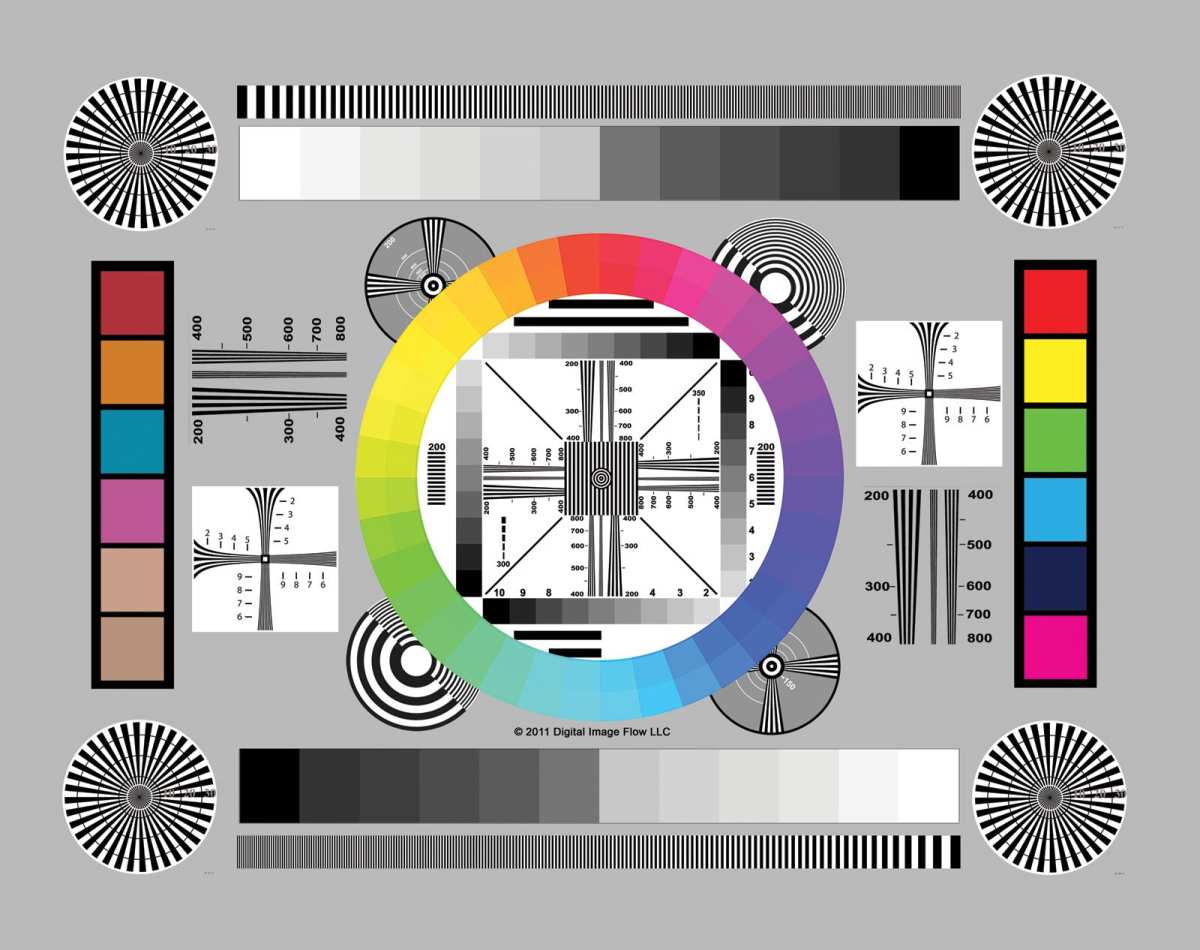
Open any crosshair or grid test pattern on screen (several free ones exist online). Tap each intersection point precisely with your finger or a capacitive stylus. Note where the input actually registers.
If the offset is consistent across the whole screen, you likely have a simple mapping issue. If the offset varies by region (good in the center, off at the edges), that points to a technology-specific problem.
Step 2: Identify Your Touch Technology
Check your monitor's spec sheet or model page. Look for the touch technology type: PCAP, IR, resistive, or SAW. This single piece of information tells you a lot about what to expect and what's realistic to fix.
If you can't find the spec sheet, look at the bezel. A raised plastic frame around the screen that's thicker than normal bezels often indicates an IR system. A perfectly flush glass front suggests PCAP.
Step 3: Check Your Drivers and Firmware
Open Device Manager on Windows and look under "Human Interface Devices" for the touch controller. If there's a yellow warning icon, your driver is missing or corrupted.
Visit the monitor manufacturer's support page and check for firmware updates specifically labeled "touch controller" or "digitizer firmware." These updates fix alignment bugs more often than most people realize.
Step 4: Eliminate Environmental Factors
Move direct light sources away from the screen. Disable any screensavers or overlays that sit on top of the display. Remove aftermarket screen protectors, particularly matte or privacy filters.
PCAP screens can interpret a thick matte screen protector as a permanent touch event, which throws off the baseline calibration. Removing it is the fastest diagnostic step you can take.
How to Fix Touchscreen Calibration Issues
Once you've identified the problem, here's the fix path for each scenario.
Windows Built-In Touch Calibration Tool
Open the Start menu and search for "calibrate the screen for pen or touch input." This opens the Tablet PC Settings calibration wizard. It walks you through tapping a series of crosshair targets to remap the touch digitizer to the display coordinates.
This works for the USB HID touch interface layer. It won't fix hardware-level problems like a warped IR bezel, but it resolves most software mapping offset issues in under two minutes.
Manufacturer-Specific Calibration Utilities
Some touch controller chips, particularly those made by EETI (Egalax), ship with their own calibration software. These utilities access the touch controller at a lower level than the Windows tool and can recalibrate the raw sensor grid rather than just remapping the HID output.
Check your monitor's support page for any calibration utilities specific to your model. If one exists, it's generally more effective than the Windows built-in tool.
Firmware Updates for the Touch Controller
Firmware bugs in the touch controller chip cause calibration drift on a surprising number of monitors. Manufacturers release firmware updates that fix baseline capacitance drift, edge detection thresholds, and ghost touch filtering.
Updating touch controller firmware usually involves running a utility while the monitor is connected via USB. The process takes under five minutes and often resolves alignment issues that no amount of software recalibration can fix.
Reinstalling or Updating Touch Drivers
If the touch driver is corrupted, no calibration will stick. Uninstall the HID-compliant touch screen driver from Device Manager, unplug the USB touch cable (if separate from the video cable), reboot, and reconnect.
Windows will reinstall a clean copy of the driver. Then run the calibration tool fresh. This sequence resolves most post-update drift issues.
Recalibrating After Resolution or Multi-Monitor Changes
If you change your display resolution, reconnect a second monitor, or rearrange your display layout in Windows settings, you need to recalibrate. The touch-to-display mapping is tied to the active display geometry. Any geometry change invalidates the current calibration.
Make recalibration part of your routine whenever you change your display configuration, especially in multi-monitor setups where the OS frequently remaps display identifiers.
Touchscreen Calibration Stability by Technology Type
| Touch Technology | Calibration Method | Drift Frequency | Primary Drift Cause | Expected Stability Out of Box |
|---|---|---|---|---|
| PCAP (Projected Capacitive) | Continuous self-calibration | Rare | Driver corruption, firmware bug, EMI | Excellent (±1mm typical) |
| IR (Infrared Bezel) | Manual multi-point calibration | Common | Thermal expansion of bezel, LED degradation | Good initially, degrades with environment |
| Resistive (Dual-Layer) | Factory + periodic manual | Progressive | Surface wear, humidity exposure | Moderate, worsens over time |
| SAW (Surface Acoustic Wave) | Factory calibrated | Occasional | Surface contamination, scratches | Good under clean conditions |
The table above tells you most of what you need to know. If you're buying a touchscreen monitor specifically to avoid calibration headaches, PCAP is the clear choice. The other technologies serve specific niches where touch is needed but cost or environmental constraints rule out PCAP.
Who Should Worry About Touch Calibration (And Who Shouldn't)
Different users face very different risk profiles when it comes to touch calibration issues.
Digital Artists and Designers
If you're drawing directly on the touchscreen with a stylus, calibration accuracy matters enormously. A 1mm offset between where your stylus tip is and where the line appears makes precision work frustrating.
For creative work, stick with PCAP monitors that support active stylus protocols (Wacom AES or Microsoft Pen Protocol). These combine precise touch calibration with pressure-sensitive stylus tracking layer.
POS and Kiosk Operators
If you're running point-of-sale terminals or customer-facing kiosks, IR touch frames are common because they're cost-effective for larger screen sizes. Plan for periodic recalibration, especially if the environment has temperature swings or direct sunlight.
Mounting stability matters more than anything here. A firmly secured frame holds alignment far longer than one held by adhesive pads alone.
Medical and Industrial Users
Medical imaging displays used for diagnostic review need consistent touch accuracy across the entire screen. Resistive touchscreens get specified in medical equipment because they work with gloved hands, but they demand more frequent calibration checks.
Industrial environments with vibration, temperature extremes, and particulate contamination stress all touch technologies. SAW screens tend to struggle most here due to surface sensitivity. The IPC (Association Connecting Electronics Industries) standards documents provide guidelines on touch sensor reliability in harsh conditions.
Everyday Desktop Users
If you picked up a consumer touchscreen monitor for general browsing, office work, and light interaction, you're in the lowest-risk category. These monitors almost always use PCAP, and they almost never need manual calibration.
If you do notice drift, it's almost certainly a driver issue. Reinstall the touch driver and you'll likely be done with it.
External Touchscreen Monitors vs. Graphics Tablets
People exploring touchscreen calibration issues often end up weighing a touchscreen monitor against a dedicated graphics tablet for creative work. They're different tools, but there's some overlap in capability here.
Touchscreen Monitors
A touchscreen monitor replaces your standard display and lets you interact directly with what you see. The touch digitizer is integrated into the display panel. Calibration aligns the touch sensor grid to the pixel grid.
For general productivity, presentations, and light creative work, a touchscreen monitor is simpler. One cable for video, one for USB touch input, and you're running. Calibration is a one-time setup at most.
Graphics Tablets
A graphics tablet like a Wacom Intuos or Cintiq is a separate input device with its own digitizer layer. The touch (or pen) coordinates are mapped to screen coordinates through the tablet driver.
Calibration here has two layers: tablet-to-screen mapping and, if it's a Cintiq-style pen display, the pen-to-panel alignment within the display itself. Pen displays generally hold calibration very well since the digitizer layer is factory-bonded to the panel.
Which One Has Fewer Calibration Issues?
For pure touch input (finger only), a PCAP touchscreen monitor wins on simplicity. It's one device, one calibration layer, and minimal drift.
For pen input, dedicated graphics tablets and pen displays have more mature calibration systems because they've been refined over decades for professional creative workflows. Wacom's driver has offered per-display calibration, pressure curve adjustment, and active area remapping for years.
If you need multi-touch gestures, a touchscreen monitor is the right tool. If you need pen precision with pressure sensitivity, a graphics tablet or pen display serves you better.
Mistakes People Make When Troubleshooting Touch Calibration
These are the errors that waste the most time.
Assuming hardware failure when it's a driver issue. Most alignment problems trace back to software, updates frequently fix them. Before returning a monitor, always reinstall the touch controller driver and try the manufacturer's calibration utility.
Calibrating through a screen protector. Matte protectors, and also thick tempered glass protectors, alter the capacitive coupling on PCAP screens. Remove any protector, calibrate with bare glass, then reapply if needed.
The protector will shift calibration slightly, but the baseline will be more accurate.
Ignoring multi-monitor display mapping. If your touch registers on the wrong screen, the problem isn't calibration. It's the display arrangement settings in your OS.
Go to Display Settings and drag the monitor icons to match your physical layout, then re-identify each display.
Running calibration utilities designed for resistive screens on a PCAP panel. These tools work at different levels. Using the wrong one won't help at all.
If your monitor has PCAP touch, use the Windows calibration tool or the manufacturer's utility. Only consider a raw digitizer utility if you've specifically identified the touch controller chip and found matching software.
Not checking for electromagnetic interference. Cheap USB chargers, unshielded speakers placed near the monitor base, and even some desk lamps emit electromagnetic noise that PCAP controllers interpret as touch input. Moving EMI sources away can resolve ghost touch issues without any calibration needed.
Do You Need to Calibrate a Touchscreen Monitor Out of the Box?
The short answer is almost always no. Based on our research across current PCAP-equipped desktop monitors, the vast majority arrive factory-calibrated and stay that way through normal use. You shouldn't see meaningful offset on first power-on if your panel is functioning correctly.
If you do, you might have a defective digitizer. Or there might be a driver package conflict specific to your system. In rare cases, shipping damage can shift the touch sensor relative to the display panel.
Contact the manufacturer about a replacement if your unit exhibits visible offset right out of the box. But don't assume calibration problems are normal for new monitors. They're not.
Frequently Asked Questions
Do touchscreen monitors lose calibration over time?
PCAP touchscreens rarely lose calibration because they self-calibrate continuously. Resistive and IR touchscreens gradually drift due to physical wear or environmental exposure. Expect IR frames to need recalibration every 3 months in demanding environments.
How do I calibrate my touchscreen monitor in Windows 11?
Search for "calibrate the screen for pen or touch input" in the Start menu. The Tablet PC Settings tool opens. Follow the on-screen crosshair prompts to remap touch input to your display coordinates.
Is touch calibration the same as display color calibration?
No. Touch calibration maps physical touch locations to on-screen coordinates. Color calibration adjusts the display panel's color output to match a standard like sRGB.
They address completely different problems and require separate tools.
Why does my touchscreen work fine in the center but not at the edges?
Edge inaccuracy suggests either reduced sensor sensitivity at the panel borders (common on some PCAP designs) or physical distortion of an IR touch bezel. Resistive screens in a humid environment often also lose edge accuracy first.
Can a screen protector cause touch calibration problems?
Yes. Thick or matte screen protectors alter how your finger couples with the capacitive sensor on PCAP screens. This can cause offset, reduced sensitivity, or ghost touches.
Remove the protector and recalibrate to test.

Similar Posts





















