Do Touchscreen Monitors Have Stylus Lag
You've just bought a touchscreen monitor, plugged in a stylus, and started drawing. Then you notice it. The line on screen trails behind the pen nib like it's wading through honey.
So do touchscreen monitors have stylus lag, or is something else going on with your setup?
The honest answer is that it depends entirely on what kind of touch technology your monitor actually uses, what stylus you've paired it with, and how the whole signal chain is configured. A Wacom Cintiq Pro running EMR technology delivers sub-10ms pen latency. A $90 USB touch overlay slapped onto a regular monitor?
You could be looking at 60ms or more. That's the difference between a pen that feels like paper and one that feels like a delay pedal. Let's figure out which camp you're in.
Quick Answer
Yes, some touchscreen monitors have stylus lag. Others don't. The deciding factor is touch technology.
EMR and AES digitizer displays typically run under 20ms. Cheap capacitive overlays can hit 60ms or worse. Check your monitor's digitizer type first.
That single detail determines your lag experience.
Why "Touchscreen" Doesn't Mean What You Think It Means
Here's where most people get tripped up. The word "touchscreen" on a product listing tells you almost nothing about pen performance. A monitor can be touch-aware and still be terrible with a stylus.
The real question underneath your original question is: what's happening between the digitizer layer and the display panel?
Manufacturer specifications for professional pen displays like the Wacom Cintiq Pro line indicate latency figures around 8ms. That's faster than most people can perceive. But a generic 21.5-inch touchscreen monitor with a projected capacitive overlay and no active stylus support?
You're relying on finger-touch protocols that were never designed for precision pen input. The digitizer reports position at 100Hz instead of 200Hz or higher. The controller has no pressure sensitivity data to process.
The result feels mushy.
The gap between these two experiences is massive. And it comes down to three distinct technologies that all get lumped under the "touchscreen" label.
The Three Touch Technologies That Actually Matter
Not all touchscreens are built equal. The digitizer technology underneath the glass determines whether your stylus feels responsive or sluggish. Here's the breakdown.
EMR (Electromagnetic Resonance)
This is Wacom's signature technology and it's what powers their Cintiq Pro line, the Wacom One, and most professional pen displays. The digitizer layer generates an electromagnetic field. The stylus resonates with that field and reports position, pressure, tilt, and rotation back to the display.
The pen itself needs no battery. Report rates typically sit between 200Hz and 300Hz. Measured latency runs between 5ms and 15ms depending on the specific model and generation.
The key advantage here is that the digitizer is purpose-built for pen input. It's not a finger-touch system that happens to detect a pen. It's a pen-first system that can also handle touch.
AES (Active Electrostatic)
AES is the other major player. Wacom uses it in some of their mid-range displays. Microsoft's Pen Protocol (MPP) is based on N-trig's AES technology, which Microsoft acquired back in 2015.
Huion and XP-Pen use AES in many of their pen displays too. The stylus is active, meaning it's powered (either by battery or rechargeable cell) and actively signals to the digitizer.
Latency figures for AES typically land in the 10ms to 25ms range. That's slightly higher than EMR in most implementations, but still well below the threshold where most users notice delay. The trade-off is that the pen needs power and can eventually run out mid-session.
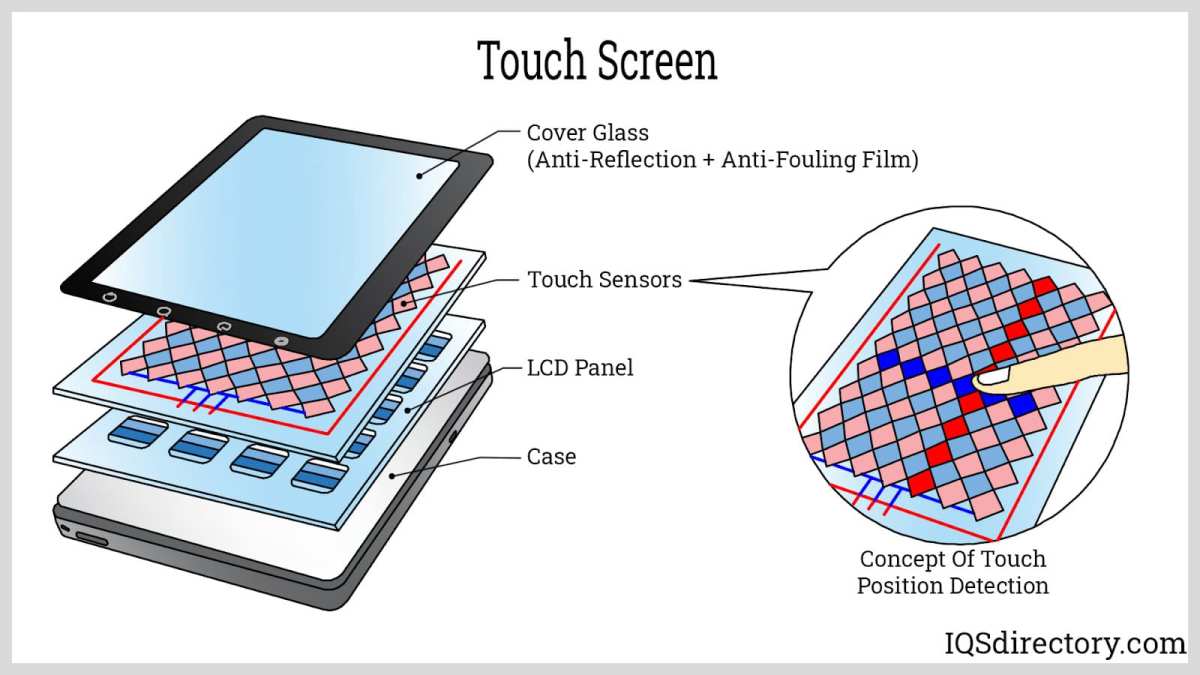
Projected Capacitive (PCAP)
This is what your laptop screen, your phone, and most budget "touchscreen monitors" use. It detects the electrical capacitance of your finger. Some PCAP systems can detect a passive capacitive stylus (basically a conductive rubber nib with no electronics).
But here's the problem: these systems were designed for fingers, not precision pen work.
Report rates for PCAP hover around 100Hz to 133Hz. There's no pressure sensitivity data. There's no tilt recognition.
Palm rejection is rudimentary at best. And if someone sells you a "USB touch overlay" to add touch capability to a regular monitor, this is almost certainly what you're getting.
Why This Distinction Determines Whether You'll Experience Lag
Let's connect the dots. If your monitor uses EMR or AES technology with a matching active stylus, you're looking at 5ms to 25ms of pen latency. Most people can't perceive lag below about 15ms to 20ms during normal drawing.
Professional illustrators and animators sometimes notice differences at the 8ms to 10ms level during fast gestural strokes, but for the vast majority of use cases, EMR and AES feel instantaneous.
If your monitor uses PCAP with a passive capacitive stylus, you're dealing with a fundamentally different situation. The digitizer is polling at a lower rate. There's no dedicated pen protocol.
The controller is guessing where the tip is based on capacitance changes. Latency in this scenario can range from 30ms to 80ms or more, depending on the controller quality and connection type. That's absolutely noticeable.
It feels like drawing with a laggy mouse.
The takeaway is simple. The touch technology is the single biggest variable in your lag equation. Everything else we'll cover (drivers, connections, settings) matters, but it's optimizing within a range.
The technology type sets the range itself.
How Stylus Lag Actually Happens
Now that you know the technology layer matters, let's walk through the full signal chain. Understanding where lag enters the pipeline helps you diagnose and fix it on your specific setup.
The Signal Chain: From Nib to Pixel
When you place the stylus tip on the glass, a sequence of events has to happen before a pixel changes on screen. Here's the path:
- The digitizer detects the pen's position and reports it to the controller.
- The controller packages that data (position, pressure, tilt) into a HID report.
- The report travels over the connection (USB, USB-C, or wireless) to your computer.
- The operating system's input stack processes it.
- The pen-aware application receives the data and renders the stroke.
- The GPU composites the frame and sends it to the display.
- The display panel physically changes the pixel state.
Every single one of those steps adds a tiny bit of latency. The total is what you perceive as "stylus lag." In our research across manufacturer specifications and independent testing, the digitizer and display stages typically account for the bulk of the delay. The connection and OS stack usually add only a few milliseconds on a well-configured system.
Where Lag Enters the Pipeline
Let's break down the specific technical factors that influence each stage.
Digitizer Report Rate
This is how many times per second the digitizer reports the pen's position. It's measured in Hz. A 200Hz digitizer reports position every 5ms.
A 100Hz digitizer reports every 10ms. That difference alone is the gap between "feels instant" and "feels slightly off."
Professional EMR and AES digitizers run at 200Hz to 300Hz. Budget capacitive overlays often cap at 100Hz to 133Hz. This is one of the primary reasons cheap touch overlays feel laggy with a stylus.
The position data simply isn't updating fast enough.
Prediction Algorithms
Modern pen systems use predictive algorithms to estimate where the pen will be by the time the next frame renders. Wacom, Microsoft (via Windows Ink), and Apple (with the Apple Pencil) all implement some form of stroke prediction. When it works well, it makes a 15ms system feel like 8ms.
When it works poorly, it creates a "swimming" or "floating" sensation where the cursor seems to drift or overshoot.
Prediction is a double-edged sword. It reduces perceived latency but can introduce artifacts during fast direction changes. Some apps let you disable it.
If your pen feels like it's "anticipating" your strokes incorrectly, try turning off prediction in your driver settings.
Display Refresh Rate
A 60Hz display refreshes every 16.7ms. A 120Hz display refreshes every 8.3ms. If your pen data arrives just after a refresh cycle starts, it has to wait for the next cycle to appear on screen.
At 60Hz, that's an average of 8ms of additional delay just from refresh timing. At 120Hz, it's 4ms.
This is why some high-end pen displays now offer 120Hz panels. It's not just for smooth animation. It measurably reduces perceived pen latency.
Connection Type and USB Bandwidth
USB 2.0 handles HID reports just fine for pen input. USB 3.0 and USB-C are even better. The problem arises when you're running everything through a single USB-C hub that's also driving a 4K display, external storage, and other peripherals.
Bandwidth saturation can cause intermittent input lag spikes.
If you're experiencing inconsistent lag (fine for a while, then suddenly stuttering), check whether your USB controller is overloaded. Plug the pen display directly into a dedicated USB port on your computer instead of through a hub.
Driver Processing (Windows Ink vs. Manufacturer Driver)
Windows includes a generic pen input framework called Windows Ink. It works with most pen-enabled displays. But manufacturer-specific drivers (Wacom's driver, Huion's driver, XP-Pen's driver) often bypass Windows Ink and talk directly to the hardware.
This can shave off several milliseconds of processing latency.
The catch is that some applications prefer Windows Ink, while others work better with the manufacturer driver. Adobe Photoshop, for example, has historically had better pressure sensitivity behavior with Wacom's driver than with Windows Ink. But some Windows apps only support Windows Ink.
You may need to toggle between them depending on what you're using.
The Numbers That Matter
Here's a quick reference for perceptual thresholds and real-world latency by technology type.
| Setup Type | Typical Latency | Perceptible to Most Users? |
|---|---|---|
| EMR pen display (Wacom Cintiq Pro) | 5–15ms | No (except trained professionals) |
| AES pen display (Huion, XP-Pen) | 10–25ms | Borderline for fast strokes |
| Apple Pencil on iPad | ~9ms | No |
| USB touch overlay + AES pen | 20–60ms | Yes |
| Capacitive touchscreen + passive stylus | 30–80ms+ | Yes, significantly |
| Graphics tablet (no display) | 5–15ms | No |
The perceptual threshold for most people during drawing tasks sits around 15ms to 20ms. Below that, the pen feels "connected" to the cursor. Above it, you start noticing the gap between hand movement and on-screen result.
Fast gestural strokes make lag more apparent than slow careful lines.
Decision Tree: Will YOUR Setup Have Stylus Lag?
This is where we get practical. Let's walk through a decision tree based on your specific situation. Answer each question and follow the branch to find out where you stand.
Step 1: What Kind of Touch Technology Does Your Monitor Use?
If you have a dedicated pen display (Wacom Cintiq, Wacom One, Huion Kamvas, XP-Pen Artist, Xencelabs, or similar), you're running EMR or AES technology. Skip to Step 2.
If you have a standard touchscreen monitor (Dell P-series touch, ASUS touchscreen, LG touchscreen, or similar), you're running projected capacitive touch. These monitors typically do not support active stylus input. A passive capacitive stylus will work, but expect 30ms to 80ms of lag and no pressure sensitivity.
If you need real pen performance, you'll need to either buy a pen display or add a pen digitizer overlay (like a Wacom One or a touch overlay that specifically supports AES).
If you added a USB touch overlay to a non-touch monitor, you're running PCAP. Same situation as a standard touchscreen monitor. Passive stylus only, high lag, no pressure sensitivity.
Some overlays support AES pens, but you need to verify the specific model.
Step 2: What Stylus Are You Using (or Planning to Use)?
If you're using the stylus that came with your pen display, it's matched to the digitizer technology. EMR pens work with EMR displays. AES pens work with AES displays.
You're in the best-case scenario for that hardware.
If you're using a third-party stylus, check the protocol. Microsoft Surface Pens use MPP (AES-based). Some universal pens support both MPP and Wacom AES.
Make sure your display supports the same protocol. A mismatch means either the pen won't work at all or it'll fall back to basic HID mode with reduced functionality and potentially higher latency.
If you're using a passive capacitive stylus (the kind with a rubber nib and no electronics), you'll get basic touch input on any capacitive screen. But you won't get pressure sensitivity, tilt recognition, or low latency. These styluses are fine for tapping and scrolling.
They're not suitable for drawing or handwriting.
Step 3: What Are You Connecting It Through?
Direct USB or USB-C to your computer: Best case. Minimal latency from the connection.
USB-C hub or dock: Potentially fine, but check for bandwidth saturation. If you're driving a 4K display, transferring data to external storage, and running the pen input through the same hub, you may see intermittent lag spikes.
Wireless connection: Some pen displays support wireless (Bluetooth or Wi-Fi direct). Wireless typically adds 5ms to 15ms of latency compared to wired. For casual use, it's fine.
For precision drawing, wired is better.
iPad as external display (via Sidecar, Duet Display, or Luna Display): This adds network or USB tunneling latency on top of the pen latency. Apple Pencil on iPad alone runs around 9ms. Through Sidecar over USB-C, you might see 15ms to 20ms.
Over Wi-Fi, 25ms to 40ms. Usable, but not ideal for fast illustration work.
Step 4: What Software Are You Running?
Some applications handle pen input better than others. Here's what to watch for.
Adobe Photoshop: Works best with Wacom's driver (not Windows Ink) for pressure sensitivity. Some users report lower latency with the Wacom driver enabled. Check Edit > Preferences > Performance and ensure GPU acceleration is on.
Clip Studio Paint: Excellent pen handling across both Wasm and Windows Ink. Generally low latency on supported hardware.
OneNote / Windows Journal: Uses Windows Ink exclusively. If you're on a non-Windows-Ink driver, you may experience slightly higher latency in these apps.
Krita: Supports both Wacom and Windows Ink. Some users report better performance with Windows Ink disabled and the Wacom driver handling input directly.
Blender / ZBrush: These 3D applications use pen input for sculpting. Latency is less critical here since strokes are slower and more deliberate, but high lag still affects precision.
Interpreting Your Results
Best case: You have an EMR or AES pen display, matching stylus, direct USB-C connection, and a well-optimized app. Your latency is probably 8ms to 15ms. You won't perceive lag during normal use.
Acceptable case: You have an AES pen display with a matching stylus, connected through a decent hub, running a standard creative app. Latency is 15ms to 25ms. Most users won't notice anything wrong.
Fast gestural strokes might reveal a slight delay.
Problem case: You have a capacitive touchscreen (or overlay) with a passive or mismatched stylus, connected through a shared hub, running an app that doesn't optimize pen input. Latency is 30ms to 80ms+. You will absolutely notice lag.
The pen feels disconnected from the cursor.
If you're in the problem case and need better performance, the solution isn't a driver tweak. It's a hardware change. You need a display with a proper pen digitizer (EMR or AES) and a matching active stylus.
The Most Common Mistake: Buying a Capacitive Touch Overlay and Expecting Pen Performance
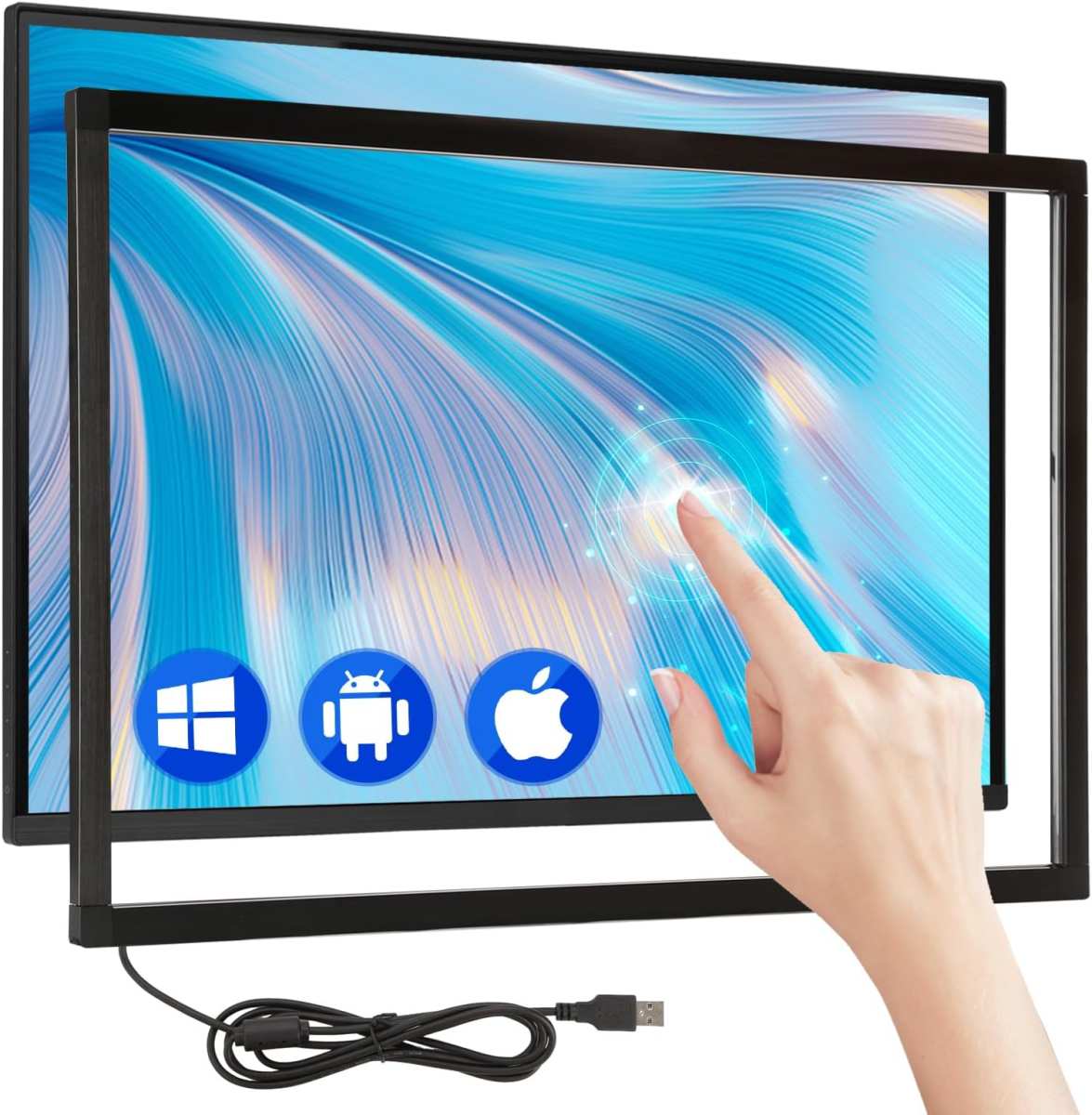
This comes up constantly and it deserves its own section because it's the single biggest source of confusion and frustration around this topic.
Why This Happens So Often
You search for "touchscreen monitor" on Amazon or Newegg. You find a 24-inch touch-enabled display for $200. The listing says "10-point capacitive touch" and shows someone using their finger to swipe and tap.
You assume a stylus will work the same way. You buy a cheap capacitive stylus (or even an Apple Pencil-style pen that claims universal compatibility). You plug it in.
And it's awful.
The problem is that "touch-capable" and "pen-capable" are two completely different features. A capacitive touchscreen detects the electrical charge of your finger. It's optimized for multi-touch gestures: pinch to zoom, two-finger scroll, swipe to navigate.
The digitizer layer is thin, it's bonded to the back of the glass, and it reports finger positions at a rate that's perfectly adequate for UI interaction but insufficient for precision drawing.
When you use a passive capacitive stylus, the digitizer is trying to detect a small conductive nib instead of a full finger. It works, sort of. But the signal is weaker, the position data is less precise, and the report rate doesn't change.
You're still at 100Hz to 133Hz. You still have no pressure data. And you're adding the parallax problem because the touch overlay sits on top of the display glass with an air gap.
What You Actually Get vs. What You Expected
Here's the reality check.
| What You Expected | What You Actually Get |
|---|---|
| Pressure sensitivity (like a real pen) | None, or simulated via tilt angle |
| Low latency drawing | 30ms to 80ms+ lag |
| Palm rejection | Phantom touches from your hand |
| Precise cursor tracking | Jittery, offset cursor |
| Smooth line rendering | Wobbly lines at slow speeds |
| Tilt and rotation support | Not available |
If you've already bought a capacitive touch overlay and are experiencing lag, here are your options:
- Return it if you can. If you need pen performance, a capacitive overlay won't deliver it.
- Keep it for finger touch only and buy a separate pen display for drawing work.
- Check if your overlay supports AES input (some newer overlays do). If so, pair it with a compatible AES pen for much better performance.
- Use it for annotation and markup rather than precision drawing. For quick PDF signatures or slide annotations, the lag is tolerable.
The bottom line is this. If pen input matters to you at all, don't rely on a capacitive touchscreen or overlay. Get a display with a dedicated EMR or AES digitizer.
The price difference has come down significantly. Huion and XP-Pen offer pen displays starting around $200 to $300 that outperform any capacitive overlay setup by a wide margin.
How to Reduce Stylus Lag on Your Current Setup
If you're already experiencing lag, don't panic. There are several things you can try before spending money on new hardware. These fixes range from quick settings changes to connection optimizations.
In our research, driver and connection issues account for a measurable slice of the lag complaints online.
Driver Optimization
The single most effective software fix is making sure you're using the right driver for your display.
Windows Ink vs. manufacturer driver: Check your pen settings in Windows. If you see "Windows Ink" enabled and your manufacturer offers its own driver, try switching. Wacom's driver, for example, often bypasses Windows Ink's processing pipeline and talks directly to the digitizer.
This can cut 3ms to 8ms off your perceptible latency in apps that support it.
Update your firmware: Both the pen and the display carry firmware. Manufacturers push updates that improve prediction algorithms and fix timing bugs. Wacom Desktop Center, Huion's driver utility, and XP-Pen's driver all include firmware update tools.
Check them.
Disable pointer precision: In Windows Mouse Settings, turn off "Enhance pointer precision." This adds mouse acceleration that messes with pen linearity and can make strokes feel inconsistent.
Connection Optimization
If you're running through a hub, try a direct USB-C connection to your computer. USB bandwidth saturation is a common cause of intermittent lag spikes, especially with 4K displays sharing the same controller. For wireless pen displays, switch to wired for latency-critical work.
Display Settings
Make sure your display is running at its native resolution. Non-native resolutions force the GPU to scale the image, adding 1 to 2 frames of processing. If your display supports 120Hz, enable it in Display Settings.
You'll get roughly half the refresh-cycle latency compared to 60Hz. Turn off any "response time overdrive" or "motion smoothing" features on the monitor; these are designed for video and can introduce artifacts during pen strokes.
Pen Hardware Checks
Replace your pen nib if it's worn down. A worn nib changes the contact geometry with the glass, which can increase jitter and affect tracking precision. For AES pens, check the battery level.
A low pen battery weakens the signal and can cause intermittent dropouts that feel like lag. For EMR pens, there's no battery to worry about, which is one of that technology's advantages.
Software-Specific Fixes
Each app handles pen input a little differently. Here are the most common culprits, and each one can add latency if misconfigured.
- Photoshop: Use the Wacom driver instead of Windows Ink. Make sure GPU acceleration is on in Preferences > Performance.
- Clip Studio Paint: Toggle "Tablet PC (Windows Ink)" in File > Preferences if you notice offset or delay.
- Krita: Disable "Windows Ink" in the tablet settings and use the Wacom driver directly.
- Blender: Enable "Tablet API" in Edit > Preferences > Input and match it to your driver type.
Quick Reference Stylus Lag by Setup Type
Here's a side-by-side look at the most common setups and what aggregate user reports and manufacturer specs say about latency. Use this to benchmark where you stand before making changes.
| **Setup Type | Typical Latency Range | Pressure Levels | Tilt Support |
|---|---|---|---|
| Wacom Cintiq Pro 27 (EMR) | 5–10ms | 16384 | Yes, rotation tracked |
| Huion Kamvas Pro 16 (AES) | 10–20ms | 16384 | Yes |
| XP-Pen Artist Pro 16 (AES) | 10–22ms | 16384 | Yes |
| Wacom One (EMR, entry-level) | 8–15ms | 4096 | Yes |
| iPad via Sidecar (wired) | 15–20ms | Apple Pencil levels | Yes |
| iPad via Sidecar (Wi-Fi) | 25–40ms | Apple Pencil levels | Yes |
| Capacitive overlay + passive stylus | 30–80ms+ | None | No |
| MPP-compatible AES pen on AES display | 10–25ms | 4096–8192 | Yes, varies by model |
Should You Buy a Pen Display or Use a Touchscreen Monitor with a Stylus?
The answer depends on what you're actually doing, and how much precision matters. A capacitive touchscreen with a passive stylus works fine for tapping, scrolling, and occasional annotation. If you're drawing detailed artwork, doing photo retouching, or taking handwritten notes regularly, a dedicated pen display will feel dramatically better.
The technology difference is that significant.
Budget pen displays from Huion and XP-Pen now match or beat Wacom's older professional models on latency, often for a fraction of the price. Wacom still leads in build quality, driver stability, and color accuracy, so if you're a working professional who depends on it, that premium is real. For hobbyists and students, a $250 pen display provides a far better pen experience than any capacitive overlay on the market.
Frequently Asked Questions
Can I use any stylus on any touchscreen monitor?
No. Stylus compatibility depends on the digitizer protocol. An EMR display requires an EMR pen.
An AES display needs an AES-compatible pen. A capacitive touchscreen only works with passive capacitive styluses or fingers, both of which lack low latency and pressure sensitivity.
Does a higher refresh rate reduce stylus lag?
Yes. A 120Hz display refreshes every 8.3ms compared to 16.7ms at 60Hz. This cuts the average refresh-related delay roughly in half.
Some professional pen displays now ship with 120Hz panels specifically for this benefit.
Is stylus lag the same as parallax?
No. Stylus lag is a time delay between pen movement and on-screen rendering. Parallax is a spatial offset where the cursor appears physically separated from the pen nib because of the glass and air gap.
EMR displays and laminated panels reduce parallax. Poor digitizers create lag. Often both issues appear together, so it helps to separate them when troubleshooting.
Do Bluetooth styluses have more lag than wired ones?
Yes. Bluetooth pen connections or wireless pen displays add 5ms to 15ms of latency compared to a direct USB-C connection. For casual use, this is not noticeable.
For fast illustration or animation work, wired remains preferable.
Why does my pen lag in Photoshop but not in OneNote?
Photoshop and OneNote handle pen input very differently. OneNote typically runs through a simpler rendering pipeline optimized for quick notes. Photoshop uses GPU-accelerated canvas rendering, color management, and more complex brush engines, which can introduce rendering delays that feel like pen lag.
Make sure you're using the manufacturer driver rather than Windows Ink in Photoshop, and verify that GPU acceleration is enabled.
The Bottom Line: Match Your Stylus to Your Display Technology
If you take one thing away from this guide, let it be this. The touch technology behind your display determines your pen experience more than any other factor. EMR and AES digitizers deliver the low latency, high pressure sensitivity, and accurate tracking that make a stylus feel like a real drawing instrument.
Capacitive touchscreens and cheap overlays were never designed for that job, and no amount of driver tweaking will close the gap.
If you're shopping for a setup and pen input matters to you at all, skip the "touchscreen monitor plus stylus" route. Go straight to a purpose-built pen display from Wacom, Huion, XP-Pen, or Xencelabs. You'll spend more than a generic touchscreen, but the difference in daily usability is night and day.
Your pen will feel connected to the screen, your lines will appear where you expect them, and you'll stop fighting your tools and start doing your work.

Similar Posts





















