Do Touchscreen Monitors Need Calibration
Here's the deal. Do touchscreen monitors need calibration? For most people in 2026, the short answer is no, not in the way you'd expect.
Most modern touchscreen monitors ship with solid touch accuracy right out of the box. The capacitive touch technology used in the vast majority of consumer and pro-grade touchscreens has matured to the point where you can plug in, start tapping, and everything just works. There are exceptions, and we'll walk through those.
What makes this topic confusing is that "calibration" actually means two completely different things in this context. Touch input calibration, making sure where you tap matches what the screen shows, is one job. Color calibration, making sure the display reproduces accurate colors, is a separate and far more involved one.
Mixing those up leads to a lot of unnecessary frustration. Let's untangle it all based on what you actually own and what you're actually trying to do.
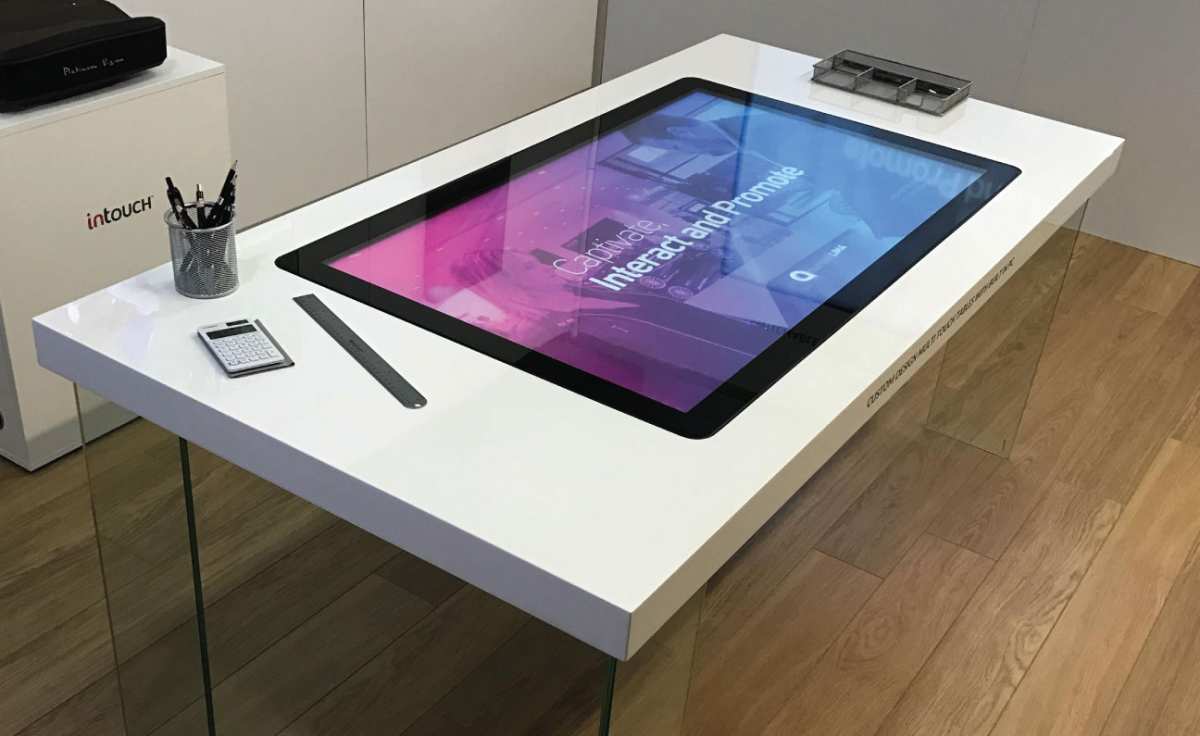
The Short Answer: Usually Not, But It Depends
If you bought a touchscreen monitor in the last few years and you're using it for everyday computing, browsing, or even light design work, you almost certainly do not need to calibrate touch input. The factory calibration is good enough. The monitor's touch controller is designed to map touch points to display pixels accurately across the entire screen surface straight from the production line.
That said, "do touchscreen monitors need calibration" isn't a question with a single universal answer. It depends on the touch technology in your monitor, the operating system you're running, whether you're using a stylus, and what kind of work you're doing. A digital artist drawing with an active pen on a Wacom AES display has different needs than someone tapping through a restaurant menu on a POS terminal.
We'll break it all down so you can figure out exactly where you fall.
Understanding the Two Types of Calibration People Actually Mean
This is where most of the confusion starts. When someone asks about touchscreen calibration, they're usually talking about one of two very different things. Knowing which one matters to you saves a ton of time.
Touch input calibration is about making sure your finger or stylus lands where you expect it to on screen. If you tap the "X" to close a window and it registers a few millimeters off to the right, that's a touch alignment problem. The calibration process typically involves tapping a series of crosshair targets on screen so the system can build a mapping correction.
This is what most people mean when they ask "does my touchscreen need calibration?"
Display color calibration has nothing to do with touch at all. It's about making the screen's colors accurate to a known standard, usually measured in Delta E values. Designers and photographers care about this because an uncalibrated screen might show a warm, oversaturated red when the actual color data calls for something muted and cool.
Color calibration requires a hardware colorimeter (a little puck-like device you place on the screen) and software like CalMAN, DisplayCAL, or the built-in Windows/macOS calibration tools.
Here's the table that keeps them straight:
| Aspect | Touch Input Calibration | Display Color Calibration |
|---|---|---|
| What it fixes | Touch point misalignment | Inaccurate color representation |
| Tools needed | Built-in OS utility or free software | Hardware colorimeter + calibration software |
| Frequency | Rarely needed after initial setup | Periodic (every 3-6 months or per project) |
| Who needs it | Users experiencing touch offset | Designers, photographers, video editors |
| Process time | Under 2 minutes | 10-30+ minutes |
| Affects | Touch input accuracy | Visual output only |
Per Microsoft's documentation for the Windows Precision Touchscreen standard, most modern capacitive touchscreens are factory-calibrated to within sub-pixel accuracy. That means touch input calibration is becoming increasingly unnecessary for standard consumer use, though it remains relevant for pen-enabled displays and specialized applications.
When Touchscreen Monitors DO Need Calibration
There are real situations where touchscreen calibration is worth doing. Here's when it matters.
After hardware changes or repairs. If your touchscreen monitor was dropped, had its panel replaced, or the touch digitizer was serviced, the physical relationship between the sensor layer and the display may have shifted. Even a fraction of a millimeter changes calibration at the edges of the screen. Factory calibration data assumes everything is in its original position.
Infrared (IR) touch monitors are more prone to calibration drift. Monitors that use IR touch technology (common in larger format displays and some budget models) work by projecting an invisible grid of infrared beams across the screen surface. Something interrupts that grid when you touch. Dust accumulation on the bezel, reflector edge wear, or even ambient light interference can cause misalignment over time.
That's why IR touchscreens used in kiosks and interactive displays often include a calibration routine in their on-screen display menu.
Pen-enabled displays sometimes need fine-tuning. If you're using an active stylus with a Wacom AES or Microsoft Pen Protocol (MPP) enabled touchscreen monitor, the pen and touch system may have separate calibration paths. The pen digitizer is usually pre-calibrated but some monitors offer a pen calibration utility for users who notice offset between the pen tip and the cursor, especially near screen edges.
Touch input that feels consistently off. This is the most relatable scenario. If you notice that you have to tap slightly above or to the left of targets for them to register correctly, that's a genuine misalignment worth calibrating. Test it by opening a small, precise target, like the minimize button on a window, and tapping from different angles.
When You Probably Don't Need to Calibrate
This scenario covers the majority of touchscreen monitor users and it's worth being explicit about it.
Modern capacitive touchscreens are factory-calibrated to tight tolerances. The most common touch technology in consumer touchscreen monitors is projected capacitive touch, commonly called PCAP or PCT, which I'll reference by its acronym PCAP throughout the rest of this article. PCAP sensors are laminated directly to the display panel at the factory. The calibration is burned into the touch controller firmware during manufacturing.
Barring physical damage, this calibration holds indefinitely. There is no mechanical wear-out mechanism that would cause drift.
Windows Precision Touchscreen monitors don't need user calibration. Any touchscreen monitor certified under Microsoft's Windows Precision Touchscreen standard is required to meet specific accuracy thresholds out of the box. These monitors respond to touch through the native Windows HID stack without requiring vendor-specific drivers. The operating system handles touch input mapping automatically.
If your monitor shows up as "Precision Touchscreen" in Device Manager (look under Human Interface Devices), touch calibration is essentially a non-issue.
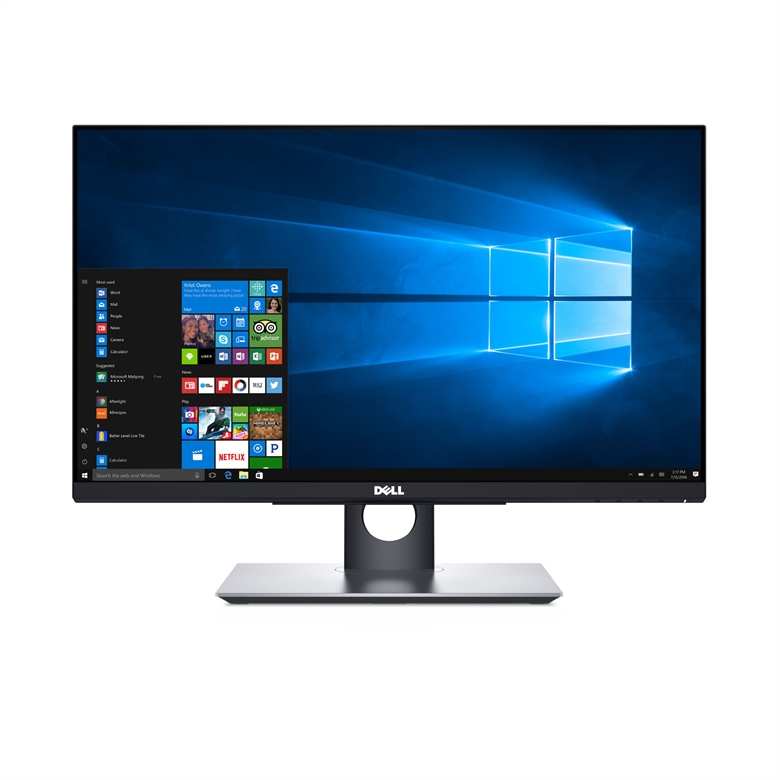
Plug-and-touch USB HID monitors work immediately. Monitors that connect over USB and present themselves as standard USB Human Interface Devices support touch without additional drivers on Windows, macOS, and Linux. The touch digitizer handles coordinate mapping internally. Examples include popular models from Dell (P-series touch), ASUS (ProArt touchscreen), and ViewSonic (TD-series).
These work accurately from the moment you plug in the USB upstream cable.
If your touch feels fine, it is fine. This isn't a cop-out. Touch accuracy on modern PCAP monitors is genuinely good enough that most users won't perceive any offset under normal use conditions. Calibrating needlessly can actually make things worse if you accidentally introduce an error during the process.
The old advice to "calibrate your touchscreen regularly" made more sense for resistive touch technology, which relies on physical pressure deforming two flexible layers into contact. PCAP doesn't work that way.
How to Check If Your Touchscreen Monitor Is Accurately Calibrated
You can do a functional accuracy test that tells you in under a minute whether your touchscreen needs calibration.
Open a browser or any application with small interactive elements. A web browser with browser chrome (tabs, address bar, window controls) works well because these are tiny targets you instinctively expect to hit accurately. Try tapping the close tab button, the minimize window control, and links in a dense paragraph of text.
Tap targets systematically from the center working outward to all four corners. Touch inaccuracy, when it exists, is almost always more pronounced at the screen edges. This is because any angular error in the touch mapping compounds with distance from the center. The center is usually dead-on.
The corners are where you'll notice problems first.
Look for consistent offset in one direction. If your taps land roughly 2mm above the target everywhere on the screen, that's a uniform offset that calibration can fix. If the offset varies, worse near the top-left corner but fine in the bottom-right, you might have a hardware issue or a touch controller mismatch that calibration won't fully resolve.
The fingernail test for edge accuracy. Run your fingernail slowly along the bezel edge while observing the cursor. On a well-calibrated screen, the cursor position tracks smoothly with no sudden jumps. Stuttering or jumping near the edges suggests the touch controller's edge compensation needs adjustment.
Quick software check on Windows:
- Open Control Panel > Hardware and Sound > Tablet PC Settings
- If the "Calibrate" button is available (not grayed out), your monitor supports software touch input calibration
- If the button is grayed out entirely, the OS has determined that calibration data is already present and accurate
- On systems with Precision Touchscreen, the calibration option is typically unavailable by design
This diagnostic approach is faster and more informative than blindly running a calibration routine. If everything feels responsive and accurate across the full screen surface, skip calibration entirely. Touchscreens are most useful when we don't have to think about them at all.
Step-by-Step: How to Calibrate a Touchscreen Monitor
If you've confirmed that touch input is genuinely misaligned, here's how to fix it across the major operating systems.
Windows touchscreen calibration process
Windows has built-in touch calibration through the Tablet PC Settings legacy panel. It sounds old-fashioned, but it still works on modern systems.
Steps:
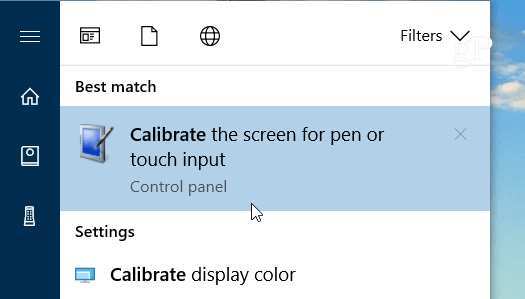
- Open the Start menu and search for "Calibrate the screen for pen or touch input." This takes you directly to the Tablet PC Settings calibration tab.
- If you have multiple displays, select the touchscreen monitor from the dropdown list.
- Click "Calibrate." The screen goes white and displays a crosshair target in the upper-left corner.
- Tap each crosshair precisely at its center. The target moves to each corner and the center, typically four or more points.
- Windows saves the calibration data to the registry. On modern Precision Touchscreen systems, you may be prompted to save or discard.
- Verify accuracy by tapping small UI elements again.
Important note: If your monitor is a Precision Touchscreen model, Microsoft's design guidance recommends that OEMs do not expose user-calibration because the factory calibration is superior. The Tablet PC Settings panel may still exist but the calibrate button will be non-functional. In that case, touch offset issues are likely a hardware or driver problem, not something software calibration can fix.
Linux touchscreen calibration
Linux offers solid touch calibration through open-source tools. The most widely used utility is xinput_calibrator, available in most distribution package managers.
Steps:
- Install
xinput_calibratorvia your package manager (for example,sudo apt install xinput_calibratoron Debian/Ubuntu). - Run
xinput_calibratorfrom the terminal. It detects your touchscreen device automatically. - Tap the four crosshair targets it displays (corners of the screen).
- The tool outputs a coordinate transformation matrix. It generates an X11 configuration snippet with the calculated values.
- Save the output to an Xorg configuration file (typically in
/etc/X11/xorg.conf.d/) or run it as a startup command.
xinput_calibrator supports both PCAP and resistive touch devices. It can also calibrate rotation if your touchscreen is mounted in portrait or inverted orientation.
macOS considerations and limitations
macOS has no native touch input calibration utility for external touchscreen monitors. Apple's ecosystem historically did not support external touch displays, and while that has shifted slightly with some third-party USB touchscreens working on Intel Macs, calibration tool remains limited.
If you're running a touchscreen monitor on a Mac and experiencing inaccurate touch input, try these options:
- Use the monitor manufacturer's calibration utility if one exists (some brands provide macOS-compatible firmware tools).
- Check System Preferences > Displays for any touch-related settings.
- Some third-party open-source tools like TouchBase offer calibration for specific iPad-as-display scenarios.
- If the issue persists, it may be a hardware compatibility issue between the monitor's touch controller and macOS's input stack.
Pen-enabled monitor calibration
Monitors with active stylus support (Wacom AES, Microsoft Pen Protocol) often include separate pen calibration accessible through their companion software.
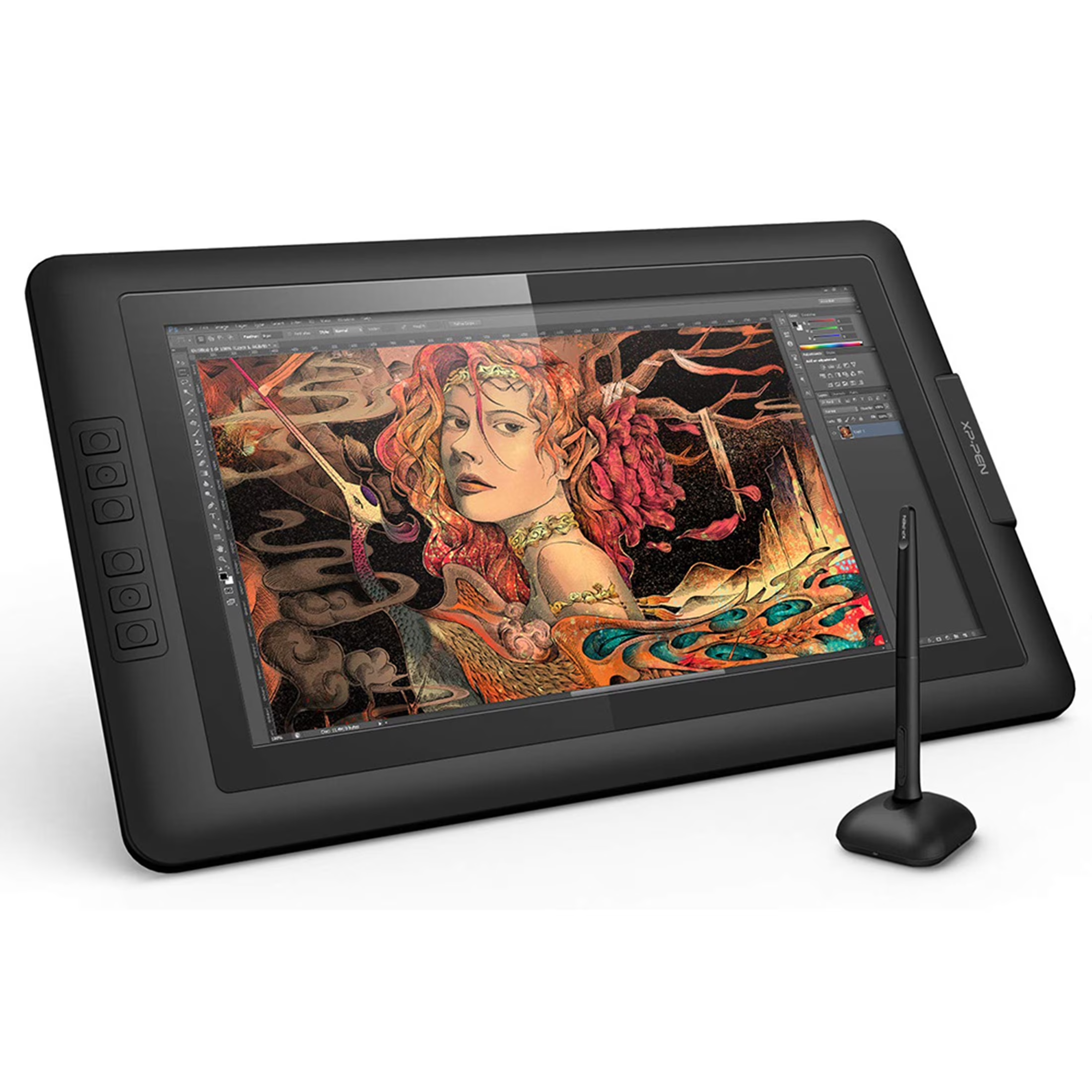
Wacom AES displays (found in some ASUS ProArt and Dell Canvas models): Calibration is typically handled through the Wacom Center or Wacom Tablet Properties. This adjusts pen tip offset independently from touch.
Microsoft Pen Protocol displays (Surface Studio, some Samsung Galaxy View models): Pen calibration appears in Windows Settings under Devices > Pen & Windows Ink, or through manufacturer-specific software.
Pen calibration matters more than finger touch calibration because stylus work demands pixel-level precision. A 1mm offset barely registers when tapping icons. It's immediately obvious when you're drawing a line.
Color Calibration: The Separ Conversation
Touch calibration and color calibration are completely separate processes. Mixing them up leads to wasted effort.
Why touch and color calibration are different jobs
Touch input calibration adjusts how the system maps physical screen contacts to display coordinates. It doesn't affect what colors the panel produces. They involve different hardware, different software, and different end goals.
Color calibration adjusts the monitor's display output to match a known color standard like sRGB, DCI-P3, or Adobe RGB. It requires a hardware colorimeter, that's a small device like the Calibrite ColorChecker Display or X-Rite i1Display that you hang on your screen. The colorimeter measures known test patches displayed by calibration software and builds a corrects the panel's color response.
You can have a perfectly calibrated touch panel with terrible color accuracy. You can have a color-accurate display where touch is off. They don't influence each other.
Who actually needs color-accurate touchscreen monitors
Color calibration on a touchscreen monitor matters in these specific cases:
- Digital art and illustration. If you're drawing directly on the screen, you need to trust that the color you see is the color you'll get in print or on other displays.
- Photo editing and retouching. Skin tones, product colors, and brand colors all require accurate display output.
- Video color grading. Touchscreen monitors used in video production need to meet broadcast color standards (Rec. 709, Rec. 2020).
- Medical imaging. Diagnostic displays must meet DICOM Part 14 calibration standards, regulated under IEC 60601.
If you're using a touchscreen monitor for general productivity, web browsing, or media consumption, color calibration is probably unnecessary. The factory sRGB preset on most consumer touch panels is adequate for those tasks.
Touchscreen Technology Comparison and Calibration Needs
Not all touchscreens work the same way. The underlying technology determines whether calibration is relevant.
| Technology | How It Works | Calibration Needed? | Common Use |
|---|---|---|---|
| PCAP (Projected Capacitive) | Electrical field disruption | Rarely, factory-calibrated | Consumer monitors, all-in-ones |
| Resistive | Two flexible layers pressed together | Occasionally, layers wear | Legacy POS, industrial |
| Infrared (IR) | Light beam grid interrupted by touch | Periodically, can drift | Large format, kiosks |
| SAW (Surface Acoustic Wave) | Ultrasonic wave disruption | Occasionally, surface contamination affects it | Niche interactive displays |
PCAP vs. IR touch compared
PCAP is the dominant technology in modern consumer touchscreen monitors. It offers excellent clarity (no overlay grid blocking the display), fast response (typically under 10ms), and consistent accuracy over time. Factory calibration is durable because the touch sensor is physically bonded to the glass.
IR touch technology is more common in large-format displays (55 inches and up) and interactive whiteboards. IR monitors use a bezel-mounted frame that projects an invisible grid of infrared beams. They're cost-effective for large sizes but more susceptible to accuracy issues from dust, ambient sunlight, or physical obstruction of the bezel.
Calibration is more frequently needed, and most IR touch displays include a built-in calibration utility accessible through the on-screen display menu.
Common Mistakes People Make With Touchscreen Calibration
Running calibration when touch is already accurate. Unnecessary calibration can introduce small errors. If input feels correct, leave it alone.
Confusing color and touch calibration in troubleshooting. If your screen looks yellow, touch calibration won't help. You need a colorimeter and ICC profile, not a crosshair test.
Calibrating with a stylus when you primarily use fingers. Finger touch and stylus input sometimes use separate digitizer layers. Calibrating one doesn't fix the other. Know which input mode is actually misaligned.
Ignoring the USB connection. Many touchscreen monitors require both a video cable and a USB upstream cable for touch to function. If touch works but seems inaccurate, verify that both cables are properly seated. A loose USB connection can cause erratic touch behavior that mimics calibration problems.
Calibrating over screen protectors. Adding a tempered glass protector or anti-glare film changes the distance between your finger and the capacitive sensor. Calibrate with whatever overlay you plan to use permanently, not before applying it.
Expecting calibration to fix hardware defects. If your touchscreen has dead zones, unresponsive areas, or phantom touches, no amount of software calibration will fix it. Those are hardware failures requiring warranty service.
Real-World Scenarios: What Happens in Practice
Everyday browsing and office work
Most users never touch a calibration utility. PCAP touchscreen monitors from brands like Dell P-series, ASUS ProArt, and ViewSonic TD-series work accurately from day one through years of use. The touch layer is bonded at the factory and doesn't drift.
Digital artists and designers
Pen-calibrated displays (like Wacom Cintiq or ASUS ProArt pen-enabled screens) ship pre-calibrated for stylus input. Some artists recalibrate per project if they notice offset during fine detail work, but many report never needing to. Color calibration is the bigger ongoing task in this group.
POS kiosks and retail displays
Large-format IR touch displays in restaurants and retail stores are the environments where regular calibration maintenance actually matters. Foot traffic, cleaning chemicals, and temperature changes gradually affect IR beam alignment. Many commercial displays include scheduled calibration prompts in their firmware for this reason.
Healthcare and medical displays
Touchscreen monitors used for diagnostic imaging must meet DICOM calibration standards under IEC 60601. Color calibration is mandatory, not optional, and must be verified at regular intervals using calibrated photometers.
Cost and Practical Considerations
Touchscreen monitors range from around $200 for a basic 15.6-inch portable USB touch display to over $2,000 for a 27-inch pen-enabled 4K panel with factory color calibration. The calibration question rarely affects buying price directly. It's more about long-term usability.
A $300 Dell P2418HT and a $1,500 Wacom Cintiq 22 both use PCAP-style touch technology internally. The Cintiq costs more because of the pen digitizer layer, bonded display for reduced parallax, and factory color calibration. The touch calibration accuracy on both is excellent out of the box.
The price difference isn't about basic touch accuracy. It's about the additional precision layers on top.
For most buyers, the more relevant cost is whether you need a colorimeter for display calibration. Basic models like the Calibrite ColorChecker Display run around $180-250. Professional options like the X-Rite i1Display Pro are around $250-300.
If your work requires color accuracy, that's an investment worth making regardless of whether you're using a touchscreen monitor.
Troubleshooting: When Calibration Doesn't Fix the Problem
Your touch input is off. You ran calibration. It didn't help.
Here's what's actually going on.
Hardware issues that mimic calibration problems
A cracked or delaminated touch sensor layer causes localized dead zones and offset errors that software calibration cannot fix. The touch-to-display mapping is physically broken, not miscalibrated. Similarly, a failing touch controller chip can cause jitter, phantom touches, or non-uniform accuracy across the screen.
These issues require warranty service or replacement.
Table overlays and foil interference
Some monitors use touch overlays that can separate from the display over time. If you notice that the touch offset is extreme, for example an entire centimeter off in one corner, the overlay may have shifted. This is most common on older monitors and on units that have experienced adhesive failure.
Opening the display yourself voids the warranty and risks damage. Service is the right call.
Driver or firmware check
Old touch controller firmware can contain coordinate aggregation errors. Elo Touch Solutions, 3M MicroTouch, and other commercial-touch brands provide firmware update utilities on their support sites. Windows Precision Touchscreen monitors rely on the Microsoft-provided class driver and generally don't need firmware updates unless the manufacturer publishes a specific fix.
Ghost touches and phantom inputs
If your screen registers taps when no one is touching it, that's not a calibration problem and it's not a hardware failure. It's an electrical issue: poor grounding, a faulty USB cable, interference from an ungrounded power supply or nearby high-voltage equipment. Try a different USB port, a different cable, or a grounded power source.
Touchscreen Technology Comparison and Calibration Needs
Here's a quick touch-technology comparison that explains why calibration needs vary.
| Technology | How it detects touch | Calibration usually needed? | Typical use case |
|---|---|---|---|
| PCAP (Projected Capacitive) | Finger capacitance | Rarely, factory-calibrated | Most modern monitors |
| Resistive | Physical pressure between layers | Periodically | Industrial, legacy devices |
| Infrared (IR) | LED light beam interruption | Periodically | Kiosks, large displays |
| SAW (Surface Acoustic Wave) | Ultrasonic wave absorption | Periodically | Niche professional use |
The prevalence of PCAP in current consumer monitors means we've reached the point where most users will never need a calibration menu. That wasn't always true with older touch tech. The shift benefits everyone: fewer headaches, fewer utility screens and more out-of-box accuracy.
Final Decision Guide: Do You Need to Calibrate Your Touchscreen Monitor?
Quick flow based on your situation
If your monitor is a consumer PCAP model (most modern monitors from Dell, ASUS, Acer, ViewSonic, LG, HP): you almost certainly do not need to calibrate touch input. Skip calibration. Do run a colorimeter-based calibration only if your work requires color accuracy.
For Precision Touchscreen models (Surface Studio, Dell XPS 13 2-in-1, Lenovo Yoga, similar): the hardware is factory-calibrated, and Microsoft's driver handles alignment dynamically. The Tablet PC Settings calibrate button may remain unavailable by design. If you experience touch inaccuracies, it's more likely a digitizer fault or firmware problem than a calibration issue.
If you're using a pen-enabled display (Wacom Cintiq, MobileStudio Pro, ASUS ProArt pen touch, Dell Canvas): the pen digitizer is typically pre-calibrated. Recalibrate only if you notice offset between pen tip and cursor. Use the manufacturer-specific calibration tool (Wacom Center, Dell Canvas Dial, ASUS Dial) for best results.
If you manage or deploy large-format interactive displays (Elo, 3M, Samsung Flip, Cisco Board): IR touch technology is more common and calibration sh_ould be part of standard maintenance. These displays often include an in-menu calibration routine that's more responsive than OS tools.
Frequently Asked Questions
How often should I calibrate a touchscreen monitor?
For PCAP touchscreen monitors, essentially never. Factory calibration doesn't drift. IR touch displays in public kiosks may need touch recalibration every 6-12 months, or after cleaning, as the IR beam grid can shift slightly.
Pen displays should be recalibrated only if you notice stylus offset.
Does touch accuracy degrade over time on capacitive touchscreens?
Not under normal use. The capacitive sensor layer is bonded glass or film. It doesn't wear out from touch the way a resistive overlay does.
Accuracy degradation on PCAP typically indicates physical damage or panel separation, not calibration drift. If a PCAP monitor suddenly seems inaccurate, look for cracks or loose bezels before blaming calibration.
Can I use a touchscreen monitor for design work without calibration?
You can rely on the pre-calibrated touch input for cursor positioning. However, design work requires color accuracy. That demands a hardware colorimeter and profiling using software like DisplayCAL.
Many pen-equipped touch displays ship with factory Delta E reports and ICC profiles; use those as baseline.
Why won't my touchscreen monitor calibrate in Windows?
Precision Touchscreen monitors intentionally hide or disable the legacy Calibrate button. Microsoft's specification trusts the factory calibration and prevents user override. If a Precision Touchscreen HID device is installed, you shouldn't need the legacy tool anyway.
Instead, install the latest monitor-specific driver and any firmware update provided by the manufacturer.
Do touch screen calibrations affect right-click or pen button functions?
No, standard touch calibration only adjusts coordinate mapping. Right-click zones, pen button mappings, and pressure curves are controlled by separate driver settings. On Wacom systems, these reside in Wacom Center; on Microsoft Pen Protocol devices, check Settings > Devices > Pen & Windows Ink.

Similar Posts





















