Do OLED Monitors Need Calibration
Do OLED monitors need calibration? That's the question that comes up the moment you unbox one of these gorgeous panels and wonder whether the colors are truly accurate or just punchy and pretty. The honest answer is: it depends entirely on what you're using the monitor for.
OLED panels ship with factory calibration that varies significantly between models and manufacturers. A Delta E below 2 is considered acceptable for color-critical work per ISO 12646, but aggregate reviews show that out-of-box accuracy on many OLED monitors doesn't consistently hit that target. Let's break down when calibration actually matters for your situation and when you can skip it entirely.

Quick Answer
OLED monitors benefit from calibration. Factory accuracy varies between units. Color-critical work demands it.
Gaming and casual use often don't. Your use case determines whether it's necessary.
Why OLED Monitors Are Different to Calibrate
The factory calibration problem
Here's what catches a lot of people off guard. That OLED monitor you just paid a premium for? Its factory calibration might be excellent, or it might be mediocre.
There's no guarantee.
Manufacturer specifications for models like the LG UltraGear OLED line or ASUS ProArt OLED panels include individual calibration reports with some units. But aggregate user feedback and third-party reviews consistently show unit-to-unit variation. Some panels ship with average Delta E values under 1.5, which is fantastic.
Others come in closer to 3 or 4, which is noticeable if you're doing real color work.
The issue isn't that OLED technology is inherently inaccurate. It's that factory calibration quality control isn't uniform across the market. Budget-oriented OLED monitors often get minimal calibration attention.
Professional-grade models get more care, but even then, shipping and handling can shift things slightly.
Why standard colorimeters struggle with OLED
This is where things get genuinely technical, and it matters for getting accurate results.
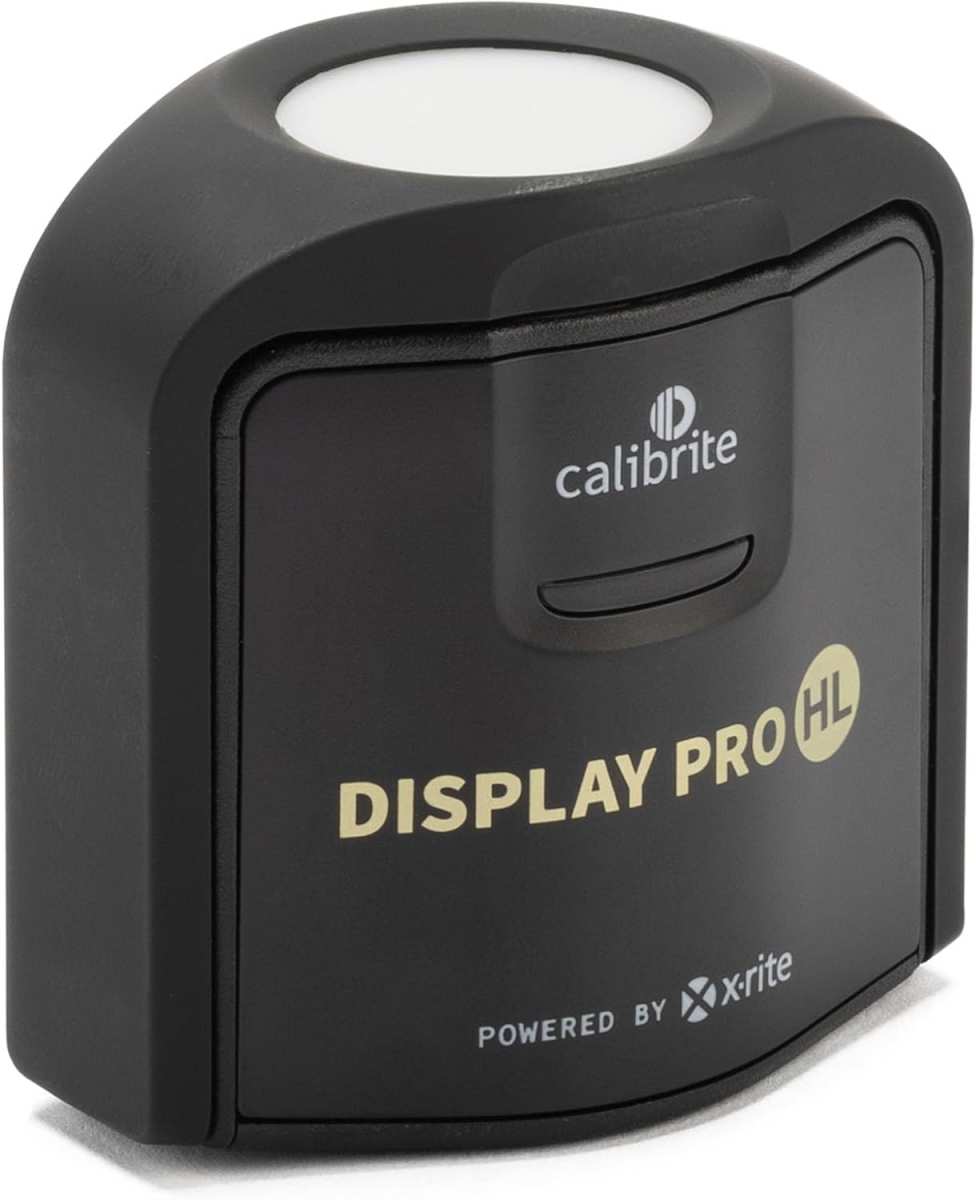
Traditional colorimeters like the Datacolor SpyderX or Calibrite ColorChecker Display Pro were designed primarily with LCD backlights in mind. LCDs have relatively broad, predictable spectral emission curves. OLED panels, especially QD-OLED models from Samsung Display, have narrow spectral peaks that can fool standard colorimeters into giving inaccurate readings.
Research published through the Society for Information Display has documented this phenomenon. The narrow spectral peaks of OLED subpixels don't align perfectly with the filtered photodiodes inside most colorimeters. This leads to measurement errors, particularly in saturated reds and greens.
A spectrophotometer handles this better because it measures the full spectral power distribution rather than relying on filtered sensors. But spectrophotometers are slower and more expensive. We'll get into which tool makes sense for your situation shortly.
Hardware calibration vs. software calibration on OLED
There are two fundamentally different approaches, and the distinction matters a lot with OLED panels.
Software calibration uses your computer's graphics card to apply corrections. The calibration software generates a correction curve (or ICC profile) that the GPU applies before sending the signal to the monitor. This works, but it reduces your effective bit depth slightly and can introduce banding in gradients if you're not careful.
Hardware calibration writes correction data directly into the monitor's internal Look-Up Table (LUT). This is the preferred method for professional work because it doesn't touch the GPU signal path and preserves full bit depth. Not all OLED monitors support hardware calibration.
You need a monitor with an internal 3D LUT and compatible software like Calman or the manufacturer's own calibration utility.
Professional-grade OLED monitors from EIZO, ASUS ProArt, and some higher-end LG models support hardware calibration. Most consumer and gaming OLED monitors do not. Check your specific model's specifications before investing in calibration software that requires hardware LUT support.
Decision Tree: Do You Actually Need to Calibrate?
Let's cut through the noise. Your situation determines everything.
Branch 1: Color-critical professional work
If you're doing any of the following, calibration isn't optional. It's essential.
- Photo editing for print or commercial delivery
- Video color grading for broadcast or cinema
- Graphic design with brand color requirements
- Medical imaging or scientific visualization
- Any work where a client expects accurate color
In these cases, you should calibrate with a spectrophotometer or a high-end colorimeter known to perform well on OLED. Target Delta E below 1.5 if possible. Use hardware calibration if your monitor supports it.
Recalibrate every 2 to 4 weeks.
Branch 2: Creative hobbyists and enthusiasts
You're editing photos for Instagram, making YouTube videos, or doing digital art for fun. You care about accurate color but nobody's paying you for pixel-perfect accuracy.
A basic colorimeter-based calibration in software is perfectly fine here. Target Delta E below 2. You don't need hardware calibration.
Recalibrate every 4 to 6 weeks, or whenever you notice something looks off. The factory calibration on most modern OLED monitors is good enough that you might only see subtle improvements.
Branch 3: Gaming and general use
You're gaming, browsing, watching Netflix, maybe doing some office work. Color accuracy is genuinely not important here.
Skip calibration entirely. Seriously. Your OLED monitor's default picture mode, whether it's the "Gaming" preset or "Vivid" mode, is designed to look appealing.
That's what you want for this use case. Calibrating for sRGB accuracy will actually make games and movies look flatter and less saturated, which defeats the purpose of buying an OLED.
The one exception: if you're gaming in HDR, you might want to run through the Windows HDR calibration tool or your monitor's built-in HDR tone mapping setup. That's not the same as SDR calibration, but it helps HDR content look correct.
Branch 4: Mixed use (gaming + creative work)
This is where it gets interesting. You've got one monitor doing double duty for gaming and creative work.
Most OLED monitors let you switch between picture modes. Set up an sRGB or Adobe RGB clamped mode for creative work and calibrate that mode specifically. Leave your gaming mode alone.
When you switch tasks, switch modes. It takes five seconds via the on-screen display menu.
If your monitor supports hardware calibration, you can store different calibration profiles for different modes. If not, just make sure your ICC profile is associated with the correct color space mode in your operating system's color management settings.

What You Need to Calibrate an OLED Monitor
Colorimeter options that work well with OLED
Not all colorimeters are created equal when it comes to OLED. Here's what actually works in 2026.
| Device | Type | OLED Compatibility | Price Range | Best For |
|---|---|---|---|---|
| Calibrite ColorChecker Display Pro | Colorimeter | Good (with OLED mode) | ~$170 | Hobbyists, semi-pro |
| Datacolor SpyderX 2 | Colorimeter | Good (with latest firmware) | ~$170–230 | General use |
| X-Rite i1Display Pro Plus | Colorimeter | Very Good | ~$250 | Semi-pro, video work |
| Calibrite ColorChecker Display Plus | Spectrophotometer | Excellent | ~$350 | Professional OLED work |
The key thing to look for is whether the device has a specific OLED or wide-gamut measurement mode. The Calibrite ColorChecker Display Pro, for instance, includes an OLED-specific mode that adjusts its measurement algorithm for narrow spectral peaks. Without this, you'll get less accurate results on QD-OLED panels especially.
Spectrophotometer: the better choice for OLED
If you're doing professional color-critical work, a spectrophotometer is the more reliable tool for OLED calibration. It measures the full spectral power distribution of each color rather than relying on filtered sensors that can be fooled by OLED's narrow emission peaks.
The Calibrite ColorChecker Display Plus and the X-Rite i1Pro 2 are the most commonly recommended options. They're slower than colorimeters for each measurement, but the accuracy improvement on OLED panels is measurable and meaningful.
The downside is cost. A good spectrophotometer runs $350 to over $1,000. If you're calibrating multiple monitors or running a studio, that investment pays for itself.
For a single personal monitor, a high-end colorimeter with OLED mode is usually sufficient.
Calibration software compared
Your software choice matters as much as your measurement device, especially if you're aiming for hardware calibration support.
| Software | Cost | Hardware LUT Support | OLED-Specific Features | Best For |
|---|---|---|---|---|
| DisplayCAL | Free | Limited (via ArgyllCMS) | Basic | Budget-conscious, tech-savvy users |
| Calman | $150–$2,400 (varies by version) | Yes (extensive) | Yes, with spectral correction | Professional colorists |
| Portrait Displays Calman Home | ~$150 | Limited | Yes | Semi-pro, video editors |
| ASUS ProArt Calibration | Free (with ProArt monitors) | Yes (ASUS models) | Yes | ASUS ProArt owners |
| LG Calibration Studio | Free (with supported LG models) | Yes (LG models) | Yes | LG OLED monitor owners |
DisplayCAL is the go-to free option. It's powerful and flexible, but it has a steep learning curve and limited hardware LUT support on OLED monitors. If your monitor manufacturer offers free calibration software that supports hardware calibration, use that first.
It's almost always the best match for your specific panel.
Calman is the industry standard for professional color work. It's expensive, but it handles OLED measurement corrections natively and supports hardware calibration on most professional OLED monitors. If you're doing client work or delivering content for broadcast, this is what the studios use.
What you actually don't need
You don't need to spend $2,000 on a calibration setup for a single gaming monitor. You don't need a spectrophotometer if you're editing photos for social media. And you absolutely don't need to calibrate your monitor if all you do is game and watch YouTube.
A lot of the calibration marketing out there is aimed at professionals who genuinely need reference-grade accuracy. For everyone else, the factory calibration on a decent OLED monitor in 2026 is surprisingly good. Don't let anyone tell you that you're "doing it wrong" if you haven't calibrated your gaming display.
How to Calibrate an OLED Monitor Step by Step
Preparation: warm-up, reset, and setup
Before you touch any calibration tool, give your OLED monitor a proper warm-up. Turn it on and let it run for at least 30 minutes. OLED pixels stabilize thermally, and measuring a cold panel gives inconsistent results.
Some professionals wait a full hour for critical work.
Next, reset your monitor to factory defaults. This clears any previous adjustments that might interfere with calibration. Find the option in your on-screen display menu, usually under "Reset" or "Factory Reset." After resetting, select the picture mode you plan to calibrate.
For most people, that's the sRGB or Adobe RGB mode, not the native wide-gamut mode.
Set your target values before you start measuring. The standard targets for SDR work are:
- White point: D65 (6500K)
- Gamma: 2.2 for general use, BT.1886 for video work
- Luminance: 80 cd/m² for dim rooms, 120 cd/m² for normal lighting
Choosing the right picture mode and targets
This step matters more than most people realize. Calibrating in the wrong picture mode wastes time and gives you a profile you'll never use correctly.
If your monitor has an sRGB clamp or emulation mode, use it. This mode restricts the wide native gamut of the OLED panel to the sRGB color space, which is what most web content, games, and SDR applications expect. Calibrating in native gamut mode creates a profile that only works correctly in color-managed applications, and most games aren't color-managed.
For video work targeting DCI-P3, use the monitor's DCI-P3 mode if available. For print design work, use the Adobe RGB mode. The key is matching the picture mode to the color space your content lives in.
Running the calibration
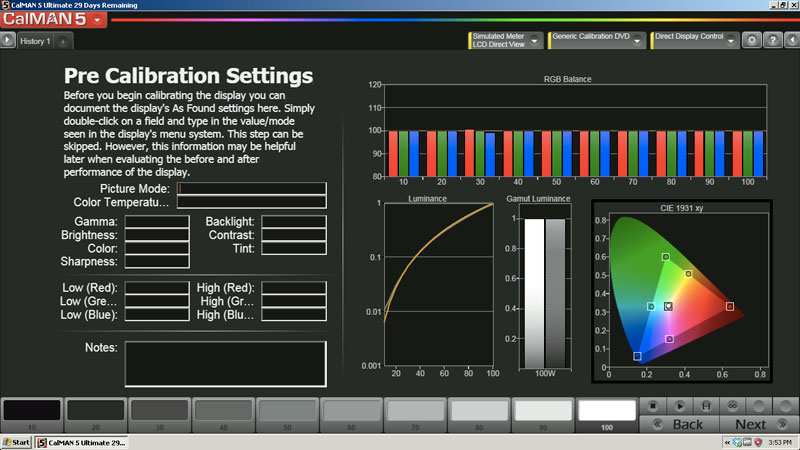
Place your colorimeter or spectrophotometer flat against the center of the screen. Most calibration software includes a positioning target to help you align it. Make sure the room is dim but not completely dark.
Ambient light affects measurement accuracy, especially at low luminance levels.
Follow your calibration software's workflow. The software will display a series of color patches and measure each one with your device. This typically takes 5 to 15 minutes depending on the number of patches and your measurement device speed.
For software calibration, the software will generate an ICC profile and install it automatically. For hardware calibration, the software will write correction data to the monitor's internal LUT. The monitor may flicker or briefly go blank during this process.
That's normal.
Verifying your results
After calibration completes, run a verification measurement. Most calibration software includes a "Verify" or "Report" function that measures a set of known color patches and compares them to reference values.
Look for these results:
- Average Delta E below 2: Acceptable for most work
- Average Delta E below 1: Good for professional use
- Maximum Delta E below 3: No single color should be wildly off
If your results are worse than expected, check that you selected the correct picture mode and that your measurement device has the OLED-compatible mode enabled. Re-run the calibration if needed.
Common Mistakes People Make with OLED Calibration
Using the wrong measurement device
The single most common mistake is using a colorimeter that doesn't have OLED compatibility. Older devices or budget models without spectral correction for narrow-band displays will give you readings that look plausible but are wrong, particularly in saturated reds and deep blues.
If you're using a SpyderX or older Calibrite model, make sure you've updated to the latest firmware and enabled any available wide-gamut or OLED measurement mode. Without it, your calibration profile will be chasing incorrect data.
Calibrating in the wrong picture mode
We've covered this, but it bears repeating because it happens constantly. People calibrate in the native wide-gamut mode, generate a profile, then wonder why everything looks desaturated in Windows. That's because Windows and most applications expect sRGB, not the full native gamut.
Always calibrate in the picture mode you'll actually use. If you switch between modes for different tasks, calibrate each mode separately.
Ignoring near-black behavior
OLED panels have unique near-black performance. They can display true black at zero luminance, but the transition from black to dark gray can be uneven, especially on WOLED panels. This is a hardware characteristic that calibration can't fully fix.
What calibration can do is ensure your gamma curve is accurate in the shadow range. Pay attention to the low-end gamma during verification. If dark tones look crushed or washed out after calibration, your gamma target may need adjustment.
Try BT.1886 instead of pure 2.2 for better shadow tracking.
Over-calibrating and losing what makes OLED special
Here's a mistake that's more philosophical than technical. Some people calibrate their OLED monitor to match a reference LCD standard so aggressively that they lose what makes OLED worth having in the first place.
OLED's infinite contrast ratio and per-pixel dimming are its superpowers. A well-calibrated OLED should still look dramatically better than a calibrated IPS panel. If your calibrated OLED looks flat and lifeless, something went wrong.
You may have crushed your gamma, set luminance too low, or applied a profile that's fighting the panel's native characteristics.
How Often Should You Recalibrate an OLED Monitor?
Professional use timelines
For color-critical professional work, recalibrate every 2 to 4 weeks. OLED panels degrade gradually, and the rate of degradation isn't perfectly uniform across the subpixels. Blue subpixels typically age faster than red or green, which means your white balance shifts slowly over time.
Manufacturer specifications for professional OLED monitors generally recommend monthly calibration minimum. Studios and post-production houses often recalibrate weekly or even daily for reference monitors. That's overkill for most freelancers, but monthly recalibration is a solid baseline for anyone delivering client work.
Gaming and casual use timelines
If you're not doing color-critical work, recalibrate every 2 to 3 months, or don't recalibrate at all. The visual difference will be negligible for gaming and content consumption.
The one thing to watch for is sudden changes. If your monitor runs a pixel refresh cycle and colors look different afterward, that's a sign something shifted. Run a quick calibration to check.
Signs it's time to recalibrate
Beyond a schedule, watch for these indicators:
- Whites look slightly blue or yellow compared to a known reference
- Skin tones in photos or video look off even in a calibrated application
- You've just updated your graphics driver or operating system
- The monitor has completed a long pixel refresh cycle
- You moved the monitor or changed your room lighting significantly
Factory Calibration vs. DIY vs. Professional Service
What factory calibration actually gets you
Factory calibration is done at the factory, obviously, but the quality varies enormously. Some manufacturers include individual calibration reports with each unit. These reports typically show average Delta E measurements taken on that specific panel before shipping.
A good factory calibration report showing average Delta E below 1.5 is genuinely useful. It means the monitor is accurate out of the box for most work. But factory calibration doesn't account for your specific environment, your graphics card, or the gradual drift that happens as the panel ages.
When DIY calibration is worth it
DIY calibration makes sense when you have a colorimeter or spectrophotometer and you're comfortable following a software workflow. It's cost-effective for ongoing recalibration since you're only investing time after the initial hardware purchase.
It's the right choice for hobbyists, semi-professionals, and anyone who needs reasonable accuracy without paying a technician. The results won't match a professional service, but they'll be significantly better than uncalibrated for most use cases.
When to hire a professional
Professional calibration services typically cost $150 to $300 per session. They bring reference-grade measurement equipment and expertise that's hard to replicate at home.
Hire a professional when you're setting up a studio or reference monitor for the first time. Also consider it if you're delivering work for broadcast, print, or medical applications where accuracy is contractually required. A professional can also verify that your DIY calibration setup is giving you accurate results.
Does OLED Panel Type Affect Calibration?
WOLED (LG Display panels)
WOLED panels use a white OLED emitter with a color filter array. The spectral emission curve is relatively broad, which makes measurement with standard colorimeters more reliable. If you're using a WOLED monitor like those from LG Display, most modern colorimeters will give you accurate results without special modes.
The main calibration challenge with WOLED is near-black uniformity. The color filter structure can cause slight color shifts at very low luminance levels. This is a hardware limitation that calibration can minimize but not eliminate.
QD-OLED (Samsung Display panels)
QD-OLED panels use a blue OLED emitter with quantum dot color converters. This creates very narrow spectral peaks for red and green, which is exactly what causes measurement issues with standard colorimeters.
If you have a QD-OLED monitor, using a spectrophotometer or a colorimeter with specific QD-OLED measurement support is strongly recommended. Without it, your calibration profile may have errors in saturated colors that you can't see during normal use but that affect accuracy.
MLA OLED panels
Micro Lens Array technology, found in newer high-brightness OLED panels, changes the light extraction efficiency but doesn't significantly alter the spectral characteristics. Calibration requirements are similar to the underlying WOLED or QD-OLED technology. The higher peak brightness does mean you may want to set a different luminance target for HDR content.
Frequently Asked Questions
Can I calibrate an OLED monitor with just my eyes?
No. Human perception adapts constantly to color shifts. Your eyes will compensate for inaccuracies within minutes.
You need a measurement device for any calibration that needs to be accurate.
Does calibration prevent OLED burn-in?
No. Calibration adjusts color and luminance accuracy. It has nothing to do with pixel wear or image retention.
Burn-in prevention features like pixel shift and panel refresh are separate functions.
Should I calibrate HDR and SDR separately?
Yes. HDR and SDR use different tone curves and luminance ranges. Most calibration software treats them as separate targets.
Calibrate your SDR mode first, then handle HDR separately using your monitor's HDR tone mapping settings or Windows HDR calibration.
Is DisplayCAL good enough for professional OLED calibration?
DisplayCAL is capable, but it lacks hardware LUT support on most OLED monitors. For professional work that requires hardware calibration, Calman or the manufacturer's own software is a better choice.
Will calibration void my monitor's warranty?
No. Calibration is a standard maintenance procedure. It doesn't modify hardware or firmware in any way that would affect your warranty.
Writing to a hardware LUT is a supported feature on monitors that offer it.
How long does a full calibration take?
Plan for 30 to 60 minutes total. That includes warm-up time, the measurement process, profile generation, and verification. Hardware calibration may take slightly longer due to the LUT writing process.
Final Verdict: Your Situation, Your Call
Here's the bottom line. If you're doing color-critical professional work, calibrate your OLED monitor. It's not optional.
Invest in a good measurement device, use the right picture mode, and recalibrate regularly.
If you're a creative hobbyist, calibration is worth doing but not urgent. A basic colorimeter and free software will get you 90% of the benefit.
If you're gaming and consuming content, skip it. Enjoy your OLED for what it does best out of the box. You didn't buy that infinite contrast ratio and perfect black level to make it look like a calibrated reference display.
You bought it because it looks incredible. Let it do its thing.
The technology in 2026 is good enough that most OLED monitors ship with decent factory calibration. But "decent" and "accurate" are different things. Know which one you need, and calibrate accordingly.
Costs and Pricing
Here's a realistic breakdown of what calibration costs in 2026.
| Approach | Upfront Cost | Per-Session Cost | Accuracy Level |
|---|---|---|---|
| No calibration | $0 | $0 | Varies by unit |
| DIY with budget colorimeter | $70-170 | $0 | Good |
| DIY with spectrophotometer | $350-700 | $0 | Very good |
| Professional service | $0 | $150-300 | Excellent |
| Full pro setup (hardware + software) | $500-2,500 | $0 | Reference-grade |
For most people, a Calibrite ColorChecker Display Pro at around $170 is the sweet spot. It handles OLED measurement well, works with free software like DisplayCAL, and pays for itself in one session compared to hiring a professional.
Expert Tips
A few things the calibration guides don't always mention.
Always calibrate in your normal working environment with your normal ambient lighting. If you calibrate in a dark room but work in a bright office, your results won't match your daily experience.
Keep a log of your calibration results. Track your Delta E values and white point over time. This helps you spot panel degradation early and know when something has shifted significantly.
If your monitor supports it, disable any automatic brightness optimization features before calibrating. These features change luminance dynamically and will fight against your calibration targets.
Maintenance and Long-Term Optimization
OLED panels change gradually as they age. Blue subpixels degrade faster than red or green, which slowly shifts your white balance toward warm over months and years.
Run your monitor's built-in pixel refresh cycles as recommended by the manufacturer. These help maintain uniformity and can slightly correct for uneven degradation. They won't replace calibration, but they help between sessions.
Keep your monitor's firmware updated. Manufacturers occasionally release updates that improve panel driving algorithms and color processing. These can affect accuracy, so recalibrate after any firmware change.
Store your calibration profiles with clear names that include the date. If something looks off months later, you can compare against your last known good profile and decide whether recalibration is needed.

Similar Posts





















