Are Touchscreen Monitors Cost Effective
[IMAGE]
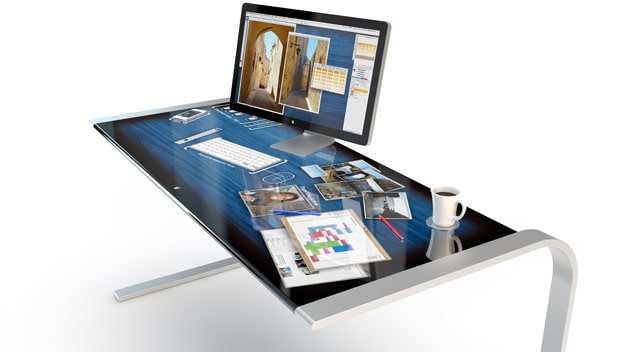
Are touchscreen monitors cost effective? The honest answer depends entirely on what you'll actually use the touchscreen for, because the price premium is real and the value only shows up in specific workflows. Simply browsing the web with your fingers all day is not worth the extra cost.
But if you're a designer who wants to sketch directly on screen, a teacher running an interactive whiteboard, or a retailer setting up a point-of-sale station, the touchscreen quickly moves from luxury to practical tool. Understanding where the money goes, and where it comes back, will help you make the right call. Let's break down exactly when touch makes financial sense and when it just costs more.
Quick Answer
Touchscreen monitors are cost effective for creative professionals, educators, retail and hospitality, and accessibility use cases.
For standard office productivity and general computing, they offer minimal added value. The touchscreen hardware carries a 30 to 60 percent price premium over non-touch equivalents. As of 2026, consumer touch monitors typically range from $200 to $350.
The Real Price Gap: Touch vs. Non-Touch
The first thing most people notice when shopping is the price jump. A standard 24-inch 1080p IPS monitor from a brand like Dell or ASUS lands around $130 to $180. The touch-enabled version of that same class of monitor?
You're looking at $250 to $350.
That's a 30 to 60 percent premium just for the touch layer. And it gets steeper at higher resolutions. A 4K touch display in the 27-inch range can easily run $600 to $800, while a non-panel of comparable spec sits closer to $350 to $500.
Here's a rough comparison to put numbers on the table:
| Category | Non-Touch Monitor | Touch Monitor | Premium |
|---|---|---|---|
| 24" 1080p IPS | $130–$180 | $250–$350 | ~50% |
| 27" 1440p IPS | $250–$350 | $400–$550 | ~50% |
| 27" 4K IPS | $350–$500 | $600–$800 | ~60% |
| 24" Enterprise Touch (POS) | N/A (rare non-touch) | $500–$1,200 | Varies |
Enterprise-grade touch displays used in medical, industrial, and POS environments cost even more. Those ruggedized panels often start around $600 and climb past $1,500 for larger models with projected capacitive (PCAP) touch technology.
The bottom line is straightforward. If touch doesn't save you meaningful time or enable a workflow you can't do another way, you're paying a lot for a feature that becomes a gimmick fast.
What Makes Touch Monitors More Expensive
Understanding where that extra cost comes from helps you evaluate whether you're paying for real capability or branding. Several factors drive the price up.
1. The touch panel itself. Adding a capacitive or infrared touch sensor layer on top of a display panel requires additional manufacturing steps. Most consumer touch monitors use projected capacitive (PCAP) technology, which involves embedding a grid of transparent electrodes into the glass.
This process adds material cost and lowers yield rates during production. More panels get rejected during QC.
2. Reduced brightness. The touch layer sitting on top of the display diffuses light. Manufacturer specifications on touch models often list lower nit ratings compared to their non-touch counterparts.
That's not always highlighted in marketing. A non-touch panel might hit 350 nits while its touch version tops out at 280 to 300 nits.
3. Additional connectivity requirements. A touch monitor needs both a video input (HDMI or DisplayPort) and a separate USB upstream connection to transmit touch data back to the host device. That means extra ports, extra controllers, and slightly more complex internal electronics.
It's not a huge cost driver, but it factors in.
4. Lower production volume. Non-touch monitors sell in vastly higher quantities. Touch monitors are a smaller segment.
Manufacturing scale matters. Higher volume drives unit prices down, and touch panels simply don't enjoy that same economy of scale in the consumer space.
5. Durability and calibration. Touch panels need to maintain touch accuracy across temperature changes and over years of physical interaction. Better models use optical bonding, which laminates the touch sensor directly to the LCD panel to eliminate the air gap.
This reduces reflections and improves optical clarity. It also costs more to manufacture.
So you're essentially paying for a specialized manufacturing process, added components, and lower production scale. When the touch screen delivers real value, that investment pays off. When it doesn't, you're subsidizing hardware that just collects fingerprints.
Where Touch Monitors Pay for Themselves
This is the part that changes the equation for certain users. There are concrete scenarios where the touchscreen isn't just nice to have. It becomes an efficiency tool that justifies the cost multiple times over.
Creative professionals drawing and painting directly on screen. A graphic designer or illustrator working in Photoshop, Clip Studio Paint, or Krita can work significantly faster with pen-based touch input. Instead of sketching on a separate Wacom tablet while looking at the monitor, they draw directly on the canvas. This tighter feedback loop can cut project time by 20 to 30 percent for illustration-heavy work, according to anecdotal aggregate feedback from creative communities and forums.
When your time bills at $50 to $150 per hour, a $300 to $500 monitor pays for itself within days.
Architects and CAD professionals reviewing drawings. Touch-enabled manipulation of 3D models and technical drawings speeds up design review sessions. Panning, zooming, and rotating with gestures beats mouse-and-marker-keyboard combos. Many firms report that client presentations go smoother when you can manipulate the model live on screen.
Retail, restaurants, and hospitality (POS systems). Touchscreen monitors in point-of-sale environments are industry standard for good reason. They reduce transaction times, require minimal training, and take up less counter space than keyboard-and-mouse setups. A restaurant using a touch POS can process table turns faster.
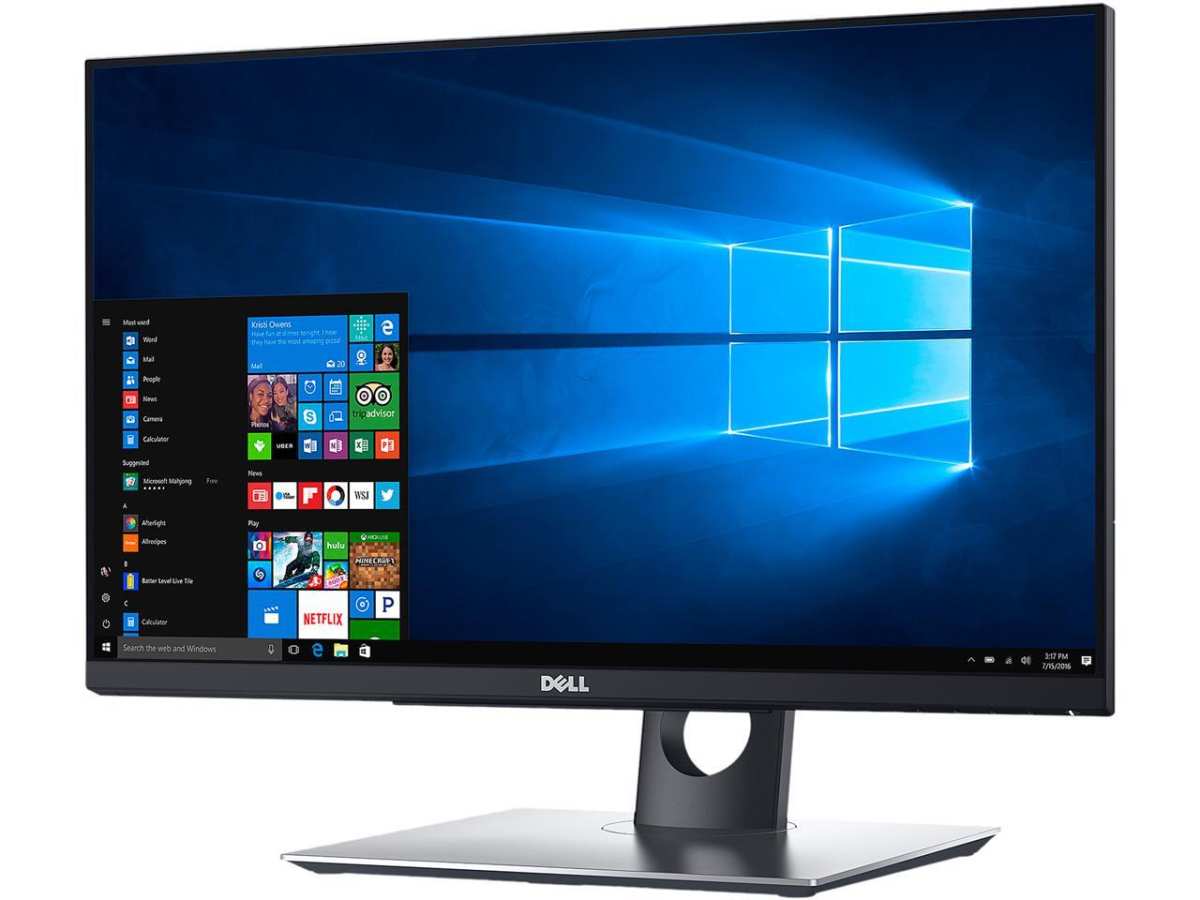
That throughput gain is directly measurable in revenue. Dell's P2418HT and similar models are commonly deployed in small business POS setups. Larger chains use Elo Touch or Planar displays built for 24/7 operation.
Education and interactive learning. Teachers using interactive touch displays report higher engagement from students, particularly in K-12 environments. Annotation directly on screen during lessons keeps students involved. Schools investing in touch technology for classrooms generally see it as a long-term operational investment rather than an expense.
Accessibility and accommodation. For users with motor disabilities, cognitive impairments, or visual processing differences, touch interfaces can be the difference between a usable computer and an unusable one. Some users find direct manipulation significantly more intuitive than mouse and keyboard input. This isn't just about efficiency.
It's about access. And in workplace accommodation contexts, the cost of a touch monitor is trivial compared to the benefit of enabling someone to do their job.
So yes, in these scenarios, touchscreen monitors are genuinely cost effective. The premium you pay translates to measurable gains in speed, revenue, engagement, or accessibility. When the math works like this, you don't think twice about the price tag.
Where Touch Monitors Just Cost More
Now for the realities that don't always make it into the reviews. You need to know the trade-offs before you buy. If you treat touch as pure value-add, you'll end up burned.
Screen smudges are relentless. Every time you touch the screen, you leave fingerprints and oils. On a 27-inch display, that adds up to a smudged, hazy mess surprisingly fast. If you do any color-critical work, print design, or photography editing, this is a genuine problem.
You'll find yourself wiping the screen multiple times per session. Over time, repeated cleaning with the wrong cloth or solution can degrade the oleophobic coating on cheaper models.
Arm fatigue is real for extended use. Touch interfaces work great for short interactions. But using your arm to reach out and touch a vertical or near-vertical display for hours causes genuine shoulder and arm discomfort. UX designers and early standard-setters like Jakob Nielsen flagged this interaction model issue years ago when touch-based desktop environments first appeared.
It's still called "gorilla arm" in the industry. The solution is a low-angle display. Think drafting-table angle, not vertical wall monitor.
But that setup doesn't suit every desk. If you're mounting your monitor on a vertical arm, touch becomes physically taxive within minutes.
Desktop OS touch support is still inconsistent. Windows 10 and Windows 11 have improved their touch support significantly compared to Windows 8 anUBut many desktop applications remain stubbornly mouse-and-keyboard oriented. You'll tap a button in your browser with no issue, but try using touch in older enterprise software, certain accounting applications, or niche engineering tools and you'll find tiny menu targets that are frustrating with a finger. macOS's built-in touch input remains nonexistent unless you consider the sidecar functionality. Linux touch support varies significantly by distro and desktop environment.
So the touch capability of your monitor might sit unused simply because your software doesn't support it well.
Brightness and clarity take a hit. Remember the brightness penalty mentioned earlier? That 10 to 30 percent reduction in peak brightness affects visibility in bright rooms. If your workspace has large windows or strong overhead lighting, the touchscreen may appear washed out.
Air-gap panels also suffer from reduced contrast because light reflects between the touch layer and the display. Optical bonding fixes this, but it's a feature reserved for premium models, often priced above the range where you'd call them "cost effective."
Screen wobble with input. Unless you get a monitor with a heavy, stable base or VESA mount, touching the screen makes it wobble. This is especially true during rapid, repeated touch inputs like drawing or dragging. Cheaper stands with weak springs amplify this problem.
You end up stabilizing the screen with one hand and touching with the other. That defeats the purpose.
Limited OS touch gesture utility on desktop. Smartphones and tablets feel natural to touch because their entire interface is built around it. Desktop operating systems with touch-enabled monitors can feel like an awkward hybrid. The touch-friendly Windows interface (tablet mode in Windows 10, improved in Windows 11) works on a handful of touch apps, but most professional desktop software doesn't fully leverage touch gestures.
You might find yourself using touch 10 percent of the time and mouse-and-keyboard 90 percent. At that ratio, the monitor's main input method is everything but touch.
So if your workflow involves standard office work, email, coding, or browsing, the touchscreen likely collects dust and fingerprints in equal measure. You'd be better off buying a higher-quality non-touch display with better color accuracy, higher brightness, and a stronger stand. That's money better spent.
Side-by-Side: Popular Touch Monitors vs. Non-Touch Equivalents
To make the cost difference more concrete, here's how popular touch monitors stack up against non-touch alternatives in the same spec tier.
| Feature | Dell P2418HT (Touch) | Dell P2422H (Non-Touch) | ASUS VT249HGE (Touch) | ASUS ProArt PA278QV (Non-Touch) |
|---|---|---|---|---|
| Size | 23.8" | 23.8" | 23.8" | 27" |
| Resolution | 1920 x 1080 | 1920 x 1080 | 1920 x 1080 | 2560 x 1440 |
| Panel Type | IPS | IPS | IPS (frameless design) | IPS |
| Touch Type | 10-point PCAP | None | 10-point PCAP | None |
| Brightness (typical) | 250 nits | 300 nits | 250 nits | 350 nits |
| Price (approx.) | $300–$350 | $155–$180 | $250–$300 | $280–$340 |
| Touch Connectivity | USB upstream | N/A | USB upstream | N/A |
The Dell P2418HT is a well-regarded touch monitor and a solid choice for multi-purpose home and office use. But the non-touch Dell P2422H at half the price gives you the same screen real estate, better brightness, and a fully clean display free of fingerprints or optical bonding compromises. Unless touch is essential for your daily workflow, the non-touch model outclasses it in raw display value per dollar.
The comparison with the 1440p class is even starker. Most consumer touch monitors max out at 1080p in the 24-inch range. Stepping to 1440p with touch requires moving to models like the ViewSonic TD2455 or Elo 2202L, where prices climb to $400 to $550.
Meanwhile, non-touch 1440p panels with superior color accuracy, higher brightness, and better ergonomics abound in the $250 to $350 range.
This pattern holds across the market. For any given display budget, the non-touch option will outperform the touch option in spec sheet criteria. The only question is whether touch input matters enough for your specific use case to override that spec deficit.
We cover which scenarios pass that test in the section on best use cases.
The key insight here is that you're not choosing between two variants of display quality. You're choosing between touch capability and conventional display quality. Budget for touch means less money allocated to other specs like resolution, color accuracy, or panel uniformity.
A manufacturer integrating a touch sensor inevitably diverts resources from other components. Make sure you're getting enough from the touch to justify what you're giving up elsewhere.
Best For Specific Use Cases
Here's how different users typically evaluate the touch premium. You'll recognize your situation somewhere in this breakdown.

Creative Professionals and Digital Artists
Touch monitors with pen support (like ASUS ProArt or Wacom Cintiq models) absolutely earn their price for illustrators, photo retouchers, and 3D texture painters. The direct hand-eye coordination accelerates drawing workflows. Pen-enabled touch displays start around $450 and go well past $1,000.
That investment pencils out if illustration or painting is your daily income source.
POS, Retail, and Hospitality
This is probably the strongest business case. Touchscreen monitors used as POS displays pay back fast. Some users surveyed by display industry analysts report up to 30 percent faster transaction speeds when switching from keyboard-driven to touch-driven order entry.
That keeps checkout lines shorter during peak hours, which improves customer satisfaction and reduces labor costs. Given that a small shop might process thousands of transactions daily, the touch monitor cost is just a minor one-time expense.
Education and Conference Rooms
In education and corporate presentation settings, touch displays get students and participants actively engaged. Teachers can annotate slides, draw diagrams, or let students interact with the content. In conference rooms, touch-based screen sharing and annotation flow more naturally.
Education budgets often allocate for multi-year display investments, making a $500 to $800 touch display reasonable over a 5+ year lifespan.
Everyday Productivity and Home Use
This is where the answer gets less favorable. For browsing, document editing, coding, or media consumption, touch adds almost nothing. Laptops with touchscreens exist, and even there, many people rarely use the touch capability once the novelty wears off.
A desktop touch monitor used primarily for non-touch tasks just becomes an expensive smudge magnet. Users frequently try touch for two weeks, then revert to mouse and keyboard for everything. At that point, you've paid a 30 to 50 percent premium for a dusty on-screen button.
Accessibility Scenarios
For individuals who struggle with fine motor control of a mouse, a touchscreen can be the difference between a usable workstation and an inaccessible one. The intuitive nature of "point at what you want" eliminates the cognitive overhead of converting mouse movement to cursor movement. In these contexts, even a $400 to $600 monitor is a cost-effective accommodation.
Many workplace accommodation budgets cover this easily. If you're evaluating from an accessibility standpoint, the ROI is measured in independence and productivity, not just transaction speed.
Common Frustrations and Limitations
Aggregate reviews across major retail platforms consistently flag several touchonitor pain points. These complaints come up over and over across different brands and models. Knowing about them before you buy saves regret later.

Smudges and fingerprints everywhere
Touchscreens show every single contact mark. On a dark display, this means constant visible fingerprints. Standard monitor cleaning helps, but the oleophobic coating on budget models wears off within a year or two of regular wiping.
Once that coating is gone, the screen becomes a permanent smudge display.
Gorilla arm and shoulder fatigue
Reaching forward to touch a vertical display for extended periods causes real strain in the shoulder and neck. This interaction-model issue from early touch interface research is still relevant today. The arm is not designed to bear its own weight horizontally for long.
Tilting the monitor to a low angle, around 15 to 30 degrees, reduces this problem substantially. But not every desk or mount accommodates that setup easily.
Brightness and contrast reduction
The touch sensor layer sitting on top of the LCD reduces light output by 10 to 30 percent. Your bright white web pages look slightly gray. In a sunny room, the touchscreen becomes harder to read compared to a non-touch panel at the same brightness setting.
Air-gap panels also make blacks look slightly washed out because of the extra reflective surface.
Inconsistent touch response on cheaper models
Budget touch monitors sometimes exhibit laggy or missed touches, particularly near the edges of the screen. Some cheaper optical touch systems misinterpret hover as click, causing unwanted selections. Look for monitors with native Windows HID (Human Interface Device) compatibility at minimum.
This avoids needing third-party drivers that cause reliability problems.
Higher repair costs
When a traditional monitor develops a dead pixel or backlight dimming over time, repair often isn't economically viable. But when a touch monitor's touch layer fails, you've lost a primary selling point. Sensor delamination, dead touch zones, and calibration drift can happen after a few years.
Replacing or repairing the touch layer costs almost as much as replacing the whole unit. Most users just buy a new monitor.
Glare under office lighting
The glossy glass required for good touch sensitivity reflects overhead lights, windows, and even your own face back at you. You lose dark-room viewing clarity unless you're in a controlled-lighting environment. Anti-glare screen protectors exist, but they reduce touch sensitivity and make the surface feel less smooth for finger and pen input.
Smudges, Glare, and Maintenance
If you're going to use a touchscreen daily, maintenance becomes a regular part of your workflow. Here's what that actually looks like in practice:
Cleaning routine: Use a microfiber cloth slightly dampened with distilled water. glass cleaners. Many contain ammonia that strips the oleophobic coating over time. For stubborn marks, a 50/50 mix of distilled water and white vinegar works without degrading the coating as fast.
Glare management: Position the monitor perpendicular to windows if possible. If your office uses overhead fluorescents, a matte anti-glare film can help, though it slightly reduces touch sensitivity and display sharpness. Most users find the trade-off acceptable if they work in harsh lighting daily.
Calibration checks: Windows and macOS both include touch calibration tools. Run these every few months, especially after major OS updates. Some third-party touch controllers require recalibration after power surges or display driver updates.
A miscalibrated touch screen registers touches offset from where you point. This "parallax error" feels laggy even when the sensor itself is responding quickly.
Long-term coating care: Even with proper cleaning, the factory oleophobic coating degrades faster on touch displays than on non-touch ones. Once it's gone, fingerprints become far harder to wipe off and the surface feels slightly sticky. Screen protector films designed for touch displays exist and act as a sacrificial layer.
You replace the film instead of living with a degraded coating.
None of these maintenance points are dealbreakers. But they add both friction and ongoing minor costs (microfiber cloths, cleaning solution, screen protectors). Compared to a non-touch monitor that you basically never clean beyond dusting, that's a real difference in day-to-day experience.
Key Questions to Ask Before You Run Out and Buy One
Before you spend any cash, run through this quick checklist of decision questions. These five questions cover 90 percent of the wrong-purchase scenarios we've seen in user feedback and reviews:
1. Will I use touch every single day?
If the answer is "maybe sometimes," you're paying for a feature that mostly sits unused. Touch monitors earn their cost when they're a primary, daily interaction method. If you reach for touch less than half the time, you're fine with a keyboard and mouse.
2. Is my software actually touch-compatible?
Check your primary applications for real touch support. Not just "buttons big enough to tap," but actual gesture support and palm rejection. Professional apps vary enormously.
If your top three apps are mouse-centric, the touch monitor becomes a secondary-input accessory. That lowers the value proposition significantly.
3. Can I test the ergonomics before buying?
Visit a store or a friend's setup and touch a screen at your intended desk angle for ten minutes. Watch for shoulder fatigue and arm strain. Hands-on time with touch reveals problems that spec sheets don't.
A few minutes of real use often gives you more clarity than all the reviews you've read.
4. Am I giving up too much display quality?
Compare the touch model's brightness, color gamut, and resolution against non-touch alternatives at the same price. Some $300 touch monitors are 1080p at 250 nits, while a $300 non-touch gives you 1440p at 350+ nits. Prioritize display fundamentals that you'll notice every second the monitor is on.
5. Do I have the connectivity for touch data?
Touch requires an upstream USB connection in addition to HDMI or DisplayPort. On some laptops or compact desktops, ports are limited. If you're already using most of your USB ports for peripherals, adding a touch monitor may require a hub.
That's not a dealbreaker but adds complexity that can undo the sleek simplicity of a touch setup.
If you can answer yes to at least three of these questions, you're probably a good candidate for a touch monitor. If you answered no to three or more, allocate that budget toward a better non-touch display.
Final Recommendation: Should You Get One?
Here's the no-nonsense verdict based on everything we've covered.
Get a touch monitor if your daily work involves direct on-screen drawing, you're deploying in a POS or retail environment, you're outfitting an education or presentation space, or you need an accessible interface for yourself or someone you support. In each of these cases, the touch input directly improves speed, revenue, engagement, or usability. The price premium pays for itself.
Skip the touch monitor if you're a standard office user, coder, or content consumer. The display quality compromise isn't worth it. The $100 to $250 you save by going non-touch is better spent on a better panel (higher resolution, better color accuracy, brighter output, stronger stand).
That investment improves your daily computing experience far more than a smudge-prone touch layer ever will.
Can't decide? Buy from a retailer with a solid return policy, and give it two weeks. Your own hands and your own workflow will tell you more than any review. If you find yourself mousing 90 percent of the time, send it back.
If you catch yourself touching the screen instinctively without thinking, you've found your purchase. That real-world test beats any feature checklist.
Frequently Asked Questions
Are touchscreen monitors good for gaming?
Not particularly. Most gaming relies on mouse and keyboard or controller input. Touch adds nothing to the experience.
Some casual mobile-style games work fine, but nobody buys a touch monitor for gaming. The higher latency and lower refresh rates common in touch panels make them worse for gaming than dedicated gaming monitors.
Do touch monitors work with any computer?
Most touch monitors with USB upstream connectivity work with Windows, macOS, and Linux at a basic level. However, advanced features like multi-touch gestures or stylus pressure sensitivity may require specific drivers. Check manufacturer compatibility lists before buying.
Some budget models have limited macOS or Linux support.
How long do touchscreens last?
A well-made touch monitor lasts as long as a standard monitor for display functionality, typically 30,000 to 50,000 hours of use. The touch sensor layer adds no significant reliability risk in quality panels. The oleophobic coating degrades faster on touch displays, but that only affects the fingerprint issue, not core functionality.
Can I add touch to a non-touch monitor?
External touch overlays exist. These are frame-mounted infrared or capacitive sensor bezels that attach to a standard monitor. They cost $80 to $200 depending on size.
The result works but looks clunky and often has lower accuracy than integrated solutions. For most people, buying a purpose-built touch monitor gives a far better experience.
Do touch monitors use more power?
Slightly. The touch controller draws a small amount of power through the USB upstream connection. The difference is negligible, typically under 5 watts.
If you're tracking energy costs, this won't meaningfully affect your electricity bill.
Is a touch monitor or an iPad with Sidecar better for drawing?
For serious illustration work, a dedicated pen display or pen touch monitor generally wins. These offer better pressure sensitivity (8192 levels on professional models), lower latency, and more screen real estate. An iPad with Sidecar works as a quick, temporary solution.
Artists who rely on drawing for income almost always prefer a dedicated display.
What size touch monitor is best?
For desk use, 22 to 24 inches hits the sweet spot. Large enough for comfortable touch targets, small enough to avoid excessive arm movement. At 27 inches, arm fatigue becomes a real issue during extended touch use.
Over 32 inches, you're entering digital signage or presentation territory, not personal productivity.

Similar Posts





















