Is USB C Monitor Good for Streaming
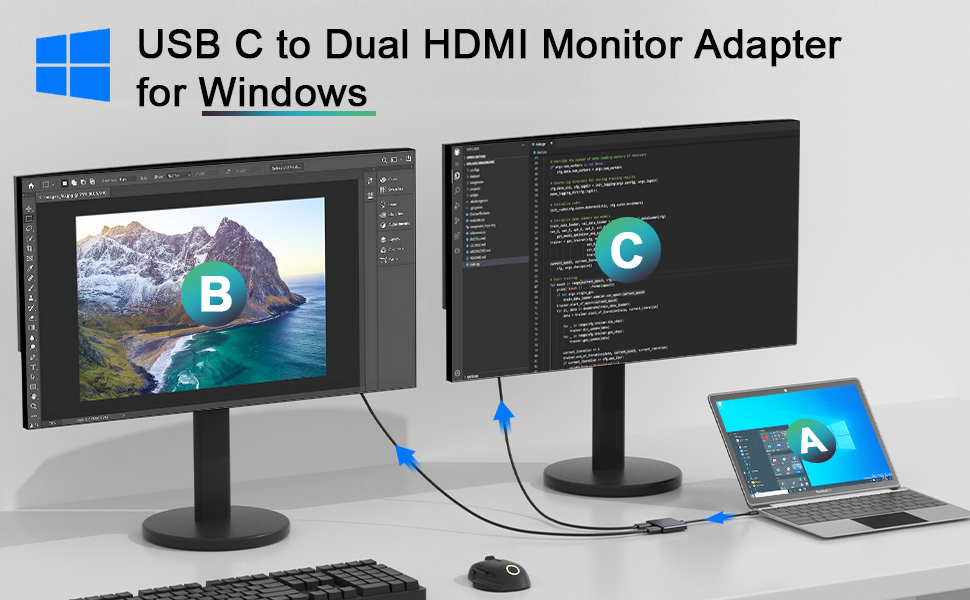
Is USB-C monitor good for streaming? Yes, but only if your hardware supports the right type of USB-C video output. The connector alone doesn't guarantee anything.
USB-C is just a plug shape. What matters is whether your device's USB-C port supports DisplayPort Alt Mode or Thunderbolt for video. Per USB-IF specifications, a USB-C port can carry USB data only, power only, video only, or all three combined.
The port's actual capability depends entirely on what the manufacturer built into it.
Quick Answer
USB-C monitors work well for streaming when your device supports DisplayPort Alt Mode or Thunderbolt over USB-C. You get video, audio, data, and power delivery through one cable. However, not every USB-C port outputs video.
Check your device specs before buying. For most streaming setups, a quality USB-C monitor is a clean and practical solution.
What "USB-C Monitor" Actually Means (And Why Most People Get It Confused)
Here's where things go sideways. People see "USB-C" on a monitor box and assume it'll work with any USB-C cable and any USB-C port. That's not how this works.
USB-C is a connector standard, not a capability guarantee. The same physical port on your laptop might support full video output and 100W charging, or it might only handle USB data at 5 Gbps. The difference comes down to what features the laptop manufacturer actually wired into that port.
A USB-C monitor is simply a display that accepts video input through its USB-C port rather than through a dedicated HDMI or DisplayPort input. Some also offer USB Power Delivery passthrough, meaning they charge your laptop while displaying its image. Others are more basic.
The confusion costs people real money. Someone buys a $200 USB-C monitor, plugs it into their three-year-old laptop, and gets nothing. No image.
No error message. Just a blank screen and a sinking feeling.
Let's break down what's actually happening inside that cable.
The Three Types of USB-C Video — And Why Only Two Matter for Streaming
Not all USB-C video is created equal. There are three distinct categories, and understanding the difference will save you from a bad purchase.
DisplayPort Alt Mode
This is the most common way USB-C carries video. DisplayPort Alt Mode lets the USB-C port reconfigure its pins to carry a native DisplayPort signal. No conversion chips.
No compression. Just straight DP video through a USB-C cable.
Most modern laptops with USB-C video support DP 1.4, which handles 4K at 60Hz with HDR. That's plenty for media streaming, general content creation, and casual gaming. DP 1.4 also supports adaptive sync technologies like FreeSync, which matters if you're streaming gameplay.
The catch? Your laptop's USB-C port must explicitly support DP Alt Mode. Many budget laptops and some desktop motherboards include USB-C ports for data and charging only.
No video. Check your spec sheet for "DP Alt Mode," "DisplayPort over USB-C," or "video out via USB-C."
Thunderbolt 3 / 4 / USB4
Thunderbolt takes things further. Thunderbolt 3 and 4 use the USB-C connector but deliver up to 40 Gbps of bandwidth. That's enough for DisplayPort 1.4 video tunneling plus USB data plus power delivery, all simultaneously.
USB4, the newer open standard, offers similar capabilities with up to 40 Gbps. It's based on Thunderbolt 3 technology and is royalty-free. As of 2026, USB4 Version 2.0 supports up to 80 Gbps for asymmetric configurations.
For streaming, Thunderbolt and USB4 give you headroom. You can run a 4K 60Hz display, transfer data, and charge your laptop without any bandwidth bottlenecks. The downside is cost.
Thunderbolt monitors and cables cost more than basic USB-C alternatives.
USB-C With No Video Support (Charging and Data Only)
This is the trap. Many devices have USB-C ports that handle charging and USB data but have no video output capability whatsoever. Plugging a USB-C monitor into one of these ports does absolutely nothing.
Common offenders include budget laptops, some desktop motherboards, USB-C hubs that don't support video passthrough, and certain phone USB-C ports. The port looks identical to a full-featured one. There's no visual way to tell the difference.
Always verify video support in your device's technical specifications before buying a USB-C monitor. A quick search for your laptop model plus "USB-C video output" or "DP Alt Mode" will give you a clear answer.
USB-C vs. HDMI vs. DisplayPort for Streaming: The Real Trade-Offs
Now let's compare USB-C monitors against the more traditional HDMI and DisplayPort options. Each has strengths depending on your streaming setup.
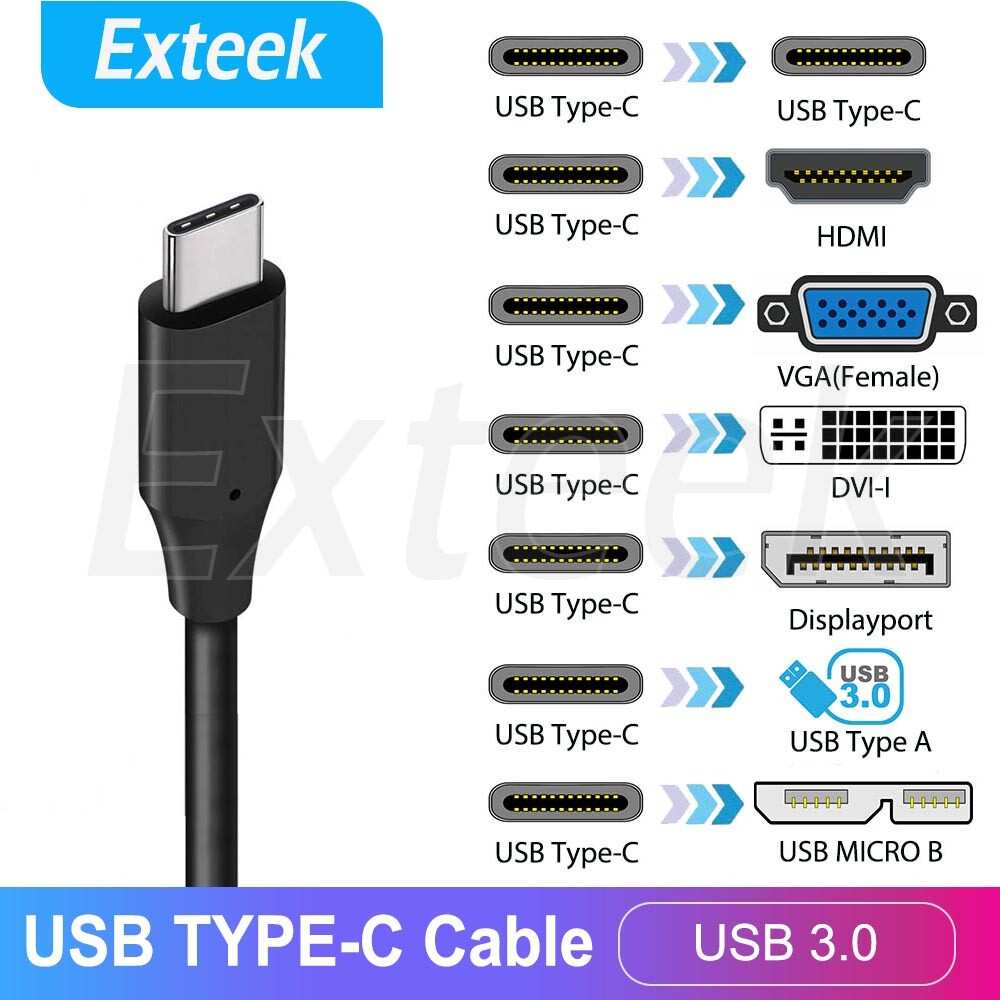
Bandwidth and Refresh Rate
Resolution and refresh rate are the specs people care about most. Here's how the three connection types stack up for streaming use cases.
| Connection | Max Bandwidth | 4K 60Hz | 4K 120Hz | 1080p 144Hz | HDR Support |
|---|---|---|---|---|---|
| USB-C (DP 1.4 Alt Mode) | 32.4 Gbps (HBR3) | Yes | No (DSC required) | Yes | Yes |
| HDMI 2.0 | 18 Gbps | Yes | No | Yes | Yes (limited) |
| HDMI 2.1 | 48 Gbps | Yes | Yes | Yes | Yes |
| DisplayPort 1.4 | 32.4 Gbps (HBR3) | Yes | Yes (with DSC) | Yes | Yes |
| DisplayPort 2.0 / 2.1 | 80 Gbps (UHBR20) | Yes | Yes | Yes | Yes |
| Thunderbolt 4 | 40 Gbps (tunneled DP) | Yes | No (without DSC) | Yes | Yes |
For most streaming scenarios, 4K at 60Hz is the ceiling. USB-C with DP 1.4 handles that comfortably. If you need 4K 120Hz for high-refresh gaming streams, you'll want HDMI 2.1 or DisplayPort 1.4 with Display Stream Compression.
Cable and Adapter Complexity
USB-C wins on simplicity. One cable from laptop to monitor carries video, audio, and power. No adapters.
No dongles. No "wait, which end goes where" moments.
HDMI and DisplayPort require dedicated cables. If your laptop only has USB-C outputs, you need an adapter or a USB-C to HDMI/DP cable. That's one more thing to carry, one more thing to lose, and one more potential failure point.
For portable streaming setups, USB-C's single-cable advantage is significant. Traveling with a 15.6-inch portable USB-C monitor and one cable beats carrying a separate power brick, an HDMI cable, and a USB hub.
Latency
Input lag matters for gaming streams. Aggregate testing data indicates that USB-C monitors with DP Alt Mode add negligible latency compared to direct HDMI or DisplayPort connections. The signal path is essentially the same once it's in DisplayPort format.
Where latency creeps in is through monitor processing. Some USB-C monitors, especially budget portable models, have slower scaler chips and more aggressive image processing. This adds 5 to 15 milliseconds of processing lag.
That's noticeable in fast-paced games but irrelevant for media streaming or casual content creation.
Check reviews for specific input lag measurements on any USB-C monitor you're considering. The connection type matters less than the monitor's internal processing.
Side-by-Spec Comparison Table
| Factor | USB-C (DP Alt Mode) | HDMI 2.1 | DisplayPort 1.4 |
|---|---|---|---|
| Cable simplicity | Excellent (1 cable for video + power) | Good (video + audio only) | Good (video + audio only) |
| Max resolution / refresh | 4K 60Hz (native), 4K 120Hz (DSC) | 4K 120Hz | 4K 120Hz (DSC) |
| Power delivery to laptop | Up to 100W (USB PD) | No | No |
| Adapter needed for USB-C laptops | No | Yes (dongle or adapter) | Yes (dongle or adapter) |
| Portable monitor availability | Widely available | Limited | Very limited |
| Typical cable cost | $10–$30 | $8–$20 | $10–$25 |
| Best for travel | Yes | No | No |
| Best for desktop gaming | Acceptable | Yes | Yes |
| Best for media streaming | Yes | Yes | Yes |
Best USB-C Monitors For Different Streaming Setups
Not every streaming setup looks the same. Here's how USB-C monitors fit into different scenarios.
Portable USB-C Monitors (Travel and Secondary Display)
Portable USB-C monitors in the 14 to 16-inch range are popular with traveling professionals and streamers who need a second screen on the go. Models from ASUS, Lenovo, ARZOPA, and LG typically run 1080p or 1440p at 60Hz. They're powered directly from your laptop's USB-C port or a small power adapter.
These work well for chat monitoring, OBS preview windows, or extending your desktop while streaming from a laptop. They're not ideal as primary gaming displays due to their 60Hz limitation and modest brightness.
Desktop USB-C Monitors (Primary Display and Clean Setup)
Desktop USB-C monitors like the Dell U2723QE or LG 27UK850 offer 4K resolution, 60Hz refresh, and USB-C with 60W to 90W power delivery. They're designed for office and creative work but handle media streaming perfectly.
The advantage here is cable management. One USB-C cable from monitor to laptop replaces what used to require a power cable, a display cable, and a USB upstream cable. For streamers who value a clean desk aesthetic on camera, this matters.
High-Refresh USB-C Monitors (Gaming-Focused Streaming)
High-refresh USB-C monitors are less common but exist. Some models support 120Hz or 144Hz over USB-C with DP Alt Mode, though they often require Display Stream Compression to hit those numbers at higher resolutions.
If competitive gaming is your main streaming focus, a dedicated DisplayPort or HDMI 2.1 connection to a high-refresh monitor is still the safer bet. USB-C gaming monitors work, but the options are narrower and the price premium is real.
When a USB-C Monitor Is a Great Choice for Streaming
USB-C monitors shine in specific situations. Here's where they make the most sense.
You're streaming from a laptop with USB-C video output. MacBooks, most Chromebooks, and modern ultrabooks have USB-C ports with DP Alt Mode. A USB-C monitor connects directly with no adapters. This is the ideal use case.
You want a single-cable desk setup. One cable handles video, audio, and charging. Your laptop docks and undocks instantly. For streamers who show their setup on camera, the clean look is a genuine advantage.
You need a portable second screen for travel. USB-C portable monitors are lightweight, slim, and powered by the laptop itself. Perfect for streamers working from hotels, co-working spaces, or events.
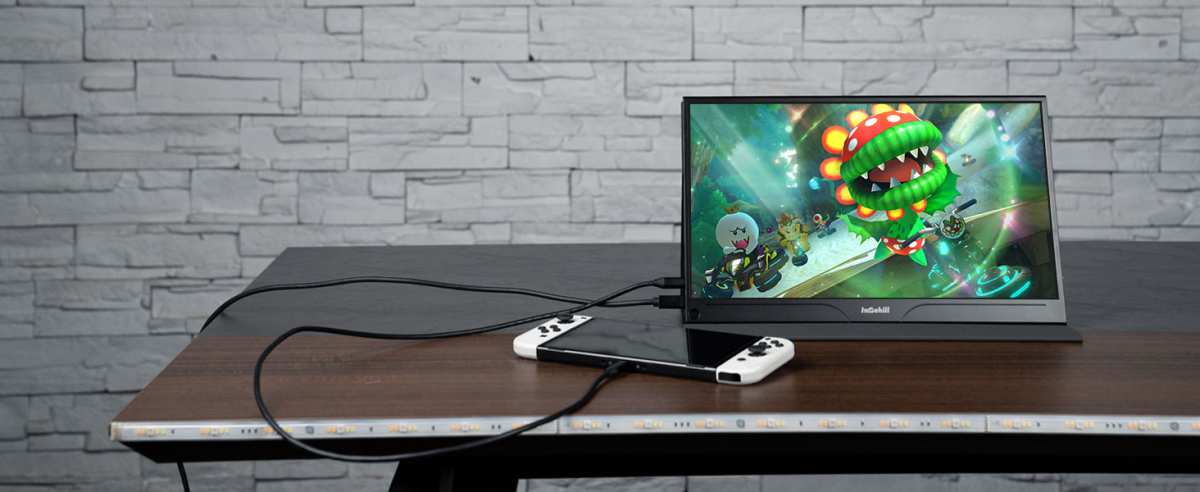
You're streaming from a Nintendo Switch. The Switch outputs video over USB-C natively. A portable USB-C monitor works directly in handheld mode with a simple USB-C connection, no dock required. This is a popular setup for portable Switch streaming.
You're doing media streaming and content consumption. Watching Netflix, YouTube, or other streaming platforms on a USB-C monitor works flawlessly. The 60Hz refresh limit is irrelevant for video playback.
When You Should Skip USB-C and Use HDMI or DisplayPort Instead
USB-C isn't always the right call. Here's where traditional connections win.
You need 4K 120Hz or higher for competitive gaming. HDMI 2.1 and DisplayPort 1.4 with DSC handle high refresh rates more reliably. USB-C monitors at high refresh are rare and expensive.
Your device doesn't support DP Alt Mode. If your laptop's USB-C port is data-only, no USB-C monitor will work. You'll need HDMI or DisplayPort with an adapter.
You're on a tight budget. Basic HDMI monitors are cheaper than USB-C equivalents. If you don't need the single-cable convenience or power delivery, you'll save money going traditional.
You're connecting a desktop PC. Most desktop GPUs output HDMI and DisplayPort natively. Adding USB-C requires a GPU with USB-C output (like some RTX 20-series cards) or an adapter. It's simpler to just use the dedicated display outputs.
You need the lowest possible input lag for competitive play. While DP Alt Mode adds negligible latency, some USB-C monitors have slower internal processing. A dedicated gaming monitor over DisplayPort typically has better response times.
The Cable Problem Nobody Warns You About
Here's something that trips up almost everyone. Not all USB-C cables support video.
USB-C cables come in several configurations. A cable rated for USB 2.0 only has four wires inside. It handles charging and slow data but cannot carry a DisplayPort signal.
You need a cable rated for USB 3.2 or Thunderbolt to get video over USB-C.
Many USB-C monitors ship with a basic charging-only cable to cut costs. You plug it in, nothing happens, and you assume the monitor is defective. In reality, the cable just doesn't have the right wiring.
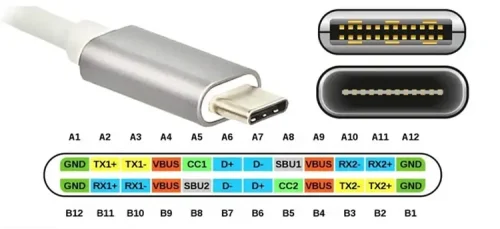
Look for cables explicitly labeled "DisplayPort Alt Mode," "Thunderbolt 3/4," or "USB 3.2 Gen 2." Cables certified by USB-IF are your safest bet. Avoid no-name cables from unknown brands, especially those claiming full functionality at suspiciously low prices.
There's also a safety concern. Non-compliant USB-C cables have been documented to damage devices. The USB-IF has published warnings about cables that lack proper resistor configurations.
In rare cases, these cables can fry your laptop's USB-C port or your monitor's input. Stick with certified cables from reputable manufacturers.
Cable length matters too. Passive USB-C cables longer than 2 meters can degrade signal quality, especially at higher data rates. For runs over 2 meters, active cables with signal conditioning chips are recommended.
This applies to both data and video transmission.
Common Mistakes People Make With USB-C Monitors for Streaming
These are the errors we see most often. Avoiding them will save you time and frustration.
Assuming every USB-C port supports video. Always check your device's specifications. A USB-C port on a budget laptop might be data and charging only. No amount of cable swapping will fix that.
Using the wrong cable. A USB 2.0 USB-C cable won't carry video. Use a cable rated for USB 3.2, Thunderbolt, or explicitly labeled for DisplayPort Alt Mode.
Ignoring power delivery wattage. Some USB-C monitors offer 45W charging. That's enough for most ultrabooks but insufficient for power-hungry laptops that ship with 90W or 130W adapters. Your laptop may drain slowly while streaming even when "charging."
Expecting 4K 120Hz from a basic USB-C connection. DP 1.4 without Display Stream Compression tops out at 4K 60Hz for most implementations. If you need higher refresh rates, confirm your monitor and cable support DSC or use Thunderbolt/USB4.
Forgetting about audio routing. Some USB-C monitors don't have built-in speakers. Others have speakers but don't route audio over USB-C by default. You may need to manually select the monitor as your audio output device in your operating system's settings.
Buying a USB-C monitor for a desktop GPU without checking outputs. Most graphics cards don't have USB-C video output. If yours doesn't, you'll need a USB-C to DisplayPort adapter or a different connection method entirely.
Overlooking monitor firmware updates. USB-C compatibility issues sometimes stem from firmware bugs. Check the manufacturer's website for updates, especially if you're experiencing intermittent signal drops or resolution problems.
Quick Decision Guide: Should You Use a USB-C Monitor for Streaming?
Use this guide to figure out if a USB-C monitor is right for your streaming setup.
Yes, go for it if:
- Your laptop has a USB-C port with DP Alt Mode or Thunderbolt support
- You want a single-cable setup for simplicity and clean aesthetics
- You need a portable second monitor for travel
- You're streaming from a Nintendo Switch in handheld mode
- You're primarily doing media streaming, chat monitoring, or content creation
No, stick with HDMI or DisplayPort if:
- Your device's USB-C port doesn't support video output
- You need 4K 120Hz or higher for competitive gaming
- You're connecting to a desktop GPU without USB-C output
- You're on a tight budget and don't need power delivery
- You want the widest selection of high-refresh gaming monitors
Maybe, with caveats if:
- Your USB-C port supports video but only at limited bandwidth
- You need to use an adapter, which adds complexity
- The USB-C monitor you want has higher input lag than comparable HDMI/DP options
Frequently Asked Questions
Can I Stream Games From My Nintendo Switch to a USB-C Monitor?
Yes. The Nintendo Switch outputs video natively over USB-C. A portable USB-C monitor connects directly with a compatible USB-C cable.
You don't need the official dock. This is a popular portable streaming setup for Switch gamers.
Will a USB-C Monitor Charge My Laptop While I Stream?
If the monitor supports USB Power Delivery, yes. Most USB-C monitors with PD offer 45W to 100W of charging power. Check the monitor's PD wattage rating.
If it's lower than your laptop's included charger, your laptop may charge slowly or maintain its battery level rather than charging during heavy use.
Does USB-C Add Latency Compared to HDMI or DisplayPort?
No meaningful latency difference exists when comparing DP Alt Mode over USB-C to native DisplayPort. The signal format is identical. Any latency differences come from the monitor's internal processing, not the connection type.
Check specific monitor reviews for input lag measurements.
Can I Run 4K 60Hz Over USB-C?
Yes, with DP 1.4 Alt Mode. This is the standard for most USB-C monitors and laptops with video output. 4K 60Hz works reliably over a quality USB-C cable rated for USB 3.2 or Thunderbolt. No compression or special settings needed.
Does Every USB-C Port on a Laptop Support Monitor Output?
No. This is the most common misconception. Many laptops have USB-C ports that handle only data and charging.
Video output requires explicit DP Alt Mode support. Check your laptop's technical specifications or user manual. Look for terms like "DisplayPort over USB-C," "video out," or "DP Alt Mode" next to the USB-C port description.
Bottom Line: USB-C Monitors Are Good for Streaming — If You Match the Right One to Your Setup
USB-C monitors work well for streaming when your hardware supports video over USB-C. The single-cable convenience, power delivery, and clean setup are real benefits. But the connector alone doesn't guarantee compatibility.
Verify your device's USB-C capabilities before buying. Use a proper cable rated for video. Match the monitor's specs to your streaming needs.
Do those three things, and a USB-C monitor will serve you well. Skip them, and you'll be returning a monitor that never had a chance to work in the first place.
Best USB-C Monitors For Different Streaming Setups
Not every streaming setup looks the same. Here's how USB-C monitors fit into different scenarios.
Portable USB-C Monitors (Travel and Secondary Display)
Portable USB-C monitors in the 14 to 16-inch range are popular with traveling professionals and streamers who need a second screen on the go. Models from ASUS, Lenovo, ARZOPA, and LG typically run 1080p or 1440p at 60Hz. They're powered directly from your laptop's USB-C port or a small power adapter.
These work well for chat monitoring, OBS preview windows, or extending your desktop while streaming from a laptop. They're not ideal as primary gaming displays due to their 60Hz limitation and modest brightness.
Desktop USB-C Monitors (Primary Display and Clean Setup)
Desktop USB-C monitors like the Dell U2723QE or LG 27UK850 offer 4K resolution, 60Hz refresh, and USB-C with 60W to 90W power delivery. They're designed for office and creative work but handle media streaming perfectly.
The advantage here is cable management. One USB-C cable from monitor to laptop replaces what used to require a power cable, a display cable, and a USB upstream cable. For streamers who value a clean desk aesthetic on camera, this matters.
High-Refresh USB-C Monitors (Gaming-Focused Streaming)
High-refresh USB-C monitors are less common but exist. Some models support 120Hz or 144Hz over USB-C with DP Alt Mode, though they often require Display Stream Compression to hit those numbers at higher resolutions.
If competitive gaming is your main streaming focus, a dedicated DisplayPort or HDMI 2.1 connection to a high-refresh monitor is still the safer bet. USB-C gaming monitors work, but the options are narrower and the price premium is real.
When a USB-C Monitor Is a Great Choice for Streaming
USB-C monitors shine in specific situations. Here's where they make the most sense.
You're streaming from a laptop with USB-C video output. MacBooks, most Chromebooks, and modern ultrabooks have USB-C ports with DP Alt Mode. A USB-C monitor connects directly with no adapters. This is the ideal use case.
You want a single-cable desk setup. One cable handles video, audio, and charging. Your laptop docks and undocks instantly. For streamers who show their setup on camera, the clean look is a genuine advantage.
You need a portable second screen for travel. USB-C portable monitors are lightweight, slim, and powered by the laptop itself. Perfect for streamers working from hotels, co-working spaces, or events.
You're streaming from a Nintendo Switch. The Switch outputs video over USB-C natively. A portable USB-C monitor works directly in handheld mode with a simple USB-C connection, no dock required. This is a popular setup for portable Switch streaming.
You're doing media streaming and content consumption. Watching Netflix, YouTube, or other streaming platforms on a USB-C monitor works flawlessly. The 60Hz refresh limit is irrelevant for video playback.
When You Should Skip USB-C and Use HDMI or DisplayPort Instead
USB-C isn't always the right call. Here's where traditional connections win.
You need 4K 120Hz or higher for competitive gaming. HDMI 2.1 and DisplayPort 1.4 with DSC handle high refresh rates more reliably. USB-C monitors at high refresh are rare and expensive.
Your device doesn't support DP Alt Mode. If your laptop's USB-C port is data-only, no USB-C monitor will work. You'll need HDMI or DisplayPort with an adapter.
You're on a tight budget. Basic HDMI monitors are cheaper than USB-C equivalents. If you don't need the single-cable convenience or power delivery, you'll save money going traditional.
You're connecting a desktop PC. Most desktop GPUs output HDMI and DisplayPort natively. Adding USB-C requires a GPU with USB-C output or an adapter. It's simpler to just use the dedicated display outputs.
You need the lowest possible input lag for competitive play. While DP Alt Mode adds negligible latency, some USB-C monitors have slower internal processing. A dedicated gaming monitor over DisplayPort typically has better response times.
The Cable Problem Nobody Warns You About
Here's something that trips up almost everyone. Not all USB-C cables support video.
USB-C cables come in several configurations. A cable rated for USB 2.0 only has four wires inside. It handles charging and slow data but cannot carry a DisplayPort signal.
You need a cable rated for USB 3.2 or Thunderbolt to get video over USB-C.
Many USB-C monitors ship with a basic charging-only cable to cut costs. You plug it in, nothing happens, and you assume the monitor is defective. In reality, the cable just doesn't have the right wiring.
Look for cables explicitly labeled "DisplayPort Alt Mode," "Thunderbolt 3/4," or "USB 3.2 Gen 2." Cables certified by USB-IF are your safest bet. Avoid no-name cables from unknown brands, especially those claiming full functionality at suspiciously low prices.
There's also a safety concern. Non-compliant USB-C cables have been documented to damage devices. The USB-IF has published warnings about cables that lack proper resistor configurations.
In rare cases, these cables can fry your laptop's USB-C port or your monitor's input. Stick with certified cables from reputable manufacturers.
Cable length matters too. Passive USB-C cables longer than 2 meters can degrade signal quality, especially at higher data rates. For runs over 2 meters, active cables with signal conditioning chips are recommended.
Common Mistakes People Make With USB-C Monitors for Streaming
These are the errors we see most often. Avoiding them will save you time and frustration.
Assuming every USB-C port supports video. Always check your device's specifications. A USB-C port on a budget laptop might be data and charging only. No amount of cable swapping will fix that.
Using the wrong cable. A USB 2.0 USB-C cable won't carry video. Use a cable rated for USB 3.2, Thunderbolt, or explicitly labeled for DisplayPort Alt Mode.
Ignoring power delivery wattage. Some USB-C monitors offer 45W charging. That's enough for most ultrabooks but insufficient for power-hungry laptops that ship with 90W or 130W adapters. Your laptop may drain slowly while streaming even when "charging."
Expecting 4K 120Hz from a basic USB-C connection. DP 1.4 without Display Stream Compression tops out at 4K 60Hz for most implementations. If you need higher refresh rates, confirm your monitor and cable support DSC or use Thunderbolt/USB4.
Forgetting about audio routing. Some USB-C monitors don't have built-in speakers. Others have speakers but don't route audio over USB-C by default. You may need to manually select the monitor as your audio output device in your operating system's settings.
Buying a USB-C monitor for a desktop GPU without checking outputs. Most graphics cards don't have USB-C video output. If yours doesn't, you'll need a USB-C to DisplayPort adapter or a different connection method entirely.
Overlooking monitor firmware updates. USB-C compatibility issues sometimes stem from firmware bugs. Check the manufacturer's website for updates, especially if you're experiencing intermittent signal drops or resolution problems.
Quick Decision Guide: Should You Use a USB-C Monitor for Streaming?
Use this guide to figure out if a USB-C monitor is right for your streaming setup.
Yes, go for it if:
- Your laptop has a USB-C port with DP Alt Mode or Thunderbolt support
- You want a single-cable setup for simplicity and clean aesthetics
- You need a portable second monitor for travel
- You're streaming from a Nintendo Switch in handheld mode
- You're primarily doing media streaming, chat monitoring, or content creation
No, stick with HDMI or DisplayPort if:
- Your device's USB-C port doesn't support video output
- You need 4K 120Hz or higher for competitive gaming
- You're connecting to a desktop GPU without USB-C output
- You're on a tight budget and don't need power delivery
- You want the widest selection of high-refresh gaming monitors
Maybe, with caveats if:
- Your USB-C port supports video but only at limited bandwidth
- You need to use an adapter, which adds complexity
- The USB-C monitor you want has higher input lag than comparable HDMI/DP options
Frequently Asked Questions
Can I Stream Games From My Nintendo Switch to a USB-C Monitor?
Yes. The Nintendo Switch outputs video natively over USB-C. A portable USB-C monitor connects directly with a compatible USB-C cable.
You don't need the official dock.
Will a USB-C Monitor Charge My Laptop While I Stream?
If the monitor supports USB Power Delivery, yes. Most USB-C monitors with PD offer 45W to 100W of charging power. Check the monitor's PD wattage rating against your laptop's power adapter.
Does USB-C Add Latency Compared to HDMI or DisplayPort?
No meaningful latency difference exists. DP Alt Mode over USB-C uses the same signal format as native DisplayPort. Any latency differences come from the monitor's internal processing, not the connection type.
Can I Run 4K 60Hz Over USB-C?
Yes, with DP 1.4 Alt Mode. This is standard for most USB-C monitors and laptops with video output. You need a quality USB-C cable rated for USB 3.2 or higher.
Does Every USB-C Port on a Laptop Support Monitor Output?
No. Many laptops have USB-C ports for data and charging only. Video output requires explicit DP Alt Mode support.
Check your laptop's specs for "DisplayPort over USB-C" or similar terminology.
Bottom Line
USB-C monitors are good for streaming when your hardware supports video over USB-C. The single-cable convenience and power delivery are real benefits. Verify your device's DP Alt Mode support first.
Use a proper rated cable. Match the monitor to your streaming needs.

Similar Posts





















