Are Touchscreen Monitors Good for Streaming
Are touchscreen monitors good for streaming? The honest answer is "sometimes, but not for the reasons most people think." Touchscreen monitors let you tap, swipe, and interact directly with your screen instead of reaching for a mouse or keyboard. That sounds great on paper, but streaming has specific demands that make touchscreens a mixed bag.
Our research into streaming setups and display technology shows that touchscreen monitors work well for certain streamers and create real headaches for others. The key is understanding what you'll actually touch during a live broadcast and whether that interaction justifies the tradeoffs. Let's break down exactly where these displays shine and where they fall apart for streaming.
Quick Answer
Touchscreen monitors are good for specific streaming tasks like interactive overlays, art streams, and quick scene taps. They are not ideal as your primary streaming control method. Most streamers get better results from a Stream Deck or tablet app.
Touch latency and screen glare are real drawbacks during live broadcasts. Choose a touchscreen only if your content genuinely benefits from direct screen interaction.
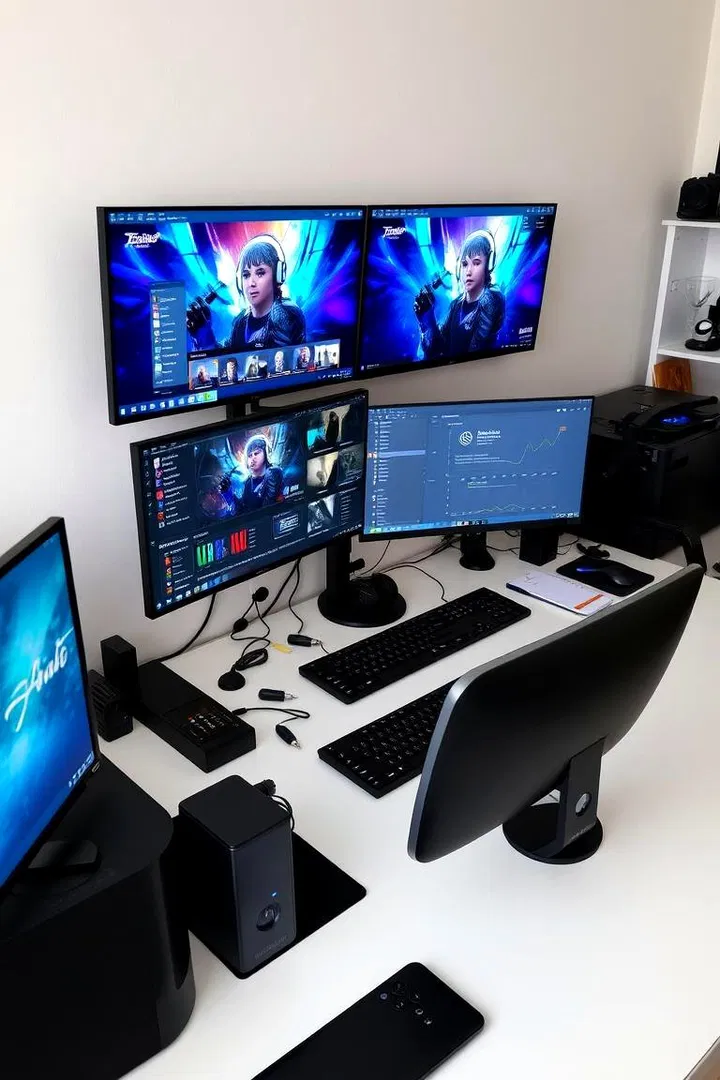
What Touchscreen Monitors Do Well for Streamers
Touchscreen monitors bring a few genuine advantages to a streaming setup. The benefits are real, but they're narrower than most product marketing suggests.
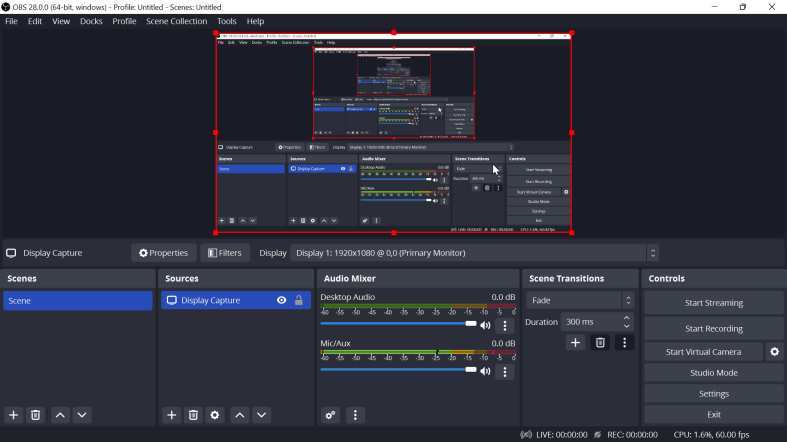
Direct interaction with on-screen elements. When you can tap a scene thumbnail in OBS Studio instead of fumbling for a hotkey, the transition feels immediate. This matters most for solo streamers who manage everything themselves without a producer calling shots.
Intuitive overlay control. Interactive overlays, polls, and alerts become tactile. You can tap a donation alert to dismiss it, swipe to reveal a new scene, or draw directly on screen during creative streams. That physical connection to your content can make a stream feel more engaging.
Quick access to stream controls. Chat moderation, sound effect triggers, and scene switching all become one-tap actions. For streamers running "Just Chatting" content or casual formats, this reduces the cognitive load of managing multiple peripherals.
Engaging viewer interaction possibilities. Some streamers build touch-controlled games or interactive segments where viewers direct on-screen actions. A touchscreen makes those segments feel responsive and natural rather than clunky.
Reduced peripheral clutter. One touchscreen can replace a small control surface, a drawing tablet, and a secondary display for some workflows. That's fewer devices on your desk and fewer cables to manage.
The streamers who benefit most from these advantages tend to be creative creators, educators, and interactive content producers. If your format involves drawing, annotating, or direct on-screen manipulation, a touchscreen monitor earns its place in your setup.
Where Touchscreen Monitors Fall Short for Streaming
Now for the part most reviews skip. Touchscreen monitors have real drawbacks that become obvious the moment you go live.
Screen glare under studio lighting. This is the big one. Ring lights, softboxes, and key lights create reflections on glossy touchscreen surfaces. That glare doesn't just look bad on camera.
It makes the screen harder for you to read during a broadcast. Matte touchscreens exist but often sacrifice color accuracy in the process.
Fingerprints and smudges everywhere. Every tap leaves a mark. During a long streaming session, your screen accumulates fingerprints that show up on camera if the monitor is in frame. You'll spend more time cleaning the display than you'd expect.
Accidental touches during live streams. Brushing the screen with your sleeve, resting your hand too close, or reaching past the display can trigger unwanted actions. Palm rejection helps but isn't perfect, especially with cheaper touch controllers.
Touch latency causes delayed responses. Most touchscreen monitors add 5 to 20 milliseconds of latency compared to a physical button press. That doesn't sound like much, but during fast-paced streams or interactive segments, the delay feels noticeable. Your tap registers a beat late, and that breaks the flow.
Arm fatigue from reaching toward screen. Holding your arm up to touch a vertical or near-vertical display for hours causes real strain. This is called "gorilla arm" in interface design, and it's a documented problem with touchscreen setups used for extended periods.
Driver compatibility issues with macOS. If you're streaming from a Mac, touchscreen support is limited. Many touchscreen monitors either don't work with macOS or require third-party drivers that introduce their own bugs. Windows and Linux generally handle touch input better, but Mac streamers face a real headache.
Higher cost compared to non-touch equivalents. A quality touchscreen monitor typically costs $50 to $150 more than a comparable non-touch model with the same panel specs. That's money you could put toward a dedicated control surface that does the job better.
Limited touch support in streaming software. OBS Studio and Streamlabs don't have deep native touch integration. You can tap buttons, but advanced touch gestures, custom touch zones, and multi-touch actions require third-party plugins or workarounds. The software ecosystem hasn't caught up to the hardware.
These drawbacks don't make touchscreen monitors unusable for streaming. They just mean you should go in with realistic expectations. A touchscreen is a convenience tool for specific tasks, not a replacement for a well-planned control setup.
Touchscreen Monitor vs Stream Deck vs Tablet: Which Control Setup Wins
This is the comparison that actually matters. Most streamers weighing a touchscreen monitor are really asking whether it's better than the alternatives they already know about.
Here's how the three main control options stack up:
| Feature | Touchscreen Monitor | Elgato Stream Deck | Tablet with Control App |
|---|---|---|---|
| Upfront cost | $200 to $800+ | $80 to $350 | $0 to $400 (if you own one) |
| Setup complexity | Moderate (drivers, calibration) | Low (plug and play) | Moderate (app config, WiFi) |
| Tactile feedback | None (flat glass) | Physical buttons with LCD labels | Haptic vibration |
| Customization | Limited by software | Extensive (icons, folders, plugins) | High (custom layouts, widgets) |
| Portability | Low (desktop fixture) | High (pocket-sized) | High (standalone device) |
| Reliability during streams | Good (wired connection) | Excellent (wired, dedicated hardware) | Variable (WiFi dependent) |
| Learning curve | Low (intuitive touch) | Low (visual buttons) | Moderate (app-dependent) |
| Best for | Visual interaction, drawing | Quick scene/trigger control | Budget-friendly flexibility |
Touchscreen monitors win when your stream involves direct visual interaction. Art streams, educational content, and interactive overlays benefit from tapping exactly what you see. They lose for pure scene switching and trigger control because they lack tactile feedback and force you to look at the screen to confirm your tap.
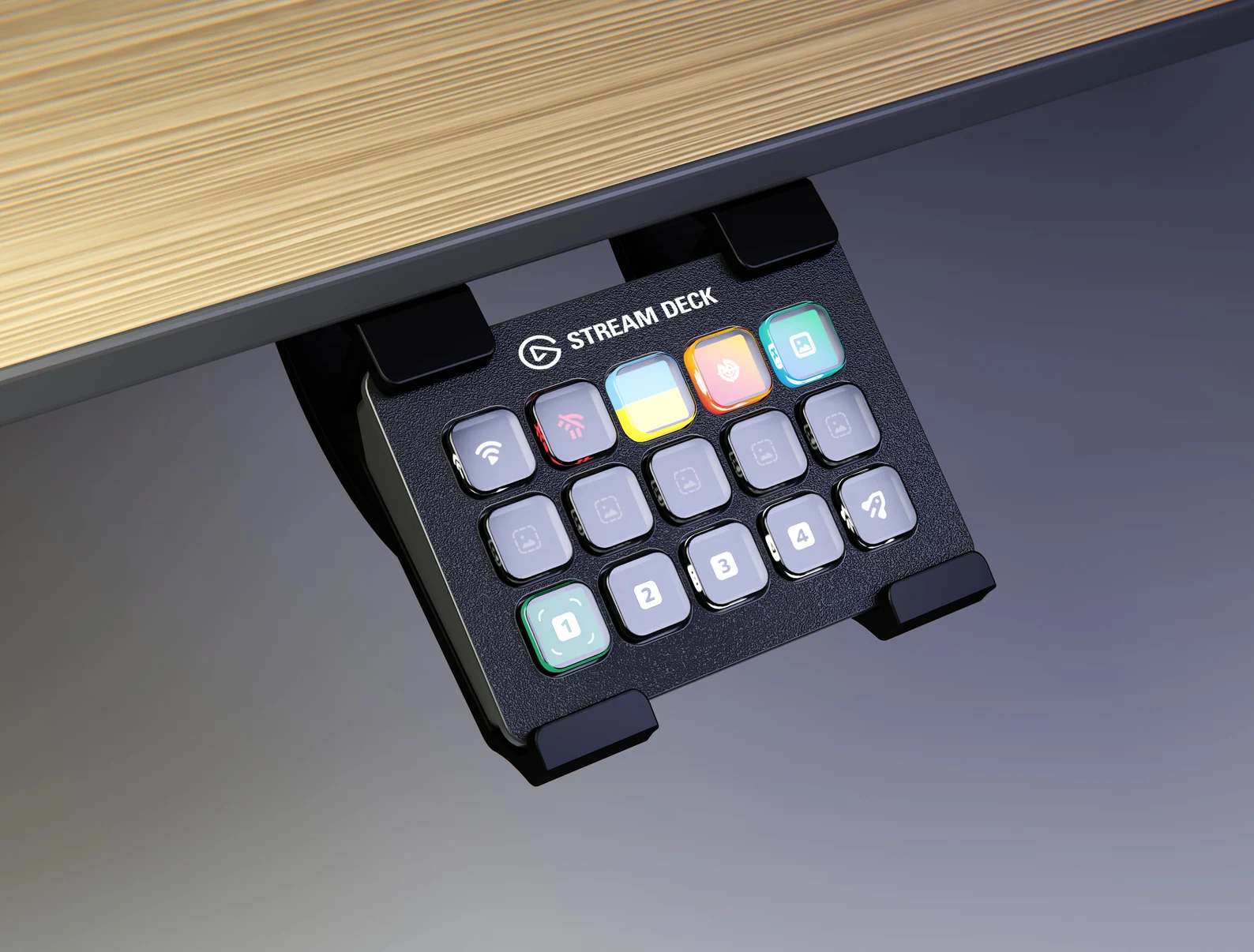
Stream Decks win for reliability and speed. Physical buttons with visual labels let you trigger scenes, sound effects, and actions without looking down. The muscle memory builds fast, and the dedicated hardware rarely fails mid-stream.
The Stream Deck ecosystem also integrates deeply with OBS, Streamlabs, and major streaming platforms.
Tablets with control apps like Touch Portal or LioranBoard win on flexibility and cost. If you already own an iPad or Android tablet, you can build a custom control surface for free or cheap. The downside is WiFi dependency and the occasional app crash during a broadcast.
Our research into streamer setups suggests that most successful streamers use a combination rather than relying on one tool. A touchscreen monitor for visual tasks paired with a Stream Deck for quick triggers covers more ground than either option alone.
Best Touchscreen Monitors for Streaming Right Now
If you've decided a touchscreen monitor fits your streaming workflow, here are the models that consistently perform well based on aggregate user reviews and manufacturer specifications.
Dell P2418HT (24-inch, 1080p, IPS). This is the workhorse option. It uses projected capacitive touch with 10-point multi-touch, has an IPS panel with decent color accuracy, and connects via USB-C for both video and touch data. The adjustable stand lets you tilt it flat for drawing or touch-heavy work.
Price typically runs $300 to $400 as of 2026.
ASUS ProArt PA148CTV (14-inch, 1080p, IPS). A portable option that works well as a secondary touch display. It's color-calibrated out of the box with 100% sRGB coverage, which matters if you're doing creative work on stream. The smaller size makes it easy to position within arm's reach without dominating your desk.
ViewSonic TD2455 (24-inch, 1080p, IPS). Another solid mid-range pick with 10-point touch and a fully adjustable stand. Users report good touch accuracy and minimal parallax error. The anti-glare coating helps with studio lighting, though it's not perfect.
Acer T272HL (27-inch, 1080p, IPS). If you want a larger touchscreen, this 27-inch model gives you more screen real estate for overlays and interactive elements. The bigger display also means less precision required for tapping small UI elements. The tradeoff is that 1080p at 27 inches looks slightly soft compared to smaller screens at the same resolution.
Wacom Cintiq 16 (15.6-inch, 1080p, IPS, pen-enabled). This one's specifically for creative streamers who draw or annotate on screen. It supports both touch and stylus input with pressure sensitivity. The pen accuracy is excellent, but the price runs higher at $650 to $700.
It's overkill if you're not doing visual art on stream.
When choosing a touchscreen for streaming, prioritize these specs: IPS panel for viewing angles and color, 10-point multi-touch minimum, USB-C connectivity for single-cable setup, and an adjustable stand that lets you position the screen comfortably. Avoid TN panels since the color shift and narrow viewing angles work against you on camera.
Who Should Actually Use a Touchscreen Monitor for Streaming
A touchscreen monitor makes sense for specific types of streamers. If your content falls into one of these categories, the investment is probably worth it.
Art and creative streamers. If you draw, paint, or design on screen, a touchscreen with pen support replaces a separate drawing tablet. You see your strokes directly on the display instead of looking at a separate screen while your hand moves on a pad. That direct visual feedback speeds up your workflow and makes the process more engaging for viewers.
Educational and tutorial streamers. Teachers, software trainers, and how-to creators benefit from tapping and annotating directly on screen. Pointing at a diagram, circling a menu option, or sketching a quick illustration feels natural with touch. Viewers follow along more easily when you interact with content directly.
Interactive game streamers. Some streamers run games where viewers control gameplay through chat commands or touch-triggered actions. A touchscreen makes those interactions feel immediate. You tap a button on screen, the game responds, and the audience sees the cause and effect in real time.
Church and worship streamers. Presenters who advance slides, highlight lyrics, or switch between camera angles during live services often prefer touch controls. The simplicity of tapping a screen beats navigating a mouse during a live presentation.
Cooking and craft streamers. When your hands are busy or messy, a quick tap on a nearby touchscreen can trigger a scene change or display a recipe step. It's not essential, but it adds convenience in hands-full environments.
If your streaming format matches one of these scenarios, a touchscreen monitor likely earns its place in your setup. The key is that your content genuinely benefits from direct screen interaction, not just the novelty of touching your display.
Who Should Skip the Touchscreen and Stick With Traditional Controls
Some streamers should avoid touchscreen monitors entirely. If you fall into these categories, your money and desk space are better spent elsewhere.
Competitive gaming streamers. Fast-paced games demand split-second scene switches and trigger presses. Touchscreens add latency and lack the tactile feedback you need for reliable inputs mid-match. A Stream Deck or hotkey keyboard will serve you far better.
Streamers on a tight budget. A quality touchscreen monitor costs $200 to $800. For that money, you could buy a Stream Deck, a better microphone, and still have cash left over. Unless touch interaction is central to your content, the return on investment just isn't there.
Mac-based streamers. macOS has limited native touchscreen support. Many touchscreen monitors either don't work with Mac or require unreliable third-party drivers. If you're streaming from a Mac, you'll likely spend more time troubleshooting than actually streaming.
Streamers with limited desk space. Touchscreen monitors need to be positioned within comfortable arm's reach. That means a dedicated spot on your desk, often at an angle that works for both touch and viewing. If your setup is already cramped, adding a touchscreen creates more problems than it solves.
Streamers who already use a Stream Deck or tablet setup. If your current control workflow works, a touchscreen monitor adds redundancy rather than capability. You're paying for a feature that duplicates what you already have.
The bottom line is simple. If your stream doesn't involve direct on-screen interaction as a core element, a touchscreen monitor is a luxury you don't need.
Common Mistakes Streamers Make With Touchscreen Monitors
Even streamers who benefit from touchscreens often set them up wrong. These are the mistakes we see most often in streaming setups.
Positioning the monitor too far away or at the wrong angle. A touchscreen needs to be within easy reach, typically 12 to 18 inches from your seating position. If it's mounted behind your main display or off to the side at a bad angle, you'll strain to reach it and avoid using it altogether. Tilt the screen toward you or use a fully adjustable arm mount.
Ignoring touch calibration. Out of the box, many touchscreens have slight calibration offsets where your tap registers a few millimeters from your actual finger position. Run the built-in calibration tool before your first stream. Recalibrate every few months or after moving the monitor.
Using a glossy screen in a brightly lit studio. Glossy touchscreens look vibrant in a dim room but turn into mirrors under studio lighting. If you can't control your lighting setup, choose a matte or anti-glare touchscreen. The color vibrancy tradeoff is worth the reduced reflections.
Relying on touch for every stream control. Some streamers try to replace their entire control setup with a touchscreen. That leads to constant screen tapping, arm fatigue, and accidental inputs. Use touch for the tasks it handles well and keep physical buttons for everything else.
Forgetting about driver updates. Touchscreen drivers occasionally break after operating system updates. Check the manufacturer's website for updated drivers before major OS updates. Keep a backup of the last known working driver version.
Not testing touch latency before going live. Touch latency varies between models and can worsen with certain USB configurations. Test your setup before a broadcast. If taps feel sluggish, try a different USB port or cable, and check for driver updates.
Buying based on screen size alone. A larger touchscreen isn't automatically better. A 32-inch touchscreen sounds impressive, but reaching across that much screen space causes fatigue. A 24-inch display positioned correctly beats a 32-inch display that's awkward to touch.
Avoiding these mistakes saves you frustration and helps you get real value from a touchscreen monitor. The hardware is only half the equation. Setup and positioning matter just as much.
How to Set Up a Touchscreen Monitor for Streaming
Getting a touchscreen monitor working for streaming involves a few specific steps. Here's the process that works reliably based on aggregate user reports.
Step 1: Connect the monitor properly. Most touchscreen monitors need two connections, one for video and one for touch data. USB-C handles both in a single cable on newer models. If your monitor uses separate connections, plug the HDMI or DisplayPort cable into your graphics card and the USB cable into a USB 3.0 port on your motherboard.
Avoid USB hubs for the touch connection since they can introduce latency.
Step 2: Install the manufacturer's touch driver. Windows usually recognizes basic touch input automatically, but the manufacturer's driver enables full multi-touch support, gesture controls, and calibration tools. Download the latest driver from the manufacturer's website. Restart your computer after installation.
Step 3: Calibrate the touchscreen. Open the calibration tool in your touch driver software or in Windows Settings under "Tablet PC Settings." Follow the on-screen prompts to tap the calibration targets. This ensures your taps register where your fingers actually touch.
Step 4: Configure your display settings. Set the touchscreen as an extended display rather than a mirrored one. Position it in your display settings to match its physical location on your desk. This ensures your cursor moves naturally between screens.
Step 5: Set up touch zones in your streaming software. OBS Studio doesn't have built-in touch zone mapping, but you can arrange your scene list, source list, and controls along the edge of the screen closest to your touch position. Some streamers use third-party tools like Touch Portal running on a networked device to create custom touch layouts that control OBS remotely.
Step 6: Test everything before going live. Open your streaming software and practice tapping through your scenes, muting audio sources, and triggering transitions. Check for accidental palm touches and adjust your palm rejection settings if needed. Verify that touch latency feels acceptable for your workflow.
Step 7: Position your lighting to minimize glare. Angle your ring light or softboxes so they don't reflect directly off the touchscreen surface. A slight tilt of the monitor downward often helps reduce glare from overhead lights.
Once everything is set up, spend a few practice sessions using the touchscreen exclusively. Muscle memory takes time to build, and you want to feel confident with the setup before you rely on it during a live broadcast.
Real Scenarios: When a Touchscreen Monitor Makes Sense for Your Stream
Let's look at specific situations where a touchscreen monitor genuinely improves a streaming workflow.
Scenario 1: Digital art tutorials. A streamer teaches digital painting in Procreate or Photoshop. They use a pen-enabled touchscreen to draw directly on the display while explaining techniques. Viewers see the artwork develop in real time with natural hand movements.
A standard monitor would force the artist to look at a separate screen while drawing on a tablet, breaking the visual connection with the audience.
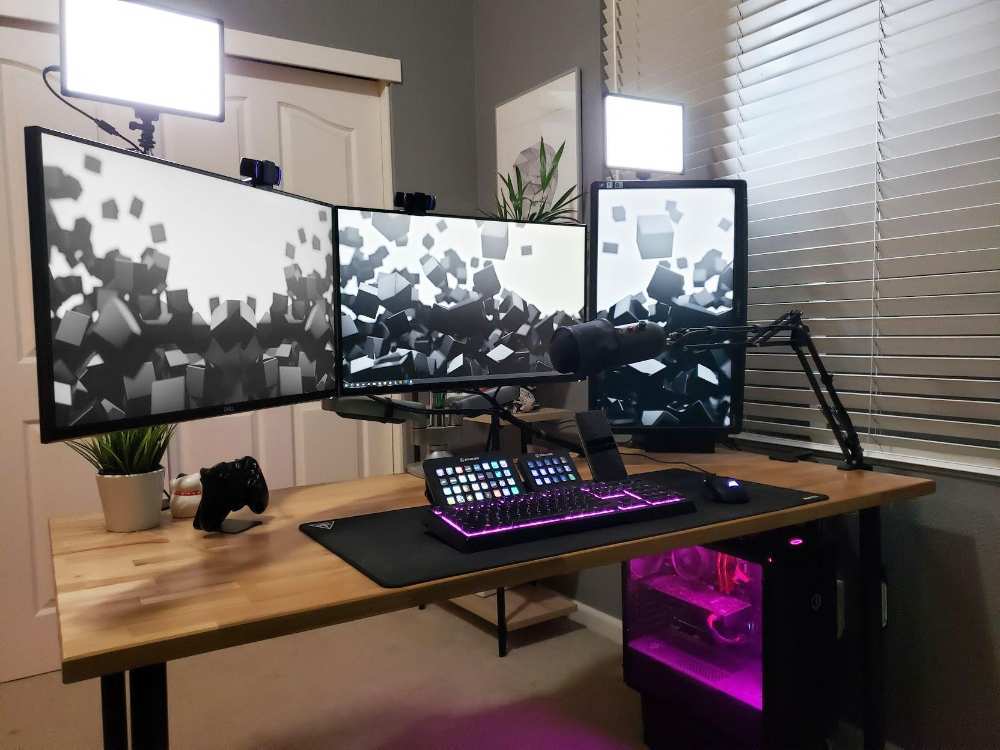
Scenario 2: Live coding streams. A software developer streams coding tutorials and uses a touchscreen to tap through documentation, switch between code files, and highlight sections of code. The touchscreen sits beside their main display within easy reach. They keep a Stream Deck for scene switching but use the touchscreen for content navigation.
Scenario 3: Interactive quiz streams. A streamer runs live trivia games where viewers vote on answers. The streamer uses a touchscreen to display the quiz interface, tap to reveal answers, and track scores on a custom overlay. The direct interaction makes the quiz feel dynamic and responsive.
Scenario 4: Church presentation streaming. A worship team streams their Sunday services. The presenter uses a touchscreen to advance song lyrics, switch between scripture slides, and trigger lower-third graphics. The simplicity of tapping a screen works better than training volunteers to use a mouse during live services.
Scenario 5: Cooking streams with recipe display. A cooking streamer mounts a touchscreen at eye level near their prep area. They tap to advance recipe steps, switch between camera angles, and display ingredient lists without touching a keyboard with messy hands. The touchscreen stays clean with occasional wiping.
In each of these scenarios, the touchscreen solves a specific problem that other control methods handle less elegantly. That's the pattern to look for. If your stream has a similar need for direct, visual interaction with on-screen content, a touchscreen monitor is a practical tool rather than a gimmick.
Costs and Specs to Know Before You Buy
Touchscreen monitors for streaming range from budget picks to professional-grade displays. Here's what you'll actually pay and what specs matter at each price point.
Budget range: $200 to $350. You'll find 21 to 24-inch 1080p IPS touchscreens in this range. Look for 10-point multi-touch, an adjustable stand, and USB-C connectivity. Brands like KYY and Eyoyo offer functional options, though color accuracy and build quality vary.
These work fine for casual streaming but may have higher touch latency.
Mid-range: $350 to $550. This is the sweet spot for most streamers. Dell, ASUS, and ViewSonic dominate this segment with reliable drivers, better panels, and stronger build quality. Expect 24 to 27-inch displays, 1080p or 1440p resolution, and 100% sRGB color coverage.
Touch latency typically drops to 8 to 12 milliseconds.
High-end: $550 to $900+. Professional pen-enabled displays like the Wacom Cintiq line or Dell Canvas fall here. These offer pressure-sensitive stylus support, factory color calibration, and premium build quality. They're overkill unless you do serious creative work on stream.
Key specs to prioritize:
- Panel type: IPS for color accuracy and viewing angles. Avoid TN panels.
- Touch points: 10-point minimum for multi-touch gestures.
- Connectivity: USB-C with power delivery simplifies cable management.
- Adjustable stand: Tilt, swivel, and height adjustment matter for ergonomic touch use.
- Color accuracy: 95% sRGB minimum, 99% or higher for creative work.
- Response time: 5ms or lower for gaming streams.
Skip 4K touchscreens unless you specifically need the resolution. At 24 to 27 inches, 1080p or 1440p looks sharp and demands less from your graphics card. 4K touchscreens also cost significantly more and can introduce touch latency due to the higher pixel count.
Expert Tips for Getting the Most Out of a Touchscreen Streaming Setup
These practical tips come from aggregate user feedback and streaming community best practices.
Use the touchscreen for secondary tasks, not primary controls. Keep your Stream Deck or hotkey keyboard for scene switching and critical triggers. Reserve the touchscreen for overlay interaction, chat moderation, and content navigation. This split reduces accidental inputs and arm fatigue.
Create a dedicated touch layout in OBS. Arrange your scene list, mixer, and source controls along one edge of the touchscreen. Keep buttons large enough to tap reliably. Small UI elements are frustrating to hit accurately during a live stream.
Enable palm rejection and adjust sensitivity. Most touch drivers let you tune palm rejection strength and touch sensitivity. Set palm rejection high if you rest your hand near the screen. Lower sensitivity slightly if you get accidental taps from brushes or sleeves near the display.
Clean the screen before every stream. Microfiber cloth, no chemicals. Fingerprints show up on camera and reduce touch accuracy. A clean screen looks better and responds better.
Mount the screen at a slight downward tilt. A 15 to 20 degree tilt reduces glare from overhead lights and makes touch more comfortable. Your arm stays in a more natural position compared to touching a vertical screen.
Keep a backup control method ready. Touchscreens can glitch, drivers can crash, and calibration can drift mid-stream. Always have a mouse, keyboard hotkey, or Stream Deck ready as a fallback. Don't let a touchscreen failure kill your broadcast.
Test with your actual streaming software before committing. Borrow a friend's touchscreen or buy from a retailer with a good return policy. Set it up with your exact OBS or Streamlabs configuration and run a test stream. Real-world performance sometimes differs from spec sheets.
Final Verdict: Should You Use a Touchscreen Monitor for Streaming?
A touchscreen monitor is a solid choice if your stream involves direct on-screen interaction like drawing, annotating, teaching, or running interactive content. It's a poor choice if you just want a fancier way to switch scenes.
The honest recommendation is this. If you're an art streamer, educator, or interactive content creator, a touchscreen monitor adds genuine value to your workflow. Budget $350 to $550 for a quality mid-range display and pair it with a Stream Deck for the tasks touch handles poorly.
If you're a gaming streamer, podcaster, or general content creator, skip the touchscreen. Put that money toward a better microphone, a Stream Deck, or lighting upgrades that improve your stream more directly.
Touchscreen monitors aren't a gimmick, but they're not a universal upgrade either. They solve specific problems for specific streamers. Know which category you fall into before you spend the money.
Frequently Asked Questions
Can I use a touchscreen monitor with OBS Studio?
Yes, OBS Studio works with touchscreen monitors. You can tap buttons, switch scenes, and control sources directly. OBS doesn't have advanced touch gesture support, so complex multi-touch actions require third-party plugins or companion apps.
Do touchscreen monitors work with Mac for streaming?
Most touchscreen monitors have limited macOS support. Some work with basic touch input through third-party drivers, but reliability varies. Windows remains the most compatible platform for touchscreen streaming setups.
How much touch latency should I expect from a touchscreen monitor?
Quality touchscreen monitors typically have 5 to 20 milliseconds of touch latency. Budget models tend toward the higher end. For comparison, a physical button press on a Stream Deck registers almost instantly.
Is a touchscreen monitor worth it for Twitch streaming?
It depends on your content. Art, education, and interactive streams benefit from touch. Gaming and talking-head streams don't gain enough to justify the cost.
Most Twitch streamers are better served by a Stream Deck or tablet control app.
Can I use a touchscreen monitor as my main streaming display?
You can, but it's not ideal. Touchscreens often have slightly lower color accuracy and higher response times than equivalent non-touch panels. Most streamers use a touchscreen as a secondary display and keep a high-quality non-touch panel as their main screen.
What size touchscreen monitor is best for streaming?
24 inches is the sweet spot for most streaming setups. It's large enough for comfortable touch interaction without requiring excessive arm movement. Smaller screens feel cramped, and larger screens cause fatigue during extended touch use.

Similar Posts





















