Do 4K Monitors Consume More Power
Do 4K monitors consume more power? That's the question that stops a lot of people before they pull the trigger on a higher-resolution display. The honest answer is more nuanced than a simple yes or no. Resolution plays a role, but it's far from the only factor that determines how much electricity your monitor pulls from the wall.
In our research across manufacturer spec sheets and independent testing data, we've found that panel technology, brightness settings, and refresh rate often matter more than pixel count alone. A modern 4K IPS panel running at moderate brightness can actually sip less power than an older 1080p TN panel cranked to full brightness. Let's break down what actually drives monitor power consumption so you can make a smart decision.
The Short Answer: Do 4K Monitors Use More Power?
Yes, 4K monitors generally consume more power than 1080p monitors of the same size and panel type. The difference is smaller than most people expect. Panel technology and brightness matter more than resolution alone.
Modern 4K displays are far more efficient than models from even five years ago.
What Actually Determines a Monitor's Power Draw
Here's where most people get tripped up. They assume resolution is the main driver of power consumption, but that's only part of the story. Several factors work together to determine how much electricity your monitor uses.
Panel type is the biggest variable. An IPS panel, a VA panel, and an OLED panel at the same resolution and brightness will all draw different amounts of power. OLED is especially interesting because its power draw changes dramatically based on what's showing on screen. A mostly black image sips power while a bright white image pulls significantly more.
Brightness is the second major factor. This one catches people off guard. Running any monitor at 100% brightness can double or even triple its power draw compared to 50% brightness. A 4K monitor at 40% brightness might use less power than a 1080p monitor at 80% brightness.
That's not a theoretical edge case. That's a realistic everyday scenario.
Backlight design matters too. Edge-lit LED backlights tend to be more energy-efficient than direct-lit designs. Mini-LED backlights with hundreds of local dimming zones can be very efficient when displaying dark content but may draw more power during bright HDR content because more zones are active simultaneously.
Refresh rate adds to the total. A 4K monitor running at 144Hz will consume more power than the same panel running at 60Hz. The difference isn't massive, maybe 5 to 15 watts in most cases, but it's measurable over time. If you're gaming at high refresh rates for hours every day, that extra draw adds up.
Screen size plays a straightforward role. A 32-inch 4K monitor has roughly twice the screen area of a 24-inch 4K monitor. More area means more backlight, which means more power. Comparing a 27-inch 1080p display to a 32-inch 4K display isn't really an apples-to-apples comparison because the size difference alone accounts for a significant portion of the power gap.
4K vs 1080p vs 1440p: Side-by-Side Power Comparison
Let's look at some real numbers. These figures come from manufacturer specifications and independent testing databases, and they represent typical power consumption during normal use, not maximum rated draw.
| Resolution | Panel Type | Screen Size | Typical Power Draw | Max Power Draw |
|---|---|---|---|---|
| 1080p (FHD) | IPS | 24" | 15–22W | 30W |
| 1080p (FHD) | IPS | 27" | 18–28W | 35W |
| 1440p (QHD) | IPS | 27" | 22–35W | 45W |
| 4K (UHD) | IPS | 27" | 25–40W | 55W |
| 4K (UHD) | IPS | 32" | 30–50W | 65W |
| 4K (UHD) | VA | 32" | 35–55W | 70W |
| 4K (UHD) | OLED | 27" | 30–85W* | 100W+ |
*OLED power draw varies significantly based on content brightness.
A few things jump out from this data. The gap between a 27-inch 1080p IPS and a 27-inch 4K IPS is roughly 7 to 12 watts under typical use. That's noticeable but not dramatic.
The jump from 1440p to 4K at the same screen size is even smaller, often just 3 to 8 watts.
The VA panel at 4K draws noticeably more than the IPS at the same resolution. That's typical for VA technology, which generally requires more backlight power to achieve similar perceived brightness. And the OLED number has that huge range because a dark desktop background might pull 30 watts while a full-screen white document could push it past 80.
How Panel Type Changes Everything (IPS, VA, TN, OLED)
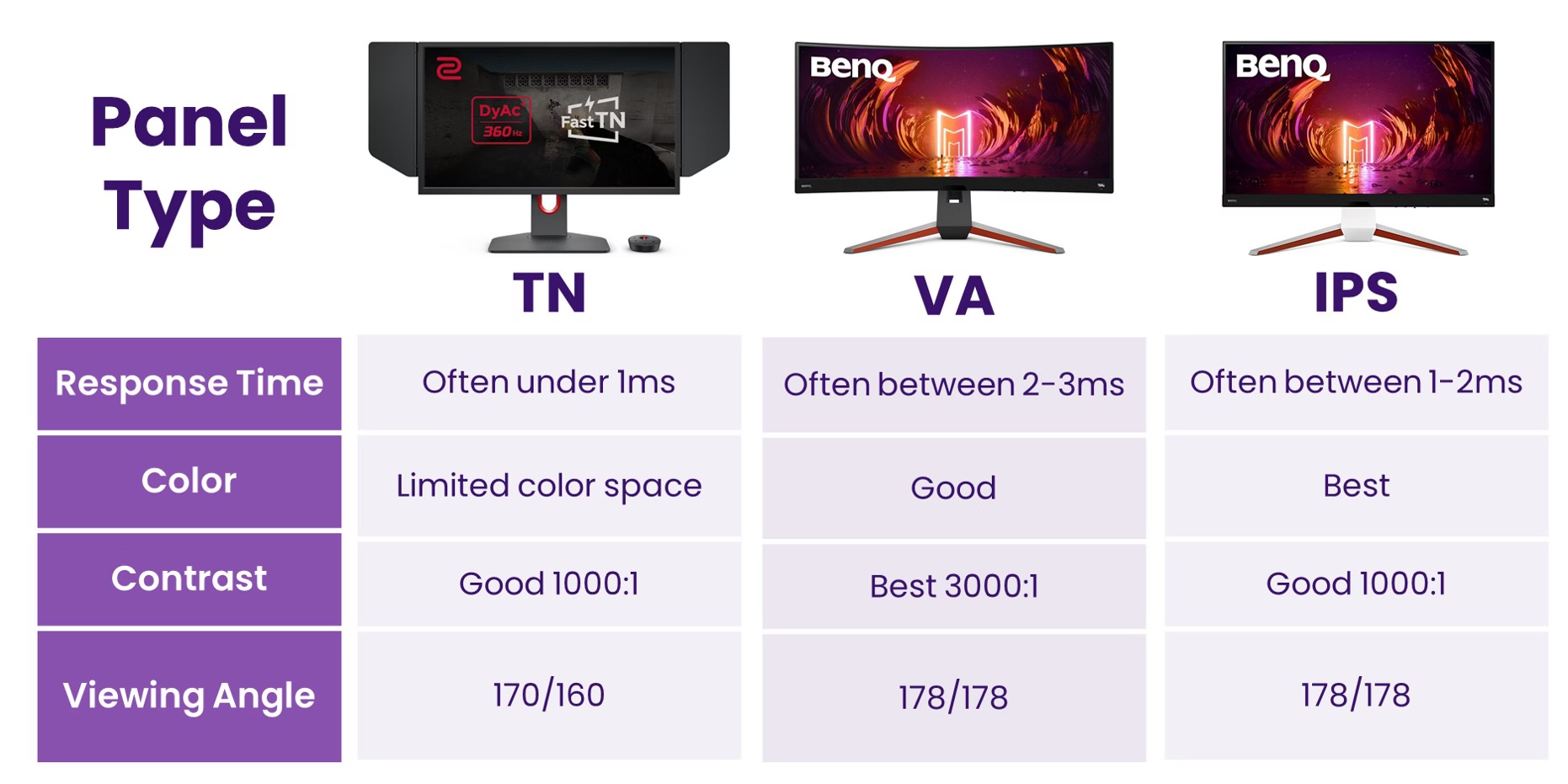
Panel technology is where the real power story lives. Two 4K monitors sitting side by side on a desk can have wildly different power profiles depending on which panel type they use.
IPS (In-Plane Switching) panels are the most common choice for professional and general-use monitors. They offer good color accuracy, wide viewing angles, and moderate power consumption. A 27-inch 4K IPS panel typically draws 25 to 40 watts during normal use.
They're a solid middle ground for efficiency.
VA (Vertical Alignment) panels deliver deeper contrast ratios than IPS, which is why they're popular for media consumption and gaming. The tradeoff is higher power draw. VA panels generally need more backlight power to push through the liquid crystal layer, so expect 10 to 20% higher consumption compared to an equivalent IPS panel.
TN (Twisted Nematic) panels are becoming rare in the 4K space, but they're still worth mentioning. They're the most energy-efficient of the three LCD technologies because they have the simplest light path. The downside is poor viewing angles and weaker color reproduction, which makes them a tough sell for most 4K use cases.
OLED is the wildcard. Each pixel produces its own light, so there's no backlight drawing constant power. On dark content, an OLED 4K monitor can be remarkably efficient, sometimes using half the power of an equivalent IPS LCD.
But on bright content, especially full-screen white or HDR highlights, OLED power draw can spike well above LCD levels. The average depends entirely on what you're doing.
Mini-LED backlighting deserves a mention here too. These panels use thousands of tiny LED zones for local dimming. In practice, they can be very efficient for typical mixed content because dark zones dim or turn off entirely.
During demanding HDR content with lots of bright zones active simultaneously, power draw increases, but the overall efficiency is still better than traditional full-array backlights.
The Brightness Factor Nobody Talks About
If you take one thing away from this article, let it be this: brightness settings have a bigger impact on power consumption than almost anything else you can control.
Most monitors ship with brightness set to 70 to 100% out of the box. That's great for a bright retail showroom but wasteful for a typical home or office. Dropping brightness from 100% to 50% can reduce power consumption by 30 to 50% on most LCD panels.
Going from 100% to 30% can cut power draw by more than half.
Here's a practical example. A 27-inch 4K IPS monitor might draw 42 watts at full brightness. Drop it to 50% and you're looking at around 24 watts.
At 30% brightness, which is perfectly comfortable for indoor use, you might be down to 18 watts. That's less than many 1080p monitors draw at their default settings.
Ambient light sensors help automate this. Several modern monitors from Dell, LG, and BenQ include sensors that adjust brightness based on room lighting. In a dim room, the monitor dims itself and saves power.
In bright sunlight, it ramps up for visibility. It's a small feature that makes a real difference over months of use.
HDR content complicates the picture. When you enable HDR mode, the monitor often locks brightness to maximum or near-maximum to meet the HDR spec. This is one scenario where 4K HDR content genuinely does consume significantly more power. A 4K OLED playing HDR video can pull two to three times what it uses for standard SDR desktop work.
The practical takeaway is simple. Set your brightness to the lowest comfortable level for your environment. For most indoor setups, that's somewhere between 20 and 50%.
You'll barely notice the difference visually, but your power consumption drops substantially.
Refresh Rate and HDR: Hidden Power Drains
Refresh rate is one of those specs that looks great on a box but quietly adds to your electricity bill. A 4K monitor at 60Hz is one thing. That same panel pushing 144Hz or 240Hz is working harder, and it shows in the power draw.
The difference between 60Hz and 144Hz typically adds 5 to 12 watts for most 4K IPS panels. Going from 144Hz to 240Hz adds another 3 to 8 watts. These aren't huge numbers individually, but they stack on top of everything else.
If you're running a high-refresh 4K panel at full brightness with HDR enabled, you're looking at the upper end of that power consumption range.
HDR is the real power hog though. When you enable HDR mode on a 4K monitor, the backlight often ramps to maximum or near-maximum output. Peak HDR brightness targets of 600, 1000, or even 1600 nits demand serious backlight power. A 4K monitor that draws 30 watts in SDR mode might pull 55 to 80 watts during HDR content playback.
This matters more for OLED and Mini-LED displays. OLED panels hit their peak brightness on a per-pixel basis, so a full bright HDR scene can push total panel power well above typical ratings. Mini-LED panels with hundreds of zones activate more zones simultaneously for bright HDR scenes, increasing draw.
For everyday desktop work, you probably don't need HDR enabled anyway. Windows and macOS both let you toggle HDR on and off. Keeping it off during regular use and enabling it only for HDR video or gaming is an easy way to keep power consumption in check.
Real-World Annual Cost: What You'll Actually Pay on Your Electric Bill
Let's translate watts into dollars and cents. This is where the power consumption question gets real for most people.
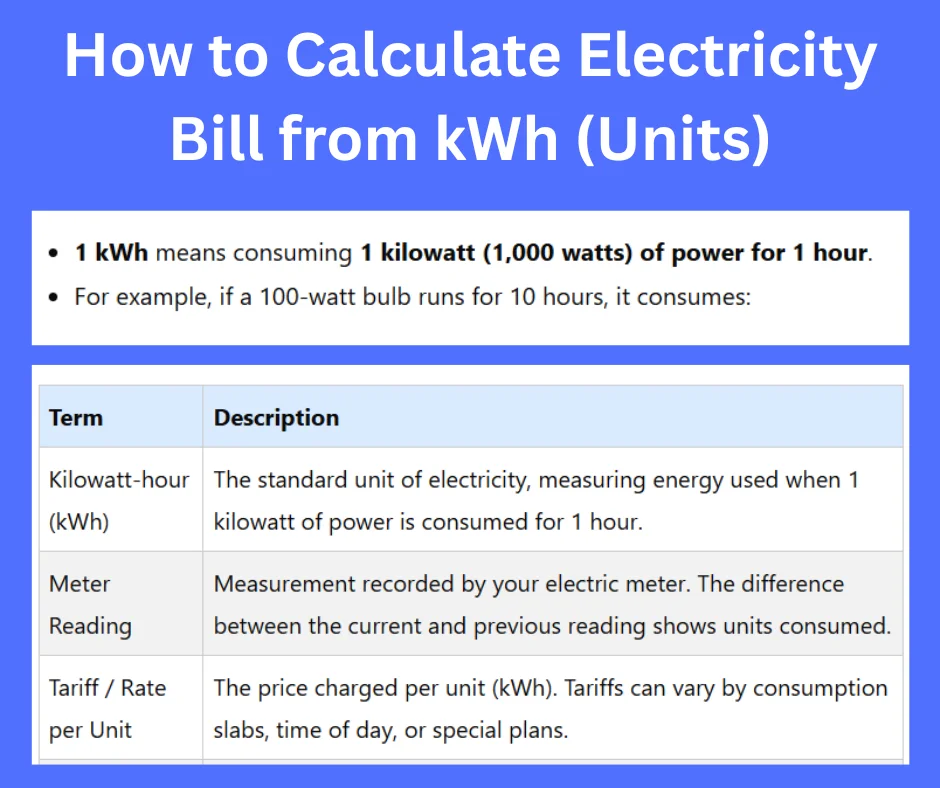
The formula is straightforward. Take the monitor's typical wattage, multiply by hours of use per day, multiply by 365 days, divide by 1000 to get kilowatt-hours, then multiply by your electricity rate.
Here's a practical example for someone working from home. Say you use a 27-inch 4K IPS monitor drawing 35 watts, eight hours a day, five days a week, plus four hours each weekend day. That's roughly 48 hours per week, or about 2,500 hours per year.
At the US average electricity rate of around $0.16 per kWh as of 2026, that works out to about $14 per year. A 1080p monitor drawing 20 watts under the same usage pattern would cost roughly $8 per year. The difference is about $6 annually.
Now let's look at a heavier use case. A 32-inch 4K VA gaming monitor drawing 50 watts, running 12 hours a day, seven days a week. That's 4,380 hours per year, costing about $35 annually at $0.16/kWh.
The same usage on a 27-inch 1080p IPS at 22 watts would run about $15 per year. The gap widens to $20 annually with heavier use.
| Monitor Type | Typical Draw | Hours/Year | Annual Cost (US $0.16/kWh) | Annual Cost (UK £0.30/kWh) |
|---|---|---|---|---|
| 24" 1080p IPS | 18W | 2,500 | $7.20 | £13.50 |
| 27" 4K IPS | 35W | 2,500 | $14.00 | £26.25 |
| 32" 4K VA | 50W | 4,380 | $35.04 | £65.70 |
| 27" 4K OLED | 55W* | 2,500 | $22.00 | £41.25 |
| 34" 4K Ultrawide IPS | 45W | 3,000 | $21.60 | £40.50 |
*OLED average varies significantly by content.
UK readers pay closer to £0.30 per kWh as of 2026, so the annual costs are nearly double the US figures. Even so, we're talking about a difference of roughly £13 to £27 per year between a 1080p and 4K setup for typical office use. That's real money, but it's not going to make or break your budget.
When a 4K Monitor Saves You Money (Yes, Really)
This might sound counterintuitive after all the talk about higher power draw, but a 4K monitor can actually reduce your total electricity cost in certain setups.
Replacing dual monitors with a single 4K display is the most common scenario. Two 24-inch 1080p monitors, each drawing around 20 watts, total 40 watts. A single 27-inch 4K monitor drawing 30 watts replaces both.
You get more usable screen real estate and lower total power consumption.
The same logic applies to a 34-inch ultrawide 4K replacing a dual 27-inch QHD setup. Two 27-inch 1440p monitors at 30 watts each total 60 watts. A 34-inch ultrawide 4K at 40 watts gives you equivalent or better screen space for two-thirds of the power.
Newer 4K panels are more efficient than older lower-resolution displays. A 2024-model 4K IPS panel with modern LED backlighting can be significantly more efficient per lumen than a 2018 1080p panel. If you're upgrading from an older display, the resolution increase might be offset by the efficiency gains of newer backlight technology.
OLED efficiency on dark content is another angle. If you use dark mode for your OS, IDE, browser, and most applications, an OLED 4K monitor can draw remarkably little power. Some testing data shows OLED panels using 40 to 60% less power on dark interfaces compared to equivalent LCD panels at the same brightness setting.
Productivity gains have an indirect energy benefit. A single 4K display lets you see more content without alt-tabbing or scrolling. Some users find they work faster and shut down earlier. That's not a power spec you'll find on a datasheet, but it's a real-world effect that aggregate user feedback consistently reports.
How to Check and Reduce Your Monitor's Power Consumption
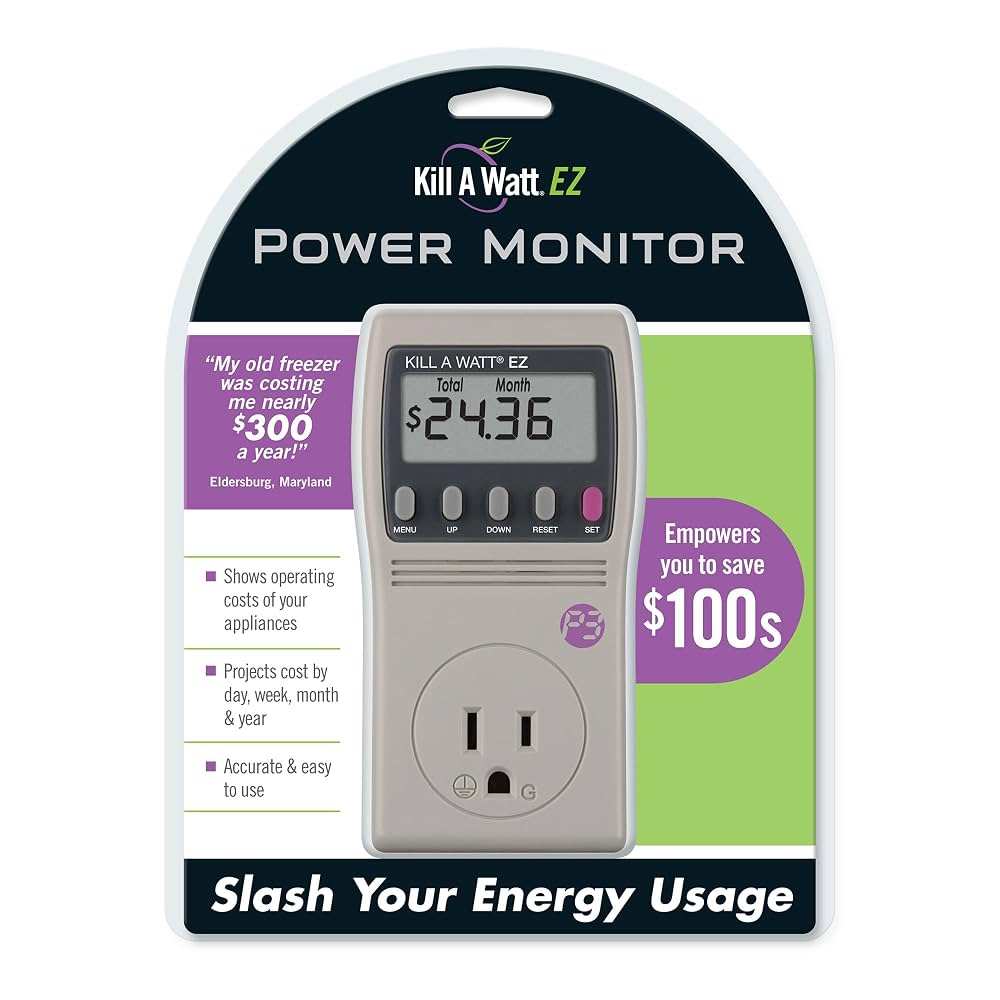
If you want to know exactly what your setup draws, a plug-in watt meter is the simplest tool. Devices like the Kill-A-Watt sit between your monitor and the wall outlet and display real-time wattage. They cost around $15 to $25 and take the guesswork out of power monitoring.
Check your manufacturer's spec sheet first. Look for "typical power consumption" rather than "maximum power consumption." The maximum number is a worst-case scenario that you'll rarely hit in normal use. Typical power during normal operation is the number that matters for your electricity bill.
Enable eco mode if your monitor has one. Most modern monitors from Dell, LG, Samsung, and ASUS include an eco or power-saving mode. This typically reduces backlight power and may cap maximum brightness. The visual difference is minimal for most indoor environments, and the power savings can be 15 to 30%.
Set your brightness appropriately. As we covered earlier, this is the single biggest lever you can pull. For a typical office with moderate ambient light, 30 to 50% brightness is usually comfortable. There's no reason to run at 100% unless you're in direct sunlight or doing color-critical HDR work.
Use your operating system's power management. Both Windows and macOS can turn off the display after a period of inactivity. Setting this to 5 or 10 minutes of idle time prevents the monitor from drawing power when you step away. Sleep mode typically drops power to under 0.5 watts on Energy Star certified displays.
Turn off HDR when you don't need it. If you're just browsing the web or working in spreadsheets, HDR is doing nothing useful while consuming extra power. Toggle it on only for HDR video playback or HDR gaming.
Consider a smart power strip if you have peripherals connected to your monitor. USB hubs, built-in speakers, and connected devices all draw standby power. A smart strip cuts power to peripherals when the main device goes to sleep, eliminating vampire draw.
Best Energy-Efficient 4K Monitors by Use Case
Different use cases call for different efficiency strategies. Here's how to think about it.
For office and productivity work, a 27-inch 4K IPS panel at 60Hz is the sweet spot. These typically draw 25 to 35 watts and offer excellent text clarity. Look for models with ambient light sensors and Energy Star 9.0 certification.
The Dell U2723QE and LG 27UK850-W are well-documented examples with strong efficiency profiles.
For creative professionals who need color accuracy, a 32-inch 4K IPS with hardware calibration is the standard. These draw a bit more, around 35 to 50 watts, but the larger screen real estate replaces what would otherwise require multiple displays. BenQ's PD series and ASUS ProArt line are frequently cited for their power management features.
For gaming, efficiency takes a backseat to performance, but you can still make smart choices. A 27-inch 4K 144Hz IPS panel draws 35 to 55 watts depending on brightness and refresh rate. If you cap the refresh rate at 60Hz during non-gaming tasks, you'll save meaningful power during the hours you're just browsing or working.
For media consumption, OLED 4K monitors are compelling because dark movie scenes use very little power. An LG or Samsung OLED 4K display might average 30 to 50 watts during mixed video content, which is competitive with LCD alternatives. Just be aware that bright HDR peaks will spike power draw.
For multi-monitor replacement, a 34-inch or 38-inch ultrawide 4K panel replaces two lower-resolution displays at lower total power. These typically draw 40 to 55 watts, which beats running two 27-inch QHD monitors at 30 watts each.
Common Myths About 4K and Power Usage
"More pixels always means more power." Not necessarily. Modern 4K panels use more efficient LED backlighting and better power management than older generations. A 2024 4K IPS panel can be more efficient per pixel than a 2019 1080p panel.
"You need to avoid 4K if you care about energy bills." The annual cost difference between 1080p and 4K for typical office use is roughly $6 to $20 depending on your electricity rate and usage hours. That's a small premium for a significantly better experience.
"OLED 4K monitors are always power-hungry." OLED power draw is content-dependent. Dark interfaces and content use remarkably little power. Only bright, full-screen content pushes OLED consumption above equivalent LCD panels.
"Standby power doesn't matter." Energy Star certified monitors must draw under 0.5 watts in standby. Older or uncertified displays can draw 1 to 3 watts in standby, which adds up across multiple devices over a year.
The Verdict: Should You Worry About 4K Power Consumption?
For most people, no. The power difference between 1080p and 4K is modest, typically 7 to 15 watts under normal use. At average electricity rates, that translates to under $20 per year for typical office workloads.
Your money is better spent choosing the right panel type, size, and feature set for your needs. A well-chosen 4K monitor at moderate brightness will serve you well without any meaningful impact on your electricity bill.
Frequently Asked Questions
How much more power does a 4K monitor use compared to 1080p?
A 27-inch 4K IPS monitor typically draws 7 to 12 watts more than a 27-inch 1080p IPS panel at the same brightness. The gap narrows significantly when you lower the 4K monitor's brightness, which is the easiest way to offset the difference.
Does a 4K gaming monitor use significantly more power?
Yes, especially at high refresh rates with HDR enabled. A 4K 144Hz gaming monitor can draw 50 to 80 watts during active gaming, compared to 25 to 40 watts for a 60Hz office panel. Capping refresh rate during non-gaming tasks helps reduce this.
Is it cheaper to run two 1080p monitors or one 4K monitor?
One 27-inch 4K monitor typically draws 25 to 40 watts. Two 24-inch 1080p monitors total 30 to 45 watts. The single 4K display usually wins on total power while giving you more usable screen space.
Does turning down brightness really save that much power?
Absolutely. Dropping brightness from 100% to 50% can cut power consumption by 30 to 50% on most LCD panels. For most indoor environments, 30 to 50% brightness is perfectly comfortable and dramatically reduces energy use.
Do 4K monitors use more power in HDR mode?
Yes, significantly. HDR mode often locks brightness to maximum or near-maximum to meet peak luminance targets. A 4K monitor drawing 30 watts in SDR might pull 55 to 80 watts during HDR content playback, depending on panel technology and content brightness.

Similar Posts





















