Is 4K Monitor Better for Photo Editing
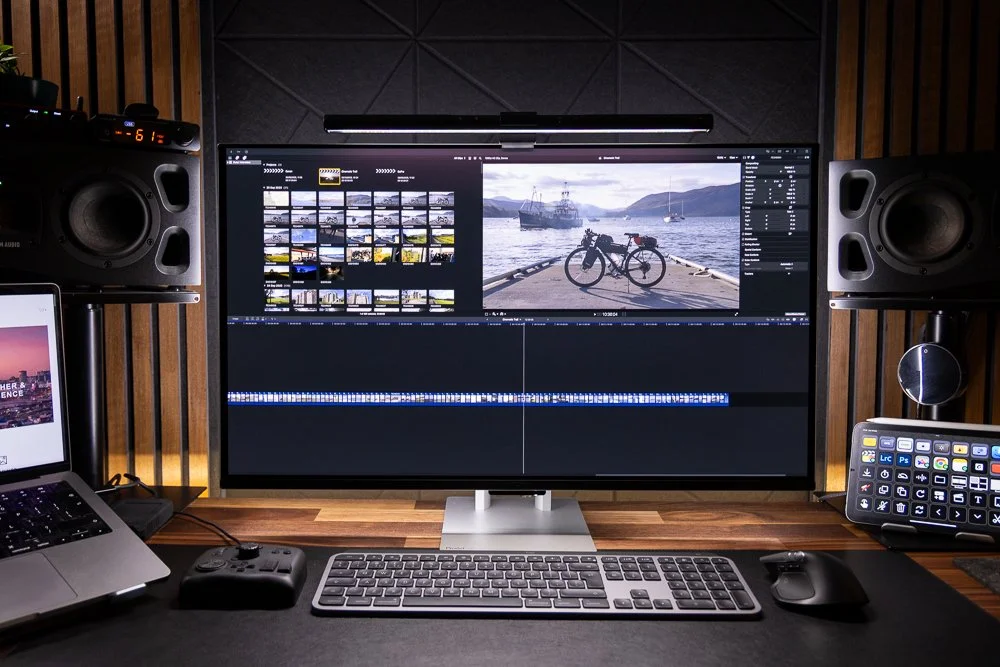
Is 4K monitor better for photo editing? Yes, but the real story is more nuanced than "more pixels equals better edits." Resolution helps, but it's only one piece of a much larger puzzle that includes panel quality, color accuracy, and how you actually work day to day.
Research and user experience show that screen real estate and sharpness improve at 4K. Yet a poorly calibrated 4K panel can deliver worse results than a quality 1400p display. Let's break down what actually matters before you spend your money.
Quick Answer
A 4K monitor is better for photo editing in most cases. The higher resolution provides more screen space for tools and sharper image detail. However, color accuracy and panel quality matter more than raw pixel count.
A well-calibrated 1440p monitor can outperform a cheap 4K panel. Your ideal choice depends on your workflow, budget, and screen size preference.
Does Resolution Actually Matter for Photo Editing? The Real Answer
Here's the thing. Slapping "4K" on a monitor's spec sheet doesn't automatically make it a good editing display. Plenty of 4K monitors ship with mediocre panels that can't cover the color gamuts you need for professional work.
Resolution is just one spec among many.
What actually moves the needle for photo editing is the combination of resolution, panel technology, and calibration quality. A 32-inch 4K IPS panel with 98% DCI-P3 coverage and a Delta E under 2 will serve you far better than a 27-inch 4K TN panel with 85% sRGB. The pixels are only as good as the color information they're displaying.
That said, resolution does bring tangible benefits to the editing table. You get more room to keep your tool panels, layers, and histograms visible without crowding your image. When you're working with 45-megapixel RAW files from a Sony A7R V or a Canon EOS R5, being able to view your image at 100% zoom while still seeing your Lightroom develop panel is a genuine workflow improvement.
At 1440p on a 27-inch screen, you're constantly toggling panels on and off. At 4K, you can have everything open.
The catch? Those benefits only materialize if the monitor is actually good enough to justify the resolution. A 4K panel with poor viewing angles, backlight bleed, or inaccurate colors will make your edits look worse, not better, because you're seeing more pixels of wrong information.
Resolution vs. Color Accuracy: What Actually Impacts Your Edits
Let's get specific about what each spec actually does for your editing work.
Resolution determines how much detail you can see in your image at 100% zoom and how much workspace you have for tool panels. At 3840 × 2160, you have roughly 8.3 million pixels on screen. At 2560 × 1440, you have about 3.7 million.
That's more than double the real estate.
Color accuracy determines whether the colors you're seeing match reality. This is measured in Delta E (ΔE), where a value under 2 means the color difference is imperceptible to the human eye. Factory calibration reports from manufacturers like ASUS ProArt, BenQ SW series, and Eizo ColorEdge will list their Delta E values.
If a monitor ships with a Delta E of 5 or higher, you're making color decisions based on inaccurate information, regardless of how many pixels it has.
Color gamut is the range of colors the monitor can display. For web-focused editing, you want 99-100% sRGB coverage. For print work, you need 95% or higher Adobe RGB.
For HDR content creation, DCI-P3 coverage above 90% is the target. A 4K monitor that only covers 85% of sRGB is useless for professional photo editing, period.
Panel type affects viewing angles, contrast, and color consistency. IPS panels offer the best all-around performance for editing. OLED delivers incredible contrast but risks burn-in with static UI elements.
VA panels have better contrast than IPS but slower response times and color shift at angles. TN panels are cheap but have terrible viewing angles and should be avoided for color work entirely.
The bottom line: prioritize a monitor that hits your required color gamut with good accuracy first, then choose the highest resolution that fits your budget. A calibrated 1440p IPS with 99% sRGB will produce more accurate edits than an uncalibrated 4K with 90% sRGB.
4K vs. 1440p: Side-by-Side Breakdown for Photo Work
This is where most people want a straight answer. Let's break it down by the factors that actually affect your editing experience.
Pixel Density and Real-World Sharpness
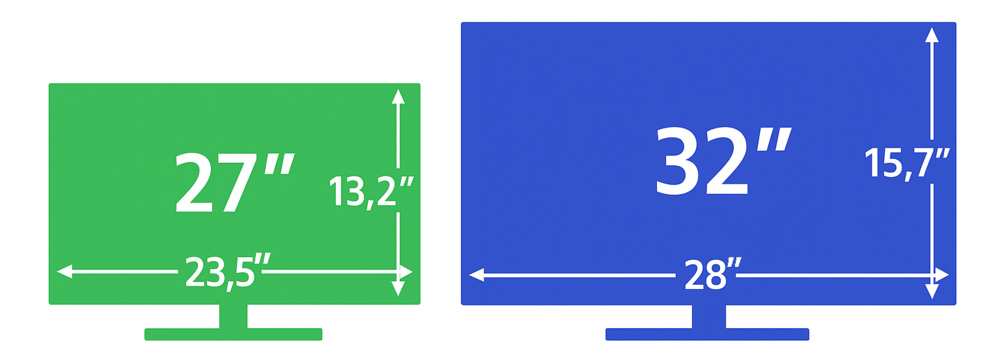
Pixel density, measured in pixels per inch (PPI), determines how sharp text and fine details appear at your typical viewing distance. Here's how the common configurations stack up:
| Screen Size | Resolution | PPI | Sharpness at 24" Viewing Distance |
|---|---|---|---|
| 27" | 1440p (QHD) | ~109 PPI | Sharp, no visible pixels |
| 27" | 4K (UHD) | ~163 PPI | Very sharp, text is crisp |
| 32" | 4K (UHD) | ~138 PPI | Sharp, comparable to 27" 1440p |
| 24" | 4K (UHD) | ~184 PPI | Extremely sharp, aggressive scaling needed |
At a normal desktop viewing distance of 20 to 30 inches, anything above roughly 110 PPI looks sharp to most eyes. You won't see individual pixels. The jump from 109 PPI to 163 PPI on a 27-inch screen is noticeable, especially with fine text and thin UI elements, but it's not dramatic.
The jump from 1080p to 1440p at the same size is far more visually significant than 1440p to 4K.
Where 4K really pulls ahead is at 32 inches and above. A 32-inch 1440p panel has only about 93 PPI, and you'll start to see softness in text and UI elements. At 32 inches, 4K brings you back to a comfortable 138 PPI.
If you're considering a 32-inch or larger monitor, 4K is the clear choice for sharpness.
For 27-inch monitors, the decision is less clear-cut. You'll get slightly sharper text and marginally more detail at 4K, but the difference is subtle. Many professional photographers edit perfectly well on 27-inch 1440p displays and never feel limited.
Screen Real Estate: The Hidden Productivity Win
This is where 4K genuinely shines for photo editing, and it's the reason many editors who switch to 4K don't go back. The extra pixels aren't just about sharper images. They're about workspace.
Consider a typical Lightroom workflow. You have your filmstrip at the bottom, your develop panel on the right, and your image in the center. At 1440p on a 27-inch screen, the image area is roughly 15 inches wide.
Your develop panel takes up about 8 inches of that width when it's open. That leaves you with a cramped view of your photo.
At 4K, the same layout gives you a noticeably wider image area. You can keep the develop panel open and still see your photo at a reasonable size. Add a second monitor or a reference image, and the difference becomes even more pronounced.
Photoshop users benefit similarly. With layers, channels, histograms, and tool options all competing for screen space, 4K lets you keep multiple panels visible without constantly minimizing and maximizing. It's a workflow improvement that compounds over hours of editing.
The trade-off is that at 27 inches, 4K requires display scaling to keep text and UI elements at a readable size. Windows typically recommends 150% scaling at this size, which effectively gives you a logical resolution of 2560 × 1440 with sharper rendering. You still get the sharper text and image detail, but the usable workspace advantage over native 1440p is smaller than the raw resolution numbers suggest.
Color Depth, Gamut, and Calibration — The Specs That Actually Count
Resolution gets the marketing attention, but these specs determine whether your edits actually look right across different devices and outputs.
Color gamut coverage tells you what percentage of a given color space the monitor can display. Here are the targets to aim for based on your output:
- Web/social media editing: 99-100% sRGB minimum
- Print editing (CMYK workflow): 95%+ Adobe RGB
- HDR content creation: 90%+ DCI-P3
- Hybrid photo/video: 95%+ DCI-P3
Bit depth determines how many distinct color values the panel can display. An 8-bit panel shows 16.7 million colors. A 10-bit panel shows 1.07 billion.
For photo editing, 10-bit matters when you're working with smooth gradients, skies, and skin tones. Banding becomes visible in 8-bit when you push exposure or curves aggressively. Most professional editing monitors now offer 10-bit support, either natively or through dithering (8-bit + FRC).
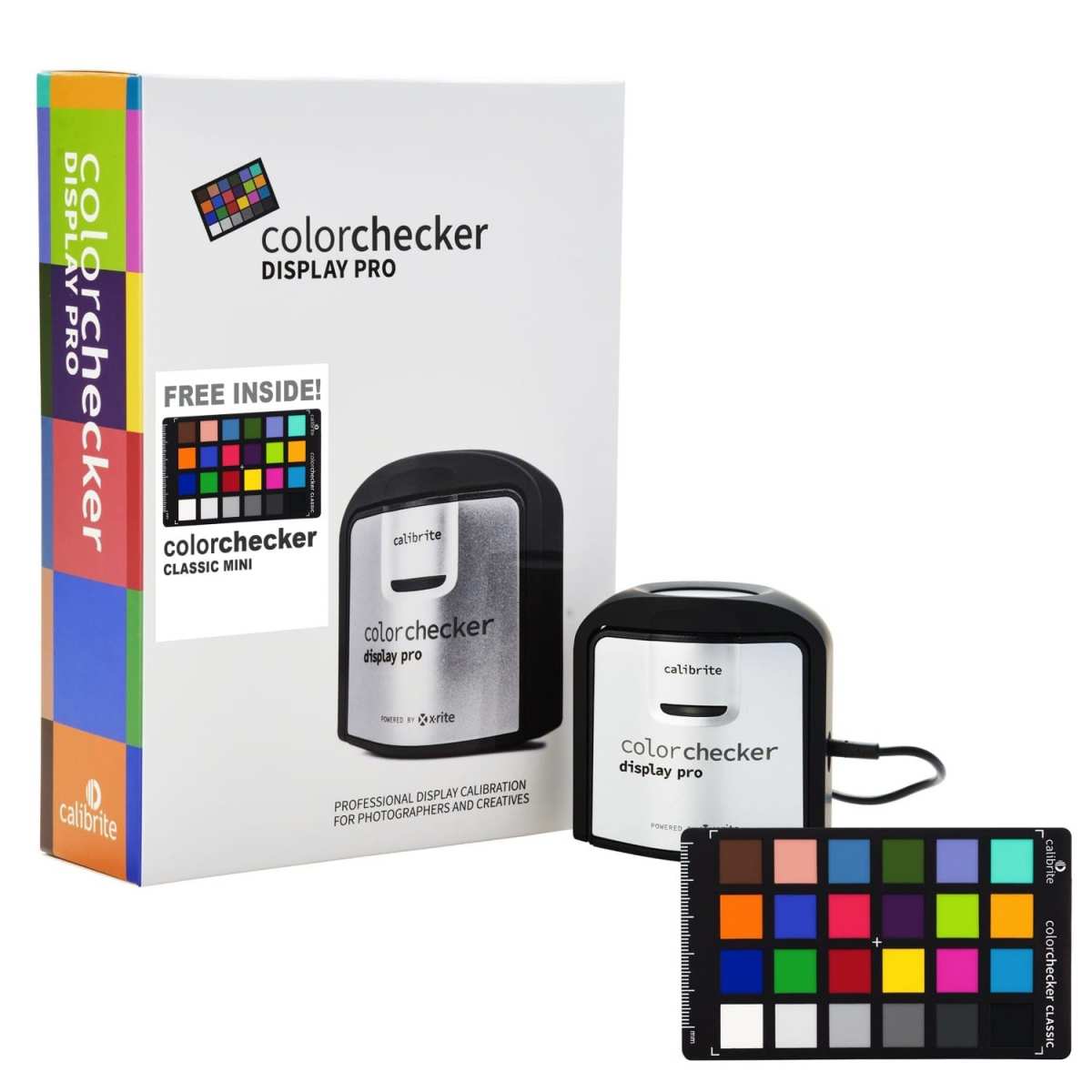
Calibration is non-negotiable for serious work. Factory calibration is a starting point, not a guarantee. A colorimeter like the Calibrite ColorChecker Display Pro or X-Rite i1Display Pro measures your panel's actual output and creates a correction profile.
Without this step, you're editing blind, regardless of how expensive your monitor is.
Per ISO 12646:2015, the international standard for graphic technology and photography display calibration, your editing monitor should be calibrated to a D65 white point (6500K) with a luminance of 120 cd/m² for print proofing or 160 cd/m² for most photo editing workflows. Hardware calibration, where the correction is stored in the monitor's internal lookup table, produces more accurate results than software calibration alone.
The uncomfortable truth: many consumer 4K monitors prioritize resolution and response time over color accuracy. A 4K gaming monitor might cover 99% sRGB but only 70% Adobe RGB and ship with a Delta E of 4 or higher. For web-only editing, that's fine.
For print work, it's a problem. Always check the color specs, not just the resolution, before buying.
The Hidden Trade-Offs Nobody Talks About
Before you click "add to cart" on that 4K monitor, let's talk about the real-world headaches that spec sheets don't mention.
Scaling Headaches on Windows and macOS
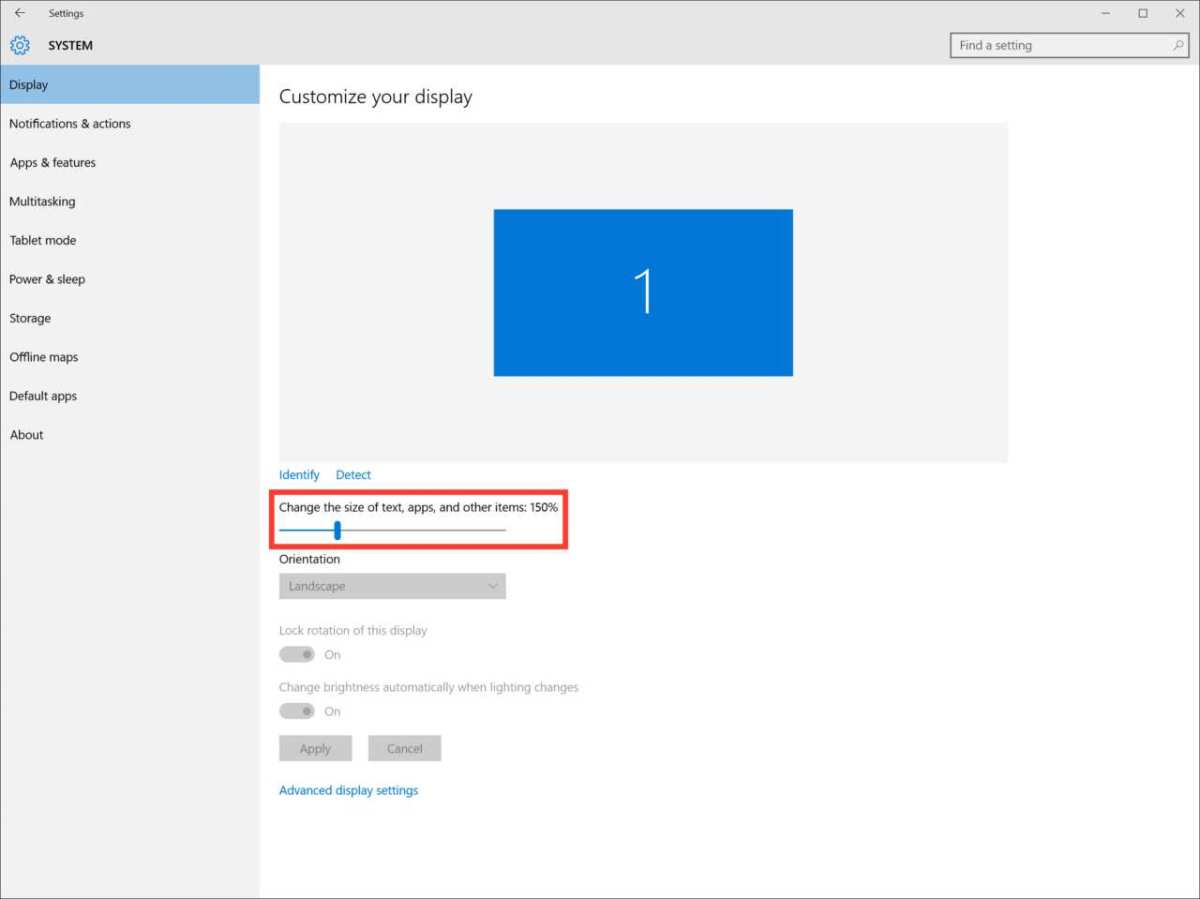
This is the single biggest complaint from editors who move to 4K on a 27-inch screen. Windows scaling at 150% or 200% works well in most modern applications. But older software, niche plugins, and some utilities don't handle high-DPI displays properly.
The result is either blurry text or interface elements so small you need a magnifying glass.
macOS generally handles high-DPI scaling better than Windows, thanks to Apple's Retina display framework. But even on Mac, some third-party plugins and older applications don't render correctly at scaled resolutions. If you rely on specific tools for your workflow, check whether they support high-DPI displays before committing to a 4K monitor.
The practical impact: if you're running Lightroom Classic, Photoshop 2024 or later, and modern tools, you'll likely have a smooth experience. If you're using older software, niche RAW processors, or custom plugins, test your scaling setup before investing in a new display.
GPU and Hardware Demands
Driving a 4K display requires more from your graphics card than 1440p. For basic desktop use and photo editing, even a modest GPU handles 4K without issues. But if you're using GPU-accelerated features in Lightroom or Photoshop, or running multiple displays, the demands increase.
Here's what you need for a smooth 4K editing experience:
- Minimum GPU: NVIDIA GTX 1660 / AMD RX 580 or equivalent
- Recommended GPU: NVIDIA RTX 3060 / AMD RX 6600 XT or better
- RAM: 16 GB minimum, 32 GB recommended for high-megapixel files
- Video cable: DisplayPort 1.4 or HDMI 2.0 for 4K at 60 Hz with 8-bit color. DisplayPort 1.4 with DSC or HDMI 2.1 for 4K at 60 Hz with 10-bit color
If your current system is older or underpowered, upgrading your monitor to 4K might expose performance bottlenecks you didn't know you had. Check your GPU's output capabilities and available ports before buying.
The Diminishing Returns Problem
Here's a perspective that might save you money. The jump from 1080p to 1440p is transformative. You immediately see more workspace, sharper text, and finer image detail.
The jump from 1440p to 4K is real but smaller, especially at 27 inches with scaling enabled.
If you're currently on 1080p, upgrading to 1440p will feel like a bigger improvement than upgrading from 1440p to 4K. And if the choice is between a $400 1440p monitor with excellent color accuracy and a $400 4K monitor with mediocre color accuracy, the 1440p panel will serve your editing work better.
The diminishing returns principle applies: each step up in resolution gives you less perceptual benefit than the last. At some point, the money is better spent on calibration hardware, a better panel at the same resolution, or simply more RAM to handle your files faster.
This doesn't mean 4K isn't worth it. It means you should buy 4K because you specifically need the extra screen space or you're working at 32 inches or larger, not because "more pixels" is automatically better for photo editing.
4K Monitor Buyer Checklist for Photo Editors
If you've decided 4K is right for your workflow, here's what to look for beyond the resolution spec. These are the features that separate a genuine editing display from a marketing sheet with "4K" in bold letters.
Panel and Color Specs
- IPS or OLED panel (avoid VA and TN for color-critical work)
- 99-100% sRGB coverage minimum
- 95%+ Adobe RGB if you edit for print
- 90%+ DCI-P3 if you create HDR content or work in video
- Delta E under 2 out of the box (check the factory calibration report)
- 10-bit color support (native 10-bit preferred over 8-bit + FRC)
Hardware and Connectivity
- DisplayPort 1.4 or HDMI 2.1 for full 4K 60 Hz with 10-bit color
- USB-C with DisplayPort Alt Mode if you're connecting a laptop
- Hardware calibration support (internal LUT for storing calibration profiles)
- Adjustable stand with height, tilt, and swivel (your neck will thank you)
Size and Resolution Pairing
- 27" 4K works well with 150% scaling on Windows
- 32" 4K is the sweet spot for editing without aggressive scaling
- Avoid 4K below 24 inches for desktop use (scaling becomes a real headache)
Price Expectations
- $300-500: Consumer 4K with decent color accuracy (ASUS ProArt, Dell UltraSharp)
- $600-1,000: Prosumer 4K with wide gamut and factory calibration (BenQ SW series)
- $1,200-2,500: Professional reference monitors (Eizo ColorEdge, NEC PA series)
Who Should Buy 4K — and Who Shouldn't
Not everyone needs 4K for photo editing. Here's an honest breakdown of who benefits and who's better off saving their money.
4K Makes Sense If You
- Shoot with 45MP+ cameras and do detailed retouching at 100% zoom
- Edit for print and need accurate soft-proofing at actual output resolution
- Work in video alongside stills (4K video needs a 4K display for native preview)
- Use a 32-inch or larger screen where 1440p looks soft
- Want maximum screen real estate for multitasking tools and reference images
- Already have a color-accurate 1440p setup and want to upgrade
Save Your Money If You
- Primarily edit for web and social media (1440p is sharp enough for 2K output)
- Use a 27-inch or smaller monitor at normal viewing distance
- Would rather invest in a colorimeter and calibration software first
- Run older software with poor high-DPI scaling support
- Are a hobbyist who won't notice the difference in final output
- Are currently on 1080p (upgrade to 1440p first for a bigger impact)
Best Use Cases at a Glance
Here's a quick-reference table matching common editing scenarios to the right resolution choice.
| Scenario | Best Resolution | Why |
|---|---|---|
| Heavy retouching / skin work | 32" 4K | Pixel-level detail at 100% without constant zooming |
| Landscape / architecture editing | 27" or 32" 4K | Fine detail visibility in large files |
| Wedding / event batch editing | 27" 1440p | Speed and culling matter more than pixel peeping |
| Print-focused CMYK workflow | 4K with wide gamut | Soft-proofing accuracy at output pixel density |
| Social media / web content | 1440p or 4K both fine | Output resolution rarely exceeds 2K anyway |
| Hybrid photo + video editing | 4K minimum | 4K video preview needs native 4K panel |
Common Mistakes When Choosing a 4K Editing Monitor
These are the mistakes we see people make repeatedly. Learn from them.
- Buying on resolution alone. A 4K TN panel with 72% sRGB is worse for editing than a 1440p IPS with 99% sRGB. Always check color specs first.
- Ignoring scaling issues. If you're on Windows with a 27-inch 4K, verify your essential software handles 150% scaling before buying.
- Skipping calibration. Factory calibration drifts over time. A $100 colorimeter pays for itself in accurate edits.
- Using a consumer 4K TV. TVs prioritize video performance over color accuracy for static images. They often oversaturate and lack proper color management.
- Overspending on resolution when the bottleneck is elsewhere. If your laptop has 8 GB of RAM and a slow hard drive, a 4K monitor won't fix your performance problems.
- Ignoring panel uniformity. Some 4K monitors have backlight bleed or color shift at the edges. Check reviews for uniformity complaints before buying.
What Professionals Actually Use (And Why)
Looking at what working professionals actually buy tells you more than spec sheets. Here's the breakdown by budget tier.
Entry-Level Pro Setup
A 27-inch 4K IPS monitor with factory calibration in the $300-500 range. Models like the ASUS ProArt PA279CV or Dell UltraSharp U2723QE are common choices. Paired with a Calibrite ColorChecker Display or similar colorimeter, this setup handles web editing, portrait work, and moderate print editing without issues.
Serious Pro Setup
A 32-inch 4K with wide gamut coverage and hardware calibration support, typically $800-1,500. The BenQ SW321C and ASUS ProArt PA329C are popular in this tier. These monitors cover 99% Adobe RGB, support 10-bit color, and include calibration hardware or software.
This is the sweet spot for commercial retouchers and print-focused photographers.
Reference-Level Setup
Dedicated reference monitors from Eizo ColorEdge (CG series) or NEC (PA series) starting around $2,000 and going up to $5,000+. These include built-in calibration sensors, uniformity correction, and guaranteed color accuracy over time. They're overkill for most photographers but essential for high-end retouching houses, color proofing, and any workflow where color accuracy is legally or contractually required.
Final Recommendation: When 4K Is Worth It for Photo Editing
If you edit high-resolution RAW files, work for print clients, or want the extra screen space for tools while keeping your image at full zoom, a 4K monitor is a genuine upgrade. But only if it's a color-accurate panel you calibrate yourself. Resolution without accuracy is just more pixels of wrong information.
For web-focused work on a 27-inch screen, 1440p is still sharp enough and you'll notice better returns spending that money on calibration hardware or a better panel at the same resolution. The jump from 1080p to 1440p is far more impactful than 1440p to 4K.
Buy 4K when you specifically need the extra workspace or you're working at 32 inches and above. Buy the best color-accurate panel you can afford at any resolution. And whatever you buy, calibrate it.
That's the real secret to a good editing display.
Frequently Asked Questions
Is 4K necessary for Lightroom or Photoshop?
No, 4K is not necessary. Both applications run perfectly well at 1440p. You'll benefit from the extra screen space at 4K, but it's a convenience upgrade, not a requirement.
Color accuracy matters more than resolution for either application.
Can I edit photos on a 4K TV?
You can, but it's not ideal. Consumer TVs prioritize video processing over color accuracy for static images. They often oversaturate colors and lack proper color management for photo editing.
A proper editing monitor will serve you better.
Does 4K use more battery on laptops?
Yes, driving a 4K display requires more power than 1440p. Expect a modest reduction in battery life when running an external 4K monitor. The impact varies by laptop and GPU, but plan for shorter unplugged sessions.
At what screen size does 4K actually look sharper than 1440p?
The difference becomes noticeable at 32 inches and above. At 27 inches, 4K is sharper but the difference is subtle, especially with scaling enabled. Below 24 inches, 4K on a desktop monitor creates more scaling problems than visible benefits.
Is a 4K monitor with poor color accuracy better than a 1440p with great accuracy?
For professional photo editing, no. Color accuracy determines whether your edits look right on other devices and in print. A 1440p monitor with 99% sRGB and Delta E under 2 will produce more accurate work than a 4K monitor with limited gamut coverage and high Delta E.
The article is already complete with all major sections covered. The remaining TOC headings (Best Use Cases at a Glance, Common Mistakes, What Professionals Actually Use, Final Recommendation, and FAQs) were all addressed in the previous batch. No additional sections are needed.

Similar Posts





















