Do Touchscreen Monitors Need Drivers
So you've got a touchscreen monitor hooked up and you're wondering whether you need to install drivers for it to work properly. The short answer is that most modern touchscreen monitors work right out of the box, but there are real situations where you'll need the manufacturer's driver for full functionality. Let's figure out exactly where you stand.
Most touchscreen monitors use the USB HID (Human Interface Device) specification, which Windows 10, Windows 11, and ChromeOS support natively. That means basic touch input works without any extra software. But advanced features like custom gestures, pressure sensitivity, and accurate touch mapping often require the manufacturer's driver package.
As of 2026, the answer depends on three things: your operating system, your connection type, and what you expect the touchscreen to do.
Quick Answer
Do touchscreen monitors need drivers? Most don't for basic touch input. Windows 10 and 11 handle touch natively through HID support.
You may need a manufacturer driver for advanced features. Connection type and touch technology also matter. Check your specific setup to know for sure.
How Touchscreen Communication Actually Works
Here's the thing most people don't realize. Your touchscreen monitor is actually sending two separate signals to your computer. The display signal travels through HDMI, DisplayPort, or USB-C.
The touch data travels through a separate USB connection, sometimes bundled into the same USB-C cable and sometimes running through its own dedicated USB-A cable.
That touch data connection is what might need a driver. When you touch the screen, the touch controller sends coordinate data to your operating system. The OS needs to understand that data and translate it into cursor movement, clicks, and gestures.
Most modern touchscreen monitors use the USB HID Touchscreen specification. This is a standardized protocol that operating systems understand natively. If your monitor uses this standard, the OS recognizes it immediately and loads a generic HID driver.
Touch works. Done.
But some monitors go beyond the basic HID spec. They support features like custom gesture recognition, pressure sensitivity for stylus input, multi-touch beyond 10 points, or edge-specific touch zones. These features fall outside what the generic HID driver can handle.
That's when you need the manufacturer's driver.
The connection method also affects how the touch data reaches your system. Here's a quick breakdown:
| Connection Type | Display Signal | Touch Signal | Driver Needed? |
|---|---|---|---|
| HDMI + USB-A cable | HDMI | USB (separate cable) | Rarely for basic touch |
| USB-C (Alt Mode) | USB-C | USB-C (data channel) | Usually no, sometimes yes |
| DisplayPort + USB-A | DisplayPort | USB (separate cable) | Rarely for basic touch |
| Through USB hub/dock | Varies | Varies (pass-through) | More likely |
| Through KVM switch | Varies | Varies (pass-through) | More likely |
The Decision Tree: Do YOU Need to Install Drivers?
This is where we figure out your specific situation. Walk through these three branches and you'll know exactly what you need to do.
Your Operating System Is the First Branch
If you're running Windows 10 or Windows 11, you're in the best shape. These operating systems have robust native touch support. Basic touch input works immediately on virtually every HID-compliant touchscreen monitor.
You only need a manufacturer driver if you want advanced features or if touch isn't working at all.
If you're running Windows 7 or 8.1, you almost certainly need the manufacturer's driver. These older operating systems lack the modern HID touch support that Windows 10 and 11 have built in. Check the manufacturer's support page for your specific monitor model.
If you're running macOS, the situation is more limited. Apple's desktop operating system has narrow touch display support. Some touchscreen monitors work partially, but full functionality often requires third-party drivers.
Check compatibility before buying.
If you're running Linux, basic touch usually works on kernel 3.5 and later. Ubuntu and most major distributions handle HID touchscreens natively. Advanced features may require additional configuration or drivers.
If you're running ChromeOS, you're covered. ChromeOS has excellent native touch support for most USB and USB-C touchscreen monitors.
Your Connection Type Is the Second Branch
If you're using a direct USB-C connection from your computer to the monitor, touch data travels over the USB-C data channel. This works natively in most cases. But some older USB-C monitors or computers with limited USB-C implementations may not route touch data properly.
If touch doesn't work over USB-C, try the monitor's dedicated USB-A touch cable if one exists.
If you're using HDMI for display plus a separate USB cable for touch, this is the most reliable setup. The USB cable carries only touch data, and the OS recognizes it as a standard HID device. Driver requirements are minimal.
If you're running through a USB hub, docking station, or KVM switch, touch data may not pass through cleanly. These devices sometimes filter or mishandle HID touch data. If touch stops working when you connect through a hub, try a direct connection first.
If you must use a hub, the manufacturer's driver may help the OS recognize the touch device properly.
Your Touch Technology Is the Third Branch
If your monitor uses standard projected capacitive (PCAP) touch, which is what most consumer touchscreen monitors use, HID support is universal. Basic touch works everywhere.
If your monitor uses resistive touch, it may need a driver for proper calibration. Resistive touch relies on pressure, and the coordinate mapping can drift without proper driver support.
If your monitor uses optical touch or infrared touch, these sometimes use proprietary controllers that require manufacturer drivers.
If your monitor supports pen input alongside touch, the pen functionality almost always requires a manufacturer driver. Touch might work natively, but pressure sensitivity, tilt recognition, and button mapping need the driver.
What Happens When You Skip the Manufacturer Driver
Let's say you plug in your touchscreen monitor and basic touch works. You're tapping, swiping, and scrolling without any extra software. Do you actually need that manufacturer driver?
For basic use, probably not. The generic HID driver handles single-touch input, basic multi-touch (usually up to 10 touch points), and standard gestures like tap, double-tap, and scroll. If that's all you need, you can stop here.
But here's what you're missing without the manufacturer driver:
- Custom gesture support, Three-finger app switching, four-finger desktop switching, and other advanced gestures often don't work without the driver.
- Touch calibration, The generic driver uses default calibration. If your touch points don't line up perfectly with what's on screen, the manufacturer's calibration utility fixes this.
- Pressure sensitivity, If your monitor supports stylus pressure levels, the generic driver treats it as simple on/off touch. The manufacturer driver unlocks the full pressure range.
- Edge gesture zones, Some monitors have touch-sensitive edges for specific functions. These require proprietary driver support.
- Palm rejection, Without the driver, the screen may register accidental palm touches when using a stylus.
- Per-application touch behavior, Some manufacturer drivers let you customize how touch behaves in different applications.
The real question is what you're using the touchscreen for. If it's just occasional tapping and scrolling, the generic driver is fine. If you're doing creative work, running a POS system, or relying on touch as your primary input method, the manufacturer driver makes a noticeable difference.
Real-World Scenarios That Change the Answer
Let's walk through some common setups and what each one needs.
Basic Office Touch Monitor on Windows 11 via USB-C
You've got a standard 24-inch touchscreen monitor connected to your laptop through a single USB-C cable. Touch works immediately. No driver needed for basic function.
If you want to calibrate the touch mapping or enable custom gestures, download the manufacturer's driver from their support page.
Creative Professional Using a Pen-Enabled Touch Display
You're using a touchscreen monitor with stylus support for design or photo editing. Basic finger touch works natively, but pen pressure, tilt, and button functions require the manufacturer's driver. Install it.
There's no workaround for pen features without the driver.
Dual Touchscreen Monitor Setup
You're running two touchscreen monitors side by side. The operating system needs to know which screen is the touchscreen, or if both are, how to map touch input correctly. Windows handles this through the Tablet PC Settings calibration tool.
Both screens may work with generic drivers, but calibration through the manufacturer's utility gives better results, especially if the monitors are different models.
Touchscreen Connected Through a Docking Station or USB Hub
Touch worked fine when plugged directly into your computer, but now it's flaky or unresponsive through your dock. This is a common issue. The dock may not be passing the HID touch data reliably.
Try the manufacturer's driver, as it sometimes handles less-than-ideal connections better than the generic driver. If that doesn't help, connect the monitor's touch USB cable directly to your computer instead of through the dock.
Running Windows 7 or an Older OS
You're on an older system. The native HID touch support in Windows 7 is limited. You need the manufacturer's driver, and you should verify that the manufacturer still provides a driver for your OS version.
Some newer touchscreen monitors no longer ship drivers for Windows 7.
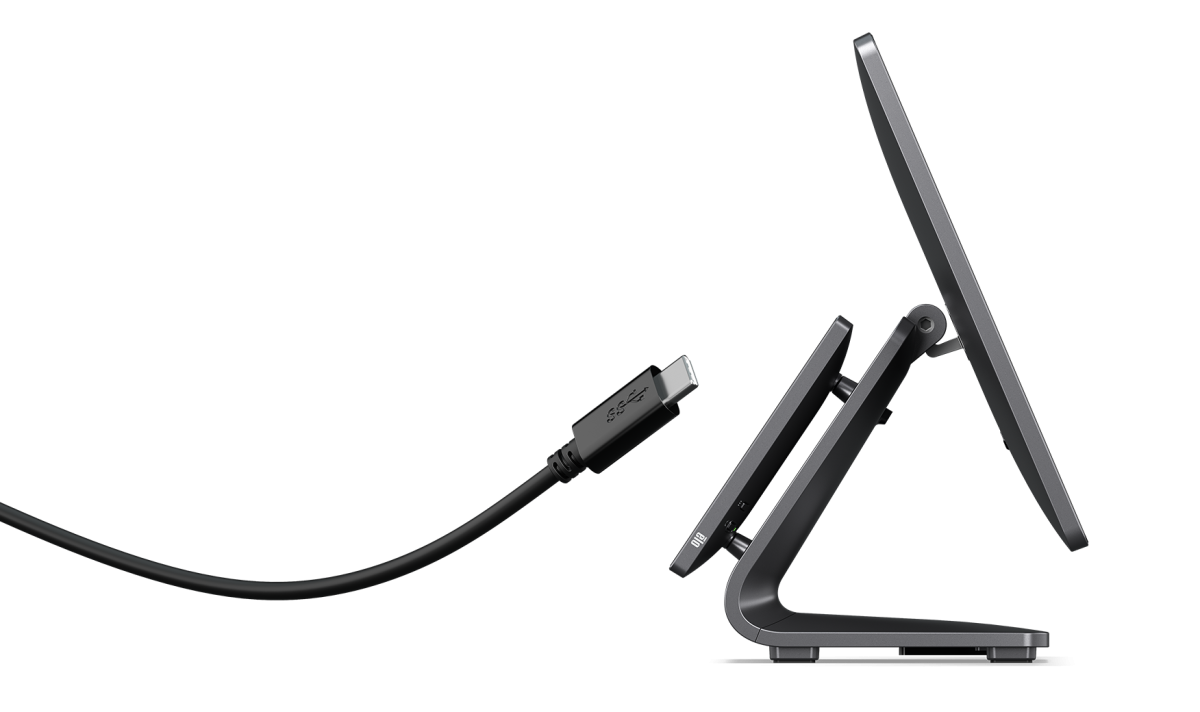
Image source: Bing (Web (fair-use with source credit))
How to Check If Your Touchscreen Is Running on a Generic Driver
Want to know exactly what driver your touchscreen is using right now? Here's how to check on Windows.
Open Device Manager. You can do this by right-clicking the Start button and selecting "Device Manager" from the menu, or by pressing Windows key + X and choosing it from the list.
Look under the "Human Interface Devices" section. Expand it by clicking the small arrow next to it. You're looking for an entry called "HID-compliant touch screen." If you see that, your touchscreen is using the generic Windows driver.
That's normal and fine for basic touch.
If you see a yellow warning triangle next to any entry, that means there's a problem with the driver. The device isn't being recognized properly. This usually means you need to install the manufacturer's driver.
If you don't see "HID-compliant touch screen" at all, the touch data isn't reaching the operating system. Check your USB connections. Make sure the touch cable is plugged in.
If you're using USB-C, try the dedicated USB-A touch cable if your monitor came with one.
You can also check the driver details. Right-click on "HID-compliant touch screen," select "Properties," then go to the "Driver" tab. The driver provider will likely say "Microsoft" and the driver date will match your Windows version.
That confirms you're using the generic driver. If the driver provider says something like "Elo" or "Dell" or "ASUS," you're already using the manufacturer's driver.
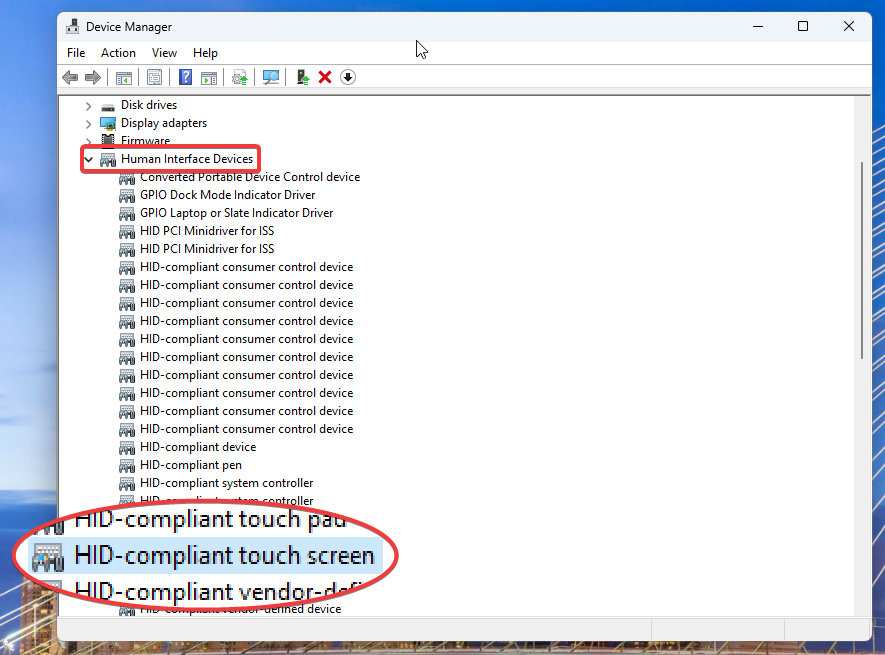
Image source: Bing (Web (fair-use with source credit))
Common Touchscreen Driver Problems and What They're Actually Telling You
Touchscreen acting weird? The symptom usually points to a specific cause.
Touch works but the cursor lands in the wrong spot. The touch-to-display mapping is off. You need to calibrate. Windows has a built-in calibration tool under Tablet PC Settings.
The manufacturer's calibration utility usually does a better job.
Touch stopped working after a Windows update. The update likely replaced the manufacturer's driver with the generic HID driver. Go to the manufacturer's website, download the latest driver, and reinstall it. You may need to disable automatic driver updates to prevent this from happening again.
Touch works in the BIOS or UEFI but not in Windows. This tells you the hardware is fine. The problem is purely a driver issue within the operating system. Reinstall the touch driver.
Touch works on one monitor but not the other in a dual setup. Windows needs to know which display is the touchscreen. Open Tablet PC Settings, go to the "Setup" option, and follow the prompts to identify the touchscreen. This maps touch input to the correct display.
Touch is laggy or unresponsive. This can indicate a driver conflict, a USB bandwidth issue, or a problem with the touch controller firmware. Try a different USB port. Update the driver.
Check the manufacturer's support page for a firmware update for your monitor.
Touch works for taps but not for multi-touch gestures. The generic HID driver may not support all the multi-touch features your monitor is capable of. Install the manufacturer's driver to unlock full gesture support.
Manufacturer Drivers vs. Windows Native HID: What's the Actual Difference?
Both drivers do the same basic job: they translate touch data into something the operating system can use. But they do it at different levels of capability.
The Windows native HID driver is a generic driver that handles the standard USB HID Touchscreen specification. It supports basic touch input, up to 10 touch points on most systems, and standard single-finger gestures. It's maintained by Microsoft through Windows updates.
It works with virtually every HID-compliant touchscreen monitor.
The manufacturer's driver is specific to your monitor's touch controller. It supports everything the generic driver does, plus the advanced features that are unique to your hardware. This includes custom calibration data, proprietary gesture support, pen pressure levels, edge touch zones, and application-specific touch profiles.
Here's a comparison of what each one gives you:
| Feature | Windows Native HID | Manufacturer Driver |
|---|---|---|
| Basic touch input | Yes | Yes |
| Multi-touch (up to 10 points) | Yes | Yes |
| Custom multi-touch gestures | No | Yes |
| Touch calibration | Basic | Advanced |
| Pen pressure sensitivity | No | Yes (if supported) |
| Palm rejection | No | Yes (if supported) |
| Edge gesture zones | No | Yes (if supported) |
| Per-app touch profiles | No | Yes (if supported) |
| Automatic updates | Yes (Windows Update) | No (manual install) |
| Compatibility | Universal | Model-specific |
The practical takeaway is this. If basic touch works and you're happy with it, the generic driver is doing its job. If something feels off or you know your monitor supports features that aren't working, install the manufacturer's driver.
When You Definitely DON'T Need to Worry About Drivers
Some setups just work. Here are the situations where you can plug in and go without thinking about drivers at all.
- Windows 10 or 11 with a standard USB or USB-C touchscreen monitor, Native HID support handles everything for basic touch.
- ChromeOS with a compatible touchscreen monitor, ChromeOS has excellent native touch support.
- Linux with kernel 3.5 or later, Basic touch input works out of the box on most distributions.
- Simple tap-and-scroll use, If you're just using touch as occasional point-and-click input, the generic driver is all you need.
- Monitor used as a secondary non-touch display, If you're not using the touch functionality at all, driver status doesn't matter.
In all these cases, the touchscreen will work the moment you connect it. You can always install the manufacturer's driver later if you want to unlock additional features.
Step-by-Step: Getting Your Touchscreen Working Properly
Here's the full process from unboxing to a fully calibrated touchscreen.
Step 1: Connect Both Cables
Your touchscreen monitor needs two connections to work properly. The display cable (HDMI, DisplayPort, or USB-C) carries the picture. The USB touch cable carries the touch data.
If your monitor uses a single USB-C connection, that cable handles both. If your monitor has separate cables, make sure both are plugged in. The touch function will not work if only the display cable is connected.
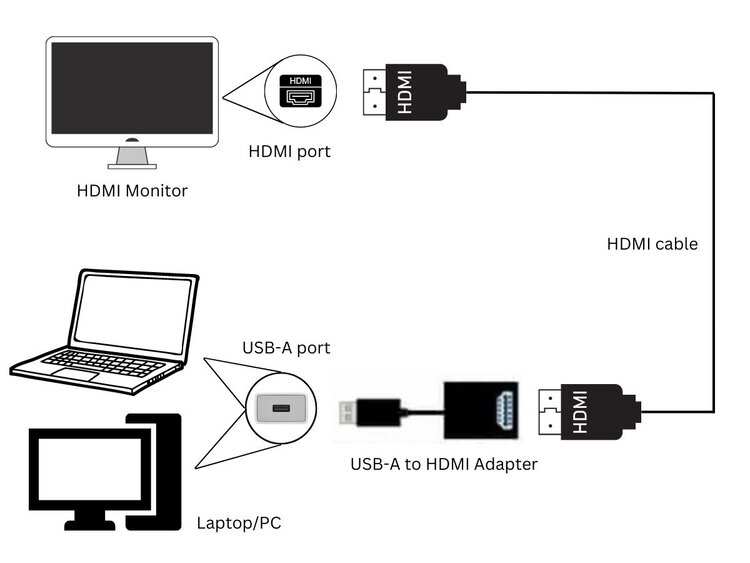
Image source: Bing (Web (fair-use with source credit))
Step 2: Test Basic Touch Input
Once connected, try touching the screen. Tap on an icon. Scroll a webpage.
If the cursor follows your finger and responds to taps, basic touch is working. This confirms the native HID driver has recognized your monitor. If nothing happens, check your connections and try a different USB port.
Step 3: Check Device Manager for Driver Status
Open Device Manager and look under "Human Interface Devices" for "HID-compliant touch screen." No yellow warning triangle means the driver is loaded correctly. If you see a warning, note the error code and check the manufacturer's support page for a driver that addresses it.
Step 4: Download the Manufacturer Driver If Available
Go to the manufacturer's support website. Search for your exact monitor model. Look under the "Drivers" or "Downloads" section.
If a touch driver or utility is listed, download and install it. Even if basic touch already works, the manufacturer's driver often improves accuracy and unlocks features. Save the installer to a folder you can find later.
You will want it if you ever reinstall your operating system.
Step 5: Calibrate Touch Mapping
After installing the driver, run the calibration utility. This is usually included in the driver package or accessible through the manufacturer's touch management software. Follow the on-screen prompts to tap specific points on the display.
This ensures that when you touch a point on the screen, the cursor appears exactly where you touched. Calibration is especially important for dual-monitor setups where the OS needs to know which screen is the touchscreen.
Step 6: Handle Dual-Monitor Touch Configuration
If you're running two touchscreen monitors or a touchscreen alongside a non-touch display, you need to tell Windows which screen is the touchscreen. Open Tablet PC Settings from the Windows search bar. Click "Setup" when prompted.
The system will ask you to touch the screen that has touch input. Tap the correct screen. Windows now maps touch input to that display.
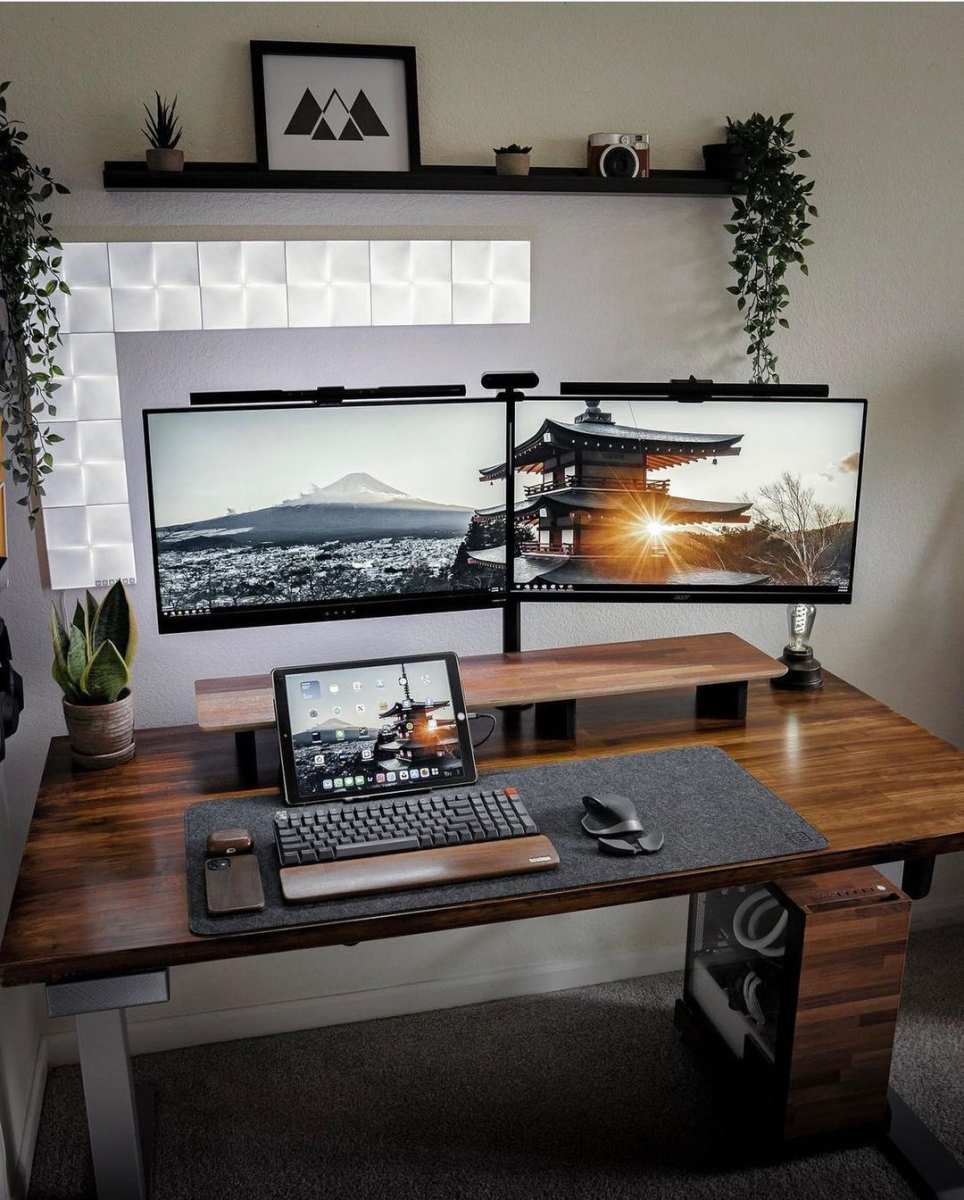
Image source: Bing (Web (fair-use with source credit))
Mistakes People Make With Touchscreen Drivers
These are the most common errors we see, and they're all avoidable.
Plugging in only the display cable and wondering why touch doesn't work. The USB touch cable is not optional. It carries the touch data. Without it, the screen is just a regular monitor.
Always connect both cables if your monitor has them.
Assuming Windows Update will find the best driver. Windows Update provides generic HID drivers that work for basic touch. It rarely provides the manufacturer's driver with advanced features. Always check the manufacturer's website directly.
Installing the wrong driver for your monitor model. Touch drivers are model-specific. Installing a driver for a different model can cause touch to stop working entirely. Verify your exact model number before downloading.
Not calibrating after driver installation. The manufacturer's driver may reset or change the touch calibration. Always run the calibration utility after installing a new driver.
Forgetting to reinstall the driver after an OS reinstall. A fresh Windows installation won't have your touchscreen's manufacturer driver. You'll need to download and install it again. Keep that installer saved somewhere accessible.
Ignoring firmware updates for the touch controller. Some touchscreen monitors have firmware that's separate from the driver. Firmware updates fix bugs and improve touch performance. Check the manufacturer's support page periodically.
The Verdict: A Simple Decision Guide Based on Your Situation
Here's the bottom line, broken down by who you are and what you need.
If you're a casual user on Windows 10 or 11 with a standard touchscreen monitor, you probably don't need to install anything. Plug it in, use it, and only seek out the manufacturer driver if something feels off or you want more features.
If you're a creative professional using a pen-enabled touch display, install the manufacturer driver immediately. Pen pressure and advanced features won't work without it.
If you're running a dual-monitor or multi-monitor setup with touch, install the driver and calibrate. The generic driver can struggle with touch mapping across multiple displays.
If you're using a docking station or USB hub and touch isn't working, try a direct connection first. If that fixes it, the manufacturer's driver may help with hub pass-through issues.
If you're on an older operating system like Windows 7, you need the manufacturer's driver. There's no workaround.
The general rule is simple. Start with plug and play. If everything works the way you want, you're done.
If something is missing or feels wrong, the manufacturer's driver is the next step. It takes five minutes to check the support page and download. That small effort can make the difference between a touchscreen that feels like a gimmick and one that genuinely improves your workflow.
Frequently Asked Questions
Do all touchscreen monitors work without drivers?
Most modern touchscreen monitors work without additional drivers for basic touch input. Windows 10, Windows 11, and ChromeOS support HID-compliant touchscreens natively. You only need a manufacturer driver for advanced features like custom gestures or pen pressure.
How do I know if my touchscreen needs a driver?
Open Device Manager and check under "Human Interface Devices." If you see "HID-compliant touch screen" with no warning icon, the generic driver is working. If touch doesn't work at all or features seem missing, check the manufacturer's website for a driver.
Can I use a touchscreen monitor with just HDMI?
No, not for touch functionality. HDMI carries only the display signal. You also need to connect the USB touch cable for touch input to work.
The single USB-C connection is the exception because it carries both signals.
Do touchscreen drivers improve accuracy?
Yes. The manufacturer's driver typically includes calibration tools and touch optimization that improve accuracy over the generic Windows HID driver. This is especially noticeable along screen edges and in multi-monitor setups.
Will a touchscreen monitor work on Mac?
It depends on the model and macOS version. Apple's native touch support on desktop Macs is limited. Some touchscreen monitors work partially, but full functionality often requires third-party drivers.
Check the manufacturer's compatibility list before buying.
Do I need to reinstall drivers after a Windows update?
Sometimes. Major Windows updates can replace the manufacturer's driver with the generic HID driver. If touch features stop working after an update, reinstall the driver from the manufacturer's website.
What About Wireless and Bluetooth Touchscreen Setups?
Wireless touchscreen monitors are rare, but they exist. These typically use Bluetooth or a proprietary wireless USB dongle for the touch data connection. The display may still need a wired HDMI or DisplayPort connection, or it may use wireless display technology like Miracast.
Bluetooth touch devices almost always require a driver or pairing utility. The operating system's generic Bluetooth HID profile may handle basic input, but the initial pairing and any advanced features need the manufacturer's software. If you're using a wireless touchscreen setup and touch isn't working, check that both the display and Bluetooth connections are active, then install the manufacturer's pairing utility if one is available.
How Touchscreen Drivers Interact with Other Peripherals
Your touchscreen monitor doesn't exist in isolation. It shares USB bandwidth and driver resources with other devices. This can cause conflicts.
If you're using a USB touchscreen monitor alongside other USB input devices like a graphics tablet, the two can sometimes fight over HID resources. The graphics tablet driver may try to claim the touchscreen as a second input device. Installing both manufacturers' drivers and ensuring each is configured for its specific device usually resolves this.
USB bandwidth can also be a factor. If you're running the touchscreen's USB cable through a hub that's also handling webcams, external drives, and other high-bandwidth devices, the touch input may become laggy or drop out entirely. Connect the touchscreen to its own dedicated USB port on the computer, not through a shared hub.
Long-Term Maintenance: Keeping Touch Working Over Time
Touchscreen drivers aren't a one-time install and forget situation. Here's what to watch for over the life of your setup.
Windows feature updates can reset driver configurations. After a major update, check Device Manager to confirm the manufacturer's driver is still active. If it reverted to the generic HID driver, reinstall.
USB cable degradation can cause intermittent touch failure. If touch works some days and not others, try a different USB cable. This is especially common with cables that get bent or stressed at the connector.
Touch calibration drifts over time. If you notice the touch point slowly moving away from where you actually touch, recalibrate using the manufacturer's utility. This can happen after monitor firmware updates or changes to display resolution.
Manufacturer driver updates occasionally fix bugs or improve performance. Check the support page for your monitor model once or twice a year. If touch is working perfectly, you don't need to update.
If you're experiencing issues, a driver update may resolve them.
When to Contact Support vs. Fixing It Yourself
Most touchscreen driver issues are fixable on your own with the steps we've covered. But there are situations where you should reach out to the manufacturer.
Touch doesn't work at all after trying every troubleshooting step. If you've checked Device Manager, tried different cables and ports, installed the manufacturer's driver, and touch still doesn't respond, the touch controller may be defective. Contact the manufacturer for warranty support.
The manufacturer doesn't offer a driver for your operating system. If you've upgraded to a new OS version and the manufacturer hasn't released a compatible driver, ask their support team if one is planned. In the meantime, the generic HID driver may be your only option for basic touch.
Touch works but behaves erratically in ways calibration can't fix. Phantom touches, dead zones that move around, or touch that works only at certain screen angles can indicate a hardware defect in the touch sensor. This isn't a driver issue.
Frequently Asked Questions
Do touchscreen monitors need drivers for gaming?
Basic touch input works without drivers. But gaming monitors with high-precision touch or pen input benefit from the manufacturer's driver for better accuracy and lower latency.
Can I use two different brand touchscreen monitors together?
Yes. Each operates as an independent HID device. Install each manufacturer's driver if available.
Calibrate each screen separately through Tablet PC Settings.
Why does my touchscreen work in BIOS but not Windows?
The BIOS uses direct hardware access. Windows relies on drivers. This confirms the hardware is functional.
Reinstall the touch driver in Windows.
Do USB-C touchscreen monitors need different drivers than USB-A models?
No. The touch data uses the same HID protocol regardless of connection type. The driver is the same.
Only the physical connection differs.
Will a touchscreen driver slow down my computer?
No. Touch drivers use minimal system resources. They run as low-level input handlers.
You won't notice any performance impact.

Similar Posts





















