Do USB C Monitors Reduce Cable Clutter
Do USB-C monitors reduce cable clutter? In most cases, yes, and often dramatically. A single USB-C cable can carry video, data, and power simultaneously, eliminating the separate power brick and display cable that traditional setups require.
But the reality depends on your specific laptop, the monitor's capabilities, and whether you're running one display or two. USB Power Delivery spec and DisplayPort Alt Mode over USB-C are the two standards that make this work, and if either one is missing from your setup, you won't get the clean single-cable experience you're expecting. Let's break down exactly when these monitors deliver on the promise and when they don't.
Quick Answer
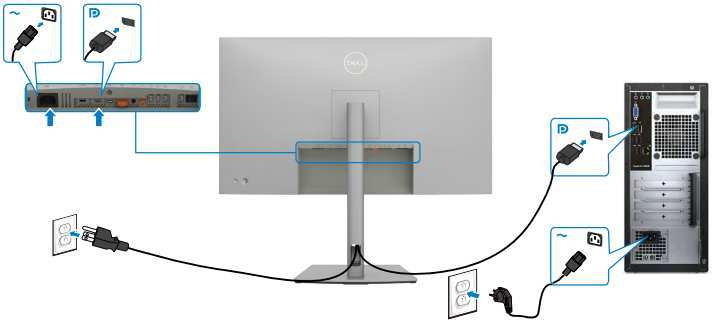
Yes, USB-C monitors reduce cable clutter for most laptop users. A single USB-C cable replaces a display cable and a power adapter. This works when your laptop supports DisplayPort Alt Mode and the monitor provides adequate power delivery.
Dual-monitor setups may still need extra cables.
Why USB-C Monitors Promise Less Clutter (and Why It Doesn't Always Work)
The appeal is straightforward. Instead of plugging in an HDMI or DisplayPort cable plus a separate power adapter, you connect one USB-C cable from your monitor to your laptop. Video signal, data transfer, and charging all happen through that one connection.
Here's the catch. Not every USB-C port on every laptop actually supports video output. Some USB-C ports are data-only or charge-only.
If your laptop's port lacks DisplayPort Alt Mode support, you'll still need a separate display cable, and the "single cable" dream falls apart before it starts.
On the monitor side, not all USB-C monitors provide meaningful power delivery. Some offer only 15W or 25W through their USB-C connection. That's fine for a peripheral, but it won't charge a power-hungry laptop like a MacBook Pro 16-inch, which needs 140W, or a Dell XPS 15 that expects 130W.
If the monitor can't deliver enough wattage, you're plugging in the power adapter anyway.
The promise is real, but only when both ends of the cable actually support the full feature set. Let's look at what's happening inside that cable.
How USB-C Monitor Connections Actually Work
The Three Things a USB-C Cable Can Carry
A single USB-C cable can simultaneously handle three types of signal. First, video output via DisplayPort Alt Mode, which lets the cable carry a display signal directly from your laptop's GPU to the monitor. Second, USB data transfer, which allows the monitor's built-in USB hub to function as if you'd plugged peripherals directly into your laptop.
Third, USB Power Delivery, which sends power from the monitor to your laptop.
When all three work together, you get the clean single-cable setup. The monitor connects to the wall power outlet, and then a single USB-C cable runs to your laptop, handling display, data, and charging simultaneously.
But here's what trips people up. The USB-C standard is a connector shape, not a guarantee of capability. A cable that charges your phone might not support video.
A port that transfers data might not support display output. The cable itself might be a charge-only USB-C cable with no data or video lines wired inside.
Why Your Laptop's USB-C Port Might Not Do What You Think
This is where most people get surprised. Just because your laptop has a USB-C port doesn't mean it supports video output over that port. Many budget and mid-range laptops include USB-C ports that handle data and charging only, with no DisplayPort Alt Mode support.
You need to check your laptop's specifications. Look for explicit mentions of "DisplayPort over USB-C" or "DP Alt Mode." If your laptop has a Thunderbolt 3 or Thunderbolt 4 port, that's a safe bet, since Thunderbolt includes DisplayPort video as part of the spec. But plain USB-C?
It varies by manufacturer and even by specific port on the same laptop.
Some laptops have multiple USB-C ports with different capabilities. One might support video output while the other doesn't. Check your manual or the manufacturer's spec sheet for each port individually.
USB-C Monitor vs. Traditional Monitor + Separate Charging: Side-by-Side
Let's compare what each setup actually looks like on your desk.
Cable Count Comparison
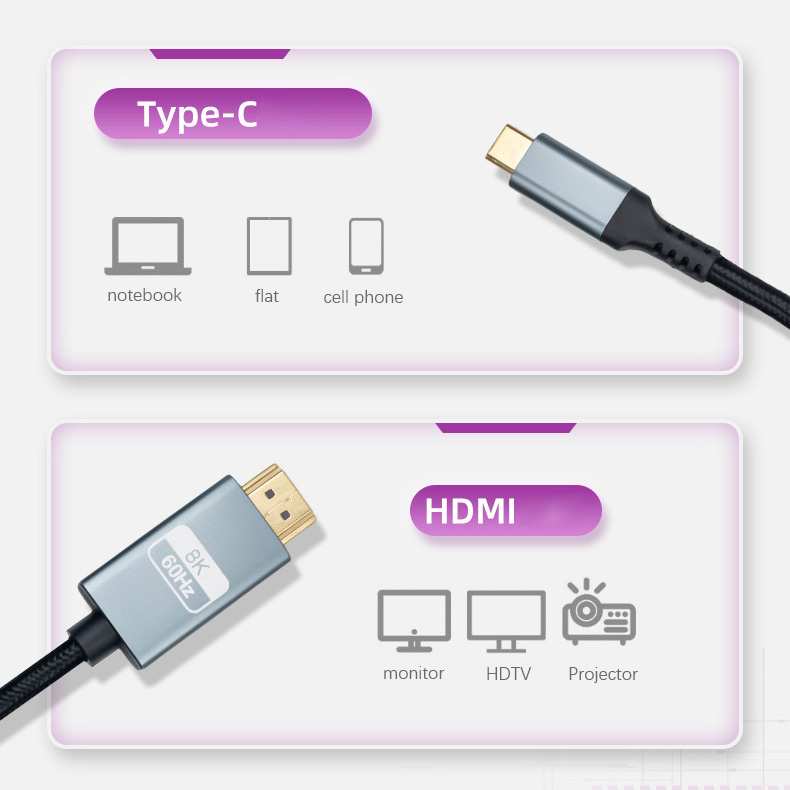
Traditional setup (one external monitor):
- HDMI or DisplayPort cable from monitor to laptop
- Laptop power adapter connected to wall and laptop
- Monitor power cable connected to wall
- Total cables on or near your desk: 3
USB-C monitor setup (single cable, full support):
- USB-C cable from monitor to laptop
- Monitor power cable connected to wall
- Total cables on or near your desk: 2
That's one fewer cable running to your laptop. It sounds minor, but it also means one fewer port occupied on your laptop, one fewer thing to plug in when you sit down, and one fewer thing to unplug when you leave.
What You Gain vs. What You Risk
| Factor | USB-C Monitor | Traditional Monitor + Power Adapter |
|---|---|---|
| Cables to laptop | 1 | 2 |
| Dock/undock speed | Fast (one connection) | Slower (two connections) |
| Charging capability | Depends on monitor PD wattage | Always full laptop charging speed |
| Compatibility risk | Port must support DP Alt Mode | Works with any laptop that has HDMI/DP |
| Dual monitor support | Often requires second cable type | Straightforward with multiple ports |
| Cost | USB-C monitors often cost more | More options at every price point |
| Built-in USB hub | Common on USB-C monitors | Rare without a separate dock |
The USB-C monitor wins on simplicity and daily convenience. The traditional setup wins on compatibility and flexibility, especially for multi-monitor configurations.
When a USB-C Monitor Actually Reduces Cable Clutter
Your Laptop Has a Full-Featured USB-C or Thunderbolt Port
This is the non-negotiable starting point. Your laptop's USB-C port must support DisplayPort Alt Mode for video output. Thunderbolt 3 and Thunderbolt 4 ports always include this capability.
For plain USB-C, you need to verify DP Alt Mode support in your laptop's specifications.
Most laptops released after 2018 with USB-C ports support DP Alt Mode, but there are plenty of exceptions. Business laptops sometimes ship with data-only USB-C ports to save cost. Some Chromebooks support video over USB-C, but not all do.
If you're unsure, look for a DisplayPort icon or a lightning bolt (Thunderbolt) icon next to the port. You can also check Device Manager on Windows or System Information on macOS to see what capabilities each port reports.
The Monitor Delves Enough Wattage to Charge Your Laptop
"Enough wattage" means the monitor's USB Power Delivery output meets or exceeds your laptop's charging requirement. A MacBook Air needs about 30W to charge at full speed. A MacBook Pro 14-inch needs 96W.
A MacBook Pro 16-inch needs 140W. Many Windows ultrabooks charge at 45W to 65W.
If your monitor delivers 60W and your laptop needs 65W, you'll still charge, but slowly, and the battery might drain under heavy use. If the monitor only delivers 15W or 25W, your laptop will drain battery during use even while plugged in.
Here's a quick reference for common laptops:
| Laptop | Charging Wattage Needed | USB-C Monitor PD That Works |
|---|---|---|
| MacBook Air M2/M3 | 30W to 35W | 45W or higher |
| MacBook Pro 14 (M3/M4) | 67W to 96W | 96W or higher |
| MacBook Pro 16 (M3 Max/M4 Max) | 140W | 140W (rare in monitors) |
| Dell XPS 13/15 | 65W to 130W | 90W or higher |
| Lenovo ThinkPad X1 Carbon | 65W | 65W or higher |
| HP Spectre x360 | 45W to 65W | 65W or higher |
| Framework Laptop 13/16 | 60W to 100W | 90W or higher |
You Don't Need Dual External Displays
Single external monitor setups are where USB-C monitors shine brightest. One cable from monitor to laptop, done. The monitor charges your laptop, carries the video signal, and often provides a USB hub for your keyboard, mouse, and other peripherals.
Dual monitor setups get complicated. Many USB-C monitors support daisy-chaining via DisplayPort Out or Thunderbolt passthrough, but this requires monitors and laptops that both support the feature. In practice, dual monitor setups often end up needing a mix of USB-C and HDMI/DisplayPort connections, or a dedicated Thunderbolt dock, which adds its own cable.
If you're running one external monitor with a laptop, USB-C is the cleanest solution. If you're running two or more, the clutter savings diminish unless your entire chain supports daisy-chaining.
When a USB-C Monitor Makes Clutter Worse
Your Laptop's USB-C Port Is Data-Only
This is the most common disappointment. You buy a USB-C monitor expecting the single-cable dream, then discover your laptop's USB-C port doesn't support video output. Now you're connecting a USB-C cable for power and data, plus an HDMI cable for video.
That's two cables instead of the traditional two, and you've spent more money on a monitor that isn't delivering the main benefit.
Budget business laptops are the usual offenders here. Many Lenovo ThinkPad T-series configurations, for example, ship with USB-C ports that support charging and data but not DisplayPort Alt Mode. Some Dell Latitude models have the same limitation.
Always verify before you buy.
The Monitor's Power Delivery Is Too Weak
Even when video works perfectly, insufficient power delivery ruins the experience. If your monitor outputs 15W or 25W through USB-C and your laptop needs 65W or more, your laptop's battery will drain during use. You'll end up plugging in the original power adapter anyway.
Now you've got a USB-C cable and a power adapter both connected. The USB-C monitor has actually added a cable rather than removed one. This scenario is common with older or budget USB-C monitors that were designed before higher-wattage Power Delivery became standard.
You're Running Two or More External Displays
Daisy-chaining two monitors via USB-C requires Thunderbolt support on both the laptop and both monitors. Most USB-C monitors don't support daisy-chaining. They lack a DisplayPort Out or Thunderbolt passthrough port.
For dual monitor setups, you'll typically need to connect one monitor via USB-C and the second via HDMI or DisplayPort. Or you'll need a Thunderbolt dock, which adds its own power cable and sits on your desk. The clutter savings evaporate quickly in multi-monitor configurations.
How to Check If a USB-C Monitor Will Work for Your Setup
Step 1: Verify Your Laptop's USB-C Port Capabilities
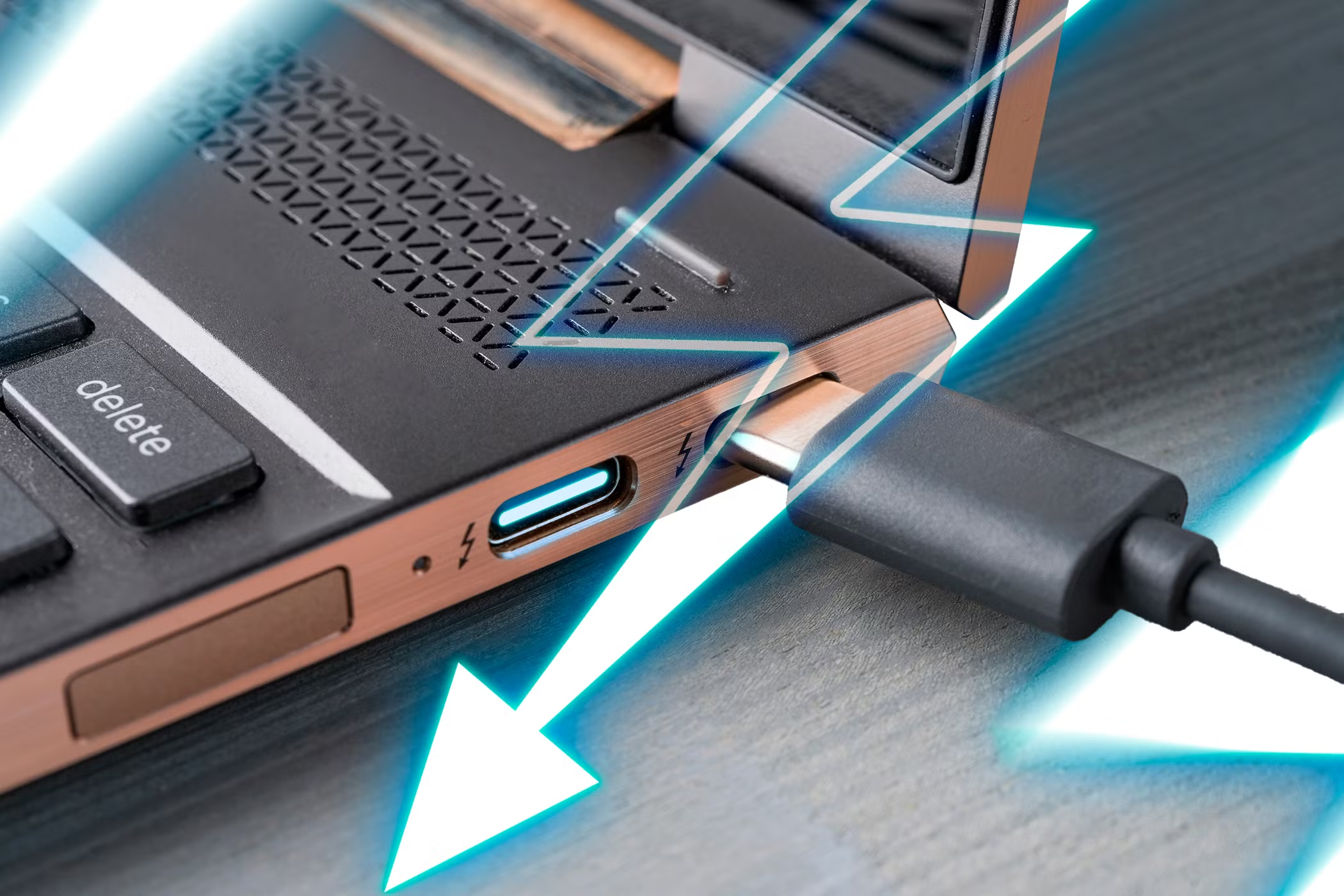
Check your laptop's spec sheet or user manual. Look for "DisplayPort over USB-C," "DP Alt Mode," or "Thunderbolt" listed under port specifications. On Windows, open Device Manager and check the Display Adapters section while a USB-C display is connected.
On macOS, go to Apple Menu, System Information, then Thunderbolt or USB to see port capabilities.
If your spec sheet mentions only "USB 3.2" or "USB-C data and charging" with no mention of DisplayPort or Thunderbolt, assume video output is not supported.
Step 2: Check the Monitor's Power Delivery Wattage
Find the monitor's USB Power Delivery specification. It's listed in the tech specs as "USB PD," "Power Delivery," or "Charging Output" and measured in watts. Compare this number to your laptop's power adapter wattage.
If the monitor's PD output is lower than your laptop's requirement, your laptop will charge slowly or not at all under heavy use. For reliable charging, the monitor should meet or exceed your laptop's rated charging wattage.
Step 3: Confirm You Have the Right Cable
Not all USB-C cables support video. Charge-only USB-C cables lack the data lines needed for DisplayPort Alt Mode. Cables that support USB 2.0 data only won't carry video either.
You need a "full-featured" USB-C cable that supports USB 3.1 or higher and DisplayPort Alt Mode. Most USB-C monitors ship with a suitable cable in the box. If you need a replacement or a longer cable, look for one explicitly rated for video output.
Thunderbolt 4 cables universally support video and are a safe choice for any USB-C monitor setup.
Real-World Setups: What Clean Actually Looks Like
Single Laptop + Single USB-C Monitor (The Ideal)
This is the scenario where USB-C monitors earn their reputation. Your monitor sits on the desk, connected to a wall outlet. A single USB-C cable runs from the monitor to your laptop.
That cable carries the video signal, charges your laptop, and connects any peripherals plugged into the monitor's USB hub.
When you arrive at your desk, you plug in one cable. When you leave, you unplug one cable. No fumbling with two connections, no hunting for your power adapter, no cable sprawl behind the laptop.
MacBook Pro + Studio Display
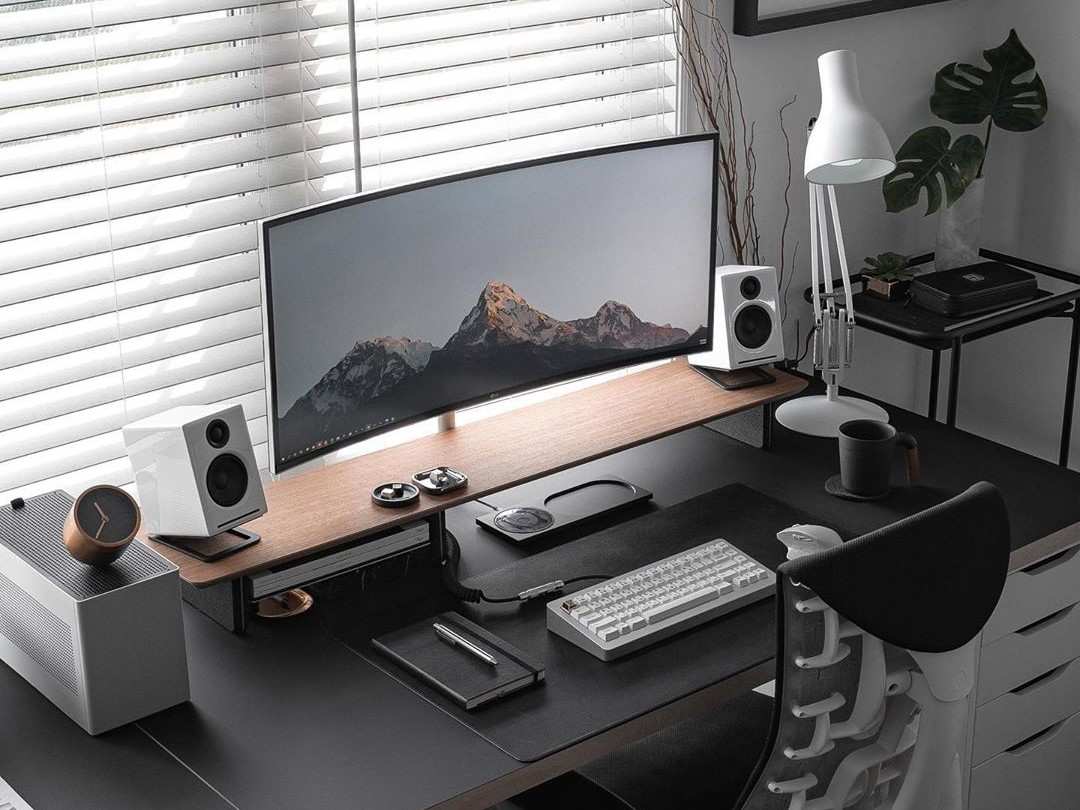
Apple's Studio Display pairs perfectly with MacBook Pro models. The monitor connects via Thunderbolt, delivering 96W of power to the MacBook Pro 14-inch. One cable handles the 5K video signal, charging, and data.
The Studio Display even includes a built-in webcam and speakers, eliminating more cables and peripherals from the desk.
This is arguably the cleanest mainstream USB-C monitor setup available as of 2026. It works seamlessly because Apple controls both the monitor and the laptop, ensuring full compatibility.
Windows Laptop + USB-C Monitor + Peripherals
A Dell UltraSharp USB-C monitor paired with a ThinkPad or XPS laptop works similarly. The monitor's built-in USB hub connects your keyboard, mouse, webcam, and external drive. A single USB-C cable from monitor to laptop handles video, charging, and all peripheral data.
The desk stays clean because everything routes through the monitor.
Dual Monitor Setup (Where It Gets Complicated)
Two monitors on one laptop via USB-C gets tricky. If both monitors support Thunderbolt daisy-chaining, you can connect the laptop to the first monitor, then the first monitor to the second. But this requires Thunderbolt, not just USB-C, on all devices.
More commonly, you'll connect one monitor via USB-C and the second via HDMI or DisplayPort. Or you'll use a Thunderbolt dock that has multiple display outputs. The dock adds its own power cable, so you're back to multiple cables on the desk.
Dual monitor setups reduce the clutter advantage of USB-C monitors significantly.
Common Mistakes People Make When Switching to USB-C Monitors
Buying a USB-C monitor without checking your laptop's port capabilities is the number one mistake. People assume all USB-C ports support video. They don't.
Verify before you spend the money.
Using the wrong cable is another frequent issue. That spare USB-C cable from your phone charger probably doesn't support video. It might charge your laptop slowly while displaying nothing on the monitor.
Always use the cable that came with the monitor, or buy one explicitly rated for video output.
Ignoring power delivery wattage catches people off guard too. They see "USB-C" and "charging" in the specs and assume it'll charge their laptop. A 15W USB-C monitor will not charge a MacBook Pro.
Check the wattage rating against your laptop's requirements.
Expecting dual-monitor daisy-chaining on non-Thunderbolt monitors is another dead end. Most USB-C monitors don't support daisy-chaining. If you need two external displays, plan for a dock or mixed connections.
Finally, some people forget that the monitor itself still needs power. USB-C doesn't eliminate the monitor's power cable. It eliminates the cables running to your laptop.
The monitor still plugs into the wall.
USB-C Monitor Pricing and What You're Actually Paying For
USB-C monitors typically cost $50 to $200 more than their non-USB-C counterparts with equivalent panel specs. A 27-inch 4K IPS monitor without USB-C might run $300 to $400. The same panel with USB-C and Power Delivery often starts at $400 to $550.
You're paying for the added circuitry that handles Power Delivery negotiation and DisplayPort Alt Mode routing. Monitors with higher PD wattage, like 90W or 100W models, cost more than those with 15W or 60W output. Thunderbolt 4 monitors sit at the premium end, often $500 to $1,200 or more.
The price premium is worth it if you'll actually use the single-cable benefit daily. If your laptop doesn't support video over USB-C, you're paying extra for a feature you can't use.
Frequently Asked Questions
Do all USB-C monitors charge your laptop?
No. Many USB-C monitors provide only 15W to 25W of power delivery. That's enough for peripherals but not for charging most laptops.
Check the monitor's PD wattage rating against your laptop's charging requirement before assuming it'll handle charging.
Can I use a USB-C monitor with a desktop PC?
Only if your desktop has a USB-C port with DisplayPort Alt Mode or Thunderbolt output. Most desktop graphics cards don't include USB-C video output. You'd need a GPU with a USB-C port, which is rare, or an adapter, which defeats the single-cable benefit.
Do I need a special USB-C cable for video?
Yes. You need a full-featured USB-C cable that supports DisplayPort Alt Mode or Thunderbolt. Basic charge-only cables won't carry video.
Most USB-C monitors include a suitable cable in the box. If you buy a replacement, confirm it supports video output.
Will a USB-C monitor work with my MacBook?
Most modern MacBooks support video and charging over USB-C. M1 and later MacBook Air models work with any USB-C monitor that supports DisplayPort Alt Mode. MacBook Pro models with M3 Pro, M3 Max, M4 Pro, or M4 Max chips benefit from higher-wattage monitors for full-speed charging.
Can I daisy-chain two USB-C monitors?
Only if both monitors and your laptop support Thunderbolt daisy-chaining. Standard USB-C monitors without Thunderbolt cannot be daisy-chained. For dual non-Thunderbolt monitors, you'll need separate connections or a Thunderbolt dock.
Final Verdict: Should You Switch to a USB-C Monitor?
USB-C monitors reduce cable clutter when your laptop supports DisplayPort Alt Mode and the monitor provides adequate power delivery. For single-monitor laptop setups, the single-cable convenience is real and worth the modest price premium.
If you're running dual monitors, using a desktop PC, or own a laptop with data-only USB-C ports, the benefits shrink or disappear. Verify your laptop's port capabilities first. Check the monitor's PD wattage second.
Then decide if the cleaner desk is worth the investment.

Similar Posts





















