Why Are USB C Monitors Popular
Why USB-C Monitors Took Over: The Real Reason Everyone's Switching
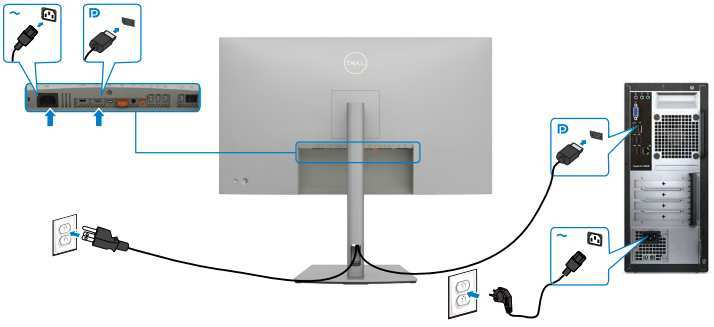
If you've been shopping for a monitor lately, you've probably noticed that USB-C is everywhere. So why are USB-C monitors popular? The short answer is simple: one cable handles video, power, and data all at once.
That single change solves a ton of everyday frustrations with desk setups.
The USB Implementers Forum (USB-IF) has pushed the USB Type-C connector as a universal standard since 2014, and by 2026 it's become the default on most mid-range and premium monitors. Let's break down exactly what's driving this shift, where USB-C monitors shine, and where they might not be the right fit for you.
Image source: Bing (Web (fair-use with source credit))
Quick Answer
USB-C monitors are popular because one cable carries video, data, and power simultaneously. This reduces cable clutter and simplifies docking. The standard supports up to 100 watts of power delivery.
Most premium monitors now ship with USB-C as of 2026.
What Makes USB-C Different From HDMI and DisplayPort
USB-C isn't just another video input. It's a fundamentally different approach to connecting your display.
Traditional monitors treat video and power as separate jobs. You plug in an HDMI or DisplayPort cable for the picture, then a separate power brick for electricity. USB-C collapses all of that into one reversible connector that handles everything at once.
The magic behind this is something called DisplayPort Alt Mode. It's a protocol built into the USB-C specification that lets the connector carry a full DisplayPort signal alongside USB data and power delivery. When you plug your laptop into a USB-C monitor, the devices negotiate what each side can handle, then configure the connection accordingly.
Here's what makes this different from the older standards:
- HDMI carries video and audio only. No data, no charging.
- DisplayPort handles video and audio with higher bandwidth, but still no power delivery over the cable.
- USB-C with DisplayPort Alt Mode combines all three: video signal, USB data transfer, and up to 100W of power delivery through one cable.
The connector itself is also reversible. No more flipping the plug three times to get it in the right orientation. That small detail matters more than people admit when you're plugging in a monitor under a desk every morning.
The Single-Cable Magic: Video, Power, and Data in One
This is the headline feature that's driving USB-C monitor adoption. One cable from your laptop to your monitor gives you a full desktop experience.
Here's what happens when you make that connection:
- Your laptop starts charging through the monitor's power delivery circuit
- The display receives a full video signal at the monitor's native resolution and refresh rate
- Any USB devices plugged into the monitor's built-in hub (keyboard, mouse, webcam, external drive) route back to your laptop through that same cable
For someone working at a hot desk or moving between a home office and a conference room, this is a game changer. You walk in, plug in one cable, and you're fully set up. Walk out, unplug one cable, and you're done.
The power delivery side is worth paying attention to. USB Power Delivery (USB PD) can push up to 100 watts over a USB-C cable. That's enough to charge most ultrabooks and many 14-inch laptops at full speed.
Some high-wattage workstation laptops that need 130W or more may still require their dedicated charger, though many will charge more slowly over USB-C.
USB-C vs. HDMI vs. DisplayPort: Honest Comparison
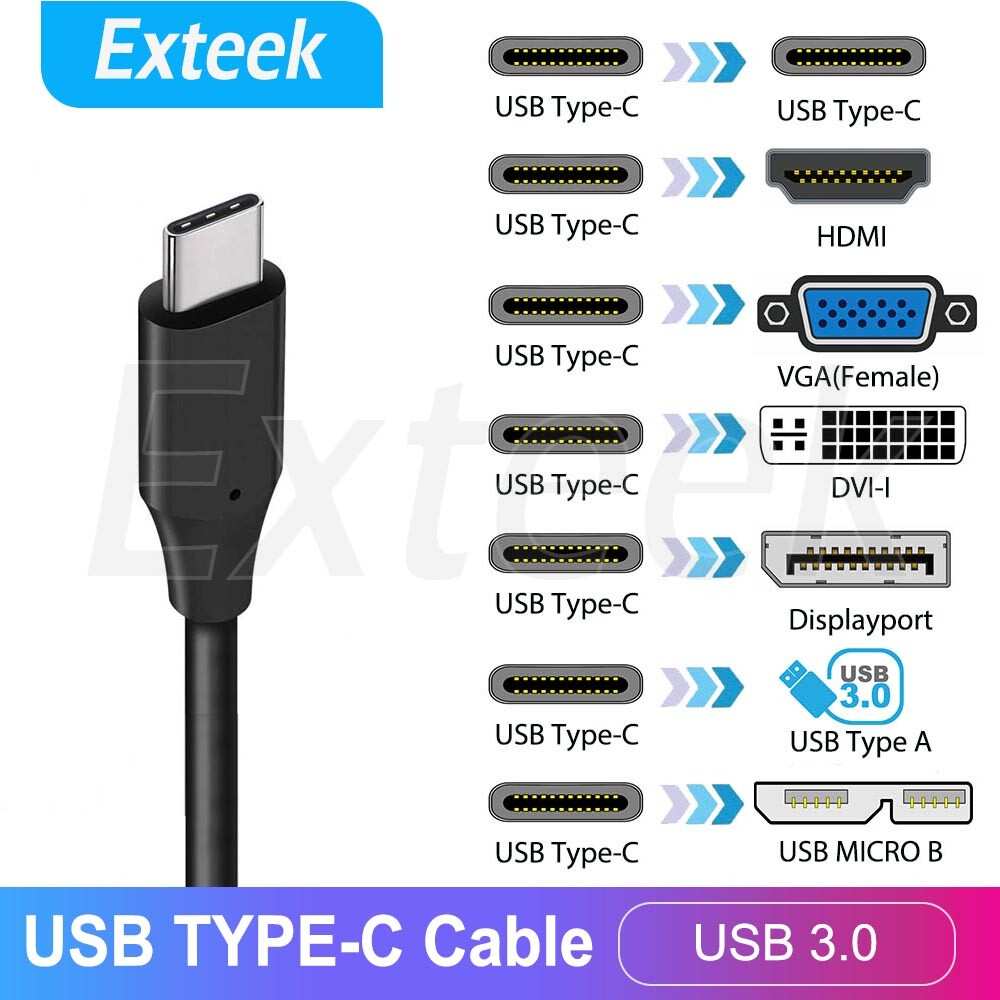
Let's put the three main options side by side. Each one has legitimate strengths depending on your situation.
| Feature | USB-C (DP Alt Mode) | HDMI 2.1 | DisplayPort 2.1 |
|---|---|---|---|
| Max Resolution | 8K at 60Hz (USB4) | 10K at 60Hz | 16K at 60Hz |
| Max Refresh (4K) | 120-240Hz | 144Hz | 240Hz+ |
| Power Delivery | Up to 100W | None | None |
| Data Transfer | Up to 40Gbps | None (separate USB needed) | USB data lane available |
| Cable Simplicity | Single cable | Video only | Video only |
| Daisy Chaining | Yes (via DP MST) | No | Yes |
| Best For | Laptop docking, clean desktops | Gaming consoles, TVs | High-refresh gaming, pro video |
USB-C wins on convenience. HDMI and DisplayPort win on raw bandwidth for specialized use cases.
If you're connecting a gaming PC to a high-refresh monitor, DisplayPort 2.1 still gives you the most headroom. If you're hooking up a PlayStation or Xbox, HDMI 2.1 is the obvious choice. But for the majority of people connecting a laptop to a desk monitor, USB-C delivers the best overall experience because of that single-cable advantage.
Image source: Bing (Web (fair-use with source credit))
Not All USB-C Is Created Equal (This Trips People Up)
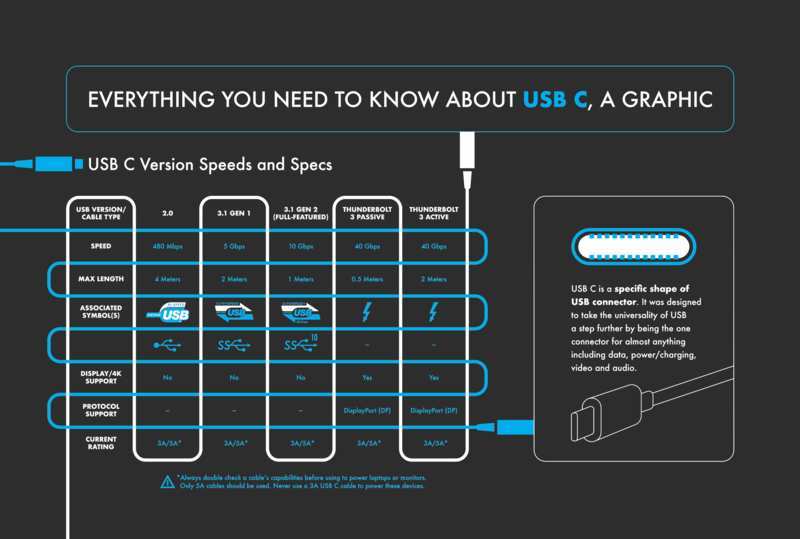
Here's where a lot of people get burned. Just because a port is USB-C shaped doesn't mean it supports video output. And not all USB-C cables are built to the same spec.
This is the single biggest source of confusion in the USB-C monitor world. Let me break it down.
USB-C Port Capabilities Vary Wildly
A USB-C port on your laptop might support any combination of these:
- USB data only. Many budget laptops have USB-C ports that handle data transfer but have no video output capability at all.
- USB data + DisplayPort Alt Mode. This is what you need for a USB-C monitor. The port can carry a video signal.
- USB data + DisplayPort Alt Mode + Power Delivery. The full package. Your laptop can receive power while outputting video.
- Thunderbolt 3 or 4. These use the USB-C connector but offer 40Gbps of bandwidth, enabling higher resolutions, faster data, and often better daisy chaining.
Before buying a USB-C monitor, check your laptop's specifications. Look specifically for "DisplayPort over USB-C" or "DP Alt Mode" in the port description. If the spec sheet only mentions "USB-C 3.2 Gen 2" without any video mention, that port almost certainly cannot drive an external display.
Cable Quality Matters More Than You Think
USB-C cables are a minefield. A cable that came in the box with your phone charger might only support USB 2.0 data speeds and no video at all. You need a cable rated for the full feature set your monitor requires.
Here's a quick guide:
- USB 2.0 USB-C cable. Charging and slow data only. No video. Often the cheapest and most common cable in random drawers.
- USB 3.2 Gen 1/2 USB-C cable. Supports data at 5-10Gbps and often supports DisplayPort Alt Mode. Good for 4K at 60Hz.
- Thunderbolt 4 cable. Supports 40Gbps, full DisplayPort 2.1, and up to 100W power delivery. Needed for 5K+ resolutions or high-refresh 4K.
- USB4 cable. Similar to Thunderbolt 4 but implementation varies. Check the rated speed.
The USB-IF certification program helps here. Look for cables with the USB-IF logo or certification marking. Cheap uncertified cables from unknown brands are the number one cause of flickering displays, failed charging, and connection drops.
Image source: Bing (Web (fair-use with source credit))
DisplayPort Alt Mode vs. Thunderbolt
These two are often confused because they both use the USB-C connector and both carry video. But they're different technologies.
DisplayPort Alt Mode dedicates some of the USB-C pin lanes to carrying a DisplayPort signal directly. The host device (your laptop) outputs DisplayPort natively, and the Alt Mode adapter or cable routes it through the USB-C connector. This is the most common way USB-C monitors work.
Thunderbolt 3 and 4 use a different signaling protocol that can carry DisplayPort, PCIe data, and USB data simultaneously over the same cable. Thunderbolt is essentially a superset. It can do everything DisplayPort Alt Mode does, plus more bandwidth and daisy chaining capability.
The practical difference for most users: Thunderbolt monitors and cables cost more, but they support higher resolutions and more daisy chaining flexibility. DisplayPort Alt Mode monitors work with a wider range of laptops and devices at a lower price point.
If your laptop has a Thunderbolt port (look for the lightning bolt icon next to the USB-C port), you can use either type of monitor. If your laptop only supports DisplayPort Alt Mode, stick with standard USB-C monitors to avoid compatibility headaches.
Who Actually Benefits Most From a USB-C Monitor
USB-C monitors aren't for everyone. But for certain users, the convenience factor is hard to overstate.
The biggest winners are laptop users who dock and undock frequently. If you're moving your laptop between a desk, meeting rooms, and home on a daily basis, that single-cable connection saves real time and real frustration. Per aggregate user feedback on portable monitor setups, the plug-and-play docking experience is the most cited reason people stick with USB-C after switching.
MacBook users have been living this reality for years. Apple standardized on Thunderbolt 3 (USB-C connector) starting in 2016, and every current Mac laptop relies on it for external displays. The Apple Studio Display is essentially a USB-C monitor with a built-in Mac mindset.
Chromebook users also benefit heavily. Most modern Chromebooks support DisplayPort Alt Mode over USB-C, and Chrome OS handles external display configuration almost instantly. It's one of the smoothest plug-and-play experiences available.
Portable Monitors and Travel Setups
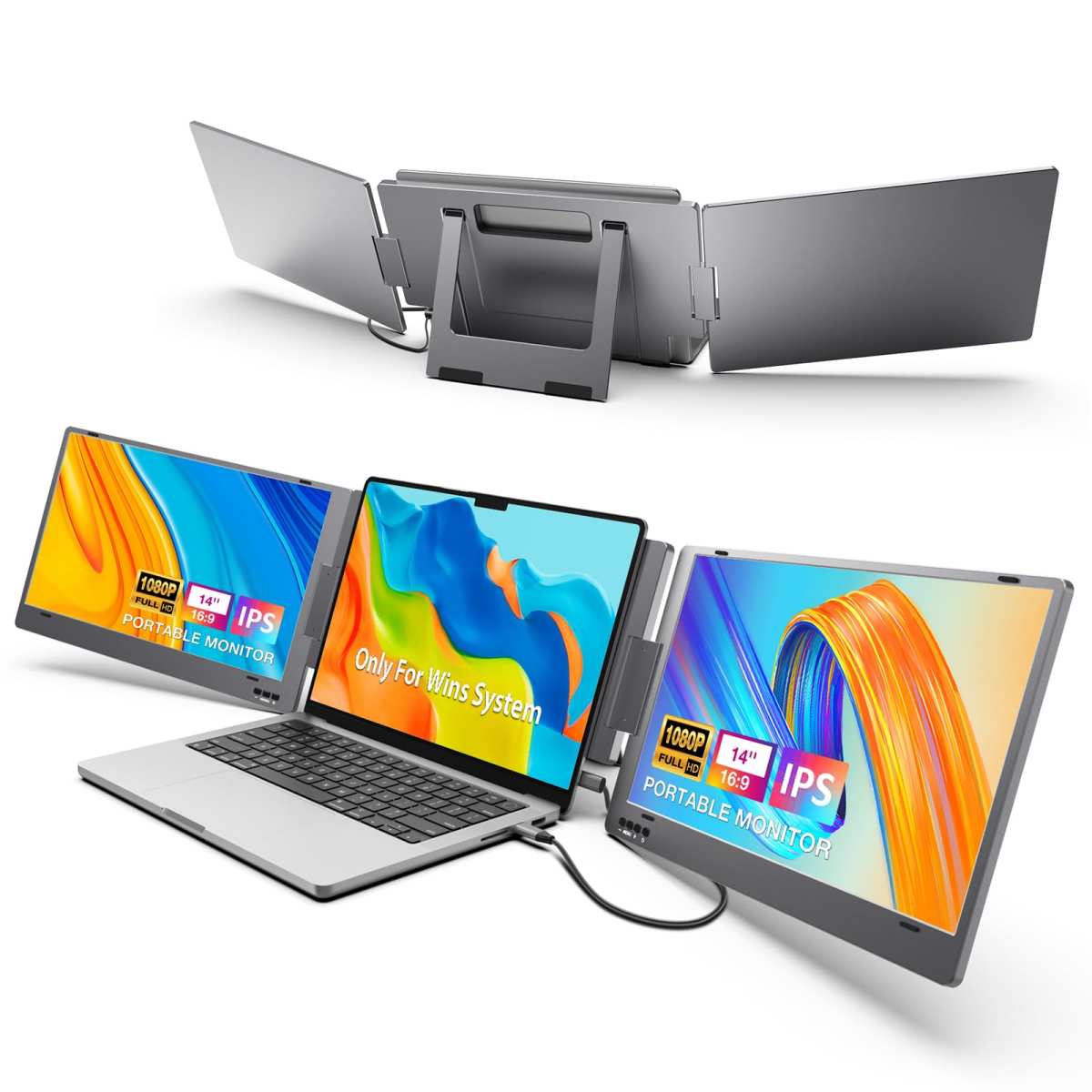
The portable monitor category has exploded alongside USB-C adoption. These lightweight 13 to 17 inch screens draw power and video from a single USB-C cable connected to your laptop.
For business travelers, this means a dual-screen setup that fits in a laptop bag. You get your laptop screen plus an external display at a hotel or client site, all powered through one cable. No power brick for the monitor.
No separate video cable. Just plug in and work.
Most portable USB-C monitors draw between 15 and 30 watts from your laptop's battery. That's noticeable but manageable. Some models include a USB-C passthrough port so you can still charge your laptop while the monitor is connected, which solves the battery drain concern entirely.
Popular sizes include 14 inch for maximum portability and 15.6 inch for a more usable screen area. Resolution typically tops out at 1080p or 1440p in this category, since 4K portable monitors consume more power and cost significantly more.
Image source: Bing (Web (fair-use with source credit))
Office and IT Deployments
From an IT management perspective, USB-C monitors simplify fleet deployment significantly. Standardizing on USB-C means one monitor model works across most modern laptops, regardless of brand.
Hot desk environments benefit the most. Employees walk up to any available desk, plug in one cable, and their laptop is connected to the display, peripherals, and network (if the monitor includes Ethernet or a USB dock). No hunting for the right adapter.
No help desk tickets about display compatibility.
Conference rooms are another area where USB-C shines. A monitor with USB-C input lets presenters connect their laptop with a single cable rather than fumbling with HDMI adapters and power cords. Some conference room monitors include a built-in USB hub so the room's shared peripherals route through the display.
The cost savings add up. Fewer adapters to purchase and manage. Less time spent troubleshooting display issues.
Fewer help desk tickets related to meeting room technology.
What to Check Before You Buy
Don't just grab the cheapest USB-C monitor you find. A few spec checks upfront will save you from compatibility headaches later.
Power Delivery Wattage
Check how many watts the monitor can deliver to your laptop. This number matters more than most people realize.
- 15 to 27 watts. Enough to trickle-charge most laptops. Fine for all-day desk use but won't keep up under heavy workloads.
- 45 to 60 watts. Adequate for ultrabooks and most 13 to 14 inch laptops. Charges at a reasonable pace even while working.
- 90 to 100 watts. The full USB PD spec. Handles most 15 to 16 inch laptops including many that have discrete graphics.
If your laptop ships with a 65W charger, get a monitor that delivers at least 60W. Otherwise you might find your laptop slowly draining during heavy use even while plugged in.
Cable Quality Matters More Than You Think
The cable included in the box with your monitor is usually adequate. But if you need a longer run or a replacement, pay attention to the specs.
Look for cables rated for "full-featured" USB-C with DisplayPort Alt Mode support. A cable that only handles USB 2.0 data will not carry a video signal. A cable rated for 5Gbps might cap your resolution at 4K 30Hz instead of 4K 60Hz.
Certified cables from the USB-IF program are the safest bet. Brands like Anker, Cable Matters, and Belkin offer clearly rated cables with proper certification. Avoid mystery cables from bulk packs unless the specs are explicitly listed.
DisplayPort Alt Mode vs. Thunderbolt
Make sure you know what your laptop supports before choosing a monitor.
If your laptop has Thunderbolt 3 or 4 (look for the lightning bolt icon), you can use any USB-C monitor and also Thunderbolt-specific monitors. You'll have maximum flexibility.
If your laptop only supports DisplayPort Alt Mode over USB-C, stick with standard USB-C monitors. Thunderbolt monitors will often work in a limited capacity with non-Thunderbolt hosts, but you may lose features like higher refresh rates or daisy chaining capability.
When in doubt, check your laptop manufacturer's port specifications page. It will explicitly state which video output modes each USB-C port supports.
Common Mistakes and Compatibility Headaches
The most common mistake is assuming all USB-C ports support video output. They don't. Many budget laptops include USB-C ports that handle data and charging only.
Another frequent issue is using the wrong cable. A USB-C cable rated only for charging will not carry a video signal. The monitor will power on but display nothing.
This sends people into a troubleshooting spiral when the fix is simply swapping the cable.
Daisy chaining is another area of confusion. Not all USB-C monitors support DisplayPort Multi-Stream Transport (MST) for daisy chaining a second monitor. If you want a two-monitor chain from one USB-C port, verify MST support in the monitor's specifications before purchasing.
Firmware updates can also matter. Some monitors receive updates that fix compatibility issues with specific laptop models. If you experience flickering or connection drops, check the manufacturer's support page for a firmware update before assuming the hardware is defective.
Finally, watch out for monitors that advertise "USB-C" but only support a limited feature set. Some budget models include USB-C for data and charging but require HDMI for video. Read the full specifications, not just the marketing headline.
Price Ranges and What You Get at Each Level
USB-C monitors span a wide price range. Here's what to expect at each tier.
Budget ($150 to $300). Basic 24 inch 1080p panels with USB-C for data and limited charging (often 15 to 27W). Good for office work but power delivery may not keep up with demanding laptops.
Mid-range ($300 to $600). 27 inch 1440p or 4K IPS panels with 60 to 90W power delivery, built-in USB hubs, and better color accuracy. This is the sweet spot for most professionals.
Premium ($600 to $1,200). Higher resolution, better panel technology (OLED or high-end IPS), 90 to 100W charging, Thunderbolt 4 connectivity, and factory-calibrated color. Targeted at creative professionals and developers.
Ultra-premium ($1,200+). Large format 32 inch plus displays, 5K or 6K resolution, full Thunderbolt docking functionality, and professional color accuracy with hardware calibration support.
USB-C Monitor vs. Traditional Dock: Which Setup Wins
A USB-C monitor with built-in hub functionality competes directly with the traditional setup of a separate monitor plus a dedicated USB dock.
The USB-C monitor approach wins on simplicity. One cable, one device on your desk, fewer points of failure. You plug in and everything works.
A dedicated docking station offers more ports and flexibility. Most docks provide three or more USB-A outputs, Ethernet, audio, and sometimes dual display outputs. If you need to connect a lot of peripherals, a dock still has the edge.
For most single-monitor desk setups, the integrated approach is cleaner and sufficient. If you're running multiple external displays or need wired Ethernet, a dock paired with a standard monitor remains the better choice.
The Future: USB4 and Thunderbolt 4
USB4 is the next evolution. Based on Thunderbolt 3 technology, it offers up to 40Gbps of bandwidth with improved tunneling of DisplayPort, USB, and PCIe data.
USB4 supports DisplayPort 2.1, which means 8K resolution at 60Hz or 4K at 240Hz over a single USB-C cable. That's a massive leap over current USB-C implementations limited to DisplayPort 1.4.
The catch is that USB4 hosts and devices are still rolling out across the market as of 2026. Full implementation varies by manufacturer. Some USB4 ports support the full 40Gbps spec while others cap at 20Gbps.
Thunderbolt 4 maintains a premium position with guaranteed minimum performance standards. Every Thunderbolt 4 port must support at least one 4K display, 32Gbps data, and PCIe tunneling. USB4 makes these features optional rather than mandatory.
Frequently Asked Questions
Can any laptop connect to a USB-C monitor?
No. The laptop's USB-C port must specifically support DisplayPort Alt Mode or Thunderbolt for video output. Check your laptop's port specifications before assuming compatibility.
Do USB-C monitors work with gaming PCs?
Most gaming PCs need a dedicated GPU with USB-C output or a DisplayPort/HDMI connection. Many desktop graphics cards lack USB-C ports entirely, so you may still need a traditional video cable.
Will a USB-C monitor charge my laptop?
It depends on the monitor's power delivery wattage and your laptop's power requirements. A monitor delivering 65W will charge a 45W ultrabook quickly but may only trickle-charge a 130W workstation laptop.
Is USB-C good enough for photo and video editing?
Yes, for most professional work. USB-C with DisplayPort Alt Mode supports 4K resolution, wide color gamuts, and high bit depth. Color-critical work benefits from factory-calibrated panels available in the premium USB-C monitor tier.
Can I daisy chain two USB-C monitors?
Only if both monitors and your laptop support DisplayPort Multi-Stream Transport (MST) over USB-C. Not all USB-C monitors include MST support, so verify this in the specifications before planning a daisy chain setup.
Final Verdict: Should You Switch to USB-C?
USB-C monitors are the right choice if you use a laptop as your primary machine and value a clean, simple desk setup. The single-conection convenience is real and it holds up in daily use.
If you're on a desktop PC without USB-C video output, or you need maximum refresh rates for competitive gaming, traditional DisplayPort or HDMI monitors still make more sense.
For most people in 2026, a USB-C monitor in the $300 to $600 range hits the right balance of features, price, and future-proofing. Just verify your laptop's port capabilities and buy a proper cable.

Similar Posts





















