Why Are Touchscreen Monitors Important for Accessibility
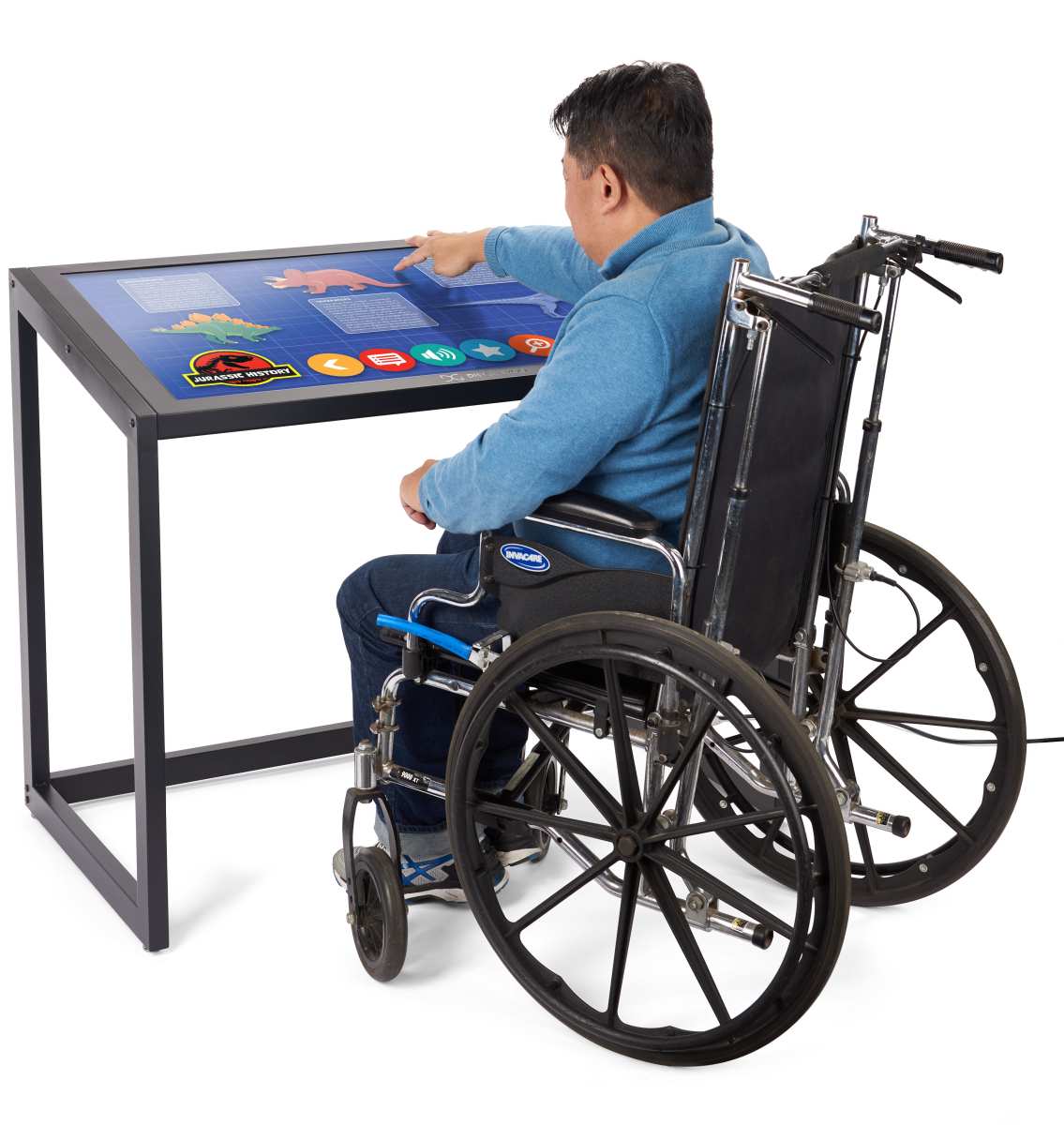
Understanding why touchscreen monitors are important for accessibility starts with a simple truth. Not every user interacts with a screen the same way. For people with motor impairments, visual disabilities, or cognitive challenges, a standard mouse-and-monitor setup can be a real barrier.
Touchscreens remove some of those barriers by letting users interact directly with what they see.
But here's the catch. Not every touchscreen monitor delivers the same accessibility benefits. The technology underneath the glass, the mounting options, and the software integration all determine whether a touchscreen actually helps or just adds frustration.
As of 2026, accessibility standards like Section 508 and the ADA continue to shape how workplaces and public spaces approach this. Let's break down what really matters.
Quick Answer
Touchscreen monitors improve accessibility through direct on-screen interaction. Users with motor impairments can tap targets instead of manipulating a mouse. Touchscreens reduce cognitive load for users with developmental disabilities.
They support assistive tools like on-screen keyboards and screen readers. The right touchscreen monitor can mean independent device use versus needing constant help.
The Real Reason Touchscreens Change Lives (It's Not What You Think)
Most people assume touchscreens are just a convenience. Something nice for scrolling or signing a receipt. For users with disabilities, though, a touchscreen can be the difference between using a device independently or not using it at all.
The core principle here is called direct manipulation. When you tap an icon on screen, the result is immediate and intuitive. There's no mental translation between moving a mouse on a desk and watching a cursor respond on a monitor.
That translation step sounds trivial. For someone with limited fine motor control or a processing disability, though, it's a significant cognitive and physical hurdle.
Research in human-computer interaction consistently shows that direct input methods reduce task completion time for users with certain disabilities. Fitts' Law, a well-established HCI principle, confirms that touching a target directly is faster than pointing at it indirectly through a mouse. The difference isn't just speed.
It's about reducing fatigue and frustration over hours of daily use.
Touchscreens also open the door to a whole ecosystem of assistive tools. On-screen keyboards with word prediction, gesture-based navigation, and stylus input for users who can't use a finger. All of these depend on a responsive, well-calibrated touch display.
Without the right hardware, those software solutions fall flat.
How Touchscreen Technology Actually Works for Different Disabilities
Accessibility isn't one-size-fits-all. The way a touchscreen helps depends entirely on the user's specific needs. Let's look at the three main disability categories where touchscreens make the biggest impact.
Motor Impairments: Why Direct Touch Beats Mouse Navigation
For users with conditions like cerebral palsy, muscular dystrophy, or arthritis, precise mouse movements can be exhausting or impossible. A touchscreen lets them interact with large on-screen targets using a finger, a stylus, or even a head-paired switch adapter.
The key here is adjustability. A touchscreen monitor mounted at the right height and angle for a wheelchair user is a completely different experience than one bolted to a fixed stand at standing height. Pair that with palm rejection technology and glove-mode support, and you've got a setup that accommodates a wide range of motor abilities.
Visual Impairments: Touch + Screen Reader Combos That Work
Touchscreens aren't just about what you see. They're about how you navigate. For users with low vision or blindness, a touchscreen combined with a screen reader like JAWS or NVDA allows spatial exploration of the display.
Users can drag their fingers across the screen and hear what's under their fingertips.
This spatial awareness is something a mouse simply can't replicate. It turns the screen into a tactile map. Combined with pinch-to-zoom and magnification gestures built into modern operating systems, touchscreens give visually impaired users tools that a standard monitor can't offer.
Cognitive and Developmental Disabilities: Lowering the Learning Curve
For users with autism, Down syndrome, or intellectual disabilities, the directness of touch interaction reduces the learning curve dramatically. There's no need to understand the relationship between a physical input device and a virtual cursor. You touch what you want.
That's it.
This simplicity is why touch-based devices became transformative in special education classrooms years ago. A well-configured touchscreen monitor with large, clearly labeled on-screen buttons can turn a complex computer task into something a user can master in minutes rather than weeks.
Not All Touchscreens Are Equal: The Tech Specs That Actually Matter for Accessibility
Here's where a lot of buyers go wrong. They see "touchscreen" on the spec sheet and assume it's all the same. It's not.
The underlying touch technology has a massive impact on accessibility.
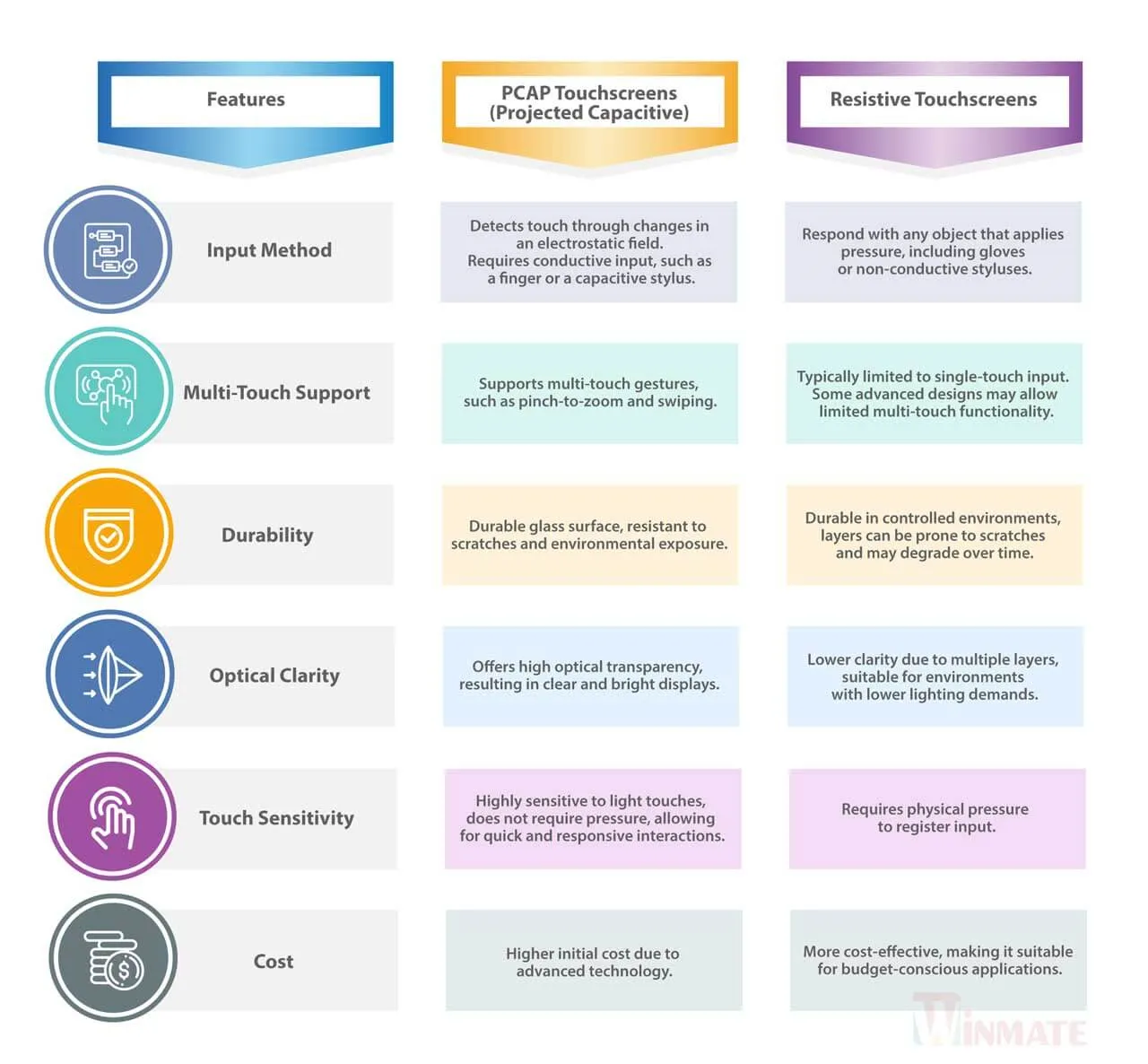
Projected Capacitive vs. Resistive vs. Infrared — Which One Helps Whom
| Touch Technology | How It Works | Best For | Accessibility Drawback |
|---|---|---|---|
| Projected Capacitive (PCAP) | Detects electrical charge from finger | Most users; standard in modern monitors | Doesn't work with standard gloves; light touch required |
| Resistive | Pressure activates two flexible layers | Users who use stylus, gloved hands, or need firm pressure | Requires physical force; harder for motor-impaired users |
| Infrared (IR) | Light beams interrupted by touch object | Large-format displays; public kiosks | Can trigger accidentally; lower precision for small targets |
PCAP is the dominant technology in consumer and professional touchscreen monitors. It's responsive, supports multi-touch gestures, and feels natural. For most accessibility use cases, it's the right choice.
But if your user wears gloves or needs to use a stylus with a thick tip, resistive or hybrid models might be worth considering.
The Specs You Can't Ignore
Beyond the touch technology itself, several specs determine whether a monitor works for accessibility or fails at it.
- Touch latency: Anything above 15ms feels sluggish. Users with motor impairments need immediate feedback.
- Tilt range: A monitor that tilts from -5° to 90° accommodates wheelchair users and standing users alike.
- Palm rejection: Essential for users who rest their hand on the screen while writing or navigating.
- Screen size: 21.5" is the practical minimum for accessible touch targets. 27" or larger is better for users with limited precision.
- Mounting compatibility: VESA mount support (75×75 or 100×100) lets you pair the monitor with adjustable arms for ADA-compliant positioning.
Manufacturer specifications for displays like the Dell P2418HT or the Planar Helium PCT2785L confirm these specs matter. Aggregate user feedback from accessibility forums consistently highlights tilt range and palm rejection as the features people notice most after purchase.
Touchscreen Monitors vs. Other Assistive Input Methods
A touchscreen monitor isn't the only option for accessible computer input. It's important to understand where it fits among alternatives so you can make the right call for your situation.
Touchscreen vs. Standard Monitor + Mouse
For users with mild motor impairments, a standard monitor with an ergonomic mouse or trackball might be sufficient. The advantage of adding touch is the ability to switch between input methods. Some tasks are faster with a mouse.
Others are faster with touch. Having both options available is often the best setup.
Touchscreen vs. Eye-Gaze Systems and Voice Control
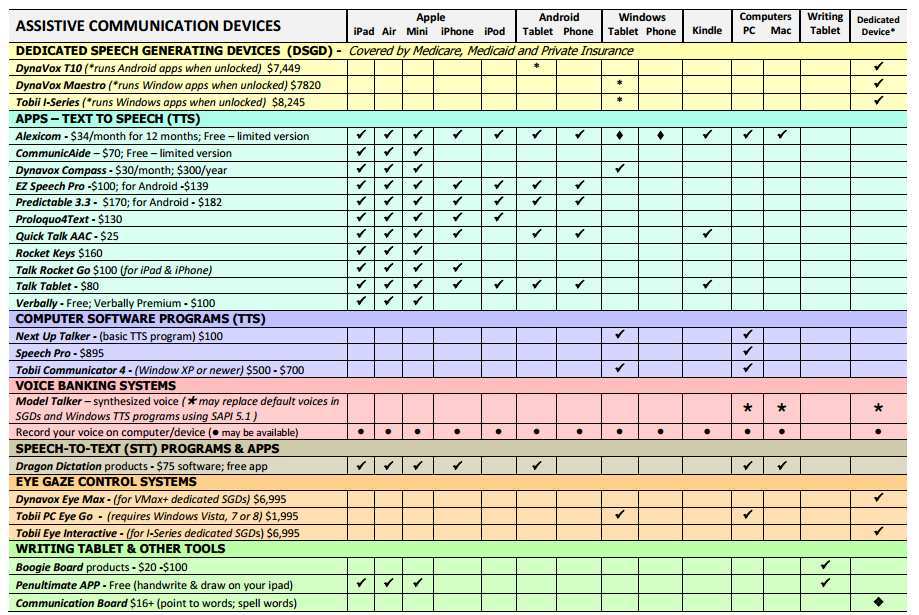
Eye-gaze systems like those from Tobii Dynavox are essential for users with severe motor limitations. They're also significantly more expensive, often starting above $10,000. Voice control through tools like Dragon NaturallySpeaking works well for text input but struggles with spatial tasks like dragging, dropping, or navigating complex interfaces.
A touchscreen monitor at $400 to $800 fills the gap between basic mouse input and high-end eye-gaze systems. It's the practical middle ground for users who have some motor function but can't manage a traditional mouse reliably.
Touchscreen vs. Graphic Tablets and Switch-Adapted Devices
Graphic tablets require hand-eye coordination on a separate surface while watching the screen. That indirect mapping is exactly what touchscreens eliminate. Switch-adapted devices work for users with very limited movement, but they're slow for navigating modern graphical interfaces.
A touchscreen with a switch-adapted stylus can offer the best of both worlds.
Who Benefits Most? Matching User Needs to the Right Setup
A touchscreen monitor isn't the right answer for every accessibility situation. But for certain users and environments, it's the single most impactful upgrade you can make. Here's where they deliver the most value.
Workplace Reasonable Accommodations Under the ADA
ADA Title I requires employers to provide reasonable accommodations for employees with disabilities. A touchscreen monitor is one of the most cost-effective accommodations available. It doesn't require specialized software or IT intervention beyond basic setup.
For employees who struggle with mouse precision due to arthritis, tremors, or repetitive strain injuries, a touchscreen can restore productivity without a complex accommodations process.
The key is matching the monitor to the employee's specific functional limitations. An employee with limited grip strength benefits from a PCAP display with light-touch activation and a stylus with a thick barrel. Someone who uses a wheelchair needs a monitor on an adjustable arm with proper tilt range.
Special Education and Occupational Therapy Settings
Touchscreen monitors have become standard tools in special education classrooms and OT clinics. Aggregate reviews from educators show that students with autism and Down syndrome engage more readily with touch-based tasks than with mouse-based ones. The direct cause-and-effect of touch interaction supports learning goals that indirect input methods struggle to meet.
In occupational therapy, touchscreens are used to build fine motor skills. The immediate feedback loop, tap, response, encourages repetition and practice in ways that feel natural rather than clinical.
Public Kiosks and Shared Access Points
ADA Title III covers public accommodations. Airports, hospitals, libraries, and government offices all need accessible kiosk interfaces. Touchscreen monitors dominate this space because they're intuitive for a broad user base.
A visitor doesn't need to learn how to use a mouse or trackball. They just tap what they need.
The requirement here is durability and glove compatibility. Public kiosks often use resistive or infrared touch technology because they work with gloved hands, wet fingers, and styluses. The tradeoff is lower precision compared to PCAP displays.
Elderly Users and Tech Beginners at Home
For older adults who didn't grow up with computers, the mouse-to-cursor relationship can be the biggest barrier to adoption. Touchscreens eliminate that hurdle. You touch the email icon, the email opens.
The mental model is immediate.
Community technology centers and senior living facilities have reported higher engagement rates with touchscreen-equipped workstations. The ability to zoom into text with a pinch gesture also benefits users with age-related vision changes.
Common Mistakes That Make Touchscreens Worse for Accessibility (Not Better)
Buying a touchscreen monitor is only half the battle. Poor setup can turn an accessibility tool into a source of frustration. These are the mistakes we see most often.
- Mounting at fixed standing height. A wheelchair user needs the screen within 15 to 48 inches from the floor. A fixed-height monitor stand doesn't accommodate that.
- Ignoring palm rejection settings. Without proper palm rejection, resting your hand on the screen registers accidental inputs. This is a constant annoyance for users who stabilize themselves on the display.
- Choosing glossy screens. Glare destroys visibility for low-vision users. An anti-glare or matte display finish is not optional for accessibility use cases.
- Skipping calibration. Touch calibration drifts over time and after OS updates. Recalibrate monthly or after any system change.
- Assuming touch replaces all other input methods. Touchworks best alongside mouse, keyboard, or voice options. Not every task is faster on touch. Build a setup that lets the user switch.
- Overlooking driver compatibility. Some assistive software conflicts with touch drivers. Test your specific screen reader, magnification software, or switch-adapter setup before committing to a fleet of monitors.
The most expensive mistake is buying consumer-grade displays for professional accessibility use. Consumer monitors often lack VESA mounting, have limited tilt ranges, and use touch controllers that aren't designed for 24/7 reliability.
What It Actually Costs: Pricing, Setup, and Hidden Expenses
Touchscreen monitors designed for accessibility use cases carry a price premium over their non-touch equivalents. Here's what to expect as of 2026.
A basic 21.5-inch PCAP touchscreen monitor starts around $300 to $400. Mid-range 24-inch displays with good adjustability and solid touch controllers run $450 to $650. Professional-grade models with wide tilt ranges, high brightness, and robust build quality, like those used in healthcare or government settings, start around $700 and can reach $1,200 or more for larger sizes.
Don't forget the accessories. An adjustable VESA mount arm for wheelchair accessibility adds $80 to $250. A quality stylus with a thick barrel for users with grip challenges runs $20 to $60.
If you need a USB-C connection for single-cable simplicity, verify the monitor supports DisplayPort Alt Mode over USB-C. Not all of them do.
The hidden cost is time. Plan for at least an hour of setup, calibration, and testing per workstation. In workplace accommodation scenarios, factor in an occupational therapist assessment to determine optimal positioning.
That assessment typically costs $150 to $400 depending on your region and whether it's covered by insurance or employer programs.
Legal and Compliance Basics You Need to Know
Accessibility isn't just good practice. In many contexts, it's the law. Here are the standards that matter most.
ADA Title I and Title III: What the Law Requires
ADA Title I covers employers with 15 or more employees. It requires reasonable accommodations for qualified individuals with disabilities. A touchscreen monitor falls squarely within what the Job Accommodation Network (JAN) categorizes as a low-cost, high-impact accommodation.
Most accommodations under ADA Title I cost less than $500.
ADA Title III covers public accommodations. Stores, restaurants, hotels, and public service spaces must provide accessible interaction points. Touchscreen kiosks are the standard solution, but they must meet specific reach range, height, and force requirements to comply.
Section 508 and EN 301 549: Procurement Standards
Section 508 of the Rehabilitation Act requires federal agencies to procure accessible technology. Any touchscreen monitor purchased with federal funds must meet Section 508 standards. This includes compatibility with assistive technologies and accessible operation without vision or fine motor precision.
EN 301 549 is the European equivalent. It harmonizes accessibility requirements for ICT products across the EU. If you're sourcing monitors for European public sector or accessibility-focused deployments, verify EN 301 549 compliance in the product specifications.
The practical takeaway is this. If you're deploying touchscreen monitors in a workplace, school, or public setting, document the accessibility rationale. Keep records showing why you selected a particular model and how it meets applicable standards.
That documentation protects you if an accommodation request is questioned or if a compliance audit occurs.
How to Set Up a Touchscreen Monitor for Maximum Accessibility
A well-configured touchscreen monitor that's positioned wrong won't help anyone. Setup matters as much as the hardware you choose.
Positioning, Mounting, and Ergonomics
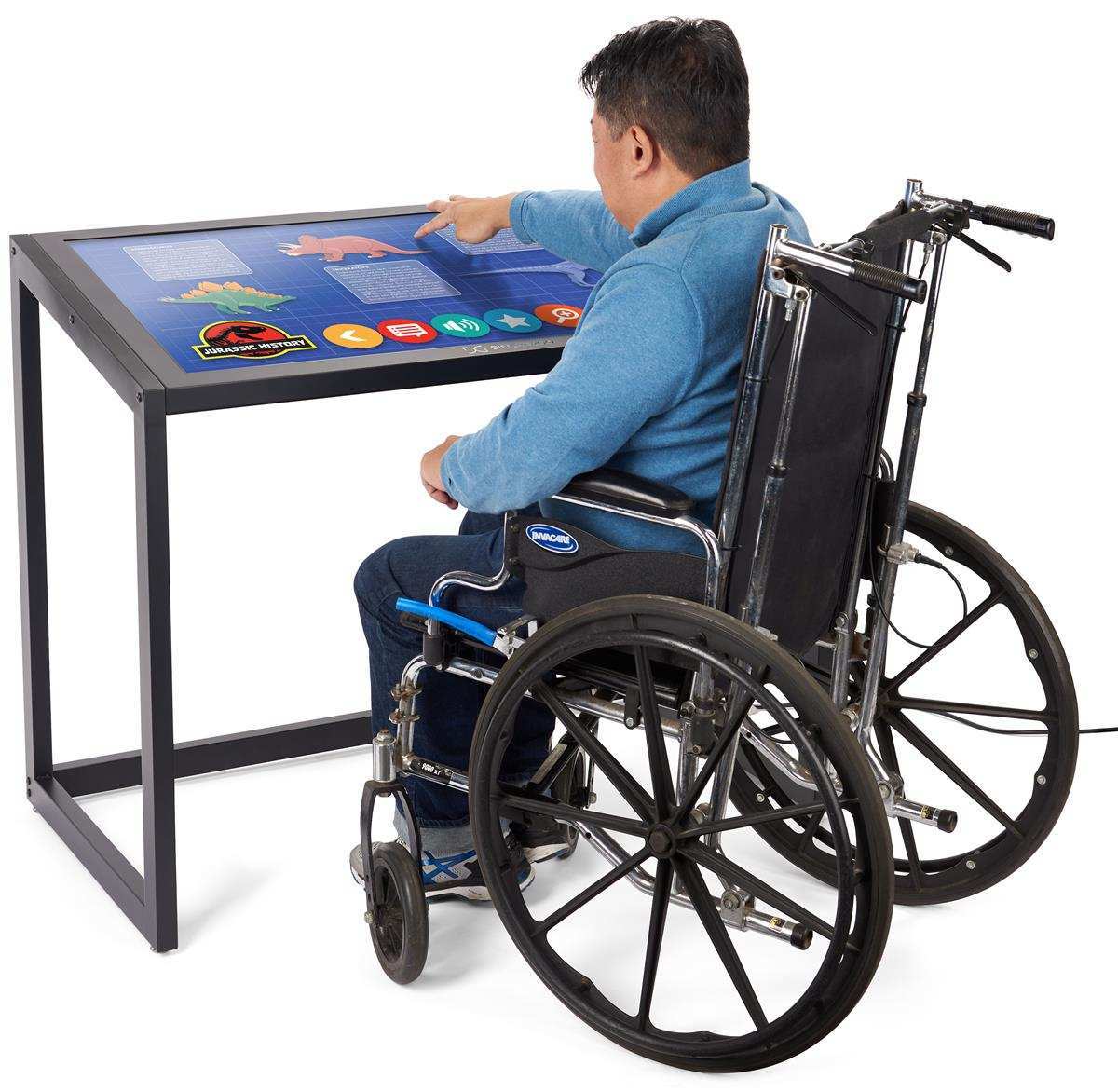
Start with the physical setup. The monitor should be positioned so the user can reach all areas of the screen without leaning forward repeatedly. For wheelchair users, the center of the screen should be approximately 46 inches from the floor as a starting point.
Adjust from there based on the individual user.
A VESA-compatible adjustable arm gives you the most flexibility. It lets you tilt, swivel, and raise or lower the display without tools. For shared workstations where multiple people use the same touchscreen, an adjustable arm is essential.
Pay attention to the "gorilla arm" problem. Stretching your arm forward to touch a vertical or near-vertical screen causes fatigue within minutes. Tilting the monitor to a 15 to 30 degree angle reduces this strain significantly.
Some users prefer almost flat orientations similar to a drafting table.
Calibration, Drivers, and Assistive Software Integration
Once the hardware is in position, calibrate the touch input. On Windows, go to Tablet PC Settings and run the calibration tool. Do this while the monitor is at its final angle and position, not before.
Install the manufacturer's touch driver rather than relying on the default HID driver. Manufacturer drivers typically offer better palm rejection, gesture support, and pressure sensitivity curves. Check the manufacturer's support page for the latest version before setup.
After calibration, test with the user's specific assistive software. Screen readers may need touch gesture mapping configured. Magnification software can conflict with multi-screen touch input.
Verify that the touch coordinates align correctly if the user runs display scaling above 100 percent. Touch alignment issues at high-DPI scaling are a known problem on some configurations.
Testing With Real Users Before You Commit
This is the step most organizations skip. They purchase monitors based on specifications and deploy them without testing. Then they wonder why adoption is low.
Have the actual user interact with the monitor for at least 15 to 30 minutes before finalizing the setup. Watch where they struggle. Do they miss small touch targets?
Does the screen angle cause fatigue after a few minutes? Are accidental touches registering from their resting hand position?
Adjust based on what you observe. Change the tilt angle, increase the touch target size in software settings, or switch to a different stylus. Accessibility setup is iterative, not one-and-done.
Expert Tips Most Guides Skip
Our research surfaced several practical insights that rarely appear in standard accessibility guides.
- Disable the touchscreen when not needed. Most monitors let you toggle touch input via the OSD menu or device manager. If a user only needs touch for certain tasks, disabling it prevents accidental inputs during mouse use.
- Use increasing cursor size alongside touch. A larger cursor helps users locate the pointer before they switch to touch. It improves the transition between input methods.
- Consider touch-protective films. For users with cognitive disabilities who may strike the screen, a protective film prevents damage without affecting touch sensitivity.
- Enable sticky keys and filter keys at the OS level. These accessibility features reduce the impact of accidental or repeated touch inputs. They're available on both Windows and macOS.
- Budget for replacement styluses. Styluses get lost, damaged, or chewed on. Keep at least two spare styluses on hand in any deployment.
One more thing. Touchscreen technology keeps improving. As of 2026, newer PCAP controllers have better glove support and lower latency than models from even two years ago.
If your budget allows, current-generation displays will deliver a measurably better experience than bargain-priced older stock.
Frequently Asked Questions
Are touchscreen monitors good for visually impaired users?
Yes, when paired with screen readers or magnification software. Touchscreens let users explore the display spatially by touch. Combined with gesture-based zoom, they offer navigation options that a standard monitor cannot.
An anti-glare display finish is essential for users with low vision.
Do touchscreen monitors work with screen readers?
Most modern touchscreen monitors work with JAWS, NVDA, and VoiceOver. Configure touch gestures within the screen reader settings. Test the specific combination before deployment, as some touch drivers conflict with assistive software at the HID level.
How do I clean a touchscreen monitor used for accessibility?
Use a microfiber cloth slightly dampened with distilled water or a 50/50 water-isopropyl alcohol mix. Avoid ammonia-based cleaners. They degrade the oleophobic coating on most PCAP displays over time.
Clean regularly, especially in shared-use environments.
Can I use a touchscreen monitor with a wheelchair?
Yes, with proper mounting. Use a VESA-compatible adjustable arm rated for the monitor's weight. Position the screen so all areas are reachable from the seated position.
Tilt the monitor 15 to 30 degrees forward to reduce arm fatigue.
What size touchscreen is best for accessibility?
21.5 inches is the practical minimum for accessible touch targets. 24 to 27 inches is better for users who need larger targets or who have limited precision. Screens above 32 inches require excessive reach and cause fatigue for most seated users.
Do I need a special stylus for an accessible touchscreen?
It depends on the user's grip and dexterity. Standard capacitive styluses work for most users. For users with limited grip strength, a thicker barrel stylus (10mm diameter or more) is easier to hold.
Some users perform best with a finger or a soft-tipped wand stylus. The right choice varies person to person.
Looking at the approved TOC, the remaining sections after "FAQs" are:
- Final Recommendation / Verdict / Decision Guide
The FAQs section was already written in the previous batch. So I need to write the final section only, keeping it very tight.
Final Verdict: When a Touchscreen Monitor Is the Right Accessibility Choice
A touchscreen monitor is the right accessibility investment when the user benefits from direct on-screen interaction over indirect mouse control. That applies to many people with motor impairments, visual disabilities, and cognitive challenges. It does not apply to everyone.
If you're choosing for yourself or a family member, start with a trial. Borrow or return-policy-test a PCAP touchscreen display with the specific assistive software you use. Watch for fatigue, accidental touches, and task completion speed over a full session of real work.
If you're deploying in a workplace or public setting, document the functional need, select a monitor with VESA mounting and wide tilt range, and test with actual users before scaling. A $400 monitor that gets used beats a $1,200 monitor that sits in a box because it wasn't tested properly.
The bottom line is straightforward. Touchscreen monitors matter for accessibility because they remove a layer of abstraction between the user and the machine. That removal is transformative for some users and unnecessary for others.
Know which group you're serving, and choose accordingly.

Similar Posts





















