Is USB C Monitor Good for Trading
Here's the opening plus the first 5 H2 sections:
If you're wondering is usb c monitor good for trading, the short answer is yes, but it depends on your setup. USB-C monitors offer a clean, single-cable solution that can simplify your trading desk significantly. That convenience comes with trade-offs you'll want to understand before you commit.
USB-C Alt Mode has been standard on most laptops since 2018, and as of 2026, nearly every major monitor brand offers at least one USB-C model with power delivery. The technology is mature enough for most trading workflows, but the details matter more than the marketing. Let's break down what actually matters for your trading setup.
Quick Answer
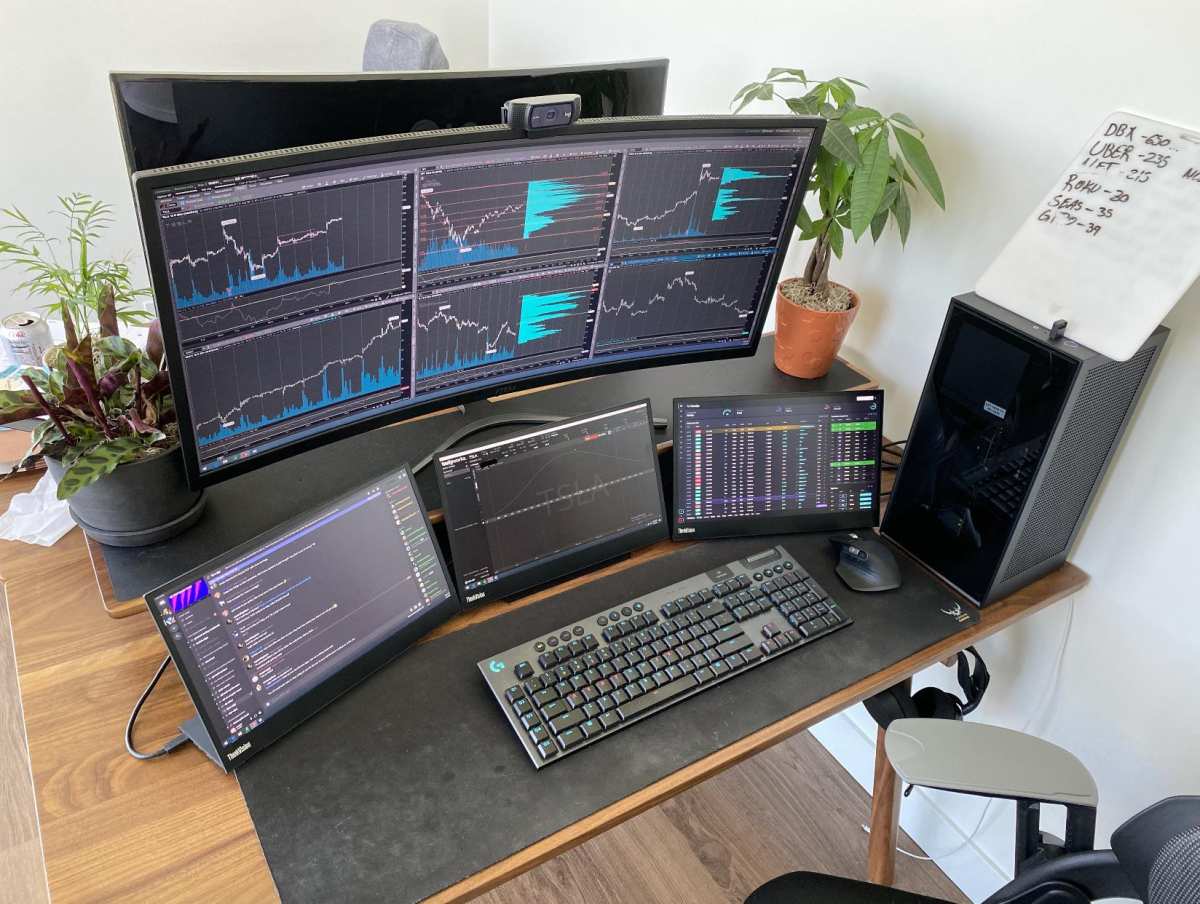
Yes, USB-C monitors work well for most trading setups. They deliver video, power, and data through one cable. The convenience factor is real, especially for laptop traders.
Just verify your laptop supports USB-C Alt Mode before buying.
Why This Comparison Matters for Trading
Trading isn't gaming, but it's not casual web browsing either. You need reliable displays showing real-time data without flicker, lag, or disconnects. A monitor that drops signal during a volatile market move is more than annoying.
It costs you money.
The connection type affects three things traders care about: signal reliability, how many monitors you can run, and how clean your desk stays. USB-C promises to simplify all of that. Whether it actually delivers depends on what you're connecting and what you expect.
Most traders fall into one of a few categories. Some run a single large screen with multiple windows tiled. Others need three or more monitors showing charts, scanners, news feeds, and execution platforms simultaneously.
Your situation determines whether USB-C is a smart choice or a compromise you'll regret.
How USB-C Monitors Actually Work for Trading Setups
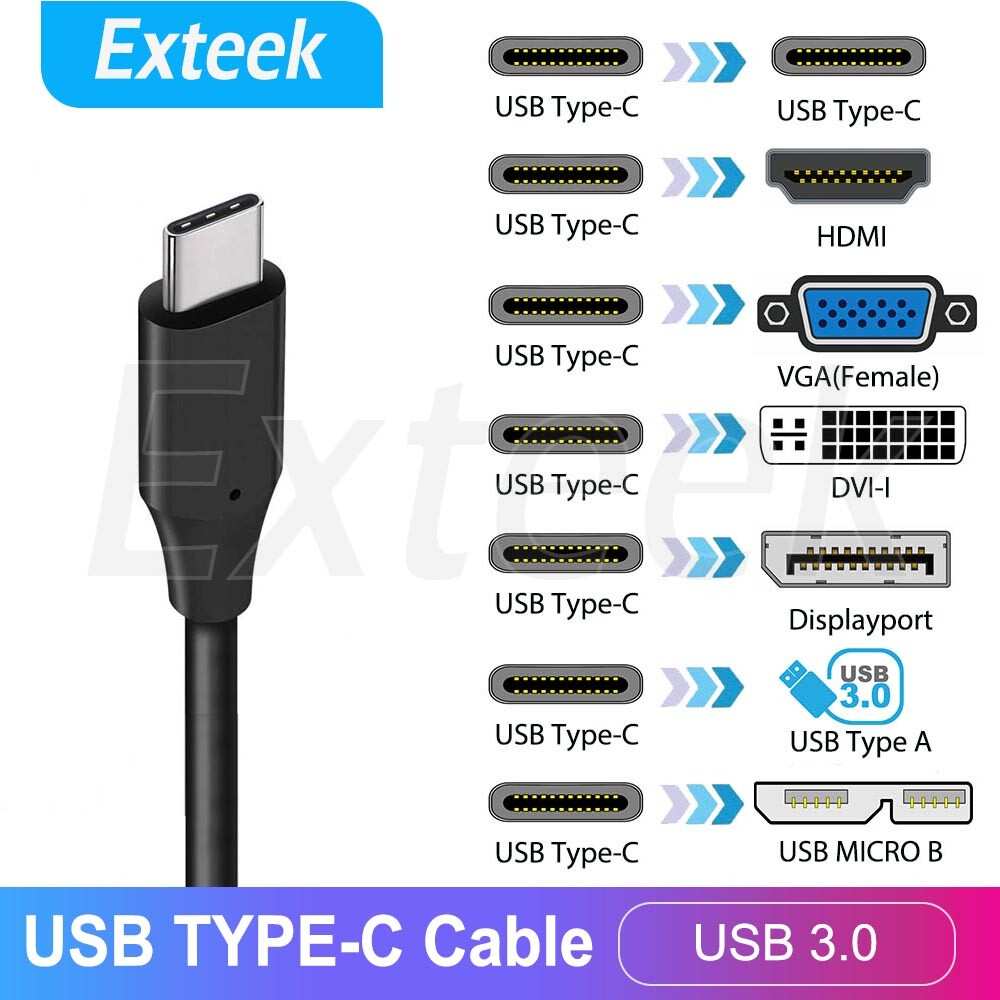
USB-C monitors use something called DisplayPort Alt Mode. That's the technical term for sending a video signal through the USB-C connector instead of a dedicated HDMI or DisplayPort cable. The USB-C port on your laptop carries the display signal along with power and data through one cable.
Not every USB-C port supports video. Some USB-C ports on laptops only handle data and charging. You need to check your laptop's specs for "DisplayPort Alt Mode" or "video output over USB-C." Most modern ultrabooks, MacBooks since 2016, and business laptops like ThinkPads and Dell XPS models support it.
Budget laptops sometimes skip it to cut costs.
Here's what happens when you connect a USB-C monitor to a compatible laptop. The laptop negotiates a connection, sends the video signal over the DisplayPort protocol, and simultaneously receives power if the monitor supports power delivery. It's the same video quality as a direct DisplayPort connection.
The cable and connector are just different.
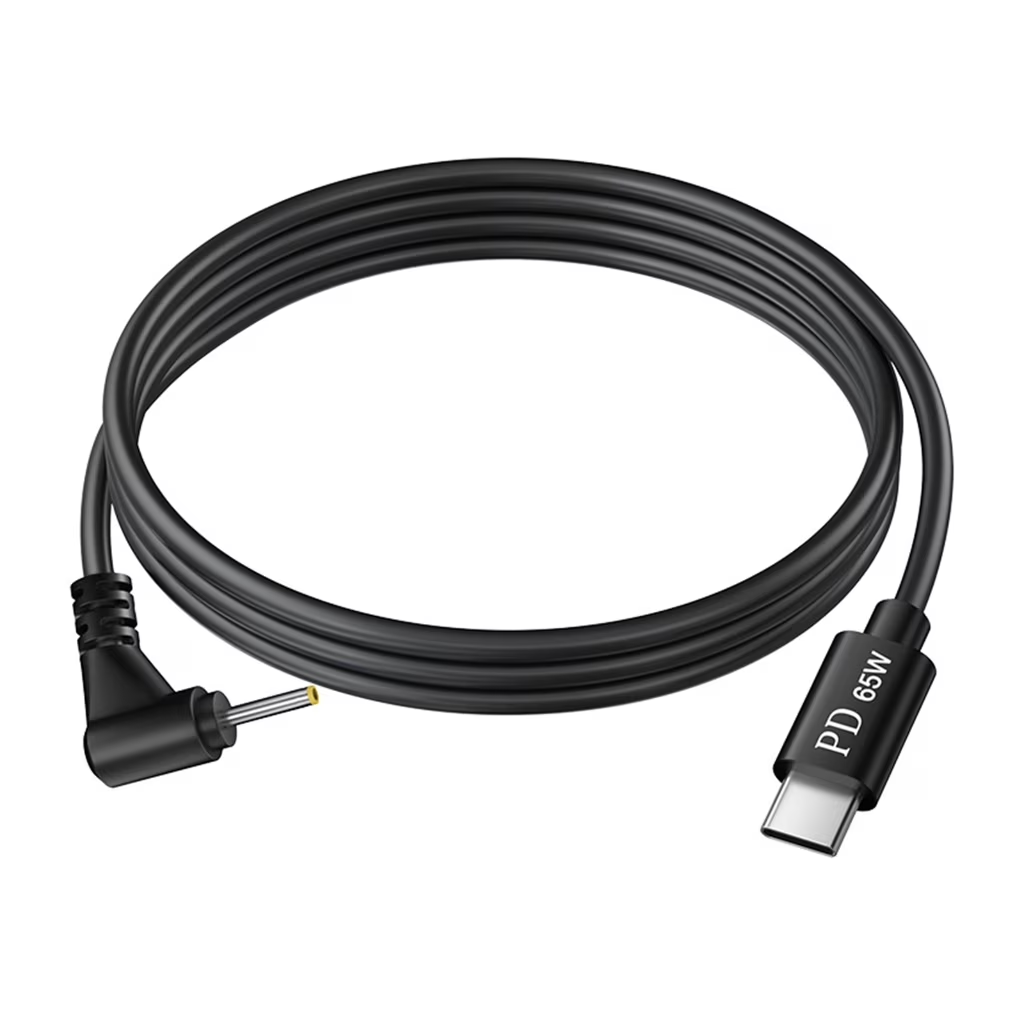
Power delivery is measured in watts. Most USB-C monitors with PD offer 65W to 100W. That's enough to charge most trading laptops while you work.
Some high-wattage models from Dell and LG push 96W or even 140W, which covers power-hungry workstation laptops too.
The key thing to understand is that USB-C Alt Mode uses your laptop's dedicated GPU. It's not a workaround or an adapter trick. The video signal comes straight from your graphics hardware, so you get the same performance as HDMI or DisplayPort for rendering charts, running scanners, and streaming real-time data.
USB-C vs HDMI vs DisplayPort: Which Connection Wins for Trading?
This is where it gets practical. Each connection type has strengths, and the "best" one depends on what your trading setup actually looks like.
USB-C wins on convenience. One cable handles video, power, and data. You plug in your laptop and you're trading.
No separate power brick, no HDMI cable, no dock cluttering your desk. For traders who connect and disconnect frequently, this workflow advantage is significant.
HDMI is the universal fallback. Every laptop and monitor has it. It just works.
But HDMI 2.0 tops out at 4K at 60Hz, and HDMI 2.1 cables can be finicky about certification and quality. You also get zero power delivery, so your laptop still needs its charger plugged in separately.
DisplayPort is the enthusiast's choice. It supports higher refresh rates, better daisy-chaining through Multi-Stream Transport (MST), and generally handles multi-monitor setups more gracefully. Serious traders running four or more screens often prefer DisplayPort for its reliability in daisy-chain configurations.
Side-by-Side Comparison Table
| Feature | USB-C (Alt Mode) | HDMI 2.0 | DisplayPort 1.4 |
|---|---|---|---|
| Max Resolution | 4K at 60Hz (up to 8K with DP 2.0) | 4K at 60Hz | 4K at 120Hz / 8K at 60Hz |
| Power Delivery | Yes (up to 140W) | No | No |
| Daisy-Chaining | Limited (monitor dependent) | No | Yes (MST supported) |
| Cable for Video + Power | One cable | Separate cables needed | Separate cables needed |
| Laptop Compatibility | Requires Alt Mode support | Universal | Common on desktops, rare on laptops |
| Input Lag | Negligible (same as DP) | Negligible | Negligible |
| Best For | Single-cable simplicity, laptops | Universal compatibility, TVs | Multi-monitor arrays, high refresh |
Where USB-C Falls Short for Trading
USB-C has real limitations you should know about. Daisy-chaining is the biggest one. Most USB-C monitors don't support MST daisy-chaining the way DisplayPort monitors do.
If you want three monitors connected through one cable to your laptop, USB-C alone usually won't get you there.
macOS is another pain point. Apple's laptops don't support MST natively. So even if your USB-C monitor has a downstream port for daisy-chaining, it won't work with a Mac.
You're limited to one USB-C monitor per port unless you use DisplayLink adapters, which add complexity and CPU overhead.
Cable quality matters more than you'd think. A cheap USB-C cable might handle 1080p fine but struggle with 4K signal integrity. Look for USB-IF certified cables rated for the resolution you need.
For 4K at 60Hz, you want a cable that supports DisplayPort Alt Mode 1.4, not just USB 3.2 data.
There's also the bandwidth question. USB-C shares bandwidth between data, video, and power. If you're running a high-resolution display and also using the monitor's USB hub for peripherals, you might hit limits on older USB-C implementations.
USB4 and Thunderbolt 4 handle this better, but not every laptop or monitor supports those standards yet.
For most single-monitor or dual-monitor trading setups, USB-C works great. The moment you push beyond two screens or need high refresh rates above 60Hz, DisplayPort starts making more sense. It's not that USB-C is bad.
It's that it solves a specific problem (cable simplicity) and isn't the right tool for every trading configuration.
Best USB-C Monitors for Different Trading Styles
Not every trader needs the same thing. Your trading style determines which USB-C monitor features actually matter and which ones are just spec-sheet fluff.
Day Traders and Scalpers
If you're holding positions for minutes or hours, you need reliability above all else. A single high-quality USB-C monitor with 27" 4K resolution gives you enough screen real estate to tile charts, level 2 data, time and sales, and your execution platform without squinting.
Look for IPS panels with 99% sRGB coverage. Color accuracy matters less for charts than for photo editing, but IPS gives you wide viewing angles, which helps when you're glancing at secondary windows during fast markets. Response time isn't critical here.
You're not gaming. A 5ms GTG panel is perfectly fine.
The Dell U2723QE and LG 27UK850 are popular picks in this category. Both offer USB-C with 65W to 90W power delivery, solid stand ergonomics, and reliable IPS panels. Either one handles a Thinkorswim or TradingView setup without issues.
Swing and Position Traders
Swing traders often run multi-monitor setups. They need charts on one screen, scanners or screeners on another, and maybe a news feed or broker platform on a third. This is where USB-C gets complicated.
A single USB-C monitor works great as your primary display. But adding a second or third screen usually means running a separate HDMI or DisplayPort cable anyway, or investing in a Thunderbolt dock. The single-cable dream starts to fade when you go beyond one screen.
For swing traders, a USB-C monitor paired with a quality Thunderbolt dock gives you the best of both worlds. The dock connects to your laptop via one Thunderbolt cable, then outputs to multiple monitors via DisplayPort or HDMI. It's not pure USB-C, but it keeps your setup clean.
Mobile and Remote Traders
If you trade from coffee shops, co-working spaces, or travel frequently, USB-C monitors shine. A portable USB-C monitor like the ASUS ZenScreen or Lenovo ThinkVision M14t gives you a second screen that draws power directly from your laptop.
These portable monitors are typically 14" to 15.6", weigh under 2 pounds, and connect with a single USB-C cable. They're not going to replace a full-sized desktop monitor, but they're a massive upgrade from squinting at a single laptop screen when you're working from a hotel room or airport lounge.
The trade-off is brightness. Portable USB-C monitors often max out at 250 to 350 nits, which is fine indoors but struggles in bright environments. If you're trading from sunny hotel balconies, you'll want something brighter or a monitor hood.
The Multi-Monitor Problem: Daisy-Chaining and DisplayLink
Multi-monitor trading setups are where USB-C hits its limits. Let's break down the two workarounds and why neither is perfect.
Daisy-chaining uses MST to connect Monitor A to your laptop, then Monitor B to Monitor A. Both screens run off one USB-C cable. It sounds ideal.
The reality is messier.
First, your laptop's USB-C port needs to support DisplayPort 1.2 MST or later. Most do, but not all. Second, both monitors need MST support built in.
Many USB-C monitors skip this feature to keep costs down. Third, macOS doesn't support MST at all. If you're trading on a MacBook, daisy-chaining via MST is off the table.
DisplayLink is the other option. It's a technology that compresses video data and sends it over standard USB data, not DisplayPort Alt Mode. You need a DisplayLink adapter or a monitor with DisplayLink built in, plus a driver installed on your computer.
DisplayLink works. It's not ideal for trading though. The compression adds a small amount of latency.
For browsing or office work, you won't notice it. For fast-moving charts and time-sensitive order execution, some traders report a subtle "softness" to the display. DisplayLink also uses CPU resources, which can matter if your trading platform is already pushing your processor.

If you're running two monitors, a Thunderbolt dock with dual DisplayPort outputs is usually the better path. It gives you native video signals to both screens, full refresh rates, and no CPU overhead. You'll spend more on the dock, but the reliability is worth it for a multi-screen trading setup.
Key Specs to Check Before You Buy
USB-C monitors vary wildly in quality and capability. These are the specs that actually matter for trading.
Power Delivery Wattage
Check how many watts the monitor delivers through USB-C. 65W covers most ultrabooks and thin-and-light trading laptops. If you're running a gaming laptop or mobile workstation for trading, you'll need 90W to 100W. Some Dell UltraSharp and LG UltraFine models push 96W, which handles almost anything.
Underpowered PD means your laptop drains battery slowly even while "charging" during heavy trading sessions. That's annoying and limits your unplugged trading time.
Resolution and Screen Real Estate
1080p on a 27" monitor looks fine for general use. For trading, you'll want 1440p or 4K at that screen size. The extra pixels let you fit more chart windows, scanners, and data panels without everything feeling cramped.
Ultrawide monitors (34" at 3440×1440) are another option. They replace a dual-monitor setup with one screen and one cable. Trading platforms like Thinkorswim handle ultrawide layouts well, and the single-cable USB-C connection keeps things clean.
Response Time and Input Lag
Manufacturer specs list response time in milliseconds, usually 1ms to 5ms GTG. For trading, this barely matters. You're not tracking fast-moving objects like in a shooter game.
A 5ms panel and a 1ms panel look identical when you're watching candlestick charts update every second.
Input lag is different from response time, but it's also negligible on modern USB-C monitors. The video signal path through DisplayPort Alt Mode adds no perceptible delay. If a monitor has high input lag, it's a panel processing issue, not a USB-C issue.
Panel Type for Long Sessions
Traders stare at screens for hours. IPS panels give you the best color accuracy and viewing angles for that workload. VA panels offer better contrast, which can help with dark-themed trading platforms.
TN panels are cheapest but have poor viewing angles and washed-out colors. Skip TN for trading.
Some USB-C monitors now offer OLED panels. The contrast is stunning, but OLED carries a burn-in risk with static elements like toolbars and grid lines. If you leave the same trading layout on screen for eight hours daily, burn-in is a real concern over time.
Common Mistakes Traders Make With USB-C Monitors
The most common mistake is assuming every USB-C port supports video. Plenty of USB-C ports on laptops are data-only or charging-only. Check your laptop's manual or spec sheet for "DisplayPort Alt Mode" or "video output" before buying a USB-C monitor.
Another mistake is buying cheap cables. A no-name USB-C cable from an online marketplace might work for charging but fail at carrying a stable 4K video signal. Stick with USB-IF certified cables or the cable included with the monitor.
If you need a longer cable, buy one rated for DisplayPort Alt Mode 1.4.
Traders also overlook power delivery requirements. A monitor that delivers 45W through USB-C won't keep up with a laptop that draws 65W under load. Your battery drains slowly during trading sessions, and you're tethered to the wall anyway, which defeats the purpose of the single-cable setup.
Finally, don't ignore the stand. Specs and panel quality get all the attention, but you're sitting in front of this thing for hours. A monitor with no height adjustment, no tilt, and no pivot is going to give you neck and back problems.
Budget for a monitor with a decent stand or plan to buy a separate monitor arm.
Real Trading Setup Examples
Let's walk through a few real-world USB-C trading configurations to show how this works in practice.
The Clean Desk Trader
A single 27" 4K USB-C monitor like the Dell U2723QE connected to a Dell XPS 15 or MacBook Pro. One cable handles video, charging, and the monitor's built-in USB hub. The trader runs TradingView in one half of the screen and their broker platform in the other half.
External keyboard and mouse plug into the monitor's USB ports. The result is a desk with essentially one cable visible.
This setup works great for swing traders who don't need more than two windows visible simultaneously. The 4K resolution gives plenty of pixel real estate, and the single-cable life is genuinely convenient.
The Multi-Screen Power User
A 34" ultrawide USB-C monitor as the primary display, paired with a secondary 24" monitor connected via HDMI. The ultrawide handles charts and market data. The secondary monitor shows scanners, news feeds, and communication tools like Slack or Discord trading groups.
The key here is that USB-C handles the main screen while HDMI covers the secondary. This hybrid approach gets you most of the cable simplicity without the headaches of daisy-chaining. A quality USB-C cable runs the ultrawide.
A short HDMI cable runs the secondary. Clean enough.
The Traveling Trader
A 15.6" portable USB-C monitor like the ASUS ZenScreen MB16AMT paired with a MacBook Air. The portable monitor draws power from the laptop. Setup takes under 30 seconds.
Both screens fit in a backpack.
This isn't a permanent desk solution. For traders who work from hotels, client offices, or co-working spaces, the portability factor outweighs the smaller screen size. The ZenScreen's built-in stand case means you don't need any extra accessories.
USB-C Monitor Pricing: What You'll Actually Pay
USB-C monitors span a wide price range. Here's what typical models cost as of 2026.
| Category | Screen Size | Resolution | Price Range | Examples |
|---|---|---|---|---|
| Budget USB-C | 24" | 1080p | $150-$220 | Kocu, CRUA |
| Mid-Range USB-C | 27" | 1440p | $250-$400 | Dell S2722QC, LG 27UL850 |
| Premium USB-C | 27" | 4K | $400-$650 | Dell U2723QE, BenQ PD2725U |
| Ultrawide USB-C | 34" | 3440×1440 | $450-$800 | LG 34WN80C, Dell U3423WE |
| Professional USB-C | 32" | 4K | $650-$1200 | Eizo EV2795, Apple Studio Display |
| Portable USB-C | 14"-16" | 1080p | $180-$350 | ASUS ZenScreen, Lenovo M14t |
You don't need to spend $1,000 to get a good trading monitor. The $300 to $500 range hits the sweet spot for most traders. That gets you a 27" 4K IPS panel with USB-C power delivery and decent build quality.
Paying more gets you better color accuracy, higher build quality, or professional calibration, which are nice but not essential for chart analysis.
Avoid the cheapest no-name USB-C monitors. They often use lower-quality panels with poor backlight uniformity and unreliable USB-C implementations. Saving $50 on a monitor you stare at for six hours daily is a false economy.
Final Verdict: Should You Use a USB-C Monitor for Trading?
USB-C monitors are good for trading if your setup matches their strengths. SingleMonitor traders with laptops will love the convenience. The single-cable life is real, not just marketing fluff.
Multi-monitor traders need to plan carefully. USB-C works well as your primary display connection. Adding more screens usually requires HDMI, DisplayPort, or a Thunderbolt dock alongside it.
The pure USB-C dream setup tops out at one or two monitors for most people.
Check three things before you buy. Confirm your laptop supports USB-C Alt Mode. Verify the monitor's power delivery wattage meets your laptop's needs.
Make sure the cable is certified for video, not just charging.
If those three boxes check out, a USB-C monitor is a solid choice for trading. It won't make your analysis sharper or your trades more profitable. It will make your desk cleaner and your setup process faster.
For a lot of traders, that's worth it.
Frequently Asked Questions
Can I daisy-chain USB-C monitors for a multi-screen trading setup?
Sometimes. Your laptop and both monitors need MST support, and the monitors need downstream USB-C or DisplayPort outputs. macOS doesn't support MST at all, so this won't work with MacBook trading setups. For multi-screen setups, a Thunderbolt dock is usually more reliable.
Does USB-C add input lag compared to HDMI or DisplayPort?
No. DisplayPort Alt Mode carries the same video signal as a direct DisplayPort connection. The cable type doesn't add perceptible latency.
Any lag you notice comes from the monitor's panel processing, not the USB-C connection.
Will a USB-C monitor charge my laptop while trading?
Yes, if the monitor supports power delivery and delivers enough watts. Check your laptop's power adapter rating. A 65W USB-C PD output covers most ultrabooks.
Gaming laptops and workstations may need 90W or more.
Is 60Hz refresh rate enough for trading?
Absolutely. Trading charts update at most once per second. Even 60Hz is overkill for that use case.
You'd only need higher refresh rates if you also game or watch high-frame-rate video on the same monitor.
Do I need a special cable for a USB-C monitor?
You need a USB-C cable rated for DisplayPort Alt Mode video, not just a charging cable. Most USB-C monitors include a suitable cable in the box. If you buy a replacement, look for USB-IF certification and DisplayPort 1.4 support for 4K resolution.
Can I use a USB-C monitor with Thinkorswim or NinjaTrader?
Yes. Thinkorswim, NinjaTrader, TradingView, and every other major trading platform work identically over USB-C DisplayPort Alt Mode. The connection type doesn't affect software performance at all.

Similar Posts





















