Is 4K Monitor Good for Ps4 Pro
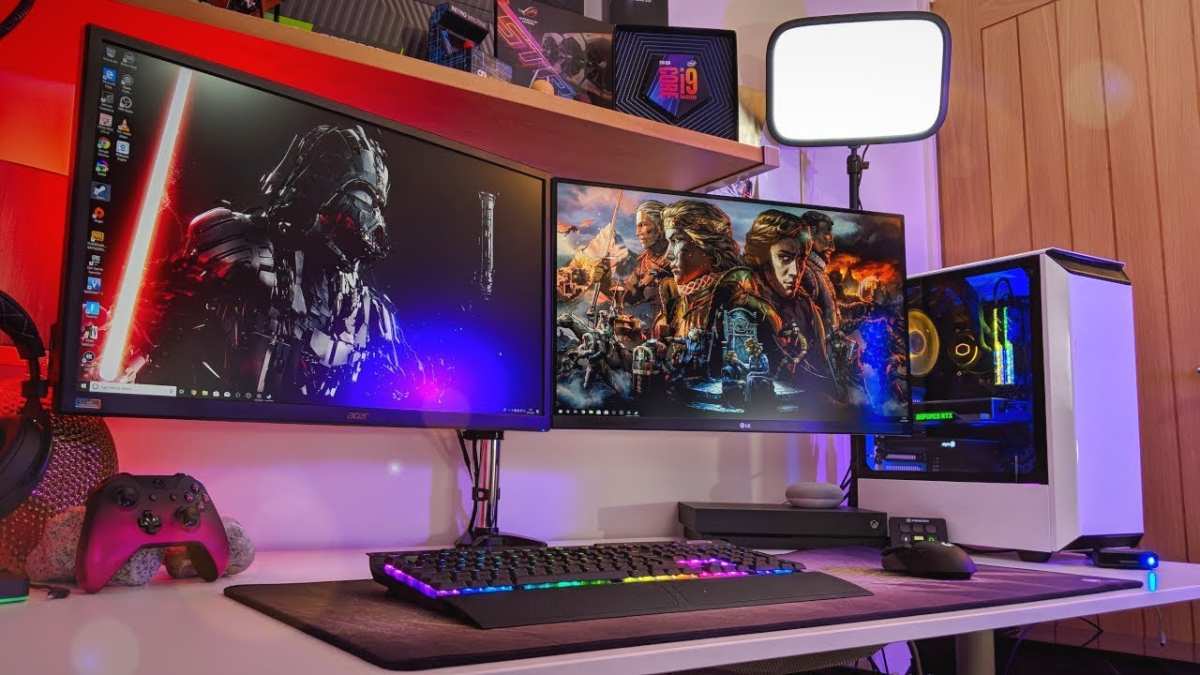
So you're wondering, is 4K monitor good for PS4 Pro? The short answer is yes, but it's not as simple as plugging one in and expecting the best possible picture. The PS4 Pro has some quirks with how it handles 4K output, and not every 4K monitor will give you the experience you're hoping for.
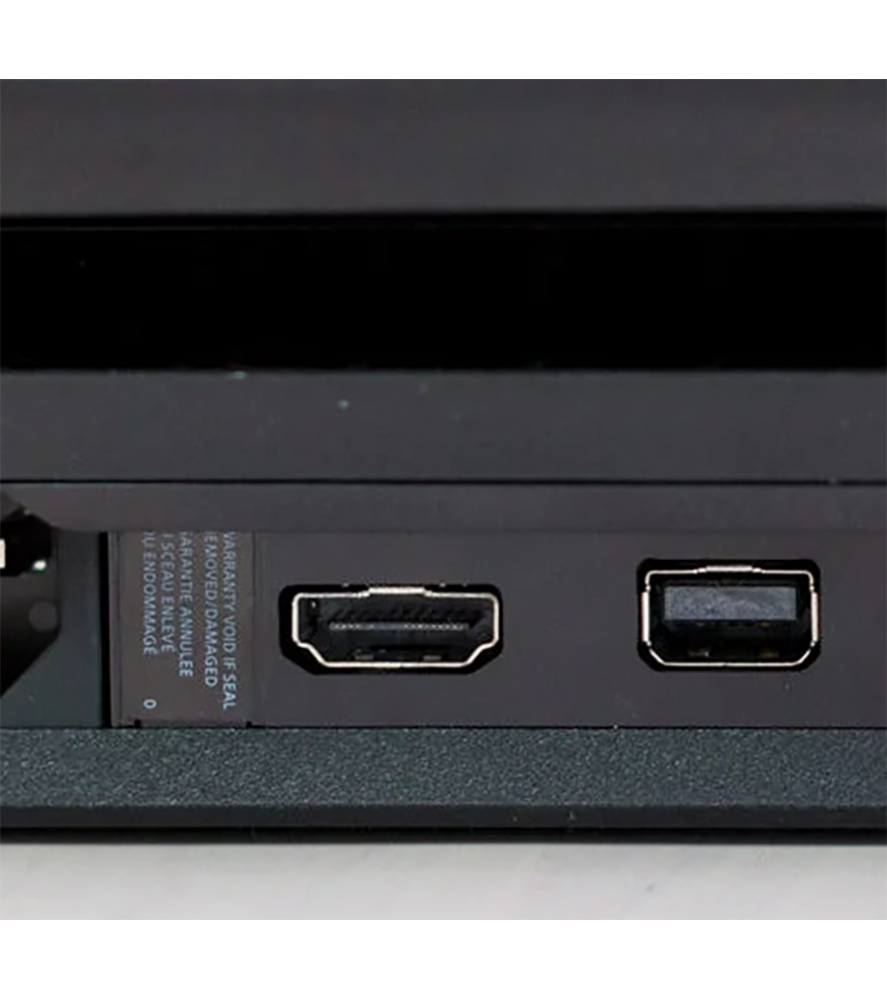
The PS4 Pro outputs 4K through HDMI 2.0, which maxes out at 60Hz and requires HDCP 2.2 compliance for protected content. That means your monitor needs to support the right HDMI spec, handle chroma 4:4:4 properly, and ideally have low input lag for gaming. Let's break down what actually matters before you spend your money.
Quick Answer
A 4K monitor works well with PS4 Pro. Most PS4 Pro games use checkerboard rendering, not native 4K. You need HDMI 2.0 and low input lag for best results.
A good 1080p gaming monitor can sometimes be the smarter choice.
Why This Comparison Matters for PS4 Pro Owners
Here's the thing. Most people assume 4K is automatically better. With a PS4 Pro, that's not always true.
The console doesn't push native 4K in most games. It uses tricks like checkerboard rendering or dynamic resolution scaling to hit that 4K output.
What actually matters for your experience comes down to a few things. Input lag, response time, how the monitor handles upscaling, and whether it can properly display 4K at 60Hz with full chroma. A sluggish 4K monitor will feel worse than a snappy 1080p one every single time.
We've seen plenty of folks buy a cheap 4K panel expecting a premium experience. Then they wonder why everything looks soft or feels laggy. The monitor's processing quality matters just as much as the resolution number on the box.
How PS4 Pro Actually Handles 4K Output
This is where things get interesting. The PS4 Pro doesn't work like a gaming PC. It has specific rendering techniques that affect what you actually see on screen.
Native 4K vs. Checkerboard Rendering vs. Upscaled 1080p
Let's clear up the confusion. There are three ways a PS4 Pro can output a 4K signal.
Native 4K means the console renders each frame at 3840×2160 pixels. Very few PS4 Pro games actually do this. It's demanding on the hardware, so developers avoid it.
Checkerboard rendering is the most common technique. The console renders roughly half the pixels, then uses intelligent reconstruction to fill in the rest. It looks surprisingly close to native 4K on a good display.
Games like God of War and Uncharted 4 use this method.
Upscaled 1080p happens when a game has no Pro enhancement enabled. The console renders at 1080p, then stretches it to fit your 4K screen. The quality depends entirely on how good your monitor's upscaler is.
| Rendering Method | Visual Quality | How Common |
|---|---|---|
| Native 4K | Excellent | Rare |
| Checkerboard 4K | Very Good | Common |
| Upscaled 1080p | Varies by monitor | Common (non-enhanced games) |
The 1440p Problem Nobody Warns You About
Here's a big one. The PS4 Pro does not support 1440p output. That's right.
If you buy a 1440p monitor, the console will either downscale to 1080p or upscale to 4K. Neither option is ideal.
This matters because 1440p monitors are often the sweet spot for price and performance. But for PS4 Pro specifically, you're better off choosing either 1080p or native 4K. There's no middle ground that works cleanly.
Some monitors handle the 1080p-to-1440p upscale better than others. But you're adding an unnecessary conversion step that can introduce softness or lag. For the cleanest signal path, match the console's output to your panel's native resolution.
4K Monitor vs. 4K TV for PS4 Pro: Honest Breakdown
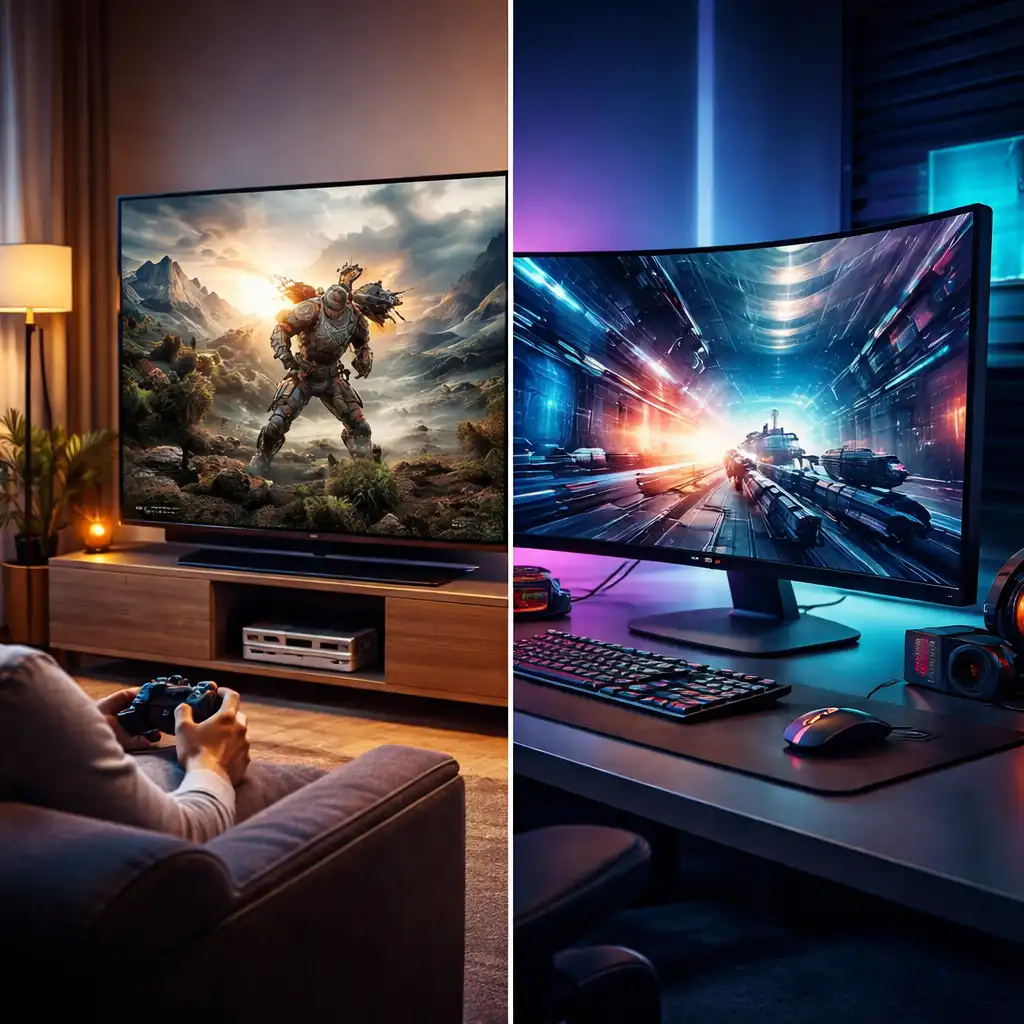
This is the comparison most people actually need. You're probably deciding between a 4K monitor and a 4K TV for your setup. Both have trade-offs.
Input Lag and Response Time
Monitors generally win here. A decent 4K gaming monitor will have input lag under 15ms. Many 4K TVs sit at 30ms or higher, even in game mode.
Response time matters too. Look for 4ms or lower on a 4K monitor. Some budget panels advertise 4K resolution but ship with 8ms or higher response times.
That creates ghosting and smearing in fast games.
HDR Quality Differences
This is tricky. The PS4 Pro supports HDR10. But true HDR needs high brightness and good local dimming.
Most budget 4K monitors can't deliver that.
A monitor with DisplayHDR 400 certification barely qualifies. You want DisplayHDR 600 or better for a noticeable HDR experience. Many 4K TVs in the $400+ range actually handle HDR better than monitors at the same price.
Screen Size and Viewing Distance
A 27-inch 4K monitor looks sharp at arm's length. But console games are often designed for larger screens viewed from across the room. Sitting two feet from a 27-inch panel can make UI text tiny and game details hard to read.
A 43-inch or 55-inch 4K TV gives you that living room experience. The PS4 Pro's interface and game UIs were designed with TV viewing distances in mind. Something to think about if you play mostly from a couch.
Price-to-Performance at Console Specs
At 4K 60Hz, you don't need the most expensive monitor. The PS4 Pro can't exceed 60fps at 4K anyway. So paying extra for 120Hz or 144Hz at 4K is wasted money for this specific console.
A solid 4K 60Hz monitor with low input lag and good response time will serve you better than a pricier high-refresh panel. Save that budget for a better panel type like IPS or for a monitor with better HDR performance.
Side-by-Side Comparison: What You're Actually Getting
Let's put it all together. Here's how the main options stack up for PS4 Pro use.
| Factor | 4K Gaming Monitor | 4K TV | 1080p Gaming Monitor |
|---|---|---|---|
| Input Lag | Under 15ms (good models) | 20-50ms (game mode) | Under 10ms |
| Response Time | 1-5ms | 5-15ms | 1-4ms |
| HDR Quality | Weak on budget models | Better at mid-range | Often none |
| Text/UI Clarity | Excellent at 27" | Good at 43"+ | Good |
| Sharpness (native res) | Perfect pixel match | Perfect pixel match | Perfect pixel match |
| Price (27-32" range) | $250-$450 | $300-$600 | $150-$250 |
| Best For | Desk setup, mixed use | Couch gaming, media | Competitive play, budget |
The right choice depends entirely on how you play. Desk setup with a controller? A 4K monitor makes sense.
Couch gaming from a few feet away? A TV probably feels better. Competitive shooter player?
That 1080p gaming monitor with 1ms response time beats both options.
Best 4K Monitor Setups by Use Case
Not everyone wants the same thing. Here's how to think about it based on your priorities.
Best for Single-Player Visual Fidelity
If you're playing God of War, Horizon Zero Dawn, or Spider-Man, you want the sharpest image possible. A 27-inch 4K IPS monitor with decent color accuracy will make those checkerboard-rendered scenes look fantastic.
Look for something with good sRGB coverage, IPS panel technology, and proper 4K 60Hz with 4:4:4 chroma support. You don't need the fastest response time here. Visual quality comes first.
Best for Competitive/Responsive Gameplay
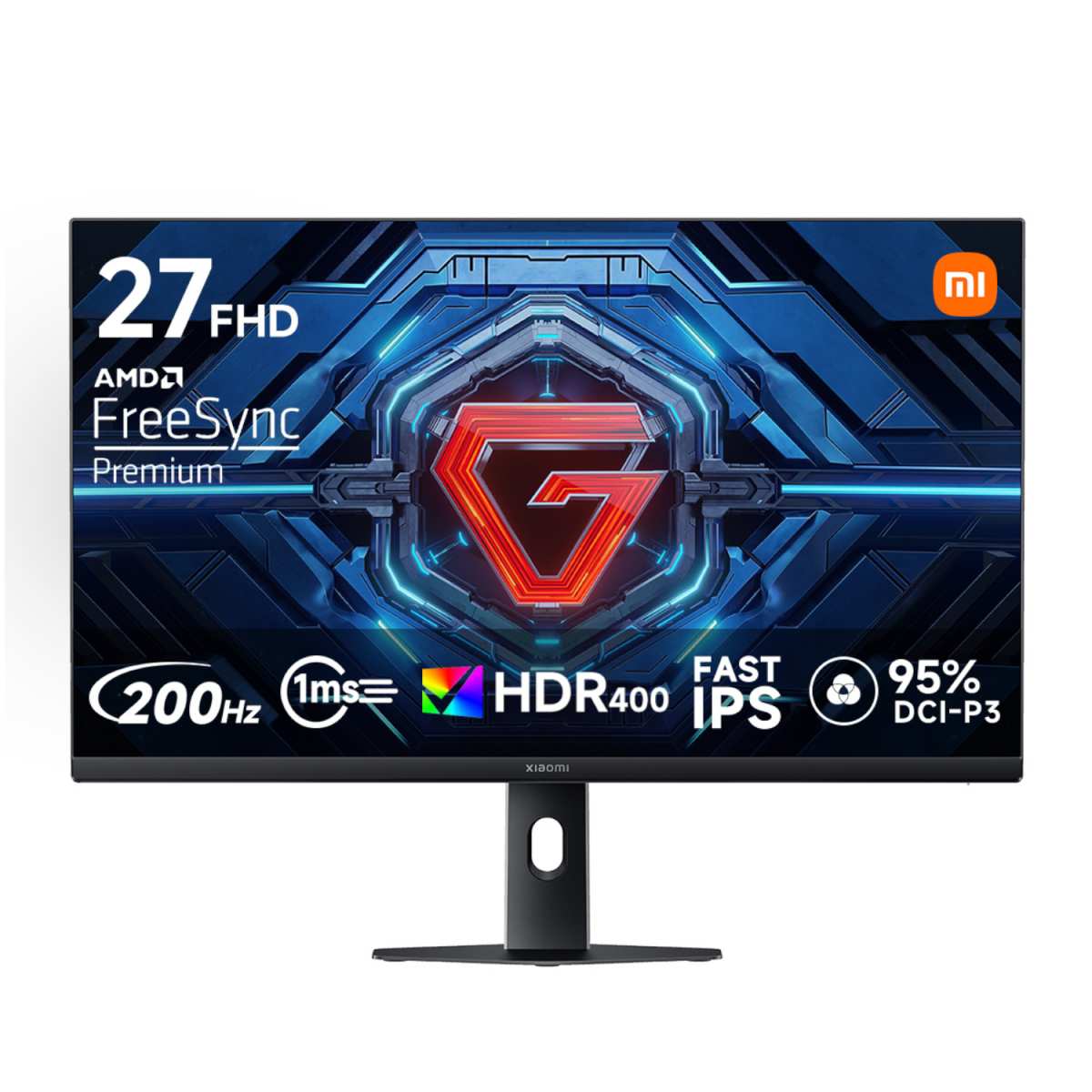
Playing Fortnite, Call of Duty, or Apex Legends on PS4 Pro? Prioritize input lag and response time over resolution. A 4K monitor with 1ms response time and the lowest possible input lag is your target.
Some competitive players actually prefer 1080p monitors for this reason. But if you want 4K, look for monitors specifically marketed as gaming panels with verified low input lag measurements.
Best Budget Pick That Won't Disappoint
You don't need to spend a fortune. A 27-inch 4K IPS monitor in the $250-$300 range can work great. Just verify it has HDMI 2.0, HDCP 2.2 support, and a response time of 5ms or lower.
Avoid the cheapest no-name 4K panels. They often cut corners on image processing, input lag, and color accuracy. Stick with established monitor brands even at the budget tier.
Best Future-Proof Option (PS5 Upgrade Path)
Planning to upgrade to PS5 eventually? Get a 4K monitor with HDMI 2.1 if your budget allows. The PS5 can output 4K at 120Hz, and HDMI 2.1 supports that fully.
This costs more, around $400-$600 for a decent 4K 120Hz+ monitor. But it means your display works perfectly with both your PS4 Pro now and a PS5 later. That's a solid investment if you plan to stick with PlayStation.
Common Mistakes When Pairing a 4K Monitor With PS4 Pro
People make the same errors over and over. Here's what to watch out for.
Buying a 4K Monitor With Slow Response Time
A 4K panel with 8ms response time will ghost noticeably. That's fine for office work. It's terrible for gaming.
Always check the response time spec before buying.
Look for 5ms or lower. Ideally 1ms to 4ms if you play any action games. The resolution means nothing if the image smears during movement.
Ignoring Chroma Subsampling at 4K 60Hz
This one's technical but important. 4K at 60Hz with full 4:4:4 chroma requires HDMI 2.0 bandwidth. Some monitors compromise by using 4:2:2 or 4:2:0 chroma to fit the signal through narrower bandwidth.
The result? Text looks fuzzy and color edges look wrong. Make sure your monitor supports 4:4:4 chroma at 4K 60Hz.
Check the detailed specs, not just the marketing box.
Expecting True HDR on a Budget
DisplayHDR 400 is barely HDR. It's more of a marketing badge than a real experience. True HDR needs at least 600 nits of brightness and decent local dimming.
Most budget 4K monitors with "HDR support" just accept an HDR signal and map it poorly. You're often better off leaving HDR off on your PS4 Pro if your monitor can't do it justice.
Forgetting to Enable Supersampling Mode
The PS4 Pro has a supersampling mode in system settings. When enabled, it renders at a higher resolution then downscales to your display. On a 4K monitor, this improves image quality for games that render below 4K.
It's off by default. Go to Settings > Sound and Screen > Video Output Settings and turn on Supersampling Mode. It's free image quality improvement.
Using the Wrong HDMI Cable
Not all HDMI cables are equal. You need a Premium High Speed HDMI cable or better for 4K 60Hz with HDR. Older cables may not have the bandwidth.
If you're getting flickering, dropouts, or no signal at 4K, try a different cable first. It's the cheapest fix for the most common problem.
PS4 Pro Settings You Need to Get Right
Your console settings matter as much as your monitor choice. Let's get these right.
Display Output Settings
Go to Settings > Sound and Screen > Video Output Settings. Set Resolution to Automatic. The PS4 Pro will detect your monitor's capabilities and output the best available signal.
Set RGB Range to Full if your monitor supports it. Limited range crushes blacks and washes out colors. Check your monitor's specs or test both options.
HDR Configuration
In the same menu, set HDR to Automatic. If your monitor supports HDR10, it will activate when needed. If your monitor's HDR is poor, set this to Off instead.
You can also adjust the HDR brightness slider in the system settings. Match it to your monitor's peak brightness for the best tonemap.
Supersampling Mode Toggle
Settings > Sound and Screen > Video Output Settings > Supersampling Mode. Turn this On if you're using a 4K monitor. It improves image quality in games that render below native 4K.
This only works when your display is set to 2160p. It has no effect on 1080p monitors.
Monitor OSD Settings (Game Mode, Overdrive)
Most gaming monitors have a Game Mode in their on-screen display. Enable it. This usually disables unnecessary image processing that adds input lag.
Response time overdrive settings can help too. Set it to Medium or High if you notice ghosting. Avoid the highest setting, which can cause inverse ghosting artifacts.
Real Talk: When a 1080p Monitor Is Actually the Smarter Buy
Sometimes the honest answer is that 4K isn't worth it. Here's when a 1080p gaming monitor makes more sense for PS4 Pro.
If you primarily play competitive games, that 1080p 1ms monitor will feel more responsive. The PS4 Pro outputs native 1080p to these monitors with no upscaling needed. The image path is cleaner and faster.
If you're on a tight budget, a good 1080p gaming monitor costs half what a decent 4K monitor costs. You get better response times and lower input lag for less money. That's a win for gaming performance.
If you sit at a desk and want sharp text for mixed use, a 27-inch 1080p panel isn't as crisp as 4K for productivity. But for pure gaming, it gets the job done without the upscaling complications.
The PS4 Pro was designed with 1080p as its baseline. Many games render at 1080p or close to it, even on a 4K display. You're not missing out on as much as you might think.
Final Verdict: Who Should Get a 4K Monitor for PS4 Pro
Here's the bottom line. A 4K monitor is good for PS4 Pro if you want the sharpest possible image and play mostly single-player games. It's a solid choice if you value visual fidelity and have a desk setup.
It's not the best choice if you're on a tight budget or prioritize competitive performance. A 1080p gaming monitor often delivers a better gaming experience for less money.
If you're planning to upgrade to PS5, a 4K monitor with HDMI 2.1 is a smart investment. It'll serve you well across both consoles. For PS4 Pro only, a good 4K 60Hz IPS monitor hits the sweet spot.
Frequently Asked Questions
Does PS4 Pro support 4K at 60fps?
Yes, PS4 Pro outputs 4K at 60Hz through HDMI 2.0. However, most games don't hit native 4K. They use checkerboard rendering or dynamic resolution to maintain performance.
Is a 4K monitor better than a 4K TV for PS4 Pro?
For desk setups, yes. Monitors typically have lower input lag and better response times. For couch gaming from a distance, a TV often feels more natural and comfortable.
What size 4K monitor is best for PS4 Pro?
27 inches is the sweet spot for desk use. It gives you good pixel density without making UI text too small. 32 inches works if you sit a bit farther back.
Do I need HDMI 2.0 for PS4 Pro on a 4K monitor?
Yes. HDMI 2.0 provides the 18Gbps bandwidth needed for 4K 60Hz with HDR. Older HDMI versions can't handle the full signal properly.
Should I use HDR on a budget 4K monitor?
Probably not. Most budget monitors with HDR support don't get bright enough for a meaningful experience. You're often better leaving HDR off entirely.
Does supersampling mode help on 4K monitors?
Yes. Supersampling mode renders at a higher internal resolution then downscales to 4K. It improves sharpness and reduces aliasing in games that don't render at native 4K.
Common Mistakes When Pairing a 4K Monitor With PS4 Pro
We've already touched on a few of these, but let's make sure you avoid every pitfall.
Buying a 4K Monitor With Slow Response Time
This happens constantly. Someone sees "4K" on the box and ignores everything else. Then they wonder why their games look smurry during fast movement.
Always verify the response time spec. Gray-to-gray measurements can be misleading, so check independent reviews for real-world performance. A monitor advertising 1ms but measuring 6ms in practice won't help you.
Ignoring Chroma Subsampling at 4K 60Hz
We mentioned this earlier, but it deserves emphasis. If your monitor forces 4:2:0 chroma at 4K 60Hz, text and fine details look soft. This is especially noticeable in the PS4 Pro's interface and in games with lots of text overlays.
Check your monitor's HDMI input specifications carefully. Some panels only support full 4:4:4 at 30Hz, which is unusable for gaming. You need 4:4:4 at 60Hz minimum.
Expecting True HDR on a Budget
Most budget 4K monitors with "HDR" in the product name can't actually deliver it. They lack the peak brightness, color volume, and local dimding needed for a real HDR experience.
If HDR matters to you, look for DisplayHDR 600 certification at minimum. Otherwise, just turn HDR off on your console. SDR often looks better on panels that fake HDR poorly.
Forgetting to Enable Supersampling Mode
This setting is off by default on every PS4 Pro. Many owners never even know it exists. It's a free image quality boost for your 4K monitor.
Go enable it right now if you haven't already. It won't help every game, but it improves image quality in most titles that render below native 4K.
Using the Wrong HDMI Cable
The cable that came in your monitor box might not support full HDMI 2.0 bandwidth. This causes flickering, signal drops, or the console falling back to 1080p.
Grab a certified Premium High Speed HDMI cable. They cost under $10 and eliminate cable-related issues entirely. Don't overpay for "gaming" HDMI cables though.
The spec is what matters, not the branding.
PS4 Pro Settings You Need to Get Right
Your console settings can make or break the experience. Let's walk through each one.
Display Output Settings
Navigate to Settings, then Sound and Screen, then Video Output Settings. Set Resolution to Automatic. This lets the PS4 Pro negotiate the best signal with your monitor.
Set HDR to Automatic if your monitor supports it. Set it to Off if your monitor's HDR is poor. Deep Color Output should be enabled for proper color range.
HDR Configuration
If you're using HDR, adjust the in-game brightness sliders per title. The system-level HDR setting just enables the signal. Each game has its own calibration screen.
For monitors with weak HDR, you might prefer leaving it off entirely. A well-done SDR image often looks better than a badly processed HDR one.
Supersampling Mode Toggle
This lives in the same Video Output menu. Turn it On when using a 4K display. The console will render at higher internal resolutions and downscale to your panel.
This improves edge sharpness and reduces shimmering in motion. It's one of the best hidden features of the PS4 Pro.
Monitor OSD Settings (Game Mode, Overdrive)
Open your monitor's on-screen display menu. Look for a Game Mode or Low Input Lag option. Enable it.
This bypasses unnecessary image processing.
If your monitor has response time overdrive, set it to Medium. High overdrive can cause inverse ghosting, where bright trails appear behind dark objects. Medium usually gives the best balance.
Real Talk: When a 1080p Monitor Is Actually the Smarter Buy
Let's be honest about this. A 1080p gaming monitor is sometimes the better choice for PS4 Pro.
If you play mostly competitive multiplayer games, that 1080p 144Hz monitor with 1ms response time will serve you better. The PS4 Pro outputs native 1080p to these panels with zero upscaling artifacts. The signal path is as clean as it gets.
If your budget is under $200, a good 1080p gaming monitor outperforms a cheap 4K panel in every way that matters for gaming. You get lower input lag, faster response times, and often better motion clarity.
If you use your monitor for work and gaming equally, 4K gives you more screen real estate. But if gaming is the primary use, don't force 4K just because it sounds better on paper.
The PS4 Pro was designed around 1080p as its baseline. Many games never exceed that internal resolution. You're not losing much by matching the display to the console's native output.
Final Verdict: Who Should Get a 4K Monitor for PS4 Pro
Here's the honest recommendation based on everything we've covered.
Get a 4K monitor if you play mostly single-player, story-driven games and want the sharpest image possible. Checkerboard-rendered titles look genuinely impressive on a good 4K panel. You'll also benefit from the extra desktop space if you use the monitor for other things.
Get a 1080p gaming monitor if you prioritize competitive performance or have a tight budget. You'll get better response times and lower input lag for less money. The PS4 Pro's native 1080p output matches these panels perfectly.
Consider a 4K monitor with HDMI 2.1 if you plan to upgrade to PS5 in the future. It's a more expensive upfront cost, but you won't need to buy another display later. That's practical future-proofing.
The PS4 Pro is a great console. Pair it with the right display and you'll get the best possible experience from it. Just make sure your choice matches how you actually play, not just what sounds impressive on a spec sheet.
Frequently Asked Questions
Does PS4 Pro support 4K at 60fps?
Yes, the PS4 Pro outputs 4K at 60Hz through HDMI 2.0. Most games use checkerboard rendering or dynamic resolution to hit that target. Very few render at native 4K.
Is a 4K monitor better than a 4K TV for PS4 Pro?
For desk setups, monitors win on input lag and response time. For couch gaming, TVs win on comfort and screen size. It depends entirely on how you play.
What size 4K monitor is best for PS4 Pro?
27 inches is the sweet spot for desk use. 32 inches works if you sit slightly farther back. Anything larger starts to feel like a TV replacement.
Do I need HDMI 2.0 for PS4 Pro on a 4K monitor?
Yes. HDMI 2.0 provides enough bandwidth for 4K at 60Hz with HDR. Older HDMI versions may force chroma subsampling or limit you to 30Hz.
Should I use HDR on a budget 4K monitor?
Probably not. Most budget monitors can't deliver a meaningful HDR experience. You'll likely prefer leaving it off and sticking with SDR.
Does supersampling mode help on 4K monitors?
Yes. It renders at a higher internal resolution and downscales to 4K. This improves sharpness and reduces aliasing in games that don't hit native 4K.

Similar Posts





















