Do USB C Monitors Consume More Power
You're wondering whether switching to a USB-C monitor means a higher electric bill. It's a fair question, and the answer isn't as straightforward as most people make it sound.
Do USB-C monitors consume more power? Not necessarily on their own. The monitor panel itself draws roughly the same wattage whether it connects via HDMI or USB-C.
The real difference is where the power comes from and what else that USB-C cable is doing alongside the video signal. Once you factor in laptop charging through the same cable, the total system draw can actually go up, sometimes noticeably.
Before we dive into the specifics, here's something worth knowing: the USB-IF Power Delivery standard now allows up to 240W over a single USB-C cable. That changes the math considerably compared to older 60W USB-C implementations. Let's break down exactly what's happening with your power.
Quick Answer
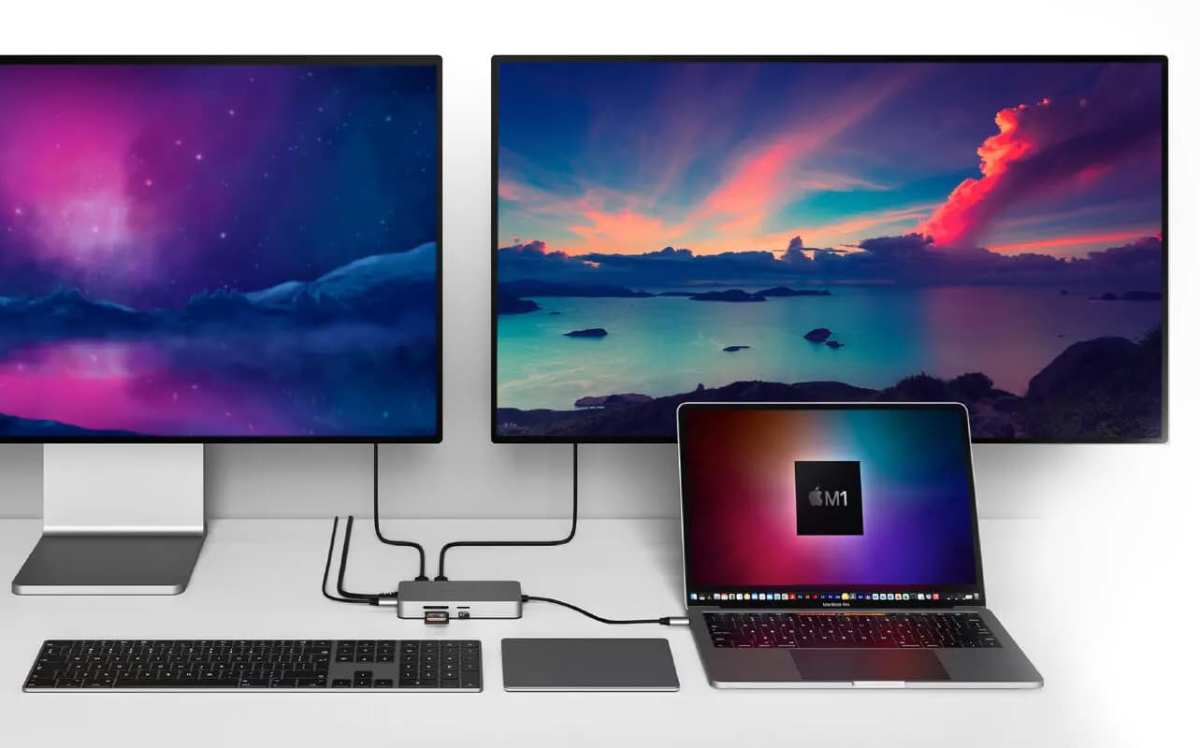
No, USB-C monitors don't inherently use more power than traditional monitors. The panel itself draws the same wattage regardless of connection type. USB-C Power Delivery can increase total system draw because it charges your laptop through the monitor.
Your actual power consumption depends on your specific setup.
How USB-C Monitor Power Actually Works
The Two Power Flows You Need to Understand
Here's where most explanations fall apart. They treat "USB-C monitor" like it's one thing, when really you're dealing with two separate power flows happening through that single cable.
The first flow is the panel's own power. Your display needs electricity to light up those pixels, whether it's a 27-inch 4K IPS panel or a 32-inch VA screen. That draw stays consistent.
A typical 27-inch 4K monitor pulls between 22W and 35W depending on brightness and panel technology. USB-C doesn't change that fundamental requirement.
The second flow is Power Delivery. This is the part that actually shifts your power equation. When a USB-C monitor supports PD, it can send wattage back up to your laptop.
Some monitors pass through power from their own supply to your laptop at 60W. Others push 90W or even 100W. That charging wattage is additional power drawn from the wall, even though it's flowing through the monitor to your computer.
Manufacturer specifications from Dell, LG, and ASUS consistently show that a USB-C monitor charging a laptop pulls more total wattage than the same monitor operating while connected via HDMI with the laptop on its own charger. The difference ranges from negligible to about 30W extra, depending on the PD tier and the laptop's charging state.
Where the Power Actually Goes
Let's get specific about what's pulling watts in a typical USB-C monitor setup.
| Component | Typical Draw |
|---|---|
| 27" 4K IPS panel (medium brightness) | 22–28W |
| USB-C PD charging laptop at 60W | 55–65W (including conversion loss) |
| USB hub / data passthrough | 2–5W |
| Total system draw | 80–98W |
Now compare that to a traditional setup where the monitor runs on its own power supply and the laptop plugs into a separate charger.
| Component | Typical Draw |
|---|---|
| 27" 4K IPS panel (medium brightness) | 22–28W |
| Laptop charger at 60W (separate) | 63–70W (including conversion loss) |
| Total system draw | 85–98W |
Surprisingly close, right? The total watts from the wall are nearly identical in most real-world scenarios. The difference is in how that power gets delivered and what you're paying in convenience versus efficiency.
USB-C Monitor vs. Traditional Monitor: Side-by-Side Power Comparison
Standard HDMI/DisplayPort Monitor Setup
Traditional monitors get their power from a dedicated AC adapter or an internal power supply plugged into the wall. Video comes through HDMI or DisplayPort. Your laptop charges from its own separate brick.
You've got two power cables and one video cable on your desk. The monitor draws its wattage. The laptop draws its wattage.
They don't interact. This setup is straightforward, predictable, and easy to troubleshoot. If your laptop isn't charging, you check the charger.
If the monitor goes dark, you check the video cable.
Total efficiency here depends on the quality of two separate power supplies. Cheap bricks waste more power as heat. Quality units with 80 Plus or equivalent efficiency ratings do better.
But you've got two conversion losses happening instead of one.
USB-C Monitor with Power Delivery
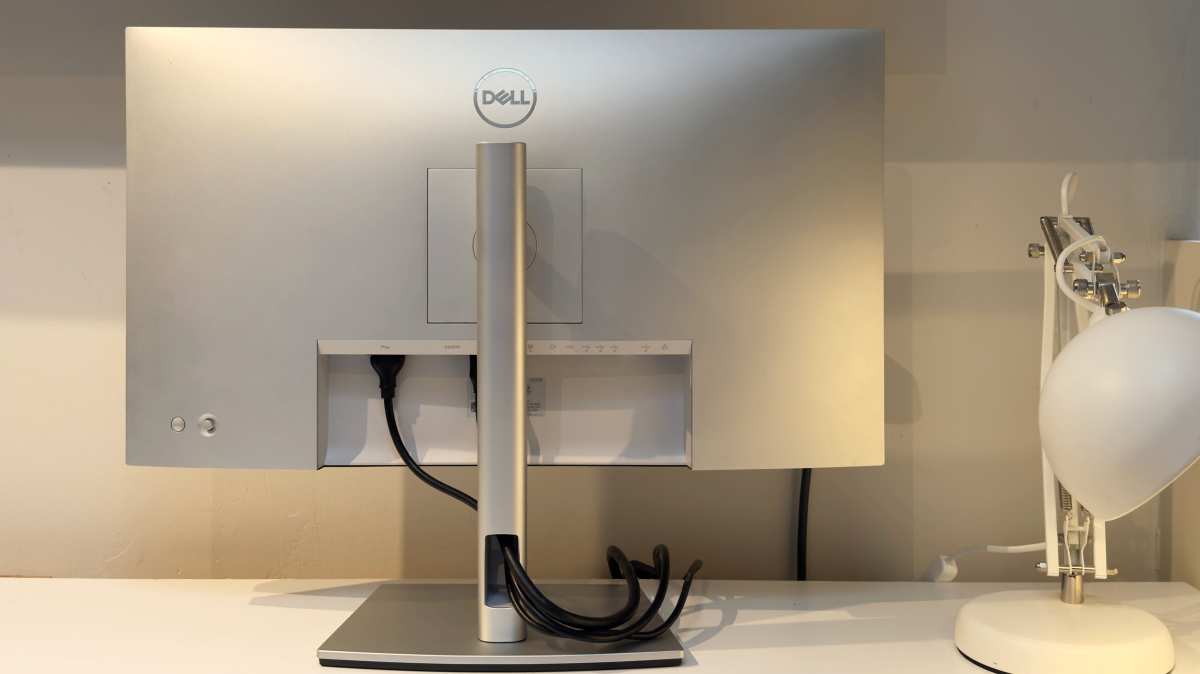
A USB-C monitor consolidates everything through one cable. Video signal, data for the built-in hub, and laptop charging all flow through that single connection. The monitor's internal power supply handles both the panel and the PD pass-through.
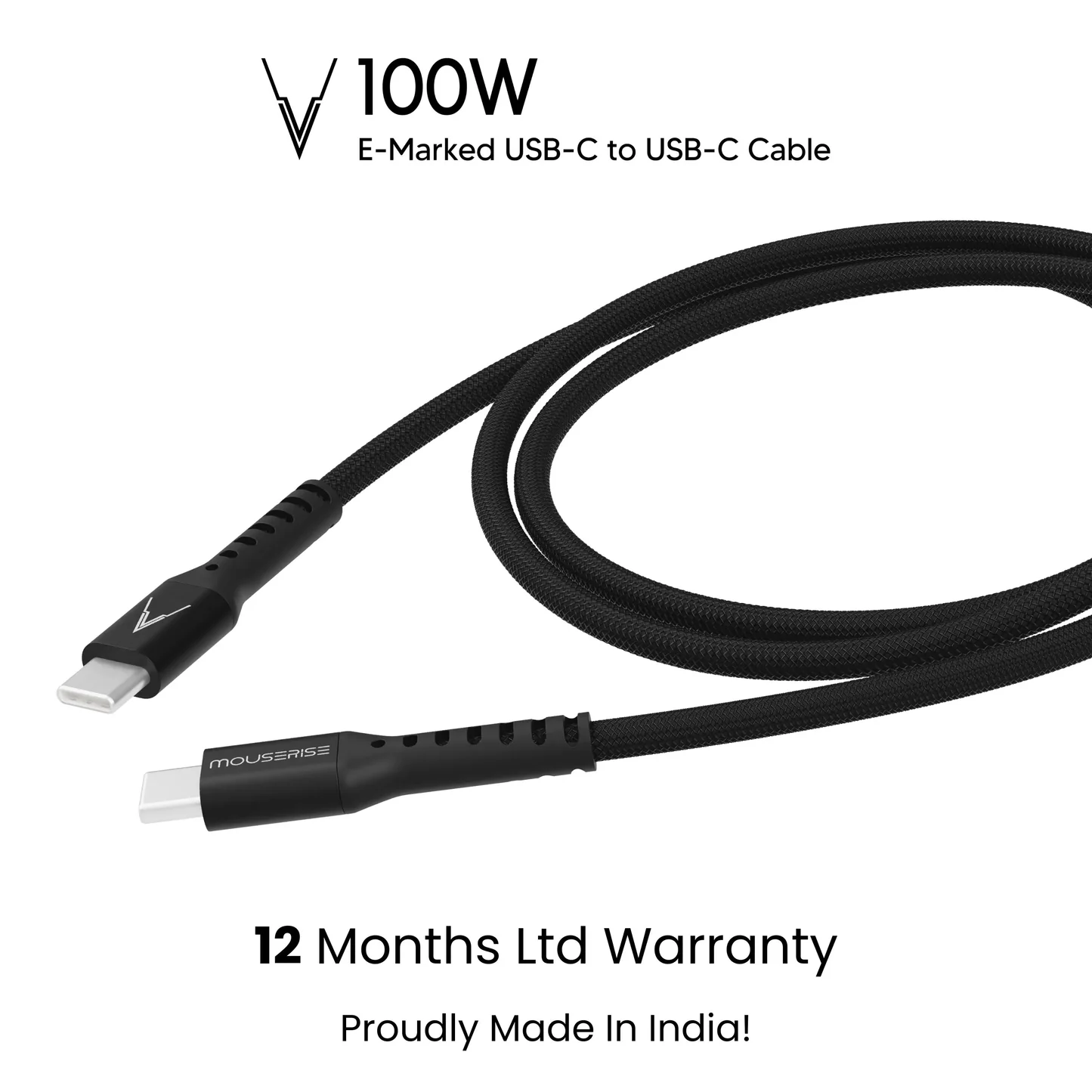
This is where the cable quality matters enormously. A USB-C cable rated for 60W can't safely deliver 100W to your laptop. The cable has to be e-marked for higher wattages.
We'll get into that more in the mistakes section, but it's worth noting now because it directly affects whether your setup works efficiently or wastes power through poor negotiation.
Total System Power: The Number That Actually Matters
Here's the honest comparison nobody wants to give you. Total power from the wall is almost identical in a one-monitor, one-laptop setup whether you use USB-C PD or separate cables.
Where USB-C can draw more is when the monitor's internal power supply is less efficient at passing through charging power compared to your laptop's native charger. Some monitors lose 10 to 15 percent efficiency in the PD conversion. That means to deliver 60W to your laptop, the monitor's supply might pull 70W from the wall instead of the 65W a dedicated brick would need.
Where USB-C can draw less is when it eliminates the need for a separate dock or hub. Those devices pull their own idle wattage, typically 5 to 15W. If your USB-C monitor acts as your dock, you've just removed that extra draw from the equation.
The real answer is: check your specific monitor's PD efficiency specs and compare them to your laptop's native charger efficiency. The difference is usually within 5 to 15W. For context, running that extra 10W for eight hours a day costs you roughly three to five dollars a year in electricity.
What Changes Based on Your Setup
Screen Size and Resolution
Panel size directly affects power consumption. Larger screens need more backlight, and higher resolution means more pixels to drive.
A 24-inch 1080p monitor might only pull 12 to 15W. Move up to a 32-inch 4K display and you're looking at 30 to 45W for the panel alone. USB-C doesn't change these numbers, but if you're choosing a USB-C monitor specifically for a larger or higher-resolution display, the panel wattage is the biggest chunk of your power budget.
Mini-LED backlights, which are becoming more common in premium USB-C monitors as of 2026, can actually be more efficient at higher brightness levels but may consume slightly more at low brightness due to the dimming circuitry. OLED panels in monitors draw highly variable power depending on content. A mostly black image pulls far less than a white web browser page.
USB-C Power Delivery Wattage Tiers
Not all USB-C monitors charge your laptop the same way. The PD tier matters for both charging speed and total power draw.
| PD Tier | Typical Use Case | Total System Draw (Monitor + Charging) |
|---|---|---|
| No PD / 0W | Video only, laptop on own power | Monitor panel watts only |
| 45W PD | Ultrabooks, MacBooks (13" and below) | 65–85W |
| 60W PD | Most laptops, including MacBook Air | 80–100W |
| 90W PD | Performance laptops, some mobile workstations | 110–135W |
| 100W PD | Higher-end gaming and workstation laptops | 120–145W |
| 140W PD | MacBook Pro 16", mobile workstations | 160–190W |
The jump from 100W to 140W requires extended power range (EPR) cables, which are thicker and more expensive. Not every USB-C cable labeled "100W" actually supports the full 240W EPR spec. If your MacBook Pro needs 140W, you need a monitor that explicitly supports that tier and a cable rated for it.
Cable Quality and Rating
This is the one most people overlook. USB-C cables aren't created equal, and the wrong cable can cause your laptop to charge slowly, not charge at all, or fall back to a lower power delivery tier.
Standard USB-C cables support up to 60W. Cables with an e-marked chip support up to 100W. Extended power range cables, the newest category, support up to 240W.
The cable physically looks the same, but the internal wiring and chip negotiation are different.
Using a 60W cable with a monitor that tries to push 100W can result in… nothing good. The system will typically negotiate down to the cable's limit, meaning your laptop charges at 60W instead of 100W. For some people that's fine.
For others with power-hungry laptops, it means your battery still drains during heavy use.
When a USB-C Monitor Costs You More Power
You're Charging Your Laptop Through the Monitor
The biggest variable in the entire USB-C power equation is whether your setup routes laptop charging through the monitor. If you're only using USB-C for video and plugging your laptop into its own charger anyway, the USB-C monitor draws essentially the same power as any other monitor of the same size and panel type.
But the moment you let the monitor handle charging, you're adding that wattage to the monitor's power supply workload. A MacBook Pro charging at 100W through a USB-C monitor means the monitor's internal supply is now pulling 115 to 130W from the wall to cover the panel and the charging pass-through, accounting for conversion losses.
The Monitor's Internal Power Supply Is Less Efficient
Here's an unpopular truth. Some USB-C monitors have great panel specs but mediocre power supply designs. Their PD conversion efficiency lags behind what your laptop's dedicated wall charger achieves.
Your laptop's charger was engineered specifically for that laptop's power requirements. It hits peak efficiency at the wattage you actually need. A USB-C monitor's power supply is a general-purpose design that has to handle panel power and PD charging simultaneously.
Some do this beautifully. Others don't.
The efficiency gap is typically 5 to 15 percent. Over a year of daily use, that might add up to $5 to $15 in extra electricity depending on your local rates. Not a dealbreaker for most people, but worth knowing.
Daisy-Chaining Multiple USB-C Displays
This is where power draw climbs fast. If you're daisy-chaining two 4K monitors via USB-C, you're potentially running panel power for both displays plus laptop charging through a single cable.
Two 27-inch 4K panels at 30W each, plus laptop charging at 100W, and you're looking at a 160W or higher draw from your primary monitor's power supply. That requires a beefy internal PSU and proper cable ratings. Not every USB-C monitor supports daisy-chaining, and not all that claim to do it can actually deliver full power to both panels and the laptop simultaneously.
Check your monitor's specs for daisy-chain power limits before committing to this setup. You might find that the second display only gets video and no charging passthrough, or that laptop charging drops to 60W when both displays are active.
When a USB-C Monitor Saves You Power
You Eliminate a Separate Dock
If you were previously using a USB-C dock at your desk, a USB-C monitor with built-in hub functionality can remove that dock from your setup. Most USB-C docks draw 10 to 15W of idle power just by being plugged in and active. That power does nothing useful.
It just converts AC to DC and back again through various regulation circuits.
By consolidating the dock functions into the monitor, you eliminate that idle draw. Over a year, that's roughly 50 to 130 kWh saved. At average US electricity rates of about $0.16 per kWh, that's $8 to $21 back in your pocket.
Not transformative, but not nothing either.
You Ditch the Second Power Brick
Some USB-C monitors include their own power supply that's sufficient for both the panel and laptop charging. If you'd otherwise have a monitor power brick and a laptop power brick, consolidating to a single supply can reduce standby and idle power consumption.
The efficiency gains come from having one high-quality power supply operating near its rated capacity instead of two supplies each running at partial load. Most power supplies are most efficient at 50 to 80 percent of their rated capacity. Running two supplies at 30 percent load each is wasteful.
One supply at 60 percent load does better.
Efficient Modern Panels
Many USB-C monitors released as of 2026 use newer panel technology that's inherently more power-efficient than older designs. Improved LED backlight efficiency, better polarizer films, and more efficient driver circuitry all contribute to lower panel wattage for the same brightness compared to monitors from even three years ago.
If you're upgrading from an older traditional monitor to a newer USB-C model, you might actually see a net decrease in power consumption even with the added PD charging capability. The panel efficiency gains can offset or exceed the additional charging wattage, especially if you're charging a power-sipping Ultrabook rather than a gaming laptop.
Common Mistakes That Waste Power (or Damage Gear)
Using the Wrong USB-C Cable
This is the single most common mistake, and it causes the most confusion about whether USB-C monitors work properly.
You plug in your laptop with a random USB-C cable. It charges slowly or not at all. You assume the monitor is faulty.
In reality, the cable only supports 1080p video and 60W charging, but your setup needs higher bandwidth and wattiness to function correctly.
Always check the cable's printed specifications. Look for the wattage rating and certification markings. If you need more than 60W, ensure the cable is e-marked for 100W or higher.
For 140W and above, you need extended power range cables specifically.
A proper USB-C cable rated for your monitor's full PD capability typically costs $15 to $30 from a reputable brand. The cheap ones bundled with accessories often aren't rated for anything beyond basic charging and data.
Assuming All USB-C Ports Are Equal
Your laptop's USB-C ports might not all support the same features. Many laptops mix Thunderbolt 4 ports with basic USB-C 3.2 ports that only support data and video at limited bandwidths. Some ports may not support Power Delivery input at all.
Check your laptop's documentation to confirm which ports support charging from an external source. Plugging your monitor into a data-only USB-C port means no charging passthrough, and you're back to needing a separate charger, defeating part of the purpose.
On many business laptops from Dell, Lenovo, and HP, only one or two of the USB-C ports are marked with a battery icon or described in the manual as supporting power input. Those are the ones you want for a single-cable monitor setup.
Ignoring the Monitor's Own Power Draw
Some buyers focus entirely on the charging wattage and forget that the monitor panel is still pulling its own power. A USB-C monitor advertising 100W PD charging isn't pulling 100W total. It's pulling panel watts plus 100W, including conversion losses.
A 32-inch 4K USB-C monitor with 90W PD might actually draw 125 to 140W from the wall at full brightness while charging a laptop. That's a non-trivial amount of power, and it generates real heat. Make sure your desk ventilation can handle it, and be aware that running at max brightness while charging at full wattage is the highest-draw scenario for any USB-C monitor setup.
How to Check Your Actual Power Use
What to Look For on Your Monitor's Spec Sheet
Manufacturer spec sheets list power consumption under a few different categories. Here's what to watch for. "Power consumption (typical)" or "Operational power" refers to the monitor at maximum brightness with no PD charging active.
"Power consumption (max)" includes PD charging at the rated wattage. Some manufacturers list "Power delivery" separately.
When comparing monitors, make sure you're comparing the same operating conditions. A monitor listed at 25W operational and 150W with PD is very different from one listed at 35W operational and 110 watts total. The first is likely a more efficient panel with a beefy power supply.
The second is pulling more for the display itself but the total with charging is lower.
How to Measure at Home
The most accurate way to know your actual power draw is a plug-in power meter. Devices like Kill-A-Watt meters or similar energy monitors sit between your wall outlet and the monitor's power cable, showing real wattage in real time.
With only the monitor panel active (laptop disconnected or on separate power), you'll see the bare panel draw. Connect your laptop via USB-C with PD charging active, and you'll see the total draw. The difference is what your laptop charging adds to the equation.
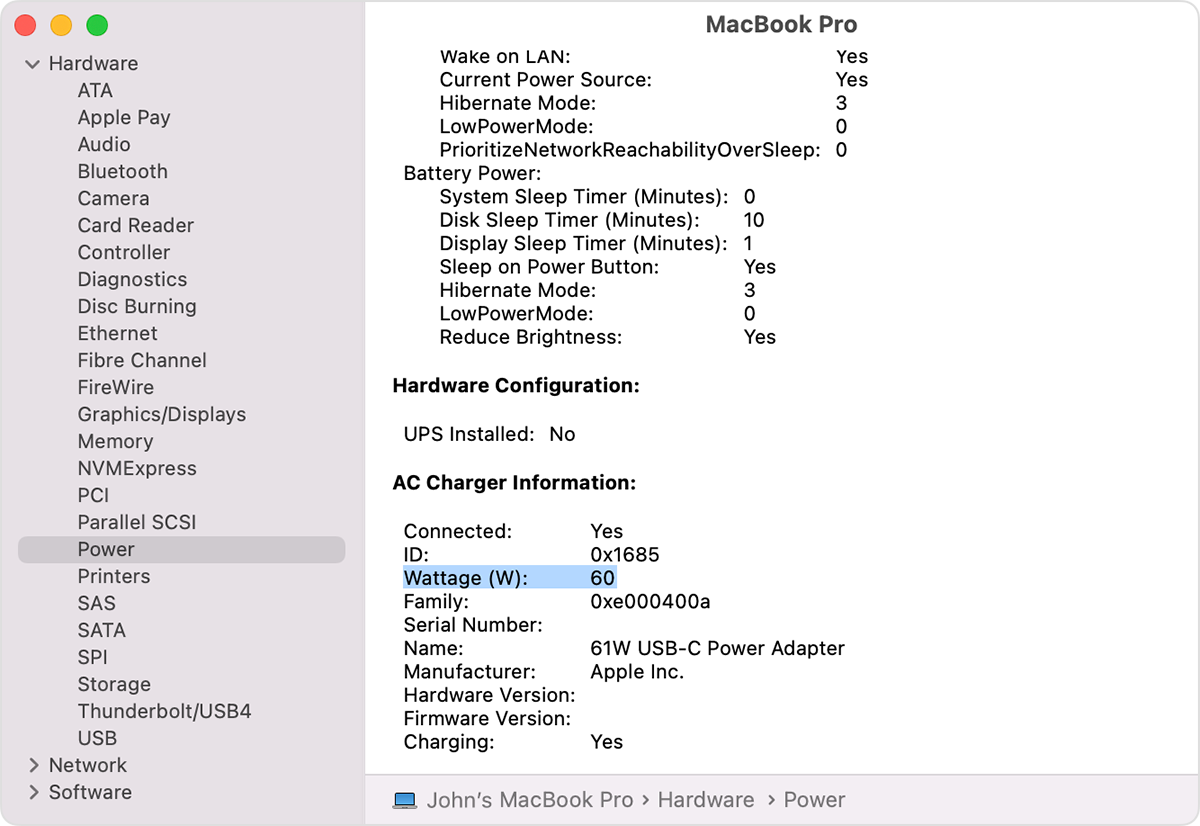
You can also check charging wattage through your operating system. On macOS, System Information under Power shows the charging wattage being delivered. On Windows 11, some laptop manufacturers include their own power diagnostics, or you can use third-party tools to read the USB-PD negotiation data.
Best USB-C Monitor Setups by Use Case
Minimalist Home Office
For someone who values desk simplicity over all else, a single USB-C cable running from laptop to a 27-inch 4K USB-C monitor with 60W to 90W PD is the sweet spot. You get a clean desk, adequate charging for most ultrabooks and tablets, and a total power draw that's 85 to 110W at peak. That's totally manageable and the liveable setup for everyday productivity work.
Look for a built-in USB hub on the monitor to further reduce cable clutter. You've consolidated video, power, data, and peripherals all through one connection. That's the vision behind USB-C, and when done right, it delivers exactly what it promises.
Creative Professional
Color-accurate 4K or 5K USB-C displays for photo, video, and design work tend to draw more panel power due to higher brightness requirements, wider color gamut calibration, and more demanding backlight systems. A 5K display with 100W PD can easily pull 150W total.
For this use case, power consumption is secondary to performance. But be aware that running a high-brightness professional display at full tilt while charging a high-wattage laptop through it means a genuine 150 to 180W peak draw. Your power supply and wiring should be up to the task.
Business Traveler
Portable USB-C monitors are a different beast entirely. These 14 to 16-inch displays typically draw 8 to 15W for the panel and can run entirely off your laptop's USB-C port without any external power. Some include passthrough charging so your laptop charger feeds the monitor and continues charging the laptop.
Total added power draw to your laptop battery is roughly 8 to 15W, translating to about one to two hours less battery life depending on your laptop's battery capacity. That's the trade-off for having a second screen in your travel bag, and for most road warriors, it's worth it.
Multi-Monitor Power User
Running two or three displays, whether through daisy-chaining or separate USB-C connections, multiply the panel power costs accordingly. Two 27-inch panels plus laptop charging could total 150 to 200W. A triple-monitor setup with PD pushes into territory where overall energy use is clearly higher, even if the per-device efficiency is acceptable.
This is actually the one scenario where a case can be made that USB-C draws more total power simply due to the number of devices involved, though the connection technology itself isn't the cause.
Frequently Asked Questions
Does a USB-C monitor charge my laptop?
Only if it supports USB-C Power Delivery. Not all USB-C monitors do, and those that do vary in wattage from 45W to 140W. Check the specs before buying if charging matters to you.
Can a USB-C monitor drain my laptop battery?
If the monitor provides less wattage than your laptop consumes under load, your battery will drain slowly during use. This typically happens with lower-wattage PD monitors (45W to 60W) paired with power-hungry laptops. A 100W or higher PD rating prevents this.
Is a USB-C monitor more energy efficient?
Not inherently. Panel efficiency is what matters for the display itself. USB-C PD adds charging wattage to the total draw.
However, eliminating a separate dock or charger can modestly reduce total system power by consolidating power supplies.
Does USB-C use more power than HDMI?
The connection type itself doesn't affect power. HDMI and DisplayPort cables carry video only. USB-C carries video plus potentially data and power delivery, the extra functions add wattage, not the connector.
How many watts does a USB-C monitor use?
A 27-inch 4K USB-C monitor typically uses 22 to 35W for the panel alone. With laptop charging at 60 to 100W, total draw ranges from 80 to 140W depending on brightness and charging load.
Can I use any USB-C cable with a USB-C monitor?
No. High-refresh or high-resolution displays plus charging need proper cable certification. Using an inadequate cable results in limited resolution, missing charging, or unreliable operation.
Invest in a certified USB-IF cable rated for your monitor's full spec.
## Final Verdict: Should You Worry About Power with USB-C Monitors?

For most people, no. The power difference between a USB-C monitor setup and a traditional monitor plus separate charger is minimal. We're talking single-digit to low-double-digit wattage differences that translate to a few dollars a year on your electric bill.

Where it matters is in specific scenarios. If you're running multiple monitors, charging a high-wattage gaming laptop through the display, or daisy-chaining panels, the total draw climbs meaningfully. In those cases, USB-C isn't causing the power use, the sheer number of devices is. The connection technology just makes it more visible because everything flows through one cable.

The convenience factor is real. One cable for video, data, and charging simplifies your desk in ways that genuinely improve your daily workflow. The power trade-off is small enough that most users won't notice it on their electricity bill. If you value a clean setup and your laptop charges fine through the monitor's PD, go for it.

If you're trying to minimize every watt for an off-grid setup or a solar-powered workspace, the efficiency differences between power supplies become more significant. In that case, measure your specific setup and compare. But for the vast majority of home offices and workstations, USB-C monitors are a perfectly reasonable choice that won't meaningfully increase your power consumption.

Similar Posts





















