Is Touchscreen Monitor Good for Multitasking
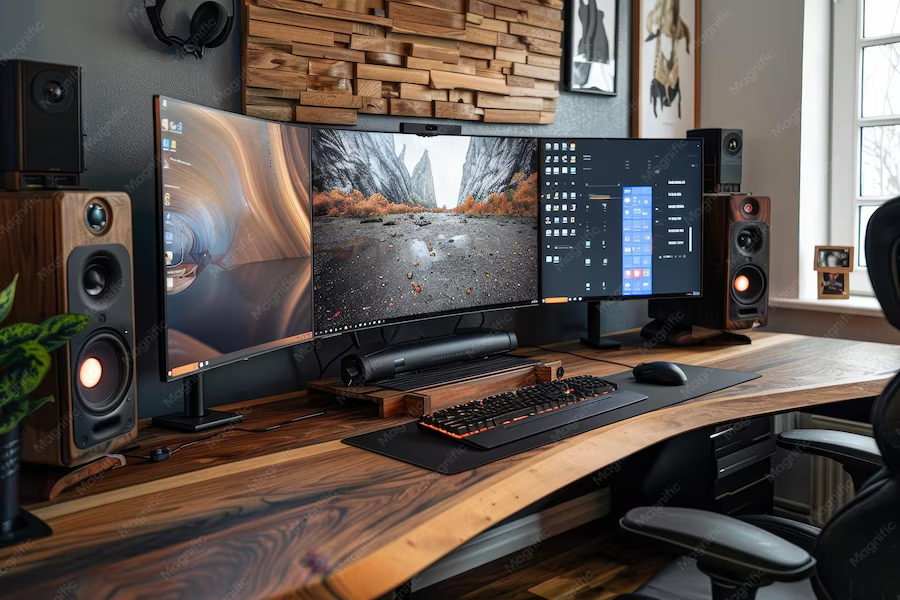
Is touchscreen monitor good for multitasking? The answer depends entirely on what kind of multitasking you actually do all day. If your workflow leans on touch-optimized apps, creative software, or quick gesture-based navigation, a touchscreen monitor can genuinely speed things up.
If you're mostly bouncing between spreadsheets, browser tabs, and email, you might be paying for a feature you'll barely use.
Touchscreen monitors have come a long way since the early days of clunky resistive panels. Modern capacitive touch displays offer 10-point multi-touch, palm rejection, and response times under 20 milliseconds. But they still carry trade-offs like higher price tags, extra glare, and the dreaded "gorilla arm" fatigue.
Let's break down exactly where they shine and where they fall short.
The Quick Answer: Are Touchscreen Monitors Actually Good for Multitasking?
Touchscreen monitors help with specific multitasking workflows. Creative professionals benefit the most from direct touch input. Office workers gain less from the touch layer.
The price premium ranges from $100 to $400 over equivalent non-touch models. Your software choices matter more than the hardware itself.
How Touchscreen Monitors Work in a Multitasking Setup
Touchscreen monitors add a transparent touch sensor layer on top of the display panel. Most modern models use projected capacitive touch, the same technology in your smartphone. This layer detects finger contact and translates it into input signals your computer understands.
Windows 10 and Windows 11 both support native touch input with built-in gestures. You can swipe from edges to switch virtual desktops, pinch to zoom in documents, and tap to select items quickly. macOS doesn't natively support touchscreen input, which is a critical limitation if you're in the Apple ecosystem.
The touch data travels separately from the video signal. Many monitors use a USB-C cable that carries both video and touch data in one connection. Older or budget models might require a separate USB cable just for the touch functionality.
Here's what happens behind the scenes when you touch the screen:
- Your finger disrupts the electrical field in the capacitive layer.
- The controller chip calculates the exact touch coordinates.
- Those coordinates get sent to your computer as HID (Human Interface Device) input.
- Windows interprets the input as a tap, swipe, or gesture depending on context.
- The operating system routes the command to the active application.
This whole chain typically adds 10 to 30 milliseconds of latency. You won't notice it for basic taps. But you might feel it during fast scrolling or drawing applications.
Multi-monitor setups add another layer of complexity. You'll need to tell Windows which display is the touchscreen, otherwise your taps might register on the wrong screen. This is a quick calibration in Windows settings, but it's an extra step non-touch users never think about.
The Real Benefits: Where Touch Actually Helps You Get More Done
Let's be honest about what touch does well. It's not a productivity magic bullet, but it genuinely improves certain workflows.
Speed in touch-optimized apps. Microsoft OneNote, Whiteboard, and Edge all respond beautifully to touch. Scrolling through long documents, zooming into details, and annotating PDFs feel natural with your fingers. If these apps are part of your daily routine, touch input saves real time.
Creative work gets more intuitive. Photo editors, video timelines, and DAW (digital audio workstation) controls make more sense when you can drag, pinch, and swipe directly. Adobe Lightroom and Premiere Pro both support touch gestures for timeline scrubbing and slider adjustments. It's faster than nudging a mouse for fine adjustments.
Quick window management. Windows 11's touch gestures let you snap windows, switch desktops, and access Task View with swipes. Once you build the muscle memory, it's faster than hunting for the right keyboard shortcut. Three-finger swipe up to see all windows, three-finger swipe left or right to switch desktops.
Reduced mouse dependency for certain tasks. If you alternate between typing and navigating, reaching for the screen can be faster than moving your hand to the mouse. It sounds minor, but over hundreds of micro-interactions per day, it adds up.
Better presentations and collaboration. When you're sharing your screen with colleagues, pointing and annotating directly feels more engaging than mouse pointers. It's especially useful in education, training, and client-facing scenarios.
Accessibility advantages. Users with limited motor control often find touch easier than precise mouse movements. The direct manipulation model lowers the barrier for people who struggle with traditional input devices.
The Honest Drawbacks: Where Touchscreen Monitors Fall Short
Now for the part most reviews gloss over. Touchscreen monitors have real downsides that affect daily multitasking.
The gorilla arm problem is real. Holding your arm out to touch a vertical screen gets fatiguing fast. Cornell University's ergonomics research identified this decades ago with touchscreen kiosks. For quick taps, it's fine.
For extended use, your shoulder will complain.
Fingerprints everywhere. Touchscreen monitors are fingerprint magnets. Glossy touch surfaces show every smudge, and you'll find yourself cleaning the screen constantly. Matte touch coatings exist but they reduce clarity and still collect oils.
Glare gets worse. The extra glass layer on touchscreen monitors creates more reflections. If your workspace has windows or overhead lighting, you'll notice more glare compared to a non-touch panel with a good matte finish.
The price premium is significant. Touchscreen monitors typically cost $100 to $400 more than their non-touch equivalents with the same panel specs. That's money you could put toward a better panel, a larger screen, or a second monitor.
Software support is inconsistent. Windows has decent touch support, but many desktop applications still have tiny UI elements designed for mouse cursors. You'll end up tapping the wrong button or accidentally triggering things. Professional software like Visual Studio, Excel, and older enterprise apps often feel clunky with touch.
Brightness and color take a hit. The touch sensor layer slightly reduces brightness and can affect color accuracy. Manufacturer specifications indicate a 10 to 20 percent brightness reduction compared to the non-touch version of the same panel. For color-critical work, this matters.
macOS doesn't play nice. Apple has never supported touchscreen input on macOS. You can find third-party workarounds, but they're unreliable. If you're a Mac user, a touchscreen monitor is essentially a regular monitor with extra weight and cost.
Accidental touches happen. Palm rejection has improved, but it's not perfect. Resting your hand near the screen edge or leaning on the bezel can register unwanted input. This gets annoying during long work sessions.
Touchscreen Monitor vs Non-Touch Monitor: Side-by-Side Comparison
Here's how the two options stack up across the factors that matter for multitasking:
| Factor | Touchscreen Monitor | Non-Touch Monitor |
|---|---|---|
| Price | $100-$400 premium | Standard pricing |
| Brightness | 10-20% lower | Full panel brightness |
| Color accuracy | Slightly reduced | Better out of box |
| Glare | More reflections | Better with matte coating |
| Creative workflow | Faster in supported apps | Mouse/keyboard dependent |
| Office productivity | Minimal advantage | No difference |
| Ergonomics | Arm fatigue risk | Neutral |
| macOS compatibility | Not supported | Full support |
| Fingerprint maintenance | High | Low |
| Multi-monitor calibration | Requires setup | Plug and play |
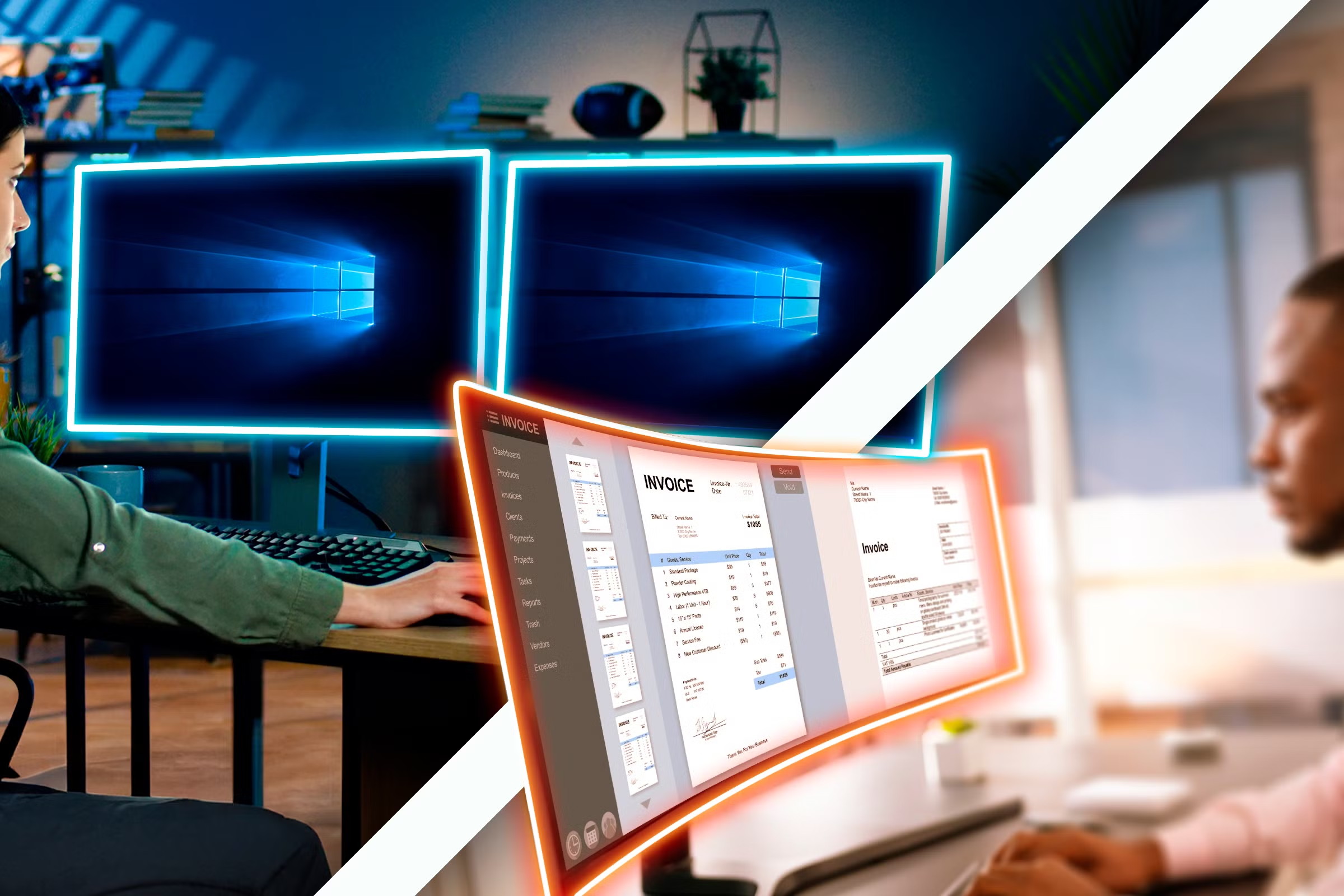
The pattern is clear. Touchscreen monitors add value for specific creative and touch-optimized workflows. For general office multitasking, the advantages shrink considerably.
Touchscreen Monitor vs iPad as Second Display vs Drawing Tablet
A touchscreen monitor isn't your only option for adding touch input to your setup. Here's how the alternatives compare:
Touchscreen monitor. Full Windows integration, works as a standalone display, supports all your desktop software. Best when you want touch on a large screen at your desk. Downside is the price premium and ergonomic concerns.
iPad as second display. Using Sidecar (Mac) or Duet Display (Windows), your iPad becomes a touch-enabled secondary screen. You get a high-quality touch panel without buying a whole new monitor. The screen is smaller, typically 11 to 13 inches, but the touch experience is excellent.
This works well for palettes, toolbars, or reference material while your main screen stays non-touch.
Drawing tablet (Wacom, XP-Pen). Pen displays like the Wacom Cintiq or XP-Pen Artist offer precise stylus input on a screen. They're purpose-built for creative work and often outperform touchscreen monitors for drawing and photo editing. But they're not great for general multitasking since the pen input doesn't replace mouse navigation for regular desktop use.
Regular tablet with touch. An Android tablet running a remote desktop app can serve as a touch input device. It's the cheapest option but adds latency and complexity. Not recommended for serious productivity.
The right choice depends on your primary use case. If you want touch for creative work, a drawing tablet might serve you better. If you want touch for general navigation and occasional annotation, an iPad as a second screen gives you flexibility without replacing your main monitor.
A dedicated touchscreen monitor makes sense when you want the largest possible touch surface and full Windows integration.
Who Actually Benefits from a Touchscreen Monitor for Multitasking?
Not everyone gets equal value from a touchscreen monitor. Here's where the investment makes the most sense.
Creative professionals see the biggest gains. Photo editors, video editors, and digital artists work in software that responds well to direct manipulation. Scrubbing timelines, adjusting sliders, and zooming into details all feel faster with touch.
Adobe's Creative Cloud suite has steadily improved touch support over the past few years.
Educators and presenters benefit from the ability to annotate live. Marking up slides, drawing diagrams on the fly, and interacting with content directly keeps audiences engaged. It's more natural than trying to draw with a mouse.
Project managers who live in tools like Trello, Asana, or Monday.com can drag cards, swipe between boards, and tap through tasks quickly. These web-based tools often have touch-friendly interfaces that make a touchscreen monitor genuinely useful.
Accessibility users who struggle with precise mouse movements find touch input more forgiving. The direct manipulation model reduces the fine motor control needed for navigation.
Hybrid workers who split time between laptop and desk setup might appreciate a touchscreen external monitor that mirrors the touch experience they're used to on their laptop screen.
Who Should Skip the Touchscreen and Stick with Traditional
Some users will barely touch the touch feature after the first week. Here's who should save their money.
Spreadsheet warriors who live in Excel or Google Sheets won't gain much. These applications are built around keyboard shortcuts and mouse precision. Touch input actually slows down cell selection and formula editing.
Software developers writing code in VS Code, IntelliJ, or similar IDEs will find touch more annoying than helpful. These interfaces have tiny buttons, dropdowns, and context menus designed for cursor precision. You'll spend more time zooming and scrolling than actually coding faster.
Mac users have almost no reason to buy a touchscreen monitor. macOS doesn't support touch input natively. Third-party solutions exist but they're unreliable and laggy. You're paying a premium for a feature your operating system ignores.
Budget-conscious buyers who just want more screen real estate are better off putting that money toward a larger non-touch monitor or a second display. Two 24-inch non-touch monitors will do more for multitasking than one 24-inch touchscreen.
Users with existing ergonomic issues should be cautious. If you already deal with shoulder, neck, or wrist pain, adding a touchscreen monitor could make things worse. The repeated reaching motion aggravates existing strain.
The Ergonomics Problem Nobody Talks About
Here's the issue that kills the touchscreen monitor experience for a lot of people. Holding your arm out to touch a vertical screen gets exhausting fast.
Researchers at Cornell University studied this phenomenon with early touchscreen kiosks. They found that users experienced significant arm fatigue after just a few minutes of continuous touch interaction. The industry nicknamed it "gorilla arm." It's not a minor annoyance.
It's a genuine ergonomic concern that limits how much you'll actually use the touch feature.
The problem gets worse with larger monitors. A 27-inch or 32-inch display requires more reaching and bigger arm movements. Your shoulder does most of the work, and it wasn't designed for hours of holding your arm at chest height.
How to minimize the strain:
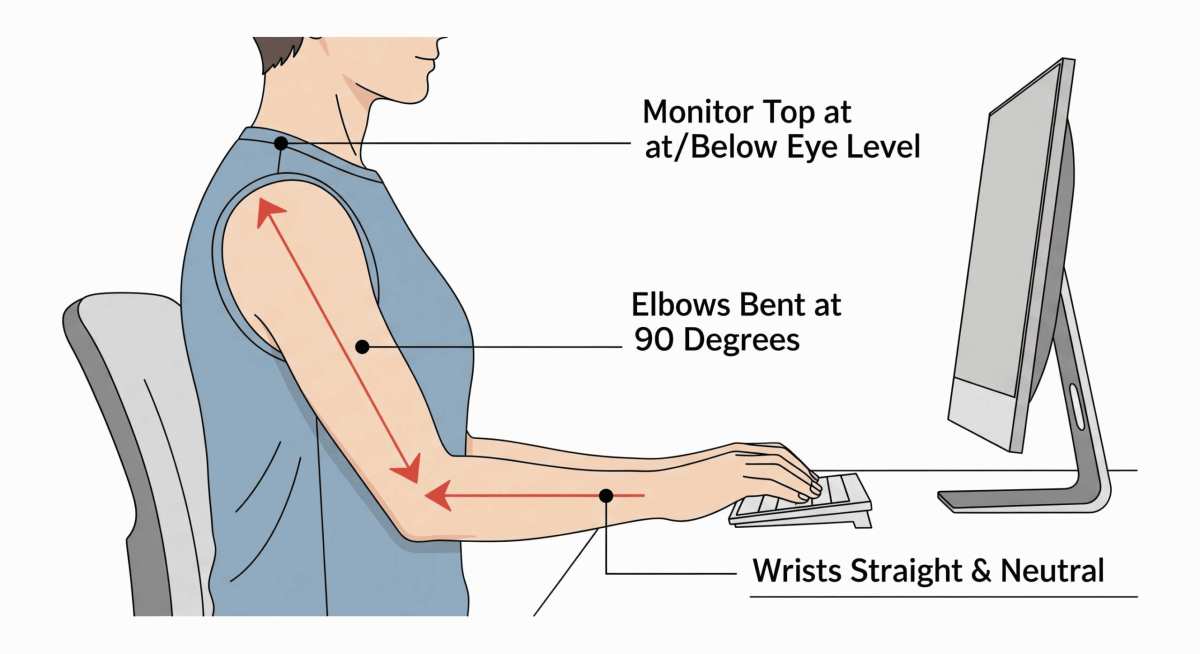
- Tilt the monitor back slightly if your stand allows it. Even 10 to 15 degrees of tilt reduces the reach distance.
- Position the monitor closer to the edge of your desk. Less distance between your body and the screen means less arm extension.
- Use touch for short interactions only. Quick taps, swipes, and annotations are fine. Extended dragging and drawing should use a stylus or mouse.
- Consider a monitor arm that lets you pull the display closer when you need touch, then push it back for regular use.
- Take breaks. If you notice shoulder fatigue, switch back to mouse and keyboard for a while.
The honest truth is that most people who buy touchscreen monitors for productivity end up using touch for maybe 10 to 15 percent of their interactions. The rest of the time, they're back to mouse and keyboard because it's more comfortable for extended sessions.
Best Touchscreen Monitors for Multitasking Right Now
If you've decided a touchscreen monitor fits your workflow, here are the models that consistently get strong marks from verified buyers and professional reviews.
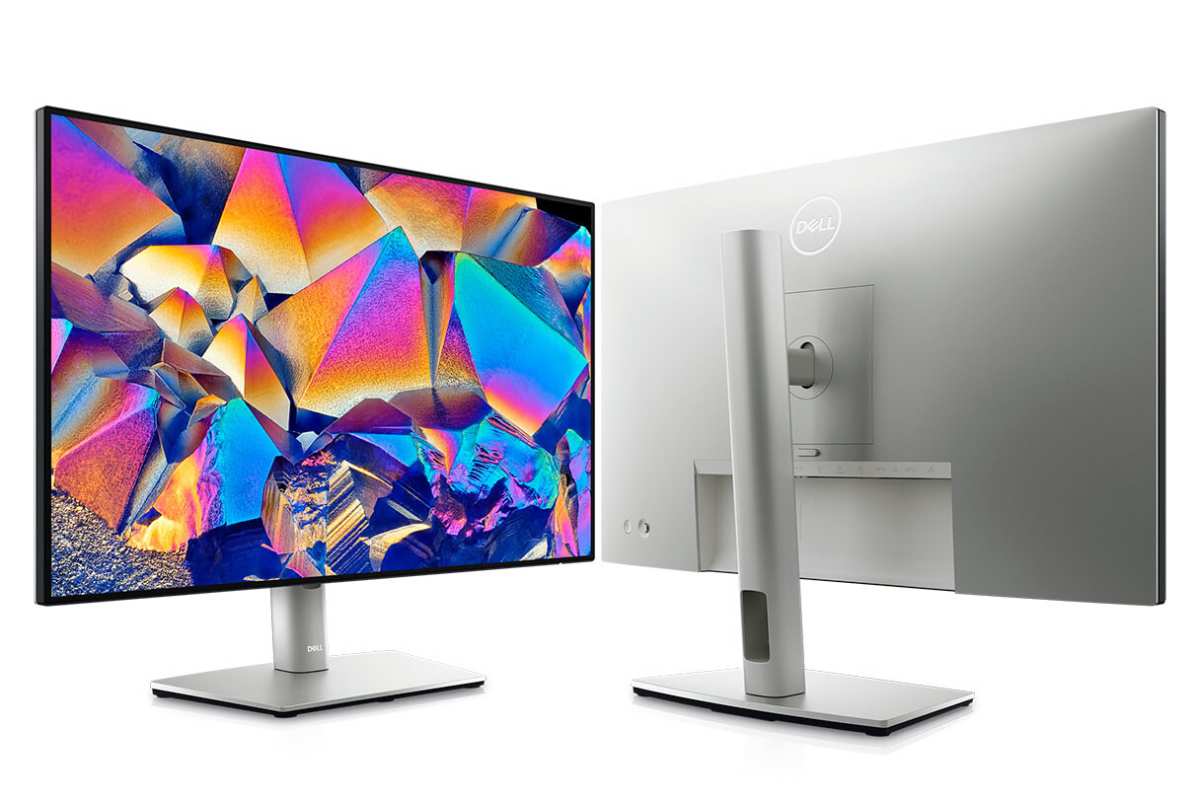
Dell UltraSharp U2724HE. This 27-inch IPS touchscreen offers 10-point capacitive touch, USB-C connectivity with 90W power delivery, and solid color accuracy out of the box. Dell's build quality and warranty support make it a safe choice for office environments. The price premium over the non-touch U2724D is noticeable but justified if you'll actually use the touch features.
ASUS ProArt PA248CNV. Aimed at creative professionals, this 24-inch touchscreen covers 100% sRGB and offers factory-calibrated color accuracy. The 16:10 aspect ratio gives you extra vertical space for timelines and documents. It's a strong option if color work is part of your multitasking mix.
ViewSonic TD2430. A more budget-friendly 24-inch option with 10-point multi-touch and a folding stand that lets you lay it nearly flat. This is useful if you want to reduce the gorilla arm effect by tilting the screen toward you. The color accuracy isn't as strong as the Dell or ASUS options, but it handles office tasks fine.
EIZO FlexScan EV2795. EIZO monitors are known for excellent color reproduction and build quality. This 27-inch touchscreen targets business users who need reliability over flashy features. It's pricier than competitors but the five-year warranty and consistent performance appeal to enterprise buyers.
Iiyama ProLite T2454MSC-B1A. A solid mid-range 24-inch touchscreen that won't break the bank. It covers the basics well: 10-point touch, decent color, and VESA mount compatibility. Good choice for users who want touch capability without paying a premium for color-critical accuracy.
When choosing, prioritize panel quality and connectivity over touch features themselves. The touch layer is fairly standardized across brands. The panel quality, stand adjustability, and port selection vary more and affect your daily experience more.
How to Set Up a Touchscreen Monitor for Maximum Productivity
Getting a touchscreen monitor working properly takes a few steps beyond just plugging it in. Here's the setup process that avoids the most common headaches.
Step 1: Connect both video and touch data. If your monitor supports USB-C single-cable connection, one cable handles everything. If not, you'll need a separate USB cable from the monitor to your computer for the touch functionality. Without this second cable, the screen works but touch doesn't.
Step 2: Install drivers if needed. Most modern touchscreen monitors use standard HID drivers built into Windows. But some models need manufacturer-specific drivers for full gesture support. Check the manufacturer's support page for your specific model.
Step 3: Calibrate touch to the correct display. In multi-monitor setups, Windows needs to know which screen is the touchscreen. Go to Settings > System > Display > Identify to see your monitor numbers. Then search for "Calibrate the screen for pen or touch input" in the Windows search bar and follow the prompts.
Step 4: Adjust touch sensitivity. Some monitors let you adjust how much pressure or contact area registers as a touch. If you're getting accidental inputs, look for touch settings in the monitor's on-screen display menu or in Windows touch settings.
Step 5: Configure Windows touch gestures. Windows 11 lets you customize three-finger and four-finger swipe actions. Go to Settings > Bluetooth & devices > Touch to adjust these. Set up gestures that match your workflow, like three-finger swipe up for Task View or four-finger swipe to switch desktops.
Step 6: Position the monitor ergonomically. Place it at arm's length with the top of the screen at or slightly below eye level. If your stand allows tilt, angle it back slightly to reduce the reach distance for touch interactions.
Step 7: Test with your actual software. Open the apps you use most and try touch interactions. Some apps respond better than others. Identify which workflows benefit from touch and which don't, so you build habits around the ones that actually save time.
Common Mistakes People Make with Touchscreen Monitors
Most frustration with touchscreen monitors comes from avoidable setup errors. Here are the ones we see most often.
Ignoring the separate USB connection. Many buyers plug in the video cable and wonder why touch doesn't work. If your monitor doesn't use USB-C for both signals, you need that second USB cable connected. It's an easy step to miss.
Skipping touch calibration in multi-monitor setups. Without calibration, your taps might register on the wrong screen. This leads people to think the monitor is defective when it's just a software configuration issue.
Using touch for everything out of habit. Touch feels novel at first, so people overuse it. Two weeks later, their shoulder hurts and they've learned that mouse and keyboard still handle 80 percent of tasks faster. Use touch selectively, not universally.
Buying based on touch alone. Some shoppers prioritize the touch feature and end up with a mediocre panel. Color accuracy, brightness, and viewing angles matter more for daily use than the touch layer. Don't sacrifice panel quality for a feature you'll use occasionally.
Placing the monitor too far back. Deep desks create more reach distance, which amplifies arm fatigue. Pull the monitor closer or use a monitor arm to position it within comfortable touch range.
Forgetting about software compatibility. Not all Windows apps play nice with touch. If your primary software has tiny UI elements and no touch optimization, you'll spend more time fighting the interface than benefiting from it.
Real Workflows: How Different Professionals Use Touch Monitors
Here's how touchscreen monitors actually fit into real multitasking scenarios.
Graphic designers use touch for quick zooming and panning in Photoshop and Illustrator. They keep the stylus for detailed work but tap and swipe for navigation between artboards. The touch layer saves time during review sessions when clients are present.
Video editors scrub through timelines with touch while keeping their mouse on the other hand for precise cuts. It's a hybrid approach that uses each input method for what it does best. Timeline navigation feels more natural with a finger drag.
Teachers running hybrid classes annotate slides live while presenting. They switch between PowerPoint, a web browser, and a whiteboard app, using touch to move between them quickly. The direct interaction keeps students engaged compared to watching someone click a mouse.
Financial analysts report mixed results. Touch helps for quick navigation between dashboards and reports, but actual data manipulation in Excel still requires a keyboard and mouse. Most end up using touch for maybe 10 percent of their workflow.
Software developers rarely benefit. Code editors and terminal windows aren't designed for touch. Most developers who try touchscreen monitors end up disabling the touch input entirely after a few weeks.
Are Touchscreen Monitors Worth the Extra Cost?
The price premium for touchscreen monitors ranges from $100 to $400 over equivalent non-touch models. Whether that's worth it depends on how much time you'll actually spend using touch.
If your workflow includes daily use of touch-optimized apps like OneNote, Adobe Creative Cloud, or presentation software, the premium pays for itself in time saved. Creative professionals and educators tend to fall into this category.
If you're primarily doing office work in Excel, email, and web browsers, the math doesn't work in your favor. You're better off putting that money toward a higher-quality non-touch panel or a second monitor.
Consider the total cost of ownership too. Touchscreen monitors consume slightly more power due to the touch sensor layer. They also require more frequent cleaning.
These are small costs, but they add up over years of use.
Final Verdict: Should You Buy a Touchscreen Monitor for Multitasking?
Buy a touchscreen monitor if you're a creative professional, educator, or heavy user of touch-optimized Windows apps. The direct interaction genuinely speeds up specific workflows.
Skip it if you're a Mac user, spreadsheet power user, or developer. The touch feature will collect dust while you pay a premium for it.
For everyone else, it comes down to budget and preference. If the $100 to $400 premium doesn't hurt and you're curious about touch workflows, it's a reasonable experiment. If every dollar counts, put that money toward better panel specs or a second display instead.
Frequently Asked Questions
Does Windows 11 work well with touchscreen monitors?
Windows 11 has solid touch support with customizable gestures. Three-finger and four-finger swipes handle window management and virtual desktop switching. Most touchscreen monitors work plug-and-play with Windows 11's built-in HID drivers.
Can I use a touchscreen monitor with a MacBook?
macOS doesn't natively support touchscreen input. Third-party apps like Duet Display offer limited workarounds, but they're unreliable for daily use. A touchscreen monitor connected to a MacBook functions as a regular display without touch capability.
Do touchscreen monitors work with all software?
No. Touch support varies by application. Microsoft Office, Adobe Creative Cloud, and web browsers generally work well.
Professional tools like Visual Studio, Excel, and older enterprise software often have poor touch optimization with small UI elements.
How long do touchscreen monitors last?
Most touchscreen monitors last 5 to 8 years with regular use. The touch sensor layer is durable and doesn't degrade significantly over time. Backlight and panel aging follow the same timeline as non-touch monitors.
Is a 24-inch or 27-inch touchscreen better for multitasking?
A 27-inch touchscreen gives more workspace but increases arm fatigue due to larger reach distances. A 24-inch model is more comfortable for touch but offers less screen real estate. Choose based on whether you prioritize comfort or workspace size.

Similar Posts





















