Can Touchscreen Monitors Be Connected with HDMI
Can touchscreen monitors be connected with HDMI? Yes, but the answer splits depending on what's actually inside your specific monitor. HDMI carries video and audio just fine, but it doesn't carry touch input data.
That's the part most people miss when they plug in and wonder why tapping the screen does nothing.
The touch signal travels over a separate USB connection in most desktop touchscreen monitors. Some newer portable models combine everything into a single USB-C cable, but the majority still need both cables connected simultaneously. HDMI Licensing Administrator specifications confirm that HDMI was designed for audio and video transport only, with no native support for HID (Human Interface Device) touch protocols.
Understanding which setup your monitor uses will save you a lot of frustration.
Quick Answer
Yes, touchscreen monitors can be connected with HDMI for video and audio. Touch input requires a separate USB cable on most desktop models. Some portable monitors use a single USB-C cable for both video and touch.
Always check your monitor's port layout before assuming one cable does everything.
How Touchscreen Monitors Actually Handle HDMI
HDMI handles one job: sending video and audio from your source device to the monitor. That's it. The touch layer on top of the display is a completely separate system with its own controller chipset, usually from manufacturers like eGalax, EETI, or Goodix.
That controller needs its own data path back to your computer.
Think of it like a monitor with built-in speakers. HDMI can carry the audio signal, but the speakers are still a separate component inside the chassis. Touch works the same way.
The capacitive or resistive sensor grid sits on top of the LCD panel, wired to a small PCB that translates your finger presses into USB HID data. Your operating system sees it as a separate input device, just like a mouse or keyboard.
This is why you'll often see a touchscreen monitor listed in Windows Device Manager under "Human Interface Devices" as a USB touchscreen, completely separate from the display adapter entry. The two systems run in parallel, not through the same pipe.
The Two-Cable Setup Most People Don't Expect
Here's where the confusion hits. You plug in HDMI, the screen lights up perfectly, and then you tap it. Nothing happens.
The monitor isn't broken. You just haven't connected the second cable.
Most desktop touchscreen monitors from Dell, ASUS, ViewSonic, and Acer use a dual-input design:
- HDMI cable carries video and audio from your computer to the monitor
- USB-A to USB-B cable carries touch data from the monitor back to your computer
That USB-B port on the monitor looks like a square-ish printer port. It's easy to overlook because most people don't expect a monitor to need a USB data connection. Without it, the display works perfectly but touch is completely dead.
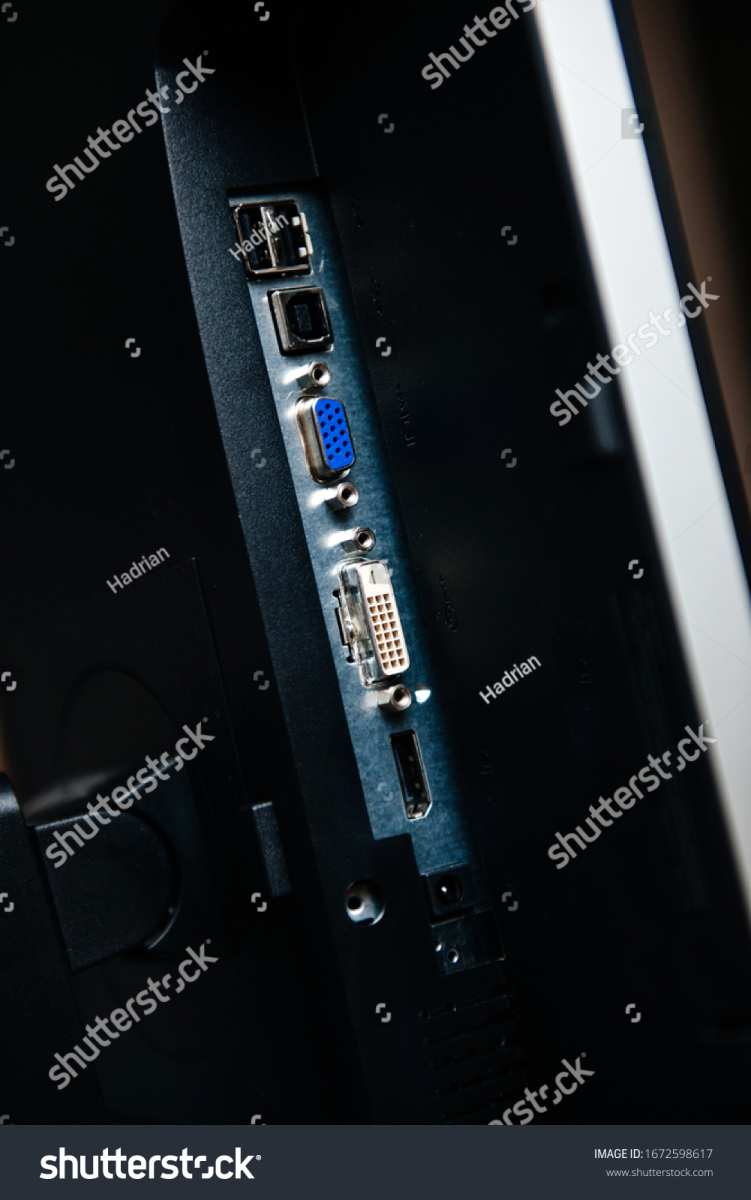
Some monitors use USB-C instead of USB-B for the touch data return, but the principle is the same. Two signals, two cables. The USB cable doesn't carry any video.
It's purely the touch input pathway.
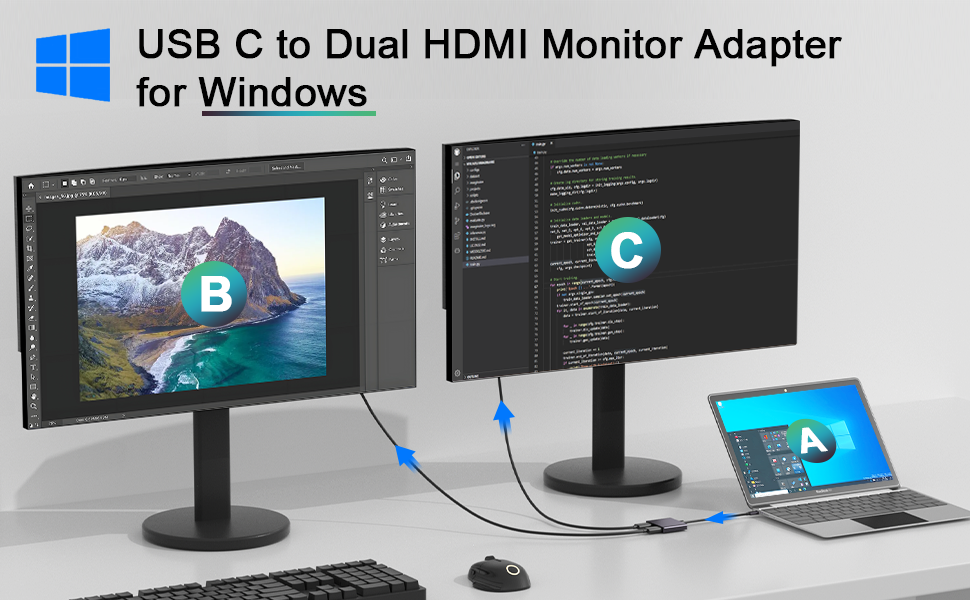
This dual-cable requirement applies to most 21.5-inch and larger desktop touchscreen monitors. Models like the Dell P2418HT, ASUS VT229H, and ViewSonic TD2230 all follow this pattern. If you're setting one up, grab both cables before you start.
When a Single USB-C Cable Does It All
Newer portable touchscreen monitors have simplified things. Many 15.6-inch portable displays from brands like Lepow, Arzopa, and Gechic use a single USB-C cable that carries video, touch data, and power simultaneously. This works because USB-C with DisplayPort Alt Mode can transport a full video signal through the same connector that handles USB data.
The catch is that your source device's USB-C port needs to support DisplayPort Alt Mode. Not all of them do. Many laptops, especially budget models, have USB-C ports that handle data and power delivery but not video output.
Check your laptop's specs for "DP Alt Mode" or "Video Out over USB-C" before buying a single-cable portable monitor.
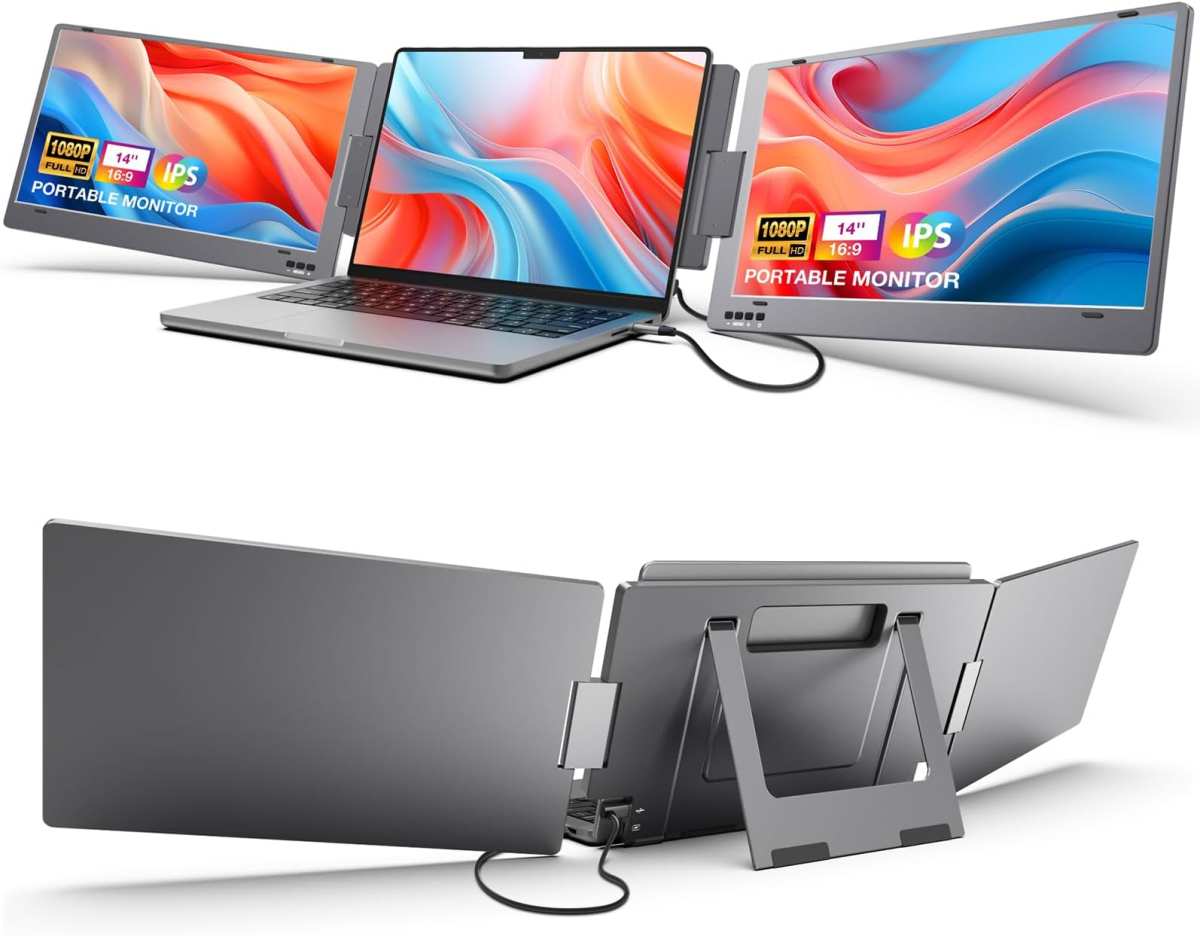
Thunderbolt 3 and Thunderbolt 4 ports always support DisplayPort Alt Mode, so any Thunderbolt-equipped laptop will work with a single-cable USB-C touchscreen. Desktop GPUs with USB-C output, like some NVIDIA RTX series cards, also support it. Mini PCs vary widely, so verify before you buy.
Some portable monitors include a dual USB-C cable setup as a fallback. If your laptop's USB-C port doesn't carry video, you can connect one USB-C for power and a separate HDMI cable for video, with touch still running over the USB-C data lines. It's not as clean as a single cable, but it keeps everything working.
How to Know Which Setup You Need
Figuring out your specific connection requirements takes about two minutes. Check these three things before you buy cables or start troubleshooting.
Check Your Monitor's Ports
Look at the back or side of the monitor. You'll typically see some combination of:
- HDMI port for video input
- USB-B port (square shape) for touch data
- USB-C port that may handle video, touch, and power together
- DisplayPort as an alternative video input
- USB-A ports that are usually for peripherals, not touch return
If you see both HDMI and USB-B, you're dealing with a dual-cable setup. If you see only USB-C, it's likely a single-cable design. Some monitors have both options, giving you flexibility.
Check Your Source Device's Capabilities
Your laptop or desktop needs to match what the monitor expects:
- USB-C with DP Alt Mode: Can drive a single-cable USB-C touchscreen
- Thunderbolt 3/4: Always supports single-cable USB-C monitors
- Standard USB-C (data only): Needs dual-cable setup (HDMI + USB)
- HDMI output only: Needs dual-cable setup with USB-A to USB-B for touch
- Desktop GPU with USB-C: Check if it supports DP Alt Mode
Match Them Up
| Your Source Port | Monitor Type | Cables Needed |
|---|---|---|
| USB-C with DP Alt Mode | USB-C touchscreen | 1x USB-C to USB-C |
| Thunderbolt 3/4 | USB-C touchscreen | 1x USB-C to USB-C |
| Standard USB-C (no video) | USB-C touchscreen | 1x USB-C (power/touch) + 1x HDMI |
| HDMI only | Desktop touchscreen | 1x HDMI + 1x USB-A to USB-B |
| DisplayPort only | Desktop touchscreen | 1x DisplayPort + 1x USB-A to USB-B |
This table covers the vast majority of real-world setups. If your monitor has both HDMI and USB-C inputs, you can choose whichever works best with your source device.
Step-by-Step: Connecting a Dual-Input Touchscreen Monitor via HDMI
This is the most common setup for desktop touchscreen monitors. Grab your HDMI cable and the USB-A to USB-B cable that came with the monitor.
Step 1: Connect HDMI
Plug one end of the HDMI cable into your computer's HDMI output. Plug the other end into the monitor's HDMI input. Your display should light up immediately, assuming the monitor is powered on and set to the correct input.
Step 2: Connect the USB touch cable
Plug the USB-A end into any available USB port on your computer. Plug the USB-B end (the square connector) into the matching port on the monitor. Windows should recognize a new HID device within a few seconds.
Step 3: Wait for driver installation
Most modern touchscreen monitors use plug-and-play HID drivers built into Windows 10 and 11. You'll see a notification that a device is being set up. This usually takes 10 to 30 seconds.
No manual driver installation needed for basic touch functionality.
Step 4: Test touch input
Tap the screen. You should see a visual feedback ripple or cursor response. Try dragging a window or scrolling a webpage.
If nothing happens, jump to the troubleshooting section below.
Step 5: Calibrate if needed
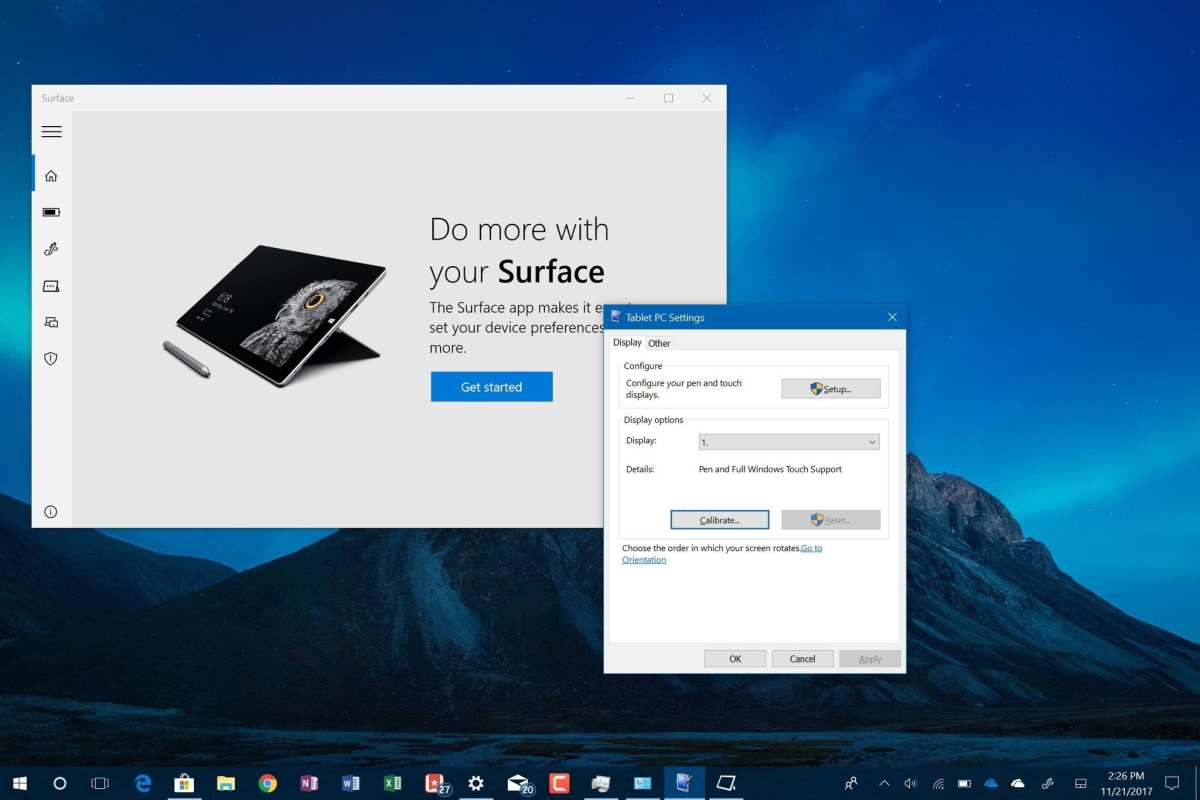
If your touches register in the wrong spot, open Windows Settings, go to Bluetooth and devices, then Touch, and run the calibration tool. This takes about a minute and fixes most alignment issues.
Step-by-Step: Connecting a USB-C Touchscreen Monitor with One Cable
Single-cable setups are cleaner but require the right port on your source device. Verify your laptop or desktop supports DisplayPort Alt Mode over USB-C before starting.
Step 1: Check your cable
Not all USB-C cables are equal. You need a full-featured USB-C cable that supports DisplayPort Alt Mode and USB 3.0 data. A charging-only cable won't carry video or touch data.
The cable that ships with the monitor is usually the right one.
Step 2: Connect the single cable
Plug one end into your computer's USB-C port with DP Alt Mode support. Plug the other end into the monitor's USB-C input. Video, touch, and power should all flow through this one connection.
Step 3: Confirm power delivery
The monitor should power on from the USB-C connection alone. If it doesn't, your source port may not provide enough wattage. Many portable touchscreens need 15W or more.
Some laptops only deliver 7.5W over USB-C, which isn't enough. In that case, use the monitor's separate power adapter or a powered USB-C hub.
Step 4: Verify touch is working
Same test as before. Tap, drag, scroll. If video works but touch doesn't, your USB-C cable might be missing the data lines needed for the touch controller.
Try a different cable rated for full USB 3.1 Gen 2 support.
What to Do When Touch Isn't Working After HDMI Connection
You've got a perfect picture but zero touch response. This is the single most common complaint with touchscreen monitors, and it almost always comes down to one of these issues.
The USB Cable Is Missing or Wrong
Check that the USB-A to USB-B cable is connected at both ends. It's the easiest thing to forget. If you're using a USB hub, try plugging directly into a motherboard USB port instead.
Some unpowered hubs don't deliver enough current for the touch controller.
If you lost the original cable, any standard USB-A to USB-B 2.0 cable will work. These are the same cables used for printers. They're cheap and widely available.
Driver Issues
Open Device Manager and look under "Human Interface Devices." You should see an entry like "HID-compliant touch screen" or the manufacturer's name (eGalax, EETI, etc.). If you see a yellow warning icon, the driver isn't installed correctly.
Right-click the device and select "Update driver." Choose "Search automatically." If that fails, visit the monitor manufacturer's support page and download their specific touch driver. Dell, ASUS, and ViewSonic all host touch driver downloads for their models.
Windows updates occasionally break touch drivers. If touch stopped working after an update, roll back the driver from Device Manager or check the manufacturer's site for an updated version.
USB-C Port Doesn't Carry Video
Your screen is black even with a single USB-C cable. The port on your laptop probably doesn't support DisplayPort Alt Mode. Many USB-C ports on budget laptops handle data and charging only.
Check your laptop's manual or spec sheet for "DP Alt Mode," "DisplayPort over USB-C," or "Video Out." If it's not listed, you'll need to use the dual-cable fallback: HDMI for video and USB-C for touch and power.
macOS and Linux Touch Limitations
macOS has limited native touchscreen support. Most touchscreen monitors will work as displays on Mac, but touch input often requires third-party drivers like those from Touch-Base. Even then, multi-touch gestures may not function as expected.
Linux support varies by distribution and touch controller chipset. Ubuntu and Fedora generally handle eGalax and EETI controllers well through the built-in HID multitouch kernel module. You may need to calibrate using xinput-calibrator for accurate touch mapping.
HDMI vs. USB-C vs. DisplayPort for Touchscreen Monitors
All three can deliver video to a touchscreen monitor, but they differ in bandwidth, cable requirements, and convenience.
| Feature | HDMI 2.0 | HDMI 2.1 | USB-C (DP Alt Mode) | DisplayPort 1.4 |
|---|---|---|---|---|
| Max Resolution at 60Hz | 4K | 8K | 4K (varies by cable) | 4K |
| Touch Data Path | Separate USB cable | Separate USB cable | Same cable | Separate USB cable |
| Audio Support | Yes | Yes | Yes | Yes |
| Cable Count for Touch | 2 | 2 | 1 | 2 |
| Power Delivery | No | No | Up to 100W | No |
| Best For | General desktop use | High-refresh 4K setups | Portable/minimalist setups | Multi-monitor daisy-chain |
HDMI 2.0 handles 4K at 60Hz, which covers most touchscreen monitors on the market. HDMI 2.1 matters only if you're running a high-resolution display at high refresh rates, which is rare for touchscreen panels as of 2026.
USB-C wins on convenience. One cable for everything is hard to beat, especially for portable setups. The trade-off is compatibility.
You need the right port on your source device.
DisplayPort 1.4 offers the same video quality as HDMI 2.0 but adds Multi-Stream Transport (MST) for daisy-chaining multiple monitors. If you're running a multi-touchscreen setup, DisplayPort can simplify your cable routing.
Best Touchscreen Monitors for HDMI Connection (by Use Case)
Portable Monitors
Portable touchscreen monitors are the fastest-growing segment. Most use USB-C single-cable setups, but many include HDMI as a fallback for devices without DP Alt Mode.
Look for models with at least 1080p resolution, 10-point capacitive touch, and a weight under 2 pounds. Battery-powered options exist but drain quickly with touch active. Plugging into USB-C power delivery solves this.
Desktop Monitors
For permanent desk setups, 21.5-inch to 27-inch touchscreen monitors with HDMI and USB-B dual-input are the standard. IPS panels give you better viewing angles, which matters when you're touching the screen from different positions.
Models in the $300 to $600 range typically offer 1080p or 1440p resolution with solid touch responsiveness. Expect touch latency around 10 to 15 milliseconds on mid-range models. Premium options drop that below 10 milliseconds.
Commercial / Industrial Displays
Elo Touch, Planar, and 3M (now part of Elo) dominate the commercial touchscreen space. These monitors are built for kiosks, POS systems, and industrial control panels. They almost always use HDMI plus USB for touch, with some models offering RS-232 serial touch interfaces as well.
Commercial displays prioritize durability and 24/7 operation over thin bezels or sleek design. Expect higher prices, often $800 to $2,000, but with warranties and support that consumer models don't match.
Common Mistakes That Kill Touch Functionality
These are the errors we see over and over in support forums and reviews. Most take thirty seconds to fix once you know what to look for.
- Plugging in HDMI only and assuming the monitor is broken. The number one complaint. Touch needs that second USB cable on dual-input models.
- Using a USB-C charging cable instead of a data cable. Charging-only USB-C cables lack the data lines for touch and sometimes video. Always use the cable that came with the monitor.
- Connecting the USB touch cable to a USB hub with insufficient power. Plug directly into a motherboard USB port if touch isn't responding.
- Forgetting to check DP Alt Mode support on the source device. A USB-C port that charges your laptop doesn't necessarily output video.
- Running macOS without checking third-party driver availability. Native touch support on Mac is limited. Plan for extra setup time.
- Ignoring Windows updates that break touch drivers. If touch stops working after an update, roll back the HID-compliant touch screen driver in Device Manager.
Expert Tips for a Clean Touchscreen Setup
A few habits that make the experience noticeably better.
Label both cables at both ends. When you're behind a desk with a dozen cables, knowing which USB-B cable goes to the monitor saves real time. A small piece of colored tape works fine.
Route the USB touch cable separately from power cables when possible. USB touch controllers are sensitive to electromagnetic interference. Running the USB cable parallel to a power brick for long stretches can cause intermittent touch dropouts.
Disable "press and hold for right-click" in Windows Pen and Touch settings if you find it annoying. This feature interprets a long finger press as a right-click, which feels laggy for quick tap workflows. Turning it off makes the screen feel snappier.
Keep the screen clean. Capacitive touchscreens rely on detecting the electrical charge in your fingers. A thick layer of fingerprints, grease, or screen protector residue degrades accuracy.
Microfiber cloth and a small amount of isopropyl alcohol work well.
Update your monitor's firmware if touch issues persist. Both Dell and ASUS have released firmware updates specifically addressing touch controller bugs. Check the support page for your exact model number.
Real-World Scenarios: What Works and What Doesn't
A graphic designer connects a 24-inch IPS touchscreen monitor via HDMI and USB-B to a Windows desktop. Touch works immediately with no driver installation. Multi-touch pinch-to-zoom functions in Photoshop after a quick calibration.
A teacher tries to use a portable USB-C touchscreen with a Chromebook. The Chromebook's USB-C port doesn't support DP Alt Mode. The screen stays black.
The fix is a separate HDMI cable from the Chromebook's HDMI port to the monitor, with USB-C handling touch and power only.
A retail store deploys five touchscreen monitors for POS terminals. All five use HDMI plus USB-A to USB-B. After a Windows update, three of the five lose touch input.
Rolling back the HID-compliant touch screen driver on each machine resolves it in under ten minutes per unit.
A Mac user connects a USB-C portable touchscreen to a MacBook Pro. Video works perfectly. Touch does nothing.
Installing the Touch-Base driver package restores basic single-touch functionality, but multi-touch gestures remain limited compared to Windows.
Quick Decision Guide: Which Connection Method Should You Use?
Use HDMI + USB-A to USB-B if:
- You have a desktop PC or laptop with standard USB-A ports
- You're using a monitor 21.5 inches or larger
- You want the most reliable, widely compatible setup
- Your source device lacks USB-C with DP Alt Mode
Use single USB-C if:
- You have a laptop with Thunderbolt 3/4 or confirmed DP Alt Mode
- You're using a portable touchscreen monitor
- You want minimal cable clutter
- Your source can deliver enough wattage to power the monitor
Use DisplayPort + USB if:
- You're daisy-chaining multiple touchscreen monitors
- Your GPU has DisplayPort but no HDMI output
- You need MST for a multi-display touch setup
Frequently Asked Questions
Does HDMI carry touch data to a monitor?
No. HDMI carries video and audio only. Touch data requires a separate USB connection on most monitors, or a USB-C cable that supports both DisplayPort Alt Mode and USB data simultaneously.
Can I use a touchscreen monitor with just an HDMI cable?
You'll get a display, but touch won't work without the additional USB cable connected. The only exception is monitors with a single USB-C input that handles everything through one cable.
Why isn't my touchscreen working after connecting HDMI?
The USB touch cable is likely not connected, plugged into a low-power hub, or missing its driver. Check Device Manager for the HID-compliant touch screen entry and verify the USB cable is seated at both ends.
Do I need a special HDMI cable for a touchscreen monitor?
No. Any standard HDMI cable rated for your resolution and refresh rate works fine. The touch functionality is completely independent of the HDMI cable.
Will a touchscreen monitor work with a game console over HDMI?
Video will work, but touch input won't. Consoles like PlayStation and Xbox don't have USB touchscreen drivers. The monitor functions as a standard display only.
Does USB-C always support touchscreen monitors?
Only if the USB-C port supports DisplayPort Alt Mode. Many USB-C ports handle data and charging but cannot output video. Check your device's specifications before relying on a single-cable setup.

Similar Posts





















