Are USB C Monitors Worth It
Are USB-C monitors worth it? That's the question that keeps popping up every time you're staring at a clean desk setup on Reddit or trying to figure out why your coworker only has one cable running to their display. The short answer is yes for some people and no for others, and the reason comes down to what laptop you own, how you work, and whether you're willing to pay a premium for simplicity.
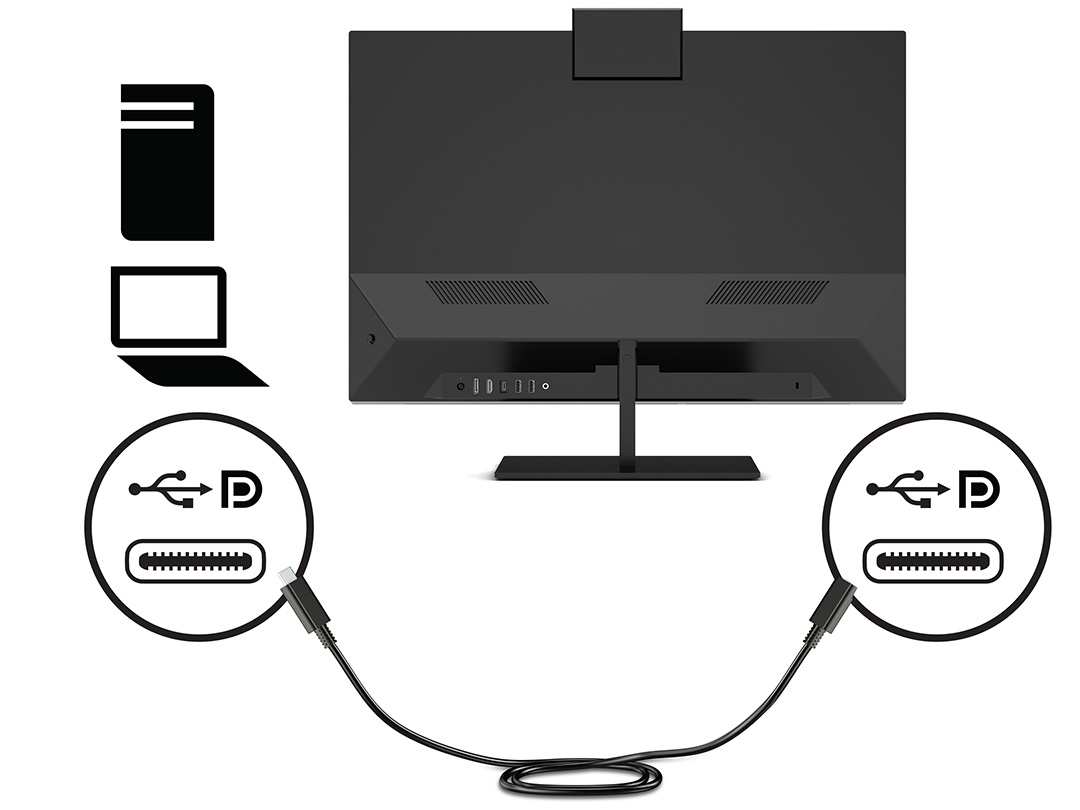
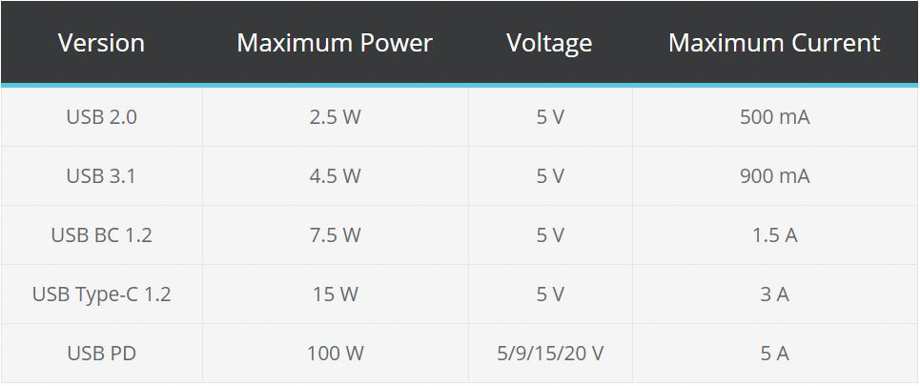
USB-C monitors use something called DisplayPort Alt Mode to push video, data, and power through a single cable. The USB Power Delivery (USB PD) specification, managed by the USB-IF, allows these monitors to charge your laptop at anywhere from 15W to 200W depending on the model. That's a massive range, and picking the wrong wattage is one of the most common mistakes buyers make.
Let's break down exactly what you're getting into.
Quick Answer
USB-C monitors are worth it if you own a USB-C laptop and value a clean, single-cable desk setup. They charge your laptop while displaying video through one cable. They cost 10-40% more than equivalent HDMI or DisplayPort monitors.
They're not ideal for desktop gamers or budget buyers. Your specific laptop and workflow determine whether the premium makes sense.
How USB-C Monitor Connections Actually Work
Here's the thing most product listings don't explain well. Not all USB-C ports are created equal, and not every USB-C cable can carry a video signal. Your laptop's USB-C port needs to support what's called DisplayPort Alt Mode (or Thunderbolt 3/4/USB4) to output video through that connector.
Most modern ultrabooks and MacBooks do. Many budget laptops and desktop motherboards do not.
When you plug a USB-C monitor into a compatible port, three things happen simultaneously. The monitor receives a video signal via DisplayPort Alt Mode. The monitor sends power back to your laptop through USB Power Delivery.
And if the monitor has a built-in USB hub, data flows both ways through the USB data lanes. All through one cable. It's elegant when it works.
The USB-IF defines the standards, but implementation varies wildly between manufacturers. A Dell UltraSharp U2723QE supports USB-C with 90W Power Delivery. A cheaper no-name USB-C monitor might only deliver 15W, which barely keeps a MacBook Air trickle-charging.
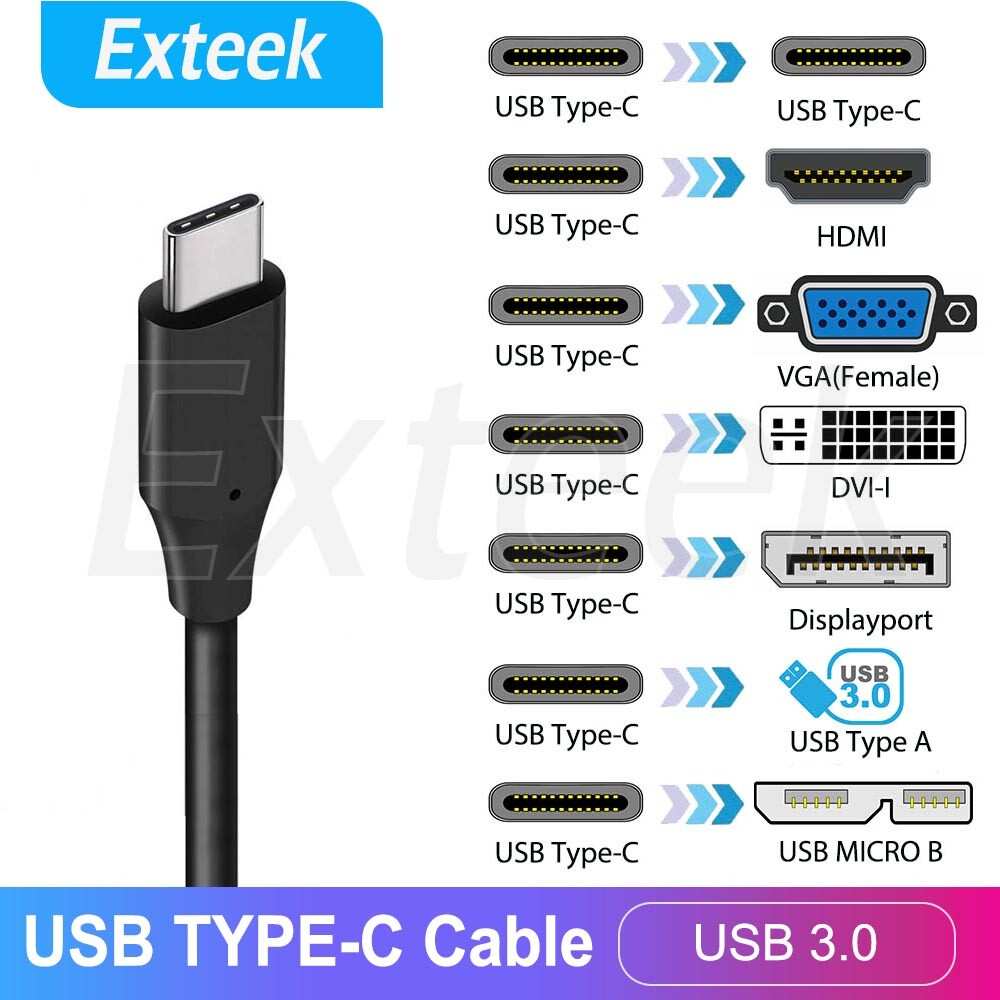
The cable matters too. USB-C cables that only support USB 2.0 data speeds won't carry video. You need a full-featured USB-C cable, and many monitors don't include one in the box.
Thunderbolt 4 and USB4 monitors take this further. They offer higher bandwidth, which means you can run higher resolutions, daisy-chain two monitors from one laptop port, and get faster data transfer through the monitor's USB hub. But Thunderbolt monitors carry a steeper price premium, and your laptop needs a Thunderbolt port to take advantage of the full feature set.
USB-C Monitor vs HDMI vs DisplayPort: Side-by-Side Comparison
This is where most people get stuck. Let's lay it out clearly so you can see what you're actually comparing.
| Feature | USB-C Monitor | HDMI Monitor | DisplayPort Monitor |
|---|---|---|---|
| Cable count | 1 (video + power + data) | 1 (video only) | 1 (video only) |
| Laptop charging | Yes, via USB PD | No | No |
| Max resolution (typical) | 4K at 60Hz | 4K at 60Hz (HDMI 2.0) / 4K at 120Hz (HDMI 2.1) | 4K at 144Hz+ |
| Daisy-chaining | Yes (Thunderbolt/USB4 models) | No | Yes (DisplayPort MST) |
| USB hub built-in | Usually yes | No | No |
| Price premium | 10-40% more | Baseline cost | Slight premium over HDMI |
| Best for | Laptop users, clean desks | Desktop PCs, gaming | Desktop PCs, high refresh rate |
| Refresh rate ceiling | 60Hz on most models | Up to 144Hz+ (HDMI 2.1) | Up to 240Hz+ |
The honest truth is that if you're connecting a desktop PC, USB-C monitors rarely make sense. You'd need a USB-C output on your graphics card or motherboard, and even then you're paying more for features you might not use. HDMI 2.1 and DisplayPort 1.4/2.0 offer higher refresh rates and lower latency for gaming, which matters a lot if that's your primary use case.
For laptop users, though, the calculus changes completely. A single USB-C cable replaces what would otherwise be a power brick, a video cable, and possibly a USB dock. If you're plugging in and unplugging multiple times a day at a hot desk, that convenience adds up fast.
What You Actually Get With a USB-C Monitor
Let's talk about the actual features you're paying for, because "USB-C monitor" covers a huge range of products.
Single-cable simplicity. This is the headline feature. One cable from your laptop to the monitor handles video output, laptop charging, and data passthrough for any peripherals plugged into the monitor. For anyone who's tired of fumbling with a dock and two or three cables every time they sit down, this alone can justify the purchase.
Power Delivery charging. USB PD wattage varies enormously between models. A portable monitor like the Lenovo ThinkVision M14t Touch might only deliver 15W. A Dell U2723QE delivers 90W.
The 16-inch MacBook Pro needs at least 96W to charge at full speed, and 140W models need a monitor that supports USB PD 3.1 Extended Power Range. Always check your laptop's power requirement against the monitor's PD output.
USB hub functionality. Most USB-C monitors include USB-A and USB-C downstream ports. Your keyboard, mouse, external drive, and webcam all connect through the monitor instead of directly to your laptop. This effectively turns your monitor into a built-in docking station, which would otherwise cost you $100-$250 separately.
Daisy-chain capability. Thunderbolt 4 and USB4 monitors can daisy-chain. You connect your laptop to Monitor 1 via USB-C, then connect Monitor 1 to Monitor 2 via another USB-C cable. Two displays, one cable to your laptop.
This requires Thunderbolt support on both your laptop and the monitor, and it's one of the clearest advantages USB-C monitors have over traditional setups.
Panel quality varies by brand and model. The USB-C connection doesn't determine the display quality. A BenQ PD3220U with USB-C offers factory-calibrated color accuracy covering 100% sRGB and 95% DCI-P3. A budget 27-inch USB-C monitor might have a decent IPS panel but no color calibration.
The connection type and the panel quality are separate decisions.
The Real Downsides Nobody Talks About
Here's where most reviews fall short. USB-C monitors have real drawbacks that don't show up in spec sheets.
Price premium is real. A USB-C monitor with the same panel, resolution, and refresh rate as its HDMI counterpart typically costs 10-40% more. The LG 27UN850-W (USB-C, 4K, IPS) costs noticeably more than the LG 27UL500-W (HDMI, 4K, IPS) with nearly identical display specs. You're paying for the added electronics that handle PD and the USB hub.
Cable compatibility is a mess. This is the single biggest source of frustration. Many USB-C monitors ship without a USB-C cable. The cable you need must support DisplayPort Alt Mode and the appropriate data speed.
A cheap Amazon USB-C cable might only support charging or USB 2.0 data. If it doesn't explicitly state it supports "video" or "DisplayPort Alt Mode," it won't work for video output. And cables that do support full functionality can cost $20-$50 each.
Refresh rate limitations. As of 2026, the vast majority of USB-C monitors cap out at 60Hz. If you're a gamer or you just prefer the smoothness of a 120Hz or 144Hz display, your USB-C options are limited. Some newer models with Thunderbolt 4 or USB4 support higher refresh rates, but they're expensive and your laptop needs to support the right standard.
For competitive gaming, stick with DisplayPort.
Insufficient charging wattage. This catches people constantly. You buy a USB-C monitor that delivers 65W PD. Your 16-inch MacBook Pro needs 140W.
The monitor will charge your laptop, but slowly, and it might not keep up under heavy load. Always match or exceed your laptop's power adapter wattage if you want the monitor to fully replace your power brick.
Daisy-chain headaches. Even when daisy-chain is technically supported, it can be finicky. Bandwidth limitations mean you might have to drop resolution or refresh rate on the second monitor. macOS handles Thunderbolt daisy-chaining better than Windows in aggregate user reports. And if one monitor in the chain doesn't wake from sleep properly, the second one often stays dark too.
Firmware and driver issues. Some USB-C monitors require firmware updates to fix charging bugs, compatibility issues, or display glitches. These updates sometimes require a USB-A connection to a PC, which defeats the single-cable purpose. The Dell U2720Q had well-documented firmware issues with macOS that required specific update procedures.
Who Should Actually Buy a USB-C Monitor
Not everyone needs one. Here's who genuinely benefits.
MacBook and ultrabook users. If you have a MacBook Air, MacBook Pro, Dell XPS, Lenovo ThinkPad X1 Carbon, or any modern thin-and-light with Thunderbolt or USB4, a USB-C monitor is the most natural pairing. Apple's own Studio Display connects via Thunderbolt 3 and delivers 96W of charging power. The LG UltraFine series was literally co-developed with Apple.
These monitors are designed for your exact use case.
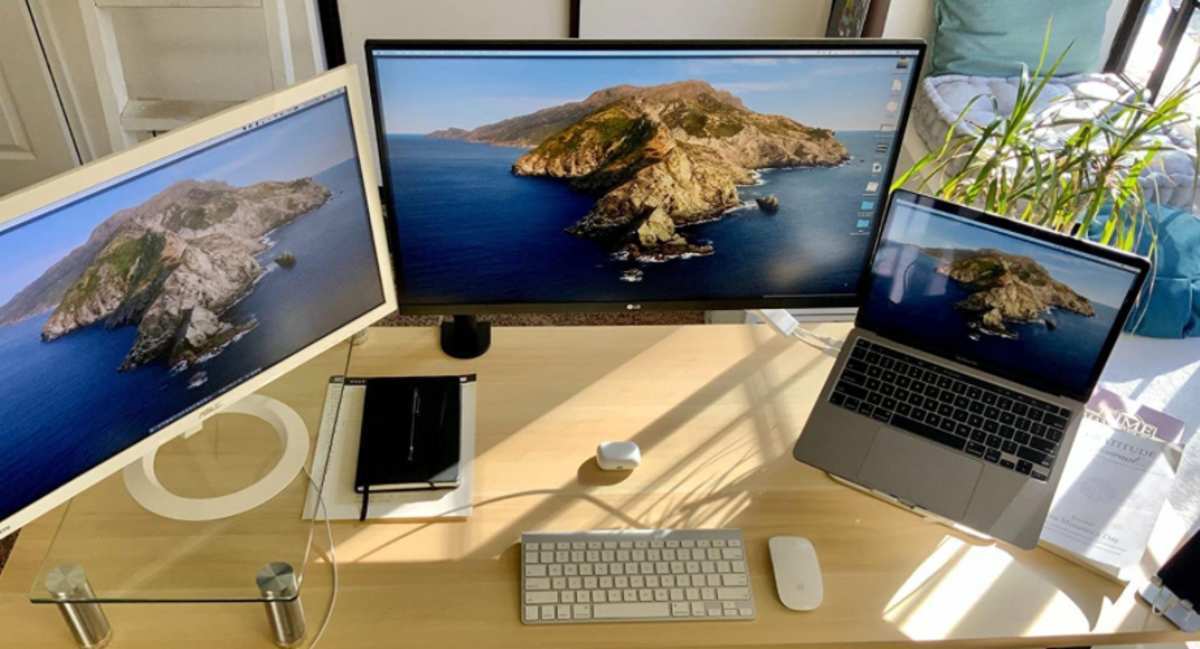
Clean desk and minimalist setup seekers. If you want one cable instead of three, and you value the look of a tidy workspace, USB-C monitors deliver. A single USB-C cable running from your laptop to a monitor like the Dell U2723QE or Samsung ViewFinity S80A eliminates the visual clutter of a dock, power brick, and video cable.
Hybrid and hot-desk workers. If you work from home some days and an office others, plugging into a USB-C monitor with one cable when you arrive and disconnecting with one pull when you leave is genuinely faster than docking and undocking multiple cables. Corporate IT departments love this too because it reduces support tickets.
Portable monitor users. Portable USB-C monitors like the ASUS ZenScreen MB16ACV or Lenovo ThinkVision M14t Touch are almost exclusively USB-C devices. They're designed to work with a single cable from your laptop, and they draw power from that connection. For travel, this is the whole point.
Content creators needing color accuracy. Monitors like the BenQ PD3220U and BenQ SW272Q offer USB-C connectivity alongside factory-calibrated panels covering wide color gamuts. If you're editing photos or video and want a single-cable connection to your MacBook Pro, these are purpose-built for that workflow.
Who Should Skip It
Desktop PC users without USB-C output. If your desktop graphics card only has HDMI and DisplayPort outputs, buying a USB-C monitor means you'll need an adapter or a different graphics card. The price premium for USB-C won't pay off.
Gamers prioritizing high refresh rates. As of 2026, USB-C monitors with 120Hz or higher refresh rates exist but are rare and expensive. A DisplayPort connection gives you access to 144Hz, 240Hz, and beyond at much lower prices. If gaming is your primary use case, DisplayPort wins.
Budget-conscious buyers. If you're trying to spend as little as possible on a monitor, USB-C models cost more for the same panel performance. A $200 27-inch 4K HDMI monitor gives you the same image quality as a $280 USB-C version. The premium buys you convenience, not picture quality.
Multi-monitor power users on a tight budget. If you're running three or four monitors, buying all USB-C models gets expensive fast. A single Thunderbolt dock paired with standard HDMI or DisplayPort monitors often costs less and offers more flexibility.
USB-C Monitor vs Thunderbolt Dock + Regular Monitor
This is the comparison that actually matters for a lot of buyers. Instead of buying a USB-C monitor, you could buy a standard monitor and a separate Thunderbolt or USB-C dock.
| Factor | USB-C Monitor | Dock + Standard Monitor |
|---|---|---|
| Cable to laptop | 1 | 1 (to dock) + 1-2 (dock to monitor) |
| Total cost | $300-$900 | $150-$400 (monitor) + $100-$250 (dock) |
| Desk clutter | Minimal | Moderate (dock visible) |
| Flexibility | Limited to monitor's built-in hub | Dock offers more port options |
| Upgrade path | Replace whole monitor | Replace dock or monitor independently |
| Daisy-chain | Built into monitor | Depends on dock capability |
A Thunderbolt dock like the CalDigit TS4 paired with a standard 4K monitor gives you more total ports, more flexibility, and often costs about the same as a premium USB-C monitor. The trade-off is more visible clutter on your desk. If you already own a good monitor and just want USB-C connectivity, a dock is the smarter buy.
If you're buying both monitor and connectivity solution new, a USB-C monitor often wins on simplicity.
Best USB-C Monitors by Use Case
Here are solid options across different needs, based on manufacturer specifications and aggregate professional reviews.
Best for MacBook Pro users. The LG 27UN850-W delivers 4K resolution, 98% DCI-P3 coverage, and 60W USB PD through a single USB-C cable. For 16-inch MacBook Pro users who need more charging wattage, the BenQ PD3220U offers Thunderbolt 3 with 85W PD and a factory-calibrated 4K IPS panel. Apple's Studio Display is the premium option at $1,599 with 5K resolution and 96W charging.
Best for office and productivity. The Dell UltraSharp U2723QE is the workhorse. It offers a 4K IPS Black panel, 90W USB PD, built-in USB hub, and a KVM switch. The Samsung ViewFinity S80A is a strong alternative at a lower price point with 4K resolution and 90W PD.
Best for content creation. The BenQ SW272Q offers a 4K HDR panel with 99% Adobe RGB coverage and Thunderbolt 3 connectivity. For video editors, the LG 38WN95C-W gives you a 38-inch ultrawide with 4K+ resolution and 94W PD over Thunderbolt 3.
Best portable USB-C monitor. The ASUS ZenScreen MB16ACV is a 15.6-inch 1080p portable display that runs entirely off a single USB-C connection. The Lenovo ThinkVision M14t Touch adds touchscreen capability. Both are designed for travel and draw power from your laptop.
Best ultrawide USB-C monitor. The LG 40WP95C-W offers a 40-inch 5K2K ultrawide with Thunderbolt 4, 96W PD, and an IPS panel. The Dell U4025QW pushes further with a 5K2K 40-inch curved panel and Thunderbolt 4 docking.
What to Check Before You Buy
This is the section that saves you from returns and frustration. Check these five things before you click "buy."
Your laptop's USB-C port capabilities. Look up your exact laptop model's specifications. Does the USB-C port support DisplayPort Alt Mode? Does it support Thunderbolt 4?
If your laptop only has USB-C for data and charging (no video output), a USB-C monitor won't work for display. Some budget laptops and desktop motherboards have USB-C ports that are data-only.
Power Delivery wattage your laptop needs. Check your laptop's power adapter. A MacBook Air needs 30W. A 14-inch MacBook Pro needs 96W.
A 16-inch MacBook Pro needs 140W. Buy a USB-C monitor that meets or exceeds that wattage. If the monitor delivers less, it will still charge your laptop but slowly, and it might not keep up during heavy workloads.
Cable included vs sold separately. Many USB-C monitors don't include a USB-C cable in the box. Some include a basic cable that only supports USB 2.0 data speeds (no video). Check what cable ships with the monitor and whether it supports DisplayPort Alt Mode.
If you need to buy a separate cable, budget $20-$50 for a quality full-featured USB-C cable.
Your laptop's USB-C output resolution and refresh rate. Even if your laptop supports DisplayPort Alt Mode, it might have bandwidth limitations. Some laptops can only output 4K at 30Hz over USB-C, which feels sluggish for desktop use. Verify that your laptop supports at least 4K at 60Hz over USB-C.
Check the manufacturer's specifications or user manual for the specific output capabilities of your USB-C port.
Return policy and firmware update history. USB-C monitors occasionally need firmware updates to fix charging or compatibility bugs. Check whether the manufacturer provides firmware updates and how easy they are to apply. Also check the return policy.
If the monitor doesn't play nicely with your specific laptop, you want to be able to send it back without hassle.
Common USB-C Monitor Mistakes and How to Avoid Them
Buying a USB-C monitor for a laptop that doesn't support video over USB-C. This happens more than you'd think. Check your laptop's specs before buying. If the USB-C port is data-only or charging-only, you'll need a different connection or a different laptop.
Using the wrong cable. A USB-C cable that only supports charging or USB 2.0 data won't carry video. You need a cable that explicitly supports DisplayPort Alt Mode or Thunderbolt. Look for cables certified by USB-IF or cables from reputable brands like Anker, Cable Matters, or CalDigit that specify video support.
Assuming the monitor will charge your laptop at full speed. A 65W USB-C monitor will charge a 140W MacBook Pro, but slowly. Under heavy workloads, the battery might still drain. Match the monitor's PD output to your laptop's power requirements.
Expecting high refresh rates from a USB-C monitor. Most USB-C monitors are 60Hz. If you need 120Hz or higher, look specifically for Thunderbolt 4 or USB4 monitors that advertise higher refresh rates, and verify your laptop supports the necessary bandwidth.
Ignoring firmware update requirements. Some USB-C monitors ship with firmware that has known bugs. Check the manufacturer's support page for firmware updates before you set up the monitor. It's easier to update firmware on day one than to troubleshoot weird charging or display issues later.
Forgetting about the USB hub's bandwidth. If you plug a webcam, external SSD, and keyboard all into the monitor's USB hub, they share the bandwidth of the single USB-C connection to your laptop. For high-bandwidth devices like external SSDs, consider connecting them directly to your laptop instead of through the monitor's hub.
Frequently Asked Questions
Do all USB-C monitors charge your laptop?
Most USB-C monitors with Power Delivery will charge your laptop, but the wattage varies from 15W to 200W. A 15W monitor will barely keep a MacBook Air charged. A 90W monitor will charge most 14-inch laptops at full speed.
Always check the monitor's PD wattage against your laptop's power requirements.
Can I use a USB-C monitor with a desktop PC?
Only if your desktop has a USB-C port that supports video output. Most graphics cards only have HDMI and DisplayPort outputs. Some newer motherboards include USB-C with DisplayPort Alt Mode.
If your desktop lacks video-capable USB-C, you'd need an adapter or a graphics card with USB-C output.
Do USB-C monitors support 4K resolution?
Yes, most USB-C monitors support 4K at 60Hz. Achieving 4K at higher refresh rates requires Thunderbolt 4 or USB4 bandwidth, and your laptop must support the same standard. Without sufficient bandwidth, you'll be limited to 4K at 60Hz or lower resolutions at higher refresh rates.
Is a USB-C monitor better than a docking station?
It depends on your priorities. A USB-C monitor integrates the dock into the display for a cleaner setup. A separate docking station offers more ports and more flexibility.
If you're buying both new, a USB-C monitor is simpler. If you already own a good monitor, a dock is the more cost-effective upgrade.
Why won't my USB-C monitor display video?
The most common cause is a cable that doesn't support DisplayPort Alt Mode. Try a different cable that explicitly supports video. Also verify that your laptop's USB-C port supports video output.
Some USB-C ports are data-only or charging-only.
Are USB-C monitors good for gaming?
Most USB-C monitors cap at 60Hz, which limits their appeal for competitive gaming. Some newer Thunderbolt 4 and USB4 monitors support higher refresh rates, but they're expensive. For high-refresh-rate gaming, a DisplayPort connection remains the better and more affordable choice.
Final Verdict: Should You Buy One?
USB-C monitors are worth it if you own a compatible laptop and you value simplicity over saving money. The single-cable experience is genuinely convenient, especially if you plug in and unplug multiple times a day. For MacBook users, ultrabook owners, and anyone building a clean desk setup, a good USB-C monitor replaces a dock, a power brick, and a video cable with one connection.
They're not worth it if you're on a tight budget, if you're a desktop gamer, or if your laptop doesn't support video over USB-C. The price premium buys convenience, not better image quality. And the cable compatibility issues are real enough that you need to do your homework before buying.
If you've read this far and you're still on the fence, here's the simplest test. Count the cables currently running between your laptop and your desk. If it's more than one, a USB-C monitor will make your daily setup faster and your desk cleaner.
That's the real value, and for a lot of people, it's worth every penny of the premium.
USB-C Monitor vs Thunderbolt Dock + Regular Monitor
This is the comparison that actually matters for a lot of buyers. Instead of buying a USB-C monitor, you could buy a standard monitor and a separate Thunderbolt or USB-C dock.
| Factor | USB-C Monitor | Dock + Standard Monitor |
|---|---|---|
| Cable to laptop | 1 | 1 (to dock) + 1-2 (dock to monitor) |
| Total cost | $300-$900 | $150-$400 (monitor) + $100-$250 (dock) |
| Desk clutter | Minimal | Moderate (dock visible) |
| Flexibility | Limited to monitor's built-in hub | Dock offers more port options |
| Upgrade path | Replace whole monitor | Replace dock or monitor independently |
| Daisy-chain | Built into monitor | Depends on dock capability |
A Thunderbolt dock like the CalDigit TS4 paired with a standard 4K monitor gives you more total ports, more flexibility, and often costs about the same as a premium USB-C monitor. The trade-off is more visible clutter on your desk. If you already own a good monitor and just want USB-C connectivity, a dock is the smarter buy.
If you're buying both monitor and connectivity solution new, a USB-C monitor often wins on simplicity.
Best USB-C Monitors by Use Case
Here are solid options across different needs, based on manufacturer specifications and aggregate professional reviews.
Best for MacBook Pro users. The LG 27UN850-W delivers 4K resolution, 98% DCI-P3 coverage, and 60W USB PD through a single USB-C cable. For 16-inch MacBook Pro users who need more charging wattage, the BenQ PD3220U offers Thunderbolt 3 with 85W PD and a factory-calibrated 4K IPS panel. Apple's Studio Display is the premium option at $1,599 with 5K resolution and 96W charging.
Best for office and productivity. The Dell UltraSharp U2723QE is the workhorse. It offers a 4K IPS Black panel, 90W USB PD, built-in USB hub, and a KVM switch. The Samsung ViewFinity S80A is a strong alternative at a lower price point with 4K resolution and 90W PD.
Best for content creation. The BenQ SW272Q offers a 4K HDR panel with 99% Adobe RGB coverage and Thunderbolt 3 connectivity. For video editors, the LG 38WN95C-W gives you a 38-inch ultrawide with 4K+ resolution and 94W PD over Thunderbolt 3.
Best portable USB-C monitor. The ASUS ZenScreen MB16ACV is a 15.6-inch 1080p portable display that runs entirely off a single USB-C connection. The Lenovo ThinkVision M14t Touch adds touchscreen capability. Both are designed for travel and draw power from your laptop.
Best ultrawide USB-C monitor. The LG 40WP95C-W offers a 40-inch 5K2K ultrawide with Thunderbolt 4, 96W PD, and an IPS panel. The Dell U4025QW pushes further with a 5K2K 40-inch curved panel and Thunderbolt 4 docking.
What to Check Before You Buy
This is the section that saves you from returns and frustration. Check these five things before you click "buy."
Your laptop's USB-C port capabilities. Look up your exact laptop model's specifications. Does the USB-C port support DisplayPort Alt Mode? Does it support Thunderbolt 4?
If your laptop only has USB-C for data and charging (no video output), a USB-C monitor won't work for display. Some budget laptops and desktop motherboards have USB-C ports that are data-only.
Power Delivery wattage your laptop needs. Check your laptop's power adapter. A MacBook Air needs 30W. A 14-inch MacBook Pro needs 96W.
A 16-inch MacBook Pro needs 140W. Buy a USB-C monitor that meets or exceeds that wattage. If the monitor delivers less, it will still charge your laptop but slowly, and it might not keep up during heavy workloads.
Cable included vs sold separately. Many USB-C monitors don't include a USB-C cable in the box. Some include a basic cable that only supports USB 2.0 data speeds (no video). Check what cable ships with the monitor and whether it supports DisplayPort Alt Mode.
If you need to buy a separate cable, budget $20-$50 for a quality full-featured USB-C cable.
Your laptop's USB-C output resolution and refresh rate. Even if your laptop supports DisplayPort Alt Mode, it might have bandwidth limitations. Some laptops can only output 4K at 30Hz over USB-C, which feels sluggish for desktop use. Verify that your laptop supports at least 4K at 60Hz over USB-C.
Check the manufacturer's specifications or user manual for the specific output capabilities of your USB-C port.
Return policy and firmware update history. USB-C monitors occasionally need firmware updates to fix charging or compatibility bugs. Check whether the manufacturer provides firmware updates and how easy they are to apply. Also check the return policy.
If the monitor doesn't play nicely with your specific laptop, you want to be able to send it back without hassle.
Common USB-C Monitor Mistakes and How to Avoid Them
Buying a USB-C monitor for a laptop that doesn't support video over USB-C. This happens more than you'd think. Check your laptop's specs before buying. If the USB-C port is data-only or charging-only, you'll need a different connection or a different laptop.
Using the wrong cable. A USB-C cable that only supports charging or USB 2.0 data won't carry video. You need a cable that explicitly supports DisplayPort Alt Mode or Thunderbolt. Look for cables certified by USB-IF or cables from reputable brands like Anker, Cable Matters, or CalDigit that specify video support.
Assuming the monitor will charge your laptop at full speed. A 65W USB-C monitor will charge a 140W MacBook Pro, but slowly. Under heavy workloads, the battery might still drain. Match the monitor's PD output to your laptop's power requirements.
Expecting high refresh rates from a USB-C monitor. Most USB-C monitors are 60Hz. If you need 120Hz or higher, look specifically for Thunderbolt 4 or USB4 monitors that advertise higher refresh rates, and verify your laptop supports the necessary bandwidth.
Ignoring firmware update requirements. Some USB-C monitors ship with firmware that has known bugs. Check the manufacturer's support page for firmware updates before you set up the monitor. It's easier to update firmware on day one than to troubleshoot weird charging or display issues later.
Forgetting about the USB hub's bandwidth. If you plug a webcam, external SSD, and keyboard all into the monitor's USB hub, they share the bandwidth of the single USB-C connection to your laptop. For high-bandwidth devices like external SSDs, consider connecting them directly to your laptop instead of through the monitor's hub.
Frequently Asked Questions
Do all USB-C monitors charge your laptop?
Most USB-C monitors with Power Delivery will charge your laptop, but the wattage varies from 15W to 200W. A 15W monitor will barely keep a MacBook Air charged. A 90W monitor will charge most 14-inch laptops at full speed.
Always check the monitor's PD wattage against your laptop's power requirements.
Can I use a USB-C monitor with a desktop PC?
Only if your desktop has a USB-C port that supports video output. Most graphics cards only have HDMI and DisplayPort outputs. Some newer motherboards include USB-C with DisplayPort Alt Mode.
If your desktop lacks video-capable USB-C, you'd need an adapter or a graphics card with USB-C output.
Do USB-C monitors support 4K resolution?
Yes, most USB-C monitors support 4K at 60Hz. Achieving 4K at higher refresh rates requires Thunderbolt 4 or USB4 bandwidth, and your laptop must support the same standard. Without sufficient bandwidth, you'll be limited to 4K at 60Hz or lower resolutions at higher refresh rates.
Is a USB-C monitor better than a docking station?
It depends on your priorities. A USB-C monitor integrates the dock into the display for a cleaner setup. A separate docking station offers more ports and more flexibility.
If you're buying both new, a USB-C monitor is simpler. If you already own a good monitor, a dock is the more cost-effective upgrade.
Why won't my USB-C monitor display video?
The most common cause is a cable that doesn't support DisplayPort Alt Mode. Try a different cable that explicitly supports video. Also verify that your laptop's USB-C port supports video output.
Some USB-C ports are data-only or charging-only.
Are USB-C monitors good for gaming?
Most USB-C monitors cap at 60Hz, which limits their appeal for competitive gaming. Some newer Thunderbolt 4 and USB4 monitors support higher refresh rates, but they're expensive. For high-refresh-rate gaming, a DisplayPort connection remains the better and more affordable choice.
Final Verdict: Should You Buy One?
USB-C monitors are worth it if you own a compatible laptop and you value simplicity over saving money. The single-cable experience is genuinely convenient, especially if you plug in and unplug multiple times a day. For MacBook users, ultrabook owners, and anyone building a clean desk setup, a good USB-C monitor replaces a dock, a power brick, and a video cable with one connection.
They're not worth it if you're on a tight budget, if you're a desktop gamer, or if your laptop doesn't support video over USB-C. The price premium buys convenience, not better image quality. And the cable compatibility issues are real enough that you need to do your homework before buying.
If you've read this far and you're still on the fence, here's the simplest test. Count the cables currently running between your laptop and your desk. If it's more than one, a USB-C monitor will make your daily setup faster and your desk cleaner.
That's the real value, and for a lot of people, it's worth every penny of the premium.
The article is already complete. All 15 H2 sections from the approved TOC have been fully written across the previous batches, including the introduction, all body sections, FAQs, and the final verdict. There are no remaining H2 headings left to continue with.

Similar Posts





















