Can Ps5 Run on a 4K Monitor
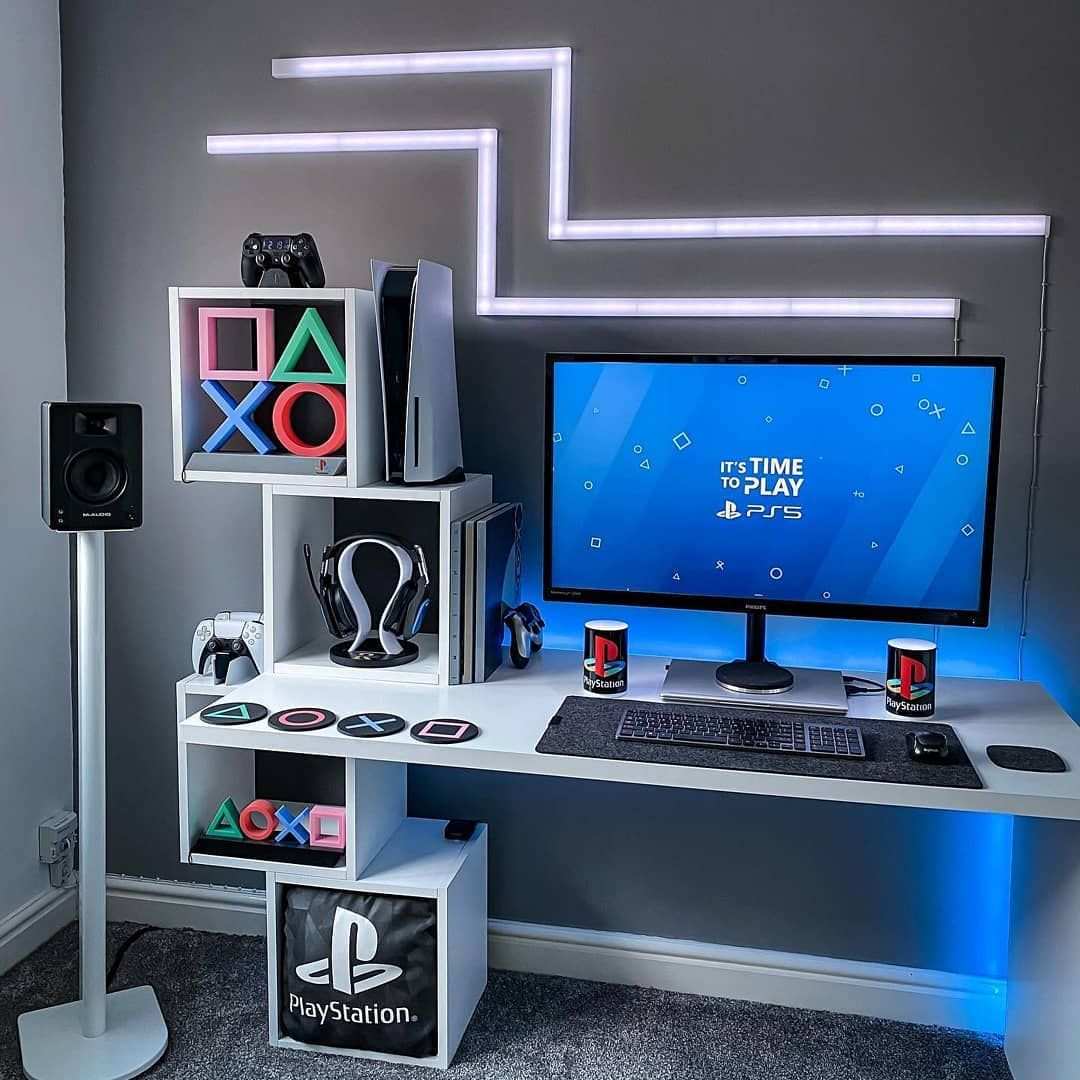
Yes, absolutely. The PlayStation 5 outputs a 4K signal natively, and virtually any 4K monitor will accept it. But the real question isn't whether it works. It's whether you'll get the experience you're actually hoping for.
The PS5 ships with an HDMI 2.1 port capable of pushing 4K at 120Hz with HDR. Your monitor's specs determine how much of that potential you actually see. Let's break down what matters.
Quick Answer
Yes, the PS5 runs on any 4K monitor with an HDMI input. You'll get 4K resolution at 60Hz on HDMI 2.0 monitors. HDMI 2.1 monitors unlock 4K at 120Hz with HDR.
Your monitor's HDMI version determines the actual experience.
The Real Question: What Kind of 4K Experience Do You Want?
Here's where it gets interesting. "4K monitor" covers a massive range of hardware. A $250 4K/60Hz IPS panel and a $900 4K/120Hz OLED are both "4K monitors." They deliver wildly different PS5 experiences.
So the decision tree really comes down to this:
- If you just want sharper visuals than 1080p, almost any 4K monitor works fine.
- If you want 120fps in compatible games, you need HDMI 2.1 and a monitor that supports 4K at 120Hz.
- If you want HDR that actually looks good, panel type and peak brightness matter as much as resolution.
- If you're on a budget, you might be better served by a 1440p high-refresh monitor instead.
Let's walk through each scenario so you know exactly what you're getting into.
Understanding PS5's 4K Output Capabilities
Sony designed the PS5 with a fairly capable HDMI output. The console supports:
| Output Specification | Supported |
|---|---|
| 4K (3840 × 2160) at 60Hz | Yes |
| 4K at 120Hz | Yes |
| HDR10 | Yes |
| Dolby Vision | Media streaming only (not gaming) |
| VRR (Variable Refresh Rate) | Yes |
| ALLM (Auto Low Latency Mode) | Yes |
| HDCP 2.3 | Yes |
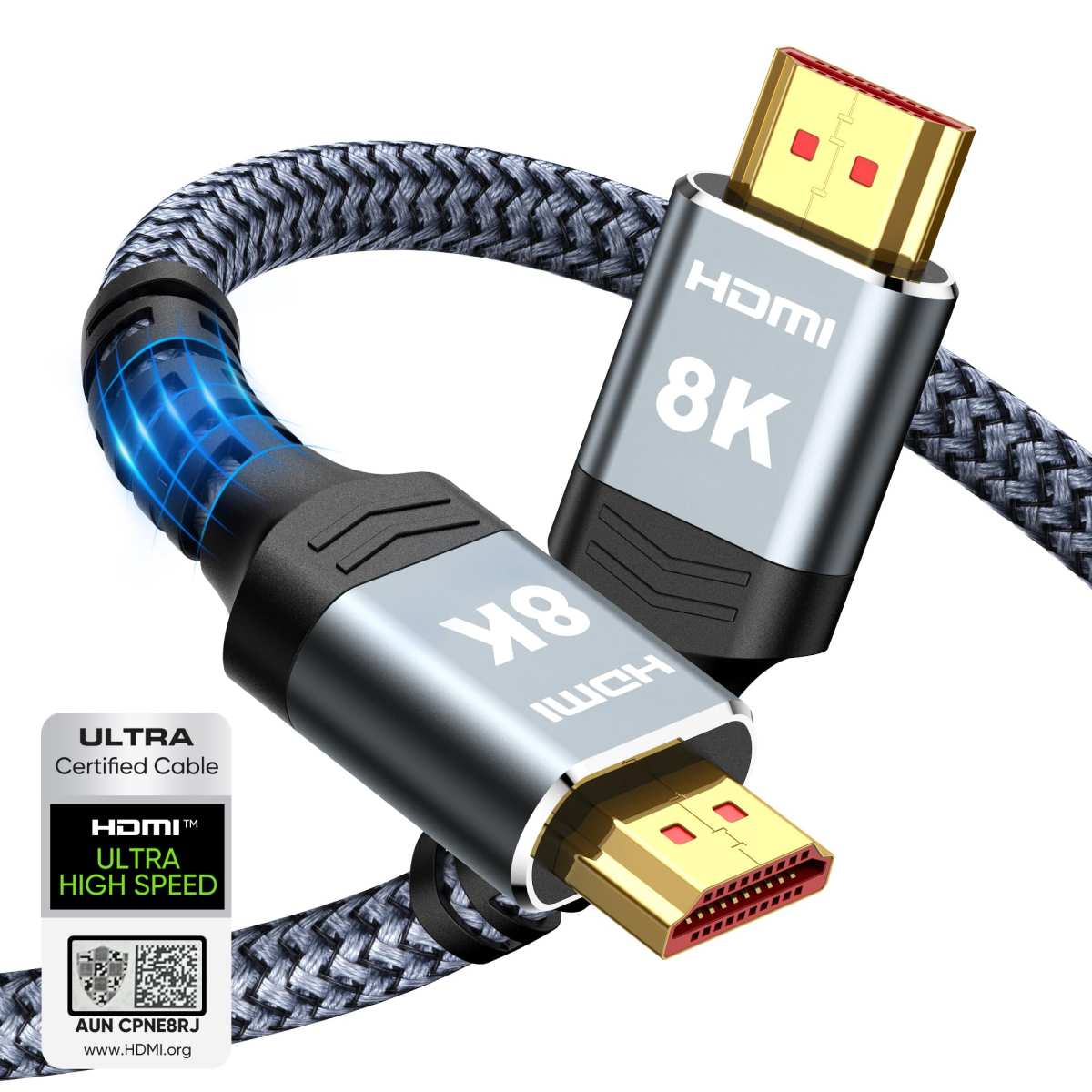
The included HDMI cable is an Ultra High Speed HDMI cable, certified for 48 Gbps. That's HDMI 2.1 spec. The cable won't be your bottleneck.
The console itself can output 4K at 120Hz with HDR enabled. But it needs a display that can accept that signal. This is where monitor specs become critical.
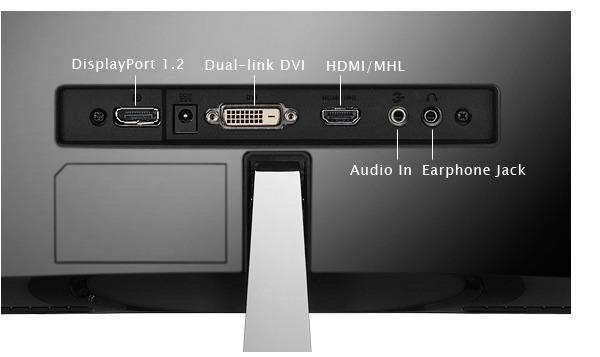
One thing worth noting. The PS5 does not have a DisplayPort output. It's HDMI only.
If your monitor only has DisplayPort inputs, you'll need an active adapter, and those can introduce compatibility headaches. We'll cover that in the troubleshooting section.
What Your 4K Monitor Brings to the Table
Not all 4K monitors are created equal. Here are the specs that actually matter for PS5 gaming:
HDMI version is the single biggest factor. It determines your maximum resolution and refresh rate combination.
Panel type affects image quality:
- IPS: Good colors, wide viewing angles, decent response times. Most common in mid-range 4K monitors.
- VA: Better contrast, slower response times. Good for darker rooms.
- OLED: Best image quality, near-instant response times. Still relatively rare and expensive in monitor form.
- TN: Fast but poor colors and viewing angles. Avoid for PS5 gaming.
Peak brightness determines whether HDR looks impressive or mediocre. Look for at least 400 nits for basic HDR. True HDR impact starts around 600-1000 nits.
VRR support matters for smooth gameplay. The PS5 supports HDMI Forum VRR and also works with AMD FreeSync and NVIDIA G-Sync Compatible monitors over HDMI.
Response time affects motion clarity. Look for 5ms GTG or lower for gaming. 1ms is ideal but often marketing rather than real-world performance.
The HDMI Version Bottleneck (This Is Where Most People Get Stuck)
This is the section that saves you from buyer's remorse. HDMI version determines everything.
HDMI 2.0 vs HDMI 2.1: What It Means for Your PS5
| Specification | HDMI 2.0 | HDMI 2.1 |
|---|---|---|
| Max Bandwidth | 18 Gbps | 48 Gbps |
| 4K at 60Hz HDR 4:4:4 | Yes | Yes |
| 4K at 120Hz HDR 4:4:4 | No | Yes |
| 4K at 120Hz HDR 4:2:2 | No | Yes |
| 4K at 120Hz SDR 4:4:4 | No | Yes |
| VRR Support | No (native) | Yes |
| ALLM | No | Yes |
| eARC | No | Yes |
If your monitor only has HDMI 2.0, you're capped at 4K/60Hz. That's still a great picture. But you won't get 120fps gaming, and VRR won't work.
Here's the bandwidth math. 4K at 120Hz with HDR and 4:4:4 chroma requires roughly 35.5 Gbps. HDMI 2.0 tops out at 18 Gbps. HDMI 2.1 handles 48 Gbps comfortably.
The 4K/120Hz HDR Chroma Subsampling Compromise
Some monitors and the PS5 itself can work around the bandwidth limit using chroma subsampling. At 4K/120Hz with HDR, the PS5 will output 4:2:2 chroma instead of 4:4:4 on HDMI 2.0 connections.
What does that mean in practice? Text and fine color edges look slightly softer. In fast-paced gaming, most people don't notice.
If you're using the monitor for desktop text work too, you might find it bothersome.
The PS5 handles this automatically. You won't get a warning. It just drops to 4:2:2 to fit the signal within available bandwidth.
Bottom line: If 4K/120Hz HDR is your goal, buy an HDMI 2.1 monitor. If 4K/60Hz is acceptable, HDMI 2.0 works perfectly.
Does Your Monitor Actually Support What PS5 Puts Out?
Here's a quick compatibility check you can run right now:
If your monitor has HDMI 2.1:
- You'll get the full PS5 experience. 4K at 120Hz, HDR, VRR, all of it.
- Make sure you're using the HDMI cable that came with the PS5 (or another certified Ultra High Speed HDMI cable).
If your monitor has HDMI 2.0:
- You'll get 4K at 60Hz with HDR. No 120Hz. No VRR.
- This is still a solid experience. Most console games run at 30 or 60fps anyway.
If your monitor has HDMI 1.4:
- You'll get 4K at 30Hz. That's not great for gaming. Mouse movement and camera controls will feel sluggish.
- Some HDMI 1.4 monitors can do 1080p at 60Hz, which is a fallback option.
If your monitor only has DisplayPort:
- You need an active HDMI-to-DP adapter. Passive cables won't work because the signal direction is wrong.
- Active adapters exist but can introduce lag, fail to pass HDR, or not support the full bandwidth. It's a gamble.
Quick tip: Check your monitor's spec sheet for the HDMI version. It's usually listed under "inputs" or "connectivity." If it just says "HDMI" without a version number, assume HDMI 2.0 for monitors made after 2018, and HDMI 1.4 for older models.
Step-by-Step: Setting Up PS5 on a 4K Monitor
Let's get you up and running. This is straightforward, but a few settings trips people up.
Before You Connect Anything
- Check your monitor's HDMI version and available ports.
- Make sure your monitor's firmware is up to date. Some monitors received updates specifically for PS5 compatibility.
- Have the PS5's included HDMI cable ready. Don't substitute a random old HDMI cable unless you know it's Ultra High Speed certified.
Connecting and Configuring Your PS5
- Plug the HDMI cable into the PS5's HDMI OUT port and your monitor's HDMI input.
- Power on the monitor first, then the PS5. This helps the console detect the display correctly.
- If you see a picture at 1080p, that's normal for initial setup. The PS5 defaults to a safe resolution.
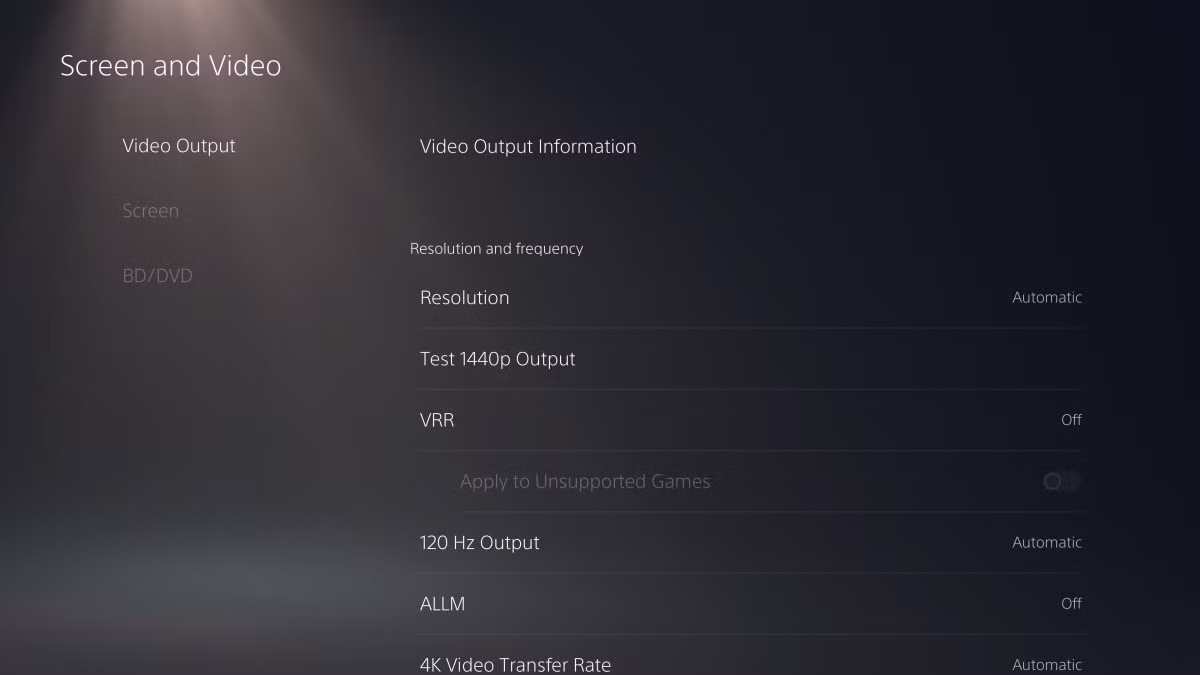
- Go to Settings > Screen and Video > Video Output on the PS5.
- Set Resolution to "2160p" (that's 4K). If it's grayed out, your monitor isn't reporting 4K capability properly. Check your HDMI cable and port.
- Enable HDR by setting it to "On When Supported." The PS5 will test your monitor's HDR capability.
- Set 120Hz Output to "Automatic" if your monitor supports it. The PS5 will enable it in compatible games.
- Enable VRR under "VRR" if your monitor supports it. Set to "On" for HDMI 2.1 monitors.
Configuring Your Monitor Settings
Most monitors need a few adjustments too:
- Switch to the correct HDMI input (sounds obvious, but people miss this).
- Enable "Game Mode" or "Low Latency Mode" if available. This bypasses unnecessary image processing that adds input lag.
- Enable HDR in the monitor's own menu if there's a separate toggle. Some monitors have HDR disabled by default.
- Check for an "HDMI 2.1" or "4K/120Hz" toggle in the monitor's settings. Some monitors default to HDMI 2.0 mode and need to be switched manually.
- Disable any "dynamic contrast" or "auto brightness" features. These tend to make the image look worse, not better.
Once everything's connected and configured, load up a game that supports 120fps (like Call of Duty, Rocket League, or Ratchet and Clank: Rift Apart) and check if the higher refresh rate feels noticeably smoother.
What You'll Actually Experience: 4K/60 vs 4K/120
Let's set realistic expectations. The difference between these two modes is noticeable, but maybe not in the way you'd expect.
At 4K/60Hz, everything looks sharp and smooth. This is where most PS5 games live. Titles like God of War Ragnarök, Horizon Forbidden West, and Spider-Man 2 target 30fps or 60fps in their quality modes.
A 4K/60Hz monitor handles all of these perfectly.
At 4K/120Hz, compatible games feel significantly smoother. Fast-paced titles benefit the most. Call of Duty, Rocket League, Fortnite, and Doom Eternal all support 120fps modes.
The difference in responsiveness is real, especially in competitive multiplayer.
Here's the catch. Many 120fps modes on PS5 require lowering other settings. You might get 4K/120Hz with reduced visual effects, or the console might drop to 1440p and upscale.
Check each game's performance mode settings individually.
For single-player, story-driven games: 4K/60Hz is the sweet spot. You get the full visual fidelity the developers intended.
For competitive multiplayer: 120Hz matters more than 4K. Some competitive players even prefer 1080p/120Hz over 4K/60Hz for the responsiveness advantage.
HDR on PS5: Why Your Monitor Might Disappoint You
HDR is where the gap between monitors and TVs gets frustrating. The PS5 supports HDR10 output. Whether it looks good depends entirely on your monitor's hardware.
The brightness problem: True HDR needs high peak brightness. Many 4K monitors advertise "HDR support" but only hit 300-400 nits. That's not enough.
HDR content looks the same as SDR, or sometimes worse because the monitor is trying to display a wide color range it can't actually produce.
VESA DisplayHDR certification levels give us a useful benchmark:
| Certification | Peak Brightness | Black Depth | Color Gamut |
|---|---|---|---|
| DisplayHDR 400 | 400 nits | Basic | sRGB |
| DisplayHDR 600 | 600 nits | Better | DCI-P3 |
| DisplayHDR 1000 | 1000 nits | Significantly better | DCI-P3 |
| DisplayHDR 1400 | 1400 nits | Excellent | DCI-P3 |
DisplayHDR 400 monitors technically accept an HDR signal. The result is underwhelming. You're better off running SDR on these displays.
DisplayHDR 600 and above is where HDR starts looking like actual HDR. Highlights pop. Shadows have detail.
Colors feel richer.
OLED monitors handle HDR differently. Per-pixel lighting means perfect blacks and essentially infinite contrast. Even at lower peak brightness, OLED HDR looks impressive because of the contrast advantage.
The PS5 has a built-in HDR calibration tool. Go to Settings > Screen and Video > Video Output > Adjust HDR. Follow the on-screen prompts.
It helps, but it can't overcome hardware limitations.
VRR on PS5: Does It Actually Work on Monitors?
Variable Refresh Rate eliminates screen tearing and reduces stutter when frame rates fluctuate. The PS5 added VRR support in a system software update in 2022.
HDMI Forum VRR is the native standard. It works over HDMI 2.1 connections. Most HDMI 2.1 monitors support this.
FreeSync and G-Sync Compatible monitors also work with PS5 over HDMI. Many monitors advertise these as PC features, but they function on consoles too.
The VRR range matters. A monitor with VRR working from 48-120Hz won't help below 48fps. Some monitors have narrow VRR ranges.
Check reviews for the specific monitor's VRR implementation.
Games that benefit most from VRR are ones where frame rate hovers between 40-60fps. Ratchet and Clank: Rift Apart in quality mode, for example, often fluctuates in that range. VRR smooths out those dips noticeably.
One limitation: VRR doesn't work with every game. Some titles have frame rate modes that lock to specific targets. VRR is most useful in uncapped or fluctuating frame rate scenarios.
Common Problems and How to Fix Them
Here are the issues that come up most often, and what actually fixes them.
PS5 Not Detecting 4K or HDR
Try this first: Go to Settings > Screen and Video > Video Output > Resolution. If 2160p is grayed out, your monitor isn't communicating its 4K capability to the PS5.
Fixes to try:
- Use the HDMI cable that came with the PS5. Older cables may not have the bandwidth.
- Try a different HDMI port on the monitor. Some monitors only support full bandwidth on specific ports.
- Update your monitor's firmware. Manufacturers like LG, ASUS, and Samsung have released firmware updates specifically for PS5 4K detection issues.
- Power cycle both devices. Turn off the PS5 and monitor, unplug both for 30 seconds, then restart.
Black Screen or No Signal
This usually means a handshake failure between the PS5 and monitor.
Fixes to try:
- Boot the PS5 in safe mode. Hold the power button for 7 seconds until you hear a second beep. This forces 480p output, which any display can handle. Then manually set the resolution back up.
- If using an HDMI adapter (for DisplayPort monitors), remove it and test with a direct HDMI connection first.
- Some monitors need you to manually select the HDMI input. Check the monitor's input/source menu.
Washed-Out Colors or Wrong Resolution
This often indicates a chroma subsampling or color space mismatch.
Fixes to try:
- Check PS5's RGB Range setting under Video Output. Set it to "Automatic" unless your monitor specifically requires "Limited" or "Full."
- On the monitor, look for a "Black Level" or "HDMI RGB Range" setting. Match it to the PS5's output.
- If colors look oversaturated, the monitor might be in the wrong color space mode. Set it to "sRGB" or "Standard" rather than any wide-gamut mode unless you know what you're doing.
120Hz Not Showing as an Option
The PS5 only offers 120Hz when the game supports it and the display reports 120Hz capability.
Fixes to try:
- Confirm your monitor supports 120Hz over HDMI, not just DisplayPort.
- Some monitors have a toggle in their own settings to enable 120Hz mode. Check the monitor's refresh rate or overclocking menu.
- Test with a game that supports 120fps. The option won't appear in the PS5 menu otherwise.
4K Monitor vs 4K TV for PS5: Which Should You Choose?
This is the question most people actually want answered. Both work. They serve different situations.
| Factor | 4K Monitor | 4K TV |
|---|---|---|
| Input Lag | 1-10ms typically | 10-30ms typically |
| Screen Size | 27-43 inches | 43-85+ inches |
| Pixel Density | Higher at smaller sizes | Lower at equivalent resolution |
| Price (2024) | $250-$1,200 | $250-$3,000+ |
| HDR Quality | Varies widely | Generally better on mid-range+ |
| Viewing Distance | Desk (2-3 feet) | Couch (6-10 feet) |
| Speaker Quality | Usually poor or none | Built-in, often decent |
| Dual Use (PC + Console) | Excellent | Less practical |
Choose a 4K monitor if: You game at a desk, you want the lowest input lag, you also use the display for a PC, or you play competitive multiplayer titles.
Choose a 4K TV if: You game from a couch, you want the best HDR experience for the price, you prefer larger screen sizes, or you also watch movies on the same display.
The middle ground: A 43-inch 4K monitor gives you TV-like size with monitor-like input lag. Models like the Gigabyte M43U or Samsung Odyssey series sit in this category. They're worth considering if you want size without sacrificing responsiveness.
Who Should Use a 4K Monitor With PS5 (And Who Shouldn't)
Great fit for: Desk-based gamers, competitive players who want low input lag, people who also use the monitor for a PC, and anyone who prefers the sharpness of high pixel density at 27-32 inches.
Not ideal for: Gamers who play from a couch, people who want the best HDR experience without spending $800+, or anyone who finds 27-32 inches too small for comfortable gaming.
If you already own a decent 4K monitor, use it. You don't need to buy a new one unless you're specifically chasing 120Hz or better HDR.
Quick Decision Guide: Is Your Setup PS5-Ready?
You're good to go if: Your monitor has HDMI 2.0 or better and accepts 4K input. Just plug in and configure.
You'll need to manage expectations if: Your monitor is HDMI 2.0 only (no 120Hz or VRR) or has weak HDR (DisplayHDR 400 or unrated HDR).
You might want to reconsider if: Your monitor only has DisplayPort or HDMI 1.4. The adapter route or limited refresh rate will frustrate you.
Frequently Asked Questions
Does PS5 support 4K 120Hz on any 4K monitor?
No. The monitor needs HDMI 2.1 to accept 4K at 120Hz. HDMI 2.0 monitors are limited to 4K at 60Hz.
Can I use a DisplayPort monitor with PS5?
Only with an active HDMI-to-DisplayPort adapter. Results vary. It's not recommended unless you have no other option.
Is 4K 60Hz good enough for PS5?
For most games, yes. Many PS5 titles run at 30fps or 60fps. 4K/60Hz is a great experience.
Do I need a special HDMI cable for PS5?
Use the included Ultra High Speed HDMI cable or any certified 48 Gbps HDMI 2.1 cable. Older cables may limit your output options.
Does VRR work on all 4K monitors?
No. VRR requires HDMI 2.1 or a monitor that supports FreeSync or G-Sync Compatible over HDMI. Check your specific monitor's specs.

Similar Posts





















