How to Run USB C Monitor on Low Power Mode
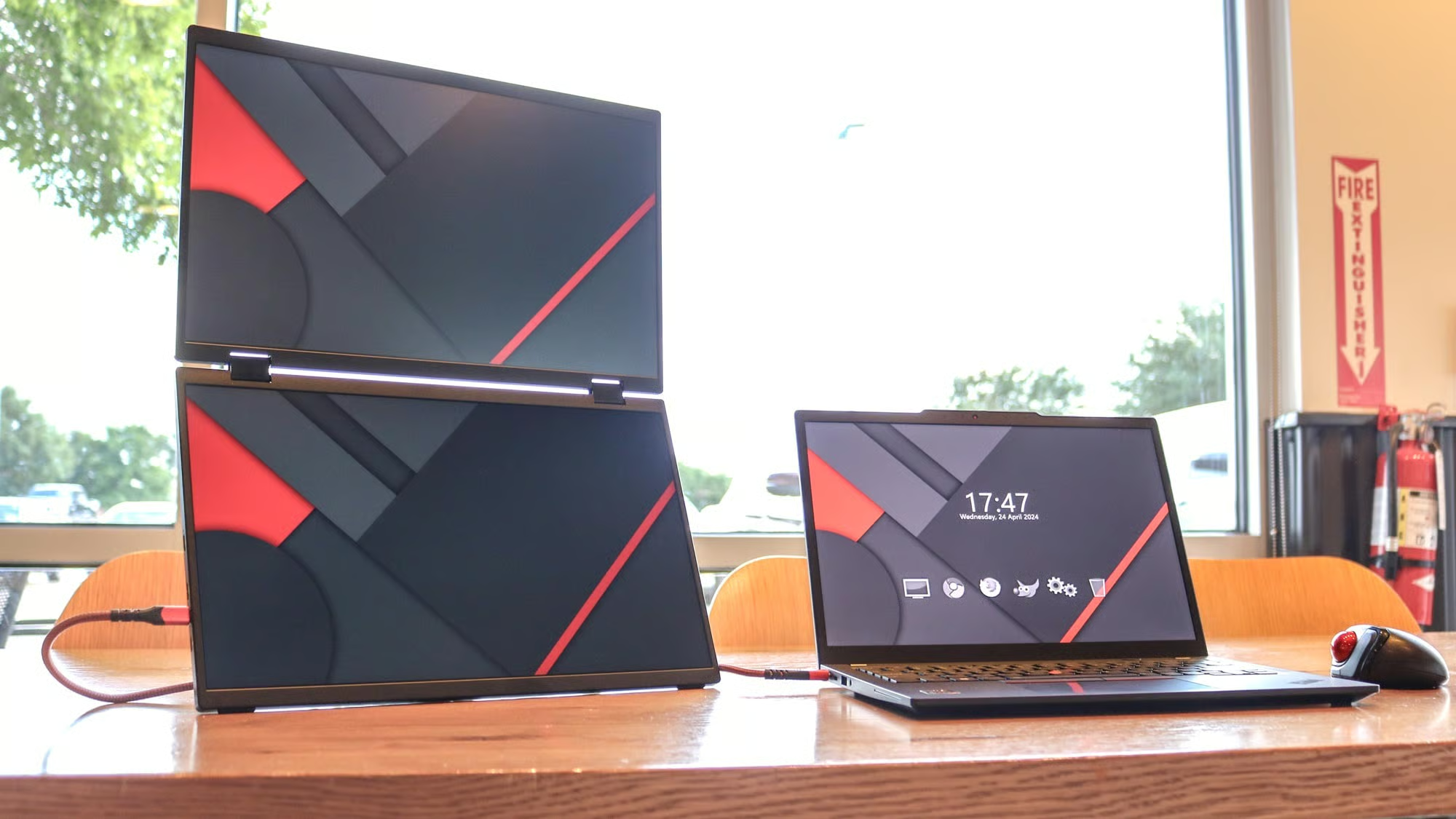
Figuring out how to run USB-C monitor on low power mode usually hits the same wall. You plug in a single USB-C cable expecting video and power, but the monitor stays dark, flickers, or drains your laptop battery in an hour. The problem is almost never the monitor itself.
It's a mismatch between what your laptop's port can deliver, what your cable supports, and what the monitor actually needs. If you are exploring similar hardware setups, see our detailed guide on how to enable power delivery on usb c monitor.
USB-C Power Delivery (USB-PD) allows up to 100W over a single cable, but most laptops allocate far less to their USB-C ports for display output. A portable monitor might draw 8 to 12 watts while a 27-inch desktop USB-C display can pull 30W or more. If your setup doesn't negotiate the right power profile, you get nothing.
Let's walk through exactly how to diagnose and fix this.
Quick Answer
To run a USB-C monitor on low power mode, confirm your laptop port supports DisplayPort Alt Mode with at least 15W output. Use a certified USB-C 3.1 cable with e-Marker support. Set your monitor to eco or low power mode in its on-screen display.
Reduce brightness to 50 percent or lower. This cuts total draw to 5 to 10 watts on most portable displays. Readers evaluating this setup should also consider how to connect usb c monitor to laptop for comparative benchmarks.
Why Your USB-C Monitor Won't Run in Low Power Mode (and How to Fix It)
The core issue is that "USB-C" on your laptop doesn't mean full power delivery or even video output. Many laptops ship with USB-C ports that handle data and charging but lack DisplayPort Alt Mode, the spec that carries video over USB-C. Others support video but cap output at 7.5W, which isn't enough for most monitors beyond a small portable panel.
Here's what typically happens. You connect the cable. The laptop sees a display but can't negotiate enough wattage.
The monitor either refuses to turn on or enters a low-power protection state. Some monitors will power on briefly, then shut down as the power draw exceeds what the port supplies. It looks like a broken cable or defective monitor.
It's almost always a power budget problem.
The fix starts with understanding three variables: your laptop's USB-C port capability, your monitor's minimum power requirement, and whether your cable can handle both signals simultaneously. Once you know these three numbers, the solution becomes straightforward.
How USB-C Power Delivery and Video Actually Work Together
USB-C isn't one standard. It's a connector shape that carries multiple protocols. For a USB-C monitor to work, you need two things on the same cable: DisplayPort Alt Mode (or HDMI Alt Mode) for video, and USB Power Delivery for power negotiation.
DisplayPort Alt Mode repurposes the USB-C cable's high-speed lanes to carry video signals. This is native, low-latency, and doesn't require any driver software. It's what most people mean when they say "USB-C monitor." The alternative is DisplayLink, which compresses video data over standard USB data and requires a driver.
DisplayLink works differently and draws power differently, so the advice in this article focuses on native Alt Mode connections.
USB Power Delivery is a separate negotiation that happens over the cable's CC (configuration channel) pins. When you connect a monitor, the laptop and monitor exchange PD profiles. The laptop offers specific voltage and current combinations.
The monitor requests what it needs. If the monitor asks for 15V at 1A (15W) and the laptop only offers 5V at 1.5A (7.5W), the handshake fails or the monitor runs in a degraded state.
The key spec to know: USB-C without PD delivers 5V at 1.5A (7.5W) or 5V at 3A (15W) depending on the port's rating. USB-PD pushes this to 9V, 15V, or 20V at various amperages. Your monitor's power supply rating, usually printed on the back or in the manual, tells you what it expects.
A monitor rated for 12V/2A (24W) won't run on 7.5W. You need a PD profile that matches.
Step 1: Check Your Laptop's USB-C Port Output (This Is Where Most People Get Stuck)
This is the single most important step and the one most people skip. Not all USB-C ports are created equal, even on the same laptop. One port might support 60W PD output with DisplayPort Alt Mode.
Another might handle only 7.5W with no video at all.
Here's how to check what your port actually supports.
On macOS: Click the Apple menu, then System Information. Under Hardware, select Thunderbolt or USB. Look for "Display Port" in the supported modes and check the power delivery wattage listed for each port.
On Windows: Open Device Manager. Expand Universal Serial Bus controllers. Look for entries containing "Thunderbolt" or "USB4." Right-click, select Properties, then the Details tab.
You can also check your laptop manufacturer's spec sheet for each port's capabilities. Dell, Lenovo, and HP usually document this per port in their technical manuals.
What to look for:
- Does the port list "DisplayPort Alt Mode" or "DP Alt Mode"?
- What's the maximum PD output wattage?
- Is it a Thunderbolt 4 port (almost always supports full DP output) or a basic USB-C 3.2 port (may not)?
If your port only outputs 7.5W, you're limited to the smallest portable monitors, typically 14-inch panels that draw 5 to 8W. If it outputs 15W or more, you have more flexibility. At 45W or above, you can run most desktop USB-C monitors without a separate power brick.
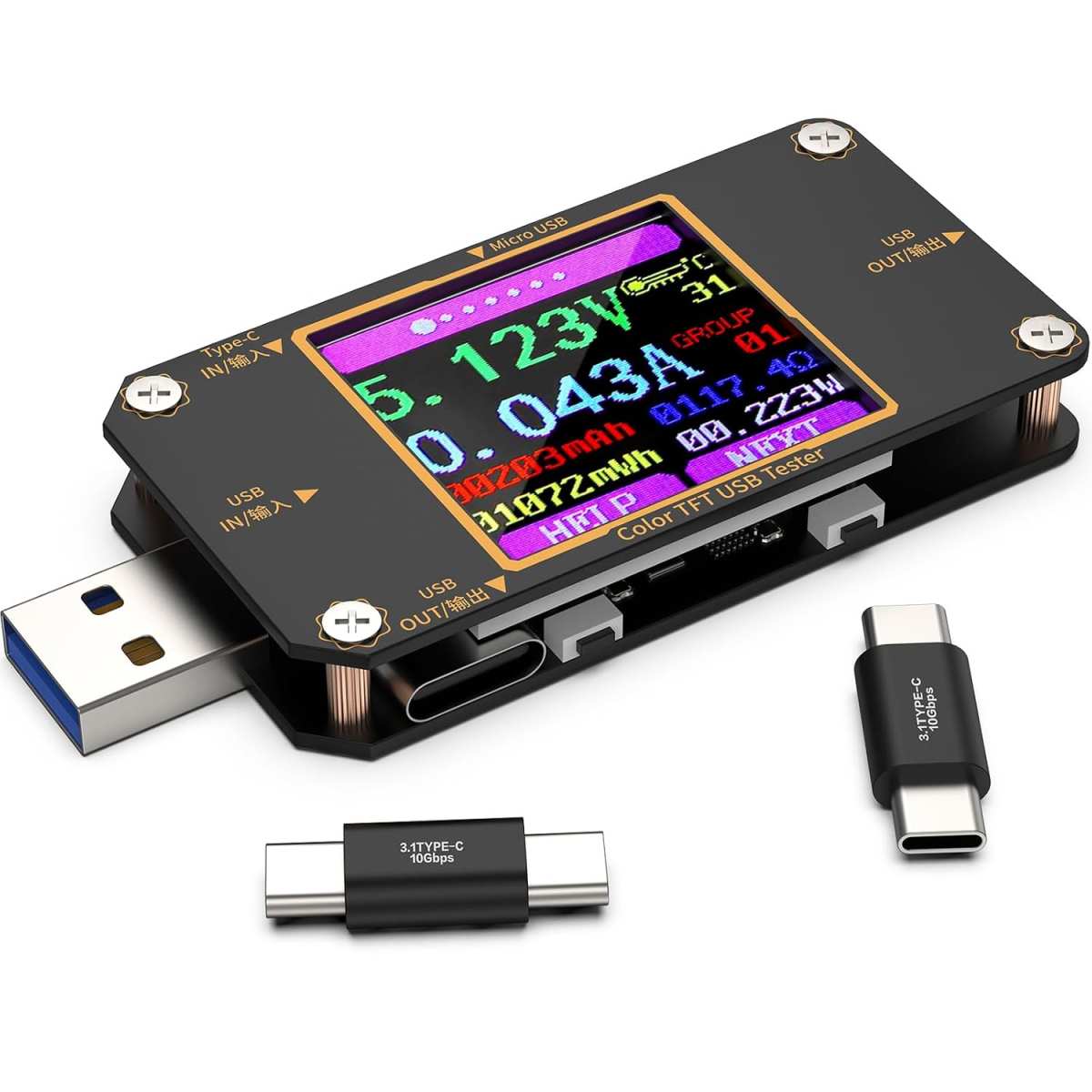
A USB-C power meter is the fastest way to see what's actually happening. Plug it between your laptop and the monitor cable. It shows real-time voltage, current, and wattage.
If you see 5V and 0.5A, your port is delivering 2.5W. That's not going to work for any monitor.
Step 2: Verify Your Cable Supports Both Video and Power Delivery
This is where most setups fail silently. A USB-C cable that charges your phone perfectly might not support DisplayPort Alt Mode at all. Cables are not universal in their capabilities, even though they all look identical.
There are three cable categories that matter here.
USB-C 2.0 cables: These handle data and charging up to 60W but have no high-speed lanes for video. They will not carry DisplayPort signals. Many cheap USB-C cables sold for charging fall into this category.
USB-C 3.1 Gen 1/Gen 2 cables with Alt Mode support: These have the full pinout for high-speed data and video. They support DisplayPort Alt Mode and can negotiate PD up to 100W depending on the e-Marker chip. This is what you need.
Thunderbolt 4 cables: These support everything. DisplayPort Alt Mode, USB-PD, USB 3.2 data, and Thunderbolt daisy-chaining. They're more expensive but guaranteed to work.
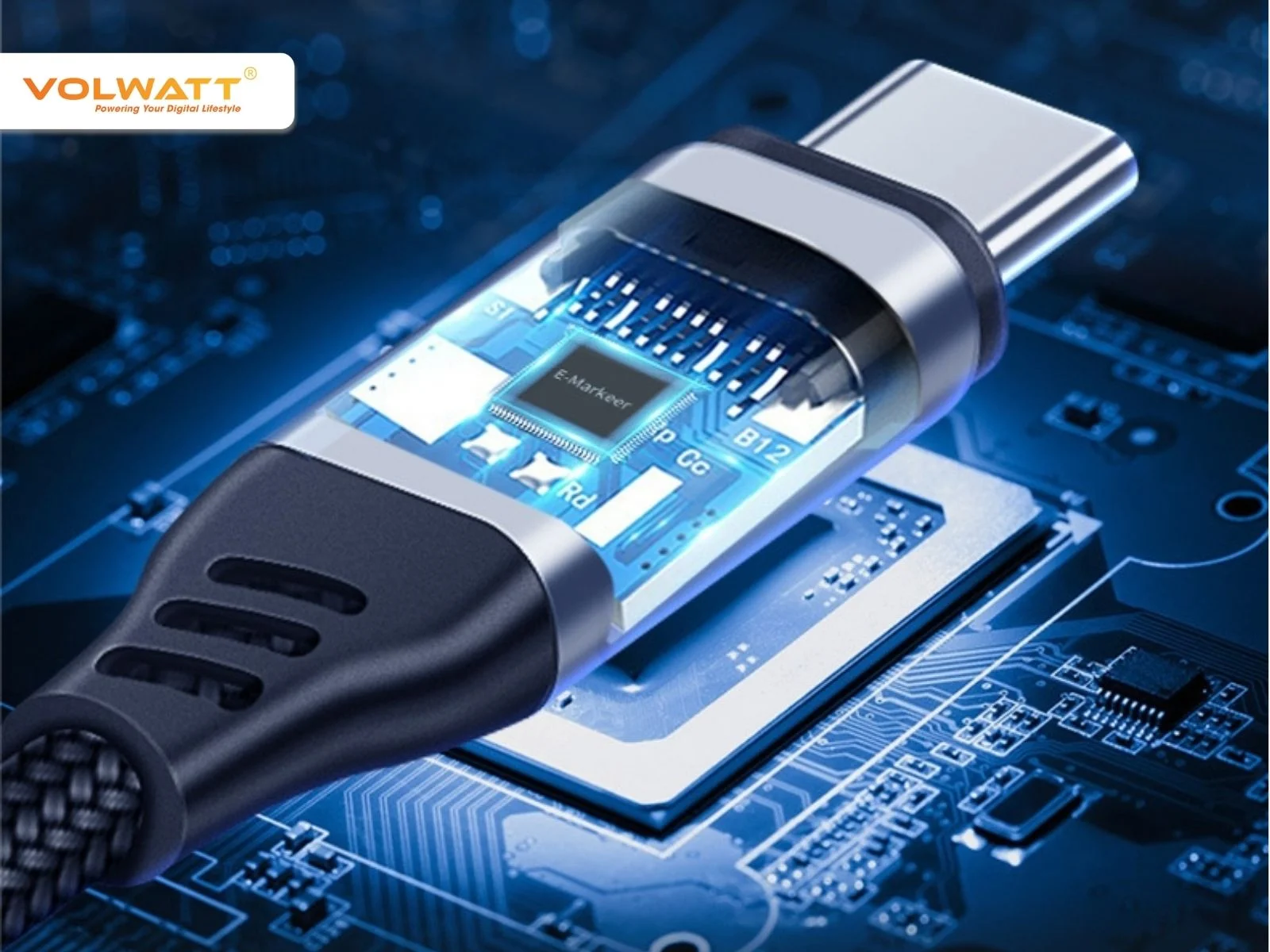
The e-Marker chip is a small controller embedded in the cable connector. It tells the laptop and monitor what the cable can handle. Cables rated for above 3A current or above 60W are required to have an e-Marker.
Without it, the PD negotiation may cap at 7.5W even if both devices can handle more.
Quick cable check:
- Look for "USB 3.1" or "USB 3.2" printed on the cable sheath
- Check for "DP" or "DisplayPort" in the cable specs
- If the cable came in a small plastic sleeve with no branding, assume it's 2.0
- Cables longer than 2 meters (6.6 feet) may need active signal boosting for reliable video
If you're unsure, buy a cable explicitly rated for "USB-C video" and "100W PD." Anker, Cable Matters, and Belkin make reliable options. Avoid gas station and dollar store USB-C cables for monitor connections.
Step 3: Match Your Monitor's Power Draw to What Your Setup Can Actually Deliver
Now you know what your laptop can output and what your cable can carry. The third number is what your monitor needs. This is usually printed on a label on the back of the monitor or listed in the technical specifications.
Typical power draws by monitor type:
| Monitor Type | Screen Size | Typical Power Draw | Minimum PD Profile Needed |
|---|---|---|---|
| Portable IPS | 13.3" to 15.6" | 5W to 10W | 5V/3A (15W) |
| Portable IPS (high brightness) | 15.6" to 17.3" | 10W to 18W | 9V/2A (18W) or 15V/1.5A (22.5W) |
| Desktop IPS | 24" | 15W to 25W | 15V/2A (30W) |
| Desktop IPS | 27" | 20W to 45W | 15V/3A (45W) |
| Desktop OLED/Mini-LED | 27" to 32" | 35W to 65W | 20V/3.25A (65W) |
If your laptop outputs 15W and your monitor needs 25W, you have a 10W deficit. The monitor might turn on at minimum brightness but will likely shut down or flicker under load. You have three options: lower the monitor's power consumption, use a dock that supplies additional power, or connect the monitor's separate power brick if it has one.
Many USB-C monitors have a DC barrel jack input alongside the USB-C port. If your USB-C power budget is tight, plug in the DC power brick and use USB-C for video only. Some monitors support this hybrid mode.
Check your manual.
Step 4: Configure Your Monitor and Laptop Settings for Low Power Mode
Once your hardware chain is solid, software settings determine how much power you actually save. Most people skip these and wonder why their battery still drains fast.
Monitor settings to adjust:
- Eco mode or Low Power mode: Found in the on-screen display (OSD) under Picture or System settings. This typically reduces backlight voltage and disables unnecessary processing. Expect 20 to 40 percent power savings.
- Brightness: This is the single biggest power lever. Dropping from 100 percent to 50 percent brightness often cuts power draw by 30 to 50 percent on IPS panels. Most people run monitors far brighter than they need.
- Refresh rate: If your monitor supports 120Hz or 144Hz, dropping to 60Hz saves measurable power. The difference is smaller than brightness but adds up on battery.
- Auto sleep / standby timer: Set the monitor to enter sleep after 3 to 5 minutes of no signal change. Some monitors draw 0.5W in standby versus 2W in active idle.
Laptop settings to adjust:
- macOS: System Settings > Battery > Options. Enable "Optimize video streaming for battery" if available. Reduce display timeout to 2 minutes on battery.
- Windows: Settings > System > Battery > Battery Saver. Enable Battery Saver at 50 percent or lower. Under Display settings, set screen off timer to 3 minutes on battery.
- Both platforms: Close unnecessary apps. The GPU works harder to drive an external display, which increases overall system power draw by 3 to 8 watts regardless of monitor settings.
The math on battery impact: A 15.6-inch portable monitor drawing 8W connected to a MacBook Air with a 52.6Wh battery reduces runtime by roughly 1.5 to 2 hours compared to laptop-only use. Dropping the monitor to 5W through low power settings and brightness reduction cuts that penalty to about 45 minutes.
Step 5: Troubleshoot When the Monitor Still Won't Power On
If you've verified the port, cable, and power budget but the monitor still won't turn on, work through these checks in order.
1. Try a different USB-C port on your laptop. Many laptops mix port capabilities. The left port might support full DP Alt Mode while the right port is data-only.
2. Disconnect and reconnect with the laptop already booted. Some laptops only negotiate PD at boot time. A hot-plug may not trigger a fresh handshake.
3. Check for firmware updates on both devices. Monitor manufacturers occasionally release firmware updates that fix PD compatibility. Dell, LG, and ASUS all have had USB-C PD bugs resolved through firmware patches.
Same for laptop BIOS updates.
4. Test with the monitor's dedicated power adapter. If the monitor came with a separate power brick, use it. This isolates whether the problem is power delivery or video signal.
If the monitor works with its own power but not via USB-C, your laptop's PD output is insufficient.
5. Try a shorter cable. Passive USB-C cables over 2 meters can degrade signal integrity, especially at higher resolutions. A 1-meter cable eliminates this variable.
6. Reset the monitor's USB-C settings. Some monitors have a "USB-C Power Supply" toggle in the OSD. If set to "Off" or "Low," the monitor won't request PD power.
Set it to "Auto" or "On."
7. Check for a physical USB-C port issue. Debris in the laptop's USB-C port can prevent proper CC pin contact, breaking the PD negotiation. Inspect with a flashlight and clean gently with compressed air.
Decision Tree: Which Path Matches Your Situation
Use this to find your specific fix based on what you're working with.
If your laptop has a Thunderbolt 4 port and your cable is Thunderbolt-rated:
You should have no power delivery issues. If the monitor won't turn on, check that DisplayPort Alt Mode is enabled in your laptop BIOS. Some business laptops disable it by default for security.
If your laptop USB-C port outputs 15W and your monitor draws under 10W:
This should work with a proper USB-C 3.1 cable. If it doesn't, the cable is likely USB 2.0. Replace it.
If your laptop USB-C port outputs 7.5W and your monitor needs 15W or more:
You cannot run this monitor from your laptop's USB-C port alone. Either use the monitor's separate power adapter, or get a USB-C dock that supplies its own power to the monitor.
If you're using a USB-C hub or dock between the laptop and monitor:
The dock must support DisplayPort Alt Mode passthrough, not just data passthrough. Many cheap USB-C hubs strip out video signals. Check the dock's specs for "DP Alt Mode" or "video output over USB-C."
If your monitor works but flickers or disconnects:
This is usually a cable quality issue or a power budget borderline situation. The monitor draws more power at peak brightness or during scene changes, briefly exceeding what the port can supply. Lower brightness or get a shorter, higher-quality cable.
If you're on a MacBook and the monitor works but drains battery fast:
MacBooks allocate full power to external displays by default. Use a lower brightness setting and consider running the monitor from its own power supply if available. The M-series chips handle external displays efficiently, but the monitor's power draw comes directly from the battery.
Common Mistakes That Kill USB-C Monitor Setups
These are the errors I see most often. Some are obvious once you know them. Others are genuinely confusing because the USB-C spec allows so much variation.
Mistake 1: Using a charging-only USB-C cable. These cables have no data lines. They literally cannot carry video. They'll charge your laptop but the monitor stays black.
Mistake 2: Assuming all USB-C ports on a laptop are identical. On many laptops, only one or two ports support DisplayPort Alt Mode. The others are data and charging only. Check your manual.
Mistake 3: Buying a USB-C hub without video passthrough. A hub that adds USB-A ports, SD card readers, and Ethernet does not necessarily support video output. You need a hub explicitly rated for "USB-C Alt Mode passthrough" or "DisplayPort over USB-C."
Mistake 4: Ignoring the monitor's minimum brightness threshold. Some monitors won't turn on below a certain backlight voltage. If your PD negotiation delivers borderline power, the monitor may boot-loop trying to start. Lowering brightness in the OSD won't help if the monitor can't even reach the OSD.
You need more power headroom.
Mistake 5: Running 4K at 60Hz on a USB-C 3.1 Gen 1 cable. Gen 1 has limited bandwidth. 4K 60Hz with DisplayPort 1.4 needs Gen 2 or better. You'll get artifacts, flickering, or no signal. Use a cable rated for "40Gbps" or "Thunderbolt 4."
Mistake 6: Forgetting that USB-C PD negotiation is a handshake, not a constant stream. The laptop and monitor negotiate a profile at connection time. If you plug in the monitor while the laptop is under heavy GPU load, the negotiation may fail or settle on a lower profile. Connect the monitor first, then start heavy workloads.
Mistake 7: Using a USB-C to HDMI adapter and wondering why PD doesn't work. HDMI doesn't carry power the same way native USB-C does. If you're adapting to HDMI, the monitor needs its own power source. The adapter just converts the signal.
USB-C Alt Mode vs DisplayLink: Why This Distinction Matters for Power
This confuses a lot of people because both methods send video over USB-C. They're fundamentally different.
DisplayPort Alt Mode routes native DisplayPort signals directly through the USB-C cable's high-speed pins. No compression, no drivers, no CPU overhead. Power delivery runs separately through the CC pins.
This is what most USB-C monitors use. It's efficient and clean.
DisplayLink is a compression technology. The GPU renders the frame, the DisplayLink chip compresses it into USB data, sends it across a standard USB connection, and the monitor's DisplayLink chip decompresses it. This requires a driver and uses CPU resources.
DisplayLink adapters and docks work on any USB port, even USB-A, because they don't need Alt Mode.
Why this matters for power: DisplayLink adapters typically draw 2 to 5W from the USB port for the chip itself, plus whatever the monitor needs separately. A DisplayLink dock often has its own power supply. If you're trying to run a DisplayLink setup on a low-power USB port, the compression chip may not get enough power, causing stuttering or connection drops.
How to tell which you're using: If your monitor connects with a single USB-C cable and works immediately with no driver installation, it's Alt Mode. If you had to install a DisplayLink driver from the DisplayLink website, it's DisplayLink. Check your Applications folder (macOS) or Programs list (Windows) for "DisplayLink Manager."
Real Scenarios: What Works and What Doesn't
Scenario 1: Digital nomad with a 15.6-inch portable monitor and a MacBook Air M2.
The MacBook Air M2 supports DisplayPort Alt Mode over USB-C with 15W output on both ports. A standard USB-C 3.1 cable to a portable monitor like the ASUS ZenScreen MB16ACV (9W typical draw) works perfectly. Enable eco mode on the monitor, set brightness to 40 percent, and you get roughly 4 to 5 hours of combined use from the MacBook's battery.
No dock needed.
Scenario 2: Office worker with a Dell U2723QE (27-inch USB-C monitor) and a Dell Latitude laptop.
The U2723QE can draw up to 90W in full performance mode, but it operates at around 25W with eco settings enabled. The Dell Latitude's Thunderbolt 4 port supports 100W output. A single Thunderbolt 4 cable handles video, power, and data.
Enable "ComfortView" (Dell's low-blue-light low-power mode) in the monitor OSD. Total system power drops from 45W to about 28W.
Scenario 3: Traveler trying to run a 17.3-inch portable monitor off a power bank.
A 17.3-inch portable monitor draws 15 to 20W. Most power banks with USB-C PD output 20 to 30W. This works, but runtime is limited.
A 26,800mAh power bank at 74Wh capacity will run a 17W monitor for roughly 3.5 to 4 hours. Use a short 1-meter USB-C cable to minimize power loss. Set the monitor to minimum brightness for maximum runtime.
Scenario 4: User with a basic USB-C hub and a 24-inch USB-C monitor.
The hub has USB-C input, HDMI output, and USB-A ports. No mention of "DP Alt Mode" or "USB-C video" in the specs. The monitor won't display.
This hub doesn't route DisplayPort signals. The user needs either a direct USB-C to USB-C cable connection, or a hub explicitly rated for USB-C Alt Mode passthrough.
Quick Reference: Monitor Power Requirements and Cable Specs
| Your Situation | Cable You Need | Expected Power Draw | Notes |
|---|---|---|---|
| Portable 13-14" monitor, laptop with 15W USB-C | USB-C 3.1 Gen 2, 1m | 5W to 8W | Works with most setups |
| Portable 15-16" monitor, laptop with 15W USB-C | USB-C 3.1 Gen 2, 1m | 8W to 12W | May need eco mode enabled |
| Desktop 24" USB-C monitor, laptop with 45W+ TB port | Thunderbolt 4 cable, 1m | 15W to 25W | Single cable for video and power |
| Desktop 27" USB-C monitor, laptop with 60W+ TB port | Thunderbolt 4 cable, 1m | 25W to 45W | Verify laptop port wattage |
| Any monitor, laptop with 7.5W USB-C only | USB-C 3.1 + monitor's own power brick | Monitor self-powered | USB-C carries video only |
| Power bank to portable monitor | USB-C 3.1 with e-Marker, 0.5m | 5W to 15W | Shorter cable = less power loss |
When to Use a Dock or Hub Instead of a Direct Connection
A direct USB-C to USB-C cable is always the simplest and most power-efficient path. But sometimes a dock makes sense.
Use a dock when:
- Your laptop has only one USB-C port and you need to charge and connect a monitor simultaneously
- You need additional USB-A peripherals, Ethernet, or SD card access alongside the monitor
- Your laptop's USB-C port doesn't support DisplayPort Alt Mode but has a Thunderbolt dock that handles video through a downstream DisplayPort or HDMI output
Don't use a dock when:
- You're on battery and every watt matters. Docks consume 2 to 5W just for their controller chips
- You're using a portable monitor for travel. The dock adds bulk and another failure point
- Your dock doesn't explicitly support DisplayPort Alt Mode passthrough
Power delivery through a dock: A good Thunderbolt 4 dock like the CalDigit TS4 or Dell WD22TB4 can pass 90W to the laptop while simultaneously driving a monitor via a downstream USB-C or DisplayPort output. The dock's own power brick supplies power to both the laptop and the monitor. This is the cleanest solution for a permanent desk setup.
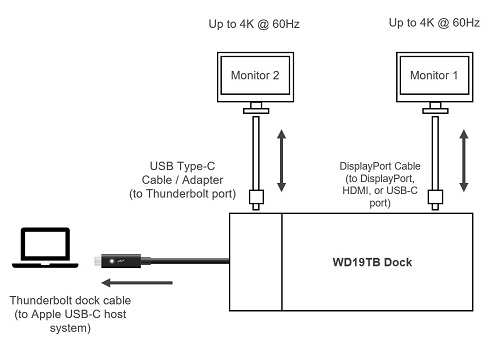
The dock power budget trap: Not all docks allocate enough power to downstream devices. A dock rated for 65W total might pass 45W to the laptop and leave only 20W for everything else. If your monitor needs 25W, you're short.
Check the dock's power allocation specs, not just the total wattage.
Frequently Asked Questions
Can I run a USB-C monitor from a power bank?
Yes, if the power bank supports USB Power Delivery output of at least 15W. Most portable monitors draw 8 to 15W. A 20,000mAh power bank with PD output will run a typical 15.6-inch portable monitor for 3 to 5 hours depending on brightness.
Use a short USB-C cable to minimize power loss.
Why does my USB-C monitor work with the power brick but not over USB-C alone?
Your laptop's USB-C port doesn't deliver enough wattage to power the monitor. The monitor's power brick supplies the full wattage the panel needs. When you connect USB-C only, the monitor tries to draw power from the laptop, and the laptop can't supply enough.
Use the power brick and let USB-C handle video only, or upgrade to a laptop with higher USB-C PD output.
Does lowering resolution reduce USB-C monitor power draw?
Marginally. The panel itself consumes most of the power regardless of resolution. The GPU and scaler chip use slightly less processing power at lower resolutions, but the savings are typically 1 to 3 watts.
Brightness reduction and eco mode have a much bigger impact.
Will a USB-C monitor drain my laptop battery faster?
Yes. An external monitor adds 5 to 25 watts of power draw depending on the monitor size and settings. On a 50Wh laptop battery, a 10W monitor reduces runtime by roughly 1.5 to 2 hours.
Using eco mode and lower brightness minimizes this impact.
Can I use a USB-C to HDMI adapter for a USB-C monitor?
No. USB-C to HDMI adapters convert a USB-C output's DisplayPort signal to HDMI for an HDMI-only monitor. A USB-C monitor expects a native DisplayPort Alt Mode signal over USB-C.
These are different signal types. Connect the monitor directly with a USB-C cable.
How do I know if my USB-C cable supports video?
Look for "USB 3.1," "USB 3.2," "40Gbps," or "DisplayPort" printed on the cable. Cables marked only "USB 2.0" or "charging cable" do not support video. When in doubt, use a Thunderbolt 4 cable.
They support everything.

Similar Posts





















