How to Enable Power Delivery on USB C Monitor
Figuring out how to enable power delivery on a USB-C monitor usually comes down to three things lining up: your laptop has to support it, your monitor has to support it, and your cable has to actually carry power. Miss any one of those and you're staring at a dead battery and a blank screen.
The USB Power Delivery (USB-PD) spec, managed by the USB Implementers Forum (USB-IF), allows up to 240W over a single USB-C cable as of the EPR (Extended Power Range) revision. But your setup only works when every link in the chain negotiates correctly. Let's walk through each link so you can find the weak spot and fix it. For more background on real-world performance, read our breakdown of how to enable hdr on usb c monitor.
Quick Answer
Enable power delivery on a USB-C monitor by connecting a PD-rated USB-C cable from your laptop's PD-capable port to the monitor's PD-input USB-C port. Verify your laptop outputs at least 15W over USB-C. Check your monitor's OSD settings to ensure USB-C PD is enabled.
Use a full-featured USB-C 3.1 cable or better with an e-marker chip if your monitor requires 60W or more.
Why Your USB-C Monitor Isn't Charging (And How to Fix It)
Here's the frustrating scenario. You plug your laptop into a USB-C monitor with a single cable expecting it to charge and display. The display works fine. You can also reference our testing on how to run usb c monitor on low power mode when configuring your display.
But your battery keeps draining. Nothing's wrong with the monitor. The cable looks fine.
So what happened?
USB-C Power Delivery isn't automatic. It's a negotiated contract between two devices. Your laptop (the source) and your monitor (the sink) have to agree on a voltage and current before any power flows.
If that handshake fails, you get data but no charging. Or sometimes you get charging but no display. Or the most annoying one: intermittent charging that drops every few minutes.
The fix depends on which part of the chain is failing. We'll go through each one in order.
How USB-C Power Delivery Actually Works
Think of USB-C PD as a conversation before the power flows. When you plug in a USB-C cable, the source and sink exchange information over the CC (Configuration Channel) pins. The source advertises what it can offer (its Power Data Objects, or PDOs).
The sink picks one and requests it. Only then does voltage start flowing.
This is fundamentally different from older USB charging. USB-A ports just gave you 5V and hoped for the best. USB-C PD can negotiate 5V, 9V, 15V, 20V, and with EPR, up to 48V.
The wattage depends on the combination. A 20V/5A profile gives you 100W. A 48V/5A EPR profile gives you 240W.
The key terms to understand:
- Source: The device providing power (your laptop's USB-C port, in most setups)
- Sink: The device receiving power (your monitor)
- DRP (Dual-Role Port): A port that can be either source or sink, depending on what's connected
- E-marker: A chip inside the cable that tells the source what the cable can handle (current rating, supported protocols)
If any of these three elements (source capability, cable rating, sink request) don't match, PD fails silently. You won't get an error message. Things just won't charge.
Step 1: Check What Your Source Can Actually Deliver
Before you blame the monitor, check your laptop. Not every USB-C port on a laptop supports Power Delivery output. Some are data-only.
Some do PD input but not output. And some do both but only at low wattage.
Here's how to figure out what you're working with:
Look up your laptop's specs directly. Manufacturer spec sheets list USB-C PD output wattage per port. A Dell XPS 15 might output 130W from its Thunderbolt 4 ports but only 15W from a secondary USB-C port. A MacBook Pro outputs full PD from all its Thunderbolt ports but only if you're using a compatible charger path.
Check Device Manager or System Info. On Windows, look under "Universal Serial Bus controllers" for "USB-C Power Delivery" or similar entries. On macOS, go to Apple Menu > About This Mac > System Report > Power to see PD details for connected devices.
The wattage tiers that matter:
| Laptop PD Output | What It Can Power |
|---|---|
| 15W | Small portable monitors (10-13 inch) |
| 27W-30W | Mid-size monitors (14-16 inch) with light power draw |
| 45W-65W | Most 24-27 inch USB-C monitors |
| 90W-100W | High-resolution monitors with built-in hubs |
| 100W+ | Professional monitors, 4K/5K displays with USB hubs |
If your laptop only outputs 15W and your monitor needs 65W, PD will either fail to negotiate or the monitor will run in a reduced-power mode (screen dimmed, USB hub disabled, slow charging or no charging at all).
Thunderbolt vs USB-C PD. Thunderbolt 3 and 4 ports always support USB-C PD because PD is part of the Thunderbolt spec. But the reverse isn't true. A USB-C port that supports DisplayPort Alt Mode and PD isn't necessarily Thunderbolt.
If your laptop has Thunderbolt ports, use those for PD monitors. They're the most reliable path.
Step 2: Check What Your Monitor Actually Supports
This is where most people get tripped up. Not all USB-C monitors handle power the same way. Some charge at 60W.
Some need 90W. Some have USB-C ports that are input-only, output-only, or both. And some have PD disabled by default in the firmware.
The OSD setting nobody checks. Several monitors ship with USB-C Power Delivery turned off in the On-Screen Display menu. You have to manually enable it. Dell, LG, Samsung, and BenQ monitors have all shipped models where PD is disabled out of the box.
Dig into your monitor's OSD settings under "System," "USB Configuration," or "Power Delivery" and make sure it's turned on.
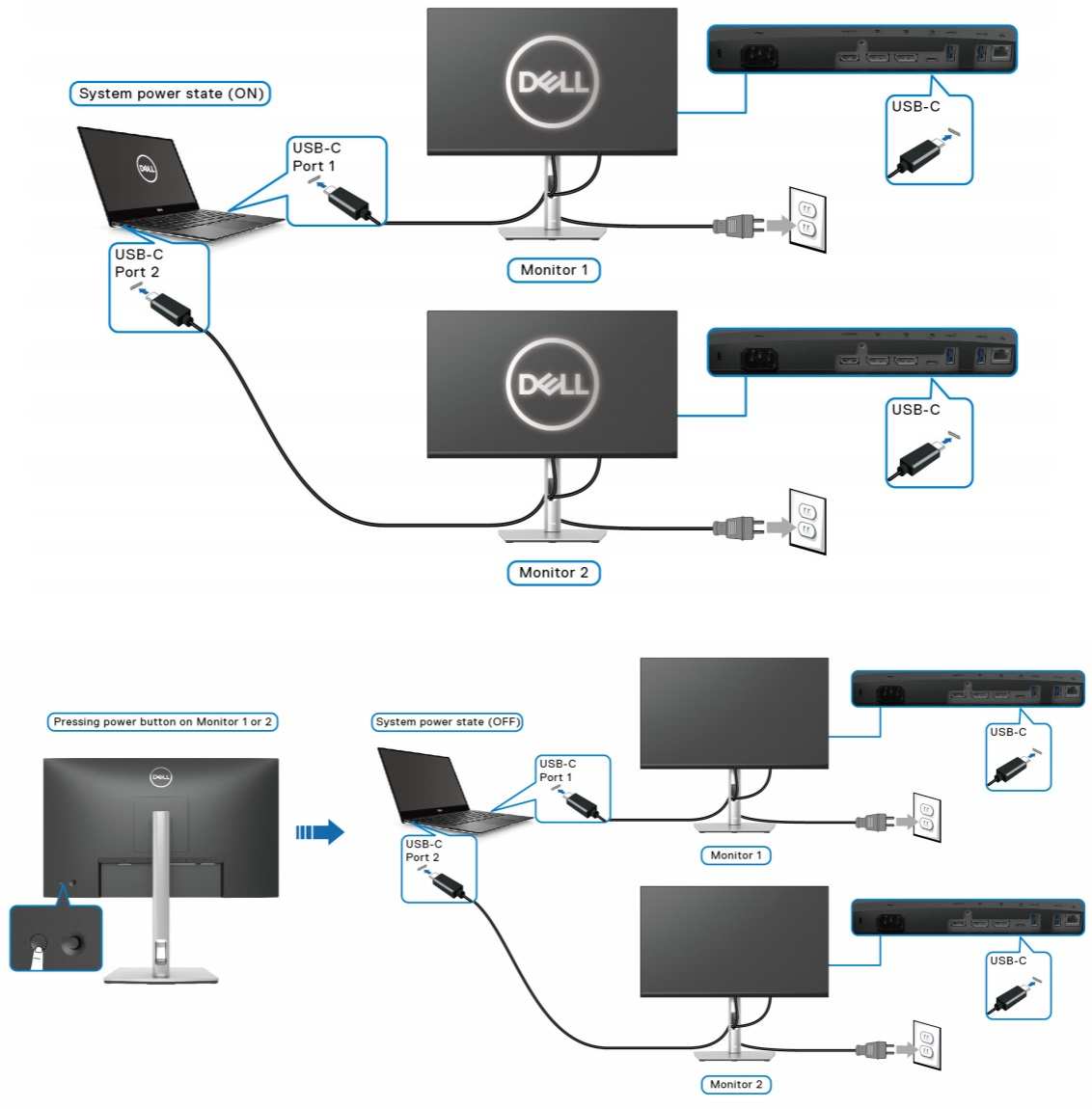
Multiple USB-C ports aren't equal. Some monitors have two USB-C ports. One might be PD input (for connecting to your laptop) and the other might be PD output (for daisy-chaining to a second monitor). Plugging into the wrong port gives you data but no charging.
Check your monitor's manual for which port does what.
Power budget matters. A monitor that needs 90W to run its display, USB hub, and charging passthrough won't work properly with a 65W source. It might charge your laptop slowly while running, or it might charge fine but disable the USB hub to save power. Match the monitor's required input wattage to what your laptop can provide.
Common monitor PD requirements as of 2026:
| Monitor Category | Typical PD Input Required |
|---|---|
| Portable 13-15 inch | 15W-30W |
| Standard 24 inch | 45W-60W |
| 27 inch 4K with USB hub | 60W-90W |
| 32 inch 4K professional | 90W-100W |
| Ultrawide with hub | 96W-140W |
Step 3: The Cable Is Usually the Problem
If your laptop supports PD and your monitor supports PD but charging still doesn't work, the cable is almost certainly the culprit. USB-C cables are not interchangeable. A cable that handles data and 15W charging might completely fail at 100W.
The cable spec hierarchy:
- USB 2.0 USB-C cable: Data only or 15W max (5V/3A). No PD negotiation beyond basics. These are the thin, cheap cables that come with phone chargers.
- USB 3.1 Gen 1/Gen 2 USB-C cable: Data plus up to 60W PD with e-marker. This is the minimum for most USB-C monitors.
- USB 3.2 / USB4 cable: Data plus 100W PD with e-marker. Required for high-power monitors.
- Thunderbolt 4 cable: Full 100W PD, supports all protocols. The safest bet if you're unsure.
- EPR cable (Extended Power Range): Required for 100W-240W. Has a specific e-marker that advertises EPR capability.
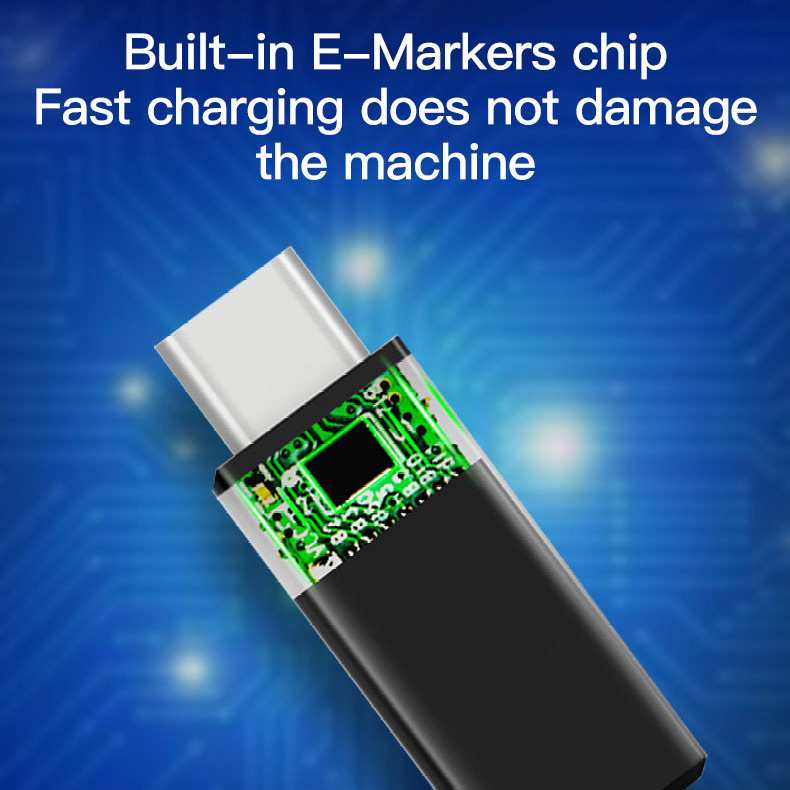
The e-marker chip is the key. Cables rated above 60W must contain an e-marker chip. This chip tells the source the cable's maximum current rating, wire gauge, and supported voltage levels. Without it, the source caps negotiation at 60W even if both devices can handle more.
If your monitor needs 90W and your cable has no e-marker, PD will either cap at 60W or fail entirely.
How to identify your cable:
- Printed text on the cable jacket often shows the rating (e.g., "3A," "5A," "100W," "200W")
- USB-IF certified cables have a certified logo with their USB Trident mark
- Thunderbolt cables have a lightning bolt symbol
- If the cable has no markings at all, assume it's USB 2.0 and 15W max
The practical rule: If your monitor requires more than 60W, use a cable that explicitly states 100W or has "5A" and "e-marker" in its specs. A Thunderbolt 4 cable is the safest universal choice since it guarantees PD support up to 100W.
Step 4: Put It All Together — Connect and Verify
You've confirmed your laptop outputs enough wattage, your monitor supports PD input, and your cable is rated for the power level you need. Now connect them and verify PD is actually active.
On your laptop:
- Windows: Check the battery icon in the system tray. It should show "Plugged in" rather than "On battery." Some manufacturers (Dell, Lenovo, HP) have their own power utilities that show charging wattage.
- macOS: Go to Apple Menu > System Settings > Energy. It will show "Power Adapter" when PD is active. For detailed wattage, check System Report > Power.
- Linux: Run
cat /sys/class/power_supply/BAT0/statusin terminal. It should return "Charging." For wattage, check/sys/class/power_supply/.
On your monitor:
- Many monitors show charging wattage or PD status in the OSD under "System Information" or "USB Status"
- Some have a dedicated LED that changes color when PD is active
- If the monitor has a USB hub that's working, PD is likely active (the hub needs power to function)
What to do if PD still won't engage:
- Unplug the cable from both ends, wait 10 seconds, reconnect. This forces a fresh PD negotiation.
- Try a different USB-C port on your laptop if available.
- Update your monitor's firmware. Several manufacturers have released firmware updates that fix PD negotiation bugs.
- Update your laptop's BIOS/UEFI and Thunderbolt/USB4 drivers. PD behavior is often controlled at the firmware level.
- If using a dock or hub in between, remove it and connect directly. Add the dock back after confirming direct PD works.
When negotiation fails silently: The most common symptom is the monitor works as a display but the laptop battery keeps draining. This means the USB-C Alternate Mode (DisplayPort or HDMI) is working but PD negotiation failed. Swap the cable first.
That fixes it more often than you'd expect.
Common Failure Scenarios and Fixes
Monitor charges but doesn't display. Your cable supports PD but not the data protocol the monitor needs. Some USB-C cables are charging-only. Use a full-featured cable that supports both USB 3.x data and PD.
Display works but no charging. The most common issue. Usually a cable problem (wrong spec) or a monitor OSD setting. Check both.
Intermittent charging (connects and disconnects). This often points to a cable with a loose connection or a damaged e-marker chip. Try a different cable. If the problem persists, the monitor's USB-C port may have a hardware issue.
Charges slowly while running. Your laptop outputs 45W but the monitor needs 65W. The monitor runs in reduced-power mode. Either accept the slow charging or use a higher-wattage source.
Daisy-chained setups fail. If you're connecting Laptop > Monitor 1 > Monitor 2, PD must pass through Monitor 1 to reach Monitor 2. Not all monitors support PD passthrough. Check Monitor 1's specs for "USB-C PD passthrough" or "daisy chain PD output."
Dock in the middle causes issues. USB-C docks can interfere with PD negotiation. Some docks don't pass through PD at all. Connect directly first to isolate the problem, then add the dock back once you know the base connection works.
The Compatibility Cheat Sheet
Here's a quick-reference table matching common monitor power requirements to what you need from your source and cable.
| Monitor Power Need | Minimum Laptop PD Output | Minimum Cable Spec |
|---|---|---|
| 15W (portable) | 15W | USB 2.0 USB-C (3A) |
| 30W (small portable) | 30W | USB 3.1 with e-marker (3A) |
| 45W (standard 24") | 45W | USB 3.1 with e-marker (3A) |
| 60W (24-27" with hub) | 60W | USB 3.1 with e-marker (5A) |
| 90W (27" 4K with hub) | 90W | USB 3.2 / USB4 (5A, e-marker) |
| 100W (pro 4K/5K) | 100W | USB4 or Thunderbolt 4 (5A, e-marker) |
| 140W+ (ultrawide pro) | 140W | EPR cable (5A, EPR e-marker) |
Laptop PD output tiers at a glance:
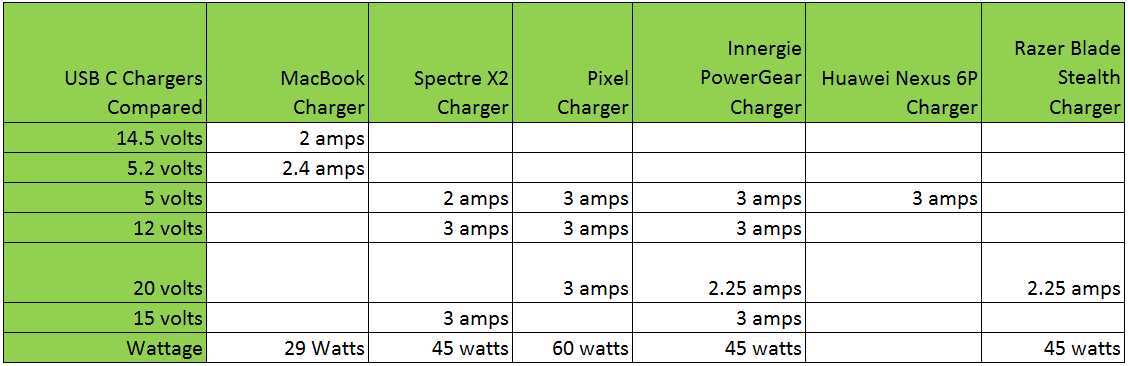
- 15W: Some Chromebooks, older ultrabooks
- 27W-30W: Some Dell Latitude models, older MacBook Air
- 45W: Many business laptops, base-model MacBook Air
- 65W: Most Dell XPS, ThinkPad, MacBook Pro 13/14
- 90W-100W: MacBook Pro 14/16, high-end Dell XPS, mobile workstations
- 100W+: Some workstation laptops with barrel-plug charging that also support high-wattage USB-C PD
Expert Tips Most Guides Miss
Firmware updates change PD behavior. Monitor manufacturers regularly update firmware to fix PD negotiation issues. Dell, LG, and BenQ have all released updates that added PD support to monitors that shipped without it or fixed compatibility with specific laptops. Check your monitor's support page for firmware updates at least once a year.
USB4 vs Thunderbolt 4 vs USB 3.2. USB4 and Thunderbolt 4 both support PD natively. USB 3.2 supports PD but implementation varies by manufacturer. If you have a USB4 port, it's your most flexible option.
Thunderbolt 4 is the most reliable for PD. USB 3.2 works but check your laptop's specific port capabilities.
When a powered dock is the better answer. If your laptop doesn't output enough wattage for your monitor, a powered USB-C dock can solve this. The dock connects to its own power supply, provides PD to your laptop, and passes video to the monitor. This decouples the power problem from the video problem.
Look for docks that explicitly list "PD passthrough" or "power delivery to host."
Why some monitors charge only at 20V. USB-C PD profiles are fixed voltage steps: 5V, 9V, 15V, 20V (and 28V, 36V, 48V for EPR). Some monitors only request the 20V profile. If your laptop only offers 15V PD (rare but it happens on some low-power devices), negotiation fails.
There's no workaround here. You need a source that supports 20V.
PPS (Programmable Power Supply) is a newer PD feature that allows fine-grained voltage and current adjustment. It's mostly used for fast-charging phones, not monitors. Don't worry about PPS for monitor setups.
When You Need a Different Setup
Sometimes the honest answer is that your current hardware can't do what you want. Here's when to change the approach instead of fighting PD negotiation.
Your laptop has no PD output at all. Some laptops have USB-C ports that are data-only or PD input-only. Check your specs. If there's no PD output, you can't charge through USB-C.
Use the laptop's dedicated charger and connect the monitor with a separate cable for video only.
Your monitor needs more power than your laptop provides. If your monitor requires 90W and your laptop outputs 45W, you'll get reduced functionality at best. Either accept the limitations (screen dimmed, no USB hub, slow charging) or use a powered dock as an intermediary.
You're daisy-chaining and PD dies on the second monitor. Not all monitors support PD passthrough. If Monitor 1 doesn't explicitly list "USB-C PD output" or "daisy chain power," assume PD stops at Monitor 1. Connect Monitor 2 directly to your laptop or use separate power for each monitor.
USB-C hubs vs docks vs direct connect. A passive USB-C hub usually doesn't handle PD well. A powered dock does, but adds cost and complexity. Direct USB-C connection is always the simplest and most reliable path for a single monitor.
Only add a dock when you need extra ports or your laptop can't drive the monitor directly.
Frequently Asked Questions
Does every USB-C monitor support Power Delivery?
No. Many USB-C monitors support data and video over USB-C but not power delivery. Some have USB-C input without PD, meaning the monitor needs its own power brick and won't charge your laptop.
Always check the monitor's specs for "USB-C PD" or "power delivery" with a specific wattage rating.
Can I use any USB-C cable for Power Delivery?
No. Cables rated only for USB 2.0 data may not support PD at all, or may cap at 15W. For monitors requiring 60W or more, you need a cable with an e-marker chip rated for 5A current.
Thunderbolt 4 cables are the safest universal choice for PD up to 100W.
Why does my USB-C monitor charge my laptop slowly?
Your laptop's PD output wattage is lower than the monitor's power requirement. The monitor runs in reduced-power mode and passes whatever surplus wattage remains to charging. For example, a 45W source connected to a 65W monitor might only deliver 10-15W to the laptop after the monitor takes what it needs.
How do I know if PD is working on my USB-C monitor?
Check your laptop's battery status. It should show "Plugged in" or "Charging" rather than "On battery." Some monitors also display PD wattage in their OSD under system information. If the monitor's USB hub is functioning, PD is likely active since the hub requires power to operate.
Can I daisy-chain USB-C monitors with Power Delivery?
Only if the first monitor explicitly supports USB-C PD passthrough. Most monitors don't. Check the first monitor's specs for "USB-C PD output" or "daisy chain PD." Without it, the second monitor won't receive power or video through the chain.
Do I need Thunderbolt for USB-C Power Delivery?
No. Thunderbolt is not required for PD. USB-C with PD works over standard USB-C ports.
However, Thunderbolt 3 and 4 ports always support PD, making them the most reliable choice. USB4 ports also support PD natively. The key is that your specific laptop port supports PD output, regardless of the data protocol.

Similar Posts





















