How to Clean Touchscreen Monitor Safely
You grab a tissue off your desk, give the screen a quick wipe, and ten minutes later it looks worse than before. Streaks everywhere, a hazy film, and somehow even more fingerprints. If you've done that and wondered if you're slowly destroying your monitor, you're asking the right question.
Figuring out how to clean touchscreen monitor safely comes down to understanding what's actually on your screen and what's safe to put on it. Most people get this wrong because they treat a touchscreen like a regular glass surface. It isn't. This directly compares with our findings on how to clean a monitor screen safely without damaging it.
The majority of modern touch monitors ship with an oleophobic coating. That's a microscopic oil-repelling layer that keeps fingerprints from bonding to the glass. According to manufacturer specifications from Dell and ASUS, that coating degrades faster when it contacts ammonia, acetone, or high-concentration alcohols.
The wrong cloth does damage too. Paper towels, napkins, and even your sleeve can micro-abrade that coating over time. So the right method depends on three things: what kind of screen you have, what you're cleaning off, and what supplies you actually reach for.
Let's break that down.
Quick Answer
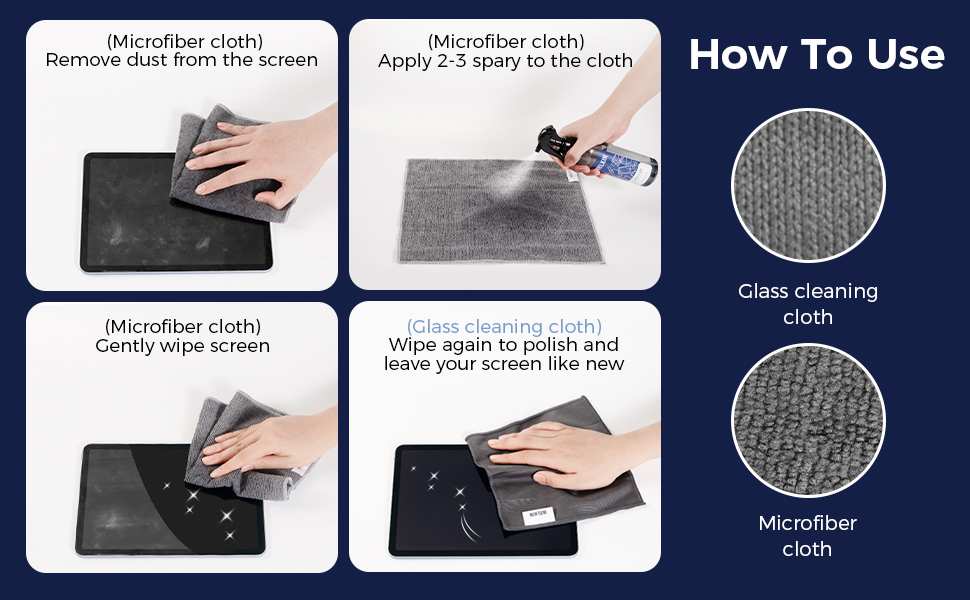
Power off the screen first. Dry dust it with a clean microfiber cloth. Dampen a second cloth with distilled water or a 50/50 distilled water and white vinegar mix. For related troubleshooting and calibration steps, check our walkthrough on how to clean usb c monitor safely.
Wipe gently in one direction. Dry with a third clean microfiber cloth. Never spray liquid directly onto the screen, and avoid anything with ammonia or acetone.
Why Your Touchscreen Gets Worse When You Clean It Wrong
Here's what actually happens when you reach for the wrong supplies. That streak-free glass cleaner under your sink almost certainly contains ammonia or ammonium hydroxide. On a regular window, it works beautifully.
On a touchscreen with an oleophobic coating, it breaks down the oil-repellent layer within a handful of cleanings. You won't notice it the first time. After a month of weekly wipes, your screen starts looking perpetually smudged because the coating is compromised.
Paper towels and facial tissues are another silent killer. They're made from short wood fibers that feel soft but create micro-scratches on softer coated glass. One wipe won't hurt.
Over hundreds of wipes, you get that cloudy, hazy look that no cleaner fixes.
Even water matters. Tap water leaves mineral deposits when it evaporates. Those tiny calcium and magnesium spots build up across the surface and scatter light, which is what creates that dull, washed-out appearance you sometimes see on heavily used public kiosks.
The fix isn't complicated. It's just specific, and it starts with knowing what you're actually dealing with.
The 30-Second Rule That Saves Your Screen's Coating
Before you grab anything, take 30 seconds to check your screen's surface. Run your finger across it lightly. Does it feel slick and smooth with almost no friction?
That's an oleophobic-coated surface. Does it feel slightly textured or matte? That's an anti-glare or matte finish.
Those two surfaces need different pressure levels and sometimes different liquids.
Here's the simplest mental model: every touchscreen has a surface treatment that's softer than the glass underneath it. Your job is to clean what's sitting on top of that treatment without wearing the treatment itself down.
The 30-second pre-check:
- Power off the display. This isn't just safety. A powered-off screen makes it far easier to see smudges, dust, and streaks before and after.
- Look at the screen under a light angle. Dust and dry particles need a completely different approach than oils. If you skip this step, you end up grinding dust into the coating with a wet cloth.
- Identify your screen type. Coated glossy, matte anti-glare, or protected by a tempered glass screen protector? Each one falls into a different cleaning branch.
- Check for a screen protector. If there's a removable glass or film protector on top, you have far more flexibility with what liquids you can use.
Get these right up front and the actual cleaning becomes almost automatic.
What Kind of Touchscreen Do You Actually Have?
Not all touchscreens are built the same, and the technology behind the glass changes what you can safely do to it. Most consumer and office touch monitors use capacitive touch. That's the same tech in your phone.
The glass surface is typically hardened and coated with an oleophobic layer. Industrial systems and older POS terminals often use resistive touch, which relies on a flexible top layer pressed against a glass base. That flexible layer is far more vulnerable to pressure and chemical damage.
Capacitive vs. Resistive — Why It Changes Everything
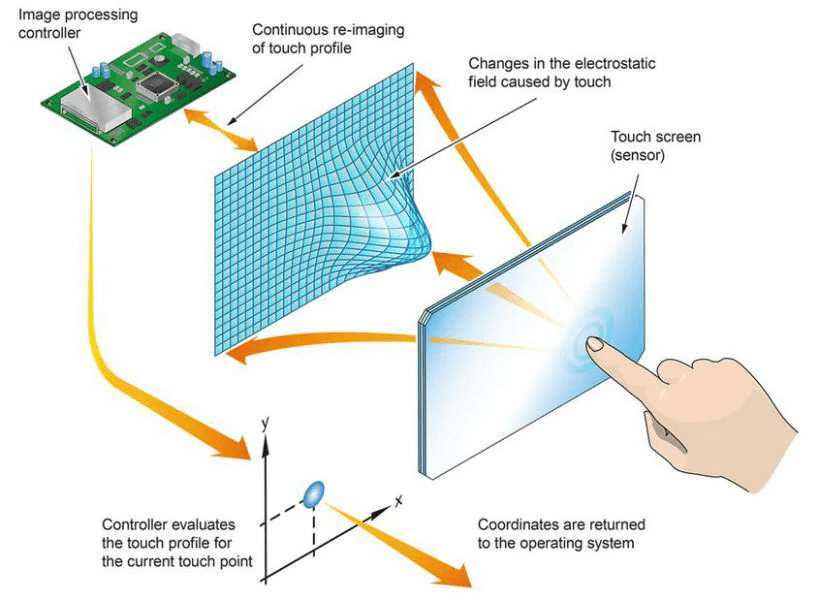
Image source: Bing (Web (fair-use with source credit))
Capacitive touchscreens are what you'll find on Dell, ASUS, HP, and ViewSonic touch monitors, along with every modern tablet and phone. The glass is hard, usually rated around 7H on the pencil hardness scale. The oleophobic coating is the vulnerable part.
Clean these with a damp microfiber cloth and you're fine.
Resistive touchscreens have a soft polyester top layer over glass. That top layer scratches easily and can warp or discolor with alcohol solutions above 50% concentration. These are common in factory POS terminals, medical carts, and older industrial panels.
If you're not sure which type you have, press the screen gently with a fingernail. Capacitive screens won't flex. Resistive screens will depress slightly.
Coated Glass vs. Bare Glass vs. Screen Protector
Coated glossy glass is the standard on touch monitors as of 2026. It has the oleophobic fingerprint-resistant layer. This is the most common type and the most sensitive to the wrong chemicals.
Matte or anti-glare glass uses an etched or coated surface to diffuse reflections. That textured surface traps oils differently and can look permanently smudged if you use the wrong cloth. It also shows micro-scratches more readily.
Tempered glass screen protector applied over the monitor gives you a sacrificial layer. You can use slightly stronger cleaning solutions on the protector itself, and when it wears out, you replace it instead of living with a damaged factory coating. Several manufacturers and aftermarket brands offer 7H-rated tempered glass protectors specifically for touch monitors.
What You're Cleaning Off Matters More Than You Think
The cleaning method changes based on what's actually on the screen. Dust needs a completely different approach than dried soda. Treating every mess the same way is how most people accidentally cause streaks and smears.
| Contamination Type | Recommended Approach | What NOT to Do |
|---|---|---|
| Dust and light particles | Dry microfiber, gentle one-direction wipe | Don’t wet-wipe dry dust; it turns into a smeary paste |
| Fingerprints and light smudges | Damp microfiber with distilled water; dry follow-up | Don’t use circular scrubbing motions; they spread oil |
| Heavy grease or oily residue | 50/50 distilled water and white vinegar on cloth, then dry | Don’t use isopropyl alcohol above 50% on coated screens |
| Dried food, soda, or sticky splashes | Dampen cloth, lay on spot for 30 seconds to soften, then wipe | Don’t scrape with fingernail or rigid tool |
| Pathogen sanitization (public/shared) | EPA-registered disinfectant compatible with electronics; follow contact time | Don’t mix bleach solutions; don’t use on unprotected coated glass |
Dust and Light Fingerprints
Dry dust is the easiest mess to handle and the easiest to get wrong. If you spray a cloth with water and start wiping dry dust, you create a thin slurry of particles and moisture that coats the entire screen like muddy water on a car.
The right way: pick up a clean microfiber cloth, fold it into quarters so you have multiple clean surfaces, and wipe in one direction from top to bottom. No pressure. Let the cloth's structure trap the particles.
Flip to a fresh fold when the first side loads up.
Oily Smudges and Grease
Hand oils are the nemesis of oleophobic coatings. Over time, the coating literally absorbs and breaks down where fingers make contact. That's why older touchscreens develop permanent "hot spots" of smudging around where thumbs rest.
For light oil, plain distilled water on a microfiber cloth is usually enough. For heavier buildup from a kitchen or workshop environment, a 50/50 mix of distilled water and standard white vinegar cuts through grease without threatening the coating. Apply to the cloth, not the screen.
Wipe in straight lines. Follow with a dry microfiber pass.
Dried Splashes, Food, and Sticky Residue
Dried liquids can feel bonded to the surface. Don't scrape. Place a cloth dampened with your water-vinegar mix directly on the spot and let it sit for 30 to 60 seconds.
That rehydrates the residue. Then wipe gently away. For stubborn spots, repeat the contact time rather than increasing pressure.
Sanitizing Shared or Public Touchscreens
Image source: Bing (Web (fair-use with source credit))
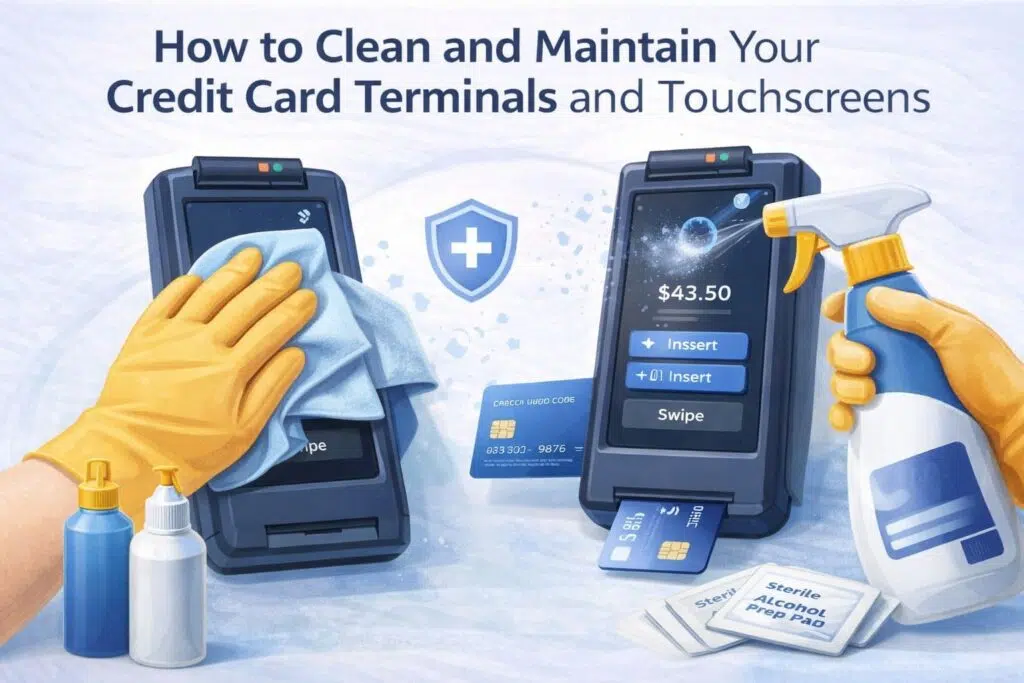
Shared touchscreens in retail, healthcare, or education carry a real sanitization requirement that goes beyond aesthetics. The CDC's guidance on cleaning electronic surfaces emphasizes using products compatible with the device and allowing appropriate contact time.
For public-facing panels like POS kiosks and interactive displays, WHO or EPA-registered disinfectants labeled safe for electronics are the right choice when pathogen control matters. Alcohol solutions at 70% concentration are generally acceptable on bare glass or protector-covered screens but should be used sparingly on factory-coated surfaces. Always follow the product's stated contact time.
Most disinfectants need 30 seconds to one minute of surface wetness to achieve their rated efficacy.
The Only Cleaning Supplies You Actually Need
You don't need a specialized kit or a specific brand. You need the right category of supplies, and most of them probably already exist in your house.
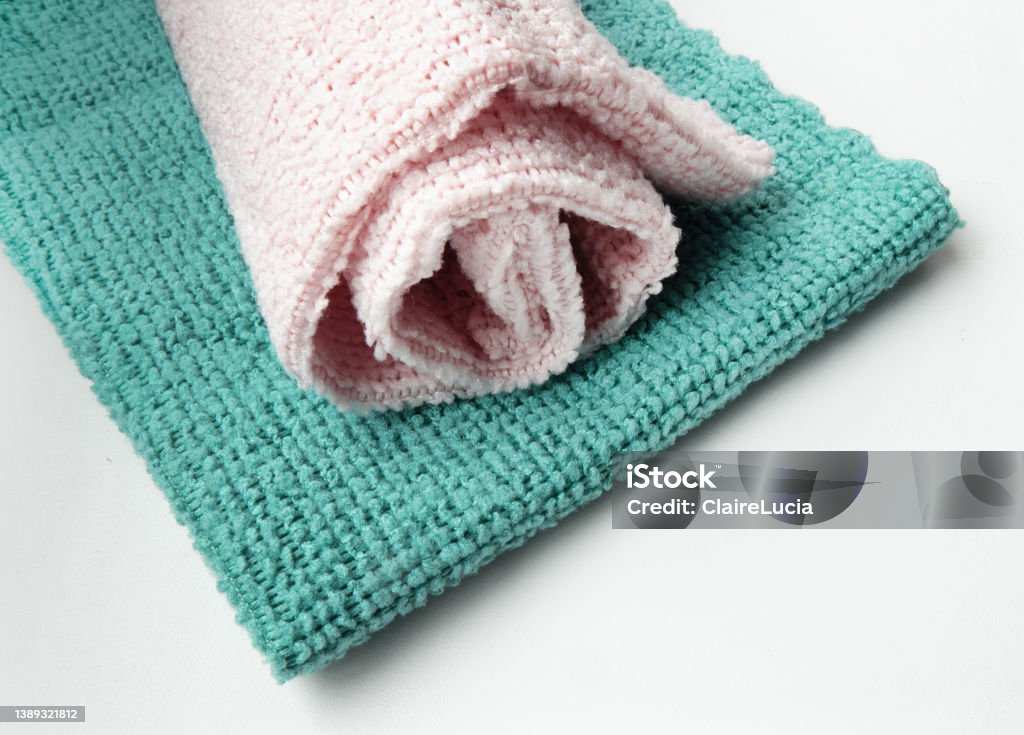
Image source: Bing (Web (fair-use with source credit))
What to use:
- Microfiber cloths (at least two: one damp, one dry). Look for a GSM rating of 300 or higher. Thicker cloths trap particles better and are less likely to leave lint. Keep them sealed in a bag when not in use so they don't pick up dust from a drawer.
- Distilled water. Not filtered, not spring. Distilled has no dissolved minerals. This is the single most important supply because it's what prevents the hazy mineral film buildup over time.
- White vinegar. Standard 5% acidity household vinegar. Mixed 50/50 with distilled water, it cuts grease and leaves no residue when it dries.
- 99% isopropyl alcohol. Only for bare glass surfaces or screens with a tempered glass protector. Not for factory-coated screens as a regular cleaner.
- Cotton swabs. For bezel edges and corners where grime accumulates and a flat cloth can't reach.
- Compressed air canister. For dust in ports, vents, and around the bezel seam before you start wiping.
What to throw away, literally:
- Paper towels and facial tissues
- Window cleaner, Windex, or any ammonia-containing spray
- Acetone and nail polish remover
- Bleach-based household sprays
- Generic "all-purpose" surface wipes that don't specify electronics safety
What to Use — And What to Throw Away
The single most common mistake is using a household glass cleaner. Windex and its equivalents contain ammonium hydroxide. That ingredient dissolves the oleophobic layer on contact.
You won't see it happening. But after several cleanings, the coating is gone and fingerprints will bond directly to bare glass, making the screen look permanently dirty even right after wiping.
Facial tissues and paper towels are the second most common problem. They shed fibers and their short wood-pulp structure acts like fine sandpaper over repeated use. A microfiber cloth has fibers split into wedgelike shapes that trap debris instead of dragging it across the surface.
That's the whole reason they work.
DIY Solution vs. Pre-Moistened Wipes vs. Commercial Kits
DIY distilled water and vinegar mix is what most manufacturer support documentation from Dell, HP, and ASUS references as safe for routine cleaning. It costs almost nothing and leaves zero coating damage when used correctly.
Pre-moistened electronics wipes from brands like Whoosh! and iKlear are formulated specifically for coated screens and are excellent for people who want grab-and-go convenience. They use surfactant-based solutions that are ammonia-free and alcohol-free. Aggregate reviews indicate they perform well with zero streaking.
Commercial screen cleaning kits typically bundle a spray bottle of cleaning solution with a microfiber cloth. These work fine if the solution is confirmed ammonia-free and acetone-free. Read the label.
If the ingredient list shows water and mild surfactants, you're good.
Skip the kits that include a "deep cleaning paste" or "scratch removal compound." Those are abrasive polishes and will strip your coating in a single application.
Step-by-Step: How to Clean Your Touchscreen Based on What You're Dealing With
The right sequence changes depending on your mess. Dry dust first, always. Then wet clean only if dry wiping didn't resolve it.
Here are the exact workflows for each scenario.
The Basic Clean (Dust and Light Fingerprints)
This is your maintenance routine. Do it one to three times per week for home and office monitors.
- Power off the monitor and unplug it if possible.
- Take a clean, dry microfiber cloth and fold it into quarters.
- Wipe from the top edge straight down toward the bottom edge. No circular scrubbing. Light pressure only, let the cloth do the work.
- If the first fold side loads up with dust, flip to the next clean fold. Repeat until the entire surface is clear.
- Inspect under a light angle at 45 degrees. Any remaining smudges get the damp treatment below.
The Deep Clean (Heavy Smudges and Grease)
For monitors in kitchens, workshops, or anywhere hands leave visible oil trails:
- Power off the display.
- Do the dry dust removal pass first, always. Skipping this is how you turn dust and oil into a paste.
- Mix equal parts distilled water and white vinegar in a small container.
- Dampen a fresh microfiber cloth. It should feel moist, not wet. Wring it out thoroughly. No liquid should be dripping or squeezable from the cloth.
- Wipe in straight vertical lines, top to bottom, with light pressure.
- Immediately follow with a dry microfiber cloth to remove any residual moisture.
- For corners and bezel edges, use a cotton swab lightly dampened with the same solution.
Let the screen air dry for one to two minutes before powering back on. Vinegar odor dissipates within minutes and leaves no residue.
The Sanitization Routine (Shared and Public Screens)
This goes beyond aesthetics. For retail POS stations, healthcare panels, classroom displays, or any kiosk that multiple people touch daily:
- Power off the device if the usage schedule allows it.
- Remove visible debris and dust with a dry microfiber cloth.
- Apply an EPA-registered disinfectant wipe or solution that lists electronics compatibility on its label. Confirm it does not contain bleach or ammonia.
- Wipe the entire touchable surface evenly. Do not let liquid pool in seams or run toward ports.
- Allow the surface to stay wet for the contact time stated on the product label. This is typically 30 seconds to one minute. The surface must stay visibly wet during this period for the product to achieve its sanitization rating.
- Wipe away excess moisture with a clean dry microfiber cloth.
- Let the screen fully air dry before returning it to service.
Document the cleaning. Many workplace safety programs and health department inspections expect a sanitization log for shared touchscreen devices.
The Stubborn Residue Protocol (Dried-On Messes)
For dried soda, food splashes, adhesive residue from stickers, or anything that won't move with a normal wipe:
- Power off the monitor.
- Lay a microfiber cloth soaked in warm distilled water over the dried spot. Let it sit for 30 to 60 seconds. This rehydrates the residue without requiring you to scrub.
- Gently lift the cloth and wipe the area. Repeat the damp-soak step rather than applying more pressure if the residue doesn't come off on the first try.
- For particularly stubborn spots, use the distilled water and white vinegar mix for the soak step.
- If residue remains after multiple soak cycles, a small amount of 99% isopropyl alcohol on a cotton swab applied only to the affected spot can dissolve most organic residues. Test on a corner of the screen first and avoid spreading the alcohol across the coated surface.
Never use a razor blade, plastic scraper, or fingernail. These will scratch the coating permanently and in some cases crack the glass.
What to Do Based on Your Screen Type — The Decision Guide
If you know your screen type, jump straight to the branch that matches. This is the fastest path to the right method.
Coated glossy glass (most modern capacitive touch monitors)
If dust: dry microfiber only. If smudges: distilled water damp wipe, dry follow-up. If grease: 50/50 vinegar and water mix.
If sanitizing: electronics-safe disinfectant wipe, follow contact time.
Avoid: ammonia, acetone, paper towels, alcohol above 50% on a regular basis.
Matte or anti-glare touchscreen
Same liquid rules as coated glossy, but pressure matters more. Matte surfaces are slightly more textured and trap oils in the micro-etched pattern. Use light pressure with your damp microfiber and be prepared to do multiple passes.
These screens often show streaking more visibly, so the dry follow-up pass is critical.
Tempered glass screen protector applied over the monitor
You have more flexibility. Standard 7H tempered glass protectors can handle 70% isopropyl alcohol without degrading. Clean the protector the same way you would clean coated glass, but don't worry as much about occasional alcohol use.
When the protector wears out, peel it off and apply a new one. The factory coating underneath stays intact.
Industrial or POS resistive touch panel
Use only manufacturer-recommended cleaning agents. Resistive top layers are far more chemically sensitive than capacitive glass. Stick to distilled water and mild surfactant cleaners.
Avoid alcohol entirely unless the manufacturer documentation explicitly states it's safe for your specific model. Contact the vendor or look up the model-specific care sheet if you're unsure.
The Mistakes That Quietly Ruinish Touchscreens
These are the errors that don't cause immediate visible damage but add up fast.
Spraying liquid directly onto the screen. Liquid runs down into the bezel seam and can wick into the panel edge, causing delamination or electrical issues over time. Always apply liquid to the cloth first.
Using circular scrubbing motions. Circles spread oil around and create an uneven wear pattern on the coating. Straight lines are faster and more effective.
Cleaning a powered-on screen. Moisture near active electronics is a risk you don't need to take. A powered-off screen also shows smudges far more clearly.
Reusing a cloth without washing it. A microfiber cloth loaded with yesterday's oil just re-deposits it today. Wash your cloths regularly with mild detergent, no fabric softener. Fabric softener coats the fibers and defeats the cloth's ability to trap particles.
Assuming one cleaner works for everything. Your office monitor and your restaurant POS terminal are completely different environments. Match the cleaning intensity to the mess.
Skipping the dry pass. Leaving a touchscreen to air-dry after a wet clean almost always produces streaks. Two minutes with a dry microfiber cloth after every wet cleaning eliminates this.
Using high-percentage alcohol on coated glass regularly. 70% to 99% isopropyl alcohol is safe for occasional use on bare glass but will degrade oleophobic coatings over repeated applications. Reserve it for sanitization needs, not weekly maintenance.
How Often Should You Actually Clean It?
A personal office monitor in a low-dust environment needs a light clean about once a week. A shared family tablet or kitchen display might need it daily. Public-facing POS stations and healthcare panels should be sanitized between users or at minimum once per shift per manufacturer and health guidelines.
The frequency question really comes down to the environment. High-touch, high-grease, and public-access screens all need more attention. Don't over-clean out of anxiety though.
Every cleaning pass removes a microscopic amount of coating. Stick to what the mess actually calls for and you'll get years of clear display life.
When to Call in a Pro or Contact the Manufacturer
Reach out to the manufacturer's support team if your screen shows coating delamination, visible bubbling, or patches where touch stops responding. These are hardware defects, not cleaning problems. Attempting to fix them with stronger chemicals will almost certainly void any remaining warranty.
For industrial or medical-grade panels with integrated housings, the manufacturer's care documentation is your primary source. Viewsonic, Elo Touch Solutions, and SMART Technologies all publish model-specific cleaning guides on their support pages. A five-minute search before you start saves you from costly repairs.
Quick-Reference Cleaning Cheat Sheet
This table pulls together everything above into a single scanning reference you can save or print.
| Screen Type | Dust | Smudges | Grease | Sanitizing |
|---|---|---|---|---|
| Coated glossy capacitive | Dry microfiber | Distilled water damp wipe + dry follow-up | 50/50 vinegar and water mix | Electronics-safe disinfectant wipe |
| Matte / anti-glare | Dry microfiber, light pressure | Distilled water, light pressure, dry follow-up | 50/50 vinegar and water, multiple light passes | Electronics-safe disinfectant wipe |
| Tempered glass protector | Dry microfiber | Distilled water or 70% alcohol | 70% isopropyl alcohol | 70% alcohol, full contact time |
| Resistive POS / industrial | Dry microfiber per manufacturer spec | Distilled water only unless manufacturer states otherwise | Contact manufacturer | Contact manufacturer |
Frequently Asked Questions
Can I use Windex on a touchscreen monitor?
No. Windex contains ammonium hydroxide, which dissolves oleophobic coatings. Use distilled water or a vinegar-water mix instead.
Is it safe to use alcohol wipes on touchscreens?
70% alcohol wipes are safe on bare glass or tempered glass protectors. On factory-coated panels, occasional use for sanitization is acceptable but avoid it for weekly cleaning.
How do I remove stubborn dried residue?
Lay a warm, damp microfiber cloth over the spot for 30 to 60 seconds to soften it. Repeat as needed rather than scrubbing harder.
What is the best cloth for cleaning a touchscreens?
A 300 GSM or higher microfiber cloth. Wash it regularly, skip the fabric softener, and keep it sealed in a bag when not in use.
Can I spray cleaner directly onto the screen?
Never. Liquid runs into seams and can damage electronics. Always apply cleaner to the cloth first.
How often should a touchscreen be sanitized?
For public or shared devices, sanitize between users or at minimum once per shift. For personal devices, weekly cleaning is sufficient unless health conditions require more frequent attention.

Similar Posts





















