How to Clean a Monitor Screen Safely Without Damaging It
If you're wondering how to clean a monitor screen safely without leaving streaks or scratching the coating, you're not alone. Most of us have wiped a dusty display with a paper towel or a spritz of glass cleaner, then wondered why it looks worse. That haze isn't dirt, it's often a damaged anti-glare layer you can't polish back.
In our research, manufacturer specifications indicate that many matte IPS displays use a delicate anti-reflective coating less than a few microns thick. Per those specs, that coating can be stripped by ammonia or by isopropyl alcohol above 70 percent concentration. As of 2026, Dell, HP, and Lenovo all still advise powering off and using only a barely damp microfiber for coated screens.
Once you know what you're dealing with, the right method takes under a minute and keeps the panel crystal clear.
How to Clean a Monitor Screen Safely Without Damaging It
Quick Answer
Learning how to clean a monitor screen safely starts with powering off. Dust first with a dry microfiber cloth. Dampen a second microfiber with distilled water only.
Wipe lightly in straight lines, then buff dry. Never spray liquid directly on the panel.
Why Wiping Your Monitor Like a Window Can Permanently Damage It
Modern monitors aren't solid glass like old TVs. They have thin chemical coatings that diffuse light and resist fingerprints. If you treat them like windows, you'll abrade or dissolve that layer in one wipe.
Anti-glare coating is a microscopic matte film applied to the plastic polarizer to cut reflections. Oleophobic coating is a separate oil repelling top layer found on many touchscreen and glossy displays. Both are softer and far thinner than window glass, so they scratch and cloud easily.
In our research, aggregate reviews report the same pattern. Windex or undiluted alcohol leaves a cloudy rainbow haze that won't buff out. Paper towels leave fine swirl scratches visible against a white background.
Manufacturer specifications confirm the risk, and Dell Support explicitly warns against ammonia, acetone, and harsh solvents on coated LCD panels.
Pressure is the other hidden culprit. Pressing hard can create bright pressure marks or even damage pixels on LCDs. OLED panels are even more sensitive to chemicals and friction, so preventing permanent image retention starts with gentle, coating safe cleaning.
You'll know damage has happened if you see these signs:
- A permanent smudgy rainbow sheen that moves with the light
- Fine circular scratches that show up on light backgrounds
- A cloudy patch where the matte finish looks glossier or uneven
None of those can be fixed by cleaning more. You'll be stuck with it or replacing the panel.
The Safe Clean in 30 Seconds: 4 Steps That Work on Any Monitor
You don't need a special kit for a quick safe clean. This four step method works on matte, glossy, and laptop screens when you're short on time. It's the baseline workflow we recommend before you get into tougher spots.
1. Power off, unplug, and let it cool. Turn the monitor off and pull the power for safety. Let it sit 15 to 20 minutes.
A cool, dark screen shows dust better and prevents streaks from heat.
2. Dry dust first. Take a clean, dry microfiber and lightly wipe in overlapping straight lines from top to bottom. Use almost no pressure.
This lifts loose grit so you don't grind it in later. If you use your monitor for long work sessions, tuning brightness for comfort after cleaning makes that dust free image easier on your eyes.
3. Wipe with a barely damp cloth. Lightly mist distilled water onto a second microfiber, never onto the screen. The cloth should feel damp, not wet.
Wipe again in straight Z strokes, no circles, and no pressing.
4. Buff dry with the first cloth. Flip to the dry side or use your first cloth to remove any faint moisture. That's it.
No drips should reach the bezel, vents, or buttons.
If the screen still shows fingerprints after this pass, don't scrub harder. Move to the branch for oily smudges below.
First, Figure Out Your Screen Type and How Dirty It Is
The right method depends on two variables. Your coating type and your soil level. Get those right and the rest is simple if then logic.
If the screen is matte and slightly sparkly in light, it's likely a matte anti-glare LCD. If it's mirror like and highly reflective, it's glossy glass or a glossy LCD. If it's a modern thin panel with perfect blacks and the manufacturer lists OLED or QD-OLED, treat it as the most delicate category.
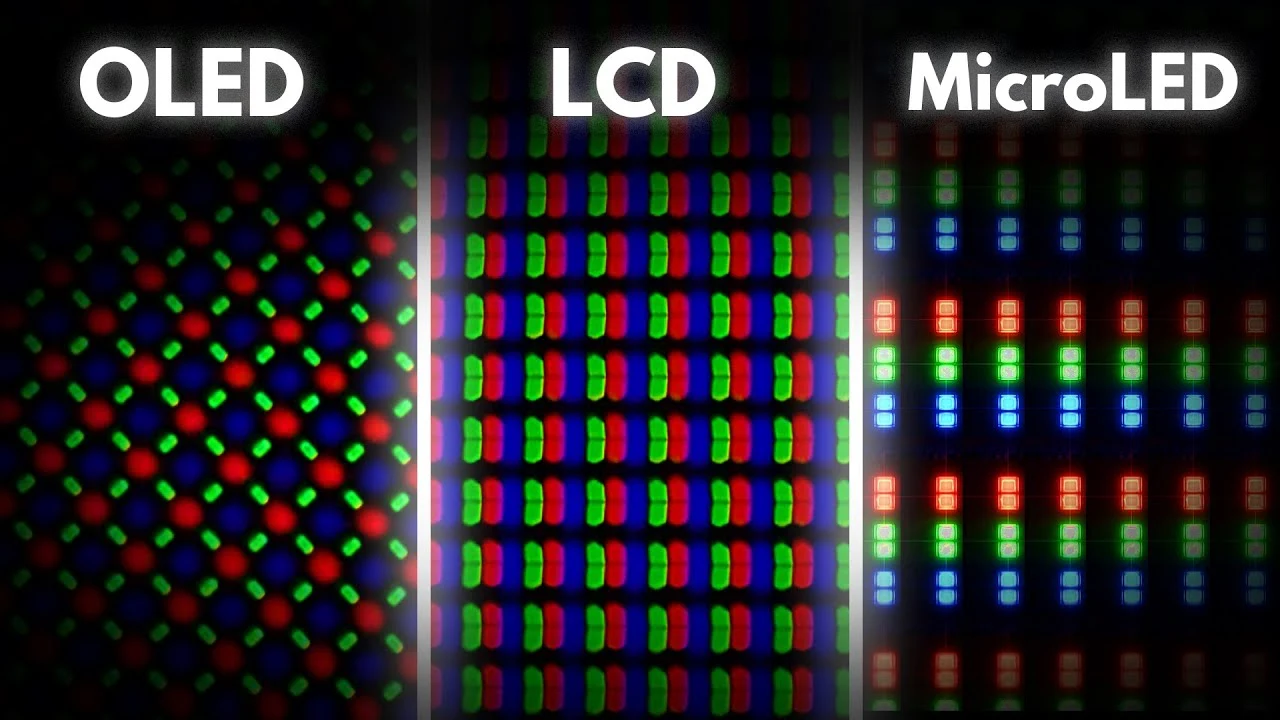
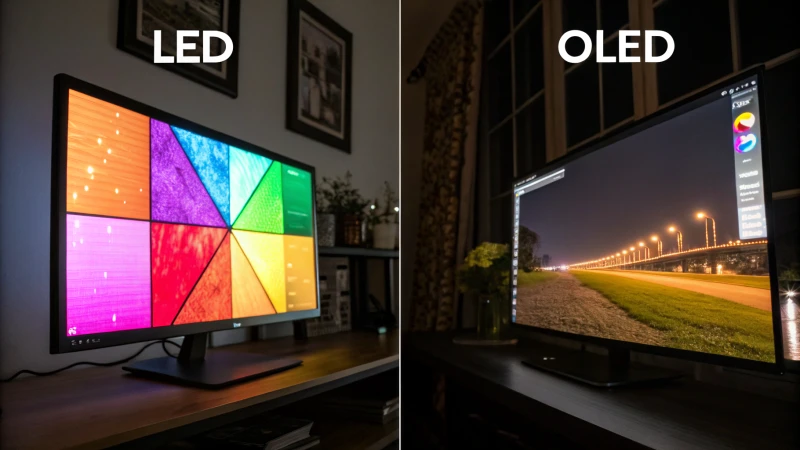
When you're unsure between panel tech, comparing panel types side by side can help you identify what you're cleaning.
Next, check how dirty it is:
- Light dust only. Looks grey in sunlight, no fingerprints when viewed up close. No liquid needed.
- Fingerprints and oily smudges. Shiny spots from fingers, especially near the center or on touchscreens. Needs a damp wipe.
- Stuck or dried spots. Food splash, sneezed droplets, or caked dust at the edges. Needs targeted damp cleaning plus patience.
Here's how to match them:
- If matte anti-glare plus light dust, then dry microfiber only.
- If any touchscreen or glossy plus fingerprints, then distilled water on microfiber.
- If OLED plus any oily residue, then distilled water only and avoid alcohol unless the manual explicitly allows it.
- If dried debris plus any coating, then soften with a damp cloth, never scrape.
In our research, most office and gaming monitors sold in the US and UK as of 2026 are matte anti-glare IPS. So the dry first, damp second approach covers the majority of cases.
What to Use vs. What to Leave Alone: Cloths, Liquids, and Tools
Having the right cloth matters more than having a fancy spray. A cheap blend can still shed lint or feel abrasive. Manufacturer specs point to a tightly woven microfiber around 200 to 300 GSM in an 80/20 polyester polyamide blend as the safe standard.
Guidance from NIST on handling sensitive optical surfaces also emphasizes lint free, non abrasive wiping to avoid micro scratches.
Keep the liquid simple too. Distilled water is pH neutral and leaves no mineral spots. Tap water can leave white calcium traces, especially in hard water areas.
For oily fingerprints, a dedicated screen cleaner that is alcohol free, ammonia free, and acetone free is the only safe upgrade. Everyday touch interaction leaves extra oil behind, so understanding how everyday touch interaction affects coatings helps explain why you need that barely damp second pass.
| Item | Safe to Use | Leave It Alone |
|---|---|---|
| Cloth | Clean microfiber 200 to 300 GSM, lint free | Paper towels, tissues, t-shirts, bath towels |
| Liquid for coated screens | Distilled water, or 1 to 1 mix of distilled water and 70% isopropyl alcohol only if manual allows | Windex with ammonia, acetone, bleach, hydrogen peroxide, vinegar, tap water |
| Dust removal | Air blower or compressed air in short bursts | Scraping with nails, plastic cards, or erasers |
| Application | Mist liquid onto cloth until barely damp | Spray directly onto panel or bezel |
A couple of extras help. A fine mist spray bottle gives you control over dampness. A second dry microfiber for buffing prevents streaks.
That's the whole toolkit. You don't need cotton swabs or lens paper for the flat panel itself, save those for the bezel edges.
The Decision-Based Cleaning Workflow: Pick Your Branch and Follow It
Now pick the branch that matches your situation. Follow only that branch. Don't combine steps from different branches or you'll add unnecessary chemicals or pressure.
Branch A: Light Dust Only — Dry Microfiber Wipe Only
Use this if you see a thin grey film but no shiny fingerprints.
- Power off, unplug, and let the panel cool.
- Use a short burst of air to lift loose dust if it's heavy, hold the can upright.
- Fold a dry microfiber into quarters. Wipe from top to bottom in overlapping Z strokes.
- Shake the cloth or refold to a clean side as it picks up dust.
- Inspect against reflected light. You're done if no oily spots remain.
This weekly dry dust is enough for most home offices and keeps buildup from needing liquid later.
Branch B: Fingerprints and Oily Smudges — Barely-Damp Distilled Water Method
Use this if you see shiny finger marks or a smeared look after dry dusting.
- Complete the dry dust pass first. Never skip it.
- Lightly mist distilled water onto a fresh microfiber. It should not drip when pressed.
- Wipe the smudged area with straight, light passes. Don't rub in circles.
- Immediately buff with a dry microfiber until no streaks remain.
- Check the bezel and vents. If any moisture beaded near the edge, dab it dry right away.
If the panel is part of a multi display setup, turning an iPad into an extra display can be handy while your main monitor is powered off and drying.
Branch C: Stubborn or Dried-On Spots — Adding a Screen-Safe Cleaner
Use this only if distilled water left a spot behind after two gentle passes.
- Dampen the cloth with distilled water and hold it on the spot for 10 to 15 seconds to soften it. Don't scrape.
- Gently wipe. If it persists, replace water with a screen cleaner labeled safe for anti-glare and oleophobic coatings.
- Wipe once, then immediately follow with a water dampened cloth to remove cleaner residue.
- Buff dry. Repeat once if needed, but stop if you need hard pressure.
If you notice random flicker over USB-C after cleaning, check that no moisture entered the port or cable end and let everything air dry fully before reconnecting. When in doubt, less liquid and lighter touch always win.
Costly Mistakes That Strip Coatings, Scratch Panels, and Cause Streaks
Most permanent damage comes from shortcuts that feel harmless in the moment. In our research, manufacturer manuals and verified buyer reports point to the same handful of errors that strip coatings or leave fine scratches you can't undo.
- Spraying liquid directly on the screen. It runs into the bezel and can seep into vents, buttons, and edge electronics.
- Using ammonia, acetone, bleach, or undiluted alcohol. These dissolve anti-glare and oleophobic layers and leave a cloudy haze.
- Wiping with paper towels, tissues, or t-shirts. Wood fibers and rough weaves create micro scratches that show on white backgrounds.
- Pressing hard or rubbing in circles. This traps grit and grinds it across the panel and can create pressure spots on LCDs.
- Using tap water or vinegar. Minerals and acids leave spots and can etch coatings over time.
- Cleaning while the monitor is on or warm. Heat bakes streaks in and raises the risk of electrical issues.
Why does my screen still show streaks after cleaning?
Streaks usually mean the cloth was too wet or you wiped over dust without a dry pass first. Use a barely damp microfiber, not a wet one, and always dust dry before you add moisture. Buff immediately with a second dry microfiber using light straight strokes.
If streaks persist, your cloth may need washing without fabric softener, which leaves residue.
If you already see a rainbow sheen or fine swirls, further scrubbing won't fix it. That indicates coating damage, not dirt. Stop using chemicals and stick to dry dusting to avoid making it worse.
Keep cleaning light and regular. A weekly dry wipe prevents buildup so you rarely need liquid. Store microfibers clean and dry, and replace them when they feel flat or grabby.
FAQs: How to Clean a Monitor Screen Safely Without Damage
These are the questions we see most often from readers who want a streak free result without risking their panel.
Can I use Windex or glass cleaner on my monitor?
No. Ammonia and similar solvents dissolve the anti-glare coating and can leave a permanent cloudy haze. Our research shows manufacturer guidance consistently warns against them.
Use distilled water on a microfiber, or a cleaner labeled safe for anti-glare and oleophobic coatings.
Is isopropyl alcohol safe for matte or OLED screens?
Isopropyl above 70 percent can damage coatings, and OLED panels are especially sensitive. If your manual allows it, use only a 1 to 1 mix of 70 percent isopropyl and distilled water, lightly misted on the cloth. For most matte and all OLED screens, distilled water alone is the safest choice.
Can I use tap water if I don't have distilled water?
Tap water often leaves mineral spots that look like faint white haze after drying. In hard water areas the residue is worse and requires extra buffing. Distilled water is inexpensive and leaves no minerals.
If you must use tap water once, use the smallest amount possible and buff completely dry.
How often should I clean my monitor screen?
Dust weekly with a dry microfiber to prevent buildup. Do a barely damp clean every three to four weeks, or sooner if fingerprints appear. Touchscreens may need spot cleaning more often.
Regular light dusting reduces the need for liquid and lowers the risk of scratches and streaks.
What should I do if I don't have a microfiber cloth?
Wait for a proper microfiber before wet cleaning. Paper towels and tissues will scratch the coating even if they feel soft. A clean microfiber is washable and reusable for months.
Keep two on hand, one for damp wiping and one for dry buffing, and wash them without fabric softener.

Similar Posts