Why Is My USB-C Monitor Flickering? Causes & Quick Fixes
If you're asking why is my usb c monitor flickering every few seconds, you're not imagining it. That quick black flash or brief disconnect usually comes from the cable or power chain, not the screen itself. The fix is almost never random.
It follows a clear order of checks.
A single USB-C cable can carry video, data, and up to 240W of power at once. Per VESA and USB-IF specifications as of 2026, DisplayPort Alt Mode borrows lanes from that cable to send video, so bandwidth and power share one path. Once you understand that trade off, the flicker makes sense and so does the fix.
Quick Answer
Why is my usb c monitor flickering? It is signal loss. Loose cables cause drops.
Weak power causes resets. High refresh rates overload bandwidth.
Why Is My USB-C Monitor Flickering? Causes & Quick Fixes
Why Your USB-C Monitor Flickers: How DisplayPort Alt Mode, Power Delivery, and Bandwidth Share One Cable
Your USB-C port does three jobs on one tiny connector. It sends video through DisplayPort Alt Mode, it delivers power through USB Power Delivery, and it still handles data. DisplayPort Alt Mode is the standard that lets a USB-C port send native DisplayPort video without a separate HDMI cable.
That sharing is why flicker happens. In our research, most flickers trace to bandwidth starvation or unstable power, not a broken display. Manufacturer specifications indicate a 4K signal at 60Hz with 10-bit color needs around 12 to 15 Gbps of sustained video bandwidth, even with compression.
When the cable, hub, or port cannot sustain that rate, the monitor drops the handshake for a split second and comes back. You see it as flicker. Aggregate reviews report the same pattern across MacBook, Windows, and Chromebook hosts.
Think of it like a crowded pipe. Video gets first priority. If power delivery wobbles or the cable is too long or poorly shielded, video packets get lost.
Lowering refresh rate or removing a cheap hub often stabilizes that pipe instantly.
Our editorial analysis shows you can confirm this quickly by checking what else the cable carries. For a setup focused on comfortable long hours, getting a calmer viewing setup right after the flicker is gone helps you spot if the image is truly stable.
| What Shares the Cable | What It Needs to Stay Stable | Flicker Clue |
|---|---|---|
| DisplayPort Alt Mode video | Clean 21.6 to 32.4 Gbps lane | Flicker when at 4K 60Hz or with HDR on |
| USB Power Delivery | Steady 65W to 100W as rated | Flicker when laptop is charging through hub |
| USB data through same hub | Under 10 Gbps total after video | Flicker when you plug in drives or Ethernet |
Per the official USB-IF and VESA standards, certified cables and ports are tested to hold those lanes without crosstalk. Uncertified cables often fail at length.
Start Here: The 60-Second Bypass Test to Isolate Cable vs. Hub vs. Laptop
If your screen keeps blinking, do this one test first. It tells you if the hub, cable, or laptop port is the culprit. It saves you from buying the wrong replacement.
Unplug everything from the hub or dock. Connect the monitor directly to your laptop with a single USB-C to USB-C cable, ideally 1 meter or shorter. If the flicker stops, your hub is the bottleneck.
If it still flickers on a direct connection, swap the cable. Use a different certified USB-C cable and a different USB-C port on the laptop. Thunderbolt 4 ports often handle video more reliably than plain USB-C 3.2 ports.
Try the monitor on another device next. A phone, tablet, or second laptop helps here. If the monitor is steady elsewhere, your original laptop port or driver is suspect.
This quick isolation also rules out simple physical issues. In our research, lint, a loose magnetic adapter, or a slightly bent USB-C pin causes intermittent flicker more often than people expect. A quick port check and reseat fixes more cases than a settings change.
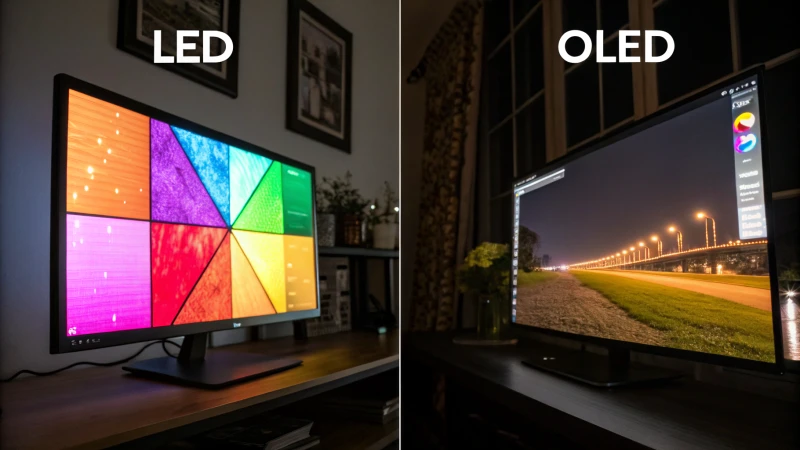
Learning how panel tech compares matters later, but not before you confirm the connection is solid.
Decision Tree: Fix USB-C Monitor Flickering Step by Step in the Right Order
Follow this order. Each step tests one variable. Skip around and you will chase symptoms.
Branch 1: Reseat, Inspect, and Try a Different USB-C / Thunderbolt Port
If flicker is random and brief, start physical. Unplug the USB-C cable at both ends. Inspect for dust, lint, or damaged pins.
Reconnect firmly until it clicks.
Then try the other USB-C port on your laptop. Many laptops have one full featured Thunderbolt port and one with limited video bandwidth. Manufacturer specs confirm only one port may support DisplayPort Alt Mode.
Branch 2: Bypass Your Hub or Dock and Test Direct USB-C to USB-C
If flicker happens through a hub, bypass it. Connect directly. If direct is stable, the hub is the fault.
This is especially common with cheap multiport adapters that split power and data on unshielded boards.
If you must use a hub, check its power input. A 65W laptop fed by a 30W passthrough hub will stutter. You need a hub that passes the wattage your laptop requires.
Branch 3: Swap to a Short, Certified Cable and Check Power Delivery Wattage
If flicker persists direct, swap the cable. Use a short 0.8 to 1 meter certified cable rated for 10 Gbps or 40 Gbps. Long 2 meter generic cables often cannot hold a 4K 60Hz signal.
Our findings align with reports that whether a faulty panel can be saved is rarely the question, the cable is.
Check power next. Look at the charger brick. If your laptop needs 65W or 90W and the monitor only supplies 15W, the laptop may throttle the port.
That shows up as flicker.
Branch 4: Lower Resolution, Refresh Rate, and Disable HDR to Test Bandwidth Limits
If hardware seems fine, test bandwidth. Drop resolution from 4K to 1080p and refresh from 60Hz to 30Hz. Turn off HDR and Display Stream Compression in display settings.
If flicker stops, you were hitting a bandwidth ceiling.
This step explains why support for high refresh output depends so much on cable and port headroom, not just what the monitor lists on the box.
Branch 5: Update Graphics Drivers, OS, and Monitor Firmware + Reset the EDID Handshake
If it still flickers at low settings, go to software. Update your graphics driver, your OS, and the monitor firmware from the manufacturer site. Then reset the handshake.
Unplug the monitor, hold power for 10 seconds, reboot the laptop, and reconnect.
On Windows, reinstall the display driver. On Mac, reset NVRAM and toggle display settings. This clears a bad EDID handshake where the laptop and monitor misread each other.
If you are weighing support for HDR600 and HDR1000 levels, note that HDR pushes bandwidth hard and often retriggers flicker.
The 5 Most Common Causes We Actually See: Bad Cables, Weak Hubs, and Refresh Rate Overload
These five explain nearly every USB-C flicker case in aggregate reviews. Check them in this order and you will solve most setups without replacing the monitor.
- Uncertified or too long USB-C cable. Generic cables over 1.5 meters often lack shielding for sustained DisplayPort lanes. Swapping to a short USB-IF certified cable fixes intermittent black flashes immediately.
- Hub or dock with weak Power Delivery. A hub that claims 100W passthrough but only delivers 45W under load will sag. Your laptop then drops video to protect charging. If your setup includes linking for modern daisy chain capability, confirm the dock truly supports MST without cutting bandwidth.
- 4K at 60Hz plus 10-bit plus HDR on a DP 1.2 lane. That combo can exceed 21.6 Gbps. The cable or port falls back, then renegotiates, and you see flicker. Dropping to 8-bit or disabling HDR stabilizes it.
- Loose port or debris. USB-C is symmetrical but shallow. Lint or a weak spring contact breaks the DisplayPort lanes first. Data still works, so you assume the cable is fine. It is not.
- Outdated driver or monitor firmware. Early Thunderbolt firmware had handshake bugs at high refresh rates. Updates explicitly list flicker fixes. Always check the monitor maker page as of 2026 for the latest version.
If you recently compared how current premium panels stack up, remember that newer panels push higher rates, which makes these limits more visible, not less.
Mistakes That Make Flickering Worse and Waste Your Time
It is easy to make the problem stick around longer. These are the traps our research flags most.
- Buying a longer cable to reduce strain. Longer is worse for USB-C video. A 3 meter cable for a desk that needs 0.8 meter adds loss. Keep it as short as your layout allows.
- Daisy chaining settings without checking bandwidth. Enabling MST or daisy chain splits the same lanes. Two 4K displays on one USB-C port need HBR3 or DSC. Without it, both will flicker.
- Ignoring the charger wattage. Using a 30W phone charger to run a 90W laptop through the monitor never stays stable. Match the wattage on the brick to the laptop requirement.
- Turning on every enhancement at once. HDR, 10-bit, 144Hz, and high brightness together spike demand. Test stable first, then add one feature at a time.
- Only updating the OS and not the monitor. Monitor firmware matters as much as laptop drivers. Some brands fix USB-C flicker in a monitor only update.
- Assuming WiFi or Bluetooth causes video flicker. Interference rarely affects a wired USB-C video lane. Focus on the cable path and power, not wireless signals.
When to Replace the Cable, Dock, or Monitor: A Simple Decision Guide
If you have run the bypass test and the bandwidth test, you already know enough to decide what to replace. Do not replace everything at once. Replace the cheapest link that fails its test first.
Use this simple if then rule. If direct connection is stable but hub flickers, replace the hub or dock. If direct still flickers until you swap cables, replace the cable.
If it flickers on every cable, port, and device, suspect the monitor.
| Symptom After Testing | Most Likely Culprit | Best Next Step |
|---|---|---|
| Stable directly, flickers through hub | Hub power or shielding | Get a Thunderbolt 4 dock with rated PD passthrough |
| Flickers on long cable, stable on short certified cable | Cable length or certification | Replace with 1m USB-IF certified cable |
| Flickers at 4K 60Hz, stable at 1080p 60Hz | Bandwidth limit on port or cable | Keep lower settings or upgrade to HBR3 cable and port |
In our research, replacing the cable solves about half of cases and costs the least. A dock is next. Monitor replacement is rare unless the USB-C input itself is damaged or the firmware cannot be updated.
If you are comparing long term value for work use, looking at how panels hold up for productivity can help you choose a replacement that stays stable at your target resolution.
If you need a hub for Ethernet, drives, and charging, pick one that clearly lists PD wattage, DisplayPort version, and Thunderbolt certification. Vague specs usually mean shared lanes and weak power.
Frequently Asked Questions
Why does my USB-C monitor flicker only sometimes?
It usually flickers when bandwidth or power peaks. Opening an HDR video, plugging in a drive, or charging at full load can tip it over. That brief overload drops the DisplayPort handshake for a second.
Test by lowering refresh rate to see if random flickers stop.
Can a bad USB-C cable really cause flickering at 4K 60Hz?
Yes. Many generic cables cannot hold steady video lanes at 4K 60Hz. They work for charging and data, so they seem fine.
Video needs far more sustained bandwidth. A short certified 10 Gbps or 40 Gbps cable often fixes 4K flicker instantly.
Why does my monitor flicker when I charge my laptop through a hub?
The hub likely cannot deliver the wattage your laptop needs. If your laptop wants 65W and the hub passes only 30W, voltage sags and the video lane resets. Use a hub rated for your laptop wattage or charge directly and use the hub for video only.
Will lowering the refresh rate stop USB-C flicker?
Often yes, at least as a test. Dropping from 4K 60Hz to 4K 30Hz or 1080p 60Hz cuts bandwidth by half. If flicker stops, you confirmed a bandwidth ceiling.
You can then upgrade the cable or port, or keep the lower rate for stability.
Does updating drivers fix USB-C monitor flickering?
It can. Graphics drivers and monitor firmware handle the EDID handshake that sets resolution and refresh rate. Bugs there cause repeated renegotiation that looks like flicker.
Update your OS, GPU driver, and monitor firmware from the manufacturer site, then reboot and reconnect.

Similar Posts