What Is Monitor Refresh Rate & Does It Really Matter?
If you're wondering what is monitor refresh rate and does it matter for everyday use and gaming, you're not alone. It's that Hz number on the spec sheet, and it's easy to ignore until motion looks choppy or you're paying extra for a feature you don't use.
In our research, the difference between 60Hz and 144Hz is immediately visible in motion tests like the Blur Busters UFO Test. Per the VESA AdaptiveSync standard as of 2026, higher refresh only helps if your PC and cable can actually deliver matching frames. Let's break down what that means for you.
What Is Monitor Refresh Rate & Does It Really Matter?
Quick Answer: What Monitor Refresh Rate Is and When It Actually Matters
What is monitor refresh rate and does it matter depends on hertz. Refresh rate is hertz (Hz). It counts image refreshes per second. 60Hz refreshes 60 times, 144Hz refreshes 144 times.
Higher Hz feels smoother when frames match. Value depends on your use and hardware.
How Refresh Rate Really Works: Hz vs FPS in Plain English
Monitor refresh rate is how many times your screen draws a new image each second, measured in hertz (Hz).
Frame rate (FPS) is how many frames your GPU actually sends each second. Think of Hz as the screen's speed limit and FPS as your PC's engine speed. You'll only see the benefit when both line up.
When FPS is lower than Hz, you can get stutter. When FPS is higher than Hz, you can get screen tearing, that horizontal split where two frames show at once. That's why aggregate reviews report smoother scrolling and less tearing when Hz and FPS are in sync, even for non-gamers browsing quickly.
Two common misconceptions trip people up. Higher Hz does not automatically mean lower input lag, and it doesn't fix blur on its own. Manufacturer specifications indicate that response time and adaptive sync do that work.
You'll also want to check your display settings, since many monitors default to 60Hz out of the box, and enabling the right rate plus tweaks for easing eye fatigue can make long sessions more comfortable without pushing hardware harder.
If your image flickers when you push a higher rate over a weak cable, check your connection first. In our research, a loose or under spec cable is a frequent culprit, and tips to stop display flicker often start with swapping to a certified cable and updating drivers.
60Hz vs 120Hz vs 144Hz vs 240Hz vs 360Hz: What You'll Actually See and Feel
Does a bigger number always look better? Yes and no. You'll feel the jump from 60Hz to 120Hz or 144Hz right away.
Cursors glide, pages scroll cleaner, and fast games feel more connected. Above 144Hz, gains shrink unless you're playing competitively.
For office work and casual browsing, 60Hz is fine and 75Hz is a nice bump. For most gamers, 144Hz to 165Hz is the sweet spot for price and smoothness. At 240Hz and 360Hz, you need a powerful GPU to keep FPS that high, otherwise you're paying for headroom you rarely use.

Image source: Wikimedia Commons / Jan Honvehlmann (CC BY-SA)
Native Hz, motion blur, and the diminishing returns above 144Hz
Native refresh rate is the panel's true hardware limit. Some monitors advertise an overclocked mode that may add flicker or artifacts. In aggregate testing, motion blur improves with faster refresh, but response time matters just as much.
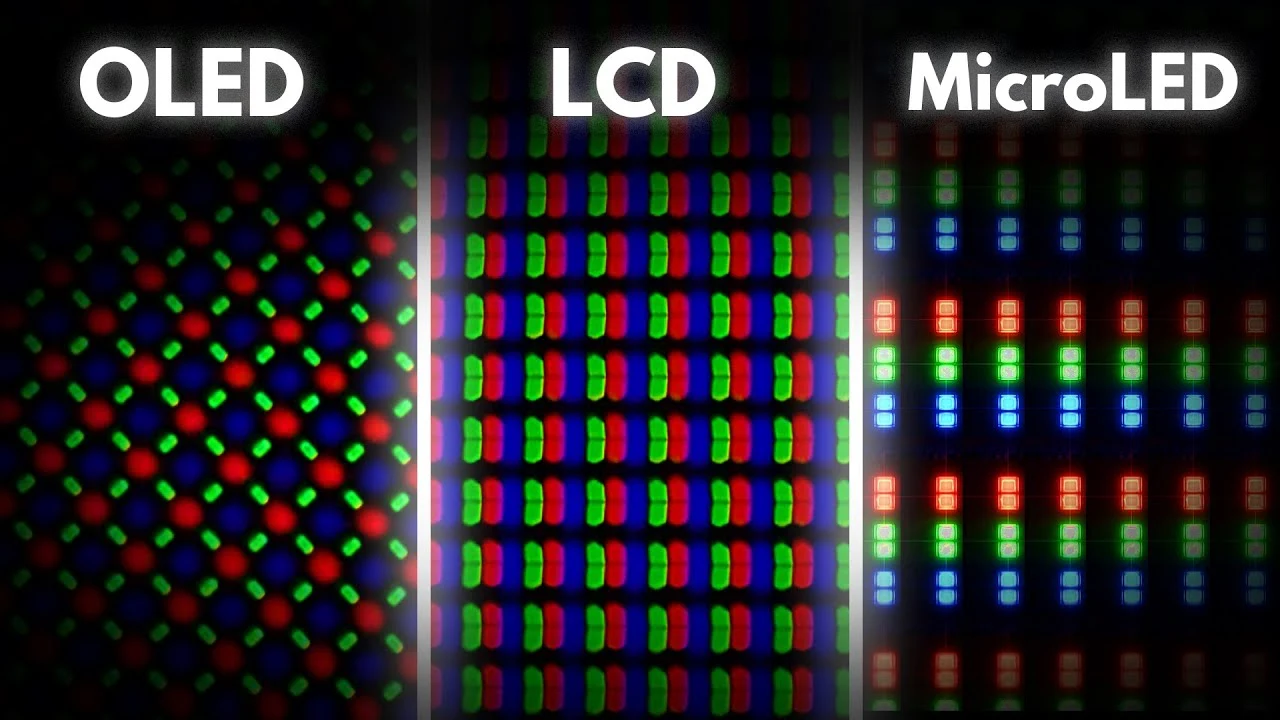
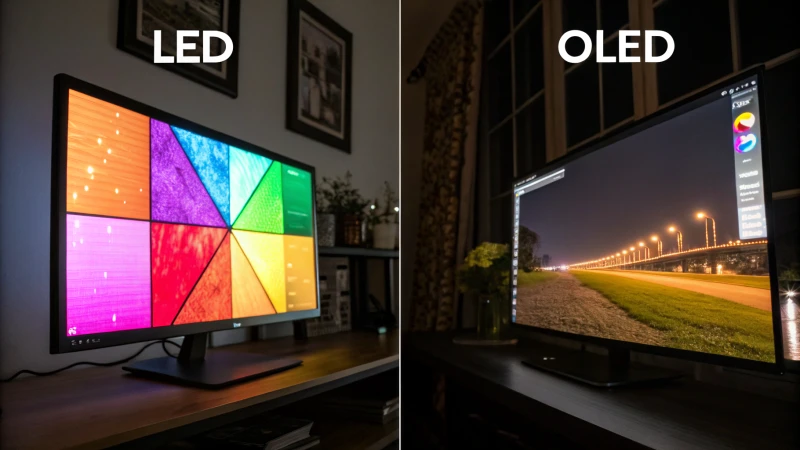
A slow panel at 144Hz can still smear. How the panel tech handles transitions, like how OLED stacks up against LED for response, influences ghosting more than Hz alone.
Side-by-side comparison table: smoothness, price, and GPU power needed
Use this to weigh what you're actually buying.
| Refresh Rate | What It Feels Like | Typical Price as of 2026 | GPU / System Need |
|---|---|---|---|
| 60Hz – 75Hz | Standard, fine for docs and video | Budget | Any modern integrated graphics |
| 120Hz – 144Hz | Clearly smoother scrolling and gaming | $120 to $300 at 1080p/1440p | Mid range GPU to hit 120+ FPS |
| 165Hz | Similar to 144Hz, small edge in shooters | $180 to $350 | Mid to upper mid GPU |
| 240Hz | Very fluid, best for competitive FPS | $300 to $600 | High end GPU, lower settings |
| 360Hz | Minimal gain for most people | $500+ | Top tier GPU, esports focus |
Beyond the Hz Number: Response Time, FreeSync / G-Sync, and HDMI vs DisplayPort
Hz gets the headline, but three other specs decide if that Hz feels good.
Response time (GtG) is how fast a pixel changes color. A 1ms to 4ms GtG helps avoid ghosting at high refresh. Adaptive sync smooths mismatches between Hz and FPS.
AMD FreeSync, NVIDIA G-Sync, and VESA AdaptiveSync all do the same core job, they let the monitor wait for the GPU so you see less tearing and stutter.
Your cable and port pick the ceiling. HDMI Forum specs show HDMI 2.0 tops out around 144Hz at 1440p, while HDMI 2.1 and DisplayPort 1.4 handle 240Hz or 4K at 120Hz plus. Using the wrong input can lock you to 60Hz even on a 144Hz panel.

Image source: Wikimedia Commons / Bill Nicholls (CC BY-SA)
Quick setup check that saves headaches:
- Plug into the right port on both monitor and PC, then pick DisplayPort 1.4 or HDMI 2.1 for high refresh
- Enable high refresh in the monitor's on screen menu, then in Windows Display Settings or macOS
- Turn on FreeSync or G-Sync in both the monitor menu and your GPU control panel
- Cap FPS just below max Hz if you use adaptive sync, and test with an FPS counter
Multi monitor users should also plan bandwidth. Features like daisy chain setups share one output, so running high refresh on two displays may need separate cables. New panel types add options too, and support for high refresh rates on newer panels keeps improving as of 2026.
Which Refresh Rate Is Best For You? Picking by Use Case
Let matching be your guide. Buy the refresh your system can actually feed most of the time.
Competitive gaming vs casual gaming vs office and everyday use vs console gaming
- Competitive esports players benefit most from 144Hz to 240Hz. Faster updates can shave perceived lag and make tracking easier.
- Casual AAA gamers do great at 120Hz to 144Hz at 1080p or 1440p. Smooth enough without forcing constant upgrades.
- Office, students, and everyday use can stick with 60Hz to 75Hz or 120Hz if the price is close. Scrolling is nicer, but productivity doesn't demand 240Hz.
- Console gamers on PS5 or Xbox Series X should target 120Hz with HDMI 2.1 if they play 120 FPS titles. Otherwise 60Hz is fine.
If you edit video or motion graphics, prioritize color accuracy and resolution first, then pick 120Hz or higher if your timeline playback stays smooth. For many creators, a balanced 1440p 144Hz IPS hits the middle ground.
1080p high refresh vs 1440p / 4K lower refresh: which trade off is worth it
Higher resolution looks sharper. Higher refresh looks smoother. You often can't max both without a pricey GPU.
- Choose 1080p high refresh if your priority is competitive speed and high FPS on a mid range PC.
- Choose 1440p at 144Hz to 165Hz if you want sharper text and a future proof sweet spot. It's our most recommended balance.
- Choose 4K at 60Hz to 144Hz if you do photo or video work or want console 4K, but expect to lower settings or use upscaling to keep frames up.
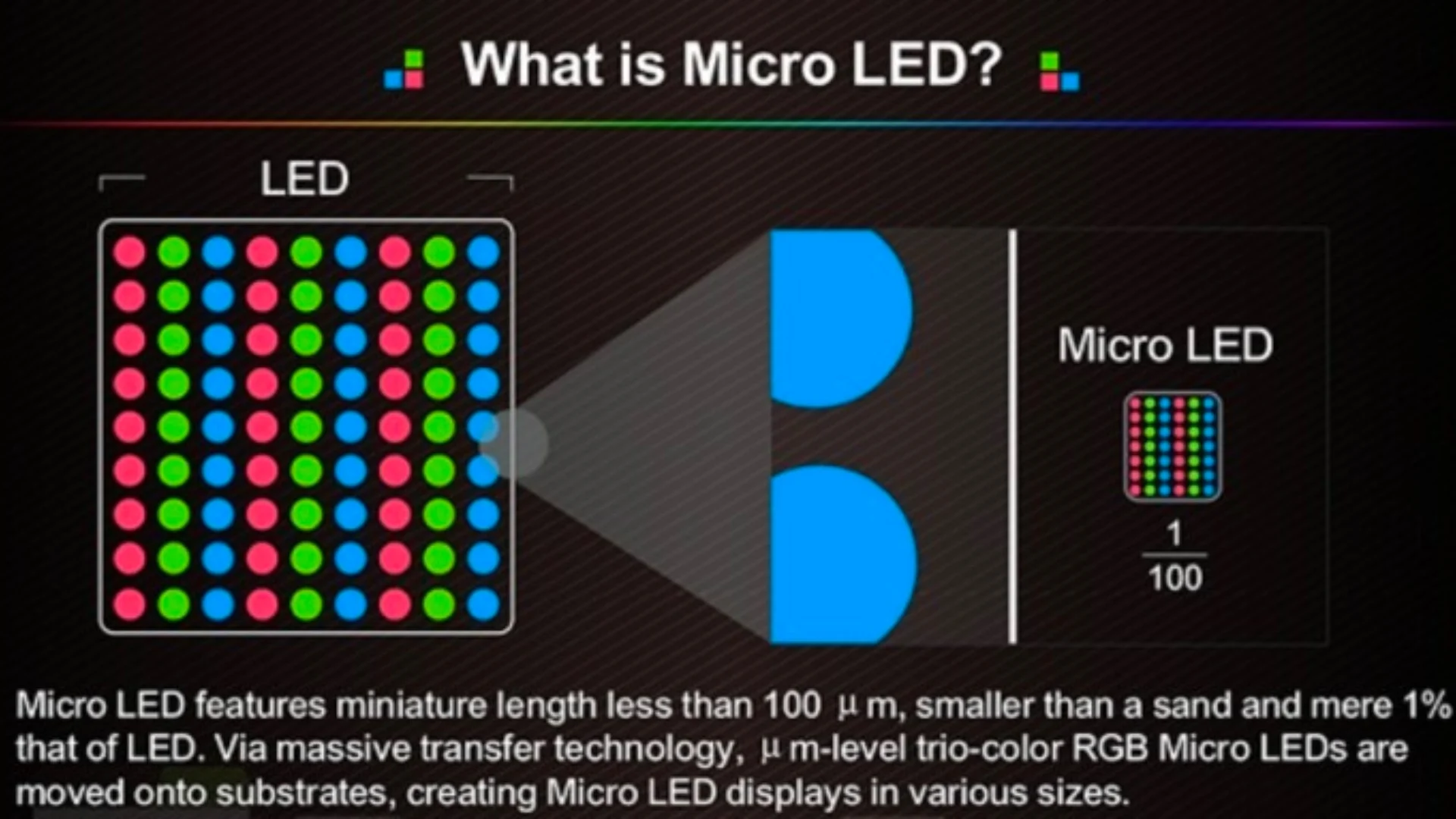
In our research, buyers who expected a huge leap from 144Hz to 240Hz without upgrading the GPU were the most disappointed. Match the monitor to your actual FPS, and consider choosing between the two panel technologies if color and contrast matter as much as speed for your work.
FAQs About Monitor Refresh Rate
Got leftover questions before you change a setting or buy? These are the ones we see most often.
Do I need 144Hz if I only do office work and browsing?
No, you don't need 144Hz for office work. 60Hz is perfectly fine for documents, email, and video. 75Hz or 120Hz feels a bit smoother when you scroll quickly, and it's nice if the price is close. Save the premium for color accuracy or resolution instead.
Why is my 144Hz monitor stuck at 60Hz?
Your system is probably still set to 60Hz. Check Windows Display Settings or macOS System Settings and select 144Hz. Also enable high refresh in the monitor's on screen menu and use the right port and cable.
An HDMI 1.4 cable or wrong input can cap you at 60Hz.
Can my HDMI or DisplayPort cable limit my refresh rate?
Yes, your cable can absolutely limit refresh rate. HDMI 2.0 supports up to about 144Hz at 1440p, while HDMI 2.1 and DisplayPort 1.4 handle 240Hz and 4K 120Hz. If you use an older cable you may be locked to 60Hz even on a 144Hz panel.
Does refresh rate matter if my PC can't hit high FPS?
It matters much less. If your GPU only delivers 60 to 70 FPS, a 240Hz monitor won't look smoother than a 75Hz one. You'll benefit more from adaptive sync, which smooths stutter when frames dip.
Upgrade your GPU first, or pick a 120Hz to 144Hz display that matches your real FPS.
Is 240Hz worth it over 144Hz for gaming?
For most players, no. 144Hz to 165Hz is the sweet spot for price and smoothness as of 2026. 240Hz helps competitive shooter players who already push 200 plus FPS and want the lowest motion blur. For casual or single player games, put that money toward 1440p resolution or better response time.
Final Verdict: Is a Higher Refresh Rate Worth Paying For?
It depends on what you do and what your hardware can deliver.
If you play fast competitive games and your PC can hold high FPS, higher refresh is worth it. You'll feel tighter response and cleaner motion, especially with FreeSync or G-Sync turned on and an FPS cap just below your max Hz.
If you game casually, watch video, or work in docs and spreadsheets, 60Hz to 120Hz is enough. You'll notice smoother scrolling at 120Hz, but you don't need 240Hz. Put your budget toward a sharper 1440p panel, better color, or a quieter setup, and consider repurposing a tablet as an extra screen instead of buying extreme Hz you won't use.
Quick way to decide:
- Choose 60Hz to 75Hz if you want the lowest cost and mostly do office tasks
- Choose 120Hz to 165Hz if you want the best all around value for gaming and everyday use
- Choose 240Hz plus only if you compete in FPS games and your GPU consistently hits those frames
Before you buy, check the full spec. Confirm native Hz, response time, adaptive sync support, and that your ports and cables can actually run that rate. When everything matches, high refresh feels great.
When it doesn't, it's just a number on the box.

Similar Posts