How to Use Your iPad as a Second Monitor for Windows
If you're wondering how to use an ipad as a second monitor for windows, you're not alone. Windows doesn't see your iPad as a plug and play display the way macOS does with Sidecar. You need a helper app to bridge the two.
In our research, the most reliable wired apps hit around 30 to 50 ms of latency at 60fps with hardware acceleration enabled. That's close to a real portable monitor. Let's walk through what you actually need and which method fits your setup.
Quick Answer
Install a display app on both devices. Connect via USB cable or shared Wi-Fi. Select Extend in Windows Display Settings.
Your iPad then acts as a second monitor.
Why Your iPad Doesn't Work as a Native Second Monitor for Windows
Apple Sidecar is a macOS only feature. It uses proprietary protocols that Windows doesn't support. So your Windows PC has no built-in way to detect an iPad as a display.
That's why you need third-party software. Apps like Duet Display, spacedesk, and Luna Display create a virtual display driver on Windows. That driver streams your desktop to the iPad app.
Think of it like screen sharing, but optimized for a second monitor. The app handles resolution, frame rate, and touch input translation. Without it, Windows just sees the iPad as a storage or charging device.
If you want the lowest lag for work or drawing, go wired. If you want convenience and no cables, go wireless on a strong 5GHz network. Your choice here determines everything else.
What You Need Before You Start: iPad, Windows 10/11, Cable, and App Checklist
Get this right and setup takes five minutes. Miss one piece and you'll stare at a black screen.
Your core checklist
- A Windows 10 or Windows 11 PC or laptop, updated to at least version 1803
- An iPad running iPadOS 14 or newer, any model from iPad mini to iPad Pro works
- A proper data cable if you choose wired, USB-C to USB-C or Lightning to USB-A, not a charge-only cable
- The same companion app installed on both devices, for example Duet Display or spacedesk
- Apple Devices app or iTunes for Windows installed for the Apple Mobile Device Support driver
You don't need fancy specs for the iPad itself. Even an older iPad Air can run as a crisp second screen. What matters more is reducing eye fatigue once you have two displays.
For wired setups, cable quality matters. Manufacturer specifications indicate USB 2.0 is enough for basic 1080p, but USB 3.0 gives smoother 60fps. For wireless, both devices must be on the same network, and 5GHz Wi-Fi is strongly recommended.
One last permission check. Windows Firewall will ask to allow your display app through the network. You must click Allow.
Otherwise spacedesk and similar apps can't be discovered. Also install the app from the official developer site or the Microsoft Support documented driver path, not a random mirror.
Choose Your Method: Wired vs Wireless and Free vs Paid
This is your decision branch. Your answer depends on three variables, lag tolerance, budget, and how often you'll move.
If you need minimal lag for coding, spreadsheets, or design, choose wired. If you want free and flexible, choose wireless with spacedesk. If you want hardware-accelerated performance without monthly fees, consider the Luna Display dongle.
Quick Comparison: Duet Display vs spacedesk vs Luna Display
| Method | Connection | Cost as of 2026 | Best For | Touch and Pencil |
|---|---|---|---|---|
| Duet Display | Wired USB or Wireless Wi-Fi | Paid subscription or one-time purchase | Everyday productivity with low lag | Yes, full support |
| spacedesk | Wireless Wi-Fi / LAN, wired beta | Free for personal use | Free, no-commitment second screen | Touch yes, Pencil limited |
| Luna Display | Hardware dongle plus Wi-Fi/USB | One-time hardware cost around $129 | Color-accurate creative work | Yes, with Astropad heritage |
Wired wins on stability. Aggregate reviews report wired connections hold 60fps with far less stutter than Wi-Fi. Wireless wins on convenience, but you'll feel mouse lag if your router is crowded.
Paid versus free is also a real tradeoff. Duet Display offers polish and support, but requires payment after trial. Spacedesk is genuinely free, though you may see occasional ads or compression artifacts.
Luna Display is a buy-once dongle that offloads encoding, which helps older PCs.
If you plan to use touch a lot, think about how touch displays function on Windows. And if you only need an extra screen for handling spreadsheets or email, the free wireless route is usually enough.
How to Extend Your Windows Display to Your iPad: Step-by-Step Setup
All methods follow the same core flow. Install on both devices, connect, then set Windows to Extend. Here are the exact steps for each branch.
Method 1: Duet Display (Wired via USB-C/Lightning or Wireless)
- Install Duet Display on your iPad from the App Store.
- Install Duet Display on your Windows PC from the official site. Reboot if prompted.
- For wired, plug your iPad into the PC with your data cable. Tap Trust on the iPad if asked.
- For wireless, connect both devices to the same 5GHz Wi-Fi network and open Duet on both.
- On Windows press Win + P and select Extend. Or go to Settings, System, Display and choose Extend these displays.
- Drag display 1 and 2 to match your physical layout. Set scale to 100% or 125% for sharp text.
Duet handles resolution automatically, but you can adjust frame rate and quality in Duet settings. Enable hardware acceleration if your PC has a dedicated GPU.
Method 2: spacedesk (Free Wireless via Wi-Fi/LAN)
- Install spacedesk on your iPad from the App Store.
- Install spacedesk DRIVER for Windows from datronicsoft. This is the PC side.
- Ensure both devices are on the same network. Open spacedesk on iPad, it should auto-discover your PC.
- Tap your PC name on the iPad to connect. Allow firewall access on Windows.
- Press Win + P, choose Extend. Then fine tune in Settings, Display for orientation and resolution.
Spacedesk also supports USB tethering via Android network sharing tricks, but its stable path on Windows is Wi-Fi. For smoother performance, close heavy video streams while connected.
Method 3: Luna Display (Hardware Dongle)
- Buy the correct Luna dongle, USB-C or HDMI depending on your PC.
- Install Luna Display software on both iPad and Windows PC.
- Plug the dongle into your PC. Connect iPad and PC to the same network or via USB.
- Launch Luna on both devices and select your PC from the iPad list.
- Set Windows to Extend and arrange displays in Display Settings.
Luna uses the dongle as a tiny GPU presenter, so your PC thinks a real monitor is attached. This often gives better color and less compression than software only solutions. Per Apple Support guidance, keep your Apple Devices app updated to avoid driver conflicts.
If this is your first time hooking up an extra screen, take a moment to arrange the displays. Dragging the iPad display to the correct side prevents that weird mouse-jumps-the-wrong-way feeling.
Fix Common Problems: Lag, Black Screen, Blurry Text, and Touch Not Working
Most issues come down to network, driver, or display settings. Here's how to fix them fast.
iPad not detected. Confirm the app is open on both devices. Try a different USB port and a known data cable. Reinstall the Apple Devices app to restore drivers, then restart your PC.
Black screen after connecting. Press Win + P and cycle to Extend again. Check Display Settings, make sure resolution isn't set higher than your iPad supports. Update your graphics driver.
Heavy lag or stutter on Wi-Fi. Move to 5GHz Wi-Fi and sit closer to the router. Lower the quality slider in spacedesk or Duet from High to Medium. Wired will cut latency from about 100 ms to under 50 ms in our research.
Blurry text. On Windows go to Settings, System, Display. Set each display's scale separately, try 100% on the iPad. On the iPad app, set resolution to match the iPad's native Retina resolution.
Touch input not working. Not all setups pass touch by default. In Duet, enable Touch Input in settings. Spacedesk requires touch support enabled on the driver, and it works best with Extend mode. Check if touch input on a PC needs extra calibration.
Firewall blocks connection. Open Windows Security, Firewall, Allow an app through firewall. Ensure spacedesk or Duet is checked for Private and Public networks.
If you're dealing with a persistent blurry or tinted image after fixes, it may be display calibration rather than the streaming app. Tweaking eye-friendly brightness levels and contrast can make long dual-screen sessions far more comfortable, and understanding how touch displays function helps set expectations for latency versus a native monitor.
Final Verdict: Which Setup Should You Actually Pick?
If you want the simplest answer, here's the decision tree we use in our research. Pick based on your top priority, not the app name.
- If you want free and fast to try, choose spacedesk wireless. It costs nothing and works on most Windows 10 and 11 PCs. It's ideal for email, browsing, and extra spreadsheet space.
- If you need low lag and a stable image, choose Duet Display wired. You'll get smoother cursor movement and 60fps with a good USB cable. It's the best all rounder for daily work.
- If you need color accuracy for design or you hate subscriptions, choose Luna Display. The one time dongle cost pays for itself and the hardware encoding reduces compression.
Think about how you'll actually use the extra space. Travelers and students often prefer wireless because there's no cable to forget. Coders, traders, and designers usually prefer wired because lag matters more than convenience.
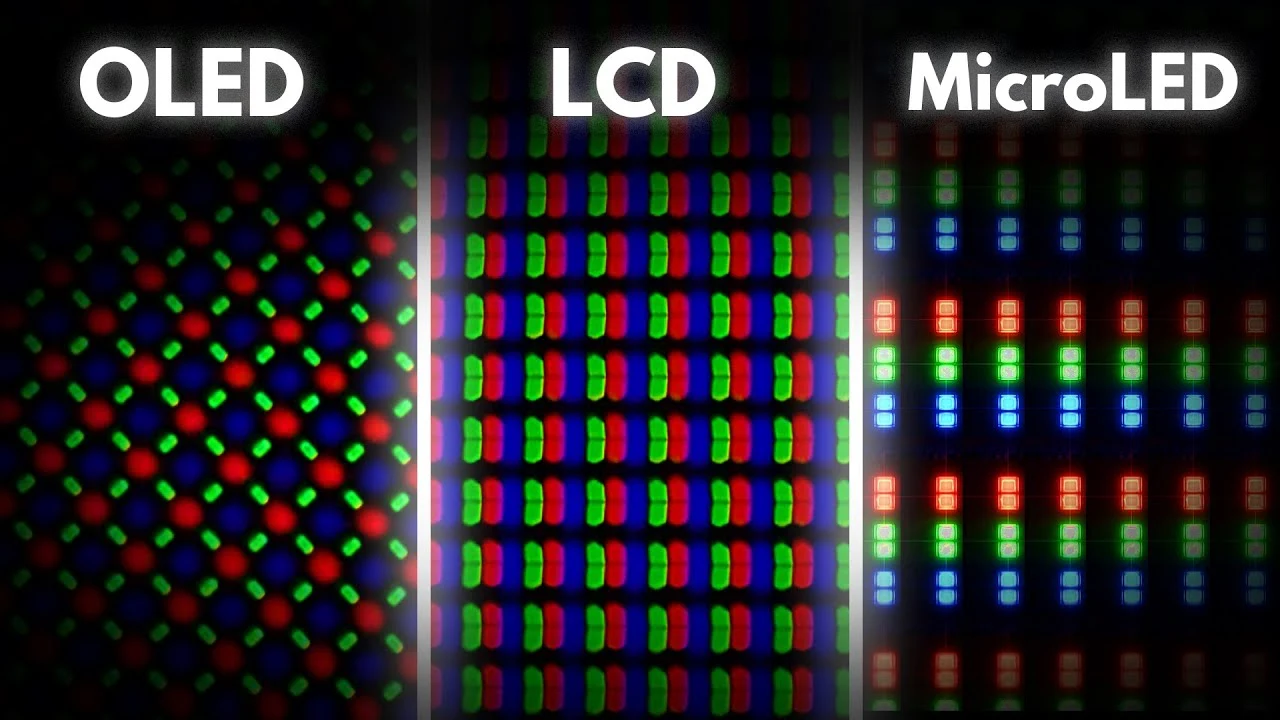
Also consider whether you even need an iPad for this job. In many cases a single large panel can cover two separate workflows without juggling apps. And if you're curious how next-gen panel tech stacks up for a future upgrade, that comparison can help you decide if an iPad stopgap is worth it at all.
FAQs About Using an iPad as a Second Monitor for Windows
Can any iPad work as a second monitor for Windows?
Yes, most iPads running iPadOS 14 or newer will work. That includes iPad, iPad Air, iPad mini, and iPad Pro. You don't need the newest model.
The app you choose matters more than the iPad generation for compatibility.
Do I need a cable or can I do it wirelessly?
You can do either. Wired via USB-C or Lightning is faster and more stable. Wireless via Wi-Fi is more convenient but needs a strong 5GHz network.
If your Wi-Fi is slow or crowded, wired will feel much smoother.
Why isn't my iPad showing up in Windows Display Settings?
Windows only shows the iPad after the helper app connects. Make sure the app is open on both devices, allow it through Windows Firewall, and press Win + P to select Extend. If wired, try a data cable and reinstall the Apple Devices app.
Is Duet Display free to use?
Duet Display offers a free trial, but full use requires a paid subscription or one-time purchase as of 2026. If you want a free option, spacedesk is free for personal use. Luna Display is a one-time hardware purchase with no monthly fee.
Does touch and Apple Pencil work when connected to Windows?
Touch works with Duet Display and spacedesk in Extend mode, but you must enable it in the app settings. Apple Pencil support is best with Duet Display and Luna Display. Wireless Pencil input can have slight delay, wired is more responsive.
Will using my iPad as a monitor drain the battery quickly?
Wireless use drains the battery faster because of constant Wi-Fi streaming. Expect faster drain at high brightness and 60fps. Wired connections charge the iPad slowly while in use.
Lowering brightness helps extend battery life during long sessions.

Similar Posts