Do I Need 240Hz Monitor for Esports
Do you need a 240Hz monitor for esports? Probably not. The honest answer depends on what games you play, what hardware you're running, and whether you're competing at a level where milliseconds genuinely matter.
Most gamers are better off with a solid 144Hz or 165Hz panel and a GPU that can actually push the frames to match. Readers comparing various configurations should also examine whether console gamers need a gaming monitor.
The jump from 60Hz to 144Hz is transformative. The jump from 144Hz to 240Hz? That's incremental.
You're shaving off roughly 2.77 milliseconds of frame interval time, which matters if you're a professional Counter-Strike 2 player tracking targets at the highest level. For everyone else, the money spent on 240Hz over 144Hz often delivers better returns elsewhere in your setup.
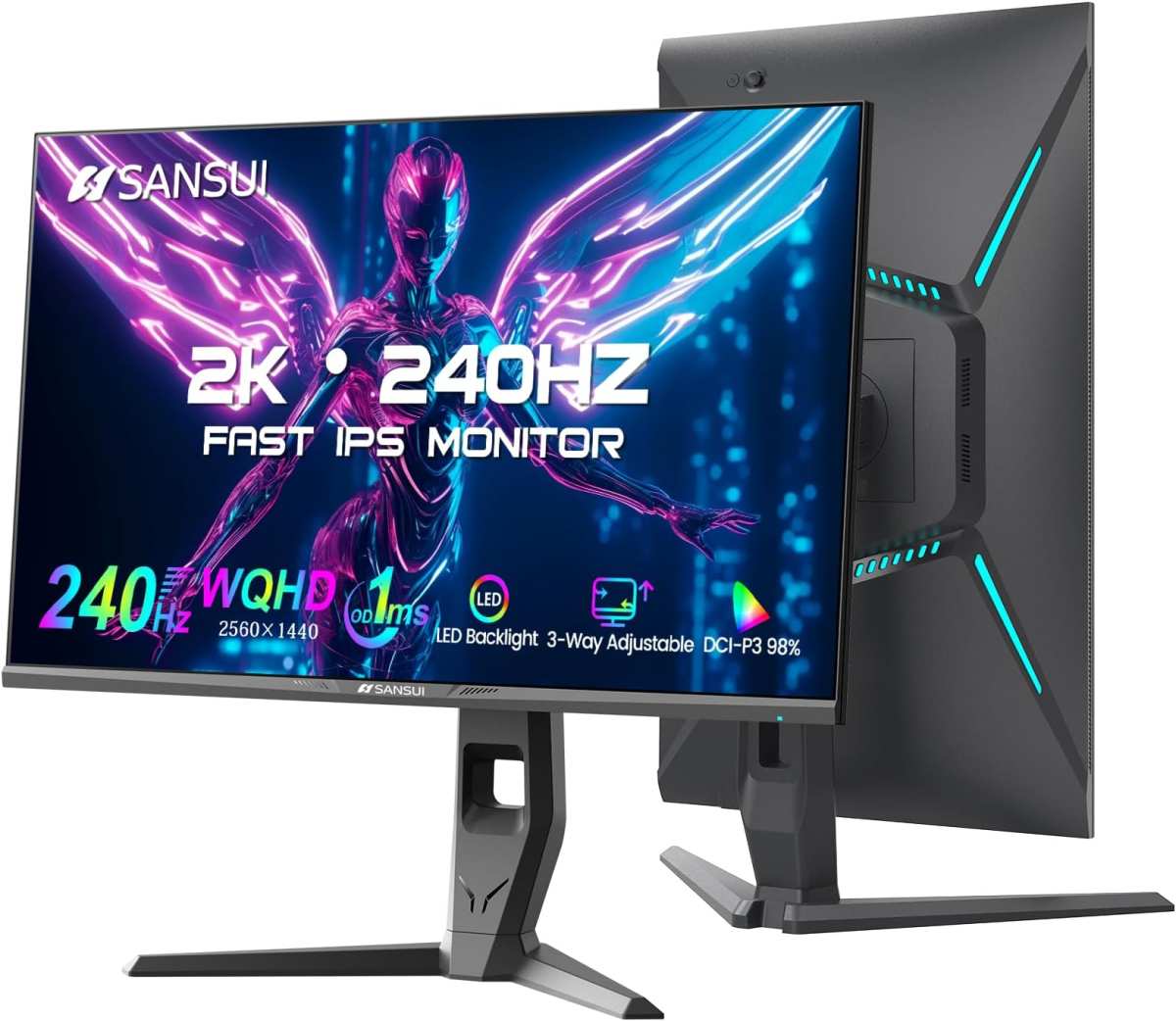
Image source: Bing (Web)
Quick Answer
No, most gamers don't need 240Hz. 144Hz or 165Hz is the better choice for the majority of players. You only benefit from 240Hz if your GPU can consistently push 240 or more FPS in your game. Even then, the real advantage only matters at competitive to professional play tiers. To see how this holds up against alternate models, explore whether i need a 4k monitor for gaming.
What Refresh Rate Actually Does (And What It Doesn't)
Refresh rate is how many times per second your monitor draws a new image. Measured in Hertz, it's a ceiling, not a guarantee. A 240Hz panel can display up to 240 frames per second.
But it won't do anything if your GPU only outputs 150 FPS in Valorant.
Here's the critical distinction most people miss: refresh rate and frame rate are two separate things. Your GPU produces frames. Your monitor displays them.
They need to be in sync for the experience to feel smooth, which is why adaptive sync technologies like G-Sync and FreeSync exist in the first place.
Response time is another spec that gets lumped with refresh rate. Measured in grey-to-grey milliseconds, it describes how quickly a pixel changes color. You can have a 240Hz panel with mediocre response time that looks worse than a well-tuned 144Hz panel with 1ms GtG.
Display lag, the delay between input and visible output, is what actually impacts your perceived responsiveness.
Manufacturer specifications indicate that a true 240Hz panel refreshes every 4.17 milliseconds. At 144Hz that interval is 6.94 milliseconds. At 60Hz it's a sluggish 16.67 milliseconds.
These numbers tell the story.
60Hz vs 144Hz vs 240Hz vs 360Hz: The Diminishing Returns Curve
Every step up gives you less perceptual improvement than the last. This is the single most important concept in this entire discussion. The gap between 60Hz and 144Hz feels like a different universe.
Going from 144Hz to 240Hz is real but narrow, and only noticeable if you're specifically looking for it during fast motion in competitive FPS titles.
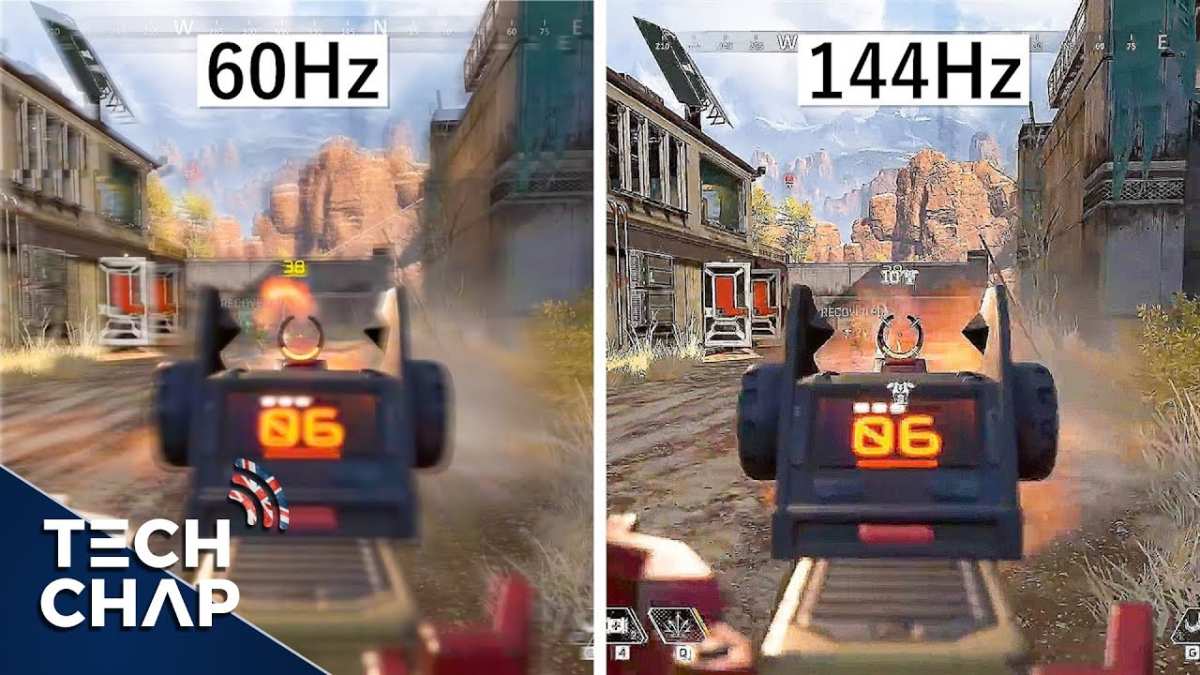
Image source: Bing (Web)
The numbers hold this pattern across display lag measurements. Based on aggregate review testing data, typical display lag sits around 1 to 3 milliseconds on 240Hz TN or IPS panels. A good 144Hz panel lands between 2 and 5 milliseconds.
Both are imperceptible to most humans in practical play. Display lag only becomes noticeable when it exceeds roughly 10 milliseconds, which you'll find on older monitors or budget panels that prioritize color accuracy over speed.
Here's how to think about each tier:
| Refresh Rate | Frame Interval | Typical Price Range (2026) | Best For |
|---|---|---|---|
| 60Hz | 16.67ms | Already baseline | Casual gaming, general use |
| 144Hz / 165Hz | 6.94ms / 6.06ms | $180 to $300 | Sweet spot for competitive gamers |
| 240Hz | 4.17ms | $250 to $450 | High-level competitive, GPU can sustain 240+ FPS |
| 360Hz | 2.78ms | $400 to $600 | Professional or aspiring pro, specific titles |
| 500Hz | 2.00ms | $600 to $900+ | Elite tier only, extreme diminishing returns |
The resolution tradeoff matters too. As of 2026, most 240Hz monitors are still 1080p. A 1440p 144Hz or 165Hz panel gives you sharper image quality and more desktop real estate for a similar price.
Unless you're a hardcore FPS player who prioritizes motion clarity above all else, 1440p at high refresh is the smarter purchase.
The Specs That Matter More Than the Big Number
Chasing the biggest Hz number is a trap. These three specs matter just as much as refresh rate when it comes to actual competitive performance:
- Display lag: This is the total input-to-output delay. A low-response-time panel means nothing if the scaler introduces 8ms of processing lag. Manufacturer specs rarely advertise this directly, so check independent review measurements.
- Response time (GtG): Look for 1ms GtG or lower. Higher response times cause ghosting and smearing during fast motion, which kills target tracking.
- Adaptive sync support: G-Sync Compatible or FreeSync Premium panels eliminate tearing without adding significant input lag. This matters more than the difference between 144Hz and 240Hz in practice.
Panel type adds another wrinkle. Traditional TN panels still offer the fastest pixel response times, but IPS has caught up significantly in 2026. OLED gaming monitors are entering the high-refresh space too, with response times under 0.5ms.
Each has tradeoffs around color quality, motion clarity, price, and overdrive tuning behavior.
Overdrive settings deserve attention. Every monitor has an overdrive mode that pushes pixels to transition faster. Set it too low and you get ghosting, too high and you get inverse ghosting or overshoot artifacts.
The sweet spot varies per panel, which is why manufacturer defaults aren't always optimal.
Side-by-Side: How the Main Refresh Rate Tiers Actually Compare
Here's the honest breakdown of what changes at each tier in real competitive use, based on aggregated testing data and hardware review consensus:
| Spec / Feature | 144Hz / 165Hz | 240Hz | 360Hz+ |
|---|---|---|---|
| Frame interval | 6.94ms / 6.06ms | 4.17ms | 2.78ms or less |
| Motion clarity | Excellent | Slightly better | Marginally better |
| Input lag | 2 to 5ms typical | 1 to 3ms typical | 1 to 2ms typical |
| GPU requirement for full benefit | 144 to 165+ FPS | 240+ FPS | 360+ FPS |
| Price range (24", 1080p) | $180 to $300 | $250 to $450 | $400 to $600+ |
| Resolution options | 1080p, 1440p, 4K | Mostly 1080p, some 1440p | 1080p only mostly |
| Best for | Most competitive gamers | High-level ranked play | Professional / aspiring pro |
| Diminishing returns | Low (great value) | Moderate | High |
The GPU requirement row is the one most people overlook. To actually see 240 distinct frames per second, your system needs to render 240 or more FPS consistently. In CS2 or Valorant at competitive settings, a modern mid-range GPU can hit that.
In Apex Legends or Overwatch 2 at higher settings, you'll need a significantly more powerful card.
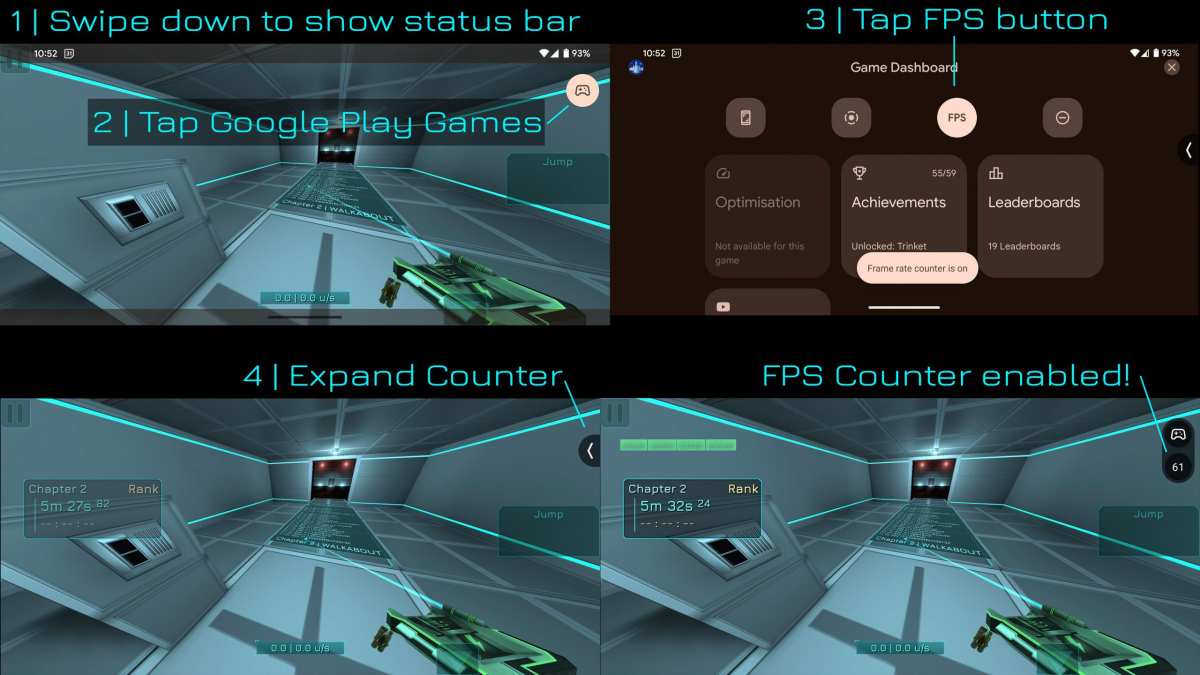
Image source: Bing (Web)
Who Should Buy 240Hz (And Who's Wasting Money)
240Hz makes sense if you play competitive FPS titles at high rank, your GPU sustains 240+ FPS in those games, and you've already optimized everything else in your setup. That's the short version. If you're grinding Valorant or CS2 in Immortal or pro-level play, the marginal improvement in motion clarity and reduced display lag can translate to better target tracking and reaction visibility.
You're wasting money on 240Hz if your GPU can't push 240 FPS in your main game, you primarily play non-FPS titles, or you're still on a 60Hz panel. In that last case, jump straight to 144Hz or 165Hz first. That upgrade alone will feel like a revelation.
Here's a practical way to think about it:
- Casual competitive (Gold to Platinum ranked): 144Hz or 165Hz is more than enough. Spend the savings on a better mouse or a quality mousepad.
- High competitive (Diamond to Immortal ranked): 240Hz starts to make sense if your hardware supports it. The marginal gains are real at this level.
- Professional or aspiring pro: 240Hz is the baseline standard. Many tournaments run 240Hz as of 2026, and 360Hz panels are increasingly common at the highest level.
- Content creators and streamers: Prioritize 1440p resolution at high refresh over 1080p 240Hz. Your audience and your own visual experience benefit more from the resolution bump.
The esports title matters enormously. In tactical shooters like CS2 and Valorant, where crosshair placement and micro-adjustments define outcomes, higher refresh rates provide a measurable edge. In MOBAs, strategy games, or single-player titles, 60Hz to 144Hz is the only jump that matters.
Beyond that, you're paying for specs you'll never perceive.

Image source: Bing (Web)
The GPU Bottleneck Problem Nobody Talks About
This is where most buying advice falls apart. A 240Hz monitor connected to a GPU that outputs 180 FPS is functionally an 180Hz monitor. You paid for 240Hz capability you're never using.
The extra refresh cycles just repeat the same frame, delivering zero additional visual information.
Before buying a high-refresh panel, check what FPS your system actually achieves in your target game at your preferred settings. Use built-in benchmarks, frame counters like RTSS, or in-game performance overlays. If you're averaging below 200 FPS in your main competitive title, a 240Hz monitor won't outperform a 144Hz one in any meaningful way.
Here's what it takes to hit 240+ FPS consistently in popular esports titles at competitive settings (low to medium presets, 1080p):
| Game | GPU Needed for 240+ FPS | Difficulty to Drive |
|---|---|---|
| CS2 | RTX 4060 / RX 7600 or better | Moderate |
| Valorant | RTX 4060 / RX 7600 or better | Easy to moderate |
| Apex Legends | RTX 4070 / RX 7800 XT or better | Moderate to hard |
| Overwatch 2 | RTX 4060 Ti / RX 7700 XT or better | Moderate |
| Rainbow Six Siege | RTX 4060 / RX 7600 or better | Easy to moderate |
These are approximate targets based on aggregate benchmark data at competitive settings. Your actual FPS varies with CPU, RAM speed, in-game scene complexity, and driver version. CPU bottlenecking is a real factor too, especially in CS2 and Valorant where single-thread performance matters more than GPU power at low settings.
If your hardware can't sustain the frame rate your monitor is capable of displaying, you're better off buying a cheaper high-refresh panel and putting the savings toward a GPU upgrade. A 144Hz monitor paired with a GPU that delivers a steady 200 FPS will feel smoother than a 240Hz panel paired with a GPU that fluctuates between 140 and 220 FPS.
1080p vs 1440p: The Resolution Tradeoff at High Refresh Rates
Most 240Hz monitors are 1080p. That's not a coincidence. Pushing 240 frames per second at 1440p demands significantly more GPU power, and panel technology at that resolution and refresh rate costs more.
As of 2026, 1440p 240Hz monitors exist but command a premium, often $400 to $700.
For competitive FPS players, 1080p at 240Hz remains the standard. The lower resolution means higher frame rates on mid-range hardware, and at 24 inches the pixel density is acceptable for the viewing distance of desk-bound gaming. Text clarity and desktop usability suffer compared to 1440p, but in-game the tradeoff favors performance.
For players who split time between competitive FPS and other genres, a 1440p 144Hz or 165Hz panel is the better all-around choice. You get sharper image quality for everyday use, still excellent motion clarity for competitive play, and a more versatile display overall. The 1440p 240Hz options are closing the gap but remain expensive.
Consider your primary use case honestly. If 80% of your gaming time is competitive FPS at a high rank, 1080p 240Hz serves you well. If you play a mix of titles or value visual fidelity, 1440p high-refresh is the smarter investment.
What Pro Players Actually Use (And Why)
Professional esports players overwhelmingly use 240Hz or 360Hz monitors. Tournament organizers like ESL and Riot Games have standardized on 240Hz as a minimum for major events. At the highest levels of CS2 and Valorant, 360Hz panels are increasingly common.
But here's the context that gets lost in marketing: these players have hardware specifically optimized to sustain those frame rates. Tournament PCs are built around the game with no background processes, no streaming overhead, and GPUs that push well beyond the monitor's refresh rate. The entire ecosystem is tuned for minimum display lag and maximum frame consistency.
Pro player hardware choices also reflect sponsorship deals. When a monitor brand sponsors a team, players use that brand regardless of whether a competitor's panel might measure slightly better. The performance difference between a well-tuned 240Hz IPS panel and a 360Hz TN panel is smaller than most people assume.
For aspiring pros grinding ranked queues, matching the tournament standard makes sense as a baseline. But the monitor is the least impactful component in the chain compared to mouse, mousepad, headset, and raw skill development. A player with solid fundamentals on a 144Hz panel will outperform a struggling player on 360Hz every time.
Common Mistakes When Buying a High Refresh Rate Monitor
Mistake 1: Buying 240Hz without verifying your GPU can sustain 240+ FPS. This is the most common and most expensive error. Check your actual in-game frame rates before upgrading your display.
Mistake 2: Ignoring display lag specifications. A 240Hz panel with high display lag can feel less responsive than a 144Hz panel with low display lag. Independent review measurements matter more than the spec sheet.
Mistake 3: Overlooking adaptive sync. G-Sync Compatible and FreeSync Premium eliminate tearing without meaningful input lag penalty. Running without adaptive sync means dealing with tearing or the input lag cost of V-Sync.
Mistake 4: Choosing refresh rate over panel quality. A well-calibrated 144Hz IPS panel with good overdrive tuning outperforms a mediocre 240Hz panel with poor response time and high overshoot. Panel quality matters as much as the number on the box.
Mistake 5: Not configuring Windows and GPU settings correctly. Your monitor won't run at its advertised refresh rate unless you set it manually in Windows display settings and your GPU control panel. Many people buy a 240Hz panel and never switch from 60Hz.
Mistake 6: Buying 27-inch 1080p panels. At 27 inches, 1080p looks soft. Pixel density drops noticeably compared to 24 inches at the same resolution. For 1080p high-refresh gaming, 24 to 25 inches is the sweet spot.
What You'll Actually Pay: Real Pricing for Each Tier
Monitor pricing has stabilized somewhat in 2026, but high-refresh panels still carry a premium. Here's what you're looking at for 24-inch 1080p gaming monitors:
| Tier | Price Range | Example Specs | Value Assessment |
|---|---|---|---|
| 144Hz / 165Hz | $180 to $280 | IPS, 1ms GtG, FreeSync Premium | Best value for most gamers |
| 240Hz (budget) | $250 to $350 | TN or IPS, 1ms GtG, G-Sync Compatible | Good for competitive-focused buyers |
| 240Hz (premium) | $350 to $500 | Fast IPS, sub-1ms, ELMB, low display lag | Best for high-level competitive |
| 360Hz | $400 to $600 | TN or fast IPS, extreme response times | Niche, pro-aspiring players only |
| 1440p 144Hz / 165Hz | $280 to $450 | IPS, 1ms, adaptive sync | Best all-around for mixed use |
| 1440p 240Hz | $450 to $700 | Fast IPS or OLED, premium build | Emerging category, premium pricing |
The sweet spot for most competitive gamers sits in the $200 to $350 range. A 144Hz or 165Hz IPS panel at that price point delivers excellent motion clarity, low display lag, and good color reproduction. Spending more on 240Hz only makes sense if your hardware and skill level justify it.
My Honest Recommendation Based on Your Situation
If you're still on 60Hz, buy a 144Hz or 165Hz IPS panel first. That single upgrade will transform your gaming experience more than any subsequent refresh rate increase. Spend $200 to $280, keep the rest for a GPU or peripheral upgrade.
If you're already on 144Hz and wondering whether 240Hz is worth it, check your frame rates. If you're consistently above 200 FPS in your main game and you play competitive FPS at a high rank, the upgrade is justifiable. Otherwise, save your money.
If you're chasing 360Hz or 500Hz, you probably already know whether you need it. Those panels serve a narrow audience of professional or aspiring competitive players who have optimized every other component in their setup.
The monitor market in 2026 offers excellent options at every price point. The best monitor for you is the one that matches your actual hardware output and your real competitive demands, not the one with the biggest number on the box.
Frequently Asked Questions
Is 240Hz worth it over 144Hz for gaming?
For most gamers, no. The improvement from 144Hz to 240Hz is real but small. It only matters if your GPU sustains 240+ FPS and you play competitive FPS titles at a high rank.
For everyone else, 144Hz or 165Hz delivers better value.
Can you actually see the difference between 144Hz and 240Hz?
Yes, but it's subtle. The difference shows up primarily in motion clarity during fast camera movements. Side-by-side the improvement is noticeable.
In isolation, most people can't tell without specifically looking for it.
What GPU do I need for a 240Hz monitor?
For competitive FPS titles at low settings, an RTX 4060 or RX 7600 can hit 240+ FPS in games like Valorant and CS2. For more demanding titles like Apex Legends, you'll want an RTX 4070 or RX 7800 XT or better.
Is 240Hz good for games other than FPS?
The benefit shrinks significantly outside of fast-paced competitive shooters. In MOBAs, RPGs, strategy games, and single-player titles, the difference between 144Hz and 240Hz is essentially imperceptible. Prioritize resolution and panel quality instead.
Do pro esports players use 240Hz monitors?
Yes, 240Hz is the tournament standard as of 2026. Many pros have moved to 360Hz panels. However, these players have hardware specifically optimized to sustain those frame rates, and the marginal gains at that level are small.
Should I get 240Hz or 1440p 144Hz?
For competitive FPS focus, 240Hz at 1080p. For everything else, 1440p at 144Hz or 165Hz. The resolution bump improves image quality and desktop usability significantly, while 144Hz still provides excellent motion clarity for competitive play.

Similar Posts





















