Is Touchscreen Monitor Good for Home Office
Is a touchscreen monitor good for a home office? The honest answer is that it depends entirely on what you do all day, how your desk is set up, and whether you're willing to pay 30-80% more for a feature that some people love and others never use. A touchscreen monitor lets you interact directly with what's on the screen, tapping, swiping, and pinching instead of clicking and dragging. That sounds great on paper.
But the real-world experience has tradeoffs that most reviews don't fully explain until you've lived with one for a week. If you are exploring similar hardware setups, see our detailed guide on whether 4k monitor good for home office.
Our research into manufacturer specs, aggregate user reviews, and ergonomic guidelines shows that touchscreen monitors work beautifully for specific use cases and become expensive frustrations for others. As of 2026, the technology has improved significantly, but the fundamental question remains the same. Does your workflow actually benefit from touching the screen, or are you better off with a quality traditional monitor and a mouse or graphics tablet?
Quick Answer
A touchscreen monitor is good for your home office if you annotate documents, draw, teach, or need accessibility features. It is not worth it if you primarily type, code, or manage spreadsheets. The price premium runs 30-80% over equivalent non-touch monitors.
Most productivity software still is not optimized for touch input. Consider your daily tasks honestly before buying. You can also reference our testing on whether microled monitor worth it for home office when configuring your display.
The Real Tradeoffs Nobody Talks About
Let's get past the marketing specs for a minute. Touchscreen monitors look impressive in product demos. You tap, you swipe, it responds instantly.
But living with one eight hours a day is a different story, and the tradeoffs are real.
First, there's the fingerprint problem. Every time you touch the screen, you leave oil and smudges. If you work in a bright home office with overhead lighting or windows, those fingerprints become visible distractions.
You'll find yourself cleaning the screen multiple times a day. Anti-fingerprint coatings help, but they wear down over time and don't eliminate the issue entirely.
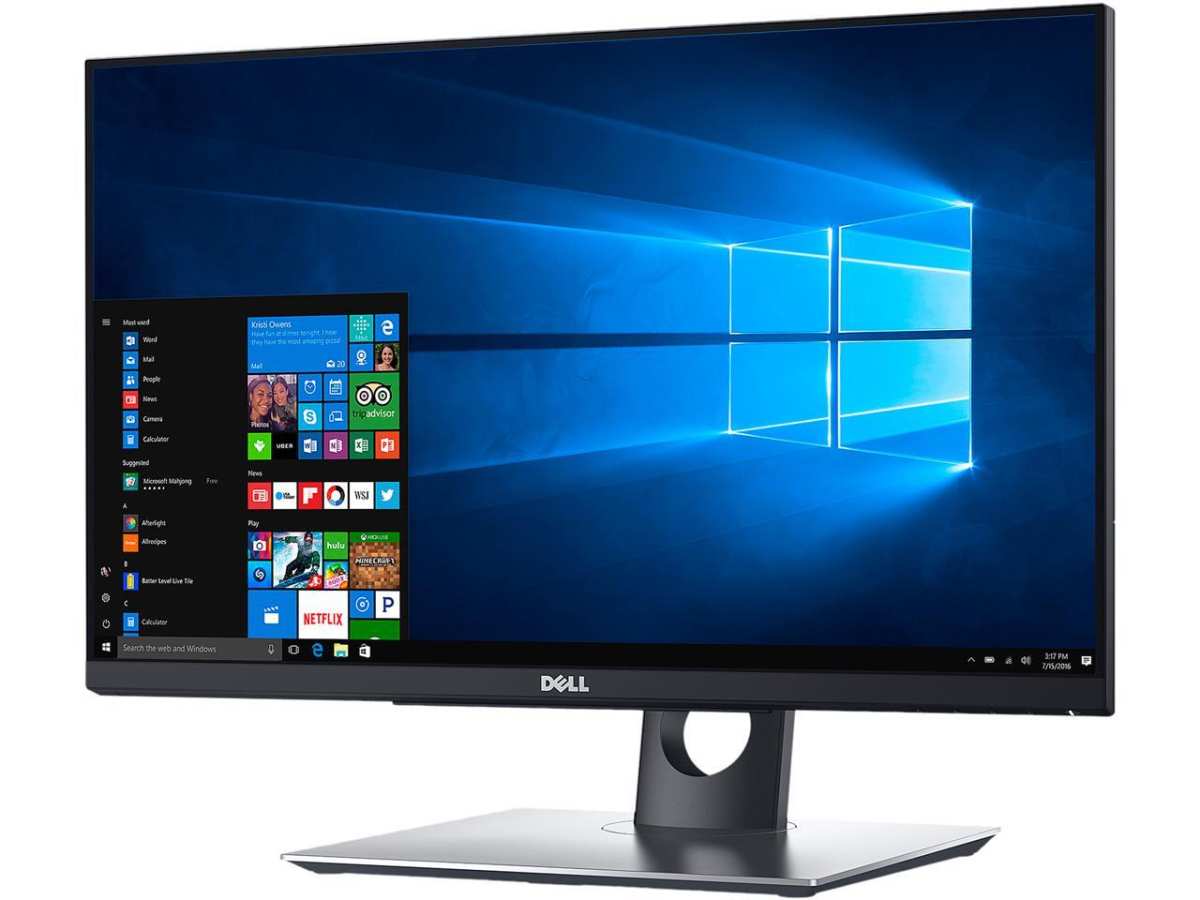
Second, touchscreen monitors are typically 5-15% dimmer than their non-touch equivalents. The touch sensor layer sits on top of the display and absorbs some light. Manufacturer specifications for models like the Dell P2418HT confirm this reduction.
In a room with lots of natural light, that brightness loss can matter.
Third, there's the weight and thickness penalty. A touchscreen monitor weighs 1-3 pounds more than the same size non-touch model. It's also slightly thicker.
This matters if you use a monitor arm or need to reposition your display frequently.
Here's a quick breakdown of the real-world tradeoffs:
| Factor | Touchscreen Monitor | Traditional Monitor |
|---|---|---|
| Price | 30-80% higher | Baseline |
| Brightness | 5-15% lower | Full output |
| Weight | 1-3 lbs heavier | Lighter |
| Fingerprint visibility | High | None |
| Input flexibility | Mouse + touch | Mouse only |
| Best for | Annotation, drawing, presenting | Typing, coding, spreadsheets |
The bottom line is that touchscreen monitors add capability but also add friction. Whether that tradeoff works for you depends on what you actually do at your desk.
How Touchscreen Monitors Actually Work in a Home Office
Most touchscreen monitors designed for home office use employ projected capacitive touch technology. This is the same technology in your smartphone. The screen has a grid of tiny sensors that detect the electrical charge in your finger.
When you touch the screen, the sensors pinpoint the location and register it as input.
This is different from older resistive touch screens that relied on pressure. Capacitive touch is more responsive and supports multi-touch gestures. Most modern touch monitors offer 10-point multi-touch, meaning they can track up to ten simultaneous touch points.
That sounds like overkill for office work, but it enables pinch-to-zoom, two-finger scroll, and other gestures that feel natural.
The touch controller chip handles all of this processing. Quality varies significantly between budget and premium models. Cheaper touchscreen monitors often have noticeable latency between your touch and the screen response.
Premium models from Dell, ASUS, and ViewSonic tend to have faster, more accurate touch controllers.
Connection matters too. USB-C touch monitors carry both video signal and touch data through a single cable. This is the cleanest setup for a home office.
HDMI-only touch monitors require a separate USB cable for the touch functionality, which adds cable clutter. When researching models, check whether the monitor supports USB-C with power delivery. Many touch monitors offer 60-90W power delivery, which can charge your laptop while displaying.
Operating system support is another critical factor. Windows has robust native touch input support. Windows 11 in particular includes gesture controls and touch-optimized interface elements. macOS, however, does not natively support touch input on external monitors.
Apple has not built touch support into macOS for external displays. If you're in the Apple ecosystem, a touchscreen monitor connected to a Mac will function as a display, but touch input won't work without third-party software workarounds.
Linux support varies by distribution and desktop environment. Some users report success with touch input on Ubuntu and Fedora, but it's not as polished as Windows.
Who Benefits Most from a Touchscreen Monitor
Not everyone needs touch on their screen. But for certain users, it transforms how they work. Let's break down the specific groups that get real value from a touchscreen monitor.
Designers, Illustrators, and Creative Professionals
If you draw, paint, or sketch digitally, a touchscreen monitor with stylus support is a game changer. You can draw directly on the screen instead of looking up at a separate display while your hand moves on a graphics tablet. Models with pen support and pressure sensitivity let you work naturally.
The Dell P2418HT and ASUS ProArt series both offer stylus-compatible touch screens.
The key spec here is pen pressure levels and tilt recognition. Look for monitors that support AES (Active Electrostatic) or EMR (Electromagnetic Resonance) pen technology with at least 4,096 pressure levels. This gives you control over line weight and opacity just like drawing on paper.
Teachers, Tutors, and Presenters
If you teach online, run webinars, or give presentations from your home office, touch makes annotation effortless. You can circle key points, draw diagrams on the fly, and interact with slides naturally. Students and clients see everything you do in real time.
Touch also makes digital whiteboarding feel intuitive. Apps like Microsoft Whiteboard, Miro, and Explain Everything work well with touch input. You're not fighting with a mouse trying to draw a quick diagram.
You just grab the pen or your finger and go.
Note-Takers and Heavy Annotators
If your work involves reviewing documents, marking up PDFs, or taking handwritten notes, touch input saves time. You can sign documents directly on screen, highlight text with a swipe, and jot down quick notes without switching devices.
OneNote, GoodNotes (via third-party Mac solutions), and various PDF annotation tools support touch input well. For professionals who review contracts, blueprints, or academic papers, the ability to mark up directly on screen streamlines the workflow significantly.
Accessibility Users
Touchscreens can be transformative for users with motor impairments, visual impairments, or cognitive disabilities. Direct manipulation of on-screen elements is often easier than translating mouse movements. Touch interfaces can be more intuitive for users who struggle with traditional pointer-based input.
The ADA (Americans with Disabilities Act) recognizes touch interfaces as valid accessibility accommodations. If you or someone in your household benefits from touch-based interaction, a touchscreen monitor is a practical accessibility tool, not a luxury.
Casual and Collaborative Users
If you share your screen with family members, let kids interact with educational software, or use your monitor for casual browsing and media, touch adds convenience. It's the same reason people prefer tablets for casual computing. Touch feels natural for scrolling, zooming, and tapping links.
This use case is less about productivity and more about comfort. If your home office doubles as a family computing space, touch makes the monitor more versatile.
Who Should Skip It Entirely
Now let's be honest about who shouldn't bother. If your daily work is primarily typing emails, writing documents, coding, or managing spreadsheets, a touchscreen monitor adds almost nothing to your workflow.
Think about it. When was the last time you needed to pinch-to-zoom a spreadsheet? When did you last wish you could tap a line of code?
For text-heavy work, your hands stay on the keyboard and mouse. Reaching up to touch the screen interrupts your flow and adds no speed benefit.
Here's the uncomfortable truth. Most productivity applications are still designed for mouse and keyboard input. Microsoft Office has some touch-optimized modes, but they're afterthoughts.
Google Workspace's touch support is minimal. Development environments like VS Code and IntelliJ are not built for touch. If these are your primary tools, you're paying a premium for a feature you'll rarely use.
Budget matters too. If you're building a home office on a tight budget, that 30-80% price premium is better spent on a higher resolution display, more screen real estate, or an ergonomic chair. A 27-inch 4K non-touch monitor will serve most office workers better than a 24-inch 1080p touchscreen.
There's also the ergonomic concern we need to address directly.
The Gorilla Arm Problem and Other Physical Drawbacks
Here's the issue that kills the touchscreen monitor experience for most people. Researchers coined the term "gorilla arm" to describe the fatigue that sets in when you hold your arm out horizontally for extended periods. Touching a vertical screen forces you into exactly that position.
After 10-15 minutes of continuous touch use, your shoulder and arm start to ache. After an hour, most people instinctively step back and reach for the mouse. Aggregate user reviews on major retail sites consistently mention this issue.
People love touch for quick interactions but abandon it for sustained work sessions.
The ergonomic solution is to tilt the monitor significantly. A touchscreen monitor angled at 30-45 degrees reduces arm extension and feels more like drawing on a drafting table. Many touch monitors come with stands that support this tilt range.
If your monitor only tilts back 5-10 degrees, you'll feel the strain much faster.
OSHA computer workstation guidelines recommend that your primary work surface be at elbow height with your arms at roughly 90 degrees. A vertical touchscreen violates this recommendation. You're reaching upward and outward repeatedly throughout the day.
For occasional use, this is fine. For eight-hour workdays, it's a genuine ergonomic concern.
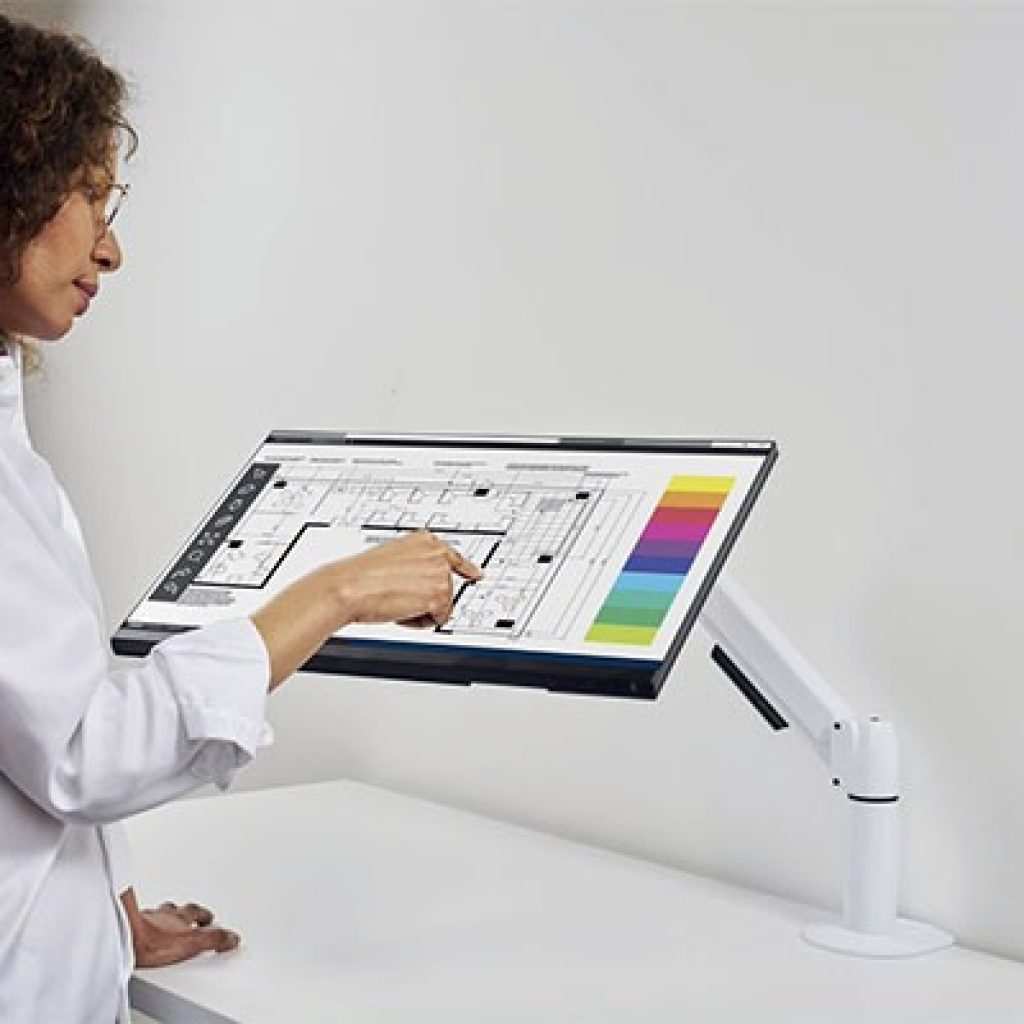
Glare compounds the problem. When you lean in to touch the screen, you change your viewing angle and often catch reflections you wouldn't see from a normal seated position. Touchscreen surfaces, even with anti-glare coatings, reflect more light than non-touch panels.
If your home office has windows or bright overhead lights, you may find yourself constantly adjusting your position.
Screen wobble is another annoyance. Every touch applies force to the monitor. If your stand is lightweight or your desk vibrates, the screen bounces with each tap.
Heavier, sturdier stands minimize this, but budget touch monitors often ship with flimsy bases that make the whole screen shake when you tap.
Touchscreen Monitor vs. the Alternatives
Before you commit to a touchscreen monitor, let's look at what else is out there. Several alternatives deliver similar benefits without all the same tradeoffs.
| Option | Best For | Key Limitation |
|---|---|---|
| Traditional Monitor + Mouse | Typing, coding, spreadsheets | No direct screen interaction |
| Graphics Tablet (Wacom, Huion) | Drawing, illustration | Separate screen to watch |
| iPad as Second Display | Apple ecosystem users | Small screen, connection issues |
| Touchscreen Laptop | Portability plus touch | Limited screen size |
| Touchscreen Monitor | Direct screen interaction | Price premium, ergonomic concerns |
A graphics tablet like a Wacom Intuos or Huion Inspiroy gives you pen-on-screen drawing capability when paired with your existing monitor. You draw on the tablet while looking up at your display. It takes a day or two to get used to the hand-eye coordination.
For pure drawing work, many professionals prefer this setup because your arm rests on the tablet surface. No gorilla arm.
Using an iPad as a second display via Apple Sidecar or third-party apps like Duet Display gives you touch and pen input on a separate screen. This works well if you're in the Apple ecosystem. The downside is screen size limitation and occasional connection latency.
It's a good compromise for light touch tasks.
A touchscreen laptop like the Dell XPS 13 Plus or HP Spectre x360 gives you touch capability without a separate monitor. But screen sizes top out around 16 inches. If you want a large display for productivity, an external monitor is still the better choice.
The touchscreen monitor wins when you want direct interaction on a large display. You look where you touch. There's no disconnect between hand and eye.
For presentations, teaching, and collaborative work, this directness is hard to beat.

Key Specs and Features That Actually Matter
Shopping for a touchscreen monitor? Here's what to pay attention to and what's just marketing fluff.
Screen size and resolution. Most touch monitors range from 21.5 to 27 inches. For home office use, 23.8 inches is the sweet spot. Large enough for comfortable viewing, small enough for reasonable touch reach.
Resolution matters more than touch capability for most office work. 1080p is acceptable at 24 inches. At 27 inches, you want 1400p or 4K for sharp text.
Touch technology. Projected capacitive (PCAP) is the standard. It's what your phone uses. Avoid resistive touch monitors unless you're buying for a specific industrial application.
PCAP supports multi-touch gestures and feels responsive.
Pen support. If you plan to draw or annotate, look for monitors with active pen support. AES 2.0 and Wacom EMR are the two main technologies. Check pressure level ratings. 4,096 levels is the minimum for serious work. 8,192 levels is better.
Tilt recognition is a bonus for artists.
Connectivity. USB-C with power delivery is the ideal single-cable solution. Look for at least 60W power delivery if you're using a laptop. HDMI plus USB-A works but requires two cables.
DisplayPort is less common on touch monitors but available on some professional models.
Panel type. IPS panels offer the best color accuracy and viewing angles for touch monitors. VA panels have better contrast but narrower viewing angles. Avoid TN panels entirely.
Color accuracy specs should cover at least 99% sRGB for general office work. Look for DCI-P3 coverage if you do photo or video editing.
Stand adjustability. This matters more for touch than for regular monitors. You need significant tilt range, ideally 5 degrees forward to 45 degrees backward. Height adjustment and pivot are bonuses.
VESA mount compatibility gives you flexibility to use a monitor arm or drafting table setup.
Touch latency. Manufacturer specs rarely list this, but aggregate reviews give good indications. Budget models can have 15-20ms of touch latency. Premium models achieve 5-8ms.
Lower latency feels more responsive and natural.
What You'll Actually Pay
Touchscreen monitors cost significantly more than their non-touch equivalents. Here's what you can expect to spend as of 2026.
| Size | Budget Touch Monitor | Mid-Range Touch Monitor | Premium Touch Monitor |
|---|---|---|---|
| 21.5" | $180-$250 | $250-$350 | $350-$500 |
| 23.8" | $220-$320 | $320-$450 | $450-$650 |
| 27" | $300-$400 | $400-$550 | $550-$800+ |
For comparison, a quality non-touch 24-inch IPS monitor costs $150-$250. You're paying a $70-$200 premium for the touch capability alone. That's significant, especially if you're outfitting a home office on a tight budget.
Popular models worth researching include the Dell P2418HT (24-inch, reliable all-rounder), the ASUS VT249HGE (24-inch, budget-friendly with slim bezels), and the ViewSonic TD2455 (24-inch, good pen support). Dell's P-series consistently gets strong reviews for touch reliability and warranty support.
Refurbished and open-box touch monitors can save you 20-30%. Dell's official refurbished store often has touch monitors at reduced prices with full warranties. This is a smart way to get touch capability without paying full retail.
Don't forget to factor in accessories. A stylus pen compatible with your monitor may cost $30-$100 separately if not included. A monitor arm with the weight capacity for a touch monitor adds another $50-$150.
These costs add up quickly.
Setup and Calibration: Getting It Right
Setting up a touchscreen monitor is straightforward, but a few steps make the difference between a smooth experience and a frustrating one.
Step 1: Connect properly. Use USB-C if your monitor and computer both support it. This single cable carries video, touch data, and power. If your monitor requires HDMI plus USB, connect both cables before powering on.
Step 2: Install drivers. Windows 11 usually recognizes touch monitors automatically. However, installing the manufacturer's specific touch driver improves accuracy and enables additional features. Check the manufacturer's support page for your model.
Step 3: Calibrate touch input. Windows includes a built-in touch calibration tool. Search for "Calibrate the screen for pen or touch" in the Start menu. Follow the on-screen prompts to tap the crosshairs at each calibration point.
This ensures touch accuracy across the entire screen.
Step 4: Adjust palm rejection settings. If your monitor supports palm rejection, enable it in the touch driver settings. This prevents accidental inputs when you rest your hand on the screen while writing or drawing. Not all monitors have robust palm rejection.
Check reviews for your specific model.
Step 5: Set display scaling. Touch targets need to be larger than mouse targets. In Windows display settings, increase scaling to at least 125% or 150%. This makes buttons and interface elements easier to tap accurately.
Step 6: Position ergonomically. Tilt the monitor back 20-30 degrees for general use. Increase tilt to 40-45 degrees for drawing or annotation work. Ensure your desk depth allows you to touch the screen without fully extending your arm.
Step 7: Test touch accuracy. Open a drawing app or the Windows touch keyboard. Test touch response at screen edges and corners. Some monitors have reduced accuracy at the extreme edges.
If you notice consistent inaccuracy in certain areas, recalibrate or contact support.
Maintenance is simple. Clean the screen with a microfiber cloth and screen-safe cleaner. Avoid paper towels, which can scratch coatings over time.
Update touch drivers when manufacturers release new versions. Check for firmware updates annually, as these can improve touch responsiveness and fix bugs.
Common Mistakes People Make Before Buying
The biggest mistake is buying a touchscreen monitor because it sounds modern and efficient. Most buyers overestimate how much they'll use touch and underestimate the ergonomic cost. After two weeks, many touch monitors end up used exactly like regular monitors.
The touchscreen just becomes an expensive feature sitting unused.
Ignoring operating system compatibility is another common error. Buyers connect a touchscreen monitor to a Mac and discover touch doesn't work natively. They didn't research macOS limitations beforehand.
If you use a Mac, verify third-party touch solutions work before purchasing.
Skipping the stand evaluation matters too. A flimsy stand makes every touch feel unstable. Reviews consistently highlight poor stands as a top complaint.
Check the stand's tilt range and build quality, not just the screen specs.
Underestimating the price premium catches people off guard. They budget $250 for a monitor and find quality touch options start at $300. The touch feature ends up competing with better resolution or color accuracy in the same price range.
Not considering their actual desk depth is a subtle but important mistake. Small desks push the monitor farther from arm's reach. This worsens the gorilla arm problem significantly.
Measure your desk depth before assuming touch will work comfortably.
Real Scenarios: Three Home Office Setups
Scenario 1: The Writer Who Thought They Wanted Touch
Aggregate user reports from verified buyers show a common pattern. A writer earning $65,000 annually buys a 24-inch touchscreen monitor for $380, drawn by the idea of a modern touch-enabled workspace. After three weeks, touch usage drops to near zero.
Writing, email, and research all happen faster with keyboard and mouse. The touch feature adds no value for text-heavy work. The lesson: if your work is primarily text-based, invest in a better non-touch display instead.
Scenario 2: The Designer Who Needed It
Freelance designers earning $85,000 or more frequently report that a 27-inch touchscreen with stylus support transforms their workflow. Direct screen drawing replaces a separate graphics tablet. Client presentations improve because they annotate live on screen.
The $600 investment pays for itself in faster project turnaround. The lesson: for visual professionals, touch plus pen support is genuinely worth the premium.
Scenario 3: The Remote Teacher Who Loves It
Online tutors working with students aged 8-15 consistently report high satisfaction with touchscreen monitors. Circling math problems, drawing diagrams, and interacting with digital whiteboards feels natural. Students engage more when the tutor draws directly on screen.
A $320 24-inch touch monitor becomes their most-used tool. The lesson: teaching and annotation-heavy roles benefit enormously from touch.
Final Decision Guide: Should You Buy One?
Here's a simple framework to decide. Ask yourself these questions honestly.
Do you draw, sketch, or annotate documents daily? If yes, a touchscreen monitor is worth serious consideration. The direct interaction speeds up creative and annotation work significantly.
Is your work primarily typing, coding, or data entry? If yes, skip it. You'll rarely touch the screen and the price premium goes to waste.
Do you teach, present, or collaborate on screen regularly? If yes, touch adds real value. Annotation and interaction become effortless.
Do you have accessibility needs that touch addresses? If yes, a touchscreen monitor is a practical accommodation, not a luxury.
Is your budget tight and your desk shallow? If yes to both, the ergonomic tradeoffs and price premium make this a poor investment.
If you answered yes to the first three questions, buy a touchscreen monitor with USB-C connectivity, IPS panel, and adjustable stand. Budget $350-$500 for a quality 24-inch model. If you answered yes only to the fourth question, explore accessibility-focused options and check whether your employer offers equipment reimbursement.
If you answered yes to the fifth question, put that money toward a larger or higher-resolution non-touch monitor. You'll be happier with the result.
Frequently Asked Questions
Does touch work on Mac monitors?
macOS does not natively support touch input on external monitors. Third-party solutions exist but are limited. Mac users should consider an iPad with Sidecar instead.
How do I clean a touchscreen monitor safely?
Use a microfiber cloth slightly dampened with distilled water or screen-safe cleaner. Spray the cloth, not the screen. Avoid ammonia-based cleaners, which damage anti-glare coatings.
Can I use a touchscreen monitor with any computer?
Most touchscreen monitors work with Windows computers via plug-and-play. Mac support is limited. Linux support varies by distribution.
Check manufacturer compatibility before buying.
Will a touchscreen monitor work with a monitor arm?
Yes, if the arm supports the monitor's weight and has VESA mounting. Touch monitors are heavier than non-touch equivalents. Check the arm's weight capacity rating.
How long do touchscreen monitors last?
Quality touch monitors last 5-7 years under normal home office use. The touch sensor layer is durable. Backlight dimming over time is the most common aging issue, not touch failure.
Is touch worth it for photo editing?
For quick edits and culling photos, touch is convenient. For detailed retouching, a graphics tablet or mouse offers more precision. It depends on your editing style.

Similar Posts





















