Is 4K Monitor Good for Home Office
Is a 4K monitor good for home office work? The honest answer is that it depends entirely on what you do all day, what computer you're running, and how you like your screen set up. For some people it's a genuine productivity upgrade.
For others it's an expensive headache they didn't see coming.
A 4K display packs 8.3 million pixels onto the panel, which is four times what a standard 1080p screen delivers. That extra density can mean sharper text, more usable desktop space, and a noticeably cleaner image. But it also introduces scaling quirks, hardware requirements, and ergonomic considerations that catch a lot of people off guard.
Let's walk through the real variables so you can decide whether 4K makes sense for your specific setup.
Quick Answer
A 4K monitor is good for a home office if you do detail-heavy work like coding, design, or spreadsheet analysis. You need a computer that can output 3840×2160 at 60Hz through HDMI 2.0 or DisplayPort 1.2 or newer. Expect to use display scaling, typically 150% on a 27-inch panel.
If your work is mostly email and web browsing, a 1440p monitor often delivers better value.
The Short Answer: It Depends on What You Do All Day
Here's the thing about 4K in a home office. It's not a simple upgrade the way going from a slow SSD to a fast one is. The experience changes based on your workflow, your hardware, and even how far you sit from the screen.
If you're a software developer who lives in an IDE with three panels open, or a financial analyst juggling six spreadsheets, the extra real estate is transformative. You can fit genuinely more content on screen without everything feeling cramped. Text rendering at 4K on a 27-inch panel hits around 163 pixels per inch, which means fonts look almost print-quality when scaling is configured correctly.
But if your home office life is mostly Gmail, Slack, and the occasional Google Doc, you might not notice enough of a difference to justify the cost and the setup overhead. A good 1440p monitor at 27 inches will look sharp, cost less, and avoid most of the scaling headaches that come with 4K on Windows.
The decision branches from there based on a handful of specific factors. Let's break those down.
What Changes the Answer: Your Situation Matters
Not every home office is the same, and the "right" monitor choice reflects that. Four main variables determine whether 4K will be a great move or a frustrating one for you.
What kind of work are you actually doing?
Your daily tasks matter more than any spec sheet. Here's a rough breakdown of who benefits most from 4K and who doesn't need it.
Strong cases for 4K:
- Software development and programming (more code visible, cleaner font rendering)
- Photo and video editing (native 4K preview, fine detail work)
- CAD and architectural work (precision detail, complex models)
- Financial analysis and data work (dense spreadsheets, multiple windows)
- Writing and research (long-form reading, multiple documents side by side)
- Graphic design and UI/UX work (pixel-level accuracy)
Cases where 4K is overkill:
- Email, chat, and light web browsing
- Basic word processing
- Call-center or customer-service work
- Casual home use with occasional work tasks
The pattern is straightforward. If your work involves reading small text for hours, manipulating fine visual detail, or keeping many windows visible at once, 4K earns its place. If you're mostly typing into a single window and switching between browser tabs, the difference is harder to feel.
Can your computer even run a 4K display properly?
This is the question that trips people up. Driving a 4K display at 60Hz with proper scaling takes more than just plugging in a cable.
Minimum GPU requirements for basic 4K office use:
| GPU Level | Examples | 4K Capability |
|---|---|---|
| Basic integrated | Intel UHD 630, older AMD APUs | 4K at 30Hz via HDMI 1.4, 60Hz via DisplayPort |
| Modern integrated | Intel Iris Xe, AMD Radeon 780M | 4K at 60Hz, smooth desktop use |
| Entry dedicated | NVIDIA GTX 1650, AMD RX 6400 | 4K at 60Hz, comfortable multi-display |
| Mid-range dedicated | NVIDIA RTX 3060, AMD RX 7600 | 4K at 60Hz+ with headroom |
If your machine only has HDMI 1.4 output, you'll be stuck at 4K 30Hz, which feels sluggish and can cause eye strain during a full workday. You need HDMI 2.0 or DisplayPort 1.2 at minimum for a comfortable 60Hz experience. USB-C with DisplayPort Alt Mode also works well, which is why many modern laptops handle 4K through a single USB-C cable to a docking station.
Check your ports before you buy. It's the most common oversight people make.
What size monitor are you considering?
Screen size and resolution work together. A 4K resolution on a 24-inch panel gives you extremely high pixel density, around 184 PPI, which means you'll need aggressive scaling and everything will look very small at native resolution. At 32 inches, 4K drops to about 138 PPI, which is closer to what a 27-inch 1440p screen delivers.
The sweet spots for 4K office monitors:
- 27 inches at 4K (163 PPI): The most popular choice. Text is razor-sharp at 150% scaling on Windows. Fits well on most desks at a 20-to-30-inch viewing distance.
- 32 inches at 4K (138 PPI): Better for people who want larger UI elements without scaling, or who sit a bit further back. Works well at 125% scaling.
- 24 inches at 4K (184 PPI): Rarely recommended for office use. The pixel density is so high that scaling becomes awkward and you lose the "more space" benefit.
Most people land on 27 inches as the ideal 4K size for a desk setup. It gives you the sharpness advantage while still providing meaningful extra screen real estate when scaled properly.
Are you using one screen or multiple?
Single-monitor setups handle 4K beautifully. Multi-monitor setups introduce a wrinkle: mixed-DPI scaling.
If you run a 4K primary display alongside a 1080p secondary monitor, Windows has to manage two different scaling levels. Some apps look fine on one screen and blurry on the other. Dragging windows between displays can cause flickering or resizing glitches.
It's gotten better with Windows 11, but it's still not seamless.
Options that work well:
- Two identical 4K monitors (same scaling on both)
- One 4K primary + one 1440p secondary (closer scaling percentages)
- One large 4K monitor instead of dual screens (avoids the problem entirely)
If you're considering replacing a dual 1080p setup, a single 32-inch 4K or a 34-inch ultrawide at 3440×1440 might give you the same usable space without the mixed-DPI headaches.
The Real Benefits of 4K in a Home Office
When the conditions are right, a 4K monitor delivers tangible improvements that you'll notice every working day. Here's what actually changes.
Sharper text and cleaner interfaces
This is the single biggest day-to-day difference. At proper scaling on a 27-inch 4K panel, text looks noticeably cleaner than on a 1440p or 1080p display. Fonts render with smoother edges, small UI elements stay legible, and reading long documents feels less fatiguing.
The effect is similar to switching from a standard laptop screen to a Retina display on a Mac. Once you're used to it, going back to a lower-density panel looks fuzzy.
More screen real estate for multitasking
At 150% scaling on a 27-inch 4K monitor, you get the equivalent workspace of a 2560×1440 display but with sharper rendering. That means you can comfortably run two full-size windows side by side, or three narrower panels if your workflow demands it.
For developers, this might mean your IDE, browser, and terminal all visible at once. For analysts, it could be two spreadsheets and a dashboard. The practical effect is fewer window switches and less alt-tabbing throughout the day.
Better for creative and detail-oriented work
If you edit photos, retouch images, or review design work, a 4K panel lets you view content at native resolution with room for tool panels. Color accuracy tends to be better on 4K monitors in the mid-range and above, since they're often IPS panels with wider gamut coverage.
Many 4K office monitors cover 99% or more of the sRGB color space, and some hit 95% DCI-P3. That matters if your work involves any kind of visual output.
Future-proofing your setup
As of 2026, 4K is the standard for new content, video calls, and software interfaces. Buying a 4K monitor now means you won't need to upgrade again for a long time. Your next laptop or desktop will almost certainly support 4K output, so the monitor won't become a bottleneck.
The Downsides Nobody Talks About
For all the benefits, 4K in a home office comes with real trade-offs. These are the issues that show up after the unboxing excitement wears off.
Windows scaling headaches
Windows has improved its HiDPI handling significantly, but it's still not perfect. Some older applications, especially niche enterprise software or legacy tools, don't respect system scaling. They'll render tiny and unreadable, or blurry when Windows tries to compensate.
Apps built with older frameworks like Win32 or Windows Forms are the usual culprits. If your work depends on specific legacy software, test it at 4K scaling before committing.
The GPU and cable requirements you might not expect
We covered the GPU basics earlier, but the cable situation deserves a mention too. Not all HDMI cables support 4K at 60Hz. You need a High Speed HDMI cable (HDMI 2.0) or better.
The cable that shipped with your old 1080p monitor probably won't cut it.
DisplayPort 1.2 or newer is generally the safer bet for 4K 60Hz. USB-C with DisplayPort Alt Mode works well for laptops. Just verify the specific port on your machine supports it, not all USB-C ports do.
When 4K actually makes things worse
If your desk is shallow and you sit close to the screen, a 27-inch 4K panel at 150% scaling might feel like you're not gaining much space over a 27-inch 1440p display. The sharpness is better, but the usable area is similar. In that scenario, you're paying more for an improvement you can barely perceive.
Similarly, if your eyesight isn't great and you'd need to push scaling to 175% or 200%, you lose the screen real estate advantage entirely. At 200% scaling on a 27-inch 4K, you're effectively getting the same workspace as a 1080p display, just much sharper.
The cost difference that might not be worth it
A decent 27-inch 1440p office monitor runs around $200 to $300 as of 2026. A comparable 27-inch 4K panel starts around $300 and climbs to $500 or more for models with better color accuracy, USB-C docking, or ergonomic stands. That extra $100 to $200 might be better spent on a monitor arm, a better chair, or simply saved.
4K vs 1440p vs 1080p: Which Resolution Actually Makes Sense for Office Work
Let's put the three common resolutions side by side so you can see exactly what you gain and lose at each level.

| Factor | 1080p (FHD) | 1440p (QHD) | 4K (UHD) |
|---|---|---|---|
| Resolution | 1920×1080 | 2560×1440 | 3840×2160 |
| Pixels | 2.1 million | 3.7 million | 8.3 million |
| PPI at 27" | 82 | 109 | 163 |
| Recommended scaling | 100% | 100% | 150% |
| Effective workspace | 1920×1080 | 2560×1440 | ~2560×1440 |
| Text sharpness | Adequate | Good | Excellent |
| GPU demand | Minimal | Moderate | Moderate to high |
| Typical price (27") | $100-$180 | $200-$350 | $300-$600 |
| Best for | Budget setups, secondary displays | General office work, best all-around value | Detail work, coding, design, multitasking |
The interesting takeaway is that 4K at 150% scaling gives you roughly the same effective workspace as 1440p at 100%. You're paying extra primarily for sharpness, not for more room on screen. That's a great trade-off if you value text clarity and visual quality.
It's a harder sell if you're purely trying to fit more windows on screen.
For pure productivity per dollar, 1440p at 27 inches remains the sweet spot for most home office workers. You get noticeably more space than 1080p without the scaling complexity or cost of 4K.
Who Should Buy a 4K Monitor for Their Home Office
Let's get specific about who benefits and who should probably look elsewhere.
The clear yes cases
- Developers and engineers who need to see more code, documentation, and terminal output simultaneously. The text clarity alone reduces fatigue during long sessions.
- Creative professionals working with photos, video, or design files. Native 4K preview and better color accuracy are practical necessities, not luxuries.
- Data-heavy workers like financial analysts, researchers, or anyone who lives in spreadsheets. The ability to see more rows and columns without scrolling adds up fast.
- Writers and academics who read and annotate long documents. The improved text rendering makes a real difference over a full workday.
- Anyone replacing a dual 1080p setup who wants a cleaner desk with a single large display.
The "probably not worth it" cases
- Casual users whose work is mostly email, messaging, and web browsing. A good 1440p panel will serve you well for less money.
- People with older hardware that can't output 4K at 60Hz. You'll either need a GPU upgrade or you'll be stuck with a subpar 30Hz experience.
- Users dependent on legacy software that doesn't handle scaling well. Test before you buy.
- Anyone on a tight budget who'd rather spend the difference on ergonomics, lighting, or a better chair.
The "it depends" middle ground
- Hybrid workers who split time between a laptop and a docked setup. A 4K monitor with USB-C docking can simplify your workflow, but make sure your laptop supports 4K output over USB-C.
- People considering ultrawide monitors. A 34-inch 3440×1440 ultrawide gives you horizontal space without the scaling complexity of 4K. It's a strong alternative for multitaskers.
- Gamers who also work at their desk. A 4K 60Hz office monitor won't satisfy gaming needs. You'd want 4K at 120Hz or higher, which pushes the price up significantly.
How to Set Up a 4K Monitor So It Actually Works Well
Buying the monitor is only half the battle. Proper setup determines whether you love it or end up returning it.
Getting the scaling right on Windows
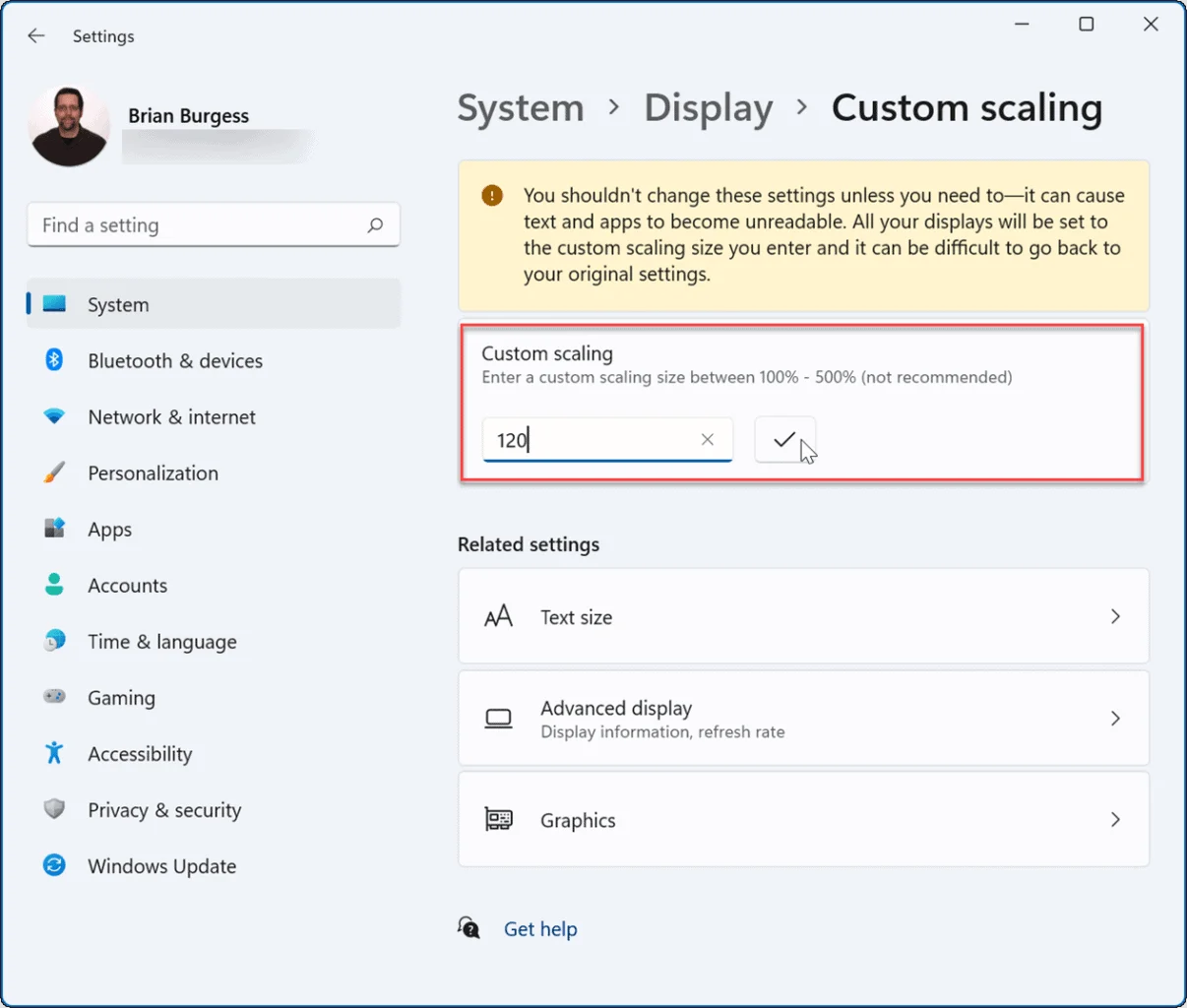
Windows display scaling is the single most important setting for a good 4K experience. Here's how to get it right.
- Right-click on the desktop and select Display settings.
- Under Scale & layout, set the scaling to 150% for a 27-inch 4K monitor. For a 32-inch panel, 125% usually works better.
- Sign out and back in when prompted. Some apps need a restart to pick up the new scaling.
- If specific apps look blurry, right-click the app shortcut, go to Properties > Compatibility > Change high DPI settings, and check Override high DPI scaling behavior with Application selected.
Windows 11 handles per-monitor scaling better than Windows 10 did, but you may still encounter occasional glitches with older software.
macOS scaling: simpler but not perfect
macOS handles 4K scaling more gracefully because Apple designed its ecosystem around Retina displays. When you connect a 4K monitor to a Mac, you'll get a default scaling that mimics the sharpness of a Retina display.
You can adjust this in System Settings > Displays. macOS offers several scaled resolutions. The default usually looks best. One caveat: non-integer scaling on macOS can cause a slight performance hit on older Macs, since the system renders at a higher resolution and then downscales.
Choosing the right cable and connection
Use the best connection your setup supports. Here's the priority order for 4K at 60Hz.
- DisplayPort 1.2 or newer, Most reliable for 4K 60Hz. Common on desktop GPUs and many monitors.
- HDMI 2.0 or newer, Works well for 4K 60Hz. Make sure both the cable and the port support it.
- USB-C with DisplayPort Alt Mode, Ideal for laptops. Single cable for video, data, and power delivery.
- Thunderbolt 3/4, Best option for Mac users and high-end laptop docking.
Avoid HDMI 1.4. It's limited to 4K at 30Hz, which feels noticeably laggy for desktop use.
Positioning and ergonomics at higher resolution
A 27-inch 4K monitor works best at a viewing distance of about 20 to 30 inches. If your desk is shallow and you're closer than that, you might find yourself turning your head more than you'd like. A 32-inch panel can work better at slightly longer distances.
The top of the screen should be at or just below eye level. With the higher pixel density, you may find you can sit a bit closer than you did with a 1080p display without seeing individual pixels. That's fine as long as you're not hunched forward.
A monitor arm is worth the investment. It lets you dial in the exact height and distance, and it frees up desk space. Most 4K monitors use a VESA 100×100 mount pattern, which is standard.
Common Mistakes People Make When Switching to 4K
Learn from the errors that send monitors back to the retailer.
- Buying based on resolution alone. Panel type matters. An IPS panel with good color accuracy and viewing angles is the standard choice for office work. VA panels offer better contrast but can have color shift at angles. Avoid TN panels for any kind of serious work.
- Ignoring the GPU requirement. If your computer only has integrated graphics from before 2020, test 4K output before committing. Some older integrated GPUs struggle with smooth desktop performance at 4K.
- Using the wrong cable. That old HDMI cable from your previous setup might cap you at 30Hz. Check the rating on the cable and make sure it's High Speed or Premium High Speed.
- Setting scaling to 100%. On a 27-inch 4K panel, 100% scaling makes everything tiny. Your eyes will thank you for using 150%.
- Expecting HDR to be good on a budget 4K monitor. True HDR requires DisplayHDR 600 certification or higher, good local dimming, and high peak brightness. Most office-oriented 4K monitors with "HDR support" are doing basic HDR10 signal processing without the hardware to make it look good.
- Forgetting about the return policy. If scaling issues or eye strain don't resolve after a week of proper setup, don't force it. Not every person or workflow benefits from 4K.
What You'll Actually Spend: Pricing and Value Breakdown
Here's what you can expect to pay for a quality 4K office monitor as of 2026.
| Tier | Price Range | What You Get | Good Examples |
|---|---|---|---|
| Budget 4K | $250-$350 | 27" IPS, 60Hz, basic stand, decent color | Dell S2722QC, LG 27UN850-W |
| Mid-range 4K | $350-$550 | 27" IPS, USB-C PD, better stand, factory calibration | Dell U2723QE, BenQ PD2700U |
| Premium 4K | $550-$900 | 32" IPS or 27" OLED, Thunderbolt, high brightness, wide gamut | Dell U3223QE, LG 27GR95QE |
| Professional 4K | $900+ | Hardware calibration, reference-grade color, Eizo/BenQ SW series | Eizo ColorEdge, BenQ SW272U |
The sweet spot for most home office workers is the $350 to $500 range. You get a solid IPS panel with good color accuracy, a USB-C connection with power delivery, and an adjustable stand. Spending more gets you incremental improvements in color accuracy and build quality that most people won't notice in daily use.
Don't forget to budget for a good cable if one isn't included, and consider a monitor arm if the stand doesn't offer the adjustability you need. A $30 to $50 VESA arm can make a bigger difference to your comfort than spending an extra $100 on the monitor itself.
Frequently Asked Questions
Is a 4K monitor good for office work?
Yes, for most office work a 4K monitor provides noticeably sharper text and more usable screen space when scaled properly. It's especially beneficial for coding, design, data analysis, and any task that involves reading small text or managing multiple windows. For basic email and web browsing, 1440p offers better value.
What size 4K monitor is best for a home office?
27 inches is the most popular and practical size for a 4K home office monitor. It delivers around 163 PPI, which provides excellent text clarity at 150% scaling on Windows. At 32 inches, 4K drops to about 138 PPI, which works well if you prefer larger UI elements or sit further from the screen.
Does my computer need a special graphics card for 4K?
You need a GPU that supports 3840×2160 at 60Hz through HDMI 2.0 or DisplayPort 1.2 or newer. Modern integrated graphics like Intel Iris Xe or AMD Radeon 780M handle basic 4K desktop use fine. Older integrated GPUs may be limited to 4K at 30Hz, which isn't comfortable for daily work.
Will a 4K monitor work with my laptop?
Most laptops from 2020 onward support 4K output, either through HDMI 2.0, DisplayPort over USB-C, or Thunderbolt. Check your laptop's specific port capabilities. A USB-C connection with DisplayPort Alt Mode is the cleanest solution, since it can carry video, data, and power over a single cable.
Is 4K worth it over 1440p for productivity?
It depends on your priorities. At proper scaling, 4K gives you similar effective workspace to 1440p but with significantly sharper text and images. If you value visual quality and do detail-oriented work, the upgrade is worthwhile.
If you want the most screen space per dollar, 1440p remains the better value.
Can I use a 4K monitor for video calls?
Yes, and it works well. A 4K display gives you plenty of room for a full-size video call window alongside your other applications. The sharper rendering also makes shared screens and documents easier to read during calls.
Just make sure your webcam and internet connection are up to the task, since the monitor can't fix a low-quality video feed.
The Bottom Line: Should You Get a 4K Monitor for Your Home Office?
A 4K monitor is a strong choice for your home office if you do detail-oriented work, value text clarity, and have hardware that can drive it properly. The combination of sharp rendering and generous screen space makes long work sessions more comfortable and more productive.
It's not the right move for everyone. If your work is mostly light tasks, if your hardware can't handle 4K at 60Hz, or if you're on a tight budget, a good 1440p monitor will serve you well for less money and with fewer setup headaches.
The decision comes down to matching the tool to your actual work. If you spend hours reading code, editing spreadsheets, or working with visual content, 4K earns its keep. If you're mostly in a browser and an email client, save your money and put it toward something that'll make a bigger difference to your daily comfort.
Common Mistakes People Make When Switching to 4K
We've covered several of these already, but they're worth calling out as a dedicated checklist. These are the errors that generate the most returns and the most frustration.
Buying a 4K monitor without checking your GPU output first is the big one. People get excited about the resolution, plug in an old HDMI cable, and wonder why everything feels sluggish. Always verify your ports and your cable rating before the purchase.
Setting scaling wrong is the second most common issue. Running a 27-inch 4K panel at 100% scaling makes text microscopic. Running it at 200% scaling wastes the resolution advantage entirely.
Take the time to find the right percentage for your eyesight and your workflow.
Expecting good HDR from a budget 4K monitor disappoints a lot of people. True HDR performance requires hardware that most office monitors simply don't have. If HDR matters to you, look for DisplayHDR 600 certification or higher and expect to pay more.
What You'll Actually Spend: Pricing and Value Breakdown
We touched on pricing earlier, but let's frame the value question more directly. The real cost of a 4K monitor isn't just the purchase price. It's whether your entire setup can take advantage of it.
If you need a new GPU, a new cable, and a monitor arm to make 4K work comfortably, the total investment might hit $700 or more. If your current hardware already supports 4K output and you have a decent cable, you could be looking at $350 to $500 for a quality mid-range panel.
Compare that to a 27-inch 1440p monitor at $250 to $350 with zero additional requirements. The value gap narrows if you'll genuinely use the extra sharpness and space. It widens if you're buying on spec alone.
Frequently Asked Questions
Will a 4K monitor make me more productive?
It can, if your work benefits from more screen space or sharper text. Developers, designers, and data workers tend to see the biggest gains. For basic office tasks, the productivity difference is minimal.
Is text actually easier to read on a 4K monitor?
Yes, when scaling is set correctly. The higher pixel density produces smoother font edges that reduce eye strain during long reading sessions. Most people notice the difference within the first hour of use.
Can I connect a 4K monitor to a USB-C laptop?
Yes, as long as your laptop's USB-C port supports DisplayPort Alt Mode. Many business laptops from 2020 onward do. Check your manufacturer's specifications for "DP Alt Mode" or "video over USB-C."
Do I need a 4K monitor for photo editing?
It's strongly recommended. A 4K display lets you view images at native resolution with room for editing tools. Color accuracy on mid-range 4K IPS panels is also better than what you'll find on most 1080p displays.
How far should I sit from a 27-inch 4K monitor?
About 20 to 30 inches is the sweet spot. This gives you a comfortable field of view without needing to turn your head. If you sit closer than 18 inches, a 32-inch panel might feel more natural.
The Bottom Line: Should You Get a 4K Monitor for Your Home Office?
If your work involves reading dense text, managing multiple windows, or working with visual detail, a 4K monitor is one of the most impactful upgrades you can make to your home office. The combination of sharp rendering and generous screen space pays off every single day.
If your workflow is lighter, your hardware is older, or your budget is tight, a quality 1440p monitor will serve you well without the added complexity. There's no wrong choice here, just the choice that fits your actual situation.
The best monitor for your home office is the one that matches what you do all day, not the one with the highest number on the spec sheet.
- Introduction
- Quick Answer
- The Short Answer
- What Changes the Answer (with all subsections)
- The Real Benefits of 4K
- The Downsides Nobody Talks About
- 4K vs 1440p vs 1080p
- Who Should Buy a 4K Monitor
- How to Set Up a 4K Monitor
- Common Mistakes
- What You'll Actually Spend
- FAQs
- The Bottom Line
The article has reached its natural conclusion. No additional sections remain in the TOC.

Similar Posts





















