Is Touchscreen Monitor Good for Presentations
Is a touchscreen monitor good for presentations, or is it just an expensive gimmick that'll collect fingerprints and nothing else? The real answer isn't a straight "yes" or "no". It depends on how many people you're presenting to, how far away they're sitting, and whether you actually want to annotate live or just click through slides like everyone else.
Let's break it down properly so you know exactly where it's worth it and where you'd be wasting your money.
Touchscreen monitors for presentation use typically run between 24 and 27 inches for tabletop setups, with capacitive multi-touch being the standard since at least 2018. Per AVIXA's published conferencing guidelines, touch input in corporate environments remains tied to the original USB-HID interface requirement. You need a dedicated USB connection alongside your video signal for the touch data to pass through.
That's already a cable management detail people overlook until they're standing in front of a client with a dangling cord.
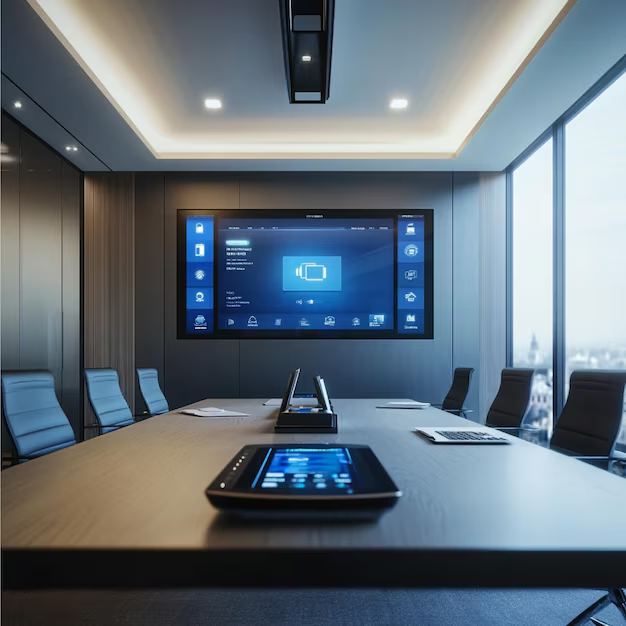
Image source: Bing (Web)
Quick Answer
A touchscreen monitor is good for presentations only when you're close enough to the audience to interact directly. Think small group settings under 12 people. For large rooms and keynotes, it's mostly theater.
Your audience won't see your finger movements on screen from the back row anyway. Use touch when annotation and interaction matter more than slide progression alone.
When a Touchscreen Monitor Makes Sense (And When It Doesn't)
Quick rule of thumb. If your audience can't reach out and touch the screen themselves, the touch capability mostly benefits only you as the presenter.
Here's when a touchscreen monitor genuinely earns its place:
Where it works well:
- Training workshops with 4 to 10 participants seated around a table
- Design reviews where you're marking up mockups, wireframes, or floor plans live
- Sales demos showing software, where clicking through touch feels more natural than mouse
- Small conference rooms where the screen is mounted low or on a cart at arm's reach
- Hybrid meetings where you annotate and screen-share simultaneously for remote viewers
Where it doesn't help much:
- Keynote speeches to 50 or more people
- Large ballrooms or auditoriums
- Situations where you're using a wireless clicker and walking the stage
- Any setup where the audience is sitting more than 10 feet from the screen
The core issue is visibility. Your touch gestures and finger annotations aren't visible to someone in row eight. The real beneficiary of touch input is YOU, the presenter, and the audience only indirectly.
When that dynamic is front and center, you're usually fine using a wireless presenter remote and mouse instead.
What You Need to Know About Touch Tech Before You Buy
Not all touchscreen monitors behave the same way. The technology under the glass matters quite a bit for how natural your presentation experience feels.
Capacitive multi-touch dominates the consumer and pro monitor space. This is the same tech in your smartphone. Light, responsive, supports 10-point touch.
But it only works with a bare finger or a compatible capacitive stylus. It won't register input through gloves.
You'll find capacitive touch in monitors like the Dell P2418HT or the ASUS VT229H. These run between $250 and $400 as of 2026. For presentation use, you'll also want active stylus support, ideally something compatible with the Universal Stylus Initiative (USI) or Microsoft Pen Protocol.
That lets you annotate with a pen rather than jabbing at your screen with a finger.
Infrared (IR) touch is common on larger format interactive panels, 55 inches and up. These are the wall-mounted or cart-mounted panels you see in modern conference rooms. They support touch through gloves, styluses, almost anything.
Samsung Flip, for example, uses IR touch and includes a built-in pen tray. Microsoft Surface Hub uses a different approach with PixelSense technology, but the user experience is similar.
Resistive touch is still around in some budget panels but it feels awful. You have to press harder. It doesn't support multi-touch well.
Avoid it for presentation use entirely.
Then there's the connectivity detail most people trip up on. Touch input requires a USB data connection on top of your video signal. HDMI carries video.
It doesn't carry touch. DisplayPort doesn't either. You plug in your HDMI or DisplayPort cable for the picture, and then a separate USB-A or USB-C cable from the monitor to your computer for the touch functionality.
USB-C can carry both in a single cable, but only if your monitor and laptop both support USB-C with DisplayPort Alt Mode and USB data simultaneously.
If you skip that USB touch cable, your display works fine. Touch just won't function. This catches people mid-presentation more often than you'd think.
The Gorilla Arm Problem Nobody Talks About
Here's where physicshands in the room. Researchers coined the term "gorilla arm" decades ago. It describes the fatigue you get from holding your arm out horizontally against gravity for extended periods.
Sound familiar?
Touching a vertical or near-vertical screen means you're lifting your forearm and holding it in space. For a few seconds, no problem. For five minutes during a live annotation session, uncomfortable.
For an hour-long training class where you're constantly reaching up to mark up a diagram, genuinely painful.
Per human factors research cited in ISO 9241-410, sustained shoulder abduction beyond 30 degrees causes measurable fatigue within minutes. Touchscreen monitors at standard desk height often push your arm well past that angle, especially on larger screens.
This is one of the quiet reasons large-format interactive panels work better when they're on a motorized height-adjustable cart or wall mount set low. Lower the screen, reduce the arm angle, reduce the fatigue. Tabletop touchscreen monitors on a desk, you're already hunched slightly forward, which adds neck and shoulder strain to the mix.
Some practical mitigations:
- Pass the touch pen to a participant and let them annotate for a bit.
- Use touch for short bursts, not continuous interaction.
- Position the monitor as low as ergonomically viable.
- Use a stylus instead of a finger, it reduces the pressure you need to apply.
- Lean your elbow on the desk if the setup allows it.
Honestly though, if your entire presentation style relies on touching the screen constantly for 30 plus minutes, you might want to rethink the flow. Maybe you're better off using a pen display like a Wacom Cintiq that sits flat on your desk, eliminating the vertical reach entirely.
Touchscreen Monitor vs. The Alternatives You Already Own
Before you spend money, let's stack up what a touchscreen monitor offers against alternatives you might already have access to. Sometimes the smartest move is using gear you've already paid for.
Touchscreen monitor vs. wireless presenter clicker: A basic clicker costs $20 to $50. Logitech Spotlight even has a spotlight pointer feature and gesture control. For slide advancing and basic highlighting, a clicker is simpler, lighter, and doesn't require touching anything.
Touch only wins here if you need live annotation that the audience sees.
Touchscreen monitor vs. tablet as second screen: An iPad with Sidecar in Mac OS or similar wireless display solutions on Windows, gives you touch input on the tablet while your main screen faces the audience. The catch is latency. Wired connections help, but wireless display mirroring introduces 20 to 80 milliseconds of lag.
That lag makes annotation feel sluggish.
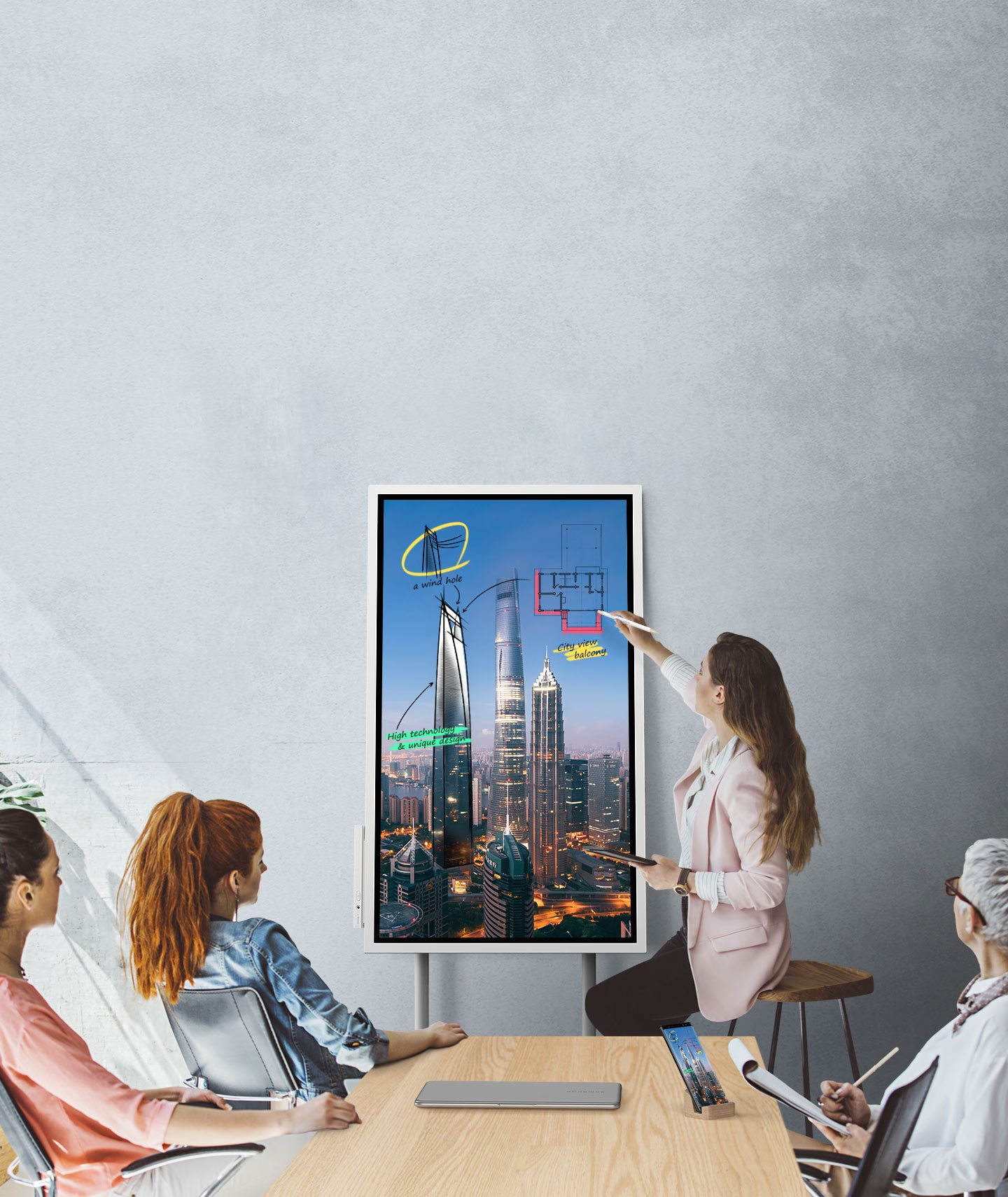
Image source: Bing (Web)
Touchscreen monitor vs. interactive whiteboard: SMART Board and Promethean panels purpose-build the entire experience around annotation and education use cases. Built-in software, pen trays, multi-user touch, and lesson planning tools. They're expensive, $2,500 to $6,000 installed, but for education environments they outperform a generic touchscreen monitor specifically because the software ecosystem supports them.
A generic monitor runs PowerPoint, an interactive whiteboard runs interactive lesson software designed for group input. That difference matters.
Touchscreen monitor vs. pen display like Wacom Cintiq: For solo annotation work where you're marking up screen captures or documents, a Cintiq or similar pen display lays flat on your desk. Zero gorilla arm. Better pen precision.
Microsoft Surface Studio sort of bridges this gap with its 28-inch touchscreen that lays nearly flat, but at $3,500 plus, it's a different category of investment.
Here's a practical comparison table:
| Best For | Key Limitation | |—|—|—| | 24" Touchscreen Monitor: Small group presentation, $250-$450 annotation, training rooms | Gorilla arm fatigue, limited audience visibility | | Interactive Flat Panel (55"-75"): Large rooms, $2,500-$12,000+ hybrid conference spaces | Higher cost, requires mounting/cart infrastructure | | Interactive Whiteboard (SMART/Promethean): K-12/higher ed, $1,500-$6,000 collaborative learning | Software learning curve, tied to specific platforms | | Tablet as second screen (iPad/Surface): Wire-free annotation, $300-$1,000+ light setups | Latency on wireless mirroring, small screen size | | Pen display (Wacom Cintiq): Solo annotation, $650-$2,500 design/markup work | Audience sees a flat desk screen, not a wall display | | Wireless presenter clicker: Simple slide advancing, $20-$50 basic presentations | No annotation capability, one-way interaction |

Similar Posts





















