Do Touchscreen Monitors Support Split Screen
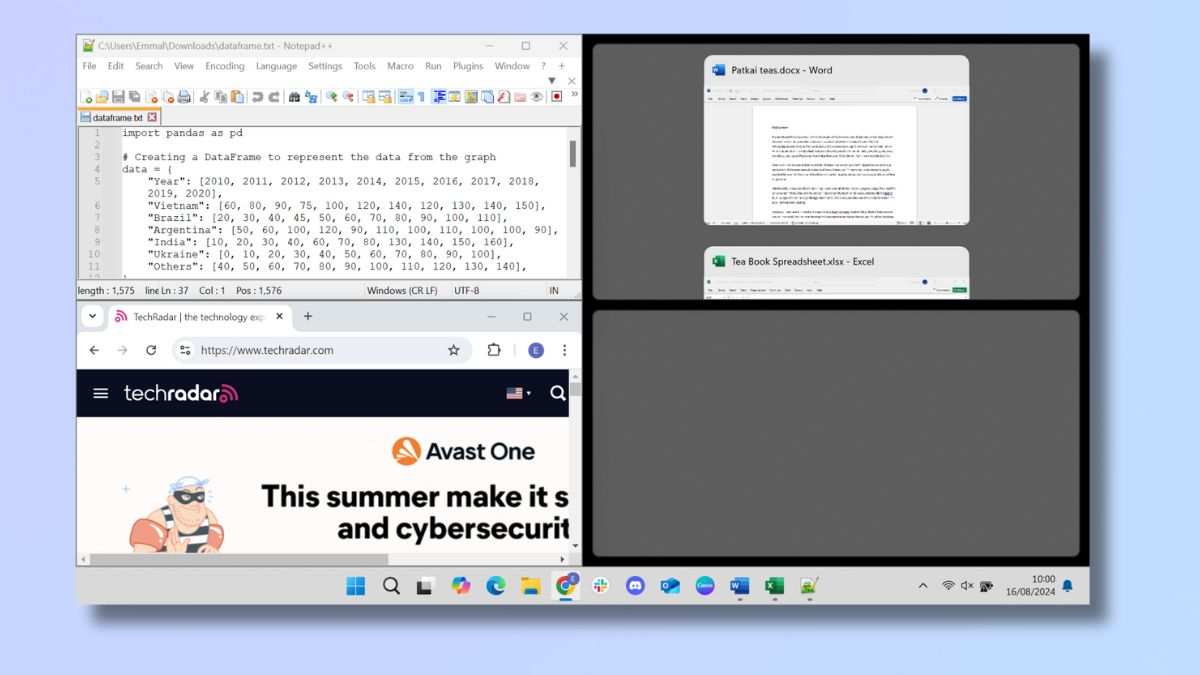
Here's the short version: yes, touchscreen monitors do support split screen, but the experience isn't always as smooth as you'd expect. What actually happens depends on your operating system, how your touch driver talks to the display, and whether the software you're using was designed with touch in mind.
Most modern touchscreen monitors use USB HID (Human Interface Device) protocols to handle touch input separately from the video signal. That means the split screen capability comes from your OS, not the monitor itself. As of 2026, Windows 11 and macOS handle this reasonably well, but there are real quirks you should know about before you buy or set one up.
Quick Answer
Touchscreen monitors do support split screen. Your operating system handles the window arrangement, not the monitor. Windows 11 Snap Assist and macOS Split View both work with touch input.
Touch accuracy in split mode depends on your driver and the active window. Some third-party tools give you better control than built-in OS features.
How Touchscreen Monitors Actually Handle Split Screen
Here's the thing most people get wrong. The touchscreen monitor itself doesn't decide whether split screen works. It's a input surface and a display.
The split screen logic lives entirely in your operating system and GPU.
When you touch the screen, the touch digitizer sends coordinates to your computer over USB (or sometimes over the same cable carrying video, like USB-C with DisplayPort Alt Mode). Your OS receives that input and routes it to whichever window is under your finger. The monitor just shows pixels.
This means any touchscreen monitor can technically display split screen, because split screen is a software feature. The real question is whether the touch input behaves correctly when you've got two or more windows side by side.
The Three Things That Determine Your Experience
Before you assume everything will work perfectly, these three factors matter most:
- Your operating system's window management. Windows Snap, macOS Split View, and ChromeOS split all handle touch differently. Some route touch to the focused window only. Others can get confused about which window you're touching.
- Your touch driver and connection type. Monitors using a separate USB cable for touch input tend to have fewer conflicts than single-cable USB-C setups where touch and video share bandwidth.
- The software you're using. Apps built with touch in mind (like Microsoft Office, Adobe Acrobat with touch mode, or web browsers) work fine. Older desktop apps or anything built purely for mouse and keyboard can be frustrating.
Operating System Split Screen + Touch: What Works Where
Not all operating systems treat touch the same way in split screen mode. Here's what you're working with on each platform.
Windows Snap and Snap Assist (Windows 10/11)
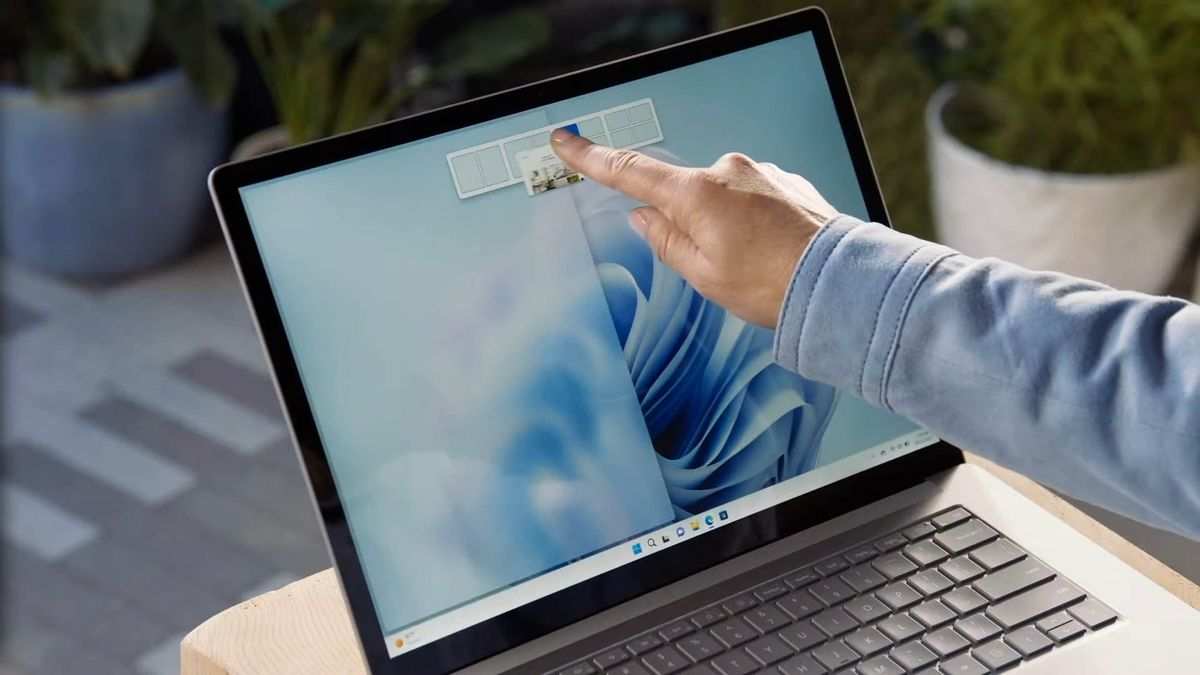
Windows 11 is where things get interesting. Snap Assist lets you drag a window to the top of the screen or press Win + Z to pick a layout. Touch works for this.
You can drag windows by their title bars with your finger and snap them into position.
But there's a catch. When you're in a snapped layout, touch input goes to whichever window your finger actually touches. That sounds obvious, but some users report that touch occasionally registers on the wrong window, especially near the divider between panes.
This usually comes down to calibration or driver issues, not the hardware itself.
Windows 10 works similarly but with fewer layout options. You get basic left/right split and quadrant snapping. Touch support is functional but less refined than Windows 11.
macOS Split View and Stage Manager
Apple's approach is a bit different. macOS Split View (hold the green full-screen button and pick a side) works with touch on external touchscreen monitors, but Apple doesn't make many touchscreen displays. Most people using touch on macOS are connecting third-party monitors via USB-C or Thunderbolt.
Stage Manager, introduced in macOS Ventura, gives you a sidebar-based window management system. It works with touch, though Apple clearly designed it with trackpad gestures in mind. Touch input in Stage Manager can feel a bit imprecise compared to using a trackpad.
ChromeOS split screen behavior
ChromeOS handles split screen well on Chromebooks with touchscreens, and this extends to external touchscreen monitors. You can snap windows by dragging or using keyboard shortcuts. Touch input routes correctly to the window under your finger in most cases.
ChromeOS is probably the most touch-friendly option for split screen on an external monitor, simply because Google designed the OS with touch as a first-class input method from the start.
Linux desktop environment options
Linux users have options like GNOME's built-in snapping, KDE Plasma's tiling scripts, or manual tiling window managers like i3 or Sway. Touch support varies wildly. GNOME and KDE work reasonably well with touchscreen monitors.
Tiling window managers are keyboard-driven and don't really account for touch input at all.
Real Problems You'll Hit When Using Split Screen on Touch
Let's talk about what actually goes wrong, because plenty does.
Touch Input Going to the Wrong Window
This is the number one complaint. You're touching the left window, but the right window responds. It happens most often near the divider between snapped windows.
Why? The touch digitizer reports coordinates to the OS, and the OS decides which window those coordinates fall inside. If the window divider is thin or if your touch calibration is slightly off, the OS can misroute the input.
This is especially common on larger monitors (27" and up) where the pixel density doesn't always match the touch sensor's resolution.
What helps:
- Recalibrate your touch input through your OS settings
- Use window management tools that add visible, touch-friendly dividers
- Avoid placing interactive elements right at the split boundary
Driver and Connection Conflicts
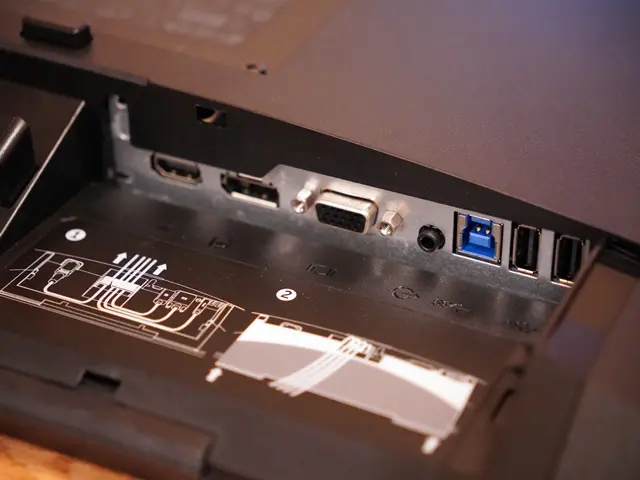
Here's where things get messy. Many touchscreen monitors use two connections: one for video (HDMI or DisplayPort) and one separate USB cable for touch input. Both need to work together for split screen touch to function properly.
If your touch driver isn't installed or is outdated, the OS might not recognize touch input at all. Or it might recognize it but behave erratically. Some monitors require specific manufacturer drivers rather than the generic HID driver Windows provides.
Single-cable USB-C setups can have their own issues. If the cable or port doesn't support enough bandwidth, you might get video but no touch, or touch that lags behind your finger.
Common driver issues:
- Touch stops working after waking from sleep
- Touch works on one screen but not in split mode
- Ghost touches appearing randomly
- Touch input lag that makes split screen unusable
Software That Just Doesn't Play Nice with Touch in Split
Some applications simply weren't built for touch. If you're running legacy desktop software, anything built on older frameworks, or apps that assume mouse and keyboard input, split screen touch can be a nightmare.
The app might not respond to touch at all. Or it might interpret your finger as a click but not support drag operations. Context menus, hover states, and small UI elements all become frustrating when you're trying to work in a split layout with touch.
Apps that typically work well:
- Web browsers (Chrome, Edge, Firefox)
- Microsoft Office (Word, Excel, PowerPoint)
- Adobe Acrobat Reader (with touch mode enabled)
- File explorers and system settings
Apps that often struggle:
- Older desktop applications
- Developer tools not designed for touch
- Apps with tiny UI elements or dense toolbars
- Anything requiring right-click context menus frequently
Step-by-Step: Setting Up Split Screen on a Touch Monitor
Getting split screen working with touch isn't complicated, but you need to make sure a few things are configured correctly first.
Windows Setup and Optimization
Start with the basics. Make sure your touch driver is installed and your monitor is recognized as a touch input device in Device Manager.
Step 1: Verify touch input is working. Open Device Manager and look under "Human Interface Devices." You should see a HID-compliant touch screen entry. If it's missing or has a yellow warning icon, download the touch driver from your monitor manufacturer's website.
Step 2: Calibrate touch input. Go to Settings > Bluetooth & devices > Touch. Run the calibration tool if available. This maps the touch sensor coordinates to your display pixels accurately.
Step 3: Enable Snap Assist. Navigate to Settings > System > Multitasking. Make sure "Snap windows" is turned on. Enable all the sub-options: "Show snap windows when I drag a window to the top of my screen," "Show snap windows when I hover over a window's maximize button," and "Show my snapped windows when I hover over taskbar apps."
Step 4: Test with a simple layout. Open two windows. Drag one to the left edge of the screen until you see the snap outline. Release it.
Drag the other to the right. Try touching elements in each window to confirm input routes correctly.
Step 5: Adjust for high-DPI displays. If you're using a 4K touch monitor, go to Settings > System > Display and check your scaling. At 150% or 200% scaling, some touch input can feel offset. Adjust scaling and recalibrate if needed.
macOS Setup
macOS requires a few different steps since Apple's ecosystem handles input differently.
Step 1: Confirm touch input is recognized. Open System Information and check under USB or Thunderbolt, depending on your connection. Your touch monitor should appear. If touch isn't working, check for manufacturer drivers or try a different cable.
Step 2: Enable Split View. Hover over the green full-screen button in any window's title bar. Select "Tile Window to Left of Screen" or "Tile Window to Right of Screen." Pick your other window for the opposite side.
Step 3: Adjust the divider. You can drag the center divider to give one window more space. This works with touch, though the divider can be a small target. Use a stylus if you have one for more precision.
Step 4: Consider Stage Manager as an alternative. Stage Manager groups windows on the left side of your screen. It's more touch-friendly than Split View for some workflows since the window thumbnails are larger targets.
Third-Party Window Managers Worth Using
Built-in OS tools work, but third-party options give you more control over layouts and touch behavior.
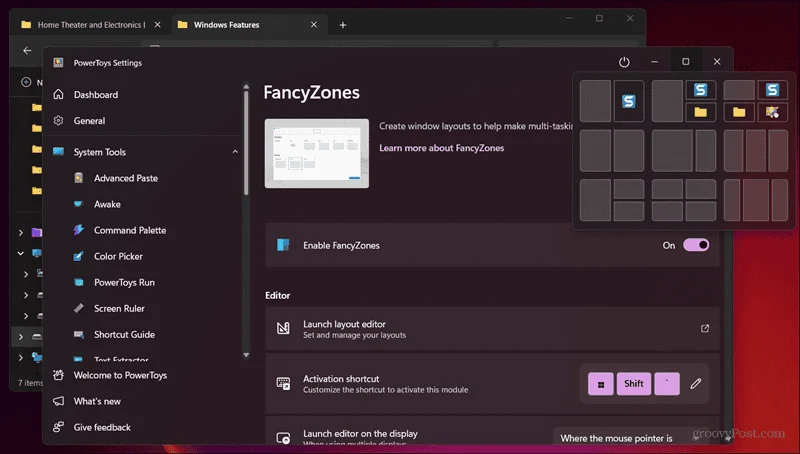
Microsoft PowerToys FancyZones (Windows, free). This lets you create custom snap zones. You design your split screen layout ahead of time, then drag windows into those zones.
It's excellent for touch because you can make the zones and dividers larger and more finger-friendly.
DisplayFusion (Windows, paid). Offers advanced multi-monitor management with customizable split configurations. Touch support is solid, and you can create profiles for different workflows.
Magnet (macOS, paid). A simple window manager that adds keyboard shortcuts and snap zones. Touch works for dragging windows into position, though the app itself is controlled via keyboard.
Divvy (macOS, paid). Lets you define a grid and resize windows by selecting sections. The grid interface works well with touch since you're tapping regions rather than dragging to edges.
Which Touch Monitors Actually Handle Split Screen Well
Not all touch monitors are created equal for productivity work. Some are built for kiosk or signage use and don't prioritize the kind of precision you need for split screen multitasking.
What to Look for in a Productivity Touch Monitor
Panel size and resolution. For split screen, 24 inches is the practical minimum. Below that, each window becomes too narrow to be useful. 27 inches at 2560×1440 or 4K gives you enough room for two full-size windows side by side.
Touch technology. Projected capacitive (PCAP) touch is the standard for modern touchscreen monitors. It supports multi-touch and feels responsive. Resistive touch (older technology that works with any stylus or gloved hand) is less precise and not ideal for split screen productivity.
Touch point count. Look for at least 10-point multi-touch. This means the monitor can track ten simultaneous touch points. For split screen use, you don't need all ten, but higher point counts generally mean better touch controller quality and accuracy.
Connection type. Monitors that use USB-C with DisplayPort Alt Mode and USB data over a single cable are cleaner to set up. But make sure your computer's USB-C port supports both video and data. Some cheaper USB-C ports only carry video, which means you'll still need a separate USB cable for touch.
Palm rejection. If you plan to use a stylus alongside touch, palm rejection matters. Without it, resting your hand on the screen while writing can register unwanted touches. Not all touch monitors handle this well.
Monitor Brands and Lines Worth Considering
Dell's P-series touch monitors (like the P2418HT and P2724HT) are popular for office use. They use PCAP touch, have good driver support, and connect via USB-C or HDMI plus USB.
ASUS offers touch models in their ProArt and VY lines. The ProArt PA248CV with touch is aimed at creative professionals and has good color accuracy alongside touch input.
ViewSonic's TD series is designed specifically for touch productivity. Models like the TD2455 and TD2760 emphasize multi-touch support and ergonomic stands.
HP's EliteDisplay and ZDisplay lines include touch options. These tend to integrate well with HP's business driver packages.
LG has fewer dedicated touch models, but some of their UltraFine and UltraGear displays include touch capability. Check the specific model's specs carefully since LG's touch support varies by line.
Touch Split Screen vs. Other Multitasking Approaches
How does using a touchscreen monitor for split screen compare to other ways of multitasking?
Touch Monitor vs. Non-Touch + Keyboard Shortcuts
If you're comfortable with keyboard shortcuts, a non-touch monitor with Windows Snap or a tiling window manager is faster for window arrangement. You can snap windows in under a second without lifting your hands from the keyboard.
Touch adds value when you're doing more than just arranging windows. Dragging content between split windows, annotating documents, or interacting with touch-optimized apps is more natural with touch. The tradeoff is that touch window arrangement is slower than keyboard shortcuts.
Best for touch: Creative work, annotation, presentations, and workflows where you're interacting with content inside the windows, not just arranging them.
Best for keyboard shortcuts: Pure productivity, coding, writing, and any workflow where speed of window management matters more than in-window interaction.
Touch Monitor vs. Tablet or Laptop with External Display
A tablet like an iPad with Stage Manager or a touchscreen laptop gives you touch input built in. Adding an external touch monitor is a different beast entirely.
With a laptop, you get touch on the built-in screen but not on the external display (unless it's a touch monitor). This creates an inconsistency. You can touch the laptop screen but not the external screen, which can be confusing.
A touch monitor paired with a desktop gives you a consistent large touch surface. But you lose the portability. You also need a separate keyboard and mouse for non-touch tasks.
Best for touch monitors: Desktop users who want a large, consistent touch surface for specific tasks like design review, collaborative work, or kiosk-style applications.
Best for laptop/tablet: Users who need portability and touch in a single device.
Best Use Cases for Split Screen on Touch
Some workflows genuinely benefit from split screen on a touch monitor. Others don't.
Who Benefits Most
Designers and creative professionals. Having reference images on one side and your work on the other, with the ability to zoom, pan, and annotate by touch, is genuinely useful. Adobe's touch-optimized apps work well in this setup.
Educators and presenters. Splitting a presentation and notes, or showing a document alongside a whiteboard app, works naturally with touch. You can annotate slides in real time without a mouse.
Data analysts and traders. Multiple dashboards side by side, with touch for quick drill-downs and filtering, can speed up review workflows. The touch interaction makes exploring data more intuitive than clicking through menus.
Accessibility users. For people who find mouse and keyboard difficult to use, touch split screen provides a more direct way to interact with multiple applications. The simplicity of touching what you want to interact with reduces cognitive load.
Where Touch Split Screen Falls Short
Heavy coding or text work. If you're typing most of the time, touching the screen to manage windows is slower than keyboard shortcuts. The benefit doesn't justify the cost.
Color-critical work. Touching the screen can smudge it, and some touch panels introduce slight image quality compromises compared to non-touch panels of the same caliber. For professional photo editing or color grading, a non-touch display often produces better results.
Gaming. Touch input adds latency that matters in gaming. Split screen gaming on a touch monitor isn't practical, and the touch layer can affect display quality.
Common Mistakes When Using Touch with Split Screen
People run into the same issues repeatedly. Here's what to watch for.
Ignoring driver updates. Touch drivers aren't always updated automatically through Windows Update. Check your manufacturer's website periodically, especially after major OS updates.
Using the wrong USB port. If your monitor needs a separate USB connection for touch, make sure it's plugged into a port that provides adequate power and data. USB 2.0 ports work for touch data, but some monitors perform better on USB 3.0.
Not calibrating after changing resolution. If you change your display resolution or scaling, recalibrate touch input. The coordinate mapping changes with resolution, and uncalibrated touch will feel offset.
Expecting tablet-level touch optimization. Desktop operating systems and desktop apps aren't as touch-optimized as mobile OS and apps. Some friction is normal. Don't expect the same experience you get on an iPad.
Overlooking single-monitor KVM use. Some touch monitors include KVM switch functionality. If you're using the monitor with two computers, make sure the touch input switches correctly along with the video and USB.
Pricing and Specs That Matter
Touch monitors cost more than equivalent non-touch displays. Here's what you're looking at.
| Price Range | What You Get | Best For |
|---|---|---|
| $150-$300 | 21-24" 1080p PCAP touch, basic stand, HDMI + USB | Casual use, secondary display |
| $300-$600 | 24-27" 1440p or 4K touch, adjustable stand, USB-C | Office productivity, creative work |
| $600-$1,000 | 27" 4K touch, color-accurate panel, ergonomic stand, Thunderbolt | Professional design, medical imaging |
| $1,000+ | Large-format touch (32"+), interactive flat panel features, multi-user touch | Collaboration, education, kiosk |
Key specs to compare beyond price:
- Touch latency: Look for under 10ms for responsive feel. Some budget panels run 15-20ms, which feels sluggish.
- Touch accuracy: ±1mm is standard for good panels. Cheaper panels may be ±2-3mm.
- Multi-touch points: 10-point is standard. 20-point is available on some premium models but rarely needed for split screen.
- Surface treatment: Anti-glare coatings reduce reflections but can make the image slightly less crisp. Glossy surfaces look better but show fingerprints and reflections.
Frequently Asked Questions
Does split screen work on all touchscreen monitors?
Yes, split screen is an operating system function, not a monitor feature. Any touchscreen monitor can display split screen. The quality of the touch experience in split mode varies by monitor and driver.
Can I use touch to drag windows between split panes?
In most cases, yes. You can touch a window's title bar and drag it out of a snapped position. Windows 11 and macOS both support this.
Some third-party window managers add more granular control over this behavior.
Does touch input lag increase in split screen mode?
Touch input lag is determined by the touch controller and driver, not by how many windows are on screen. If you're experiencing lag, it's likely a driver or connection issue, not a split screen problem.
Do I need a special cable for touch split screen?
No special cable is needed. The same connections that work for single-window touch work for split screen. USB-C with DisplayPort Alt Mode and USB data, or HDMI/DisplayPort plus a separate USB cable, both function fine.
Will a stylus work in split screen mode?
If your touch monitor supports active stylus input (MPP, AES, or EMR protocols), the stylus works in split screen. Palm rejection becomes more important in split mode since your hand may rest near the window divider.
Can I use touch split screen with multiple monitors?
Yes, but touch input routes to whichever screen your finger touches. If you have two touch monitors side by side, touching the left screen affects windows on that screen. Make sure each monitor's touch input is correctly mapped to its display in your OS settings.

Similar Posts





















