Is Touchscreen Monitor Worth It for Students
You're probably wondering whether dropping extra cash on a touchscreen monitor is actually going to make your study life better or just lighter. The short answer is that it depends entirely on how you learn, what you study, and whether you'll actually use the touch features daily. For some students it's a genuine productivity boost.
For others it's an expensive gadget that collects dust.
Our research into student workflows and manufacturer specifications shows that touchscreen monitors with active pen support (4096 pressure levels is the current baseline standard) offer real advantages for specific use cases. But they also add cost, weight, and complexity that not every student needs. Let's walk through the decision properly so you know exactly where your money should go.
Quick Answer
A touchscreen monitor is worth it for students who annotate heavily, sketch diagrams, or study visual fields like design and architecture. It's less worthwhile for students who primarily type notes or read PDFs. Budget at least $200 to $400 for a quality portable option.
The pen and touch features only pay off if you use them daily.
The Real Question: What Kind of Student Are You?
Before you even look at product pages, you need to get honest about your actual study habits. A touchscreen monitor solves specific problems. If you don't have those problems, you're just buying expensive screen real estate.
Here's what we mean. If you're a design student sketching wireframes in Figma, a touch display with pen input will genuinely speed up your workflow. If you're a biology student labeling anatomy diagrams, drawing by hand beats fumbling with a mouse.
But if you're a business major who types notes in Word and reads textbooks on a laptop, a standard external monitor serves you just fine for less money.
The decision tree matters here. Your major, your note-taking style, your budget, and your current device setup all point toward different answers. Let's break down what's actually available so you can match the right tool to your situation.
Touchscreen Monitors That Actually Matter for Students
Not all touch displays are created equal. Here are the categories that actually show up in student setups.
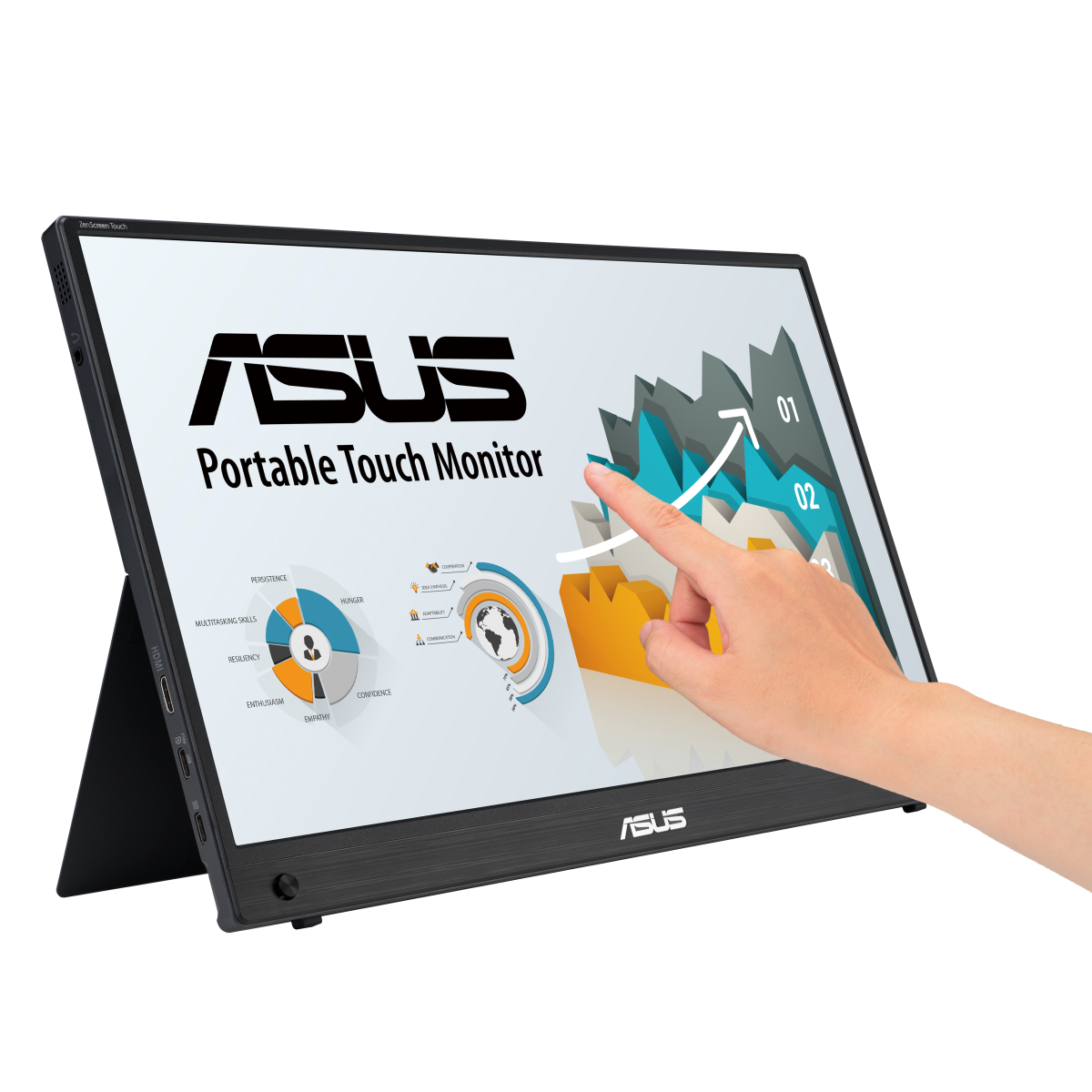
Portable USB-C touch monitors are the most common pick. These are 14" to 15.6" displays that connect to your laptop through a single USB-C cable carrying both video and power. ASUS ZenScreen, Lenovo ThinkVision, and HP make popular models in the $200 to $400 range.
They're light enough for a backpack and work as a second screen for notes, research, or multitasking.
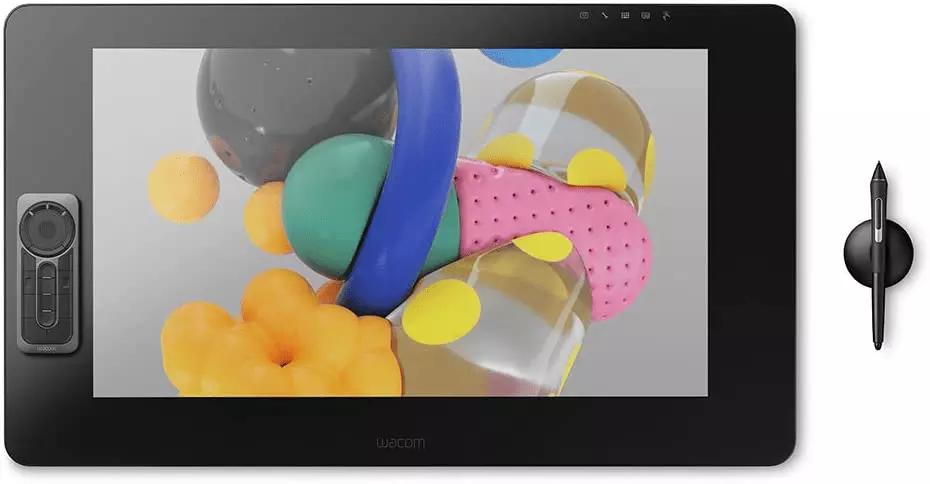
Pen-enabled display tablets like the Wacom Cintiq line, XP-Pen Artist Pro, and Huion Kamvas are built specifically for drawing and handwriting. They offer better stylus technology (Wacom's EMR and AES protocols are the industry benchmarks) with 8192 pressure levels and tilt recognition. These run $300 to over $1000 depending on size.
They're overkill unless your coursework demands precise pen input.
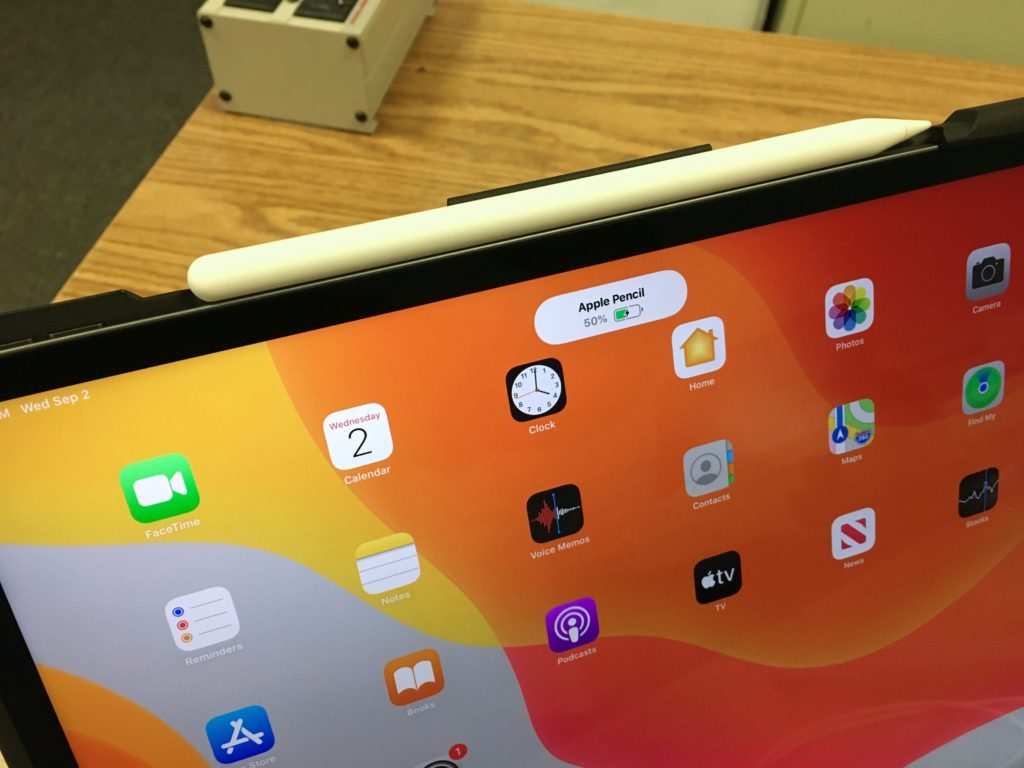
iPad-as-monitor setups use Apple Sidecar (for Mac) or third-party apps like Duet Display to turn an iPad into a touch-enabled second screen. If you already own an iPad Pro with an Apple Pencil, this costs you nothing extra. It's arguably the best touch experience for note-taking because the app ecosystem (GoodNotes, Notability) is purpose-built for students.
All-in-One touchscreen desktops like the HP Envy AiO or Dell Inspiron AiO with touch are another option, but they're not portable and rarely make sense for students who move between dorm, library, and classroom.
For most students weighing this decision, the portable USB-C touch monitor is the sweet spot. It adds touch capability to your existing laptop without replacing anything. Just make sure your laptop supports USB-C with DisplayPort Alt Mode and power delivery, or you'll need two cables instead of one.
The Decision Tree: Should You Buy One?
This is where we get practical. Walk through these four branches and you'll land on your answer.
Branch 1: What's Your Major / Field of Study?
Your field of study is the single biggest factor here. Different disciplines create completely different use cases for touch and pen input.
Strong yes. If you're studying graphic design, industrial design, architecture, medical illustration, or animation, a touchscreen with pen support isn't a luxury. It's closer to the minimum viable tool. You'll use it for sketching concepts, annotating visual work, and producing digital art.
A standard mouse simply can't replicate the control you get from a pressure-sensitive stylus.
Probably worth it. Engineering, chemistry, physics, and other STEM fields involve a lot of diagrams, equations, and visual problem-solving. Drawing a free-body diagram or a chemical structure by hand is faster than building it with mouse-driven software. If your coursework involves heavy visual thinking, a touch monitor pays for itself in time saved.
Maybe, depends. Law, humanities, and social science students often deal with dense reading material. If you annotate PDFs constantly and prefer handwritten margin notes, a touch monitor helps. If you type your notes and highlights, it doesn't add much.
Probably not necessary. If your coursework is primarily essays, coding, data analysis, or multiple-choice assessments, a touchscreen monitor adds features you won't use. Spend that money on a better non-touch display with higher resolution instead.
Branch 2: How Do You Take Notes Now?
Your current note-taking method tells you whether touch will actually improve things or just complicate them.
Already using a tablet or iPad for notes. You're the ideal candidate. A larger touchscreen monitor gives you more screen space while keeping the handwriting workflow you've already built. The transition is seamless.
Paper notebooks work fine for you. Don't underestimate what's already working. Paper has zero latency, zero battery anxiety, and zero glare. If you're organized with physical notebooks and they're serving you well, a touch monitor is a solution looking for a problem.
Typing on laptop during lectures. Most students fall here. If you're typing notes in a word processor, touch input doesn't speed anything up. Your hands are already on the keyboard.
Adding a touch layer to your monitor won't change this workflow.
Annotating PDFs and slides constantly. This is a strong use case. If your professors post slide decks and you mark them up with comments, highlights, and diagrams, a touchscreen with a pen makes this dramatically faster and more natural than using a mouse.
Branch 3: What's Your Budget Reality?
Money matters when you're a student. Here's what you're actually looking at.
Under $200. Your options are limited at this price point. Some budget portable touch monitors exist from brands like ARZOPA or KYY, but pen support is often absent or poor. You're getting basic capacitive touch (finger only) without pressure sensitivity.
Fine for scrolling and tapping, not for handwriting.
$200 to $400. This is the sweet spot for portable USB-C touch monitors with decent pen support. Models like the ASUS ZenScreen Touch MB16AMT or similar pen-enabled options from XP-Pen live here. You get 1080p resolution, acceptable color accuracy, and functional stylus input.
$400 to $700. Now you're in proper pen display territory. XP-Pen's Artist Pro 16 or Huion Kamvas 16 offer larger screens, better color accuracy (covering 100% sRGB or more), and superior stylus technology with 8192 pressure levels and tilt support. Worth it if your coursework demands precision.
$700 and up. Premium options like the Wacom Cintiq Pro line or iPad Pro plus Apple Pencil live here. Only justified if your entire workflow depends on pen input and you'll use it daily for years.
Branch 4: What's Your Current Setup?
Your existing devices affect whether a touch monitor makes sense or whether you already have a better option.
MacBook user. If you own an iPad Pro or even a recent iPad, Apple Sidecar turns it into a wireless touch display for free. The pen experience on iPad with GoodNotes or Notability is better than most dedicated pen displays at the same price. A separate touch monitor is redundant unless you need a larger screen than your iPad.
Windows laptop with USB-C. A portable touch monitor is plug-and-play. Windows Ink provides built-in pen support, and apps like OneNote handle handwriting well. This is the most straightforward setup for adding touch capability.
Desktop-only setup. If you study at a desk and don't need portability, a 24" touch monitor or a pen display like the Wacom Cintiq 16 makes more sense than a portable option. You get a larger drawing area and better ergonomics.
Already have an iPad Pro with Apple Pencil. You might not need a separate monitor at all. Apps like Duet Display or Sidecar give you a touch-enabled second screen. The only reason to add a dedicated touch monitor is if you want more than 12.9" of screen space.
What You'll Actually Spend
Let's talk real numbers. The sticker price is just the start.
Price Breakdown by Category
| Category | Price Range | Examples | Pen Quality |
|---|---|---|---|
| Budget portable touch (finger only) | $120–$200 | KYY, ARZOPA | None or basic |
| Portable touch with pen | $200–$400 | ASUS ZenScreen Touch, XP-Pen | 4096 levels, functional |
| Mid-range pen display | $400–$700 | XP-Pen Artist Pro 16, Huion Kamvas 16 | 8192 levels, tilt support |
| Premium pen display | $700–$1,500+ | Wacom Cintiq Pro 16/24 | Professional grade |
| iPad Pro + Pencil (alternative) | $900–$1,300 | iPad Pro 12.9" + Apple Pencil Pro | Best-in-class for notes |
Hidden Costs People Forget
The monitor itself isn't the only expense. Budget for these extras or you'll have a bad experience.
Stylus pen. Many monitors ship without one, or include a basic passive stylus. An active pen with pressure sensitivity costs $30 to $130 separately. Wacom's Pro Pen 2 runs around $100.
XP-Pen and Huion styli are cheaper at $30 to $60.
Replacement pen tips. They wear down. Heavy users go through a tip every one to three months. Budget $5 to $15 per pack.
Order spares before you need them because a worn tip feels scratchy and imprecise.
Protective screen protector. A matte protector reduces glare and gives the pen a more paper-like feel. It also protects the display from scratches. Expect to pay $10 to $25.
Some pen displays include one in the box.
Stand or case with kickstand. Drawing flat on a desk kills your neck after an hour. A proper stand lets you angle the screen at 15 to 30 degrees. Built-in kickstands on portable monitors are often limited.
A separate stand or folio case with stand function runs $20 to $50.
Note-taking app. OneNote is free and cross-platform. Notability is around $10 per year. GoodNotes is a one-time $10 purchase on iPad.
Factor this into your annual cost, especially if you're on a tight budget.
The real total cost of ownership for a portable touch monitor setup typically lands $50 to $150 above the monitor's sticker price once you add the pen, protector, and stand. Plan for that upfront so you're not stuck with a half-functional setup.
Where Touchscreen Monitors Win
When touch and pen input actually fits your workflow, the benefits are real and measurable.
Handwriting Beats Typing for Retention
Research in cognitive psychology consistently shows that handwriting engages different neural pathways than typing. A 2021 study published in Frontiers in Psychology found that handwriting activates regions of the brain associated with memory encoding and learning more actively than keyboard input. For students, this means you're more likely to remember what you wrote by hand.
Math and science notation is dramatically faster by hand. Try typing a complex integral or drawing a molecule with a mouse. It's painful.
A pen and touchscreen make this natural. Language students learning characters for Mandarin, Japanese, or Arabic benefit enormously from handwriting practice on a screen that gives immediate feedback.
Annotation of lecture slides is another win. If your professors post PowerPoint or PDF slides before class, you can mark them up directly with a pen. No need to print anything.
No need to switch between windows. Just write on the slide like you would on paper.
Diagrams and Visual Work
Some things are simply faster to draw than to build with a mouse. Free-body diagrams in physics. Circuit schematics in electrical engineering.
Flowcharts for computer science. Biological structures. Architectural sketches.
In every case, a pen lets you work at the speed of thought rather than fighting with shape tools and bezier curves.
This is why design and architecture students have been using pen displays for over a decade. Wacom's professional line exists because creative professionals need that level of control. Student-grade versions of that same technology are now affordable enough for anyone.
Paper Reduction
Going fully digital means one device replaces a stack of notebooks, printed handouts, and loose papers. Your notes become searchable. You can back them up to the cloud.
You'll never lose a semester's worth of work to a spilled coffee or a forgotten notebook. For students who struggle with organization, this alone can be transformative.
The environmental angle matters too. A single student can easily go through 20 to 30 notebooks per year. A touchscreen monitor eliminates most of that paper consumption.
It's a small thing, but it adds up over four years of study.
Where Touchscreen Monitors Fall Short
It's not all upside. Here's where the trade-offs bite.
The Fingerprint Problem
Every time you touch the screen, you leave a mark. Finger oils create smudges that catch the light and make the display look dirty. In a bright classroom or library with overhead lighting, this can be genuinely distracting.
Anti-glare coatings help, but they don't eliminate the problem entirely.
You'll need a microfiber cloth in your bag. Cleaning the screen becomes part of your routine. If you're the type who doesn't like maintaining gear, this will annoy you within a week.
Battery and Portability Trade-offs
Touch displays draw more power than non-touch equivalents. When connected to your laptop via USB-C, they drain the battery faster. Manufacturer specs for portable touch monitors typically show 2 to 4 hours of battery life when used independently, but real-world use with touch and pen active often lands closer to 2 hours.
The weight adds up too. A 15.6" portable touch monitor weighs 1.5 to 3.5 pounds. Add the stylus, case, and stand, and you're carrying real weight in your bag.
If you're already lugging a laptop, textbooks, and a water bottle, this might be the thing that breaks your back, literally.
The Learning Curve Is Real
Switching from paper to a glass screen takes adjustment. The surface feels slippery compared to paper. Even with a matte screen protector, the experience isn't identical.
Most students need one to two weeks of consistent use before handwriting on a screen feels natural.
Palm rejection technology has improved significantly, but it's not perfect. Some apps handle it better than others. You might find your cursor jumping around when your palm rests on the screen.
This is less of an issue with Wacom's EMR technology and more noticeable with cheaper capacitive solutions.
Accidental Touches
When you're used to a standard monitor, you don't think about accidentally touching it. With a touchscreen, every reach toward the screen can register an input. You'll accidentally zoom, scroll, or select things you didn't mean to.
Most monitors let you disable touch with a toggle, but that's one more thing to manage.
This is particularly annoying when you're using the monitor as a standard second display for non-touch tasks like coding or writing. You may find yourself toggling touch on and off multiple times per study session.
Alternatives Worth Considering
A touchscreen monitor isn't the only way to get pen input or a second screen. Here are the alternatives that might serve you better.
iPad Pro + Apple Pencil
If you're in the Apple ecosystem, this is hard to beat. The iPad Pro with Apple Pencil Pro offers the best handwriting experience available on any consumer device. Apps like GoodNotes and Notability are purpose-built for student note-taking with excellent search, organization, and PDF annotation features.
Using Sidecar, the iPad becomes a wireless touch-enabled second screen for your Mac. On Windows, apps like Duet Display provide similar functionality. The total cost is higher if you're buying both the iPad and Pencil from scratch, but if you already own one, it's essentially free to add monitor functionality.
The downside is screen size. Even the 12.9" iPad Pro gives you less workspace than a 15.6" or 24" dedicated monitor. For heavy multitasking with multiple windows, a larger display wins.
Traditional Pen Tablet (No Screen)
Devices like the Wacom Intuos or Huion Inspiroy are drawing tablets without a built-in display. You draw on the tablet surface while looking at your laptop screen. They cost $50 to $200, making them dramatically cheaper than pen displays.
The learning curve is steeper. Hand-eye coordination takes practice when you're looking at a different surface than where your pen lands. Most students adapt within a week or two, but it's not immediately intuitive.
The advantage is durability (no screen to crack), lower cost, and lighter weight.
2-in-1 Touchscreen Laptops
Devices like the Microsoft Surface Pro, Lenovo Yoga, or Dell XPS 2-in-1 combine laptop and tablet in one device. You get a touchscreen, pen support, and full laptop functionality without carrying two devices.
The trade-off is price. A quality 2-in-1 with good pen support starts around $800 and climbs quickly. You're also committed to one device.
If the screen breaks, you lose your laptop and your tablet simultaneously. For students who want simplicity and portability above all else, this can be the smarter purchase.
Good Old Paper
Never underestimate what already works. Paper has zero latency, zero cost beyond the notebook itself, zero battery requirements, and zero glare. The cognitive benefits of handwriting are well-documented regardless of whether you're writing on paper or glass.
If your current paper system is organized and effective, switching to digital might actually slow you down during the transition period. And if you're someone who loses digital files or forgets to back up, paper's permanence is a feature, not a limitation.
Common Mistakes Students Make
Learn from other people's regrets. These are the mistakes we see over and over in student forums and buyer reviews.
Buying Before Testing
This is the biggest one. A touchscreen monitor feels completely different in person than it does in a product video. The pen weight, the screen texture, the palm rejection behavior, the stylus lag.
All of these are subjective and impossible to evaluate from specs alone.
If possible, visit a campus tech store or electronics retailer and try a display model. Write a few sentences. See how the pen feels.
Check if the size works for your desk and your bag. Many students buy online, realize the experience doesn't match their expectations, and return the monitor within a week.
Ignoring Software Compatibility
Not all software handles pen input equally well. Before you buy, check whether your primary note-taking and productivity apps support pressure-sensitive pen input and palm rejection.
OneNote handles it well on Windows. GoodNotes and Notability are excellent on iPad. Adobe Acrobat's comment tools support pen markup.
But some PDF readers, web browsers, and older applications treat pen input as basic mouse emulation with no pressure sensitivity or palm rejection. If your workflow depends on apps that don't support pen features, the hardware won't help you.
Going Too Cheap
A $50 touch monitor from an unknown brand will disappoint you. The touch response will be laggy. The pen support will be absent or terrible.
The build quality won't survive life in a backpack. The display will have poor color accuracy and dim brightness.
The $200 to $400 range is where portable touch monitors become genuinely useful. Below that, you're buying frustration. If your budget is under $200, consider a used iPad with a basic stylus instead.
You'll get a better experience than a new budget touch monitor.
Forgetting About the Stand
Drawing on a flat monitor is uncomfortable. Your neck bends forward. Your shoulder hunches.
After an hour of note-taking in this position, you'll understand why artists use easels.
Many portable monitors have a built-in kickstand, but it often only supports one angle. A separate adjustable stand or a folio case with multiple stand positions makes a huge difference for comfort during long study sessions. Budget $20 to $50 for this.
It's not optional if you'll use the pen regularly.
Setup and Daily Use
Once you've made the decision and bought the monitor, getting it set up properly makes the difference between a smooth experience and a frustrating one.
Getting Started
Most portable touch monitors connect through a single USB-C cable that carries video signal and power. Plug it into your laptop, and the monitor should be recognized automatically. If your laptop has multiple USB-C ports, use the one that supports DisplayPort Alt Mode.
Not all USB-C ports are equal.
For pen functionality, you may need to install drivers. Wacom pens typically require the Wacom driver suite. AES (Active Electrostatic) pens from XP-Pen or Huion need their respective drivers.
Windows 11's built-in pen framework handles many devices without additional software, but installing the manufacturer's driver gives you access to pressure sensitivity settings and button customization.
Calibrate the pen through your operating system's settings. This aligns the pen tip position with the cursor on screen. Most systems offer a calibration utility where you tap specific points on the display.
Do this whenever you change your viewing angle or position.
Enable palm rejection in your pen settings. This tells the system to ignore touch input from your palm while the pen is active. The implementation varies by manufacturer and app, so test it with your primary note-taking app before committing to a full study session.
Recommended Note-Taking Apps
Your app choice matters as much as your hardware. Here are the options that work best for students.
Microsoft OneNote is free, cross-platform, and handles pen input well on Windows. It organizes notes into notebooks, sections, and pages. Handwritten notes become searchable after a few minutes of processing.
It's the best free option for most Windows students.
GoodNotes (iPad only, one-time purchase around $10) is widely considered the best handwriting app available. It offers excellent palm rejection, searchable handwriting, and clean organization. If you're using an iPad as your touch display, this is the app to get.
Notability (iPad, subscription around $10 per year) adds audio recording synced to your notes. This is powerful for lectures. Write notes while recording, and tap any note later to hear what was being said at that moment.
The subscription model annoys some users, but the feature is genuinely useful.
Samsung Notes (Samsung devices, free) is surprisingly capable if you're using a Samsung tablet or monitor. It handles pen input well and integrates with Samsung's ecosystem.
Drawboard PDF (Windows, free with in-app purchases) is built specifically for PDF annotation. If your primary use case is marking up lecture slides and journal articles, it's purpose-built for that task.
Maintenance
Keep a microfiber cloth in your bag. Wipe the screen before each study session. Finger oils and dust reduce clarity and can interfere with touch sensitivity over time.
Replace pen tips when they develop a flat spot or feel scratchy. A worn tip catches on the screen and makes writing feel rough. Most manufacturers include spare tips in the box.
Order replacements before you run out.
Keep drivers and firmware updated. Manufacturers occasionally release updates that improve palm rejection, reduce stylus lag, or fix compatibility issues. Check the support page for your monitor model once a month.
Store the stylus safely. The tip is fragile and can be damaged if pressed against hard surfaces. Use a pen case or the clip on your monitor's case.
A broken tip mid-exam prep session is not something you want to deal with.
The Verdict: Who Should Actually Buy One
Let's bring it all together. Here's who benefits and who should save their money.
Strong Yes
If you're a design, architecture, art, or medical illustration student, a pen-enabled touchscreen is a core tool, not an upgrade. You'll use it daily for years. Budget for a quality pen display in the $400 to $700 range.
The XP-Pen Artist Pro 16 or Huion Kamvas 16 are solid choices that won't require a loan.
If you're going paperless intentionally and already comfortable with digital notes, a portable touch monitor gives you the screen real estate you need for serious study sessions. Pair it with OneNote or GoodNotes and a quality stylus.
Students with ADHD or executive function challenges who benefit from searchable, organized digital notes will find a touch monitor transformative. The ability to search handwritten notes, back them up automatically, and never lose a notebook solves real problems.
Probably Worth It
STEM students with heavy diagramming needs should seriously consider it. If you're drawing structures, circuits, or free-body diagrams regularly, pen input saves real time compared to mouse-driven drawing tools.
Remote and hybrid learners who want a dual-screen setup benefit from a portable touch monitor as a second display. Touch adds annotation capability for shared documents and whiteboard sessions during video calls.
Students who already own an iPad Pro should use Sidecar or Duet before buying a separate monitor. But if you need more than 12.9" of touch workspace, a dedicated monitor makes sense.
Skip It
If you're on a tight budget and the purchase would mean sacrificing essentials, skip it. A standard non-touch external monitor gives you more screen space for less money. You can always add touch later.
If you genuinely prefer paper notebooks and they're working for you, don't fix what isn't broken. The transition to digital note-taking takes effort and time you might not have during a heavy semester.
If your coursework is primarily reading, writing essays, coding, or working with spreadsheets, touch adds nothing to your workflow. Your money is better spent on a higher-resolution non-touch display or a better keyboard.
The Honest Bottom Line
A touchscreen monitor is a specialized tool that solves specific problems extremely well. It's not a universal upgrade. The students who benefit most are those who write by hand, work visually, and annotate constantly.
For everyone else, it's a nice-to-have that often becomes a dust collector.
Know your study habits. Know your budget. Test before you buy if you can.
And don't let a YouTube setup video convince you that you need something your actual coursework doesn't demand.
Frequently Asked Questions
Can I use a touchscreen monitor with any laptop?
Most portable touch monitors require a USB-C port that supports DisplayPort Alt Mode. Many modern laptops have this, but not all USB-C ports do. Check your laptop's specifications before buying.
If your laptop only has HDMI, you'll need an adapter or a different monitor.
Does touchscreen work well for note-taking in lectures?
Yes, if you use a quality app like OneNote or GoodNotes and a pressure-sensitive stylus. The experience is close to writing on paper with a good pen. Budget one to two weeks to adjust if you're new to handwriting on glass.
How long do pen tips last with regular use?
Heavy users typically replace tips every one to three months. Light users can get three to six months. A worn tip feels scratchy and less precise.
Keep spare tips on hand so you're not caught without one during exam season.
Is a portable touch monitor good for drawing and design work?
Budget models handle basic sketching fine. For serious design work, invest in a proper pen display with 8192 pressure levels and tilt recognition. The XP-Pen Artist Pro 16 and Wacom Cintiq 16 are popular choices for design students.
Will a touch monitor drain my laptop battery faster?
Yes. Touch displays draw more power than non-touch monitors. Expect your laptop's battery life to decrease by roughly 15 to 25 percent when the touch monitor is connected and active.
Keep your charger handy during long study sessions.
Do I need to buy a separate stylus pen?
Often yes. Many touch monitors ship without a stylus or include only a basic passive stylus with no pressure sensitivity. An active pen with pressure sensitivity costs $30 to $130 separately.
Check what's included in the box before assuming the pen comes with it.
The Verdict: Who Should Actually Buy One
Adding a touchscreen monitor to your study setup can genuinely transform how you work, but only if your daily workflow actually calls for pen input and visual annotation. If you've read through this guide and recognized your own habits in the use cases we outlined, that's a strong signal you'll get real value from the investment. If not, you'll likely be better off putting that money toward a higher-quality non-touch display or simply upgrading your laptop.
Students Who Should Buy One
The strongest candidates are those in visually intensive fields. Architecture, design, medical illustration, and animation students will use a touchscreen with pen support almost every day. For these students, it's closer to a requirement than an option.
A pen display with pressure sensitivity and tilt recognition pays for itself in speed and quality of work within weeks.
STEM students who regularly draw diagrams, solve equations by hand, or annotate complex figures also benefit significantly. If your problem sets involve more drawing than typing, you'll save real time with pen input. Law and graduate students who face mountains of PDFs to annotate will find that a touchscreen makes the process far more efficient than mouse-based markup.
Going fully digital with your notes also means better organization, searchability, and backup. If losing notes before finals stresses you out, a touchscreen setup with cloud sync eliminates that problem entirely.
Students Who Should Skip It
If you primarily type your notes, read textbooks, or work with spreadsheets and code, a touchscreen monitor adds cost without adding value. You won't use the pen enough to justify the price premium over a standard external monitor.
Budget-constrained students should also be honest about priorities. A $300 touch monitor is less useful than a $300 non-touch display with higher resolution and better color accuracy. Spend money on the features that match your actual coursework.
If you're already comfortable with paper notebooks and they're serving you well, switching to digital involves a transition period that might not be worth the effort during a busy semester. The benefits of digital notes are real, but they come after a learning curve.
Final Decision Checklist
Before you buy, run through this quick checklist. If you answer yes to three or more of these questions, a touchscreen monitor is likely worth it for you.
- Do you regularly draw diagrams, sketches, or visual aids for your coursework?
- Do you annotate PDFs, lecture slides, or research papers frequently?
- Are you going paperless or trying to reduce physical notebooks?
- Do you study in a field that values visual thinking and hand-drawn work?
- Do you already have experience with digital note-taking on a tablet?
- Will you use the touchscreen features daily, not just occasionally?
If you answered yes to three or more, move forward with a quality option in the $200 to $400 range. Start with a portable USB-C touch monitor. Avoid the cheapest models, and make sure you budget for a proper active stylus.
Start simple, build the habit, and upgrade later if your needs grow.
Five Things Most Students Overlook
Resale Value Drops Quickly
Touchscreen monitors, especially lesser-known brands, lose value fast on the used market. If you think you might sell yours after graduation, expect to recover only 30 to 50 percent of what you paid. Plan to keep it for the long haul rather than counting on resale to recoup your investment.
Eye Strain Is a Real Concern
Staring at a touchscreen at close range for hours can cause more eye fatigue than a standard monitor, especially if you're leaning in to write. Look for a monitor with TÜV Rheinland certification or a built-in blue light filter. The ASUS Eye Care technology found in their ZenScreen line is one example of this feature done well.
Touch Monitors Can Overheat
Budget portable touch monitors sometimes lack active ventilation. Extended use, especially with brightness turned up and pen input active, can cause heat buildup. This shortens the lifespan of the display and can cause thermal throttling that makes touch response sluggish.
Check reviews specifically for thermal complaints before buying cheaper models.
You Might Need a Different USB-C Cable
Not all USB-C cables support DisplayPort Alt Mode at full bandwidth. The cable that comes in the box is usually fine, but if you lose it or need a longer one, you'll need to buy one rated for video transmission. A standard charging-only USB-C cable won't carry a video signal.
Look for cables explicitly labeled "4K" or "DisplayPort Alt Mode" when shopping for replacements.
Warranty Support Varies by Brand
If your monitor breaks, getting it repaired or replaced can be surprisingly difficult with lesser-known brands. XP-Pen and Huion have improved their support in recent years, but they still lag behind established monitor brands like ASUS, Dell, and HP in terms of service infrastructure. A two-year warranty from a brand with US-based support is worth paying a small premium for.
As of 2026, portable touchscreen monitor technology continues to improve rapidly, with better pen sensitivity, lighter builds, and lower prices hitting the market each semester. Revisit the category annually if you're not buying today. The options available next year will likely outclass what's currently on shelves.

Similar Posts





















