Are Touchscreen Monitors Good for Gaming Consoles
Are touchscreen monitors good for gaming consoles? The short answer is usually no, and here's why that's the case for most console gamers. Touchscreen monitors sound like a cool upgrade on paper, but the reality of how console gaming actually works makes that touch capability largely irrelevant for the vast majority of players.
Manufacturer specifications and aggregate user reviews consistently show that touchscreen monitors add input lag, cost significantly more, and bring features that most console games simply don't use. As of 2026, the PlayStation 5 and Xbox Series X/S still don't have touch-native operating systems, so you're paying a premium for a feature that sits idle most of the time. Let's break down exactly what you're getting into.
Quick Answer: Touchscreen Monitors and Console Gaming — The Real Story
Touchscreen monitors are generally not necessary for console gaming. Most console games don't support touch input at all. The touchscreen layer typically adds noticeable input lag, often 10 to 30 milliseconds on top of the panel's native response time.
You'll pay 20 to 50 percent more compared to an equivalent non-touch gaming monitor. The touch feature only makes sense if you need the monitor for other purposes like creative work or productivity alongside occasional console gaming.
Why This Comparison Matters for Console Gamers
Here's the thing most product listings won't tell you upfront. When you plug a console into a touchscreen monitor, the touch functionality is essentially dead weight for 90 percent of your gaming sessions. Console games are built around controller input.
The PS5, Xbox Series X, and Xbox Series S run operating systems designed for gamepads, not fingers on a screen.
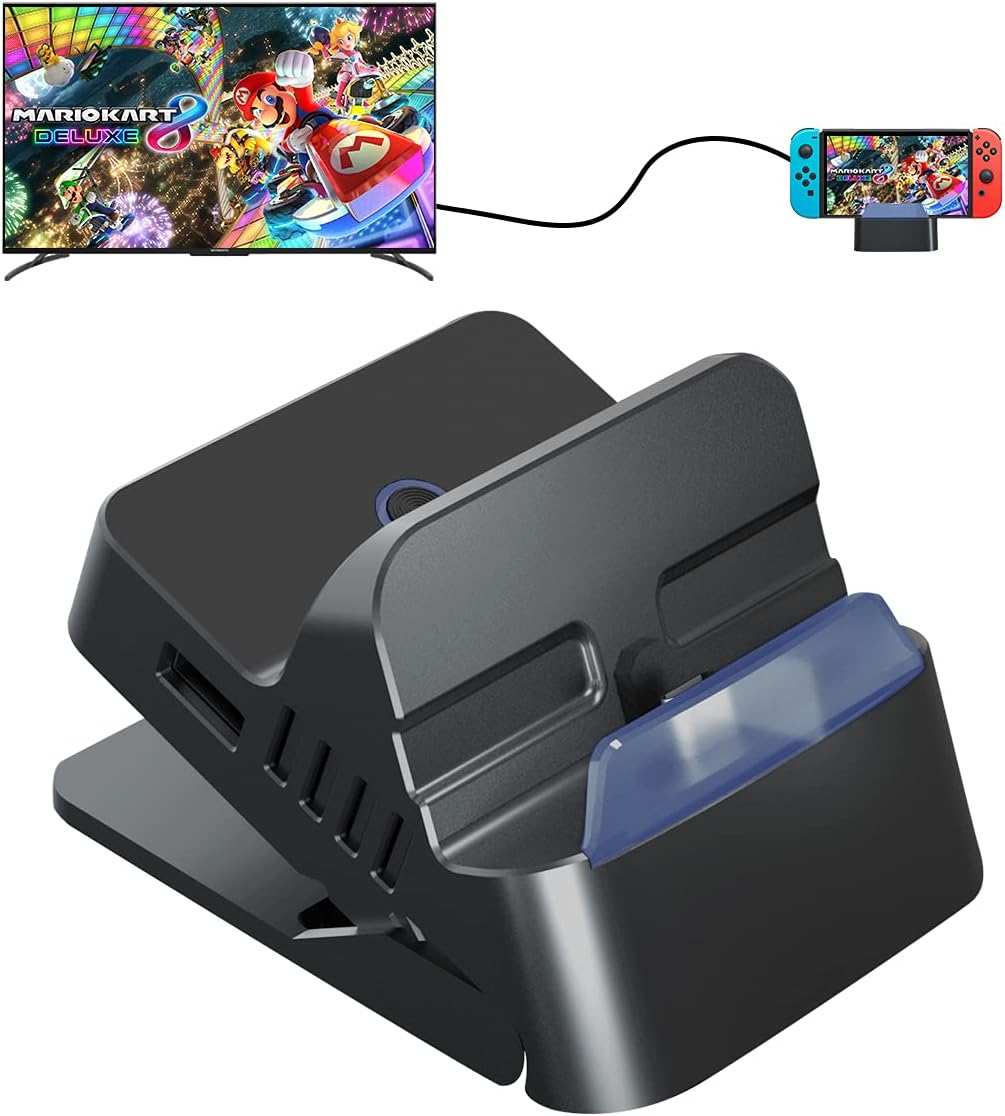
Nintendo Switch is the partial exception here since its built-in screen is touch-capable, but even then, most players dock it to a TV or monitor for traditional play. The handful of touch-enabled indie titles and apps don't justify the premium for most people.
The real comparison you need to make is between a touchscreen monitor and a standard gaming monitor at the same price point. That's where the trade-offs become clear fast.
Touchscreen Monitors vs. Standard Gaming Monitors: Side-by-Side
This is where everything comes down to specifics. A touchscreen monitor isn't automatically worse for gaming, but it does make compromises that a non-touch monitor at the same price simply doesn't have to make.
| Factor | Touchscreen Monitor | Standard Gaming Monitor |
|---|---|---|
| Input Lag | Higher (10 to 30ms added from touch digitizer) | Lower (1 to 5ms typical native response) |
| Price | 20 to 50% more expensive at equivalent specs | Better pure gaming value |
| Touch Support | Requires USB connection plus game compatibility | Not available (controller-based) |
| Image Quality | Slight reduction from touch overlay layer | Uncompromised panel performance |
| Console Game Touch Support | Extremely limited library | N/A, designed for controller |
| Usefulness for Console Games | Minimal for most titles | Purpose-built for the task |
A standard gaming monitor at $300 will almost always outperform a $300 touchscreen monitor in the metrics that matter most for console gaming. That includes refresh rate consistency, input response, and HDR implementation. The touchscreen version diverts part of its cost toward the digitizer layer and touch controller hardware.
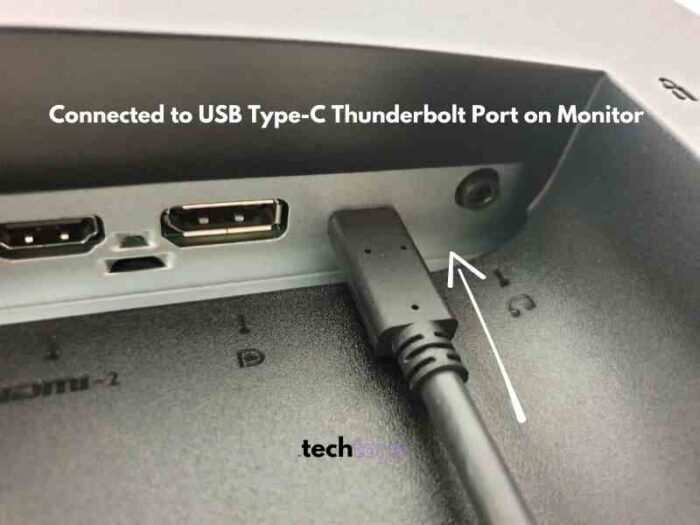
The touch functionality itself requires a separate USB cable to carry input data to the source device. But here's the catch. Consoles aren't designed to process touch input from external monitors the way a PC or laptop is.
So that USB cable often serves no purpose at all in a console setup. You're left with an extra cable and no benefit.
What You Actually Gain With Touch on Console
Let's be fair and acknowledge where touch on a console-connected monitor does have some value, even if the scenarios are narrower than marketing suggests.
- Nintendo Switch docked touch capability. A few Switch games use touch in docked mode, though most players never encounter this. It exists, but it's rare.
- Touch-enabled indie games and apps. Some smaller titles on all three platforms incorporate touch as an alternative control method. The library is small but growing slowly.
- Menu navigation shortcuts. In certain apps or system interfaces, tap navigation can feel marginally faster than thumbstick scrolling. The difference is barely noticeable though.
- Accessibility advantages. For gamers with limited hand mobility or dexterity challenges, touch input can serve as an alternative to complex controller inputs. This is a legitimate and meaningful benefit where touch genuinely helps.
- Creative or productivity use cases. If you're buying one monitor for console gaming plus photo editing, design work, or desktop PC use, the touch layer earns its keep outside of gaming.
- Streamer overlay management. Some streamers running console capture through a PC setup use touch monitors to control streaming software overlays without switching inputs.
The honest reality is that gains one through three amount to very little for most console gamers. Gains four through six are where touchscreen monitors actually make sense, but they're about use cases beyond console gaming itself.
What You Definitely Lose or Sacrifice
This is the part that doesn't get talked about enough. Choosing a touchscreen monitor for console gaming means accepting real trade-offs.
- Input lag that competitive gamers will feel immediately. The digitizer layer adds processing time. Even 10 milliseconds of extra lag is noticeable in fast-paced shooters, fighting games, and racing titles.
- Money that could go toward better core specs. That 20 to 50 percent price premium could instead buy you a higher refresh rate panel, better HDR, or OLED technology. Those upgrades improve every single gaming session. Touch improves virtually none of them.
- Image quality compromise. The touch overlay layer, especially on capacitive touch panels, can slightly reduce brightness and clarity. It may also introduce faint artifacts or reduce viewing angles. Modern panels have minimized this, but it hasn't been eliminated.
- Cable clutter. Most touchscreen monitors need both an HDMI or DisplayPort cable for video and a separate USB cable for touch functionality. With consoles, that USB cable often does nothing. You're left with extra cable management for zero benefit.
- Smudges and fingerprints. This sounds minor until you're playing a dark scene in a horror game and your screen looks like a toddler's iPad. A microfiber cloth becomes a permanent fixture next to your controller.
- Limited touch-native console game library. The number of PS5 or Xbox Series X titles that meaningfully use external touchscreen input is tiny. You're buying the feature for a library that barely exists on these platforms.
The core issue is simple. Console gaming is a controller-first ecosystem. Touchscreen capability is a solution looking for a problem in this context.
You sacrifice real performance and spend more money for a feature that console gaming wasn't designed around.
Best For: Who Actually Benefits From This Setup
Not every gamer needs to avoid touchscreen monitors entirely. The value depends almost entirely on what else you do with the display beyond console gaming.
| Use Case | Worth It? | Why |
|---|---|---|
| Competitive FPS or racing gaming | No | Added input lag directly hurts performance |
| Casual single-player gaming only | Probably not | Touch features go unused, money wasted |
| Switch-heavy gamer who uses touch titles | Marginally | A few games benefit, but rarely enough to justify cost |
| Creative professional who also games | Yes | Touch earns its keep during photo editing, design, or CAD work |
| Family shared household device | Possibly | Kids' educational content and accessibility needs benefit |
| Streamer managing overlays and capture | Yes | Touch controls for OBS or streaming software add convenience |
| Accessibility-focused setup | Yes | Alternative input method for gamers with mobility limitations |
The honest takeaway is this. If your primary use is console gaming and you don't have a specific secondary need for touch capability, a standard gaming monitor gives you better performance for less money. The touch feature alone rarely justifies the premium for console-focused setups.
Common Mistakes People Make
Buyer regret with touchscreen monitors for console gaming usually comes down to a handful of predictable missteps.
- Assuming all console games support touch input. They don't. Verify the actual game library for your platform before expecting touch to work.
- Ignoring input lag specs entirely. A touchscreen panel might advertise 4ms GtG response, but the effective input lag with the digitizer active is often two to five times higher.
- Overpaying for touch when that budget could buy a better panel type. Spending $400 on a touchscreen VA panel instead of $400 on an OLED or high-end IPS non-touch panel is a bad trade for gaming performance.
- Not checking USB connection requirements. Many touchscreen monitors need a separate USB upstream cable for touch to function, and consoles don't always recognize external touch inputs regardless.
- Forgetting that PS5 and Xbox system menus aren't touch Interfaces. You'll still reach for the controller every single time you navigate system settings.
- Buying based on spec sheet bullet points without reading measured performance reviews. Manufacturer specs rarely include touch-related latency figures.
What to Look For If You Still Want One
Maybe you've read everything above and you still want a touchscreen monitor for your console setup. Perhaps you need it for creative work, or you play touch-enabled Switch titles regularly, or accessibility is a priority. In that case, focus on these specs first.
- Native panel response time under 5ms GtG. Keep the baseline gaming performance strong before the touch layer adds overhead.
- HDMI 2.1 support. Essential for 4K at 120Hz on PS5 and Xbox Series X. Some touchscreen monitors only offer HDMI 2.0, which caps you at 4K 60Hz.
- 120Hz or higher refresh rate. This helps offset the perceived added latency from the touch digitizer during gameplay.
- Touch disable toggle. Some monitors let you turn off the touch layer entirely via a physical button or OSD setting. This is ideal for switching between productivity and gaming modes.
- USB-C with data plus video single-carry. Available on some newer models. It simplifies cabling considerably, especially in compact setups.
- IPS or VA panel with good HDR. Avoid TN panels for the better color accuracy and viewing angles, especially if you're paying a touchscreen premium.
- Check verified buyer reviews specifically mentioning console use. Aggregate user feedback on retailer sites often reveals real-world issues with console compatibility and touch recognition.
Pricing Reality Check
Touchscreen gaming monitors span a wide range, and understanding where your money goes helps set realistic expectations.
- Budget touchscreen monitors, $200 to $350. These typically use 1080p IPS panels with basic touch functionality. Gaming performance is passable but not impressive.
- Mid-range gaming touchscreen monitors, $400 to $700. Expect 1440p or 4K resolution with higher refresh rates. Build quality and panel performance improve noticeably here.
- Equivalent non-touch gaming monitors at the same resolution and refresh rate, $150 to $500. You get better-performing panels for less money without the touch tax.
- Premium touchscreen gaming displays, $700 and up. OLED or high-end 4K panels with touch capability. These are genuinely good displays, but you're paying top dollar for touch that console gaming barely uses.
That 20 to 50 percent price premium is consistent across the market. For console-only gamers, redirecting that extra budget toward a better non-touch monitor, or even a quality gaming TV, almost always yields a better experience.
Our Recommendation
Skip the touchscreen monitor for console gaming unless you have a clear secondary use for the touch capability. A standard gaming monitor gives you lower input lag, better image quality per dollar, and fewer compatibility headaches. If you need touch for work, creative tasks, or accessibility, then a mid-range to premium touchscreen monitor makes sense as a hybrid display.
Just don't buy one expecting it to enhance your console gaming experience, because for most titles it simply won't.
Frequently Asked Questions
Do PlayStation 5 games support touch input from external monitors?
No. The PS5 operating system and game library are designed for DualSense controller input. The system menus and virtually all PS5 titles do not recognize touch input from an external monitor.
Can I use touch controls for Xbox Series X games?
No. Xbox Series X and Series S do not support touch input through external monitors. Games are built around the Xbox Wireless Controller, and the system UI is not a touch interface.
Does the Nintendo Switch support touch when docked to a monitor?
In rare cases, certain Switch games can receive touch input through an external docked connection. However, this is uncommon, and most Switch owners in docked mode use a Pro Controller or Joy-Cons rather than touching the display.
How much input lag does a touchscreen monitor add for gaming?
It typically adds between 10 and 30 milliseconds of additional input lag on top of the panel's native response time, depending on the specific model and touch technology used. Standard non-touch gaming monitors with equivalent panels usually measure 1 to 5 milliseconds of total input lag.
Is a touchscreen monitor worth it if I also do photo editing or design work?
Yes, in that scenario the touch capability earns its keep during creative tasks. The monitor serves double duty effectively. Just make sure the panel quality and color accuracy meet professional standards for your workflow.
Can I disable the touch function on a touchscreen monitor when gaming?
Many touchscreen monitors offer a toggle to disable the touch layer through the on-screen display menu or a physical button. Check manufacturer specifications before buying if this feature matters to you, since not all models include it.
Frequently Asked Questions
Do PlayStation 5 games support touch input from external monitors?
No. The PS5 operating system and game library are designed for DualSense controller input. The system menus and virtually all PS5 titles do not recognize touch input from an external monitor.
Can I use touch controls for Xbox Series X games?
No. Xbox Series X and Series S do not support touch input through external monitors. Games are built around the Xbox Wireless Controller, and the system UI is not a touch interface.
Does the Nintendo Switch support touch when docked to a monitor?
In rare cases, certain Switch games can receive touch input through an external docked connection. However, this is uncommon, and most Switch owners in docked mode use a Pro Controller or Joy-Cons rather than touching the display.
How much input lag does a touchscreen monitor add for gaming?
It typically adds between 10 and 30 milliseconds of additional input lag on top of the panel's native response time, depending on the specific model and touch technology used. Standard non-touch gaming monitors with equivalent panels usually measure 1 to 5 milliseconds of total input lag.
Is a touchscreen monitor worth it if I also do photo editing or design work?
Yes, in that scenario the touch capability earns its keep during creative tasks. The monitor serves double duty effectively. Just make sure the panel quality and color accuracy meet professional standards for your workflow.
Can I disable the touch function on a touchscreen monitor when gaming?
Many touchscreen monitors offer a toggle to disable the touch layer through the on-screen display menu or a physical button. Check manufacturer specifications before buying if this feature matters to you, since not all models include it.

Similar Posts





















