What Hz Is Best for 4K Monitor
Figuring out what hz is best for 4k monitor setups isn't as straightforward as grabbing the highest number on the spec sheet. The honest answer depends on what you're doing with your screen, what hardware you're running, and whether your cables and ports can even deliver the signal you're paying for.
Higher refresh rates mean smoother motion and lower input lag, but pushing 4K at 144 Hz or above demands a lot from your GPU and your wallet. Let's break down exactly what makes sense for your situation so you don't overspend on specs you'll never use, or worse, buy a monitor that's bottlenecked by your setup.
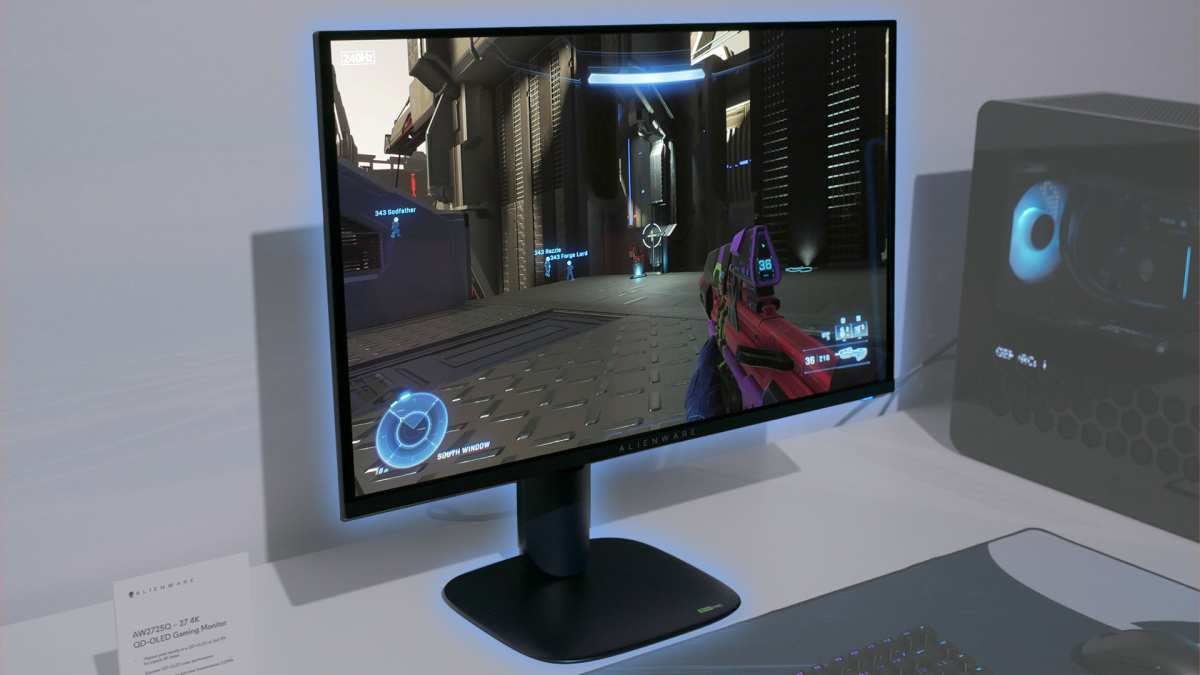
Quick Answer
There is no single "best" Hz for a 4K monitor. For most people, 120 Hz hits the sweet spot. Console gamers should target 120 Hz.
PC gamers with strong GPUs benefit from 144 to 165 Hz. For office work and content creation, 60 Hz is perfectly fine.
Quick Reference: Refresh Rate Recommendations by Use Case
Here's the short version before we dig into the details. Your ideal refresh rate comes down to what you're actually doing at that desk.
| Use Case | Recommended Refresh Rate | Why |
|---|---|---|
| Office / productivity | 60 Hz | Smooth enough for scrolling and general use |
| Photo / video editing | 60–120 Hz | Color accuracy matters more than speed |
| Console gaming (PS5 / Xbox) | 120 Hz | Console max output is 120 Hz at 4K |
| PC gaming (mid-range GPU) | 120 Hz | Realistic target for most modern GPUs |
| PC gaming (high-end GPU) | 144–165 Hz | Best balance of 4K and high refresh |
| Competitive esports | 240 Hz+ | Prioritize frame rate over resolution |
If you're mostly browsing, editing spreadsheets, or watching videos, anything above 60 Hz is a nice-to-have, not a need-to-have. Where high refresh rates really shine is gaming, and even then, the gains depend on how many frames your system can actually produce at 4K.
Why 4K Changes the Refresh Rate Conversation
Resolution and refresh rate are two different things, but they're deeply connected in practice. 4K (3840 × 2160) packs over 8 million pixels onto your screen. That's four times the pixel count of 1080p. Every single one of those pixels needs to be updated every frame.
Here's where it gets real. Pushing 4K at 60 Hz already requires serious bandwidth. Pushing 4K at 120 Hz or 144 Hz multiplies that demand.
Your GPU has to render all those pixels, and your cable has to carry the signal without choking.
This is why you can't just slap "144 Hz" on a 4K monitor spec sheet and call it a day. The actual experience depends on whether your hardware pipeline, your GPU, your cable, and your ports can all handle that throughput simultaneously. If any one link in that chain falls short, you're stuck at a lower refresh rate no matter what the box says.
Understanding the Key Numbers: 60 Hz, 120 Hz, 144 Hz, and Beyond
Let's put the most common refresh rate numbers into plain language so you know exactly what you're looking at.
- 60 Hz: The baseline. Updates the screen 60 times per second. Perfectly smooth for desktop use, video playback, and casual gaming. Most 4K monitors and TVs default here.
- 120 Hz: The current sweet spot for 4K gaming. Twice the smoothness of 60 Hz. This is the maximum output of PS5 and Xbox Series X at 4K resolution. A massive upgrade for gaming without being unrealistic on hardware demands.
- 144 Hz: The classic PC gaming standard. Slightly above 120 Hz, and you'll notice the difference if your GPU can push that many frames at 4K. Common on high-end 4K gaming monitors.
- 165 Hz: A modest step above 144 Hz. Often found on premium 4K gaming panels. The real-world difference from 144 Hz is subtle.
- 240 Hz and above: Diminishing returns territory at 4K. These monitors exist, but you need a top-tier GPU to take advantage. Best suited for competitive gamers who prioritize frame rate over visual fidelity.
The jump from 60 Hz to 120 Hz is dramatic. The jump from 120 Hz to 144 Hz is noticeable but smaller. Beyond 144 Hz, each step up gives you less and less visible improvement.
That's just how human perception works.
The Hardware Reality Check: Can Your Setup Actually Do It?
This is where most people get tripped up. You buy a 4K 144 Hz monitor, plug it in, and wonder why it's stuck at 60 Hz. The monitor is only one piece of the puzzle.
Your GPU matters most. At 4K, even powerful graphics cards struggle to hit high frame rates in demanding games. An NVIDIA RTX 4070 might push 60 to 90 FPS at 4K in modern titles. An RTX 4090 might hit 100 to 120 FPS.
If your GPU can't produce 120 frames per second, a 144 Hz monitor won't do anything a 60 Hz panel can't.
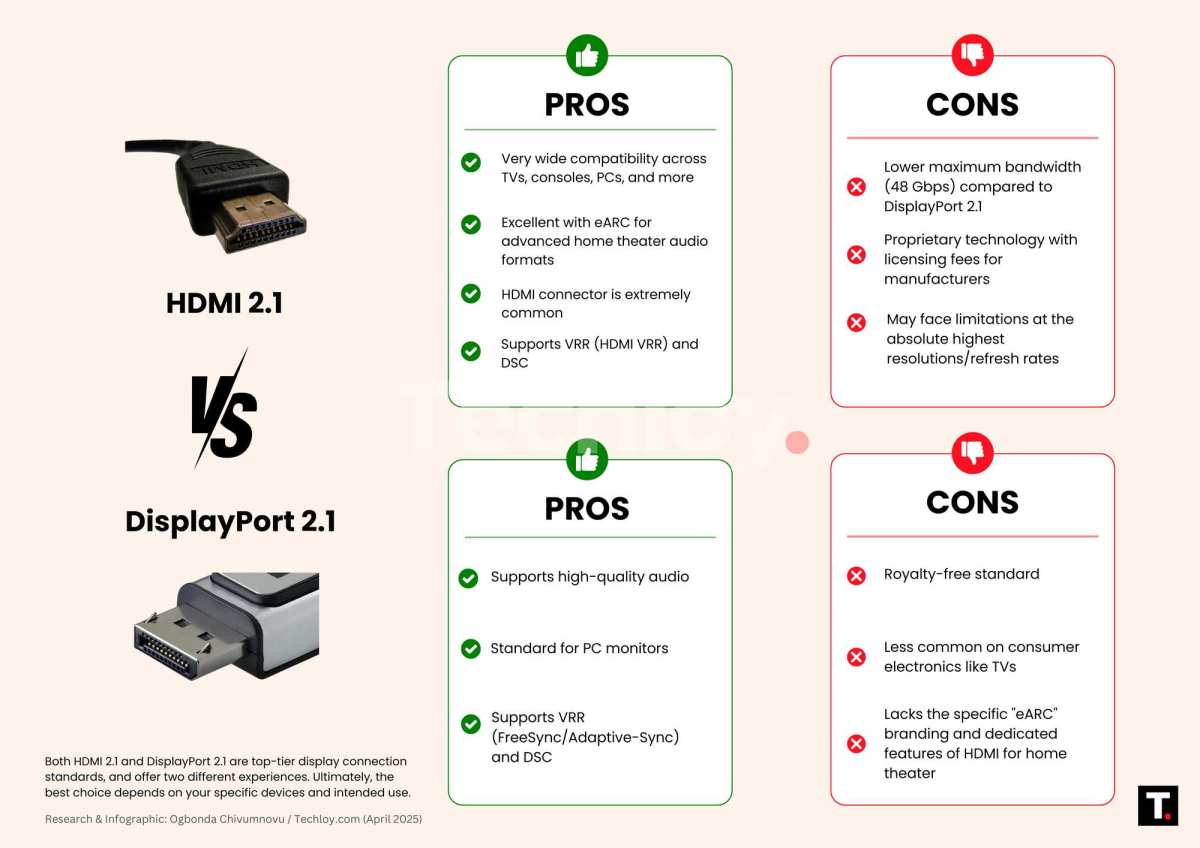
Your cable matters more than you think. Not all HDMI and DisplayPort cables are created equal. Here's a quick breakdown:
| Connection | Max 4K Refresh Rate | Notes |
|---|---|---|
| HDMI 2.0 | 60 Hz | Common on older cables and devices |
| HDMI 2.1 | 120 Hz (native) / 144 Hz+ (with DSC) | Required for PS5 / Xbox 120 Hz |
| DisplayPort 1.4 | 120 Hz (native) / 144 Hz+ (with DSC) | Most common for PC monitors |
| DisplayPort 2.1 | 240 Hz+ (native) | Newest standard, limited adoption as of 2026 |
DSC (Display Stream Compression) is a visually lossless compression standard that lets you push higher refresh rates over existing cables. Most 4K monitors running above 120 Hz rely on DSC. It works well, but it needs support from both your GPU and your monitor.
Before you buy anything, check three things. What's your GPU's 4K performance in the games or apps you use? What outputs does it have?
And what cable are you planning to use? Get all three right, or you'll leave performance on the table.
Console Gaming (PS5 / Xbox Series X): 120 Hz Is the Sweet Spot
If you're gaming on a PS5 or Xbox Series X, your target is straightforward. Both consoles max out at 4K 120 Hz. That's the ceiling, and it's a great place to be.
To hit 120 Hz on either console, you need an HDMI 2.1 connection. The cable that ships in the box supports it. But your monitor needs an HDMI 2.1 port too.
Plenty of 4K monitors only have HDMI 2.0, which caps you at 60 Hz. Always check the spec sheet before you buy.
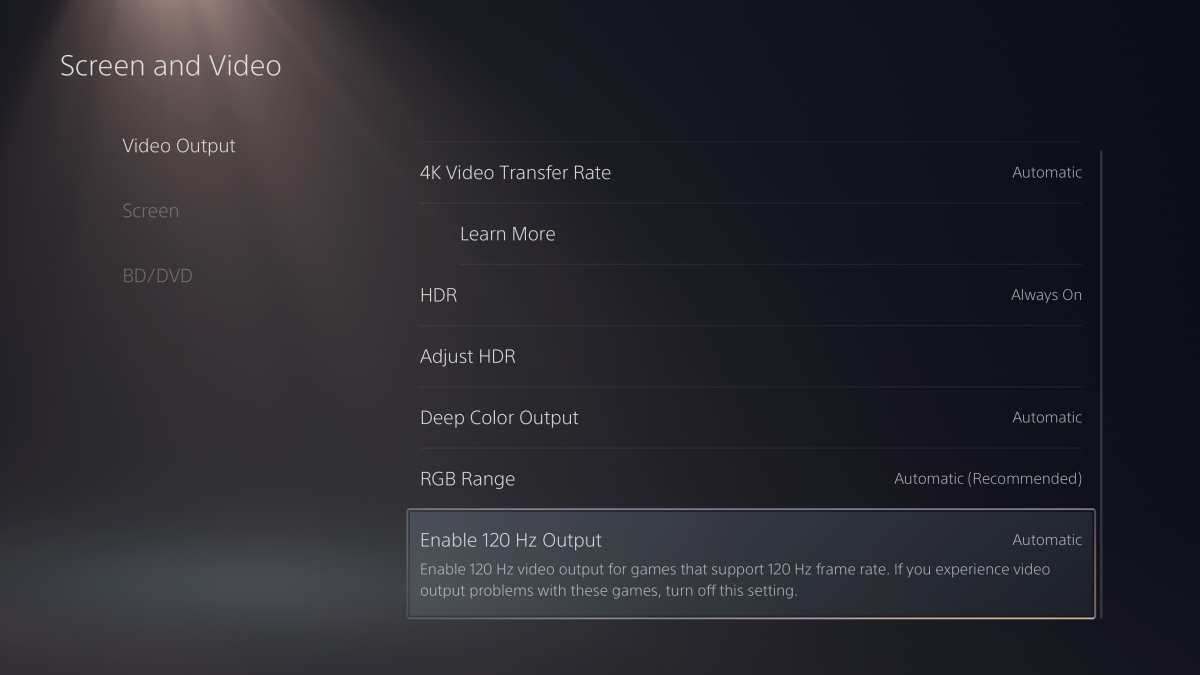
On PS5, go to Settings > Screen and Video > Video Output > 120 Hz Output and set it to Automatic. On Xbox Series X, head to Settings > General > TV & Display Options > Refresh Rate and select 120 Hz. If either option is grayed out, your monitor or cable isn't handing back the right signal.
Here's the thing. Most console games don't actually run at 120 frames per second at native 4K. Many titles use dynamic resolution scaling or performance modes that drop resolution to hit higher frame rates.
So a monitor with good HDR and solid 4K image quality often matters more than chasing the highest refresh spec.
PC Gaming: Matching Your GPU to the Right Refresh Rate
PC gaming is where the refresh rate decision gets genuinely complicated. Unlike consoles, PCs have enormous hardware variation. Your ideal refresh rate depends entirely on what your specific GPU can push at 4K.
Here's a realistic breakdown based on aggregate performance data from GPU benchmarks as of 2026.
| GPU Tier | Example Cards | Realistic 4K FPS (AAA Titles) | Recommended 4K Refresh Rate |
|---|---|---|---|
| Entry 4K | RTX 4060 Ti, RX 7700 XT | 40–60 FPS | 60 Hz |
| Mid-range 4K | RTX 4070 Super, RX 7800 XT | 60–90 FPS | 120 Hz |
| High-end 4K | RTX 4080 Super, RX 7900 XTX | 90–120 FPS | 120–144 Hz |
| Enthusiast | RTX 4090, RTX 5090 | 100–144+ FPS | 144–165 Hz |
If you're mostly playing esports titles like Valorant, CS2, or Rocket League, even mid-range GPUs can push well past 120 FPS at 4K. In those cases, a 144 Hz or 165 Hz monitor makes a real difference. For graphically demanding single-player games, you'll rarely see those numbers.
The honest advice here is this. Don't buy a 240 Hz 4K monitor if your GPU can't push past 80 FPS in the games you play. You're paying for headroom you'll never touch.
A quality 120 Hz or 144 Hz 4K panel paired with adaptive sync will serve you far better than a higher-refresh monitor with a mismatched GPU.
Content Creation and Office Work: 60 Hz Is Probably Enough
If your primary use is photo editing, video production, coding, or general office work, refresh rate should be low on your priority list. Color accuracy, panel uniformity, and resolution matter far more than how fast the screen refreshes.
A 60 Hz 4K panel with 10-bit color depth and solid HDR coverage will serve a creative professional better than a 144 Hz panel with poor color calibration. Most editing software doesn't benefit from high refresh rates the way games do. Your timeline scrubbing and brush strokes don't get meaningfully smoother past 60 Hz.
For office productivity, the same logic applies. Scrolling and window animations feel fine at 60 Hz. You'll notice the difference going from 60 Hz to 120 Hz on the desktop, sure.
But once you're there, going higher gives you almost nothing for the extra cost.
Where creators should consider 120 Hz is if they also game on the same machine. A dual-use setup for editing and gaming makes 120 Hz a reasonable compromise. You get the smoother gaming experience without sacrificing the color accuracy you need for professional work.
Many modern 4K 120 Hz IPS panels handle both roles well.
The Resolution vs. Refresh Rate Trade-Off: 4K vs. 1440p
This is the conversation nobody wants to have but everybody needs to. If you're primarily a gamer and you can't afford a GPU that handles 4K at high frame rates, you might be better served by a 1440p high-refresh monitor.
At 1440p (2560 × 1440), your GPU has roughly half the pixels to push compared to 4K. That means significantly higher frame rates on the same hardware. A card that struggles at 4K 60 FPS might easily hit 100 to 144 FPS at 1440p.
Here's the trade-off in plain terms.
| Spec | 4K 60 Hz | 4K 120 Hz | 1440p 144 Hz |
|---|---|---|---|
| Pixel count | 8.3 million | 8.3 million | 3.7 million |
| GPU demand | High | Very high | Moderate |
| Motion smoothness | Good | Excellent | Excellent |
| Text clarity | Outstanding | Outstanding | Good |
| Typical price | $250–$400 | $500–$1,000+ | $250–$500 |
If competitive gaming performance matters more to you than pixel density, 1440p at 144 Hz is arguably the smarter buy in 2026. You'll get smoother gameplay, lower input lag, and you won't need a flagship GPU to drive it. But if you value sharp text, detailed visuals, and you have the hardware to back it up, 4K wins every time.
Cable and Connection Mistakes That Cap Your Refresh Rate
This is the single most common reason people don't get the refresh rate they paid for. They buy a 4K 144 Hz monitor, connect it with whatever cable is lying around, and wonder why Windows only shows 60 Hz as an option.
The cable and the port on both ends need to support the bandwidth your refresh rate requires. If any part of that chain falls short, the entire connection drops to the highest speed every link can agree on.
Here's what to check if your refresh rate won't go above 60 Hz.
- Verify your cable spec. Look for "Ultra High Speed HDMI" for HDMI 2.1 or "DisplayPort 1.4" or "2.1" printed on the cable itself. Generic or old cables often can't handle the bandwidth.
- Check your GPU output port. Not every port on the back of your graphics card supports the same specs. Consult your GPU manufacturer's documentation to confirm which port supports the highest bandwidth.
- Check your monitor's input spec. Some monitors have one HDMI 2.1 port and one HDMI 2.0 port. Plug into the wrong one and you're capped.
- Windows display settings. Right-click the desktop, go to Display Settings > Advanced Display, and manually select the highest available refresh rate. Windows doesn't always default to the maximum.
- GPU driver settings. Both NVIDIA Control Panel and AMD Software have their own refresh rate controls. Make sure they're set correctly too.
A quick note on DSC. Display Stream Compression is what allows 4K at 120 Hz and above over DisplayPort 1.4 and HDMI 2.1. It's visually lossless, meaning you won't see compression artifacts in normal use.
But both your GPU and monitor need to support it. If one doesn't, the connection falls back to a lower refresh rate or requires chroma subsampling, which can make text look slightly softer.
Adaptive Sync: G-Sync, FreeSync, and Why It Matters at 4K
Adaptive sync technology eliminates screen tearing by letting your monitor refresh only when your GPU sends a new frame. At 4K, where frame rates fluctuate more due to the heavy pixel load, this matters even more than at lower resolutions.
NVIDIA G-Sync comes in two flavors. G-Sync Compatible is the common certification for FreeSync monitors that pass NVIDIA's testing. G-Sync Ultimate adds a dedicated hardware module for stricter performance standards.
Most modern NVIDIA GPUs support G-Sync Compatible over DisplayPort.
AMD FreeSync is the open alternative. FreeSync Premium adds requirements for low framerate compensation and a minimum 120 Hz refresh at 1080p. FreeSync Premium Pro adds HDR support.
AMD GPUs work natively with FreeSync monitors.
Here's the practical takeaway. If you have an NVIDIA GPU, look for "G-Sync Compatible" on the monitor spec sheet. If you have an AMD GPU, look for FreeSync or FreeSync Premium.
Most modern 4K gaming monitors support at least one of these standards. Enabling it in your GPU's driver software is usually a single toggle.
Adaptive sync is especially valuable at 4K because your frame rate will swing more dramatically. One moment you're at 80 FPS in an open area. The next you drop to 55 FPS in a heavy scene.
Without adaptive sync, those drops cause stuttering or tearing. With it, the monitor just matches whatever the GPU outputs.
Common Mistakes When Choosing a 4K Monitor Refresh Rate
People make the same handful of mistakes over and over when picking a 4K monitor based on refresh rate. Here are the ones worth watching for.
- Buying high Hz without checking GPU capability. A 240 Hz 4K monitor is wasted on a GPU that tops out at 60 FPS in 4K. Match the monitor to what your hardware can actually deliver.
- Ignoring cable and port specs. HDMI 2.0 caps 4K at 60 Hz. Many people buy a 120 Hz monitor and connect it with an old cable. Then they think the monitor is defective.
- Confusing MBR with native refresh rate. Some monitors advertise "1 ms" or "effective 240 Hz" using backlight strobing. The actual panel refresh rate may be lower. MBR reduces perceived motion blur but introduces flicker and dims the screen. Check the native refresh rate in the detailed specs.
- Overlooking overdrive settings. At high refresh rates, pixel response time matters. If the overdrive setting is too high, you get inverse ghosting (bright halos around moving objects). If it's too low, you get smearing. Most monitors let you adjust this in the on-screen display menu.
- Assuming higher Hz always means better. For non-gaming use, a well-calibrated 60 Hz IPS panel often looks better than a poorly calibrated 144 Hz panel. Refresh rate is one spec among many.
Quick Decision Guide: What Hz Should You Actually Buy?
Here's a straightforward decision tree based on everything we've covered.
If you're a console gamer on PS5 or Xbox Series X: Get a 4K 120 Hz monitor with HDMI 2.1. That's the maximum both consoles support. Anything higher is wasted money.
If you're a PC gamer with a mid-range GPU (RTX 4070 / RX 7800 XT class): A 4K 120 Hz monitor is your sweet spot. You'll hit that range in many titles, and adaptive sync fills in the gaps.
If you're a PC gamer with a high-end GPU (RTX 4080 / 4090 class): Go for 4K 144 Hz or 165 Hz. You have the horsepower to take advantage of it, especially in less demanding or older titles.
If you play competitive esports titles and have a top-tier GPU: Consider 4K 240 Hz, or honestly look at 1440p 240 Hz as an alternative. The higher frame rate matters more than the extra pixels in competitive scenarios.
If you're primarily doing office work, content creation, or media consumption: Save your money. A quality 4K 60 Hz monitor with good color accuracy will serve you better than a high-refresh gaming panel.
Frequently Asked Questions
Is 60 Hz good enough for 4K gaming?
For casual and single-player gaming, 60 Hz at 4K is perfectly acceptable. The visual clarity of 4K resolution often matters more than ultra-smooth motion in story-driven games. Competitive gamers will want 120 Hz or higher.
Can HDMI 2.0 do 4K at 120 Hz?
No. HDMI 2.0 is limited to 4K at 60 Hz. You need HDMI 2.1 or DisplayPort 1.4 with DSC to achieve 4K at 120 Hz or above.
Does refresh rate affect input lag?
Yes. A higher refresh rate reduces input lag because the screen updates more frequently. The difference between 60 Hz and 120 Hz is noticeable.
Beyond 144 Hz, the reduction becomes progressively smaller.
Is 4K 120 Hz worth it over 4K 60 Hz?
For gaming, absolutely. The jump from 60 Hz to 120 Hz is one of the most noticeable upgrades you can make. For general desktop use, the difference is there but less dramatic.
What refresh rate does the PS5 support at 4K?
The PS5 supports up to 4K at 120 Hz. You need an HDMI 2.1 connection and a compatible monitor or TV to enable it.

Similar Posts





















