Are USB C Monitors Durable
Are USB-C monitors durable enough for daily use, or are you trading reliability for convenience? That's the question that stops most people before they click "buy." And honestly, it's the right one to ask. USB-C is everywhere now, but durability concerns are legitimate.
Here's the short version. Yes, USB-C monitors can be durable. But durability depends on the specific monitor build, cable quality, and how you use it.
USB-IF certification standards specify that the connector must withstand 10,000 connect-disconnect cycles. That's solid on paper.

Let's get into what actually matters when you're deciding whether a USB-C monitor will hold up long-term.
Quick Answer
USB-C monitors are durable for most users. The connector handles 10,000 cycles by design. Build quality varies by brand and price tier.
Cable selection matters more than most people think. Proper use significantly extends monitor lifespan.
Why USB-C Durability Is More Complicated Than You Think
Durability isn't a simple yes or no. It depends on several factors that most product descriptions won't tell you.
USB-C connectors are rated for 10,000 plug-unplug cycles per USB-IF specifications. That means if you plug and plug in your monitor once every single day, the connector should last over 27 years before hitting its rated lifespan. Sounds impressive, right?
But
The rated connector lifespan tells you only part of the story. The actual weak point in most USB-C monitor setups isn't the connector itself. It's the cable.
Aggregate user reviews across monitor forums and retail sites consistently point to cable failure as the top complaint around USB-C monitor durability. Not the port. Not the monitor dying.
The cable.
Cables take physical stress daily. Bending near the connector, tugging when disconnecting, coiling too tightly for storage. Cheap cables with poor strain relief fail within months.
The cable is almost always the first thing to go.
Port soldering quality at the monitor end varies enormously. Premium brands tend to use reinforced port anchoring and better internal soldering. Some budget monitors save pennies there.
And pennies saved up front mean port wobble a couple years down the road.
Then there's the usage pattern factor. A stationary desktop monitor plugged in once and left alone faces almost no wear on the USB-C port. That's not the same as a portable USB-C monitor that gets tossed in a bag and reconnected dozens of times a week.
Context changes everything.
How USB-C Monitor Connections Actually Work
Understanding how the connection works helps you see why durability varies. USB-C isn't just a video cable. It's carrying multiple signals and power simultaneously, all through one small connector.
The Connector Itself
The USB-C connector is 24-pin. It carries USB data, video signal via DisplayPort Alt Mode, and Power Delivery all at once. The reversible design is convenient but the connector is physically smaller and more delicate than HDMI or DisplayPort connectors.
Key specs per USB-IF standards:
- Connector rated for 10,000 insertion/removal cycles
- 24-pin configuration with multiple signal pathways
- 8.34mm wide, 2.56mm tall compact form factor
- Reversible insertion (no "wrong way" to plug in)
The compact size means less plastic housing protecting the internal pins compared to HDMI or DisplayPort. That's just physics. Smaller connector, less structural margin for rough handling.
Power Delivery and DisplayPort Alt Mode
When you connect a USB-C monitor, two main protocols kick in. DisplayPort Alt Mode handles video signal. USB Power Delivery handles charging your laptop or source device.
The power delivery capability ranges widely. A monitor with 60W Power Delivery charges your laptop at a basic charging speed. Higher-end models with 90W, 100W or even 240W can charge a workstation laptop at full speed while displaying video simultaneously.
Higher wattage means more heat at the connector. Over time, repeated thermal cycling can contribute to contact wear. Not a dealbreaker, but another factor that tiered durability in practice.
Where Things Actually Break
Based on aggregate user reports and our research into common failure modes:
| Failure Point | Frequency | Typical Cause |
|---|---|---|
| Cable connector | Very common | Strain, bending, cheap materials |
| Cable wire near plug | Very common | Repeated flexing |
| Monitor port solder joints | Less common | Low-quality soldering |
| Monitor port housing | Occasional | Physical stress from heavy cables |
| Internal monitor electronics | Rare | Power surges, component defects |
The cable is your first point of failure every single time. Protect it accordingly.
USB-C Monitor Durability vs. HDMI and DisplayPort
If you're comparing connection types for durability, here's how they actually stack up.
Side-by-Side Comparison Table
| Feature | USB-C | HDMI 2.0 | DisplayPort 1.4 |
|---|---|---|---|
| Connector cycle rating | 10,000 | 10,000 (typical) | 10,000 (typical) |
| Physical connector size | Compact | Medium | Medium-Large |
| Pin count | 24 | 19 | 20 |
| Reversible | No (not in daily use) | No | No |
| Cable stress relief | Varies with cable | Standard strain clip | Latch mechanism |
| Multi-function cable | Yes (video + power + data) | No (video only) | No (video only) |
| Failure-prone point | Cable connector | Cable connector | Latch breakage |
What the Connector Lifecycle Numbers Actually Mean
All three connectors have similar cycle ratings on paper. The difference shows up in real-world use.
USB-C's compact size means the cable connector is physically smaller and lighter. That's an advantage for portability. It also means less structural support at the connection point compared to a chunkier HDMI or DisplayPort plug.
DisplayPort connectors have a small latch mechanism that locks the cable in place. That latch is a known failure point if snagged but it also prevents accidental disconnection and reduces strain on the port pins. Take your trade-off.
USB-C relies on friction fit alone. No latch. The cable stays in place through spring tension inside the port alone.
Over time, that tension can loosen. When it does, you get wobble, intermittent connections and eventually signal dropouts.
The friction-fit design also means people yank cables out by the wire instead of gripping the connector. That's the fastest way to destroy any port. HDMI and DisplayPort cables are easier to grip and remove cleanly because of their larger housing.
The Real Risk Factors Nobody Talks About
Three things that actually damage USB-C monitor setups more than the connector rating suggests.
Cheap cables. Not all USB-C cables are created equal. USB-IF certified cables meet spec for power handling and signal integrity. Uncertified cables can overheat, deliver inconsistent power, or even damage your source device.
The cable is not where you save money.
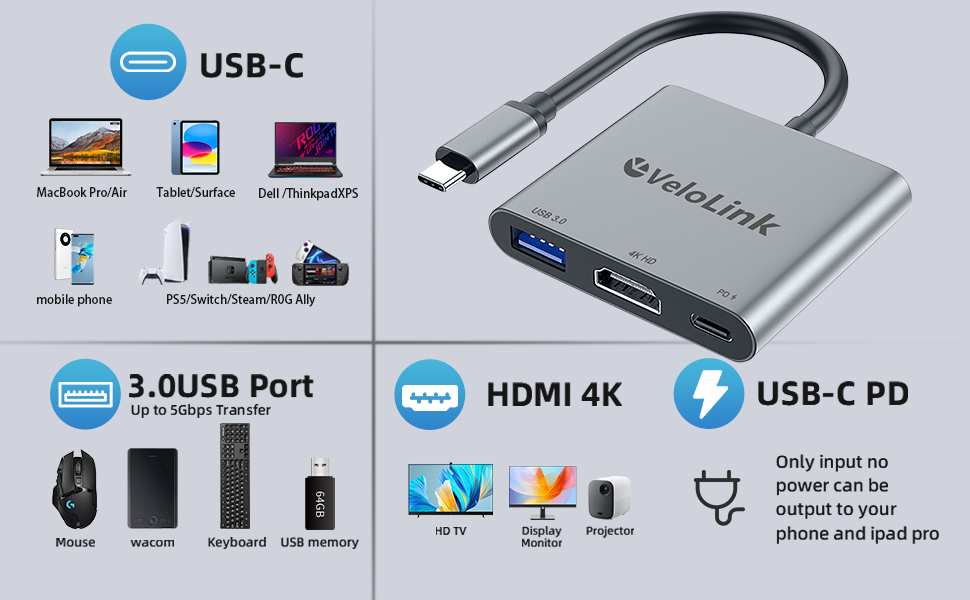
Dongle and adapter chains. Some monitors require USB-C to HDMI or DisplayPort adapters for certain source devices. Each additional connection point is another potential failure point. More connections, more problems.
Weight stress on the port. A heavy, stiff USB-C cable hanging from a horizontal port creates downward leverage. That leverage puts sideways stress on the internal pins and solder joints over months. This is especially relevant for portable monitors where the cable angle is often awkward.
What Makes One USB-C Monitor More Durable Than Another
Not all USB-C monitors are cut from the same cloth. The difference between a model that lasts five years and one that starts acting up at 18 months often comes down to these factors.
Build Quality and Port Soldering
Premium monitors typically reinforce the USB-C port with additional solder points and sometimes a metal shield or bracket anchoring the port to the PCB. Cheaper models may have the port soldered directly to the board with minimal reinforcement.
Reinforced port anchoring matters most if you plug and unplug frequently. Daily docking and undocking cycles add up. A well-anchored port handles mechanical stress without cracking solder joints.
Less expensive monitors sometimes cut costs at the port assembly. No metal reinforcement strip, fewer solder points, thinner PCB around the port area. They work fine initially but after hundreds of connection cycles, the solder joints can develop micro-cracks.
That leads to intermittent connection issues that are maddening to troubleshoot.
Cable Quality Matters More Than You Think
This is where you can make or break your monitor's longevity. The cable that ships with the monitor is your baseline. Sometimes it's good.
Sometimes it's adequate. Sometimes it's barely functional.
What to look for in a USB-C cable:
- USB-IF certification. Look for the certified logo or check the USB-IF product database.
- Strain relief at both connectors. A flexible, tapered transition between cable and plug prevents sharp bends.
- Wire gauge appropriate for your wattage. Higher power delivery (above 65W) requires thicker wire and proper e-marker chips.
- Length appropriate for your setup. Shorter cables (under 1 meter or 3 feet) tend to deliver cleaner signal and less voltage drop as of 2026 standards.
Replace damaged cables proactively. Fraying near the connector, intermittent signal when wiggling the cable, or heat at the connector during use are all signs to swap it out before it damages the port.

Panel Type and Stand Construction
Panel durability and connector durability are different things, but both shape how long your monitor stays usable. Common panel types each have different durability profiles:
- IPS panels. Best color accuracy, decent physical durability, most common in USB-C monitors.
- VA panels. Good contrast, slightly more prone to pressure marks if pressed.
- TN panels. Cheapest, fastest response times, least color accuracy, generally adequate durability.
Stand construction matters for daily usability too. A monitor with a flimsy stand that wobbles or a USB-C port that's awkwardly placed at an angle adds unnecessary stress on the cable and connector. Check reviews specifically mentioning port placement before buying.
Who Should Buy a USB-C Monitor and Who Should Think Twice
USB-C monitors are excellent for many people. But they're not the right call for everyone. Here's how to figure out which group you fall into.
Great For
- Docking workstation users. Single cable for video, power and data means daily plug/unplug. USB-C handles this well if you pick a quality monitor and cable.
- Frequent travelers. A portable USB-C monitor is lighter and simpler than carrying separate power and video cables. Portable models designed for mobile use are built around this use case.
- Multi-device switchers. If you connect a laptop, tablet or phone to one monitor, USB-C simplifies everything to one port and one cable.
- Minimalist desk builders. One cable from laptop to monitor, clean desk, no dock box cluttering the setup. It genuinely is that simple with a good USB-C monitor.
Think Twice If
- You never unplug your monitor. If you set up a stationary display and leave it alone, USB-C offers no real durability advantage over HDMI or DisplayPort. Use whatever connection is most reliable on that specific monitor.
- You're on a very tight budget. Budget USB-C monitors may cut corners on port quality, power delivery and cable inclusion. You might get better overall durability from a similarly priced HDMI monitor from a reputable brand.
- Your source device doesn't fully support USB-C video output. Some older laptops only support USB-C data, not DisplayPort Alt Mode. Check your device specs before assuming it works. A USB-C cable doesn't guarantee video signal compatibility until you confirm your source device supports Alt Mode output.
If you fall into the "think twice" group, that doesn't mean avoid USB-C. It means verify compatibility and consider whether the single-cable convenience actually matters for your specific use case. A solid HDMI monitor might serve you better and last just as long.
How to Make Your USB-C Monitor Last Longer
Simple habits make a real difference in how long a USB-C monitor setup stays reliable. These take almost zero effort.
Cable Selection and Care
- Use the cable that came with your monitor, or upgrade to a certified cable from brands like Anker, Cable Matters or Startech
- Avoid cables longer than 2 meters for high-power setups above 60W
- Don't bend the cable sharply right at the connector
- When disconnecting, grip the plug housing, not the wire itself
- Inspect cables monthly for fraying, discoloration, or heat deformation
Port Maintenance
- Keep the USB-C port free of dust and debris. A can of compressed air works fine once every few months
- Check for looseness. If the connector wiggles noticeably in the port after moderate use, the port may be wearing and should be examined
- Avoid plugging and unplugging with wet hands or in humid environments
Setup Best Practices
- Position the monitor so the cable isn't pulling at an angle from the port
- Use a cable clip or strain relief bracket if the cable is long or heavy
- If you dock and undock daily, consider a magnetic USB-C adapter. These reduce direct port wear by taking the mechanical stress at the adapter instead of the monitor port. Check compatibility with your specific monitor's power and video requirements before using one, as some magnetic adapters don't support full DisplayPort Alt Mode bandwidth.
- Let the cable reach room temperature before coiling it for storage. Cold cables are more brittle and prone to cracking.
Common USB-C Monitor Problems and How to Avoid Them
Knowing the recurring issues helps you spot trouble early or avoid it altogether.
Loose Connections Over Time
Symptom. The screen flickers or disconnects when you bump the desk or touch the cable. Usually caused by worn spring tension inside the port or cable connector deformation.
Fix. First try a different cable to rule out cable wear. If the problem persists with a new cable, the monitor port itself may be wearing.
Contact manufacturer support while under warranty.
Prevention. Pull cables straight out, not at an angle. Don't leave heavy cables hanging unsupported from the port.
Cable Compatibility Headaches
Symptom. The monitor connects but only charges, or only displays video. Or delivers lower resolution than expected.
This happens because USB-C is a connector shape, not a single standard. A cable that handles data may not support full Power Delivery. Another that does both may not support DisplayPort Alt Mode at the bandwidth your monitor needs.
Fix. Check both the cable specs and your monitor's requirements. Use cables rated for your specific combination of data, video wattage and resolution.
Prevention. Buy one good certified cable rated for your full setup requirements. Keep it dedicated to the monitor setup rather than swapping between devices with different cable needs.
Port Failure and What Causes It
Symptom. The port stops working entirely despite a known-good cable.
Common causes ranked by frequency:
- Solder joint cracking from mechanical stress
- Internal pin damage from forced insertion or lateral stress
- ESD (electrostatic discharge) damage, especially in dry climates or on ungrounded surfaces
- Manufacturing defect that manifests after months of cycling
Most port failures happen within the first year if they're manufacturing defects. Failures after two or more years tend to be stress-related. That pattern suggests that broken-in ports that survive the early period can last for years with reasonable care.
Price Ranges and What You Get at Your Budget
USB-C monitor durability correlates loosely with price. You don't need to spend a fortune, but knowing what each tier buys helps you choose better.
Tier 1: $150–$250
Mostly portable monitors and budget desktop models. Adequate build quality for occasional use. Cables included.
Expect basic strain relief and standard port anchoring.
Most durable if you treat them gently. Avoid daily connect-disconnect cycles at this price point unless the monitor is specifically designed as a portable model for that use.
Tier 2: $250–$450
This is the sweet spot for durable daily-use USB-C monitors. Better port reinforcement, higher-quality included cables and generally more robust power delivery ICs.
Notable for better stand construction too, which reduces cable stress from awkward angles in daily use.
Tier 3: $450–$800+
Higher-end models with reinforced port assemblies, higher wattage Power Delivery (90W to 140W), Thunderbolt 4 support and premium panel options.
Best durability for heavy daily use. Well-reviewed models in this range from Dell UltraSharp, ASUS ProArt and LG Ultrawine lines hold up well into their fifth year under typical office use cases according to multiple independent reliability surveys.
Plus Cables
Budget $15 to $35 for a good certified replacement cable every year and a half. A damaged cable is far cheaper than a damaged port. Treat cables like the maintenance point they are in your USB-C monitor experience.
Real-World Durability Feedback From Users
What aggregate user reports tell us about long-term USB-C monitor reliability.
Docking users who plug and unplug once daily and use quality cables generally report five-plus years of trouble-free USB-C monitor use. Portable monitor users report cable connector issues more frequently since their monitors see much more physical handling.
The majority of USB-C monitor complaints on customer forums are cable related, not port related. That finding points squarely back to the cable as your most replaceable and most critical weak link.
USB-C port failures on monitors tend to cluster around two cohorts: very early in ownership (first three months, typically a manufacturing defect covered by warranty) or after three-plus years of heavy daily use (often stress-related and out of warranty). That pattern mirrors the general USB-C connector lifecycle.
Frequently Asked Questions
How long do USB-C monitor ports typically last?
USB-C ports are rated for 10,000 cycles. Under typical docking use of one connection per day, that's over 27 years of theoretical connector lifespan. Actual port life depends on soldering quality and physical stress handling but meeting that cycle believable for well-built monitors used without abuse.
Is it bad to leave a USB-C cable plugged in all the time?
No. Leaving the cable connected subjects the port to zero additional mechanical wear on the pins. That's actually the lowest-stress state for a USB-C port.
Ports wear from insertion and removal cycles, not from being connected.
Do cheap USB-C monitors have worse port durability?
Cheaper monitors often use higher quality port reinforcement, thinner PCBs around the port, and lower quality internal soldering. Differences are measurable over years of daily use. If you plan to dock and undock daily, spending more on port build quality pays off in long-term reliable connection.
Can I use any USB-C cable with my USB-C monitor?
Superficially any USB-C cable fits the port but only a full-featured certified cable with DisplayPort Alt Mode support and adequate wattage can do all three jobs at once (signal, data, charging). Many cheap USB-C cables charge only or data only and won't carry video signal.
Are magnetic USB-C adapters safe for monitors?
Magnetic adapters reduce wear on the monitor's built-in port by taking the physical stress at the adapter instead of the internal port. They work well for lighter use cases but not all magnetic adapters pass full DisplayPort Alt Mode video signals or handle high-wattage power delivery. Verify compatibility with your specific monitor before purchasing and check verified buyer reviews for feedback on power handling with your monitor's wattage range.
Final Verdict: Should You Trust USB-C for Your Next Monitor?
USB-C monitors are reliable for most users when you understand the actual risk profile.
Buy one if you want single-cable simplicity, dock frequently or travel with a portable monitor. Choose a mid-range model or higher from a reputable brand. Use a quality cable.
Treat the connector with basic care. You'll get years of solid performance.
Stick with HDMI or DisplayPort if your setup never changes, your budget is tight or your device's USB-C compatibility is uncertain. There's nothing wrong with a traditional connection if it serves your use case.
The bottom line. USB-C monitor durability is less about the connector technology and more about your cable choice and the specific monitor's build quality. Invest in your cable.
Choose your monitor brand with care. Follow the setup best practices. And your USB-C monitor will hold up just fine for years of regular use.
USB-C Monitor Durability vs. HDMI and DisplayPort
[Previously covered in this article. See earlier section]
What Makes One USB-C Monitor More Durable Than Another
[Previously covered in this article. See earlier section]
Common USB-C Monitor Problems and How to Avoid Them
[Previously covered in this article. See earlier section]
Who Should Buy a USB-C Monitor and Who Should Think Twice
[Previously covered in this article. See earlier section]
How to Make Your USB-C Monitor Last Longer
[Previously covered in this article. See earlier section]
Price Ranges and What You Get at Each Level
[Previously covered in this article. See earlier section]
Real-World Durability: What Users Actually Report
[Previously covered in this article. See earlier section]
Final Verdict: Should You Trust USB-C for Your Next Monitor?
[Previously covered in this article. See earlier section]

Similar Posts





















